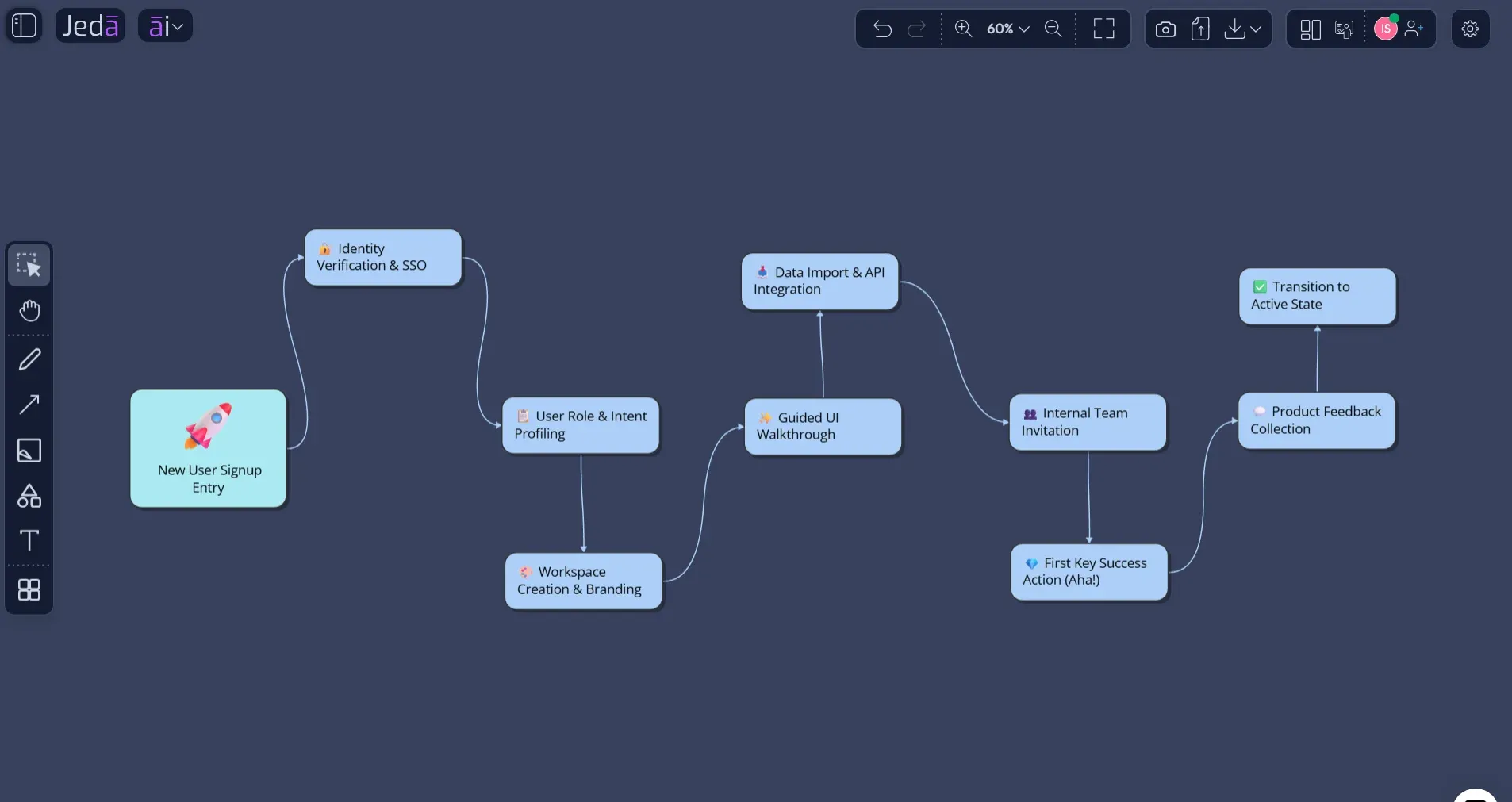
Activity Diagram with AI is a practical way to turn messy process notes into a clear UML workflow diagram without starting from a blank canvas. In Jeda.ai, you can create the diagram from a guided Activity Diagram recipe or from the Prompt Bar, then refine the result on an editable AI Whiteboard. That matters when your process has decisions, exceptions, parallel work, and handoffs that a simple checklist cannot explain.
Jeda.ai is an AI Workspace for visual thinking, software planning, and business process design. It helps teams move from raw context to editable visuals, not static screenshots. For activity diagrams, that means actions, decisions, swimlanes, forks, joins, and final outcomes can live on one collaborative canvas where stakeholders can review the logic together.
What is an Activity Diagram with AI?
An activity diagram is a UML behavior diagram that shows how actions flow through a process. It usually includes a starting point, action steps, decisions, branches, parallel paths, synchronization points, and an ending point. IBM describes UML activity diagrams as a way to show the sequence of actions in a process, including parallel or alternate flows. Microsoft also frames activity diagrams as flowchart-like views where control can move sequentially, concurrently, or through branches.
Activity Diagram with AI applies that modeling pattern to AI-assisted diagram creation. Instead of drawing every node manually, you describe the workflow, audience, goal, system boundary, business rules, and edge cases. Jeda.ai then turns that context into an editable visual diagram.
The key word is editable. A static AI-generated image is not enough for serious software or business analysis work. You need to adjust labels, change node order, add missing exception paths, move swimlanes, and clarify decision guards after the first draft. That is where Jeda.ai's Visual AI approach is useful: the diagram becomes working material inside an AI Whiteboard.
Why use Activity Diagram with AI instead of drawing from scratch?
Activity diagrams are simple when the process has five steps. They get painful when real life shows up. A customer onboarding flow may include identity checks, payment validation, manual review, failed document uploads, fraud flags, approval routing, email notifications, and cancellation paths. Draw that by hand once, and you will feel the spreadsheet goblin clawing at your soul.
AI helps by producing the first structured draft from your process description. Jeda.ai helps by keeping that draft visual, editable, and collaborative.
- Faster first drafts
Convert a process brief into a structured activity diagram instead of manually placing every action, decision, branch, and connector.
- Better branch coverage
Prompt for success paths, failure paths, approval loops, exception handling, and parallel work so the process does not look falsely linear.
- Clear ownership
Use swimlanes and role-based steps to show who does what across users, systems, reviewers, support teams, and external services.
- Editable visual output
Refine labels, shapes, connector paths, colors, and layout directly on the Jeda.ai canvas after generation.
- Optional web context
Use Web Search when the workflow depends on current policies, compliance context, or public process requirements.
- Stakeholder-ready clarity
Turn technical process logic into a visual that engineers, analysts, managers, and clients can review without decoding raw notes.
Jeda.ai also supports 300+ strategic frameworks and structured AI Recipes, so activity diagrams do not sit alone. A team can map a workflow, convert related findings into a matrix, summarize requirements, or use the same AI Workspace for planning, analysis, and presentation. For teams that already use an AI Whiteboard for workshops, that continuity saves time.
When should you create an Activity Diagram with AI?
Create an activity diagram when you need to explain process behavior, not object structure. A class diagram explains system entities and relationships. A sequence diagram explains message order between lifelines. An activity diagram explains the flow of work from start to finish.
Use Activity Diagram with AI when your workflow includes:
A good activity diagram answers four questions quickly: what starts the process, what actions happen, what decisions change the route, and what counts as completion. If the diagram cannot answer those questions, the AI output needs more context or a sharper review pass.
What should an activity diagram include?
A clear UML activity diagram uses a small set of symbols. Do not overcomplicate it. The goal is not to impress UML purists with decorative notation confetti. The goal is to make the workflow readable.
| Purpose | Common Symbol | Use in Activity Diagram with AI | |
|---|---|---|---|
| Initial Node | Marks where the workflow begins. | Filled circle | Use one clear starting point unless the process truly starts in parallel. |
| Action | Shows a task or behavior. | Rounded rectangle | Write action labels as verbs, such as Validate payment or Assign reviewer. |
| Decision | Splits the path based on a condition. | Diamond | Add guard labels such as Approved, Rejected, Valid, or Invalid. |
| Merge | Combines alternative paths. | Diamond | Use after separate branches return to the same process route. |
| Fork | Starts parallel paths. | Thick bar | Use when two or more activities can run at the same time. |
| Join | Synchronizes parallel paths. | Thick bar | Use when parallel work must finish before the next step starts. |
| Swimlane | Groups actions by actor or responsibility. | Partition lane | Use lanes for User, System, Admin, Support, or External Service. |
| Final Node | Marks completion. | Bullseye circle | Use clear outcomes such as Order completed or Request rejected. |
The AI-generated first draft should include these elements only when they clarify the process. For example, swimlanes are valuable when responsibility matters. Forks and joins are valuable when real parallel work exists. Decision diamonds are valuable when a condition changes the route. Otherwise, keep it plain.
How to Create an Activity Diagram with AI in Jeda.ai
Jeda.ai gives you two main creation paths. Use the Activity Diagram recipe when you want guided structure. Use the Prompt Bar when you already have a strong process prompt and want to move fast.
Method 1: Use the Activity Diagram recipe in the AI Menu
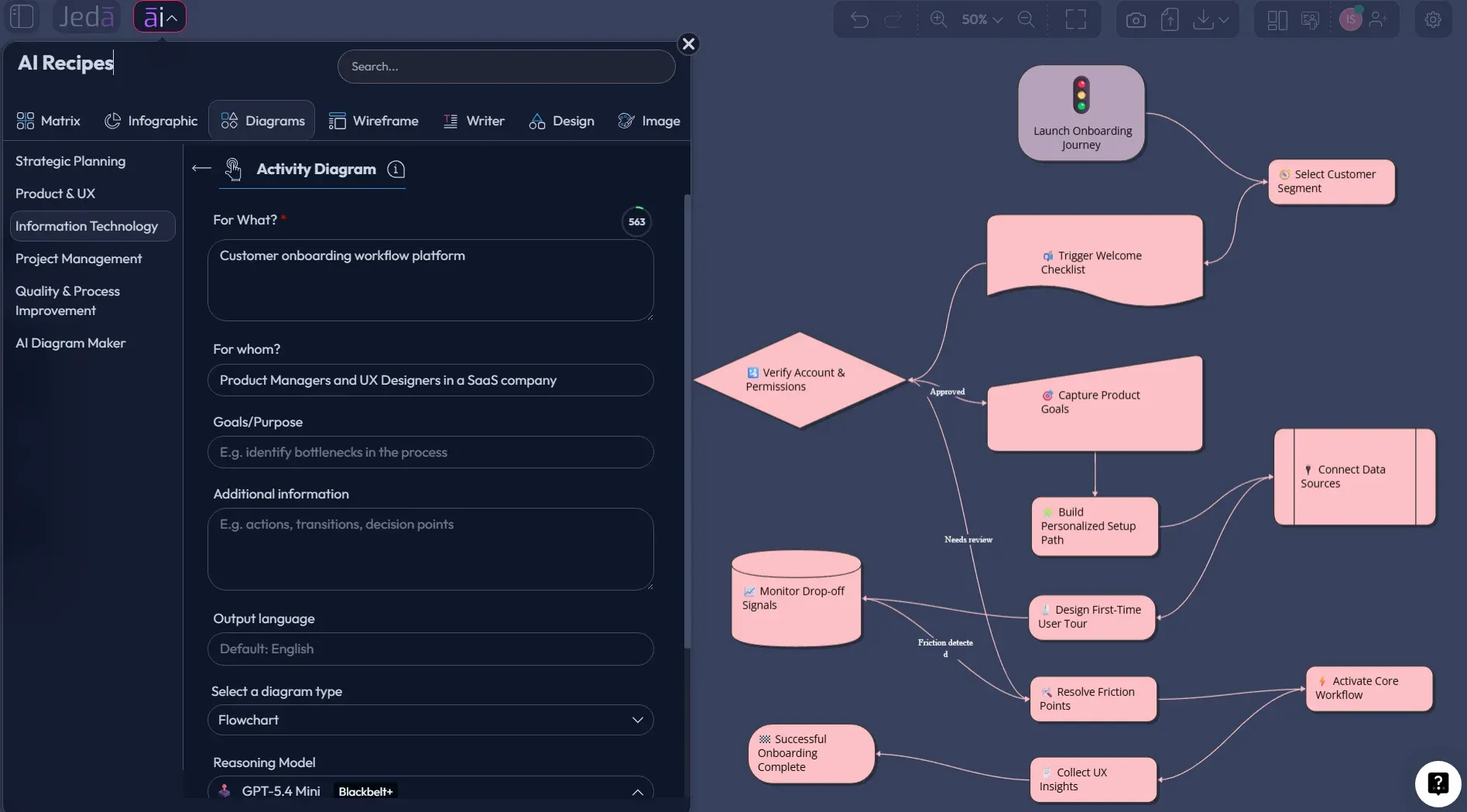
The Activity Diagram recipe is the recommended method for most teams because it asks for the right inputs before generation. You can access it from the AI Menu under the Diagrams category, then choose the Activity Diagram recipe inside the Information & Technology group.
The guided form should collect the usual diagram recipe context: what the diagram is for, whom it is for, the purpose, the workflow scope, the actors involved, and any additional context. This matters. A diagram for engineers needs different detail than a diagram for executives or clients.
When you fill the recipe, pay close attention to the generation controls. Select Basic Diagram when you want a UML-style connected shape diagram. Select Flowchart when the process is more operational and step-by-step. Select Mind Map only when you want to explore the process structure before turning it into a stricter workflow. Then choose the layout: Horizontal for left-to-right process reading, or Vertical for top-to-bottom documentation and long workflows.
Use Web Search only when freshness matters. If you are modeling a public compliance process, current policy workflow, or industry-specific procedure, turn Web Search on. If you are modeling an internal process, keep it off or set it to Auto so the diagram stays grounded in your own context. Finally, select the AI model available in your plan and generate.
- Open the AI Menu
Click the AI Menu in the top-left area of the Jeda.ai canvas and go to the Diagrams category.
- Choose Activity Diagram
Select the Activity Diagram recipe under Information & Technology so the guided form opens with the right structure.
- Fill in the process fields
Add what the activity diagram is for, whom it is for, the goal, actors, system boundary, success path, exception paths, and extra context.
- Select the diagram type
Choose Basic Diagram for UML-style workflow modeling, Flowchart for operational process mapping, or Mind Map for early exploration.
- Choose layout and web search
Pick Horizontal or Vertical layout. Turn Web Search on only when the process depends on current public information or external rules.
- Select the AI model
Choose the reasoning model available in your plan. Use a stronger model for complex workflows with many actors, loops, or exception paths.
- Generate and review
Generate the activity diagram, then inspect action labels, decision guards, ownership lanes, fork and join logic, and final outcomes.
- Extend or transform after generation
Use AI+ to extend or deepen existing parts of the diagram. Use Vision Transform if the same process should become a matrix, flowchart, or summary view.
Method 2: Use the Prompt Bar for direct generation
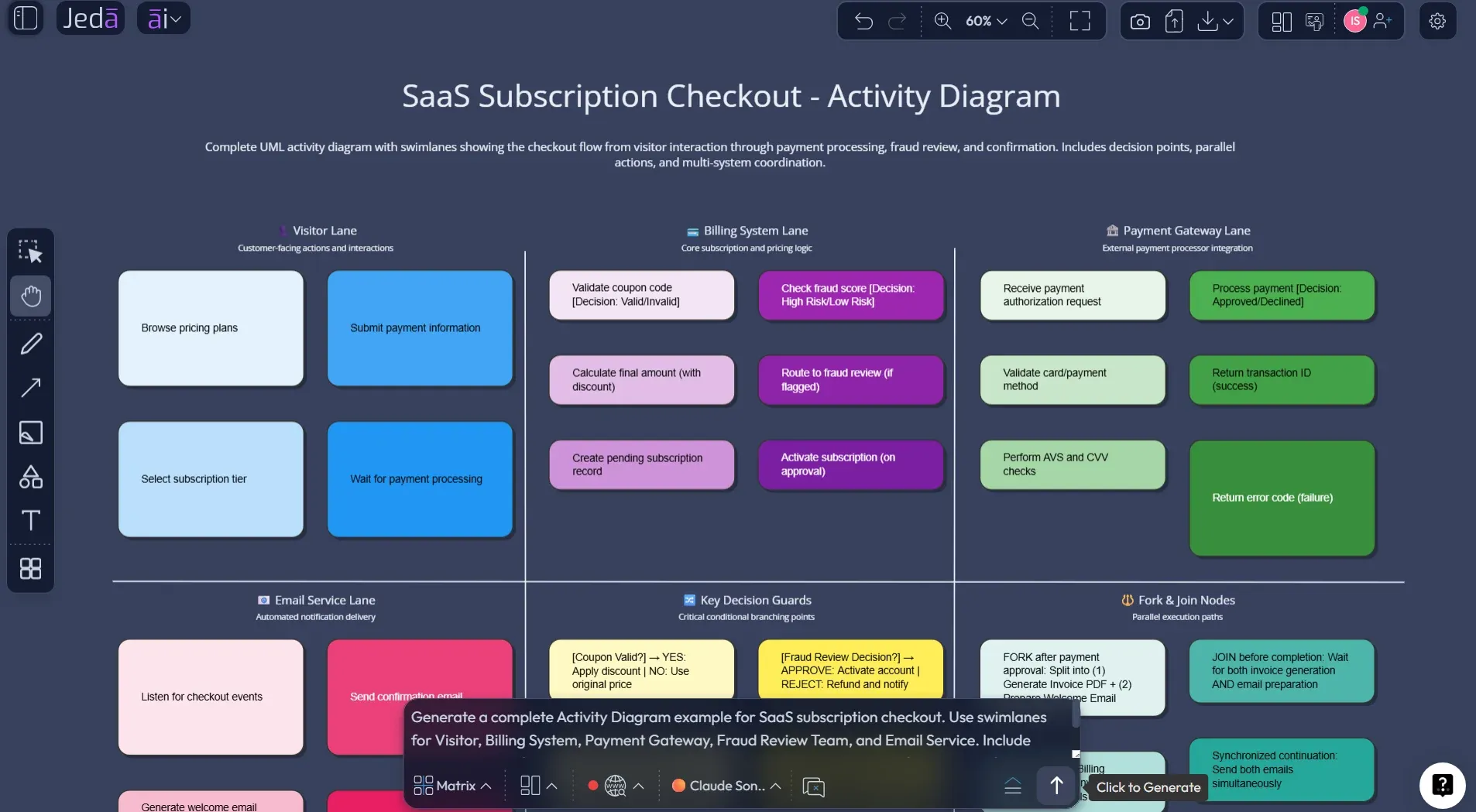
The Prompt Bar method is faster. It works best when you already know the workflow and can describe it clearly in one prompt. Open the Prompt Bar, select the Diagram command or Flowchart command depending on your intended output, choose Horizontal or Vertical layout where available, set Web Search if needed, choose your AI model, and generate.
A strong prompt should include the process name, actors, start event, main actions, decision points, exception paths, parallel work, and the desired audience. Do not just say, "Create an activity diagram for checkout." That gives the AI too much room to improvise. Give it constraints.
Here is a solid prompt you can use:
- Open the Prompt Bar
Use the Prompt Bar at the bottom of the Jeda.ai canvas as the direct input area for the activity diagram.
- Select Diagram or Flowchart
Choose Mind map for a UML-style connected visual or Flowchart when you want a more process-heavy step sequence.
- Paste a complete process prompt
Include actors, start event, action steps, decisions, exception paths, parallel work, and the audience that will review the diagram.
- Choose layout and model
Select Horizontal or Vertical layout where available, set Web Search if external context is needed, and pick the AI model.
- Generate the diagram
Review the generated diagram for missing branches, vague labels, unguarded decisions, and unclear handoffs.
- Refine on the canvas
Edit node text, reposition lanes, adjust connector routes, and use AI+ only to extend or deepen existing diagram content.
Activity Diagram with AI example: SaaS checkout workflow
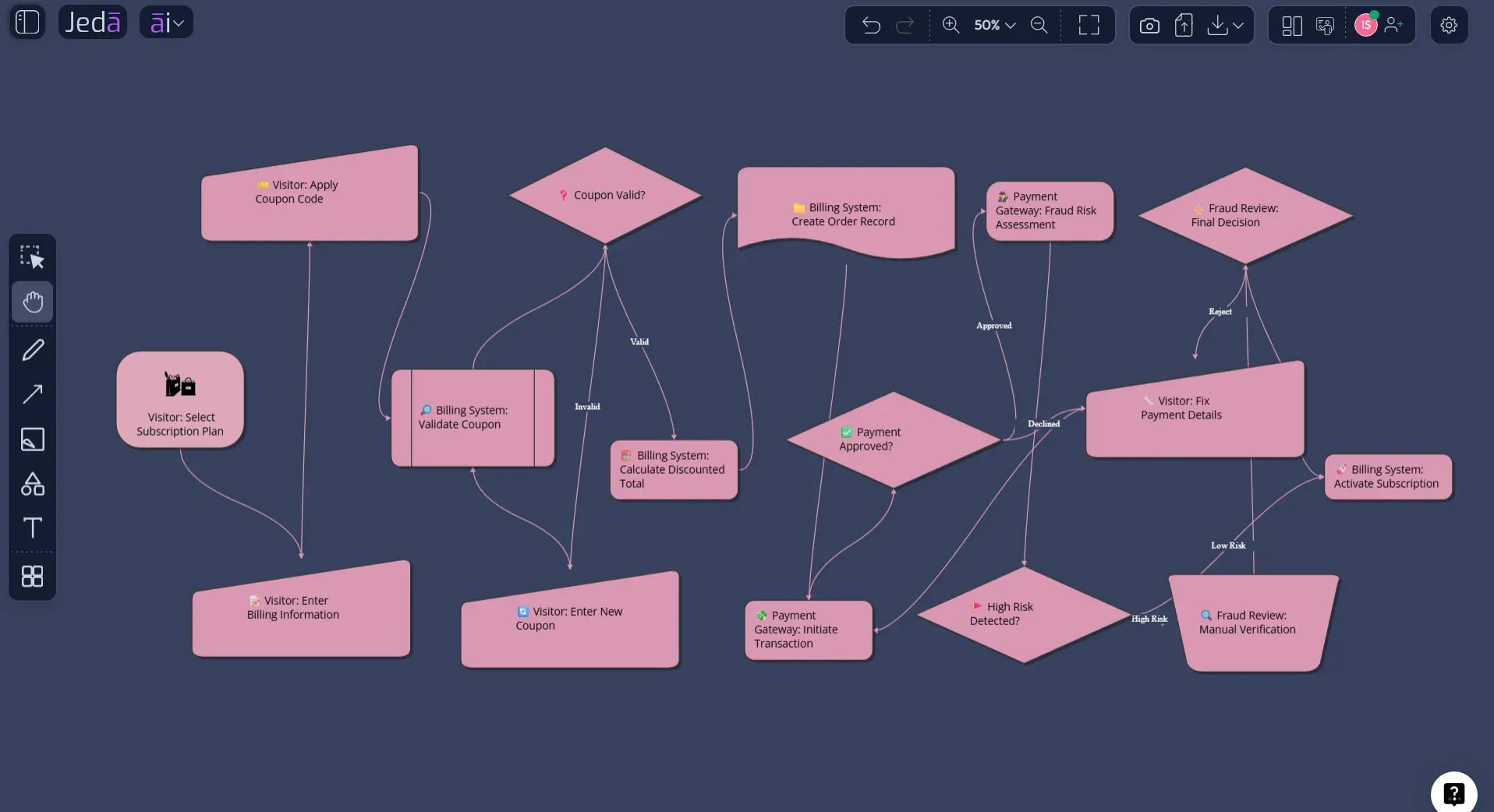
A SaaS checkout workflow is a strong example because it has a clean happy path and several real-world branches. The visitor may enter a coupon, the payment may fail, fraud review may trigger, and success actions can run in parallel. This is exactly the kind of process where an activity diagram beats a plain flowchart.
Here is how the AI-generated diagram should read:
- Visitor selects a paid plan.
- System requests account creation or login.
- Visitor enters billing details and optional coupon.
- Billing System validates coupon.
- Payment Gateway authorizes payment.
- Decision: payment approved?
- If no, visitor retries or exits with Payment Failed.
- If yes, system checks fraud risk.
- Decision: high risk?
- If yes, route to Manual Review Required.
- If no, fork into invoice generation and success email.
- Join after both actions complete.
- Activate subscription.
- End at Activated.
That structure gives engineering, QA, product, and support a shared view. Product can check whether the experience matches the intended journey. Engineering can confirm system responsibilities. QA can derive test scenarios from every branch. Support can understand where customers may get stuck.
Best practices for better AI activity diagrams
The best AI activity diagrams come from precise process context. The AI can structure the workflow, but it cannot know your internal policies unless you include them. Be specific. Name actors. Name failure states. Name final outcomes.
Use these practices when prompting Jeda.ai:
For large workflows, create the diagram in stages. Generate the main path first, then use AI+ to extend or deepen a selected section. But keep the limitation clear: AI+ is not a place to issue a fresh custom instruction. It extends the existing diagram context. If you need a specific rewrite, use the Prompt Bar or edit the canvas directly.
Common mistakes to avoid
The first mistake is asking for a diagram with too little process detail. "Create an activity diagram for onboarding" will produce a generic result. "Create an activity diagram for onboarding a new B2B SaaS customer from contract signature to first admin login" gives Jeda.ai a real modeling target.
The second mistake is hiding decisions inside action labels. If the step says "Approve or reject request," it should probably be a decision node with two outgoing paths. Make the route visible.
The third mistake is overusing parallel paths. Forks and joins should represent actual concurrent work. If the steps happen one after another, keep them sequential.
The fourth mistake is mixing different levels of detail. A diagram that jumps from "Process order" to "Call payment API endpoint with retry token" will feel uneven. Pick a level: business workflow, product workflow, system workflow, or implementation workflow.
The fifth mistake is forgetting the reviewer. An activity diagram for engineers can include technical actions. A diagram for executives should highlight stages, ownership, and outcomes. In Jeda.ai, the "for whom" field in the recipe helps prevent that mismatch.
Activity Diagram with AI vs flowchart vs sequence diagram
Activity diagrams, flowcharts, and sequence diagrams overlap, but they are not the same tool.
| Best For | Strength | Limit | |
|---|---|---|---|
| Activity Diagram | Workflow behavior with decisions, ownership, and parallel paths | Shows process logic across actors and conditions | Can become crowded if you model every technical detail |
| Flowchart | Simple step-by-step process explanation | Fast to read and familiar to most teams | Less precise for UML ownership, object flow, and concurrency |
| Sequence Diagram | Messages over time between systems or objects | Excellent for API calls and interaction order | Poor fit for broader business workflows with many branches |
Use an Activity Diagram with AI when the process behavior matters more than object structure or message timing. Use a sequence diagram when the call order between systems is the main point. Use a flowchart when you need a lightweight process explanation and UML precision is overkill.
Frequently Asked Questions
- What is Activity Diagram with AI?
- Activity Diagram with AI is the process of using AI to generate a UML-style activity diagram from workflow context. The result shows actions, decisions, branches, parallel paths, ownership lanes, and final outcomes in a visual format.
- Can Jeda.ai generate an activity diagram from a prompt?
- Yes. You can use the Prompt Bar to describe the process and generate a mind map or flowchart. For stronger structure, use the Activity Diagram recipe under the Diagrams category in the AI Menu.
- Which Jeda.ai method is best for activity diagrams?
- The Activity Diagram recipe is best when you want guided fields, layout control, diagram type selection, Web Search options, and AI model selection. The Prompt Bar is best when you already have a detailed workflow prompt.
- Should I choose Basic Diagram, Mind Map, or Flowchart?
- Choose Basic Diagram for a UML-style activity diagram. Choose Flowchart for a more operational process view. Choose Mind Map when you want to explore the workflow structure before turning it into a stricter activity diagram.
- Can AI+ create a specific new branch in my activity diagram?
- AI+ can extend or deepen selected diagram content. It should not be treated as a custom instruction field. For a specific new branch, use the Prompt Bar, edit the canvas manually, or regenerate the section with clearer context.
- When should Web Search be enabled?
- Enable Web Search when the activity diagram depends on current external information, such as public policies, industry rules, or compliance guidance. For internal workflows, keep Web Search off or set it to Auto.
- Can an activity diagram show parallel work?
- Yes. UML activity diagrams can show concurrent work with fork and join nodes. In your prompt, explicitly state which actions happen in parallel and where they must synchronize before the process continues.
- Can I use swimlanes in an AI-generated activity diagram?
- Yes. Ask for swimlanes by actor, team, system, or role. Swimlanes are useful when the workflow crosses users, internal teams, external services, and automated systems.
- Is an activity diagram the same as a flowchart?
- No. An activity diagram is flowchart-like, but UML activity diagrams can model control flow, object flow, decisions, concurrency, and responsibility partitions with more precision than a basic flowchart.
- Who should use Activity Diagram with AI?
- Software engineers, product managers, business analysts, project managers, consultants, and operations teams can use Activity Diagram with AI to explain workflows, review requirements, plan systems, and align stakeholders.
- Can Jeda.ai export the diagram?
- Yes. Jeda.ai supports export paths such as PNG, SVG, and PDF depending on plan and workspace options. Teams can also keep the diagram editable on the AI Whiteboard for collaboration.
- How many users trust Jeda.ai?
- Jeda.ai supports 150,000+ users who use its AI Workspace for diagrams, frameworks, visual analysis, collaboration, and structured thinking across business and technical workflows.
Sources and Further Reading
- [1]
Object Management Group (2017) . “Unified Modeling Language 2.5.1 Specification” OMG.
View Source ↗ - [2]
IBM (2026) . “Activity diagrams” IBM Documentation.
View Source ↗ - [3]
Microsoft (2026) . “Create a UML activity diagram” Microsoft Support.
View Source ↗ - [4]
UML-Diagrams.org (2026) . “Activity Diagrams” UML-Diagrams.org.
View Source ↗ - [5]
Marlon Dumas and Arthur H. M. ter Hofstede (2001) . “UML Activity Diagrams as a Workflow Specification Language” UML 2001, Springer LNCS.
View Source ↗
Create Your Activity Diagram with AI in Jeda.ai
Join 150,000+ users who use Jeda.ai to turn workflows, documents, and process ideas into editable visuals inside one AI Workspace.
Start Creating Free