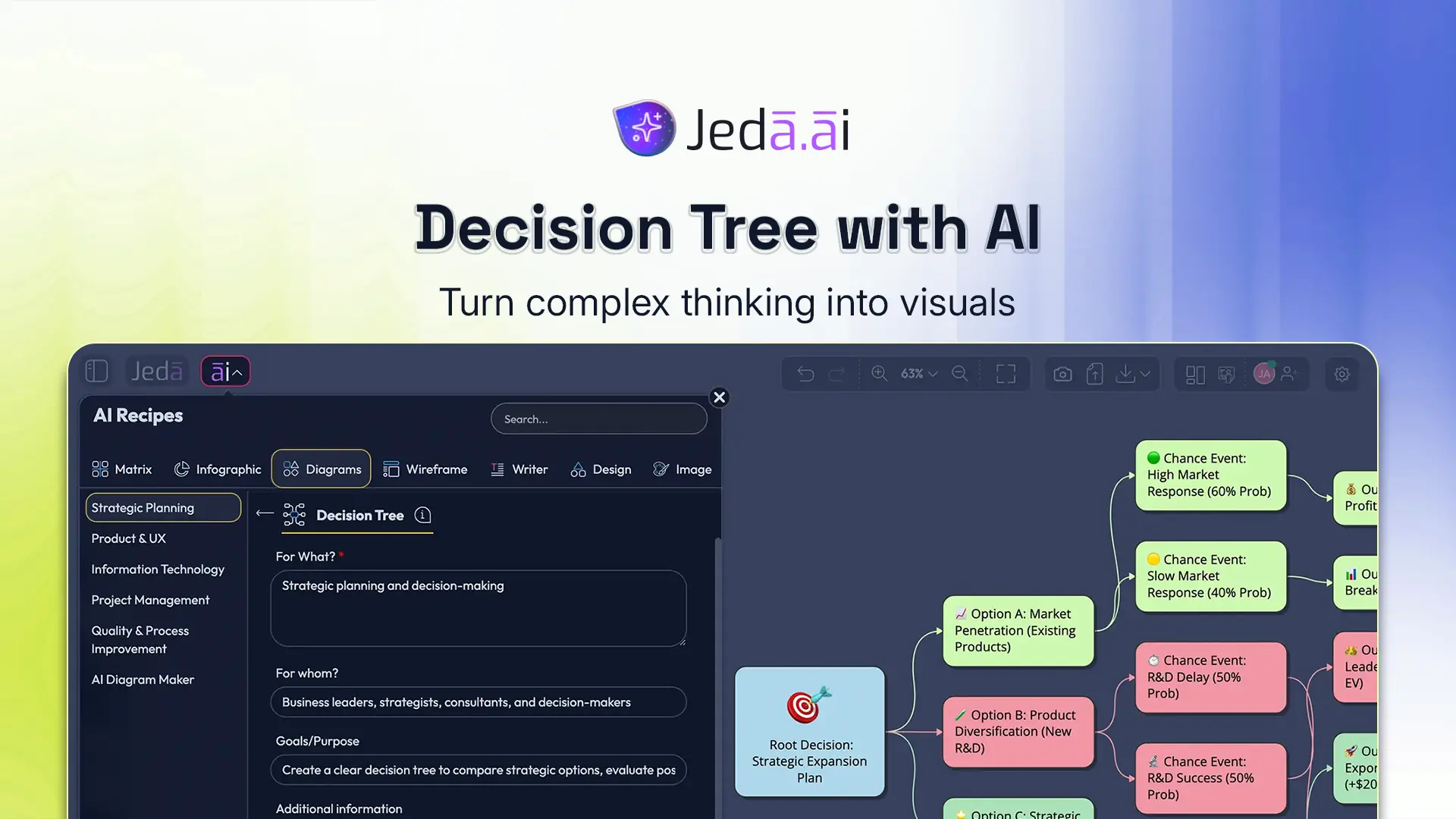
Decision Tree with AI is one of those rare frameworks that gets smarter the moment you stop treating it like a static diagram. In a modern AI Workspace, you can map choices, probabilities, risks, costs, and downstream consequences without redrawing the whole thing every time a stakeholder says, “Wait, what if we go with option B?” That is the practical appeal of Jeda.ai. It turns decision-tree thinking into an editable, collaborative workflow inside an AI Whiteboard instead of trapping it in a dead screenshot or a messy slide.
If you have ever tried to build a serious decision tree by hand, you already know the usual pain: branches multiply, assumptions hide in random notes, and the “final” tree becomes outdated the second new evidence appears. Jeda.ai fixes that by combining 300+ strategic frameworks, editable diagramming, AI-assisted generation, and collaborative refinement in one Visual AI workspace built for teams, analysts, consultants, and operators. More than 150,000+ users already use Jeda.ai to turn complex thinking into visuals people can actually act on.
A good decision tree is not just a diagram. It is a thinking tool. And when you build it in an AI Workspace instead of a blank canvas, you get speed without sacrificing logic.
What is a decision tree?
A decision tree is a visual model for structuring choices under uncertainty. You start with a core decision, branch into options, attach likely events or conditions, and then follow each path to likely outcomes, costs, or payoffs. Britannica describes it as a graphical device for structuring and analyzing decision problems, while John F. Magee’s classic Harvard Business Review article helped popularize decision trees in management decision-making in 1964. Howard Raiffa and later decision-analysis researchers then pushed the field further by linking tree structures to probability, expected value, and more disciplined reasoning.
That history matters because a lot of teams still misuse decision trees as pretty flowcharts. They are not the same thing. A flowchart explains a process. A decision tree compares alternative paths and helps you reason about uncertainty, trade-offs, and consequences. In other words, a decision tree is for choosing. A flowchart is for explaining.
This is exactly why the format works so well inside Jeda.ai. In a shared AI Whiteboard, you can generate the first structure quickly, edit every node, add assumptions, refine branch labels, and keep the logic visible to everyone in the room. Or in the Zoom. Or in the ten-message Slack thread that really should have been a board in the first place.
Why use Decision Tree with AI?
Manual decision trees are useful, but they are painfully slow once the problem gets real. AI changes the speed. Jeda.ai changes the workflow.
- Faster branching logic
Start from a prompt or recipe and get the first version of your decision tree in seconds instead of sketching every branch from scratch.
- Better structured trade-offs
Use the tree to compare options, outcomes, constraints, risks, and sequencing in one visual frame your team can discuss.
- Editable after generation
Every node, connector, label, and branch stays editable, so the tree can evolve as new information comes in.
- Built for collaborative decisions
Use the AI Whiteboard to align stakeholders, review alternatives, and keep the reasoning visible instead of buried in notes.
The bigger win is not just faster diagramming. It is decision clarity. A Decision Tree with AI gives you a practical way to test multiple paths, expose hidden assumptions, and make the logic discussable. That matters for strategy consultants deciding between expansion plays, product managers evaluating launch gates, business analysts mapping policy decisions, or industrial design engineers reviewing build-versus-buy branches in a production workflow.
And Jeda.ai is not just another blank canvas. The platform combines an AI Workspace, an AI Whiteboard, diagram generation, AI Recipes, web-grounded context, editable visuals, and AI+ expansion in one place. That means your first version is fast, but your second and third versions are not a nightmare either.
How to create Decision Tree with AI in Jeda.ai
Jeda.ai gives you two strong ways to build this framework. The first is the recommended path because it uses the dedicated Diagram recipe for Decision Tree. The second is the faster “type it and generate it” route from the Prompt Bar.
Method 1: Use the Diagram Recipe in AI Menu
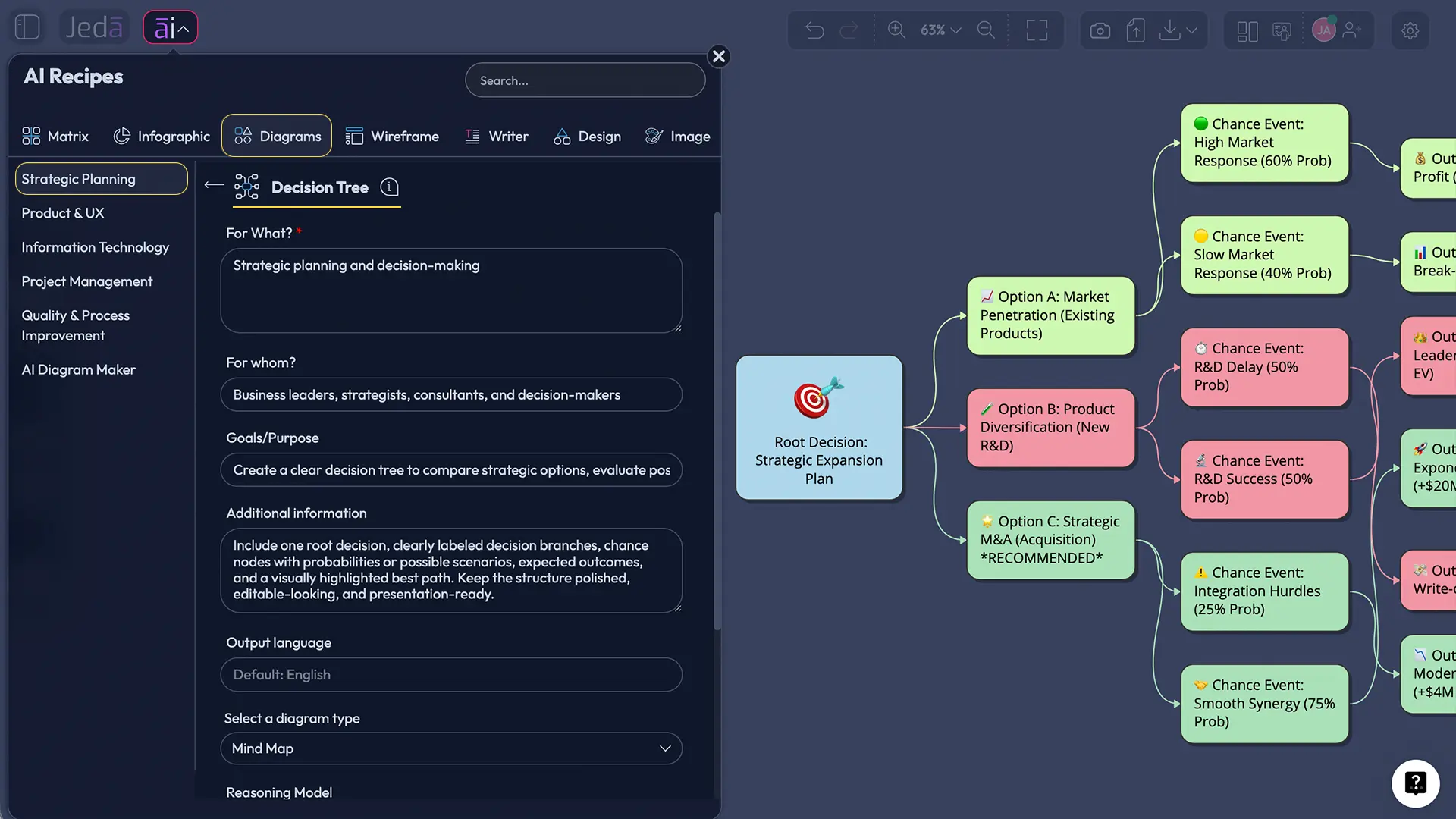
This is the best option when you want a cleaner setup and more guided control. Jeda.ai includes Decision Tree as a Diagram recipe, and that matters because the recipe form helps you frame the decision before the diagram is drawn. Instead of dumping a vague prompt and hoping for the best, you can define what the tree is for, who it is for, the decision context, and the goal of the analysis.
The Diagram recipe is especially useful for strategic planning because it gives you the usual form fields such as For What, For Whom, Goals/Purpose, and More Context. It also lets you choose layout direction, switch web search on when current context matters, select the diagram type, and pick the AI model that will generate the first draft. For decision trees, that means you can keep the logic tight from the start rather than retrofitting order after a messy output.
- Open AI Recipes from the ai∨ menu
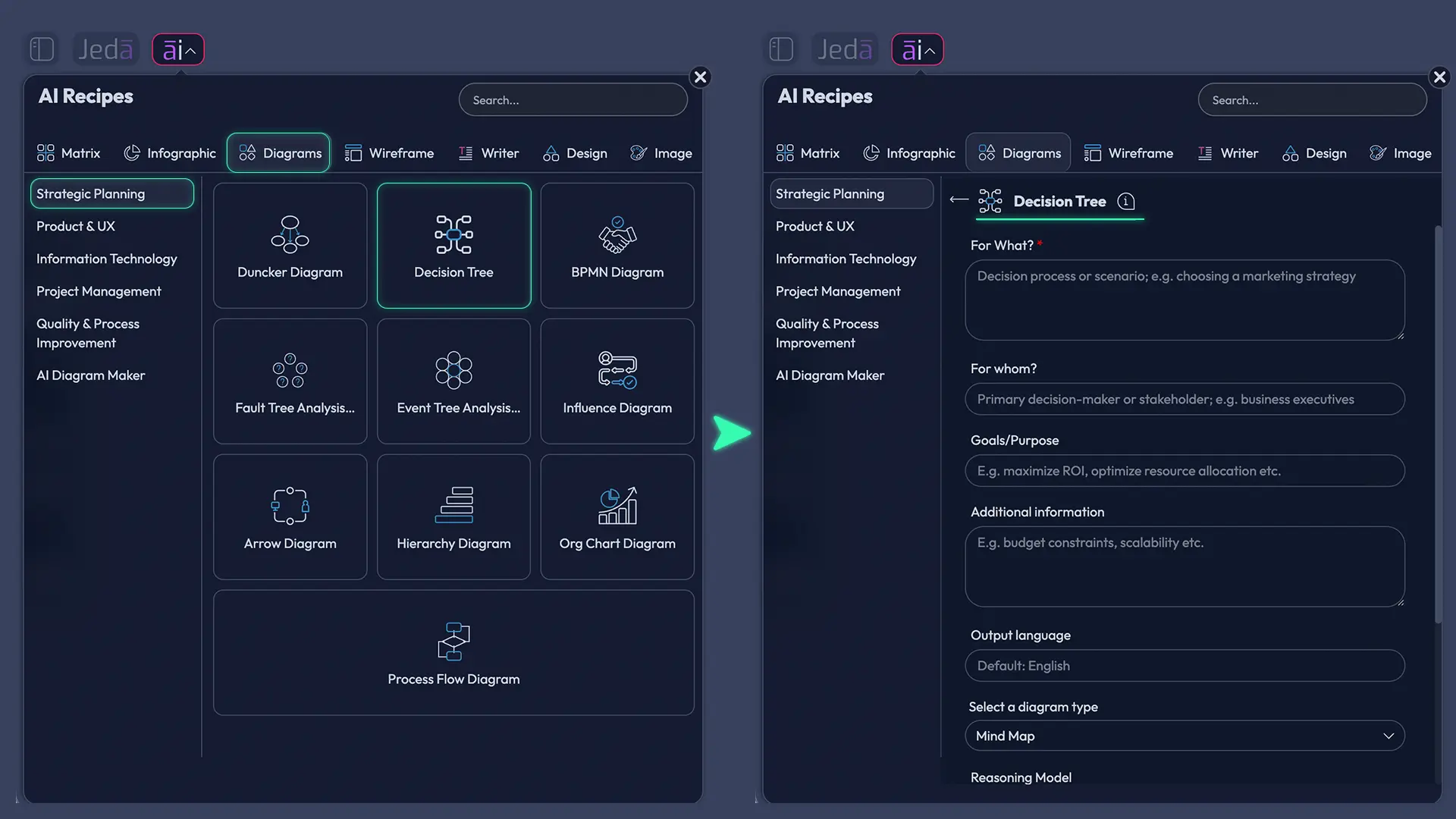
Click the AI Menu in the top-left corner, open the Diagrams category, and choose the Decision Tree recipe under Strategic Planning.
- Fill in the strategic context
Complete the form fields such as For What, For Whom, Goals or Purpose, and More Context so the tree is grounded in a real decision.
- Choose the structure settings
Pick Horizontal or Vertical layout, turn Web Search on when the decision needs current context, and select the diagram type that best fits the output style.
- Select the reasoning model and generate
Choose the model you want, then generate the first version of the decision tree directly onto the Jeda.ai canvas.
- Refine the branches
Edit node labels, add missing criteria, adjust connectors, and use AI+ on any branch to extend or deepen the analysis from what is already on the board.
A practical tip here: be specific about the decision frame, not just the topic. “Market expansion” is weak. “Whether a B2B SaaS company should enter healthcare directly, via partnership, or wait 12 months” is much better. The recipe will only be as sharp as the question you feed it.
Method 2: Use the Prompt Bar for a faster first draft
The Prompt Bar is faster when you already know the decision you want to model and just need the tree on the board. Open the Prompt Bar, choose the command, write a precise prompt, and generate. For a clean, decision-first structure, the Mind Map command usually gives you the most readable yes/no paths. When you want looser branching or a more exploratory structure, the Flowchart command also works well.
This is where Jeda.ai feels less like a toy and more like a practical AI Workspace. You can choose the layout direction, keep web search on for current context, pick your reasoning model, and get a structured first draft without babysitting every connector manually.
- Open the Prompt Bar
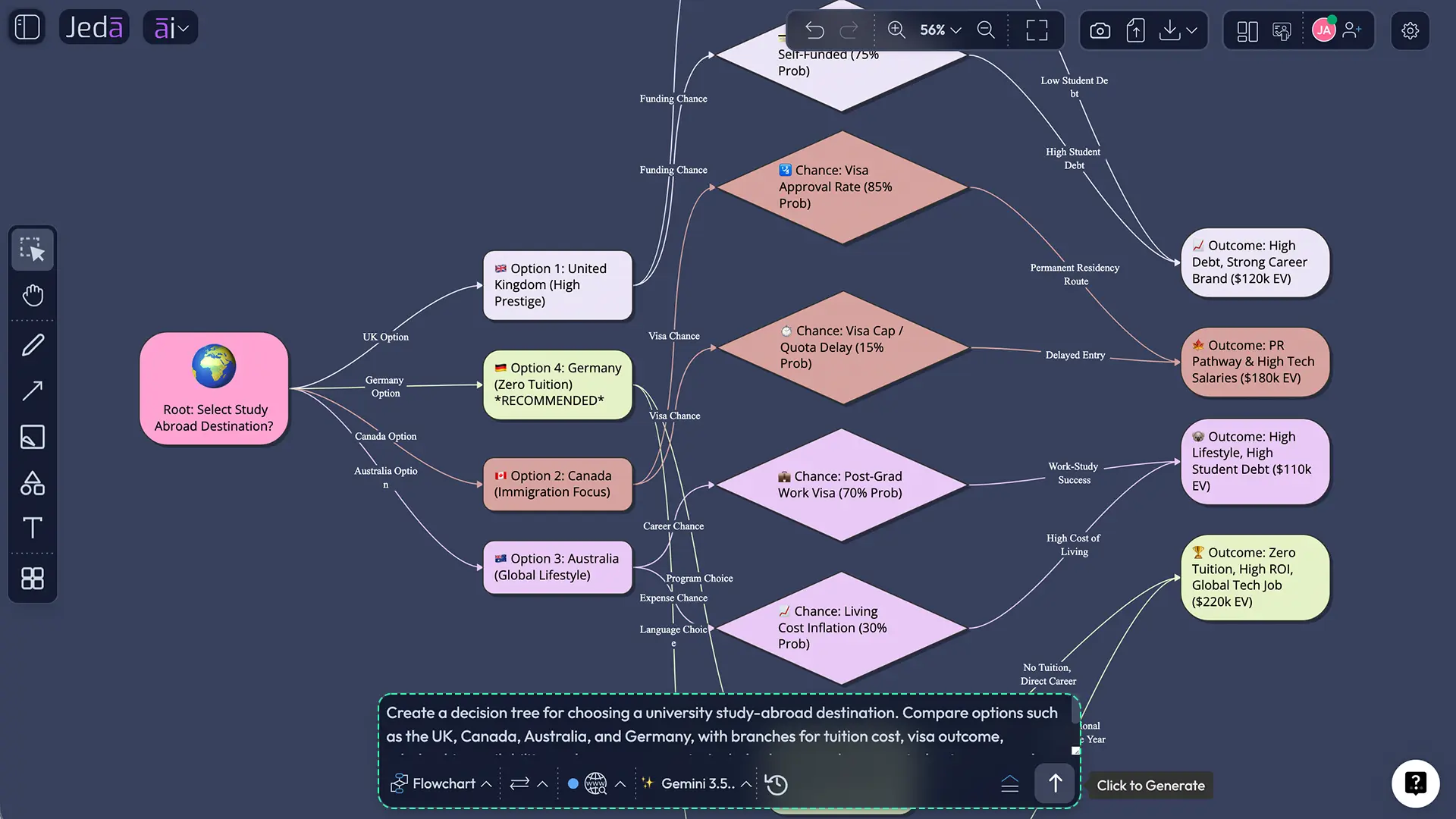
Go to the bottom-center Prompt Bar on the canvas and choose either Flowchart for cleaner branching logic or Mind Map for more flexible decision structures.
- Write a decision-focused prompt
Describe the core choice, the options, the key conditions, and the outcomes you want compared. Include probabilities or costs if they matter.
- Set the layout and context options
Choose Horizontal or Vertical layout, turn Web Search on when current facts matter, and select the reasoning model you want to use.
- Generate the tree
Click Generate and let Jeda.ai place the decision tree on an open part of the canvas.
- Improve the logic visually
Rename nodes, add missing branches, refine connectors, and use Vision Transform if you want to convert the same thinking into another visual later.
Here is the key thing about AI+ in this workflow. Use AI+ after the first version exists. Tap a node or branch and let Jeda.ai extend the reasoning, add likely downstream scenarios, or deepen a specific path. It is excellent for expanding what is already there. It is not the place to dump a totally unrelated new instruction and expect magic.
If you want to turn the same analysis into another format later, use Vision Transform. For example, you can convert the board into a higher-level flowchart for stakeholder presentation, or into a simpler visual for executive review.
Decision Tree example, use case, and starter prompt
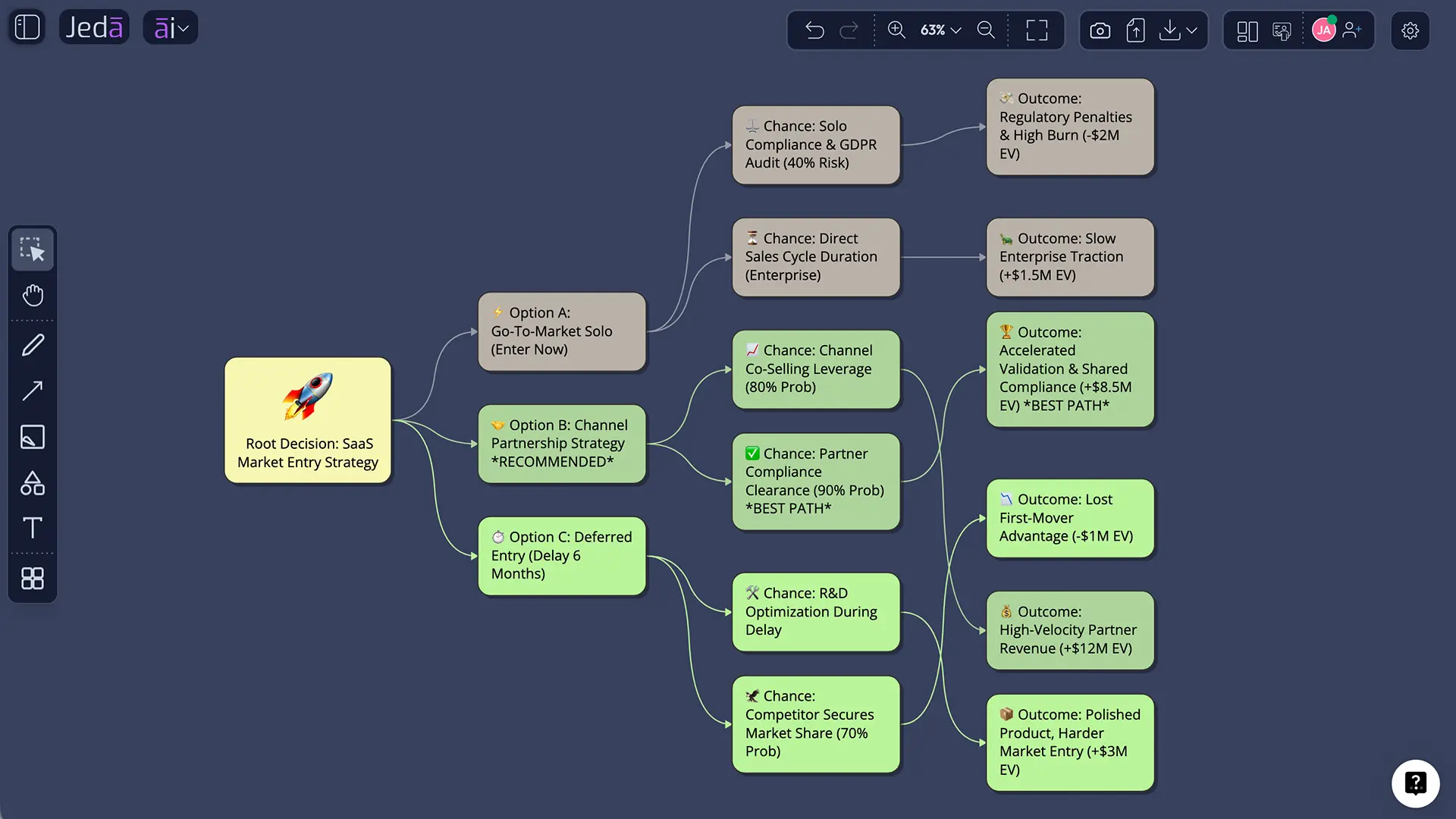
Let’s make this concrete. Imagine a SaaS company deciding whether to enter a regulated market this quarter.
The core question is simple enough: Should we expand now, expand through a partner, or delay? But the real decision is not simple. Direct entry could produce higher revenue but also higher compliance cost. Partnership could reduce speed-to-market risk but lower upside. Waiting could protect cash but cost momentum. That is exactly the kind of situation where a decision tree earns its keep.
Once the tree is generated, do not stop at the first output. That is where mediocre teams quit and then complain that AI is shallow. Review each branch. Tighten the assumptions. Add missing chance nodes. Use AI+ to deepen the logic on the riskiest branch. Then make the tree presentable by cleaning node labels and simplifying the paths that do not help the final call.
If your team makes repeated choices of this kind, save the board as a reusable pattern. That is where the AI Whiteboard becomes a real operating asset rather than a one-off experiment.
Best practices that make a decision tree actually useful
The best decision trees are not the biggest ones. They are the clearest ones.
You should also decide early whether the tree is exploratory or evaluative. Exploratory trees are for framing possibilities. Evaluative trees are for comparing likely value, risk, or consequence. Mix those two and the board gets muddy fast.
For teams using Jeda.ai, another best practice is to use the AI Whiteboard as the shared source of truth, then export the visual as PNG, SVG, or PDF when you need to circulate it outside the workspace. That keeps the working logic editable inside Jeda.ai while still making the result easy to share.
Common mistakes that make decision trees weaker than they should be
The first mistake is treating a decision tree like a poster instead of a thinking model. If nobody can edit assumptions, change branches, or challenge the logic, the tree becomes decoration. Not analysis.
The second mistake is stuffing every possible idea into one board. Decision trees are powerful, but they are not garbage bins for every factor you can imagine. If the tree turns into a dense forest of hypothetical noise, nobody can use it.
The third mistake is skipping the uncertain events. Teams often branch options but forget to model what happens if the environment changes, a dependency fails, or an assumption turns out false. That is the entire point of the method. Uncertainty belongs in the tree.
The fourth mistake is confusing a decision tree with a process flow. If you are mapping steps in a workflow, use a flowchart. If you are weighing choices and possible outcomes, use a decision tree. Jeda.ai supports both, which is useful, but only if you pick the right one.
The fifth mistake is generating once and never iterating. A first-draft tree is a draft. Use AI+ to deepen promising paths. Use edits to simplify labels. Use collaboration to pressure-test the logic. That is how the framework becomes decision-grade.
Decision Tree vs flowchart vs mind map
Here is the fast rule.
A Decision Tree with AI is best when you need to compare alternatives and model consequences.
A flowchart is best when you need to show how a process moves from step to step.
A mind map is best when you need to explore a topic, collect branches of thought, or expand ideas before you decide anything.
That is one reason Jeda.ai works well for this kind of work. You can start in one mode and move to another without leaving the same AI Workspace. A team might brainstorm options in a mind map, turn the strongest options into a decision tree, and then convert the final path into a flowchart for execution. That is a much saner workflow than bouncing across disconnected tools.
If you want to explore adjacent capabilities, see AI Workspace, AI Whiteboard, Generate Flowcharts with AI. Those pages help connect decision-tree work with the rest of Jeda.ai’s broader Visual AI system.
Frequently asked questions
- What is Decision Tree with AI?
- Decision Tree with AI is the process of using AI to generate, expand, and refine a decision tree that maps choices, conditions, and outcomes. The value is speed plus structure: you get a fast first draft, but the logic remains editable and discussable.
- When should I use a decision tree instead of a flowchart?
- Use a decision tree when you need to compare options and analyze uncertain outcomes. Use a flowchart when you need to explain a process step by step. One helps you choose; the other helps you show how something works.
- Does Jeda.ai have a Decision Tree recipe?
- Yes. Jeda.ai includes Decision Tree inside its Diagram recipes, which lets you generate the framework through AI Recipes instead of building it manually from a blank canvas.
- Can I create a decision tree from the Prompt Bar too?
- Yes. Open the Prompt Bar, choose Flowchart or Diagram, write a clear decision-focused prompt, and generate the tree directly on the canvas. This is usually the faster option when you already know the structure you want.
- Can I edit the decision tree after AI generates it?
- Yes. Jeda.ai keeps the visual editable, so you can rename nodes, adjust connectors, add branches, change formatting, and refine the logic after generation. That makes the output much more useful than a static image.
- How should I use AI+ on a decision tree?
- Use AI+ to extend or deepen a branch that already exists. It works best when you want more detail, more downstream scenarios, or extra analytical depth from the current structure rather than a totally separate instruction.
- Can I use web-grounded context while creating a decision tree?
- Yes. Jeda.ai’s web search is a platform feature that can help ground the output when current information matters. That is useful for market decisions, competitive moves, regulation changes, or other context-sensitive choices.
- What makes a decision tree strong?
- A strong decision tree has one clear root decision, explicit branches, visible uncertainties, and outcome paths that matter to the final choice. It should reduce ambiguity, not add more of it.
- Can I export the finished board?
- Yes. Jeda.ai supports export as PNG, SVG, and PDF. That gives teams a clean way to share the finished visual while keeping the working version editable inside the AI Workspace.
- Who benefits most from Decision Tree with AI?
- Strategy consultants, product managers, business analysts, project managers, business leaders, and design or engineering teams all benefit when they need to compare options and show the logic behind a decision clearly.
Sources and further reading
- [1]
John F. Magee (1964) . “Decision Trees for Decision-Making” Harvard Business Review.
View Source ↗ - [2]
Howard Raiffa (1968) . “Decision Analysis: Introductory Lectures on Choices Under Uncertainty” Addison-Wesley / Internet Archive.
View Source ↗ - [3]
Ralph L. Keeney (1982) . “Decision Analysis: An Overview” Operations Research.
View Source ↗ - [4]
Craig W. Kirkwood (1992) . “An Overview of Methods for Applied Decision Analysis” Interfaces.
View Source ↗ - [5]
Encyclopaedia Britannica Editors (2026) . “Decision Tree” Britannica.
View Source ↗
Build your next Decision Tree with AI in Jeda.ai
Join 150,000+ users using an AI Workspace and AI Whiteboard to turn hard choices into editable, collaborative visuals.
Try Free Template