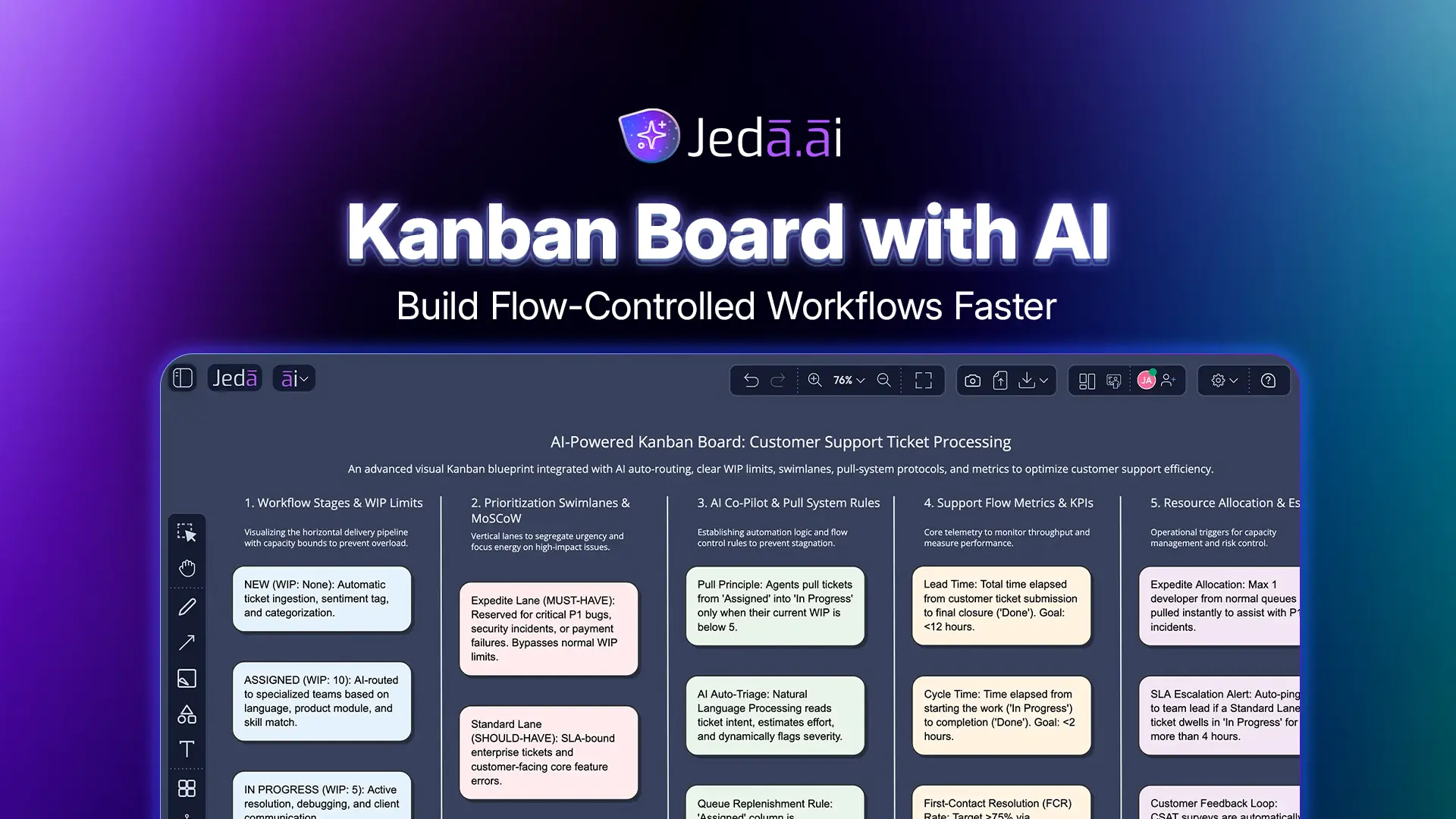
Kanban Board with AI gives product, support, engineering, and operations teams a faster way to design a work system before real work piles up. A conventional board can show tasks; a stronger board explains flow rules, WIP limits, pull policies, priority lanes, and metrics. In Jeda.ai, the Kanban Board matrix recipe turns those design choices into an editable Visual AI board inside an AI Workspace used by 150,000+ users.
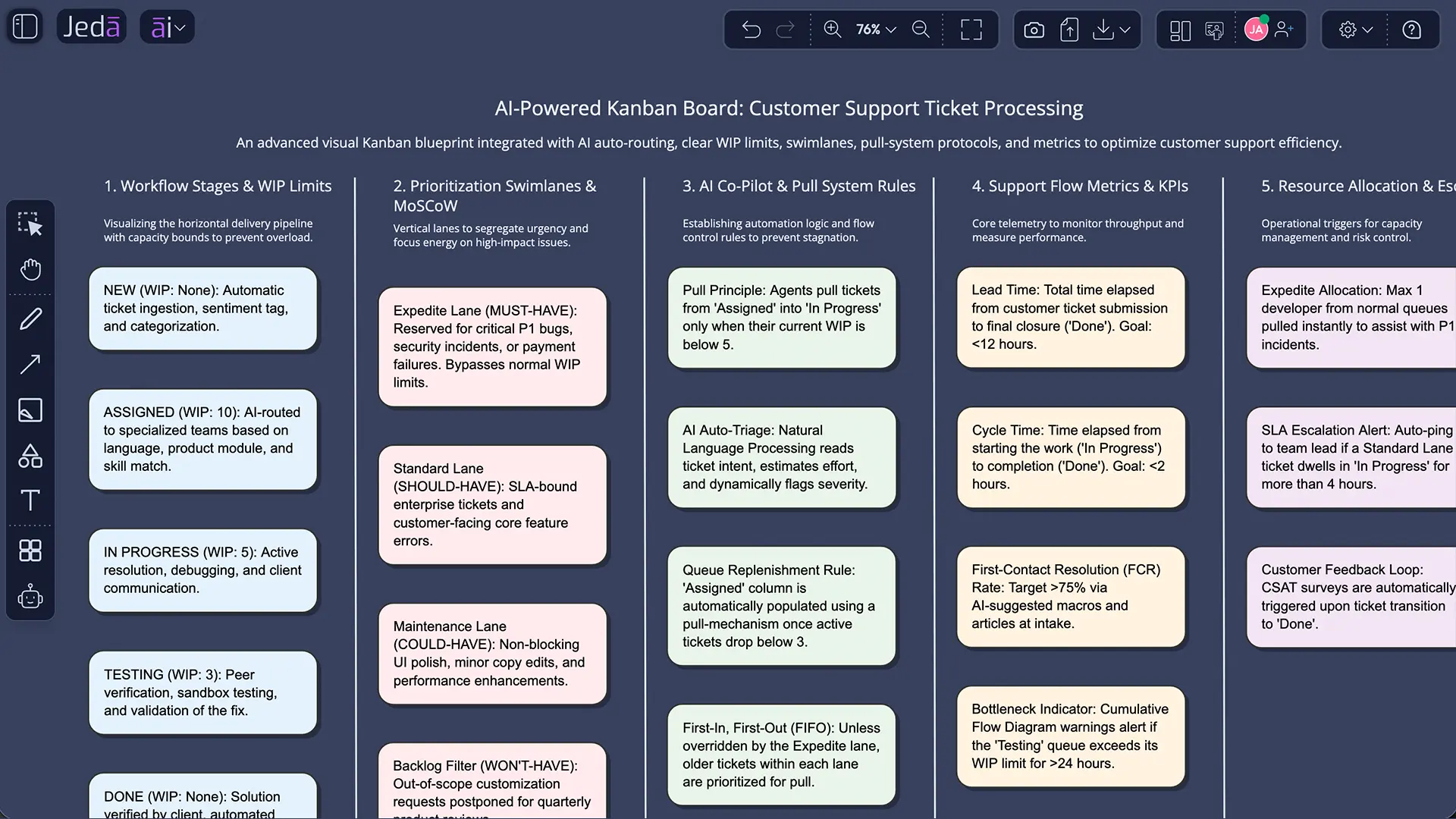
What is a Kanban Board with AI?
A Kanban board is a visual workflow system that shows work items moving through defined stages, usually from commitment to completion. Its intellectual roots sit inside Toyota's production system, where kanban signals helped coordinate what to produce, when to produce it, and in what quantity. Toyota's historical account states that kanban made just-in-time production possible by describing which parts were needed, how many were needed, and where they were used.
A Kanban Board with AI keeps that flow logic but adds reasoning support. Instead of manually guessing the right columns, WIP limits, policies, and metrics, you give the AI your work type, workflow stages, prioritization rules, and constraints. The AI then drafts a board structure you can edit, debate, and refine with the team.
That distinction matters. A board with only columns is a status display. A board with WIP limits, explicit pull rules, and flow metrics is an operating system for work. Jeda.ai treats the board as a structured matrix, not a decorative task tracker.
Why Kanban Works: Flow, Limits, and Feedback
Kanban is often misread as a simple To Do, Doing, Done template. That version is useful, but it misses the method's deeper contribution: controlling the amount of unfinished work in a system. In queueing terms, Little's Law states that average work in process, arrival rate, and average time in system are mathematically connected. When WIP grows without matching capacity, cycle time tends to expand. The board starts lying politely. It says work is moving, while the queue says otherwise.
Software and knowledge-work research echoes this point. Studies on Kanban in software engineering report recurring benefits such as improved visibility, better flow awareness, reduced multitasking, and clearer constraints, while also warning that benefits depend on disciplined adoption. A board alone cannot fix weak policies.
- Visualize invisible work
Map requests, reviews, blockers, rework, and done criteria so teams can see where work actually waits.
- Limit work in progress
Set WIP limits per stage or lane to reduce context switching and expose bottlenecks earlier.
- Measure flow
Track lead time, cycle time, throughput, blocked work, and aging work items instead of relying on status sentiment.
- Define pull rules
Clarify when a team member may pull the next item, what ready means, and what finished means.
- Prioritize consciously
Use swim lanes, MoSCoW, expedite policies, or service classes without turning the board into chaos with nicer colors.
- Improve with AI
Use AI to draft the initial structure, compare policy options, and expose missing constraints before the team adopts the board.
Why Create a Kanban Board with AI in Jeda.ai?
A Kanban board is easiest to start and hardest to calibrate. Teams usually agree on the columns. The difficult questions come later: should testing have a lower WIP limit than implementation? Does urgent work get an expedite lane? Who can pull from Assigned into In Progress? What metric proves the board is improving delivery rather than just making delay visible?
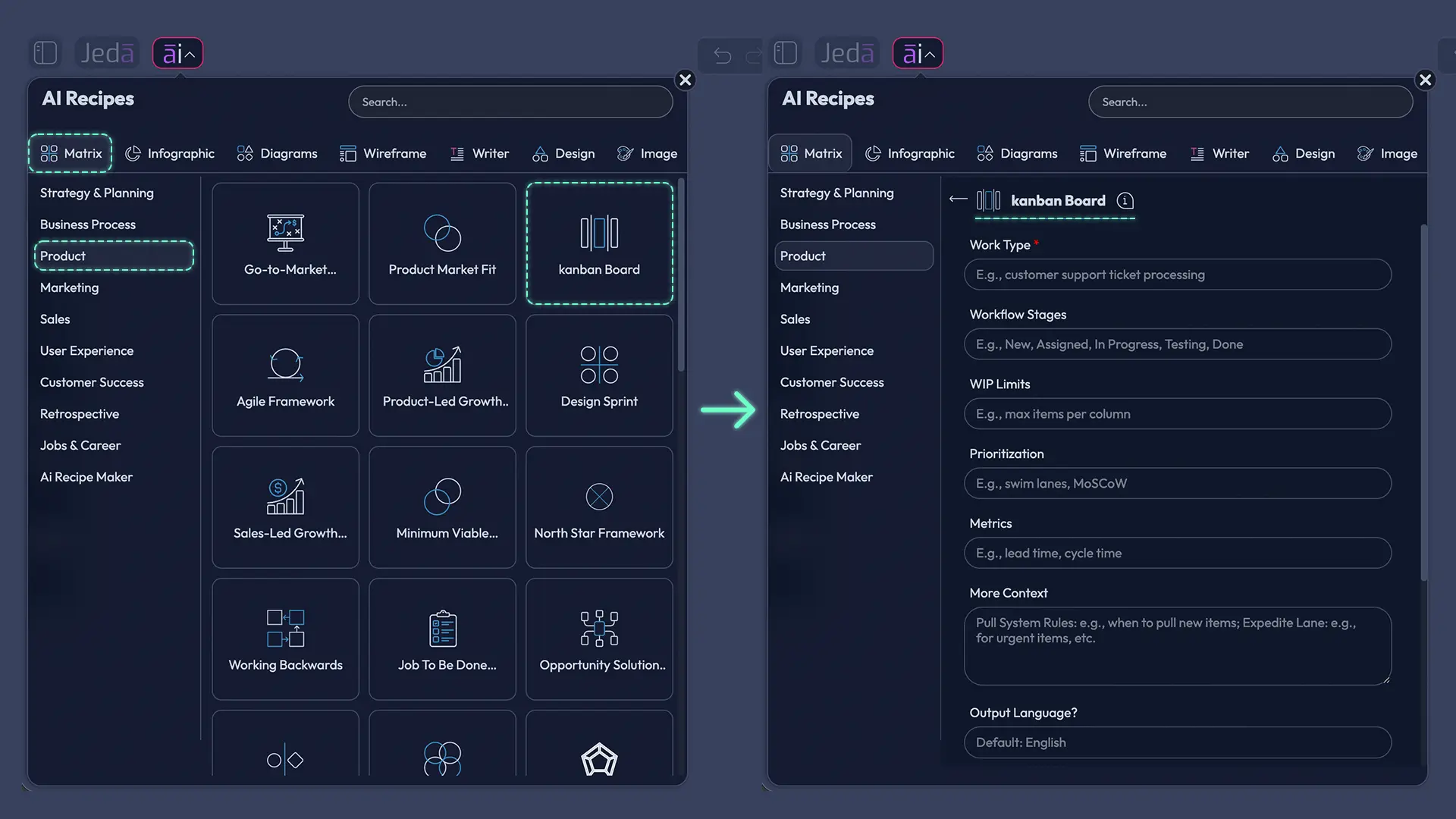
Jeda.ai helps at that design layer. The Kanban Board recipe in the Product category asks for Work Type, Workflow Stages, WIP Limits, Prioritization, Metrics, and More Context. Those fields force the user to describe the work system rather than merely naming columns. The output appears as an editable Matrix visual on an AI Whiteboard, so teams can revise labels, move cards, change colors, and keep the board inside a broader AI Workspace.
This is where the matrix recipe earns its keep. It gives the AI enough structure to reason about flow policies. The Prompt Bar is still useful for fast generation, but the recipe is better for repeatable product, support, or operations boards because it collects the exact variables that shape a Kanban system.
Jeda.ai also supports Web Search as a platform feature, layout selection for Matrix outputs, AI model selection, and optional advanced file context. For advanced usage, upload a product brief, support report, sprint retrospective, SLA document, or CSV export. Then use the recipe's file-analysis option to ground the board in operational evidence. Not vibes. Evidence.
How to Create a Kanban Board with AI in Jeda.ai
Jeda.ai gives you two practical creation paths. The recommended path is the Kanban Board matrix recipe under the Product category. The faster path is the Prompt Bar with the Matrix command. Use the recipe when the board will guide a real team. Use the Prompt Bar when you need a quick draft, workshop starter, or alternative layout.
Method 1: Use the Kanban Board Matrix Recipe
The recipe method is the stronger academic and operational choice because it separates variables that are often blurred in casual Kanban use. Work type defines the domain. Workflow stages define the system boundary. WIP limits define capacity discipline. Prioritization defines decision policy. Metrics define feedback.
- Open AI Recipes from the AI Menu
Click the AI Menu at the top-left of the Jeda.ai canvas. Open the Matrix recipe area and browse the Product category.
- Select the Kanban Board recipe
Choose the Kanban Board matrix recipe. This recipe is designed for structured workflow design, not generic note taking.
- Enter the Work Type
Describe the work system, such as customer support ticket processing, product roadmap execution, QA triage, feature delivery, content production, or hiring operations.
- Add Workflow Stages
List the real stages work passes through. Example: New, Assigned, In Progress, Testing, Done. Avoid invented stages that no one will maintain.
- Define WIP Limits
State limits per column or a rule such as max items per column. The AI uses this to design a board that controls flow rather than only reporting status.
- Set Prioritization Rules
Add swim lanes, MoSCoW, expedite rules, service classes, SLA priority, or risk categories. This prevents urgent work from quietly hijacking every column.
- Choose Metrics
Specify lead time, cycle time, throughput, blocked work, aging items, or cumulative flow. The board should teach the team what to inspect.
- Use More Context
Add pull system rules, definition of ready, definition of done, owner roles, escalation triggers, blocked-item policy, and any constraints from the team.
- Enable Web Search and choose layout
Turn Web Search on when external context is useful. Choose Auto, Column, or Grid layout for the Matrix output, then select the reasoning model or Multi-LLM Agent.
- Generate, review, and edit
Click Generate. Review the editable board on the AI Whiteboard, revise stages or policies, and use AI+ only to extend or deepen generated sections.
Method 2: Use the Prompt Bar with Matrix Command
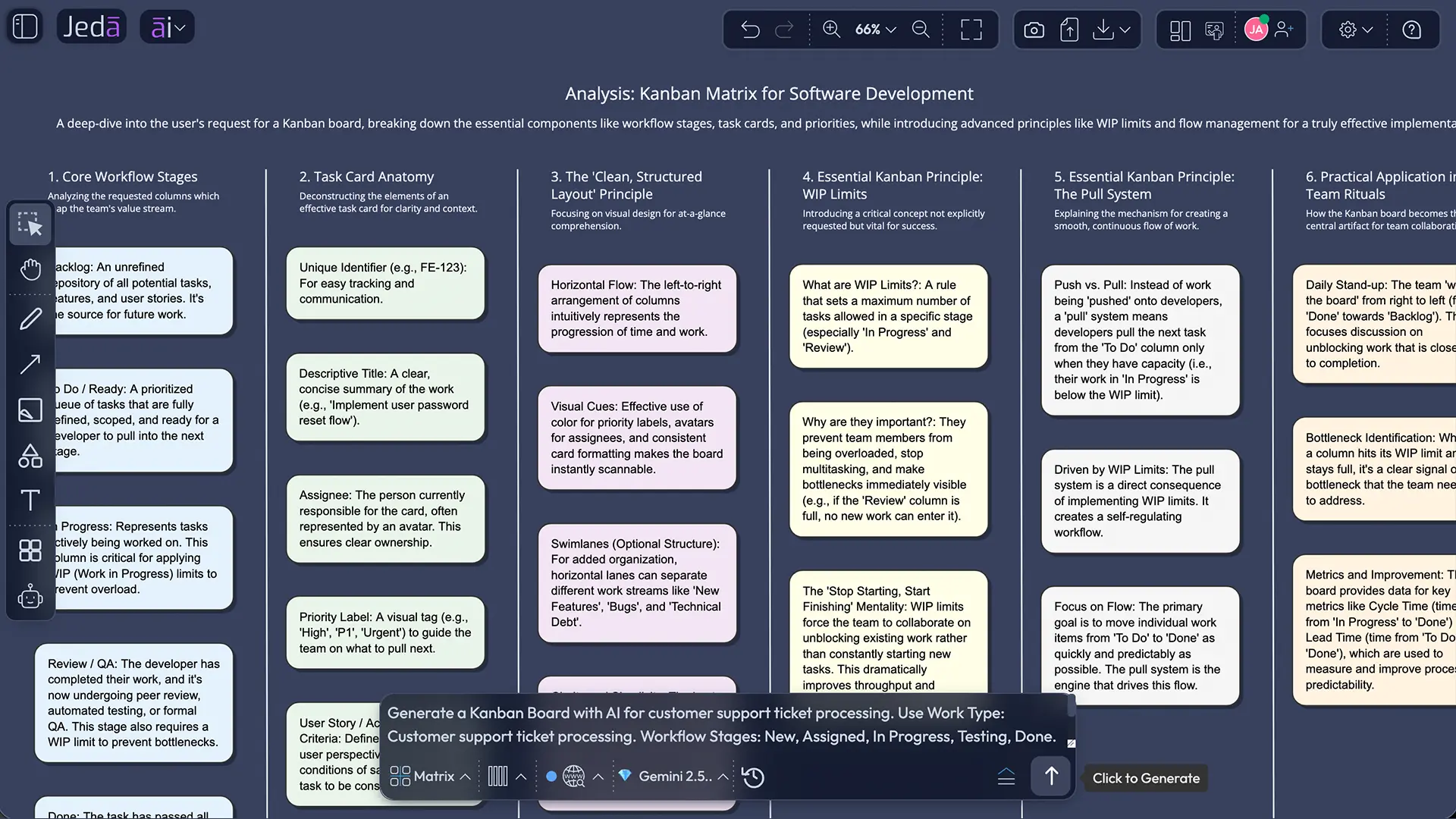
The Prompt Bar method is direct. It is useful when you already know the board pattern and want the AI to draft it without opening the recipe form. Select the Matrix command, choose Auto, Column, or Grid layout, set Web Search if needed, choose your AI model, then write a compact but complete prompt.
- Open the Prompt Bar
Use the bottom-center Prompt Bar in Jeda.ai. This is the fastest path for generating a Kanban board draft.
- Select Matrix
Choose the Matrix command so the output becomes an editable structured board with columns, rows, labels, and policy cells.
- Choose layout
Select Auto for a balanced first draft, Column for stage-heavy workflows, or Grid when you want policies, metrics, and lanes to stay visually distinct.
- Set Web Search and AI model
Use Web Search when the workflow depends on current market, compliance, support, or product-delivery context. Select the reasoning model or Multi-LLM Agent.
- Write a structured prompt
Include Work Type, Workflow Stages, WIP Limits, Prioritization, Metrics, and More Context in one prompt. The more precise the inputs, the better the board.
- Generate and refine
Generate the board, edit the Smart Shapes directly, and use AI+ to extend or deepen a generated column, lane, or policy block without giving AI+ a separate detailed instruction.
Kanban Board with AI Example: Customer Support Ticket Processing
Consider a support organization that handles incoming customer issues across email, chat, and enterprise accounts. A weak board might show New, Assigned, In Progress, Testing, Done. That is a start, but it hides the real operating questions. Enterprise escalations may need a separate lane. Regression-prone tickets may need QA. Stale tickets need aging rules. Team leads need cycle time and blocked-item visibility.
A stronger Jeda.ai recipe input would look like this:
The resulting matrix can show columns for stages, rows for service classes, and side cells for WIP rules, pull policies, and metrics. On a Jeda.ai AI Whiteboard, the team can attach meeting notes, SLA documents, support exports, or retrospective findings. If the board needs more context, upload a doc or data file and use it through the advanced recipe flow.
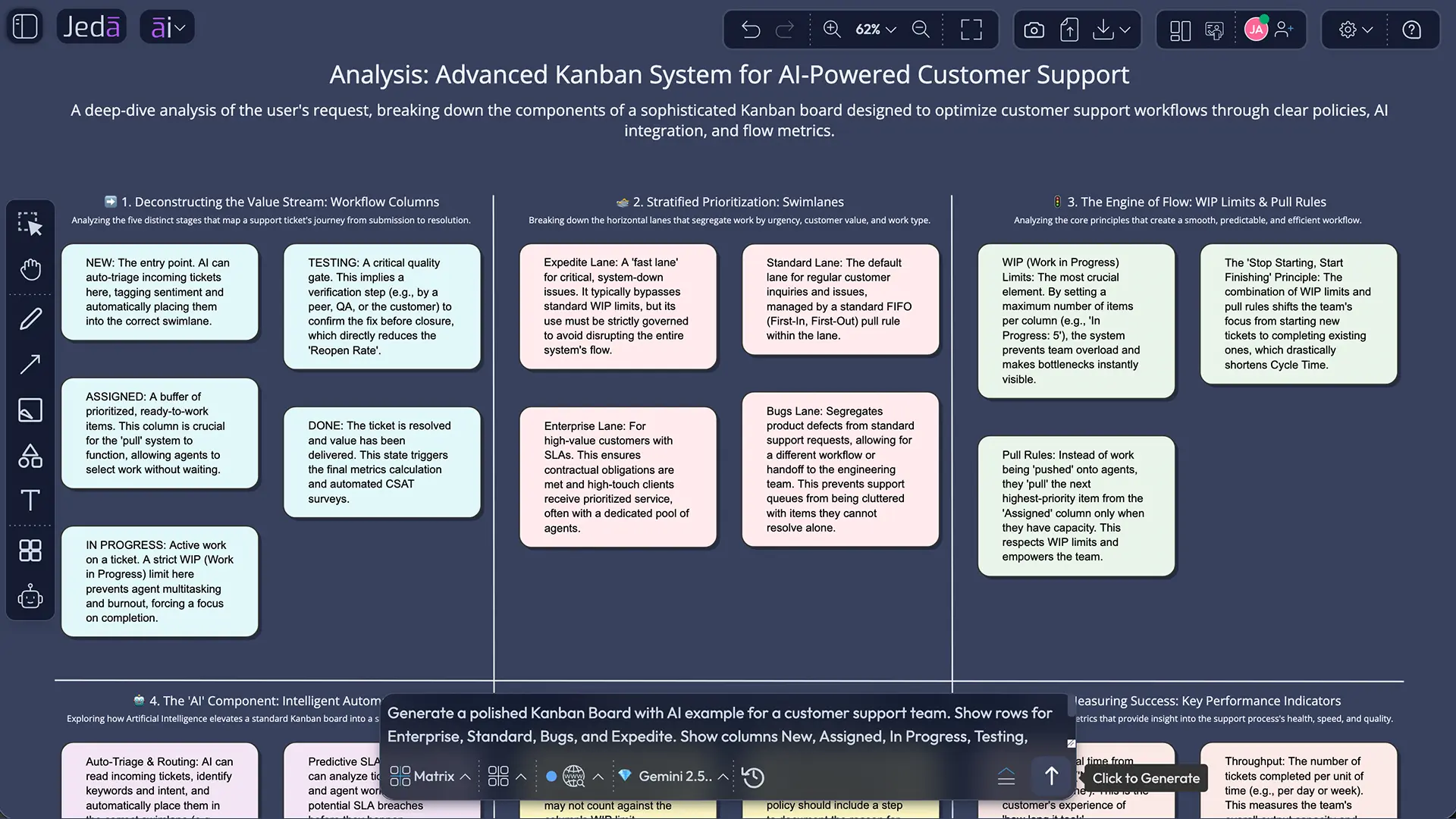
Template Structure for an AI Kanban Board
The best board structure depends on the work type, but a useful AI Kanban board usually includes seven components.
Jeda.ai's editable Smart Shapes make this structure practical. You can revise stage names, change color logic, add connector notes, duplicate sections, or convert selected content into another visual format with Vision Transform. That matters for product teams because a Kanban board rarely stays correct after the first workshop. It matures as the team discovers real constraints.
Recipe Method vs Prompt Bar Method
| Best use | Input control | Layout options | File context | Output | |
|---|---|---|---|---|---|
| Kanban Board Matrix Recipe | Operational board design | Guided fields for work type, stages, limits, priority, metrics, and context | Auto, Column, Grid | Advanced data and document context | Editable matrix board |
| Prompt Bar Matrix Command | Fast draft or workshop starter | Single structured prompt | Auto, Column, Grid | Use selected or uploaded context where applicable | Editable matrix board |
For serious workflow design, start with the recipe. It creates a more complete board because it collects each design variable separately. For teaching, brainstorming, or comparing alternatives, the Prompt Bar is faster. Many teams use both: recipe first, Prompt Bar later for variants.
Best Practices for Academic and Practical Use
A good Kanban board should make work observable and debatable. That sounds simple, but it changes team behavior. Once WIP is visible, overcommitment becomes harder to hide. Once pull rules are explicit, managers can no longer treat every new request as magically capacity-free. Once cycle time is tracked, delay becomes measurable.
When using Jeda.ai, keep the first generation precise but not overstuffed. Put the stable facts in the recipe fields. Put assumptions in More Context. Add files when you have evidence. After generation, use AI+ to extend or deepen sections where the board needs more operational detail, but avoid treating AI+ as a second prompt box for detailed custom instructions. For major changes, edit the board manually or regenerate with clearer recipe inputs.
Common Mistakes to Avoid
The first mistake is designing the board around job titles instead of work flow. A board with Designer, Developer, QA, Manager columns may show who touches work, but it often hides what state the work is in. Prefer stages that describe progress and policy.
The second mistake is setting WIP limits after overload begins. Limits should express capacity before the team is underwater. Start conservatively, then adjust through observation.
The third mistake is using priority labels without policy. If everything marked urgent goes first, urgent means nothing. Define what qualifies for an expedite lane and who can authorize it.
The fourth mistake is tracking too many metrics. Lead time and cycle time are usually enough for a first board. Add throughput, blocked age, and cumulative flow when the team is ready.
The fifth mistake is leaving the board alone after generation. Kanban is not a poster. It is a learning mechanism.
Frequently Asked Questions
- What is a Kanban Board with AI?
- A Kanban Board with AI is a visual workflow board generated or improved with AI reasoning. It maps workflow stages, WIP limits, priority lanes, pull rules, and metrics so teams can manage flow instead of only tracking task status.
- How do I create a Kanban Board with AI in Jeda.ai?
- Open the AI Menu, choose Matrix Recipes, select the Product category, and use the Kanban Board recipe. Enter Work Type, Workflow Stages, WIP Limits, Prioritization, Metrics, and More Context. Then choose layout, Web Search, and AI model before generating.
- Why is the recipe method better than a normal prompt?
- The recipe method separates the key design variables of a Kanban system. It asks for work type, stages, limits, priority rules, metrics, and context. That structure usually produces a more useful board than one broad prompt.
- What layout should I choose for a Kanban board matrix?
- Choose Auto for a balanced first draft, Column when workflow stages are the main focus, and Grid when you need policies, metrics, and service classes displayed clearly. For team workshops, Grid often gives the cleanest review view.
- Can Jeda.ai use Web Search while generating a Kanban board?
- Yes. Web Search is a Jeda.ai platform feature available in AI Recipes and commands where supported. Use it when your board needs current industry, compliance, product, or operational context beyond your own inputs.
- Can I upload data or documents for an AI Kanban board?
- Yes. For advanced usage, upload relevant data or documents through the recipe's advanced file-analysis flow. A support export, product brief, process SOP, retrospective, or SLA document can help the AI ground the board in real work evidence.
- What WIP limits should a Kanban board include?
- WIP limits should reflect team capacity and bottleneck risk. Start with stricter limits for high-effort stages such as In Progress, Review, or Testing. Then revise limits after observing cycle time, blocked work, and throughput.
- What metrics should I track on a Kanban board?
- Useful Kanban metrics include lead time, cycle time, throughput, blocked work, aging work items, and cumulative flow. Start with lead time and cycle time. Add more metrics only when the team can act on them.
- Can AI+ change my Kanban board after generation?
- AI+ can extend and deepen generated sections, cards, columns, or related nodes. It is best used for adding detail to an existing element. For major board redesigns, adjust the recipe inputs or edit the Smart Shapes directly.
- Who should use a Kanban Board with AI?
- Product managers, project managers, business analysts, support leaders, software engineers, operations teams, and consultants can use it. It is most valuable when work moves through repeated stages and the team needs visibility, WIP control, and measurable flow.
Sources and Further Reading
- [1]
Toyota Motor Corporation (n.d.) . “Development and Deployment of the Toyota Production System” Toyota 75 Years History.
View Source ↗ - [2]
Toyota Motor Corporation (n.d.) . “Toyota Production System” Toyota Global.
View Source ↗ - [3]
Little, J. D. C. (1961) . “A Proof for the Queuing Formula: L = λW” Operations Research.
View Source ↗ - [4]
Ahmad, M. O., Dennehy, D., Conboy, K., and Oivo, M. (2018) . “Kanban in software engineering: A systematic mapping study” Journal of Systems and Software.
View Source ↗ - [5]
Santos, P. S. M., Beltrão, A. C., Souza, B. P., and Travassos, G. H. (2018) . “On the benefits and challenges of using kanban in software engineering: a structured synthesis study” Journal of Software Engineering Research and Development.
View Source ↗ - [6]
Ikonen, M., Pirinen, E., Fagerholm, F., Kettunen, P., and Abrahamsson, P. (2011) . “On the impact of Kanban on software project work: An empirical case study investigation” IEEE International Conference on Engineering of Complex Computer Systems.
View Source ↗
Create Your Kanban Board with AI in Jeda.ai
Join 150,000+ users building editable workflows, product boards, and operating systems inside Jeda.ai's AI Workspace.
Try Jeda.ai Free