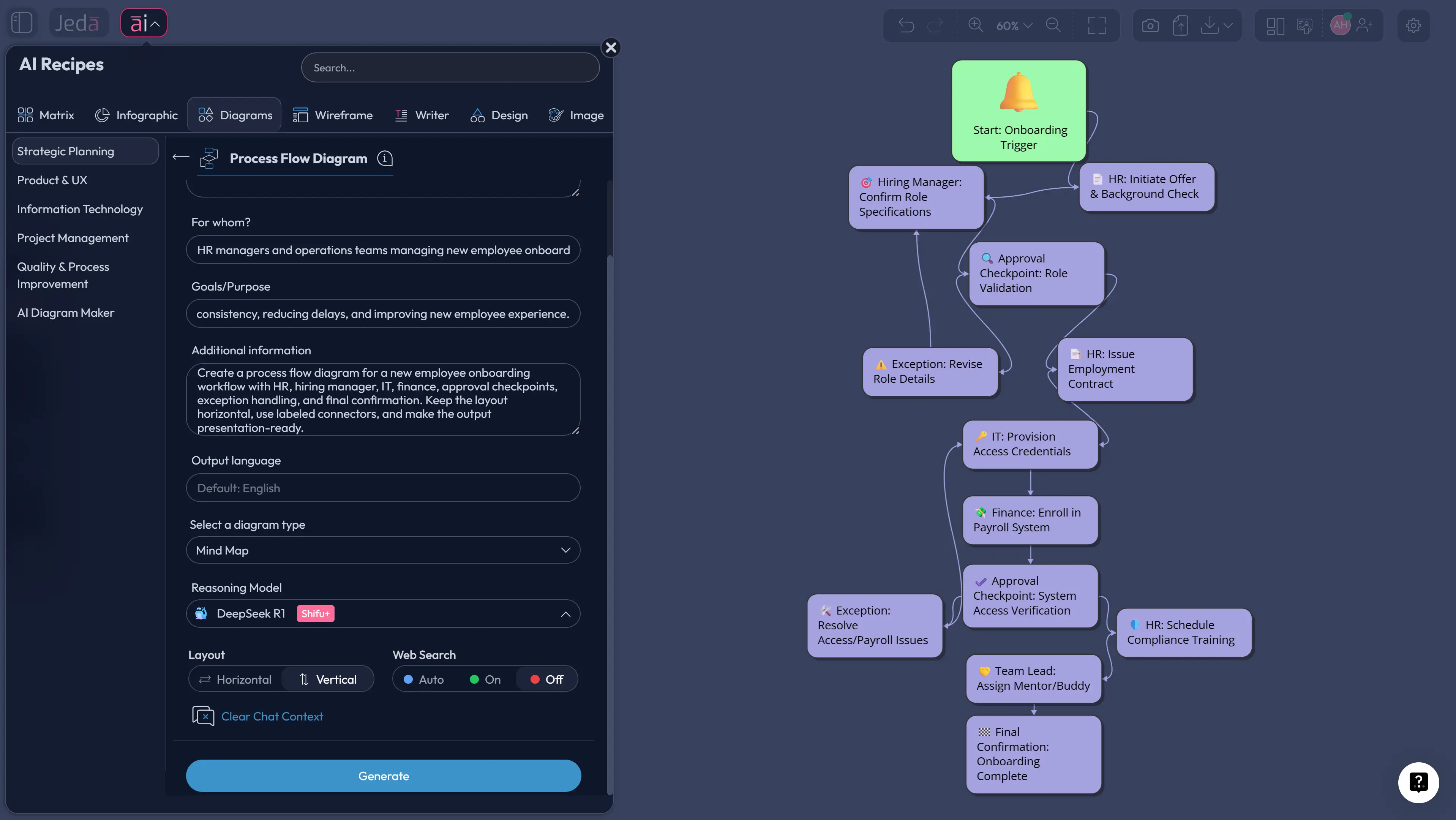
Process Flow Diagram with AI is now a practical working method, not just a flashy prompt trick. Teams still need the underlying discipline of process mapping—clear start and end states, decision points, handoffs, exceptions, and ownership—but they no longer need to build every box and connector by hand. In Jeda.ai, that work happens inside one AI Workspace and AI Whiteboard, where the diagram is generated visually, edited collaboratively, and refined without leaving the canvas. For teams that want rigor without drag, that matters.
The academic roots here are older than most software teams realize. Frank and Lillian Gilbreth introduced process charts to ASME in 1921 as a way to visualize work so it could be improved. A century later, scholars still treat graphical process modelling as a foundational management and engineering practice, not a passing visual fad. NIST uses process mapping in modern operational analysis for the same reason: once process logic is visible, discussion gets sharper and redesign gets easier.
Jeda.ai fits that tradition surprisingly well. It gives you editable flow-based visuals, AI-assisted generation, web-grounded research when needed, and collaborative refinement in one Visual AI environment. That is the real shift. You are not replacing process thinking. You are compressing the setup cost of it. And because Jeda.ai serves 150,000+ users and includes 300+ strategic frameworks, the diagram does not sit alone; it can connect to broader analysis, planning, and communication work across the same AI Workspace.
What Is a Process Flow Diagram with AI?
A process flow diagram with AI is a structured visual map of a workflow that is generated or accelerated by an AI system, then reviewed and edited by humans. The underlying objective is still classical process analysis: represent sequential steps, major decisions, actors or systems involved, and the movement from input to output. What changes is the production method. Instead of drawing from scratch, you define the process logic in natural language and let the system draft the first version.
That distinction sounds small. It is not.
Traditional guides from Miro and Lucidchart still describe a process flow diagram as a visual representation of how major process elements connect and move from one stage to another. That remains correct. The difference in an AI-assisted workflow is speed, iteration, and scope. You can start from a paragraph, an SOP excerpt, meeting notes, or even a partially formed idea, then generate an editable draft in seconds. In Jeda.ai, you can also keep working on that draft inside the same AI Whiteboard, rather than exporting it as a static image and hoping nobody asks for changes.
There is also a subtle methodological gain. When an AI system drafts the first structure, teams often see missing branches sooner: skipped approvals, unclear ownership, absent exception paths, duplicate loops. That does not make the AI the analyst. It simply means the first working artifact appears faster, which gives the real analysts, managers, and engineers something concrete to critique.
Why Use Jeda.ai for Process Flow Diagram Work?
Jeda.ai is useful here because it treats diagramming as part of a broader thinking workflow. A process map is rarely the final deliverable. It usually feeds an operations review, product handoff, design discussion, audit trail, implementation plan, or training artifact. Jeda.ai keeps that chain intact inside one AI Workspace and AI Whiteboard.
- Recipe-led generation
Use the Process Flow Diagram recipe when you want structured guidance instead of starting from a blank canvas.
- Editable outputs
Generated diagrams remain editable, so teams can rewrite steps, reorganize logic, and refine branches after the first draft.
- Web-grounded context
Web Search is a platform feature in Jeda.ai, so teams can ground process content in current information when the use case needs it.
- Iterative extension
Use the AI+ button to deepen or extend an existing diagram without rebuilding the whole structure from the beginning.
For academic or operational work, that matters more than it first appears. Diagram tools tend to solve layout. Jeda.ai solves layout plus reasoning plus revision. A process flow diagram often starts as description, becomes analysis, then turns into action. That is exactly where a unified AI Workspace is more valuable than a disconnected diagram editor.
And there is one more practical benefit. Jeda.ai supports both guided recipe creation and direct Prompt Bar generation. So beginners can follow the recipe path, while experienced analysts can move faster with a custom prompt.
How to Create a Process Flow Diagram with AI in Jeda.ai
There are two strong methods in Jeda.ai for this page topic. The recommended path is the recipe, because it imposes useful structure. The second is the Prompt Bar, which gives you more freedom when the process is unusual or the workflow is already well understood.
Method 1: Use the AI Menu Recipe for Process Flow Diagram
This is the better method when you want consistency, especially for team-facing operations, approval flows, product handoffs, or engineering procedures. The recipe reduces prompt ambiguity by asking for the process context directly.
- Open the AI Menu
Click the ai∨ control in the top-left area of the canvas to open AI Recipes.
- Choose the Diagram category
Navigate to the Diagram Recipes area, then open the Strategic Planning section and select Process Flow Diagram.
- Complete the guided fields
Enter the core context such as For What, For Whom, Goals or Purpose, and any additional operational detail in More Context.
- Set the generation options
Choose Horizontal or Vertical layout, decide whether to turn Web Search on, select the diagram type such as Basic Diagram, Mind Map, or Flowchart, and choose your reasoning model.
- Generate and review the first draft
Create the diagram, then inspect the decision logic, missing handoffs, and exception paths before sharing it.
- Extend carefully with AI+
Use the AI+ button to deepen or extend the generated process, but treat it as an extension tool rather than a place for highly specific instruction-by-instruction editing.
- Convert when needed
Use Vision Transform if the same process needs to be recast into another format, such as a different diagram structure or a more formal flow-oriented output.
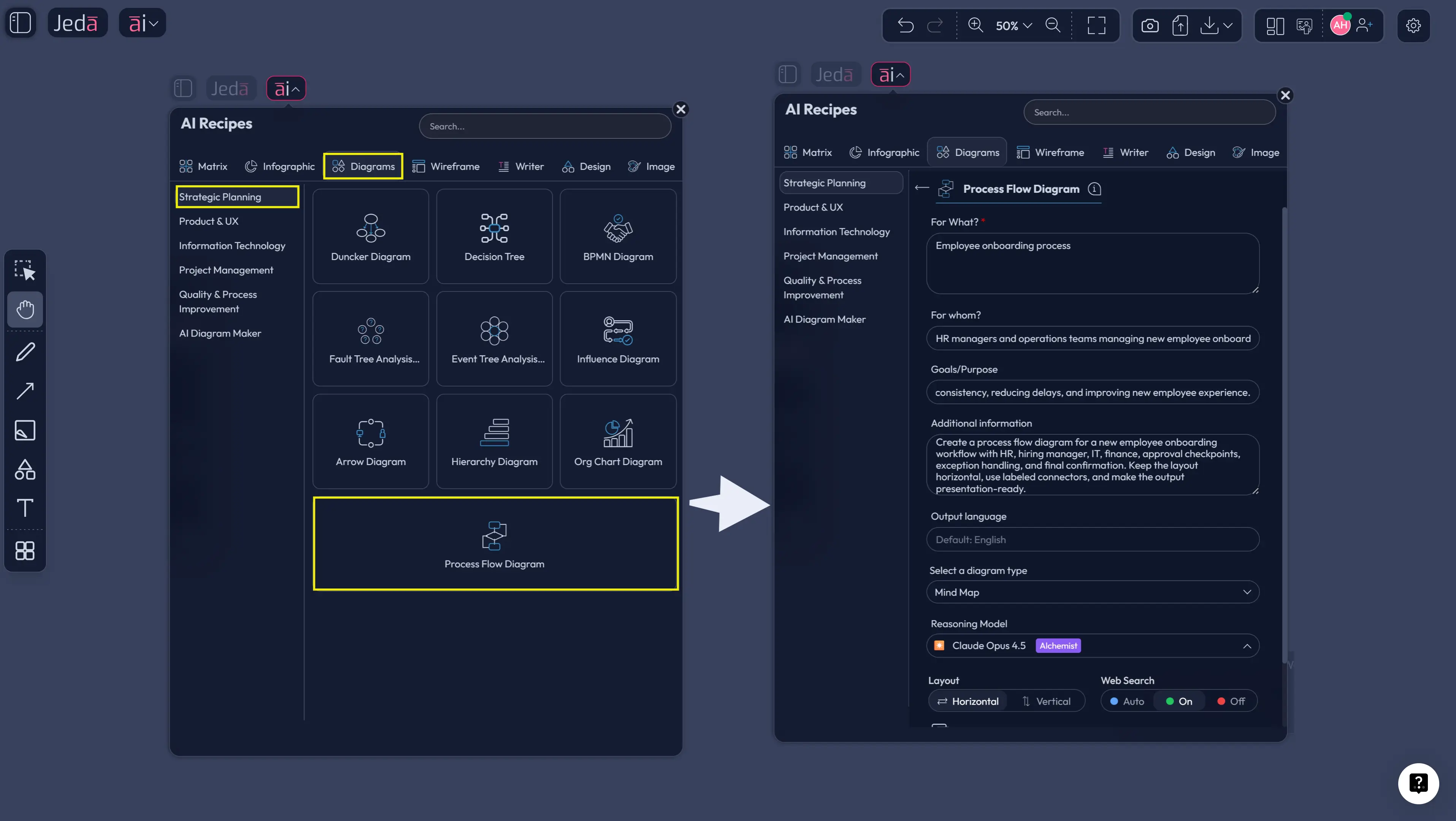
A recipe-based approach is academically useful because it forces you to externalize assumptions early. Who is the process for? What is its objective? Which decision points matter? What context belongs in scope and what does not? Those questions are not decoration. They improve diagram validity.
Method 2: Use the Prompt Bar for Direct Generation
The Prompt Bar is better when you already know the process boundaries and want speed. It is also the stronger route when the workflow is messy, cross-functional, or not neatly captured by a standard template.
- Open the Prompt Bar
Use the Prompt Bar at the bottom of the canvas as your main generation interface.
- Select the right command
Choose Flowchart when step order and decisions are the main story. Choose Mind Map when the process has looser or more flexible structural relationships.
- Choose layout and research settings
If you use Flowchart, set Horizontal or Vertical layout. Turn Web Search on only when the process depends on current external information, standards, or policy context.
- Write a high-quality process prompt
Describe the start state, end state, actors, systems involved, decision points, approval gates, exception handling, and expected outputs.
- Generate and refine on canvas
Review the first result, rewrite node text where needed, and adjust branches so the process logic matches reality.
- Deepen with AI+
Use the AI+ button to add adjacent detail, sub-steps, or more process depth after the main structure is correct.
- Repurpose with Vision Transform
Transform the generated visual into another structure if your audience needs a different lens on the same process.
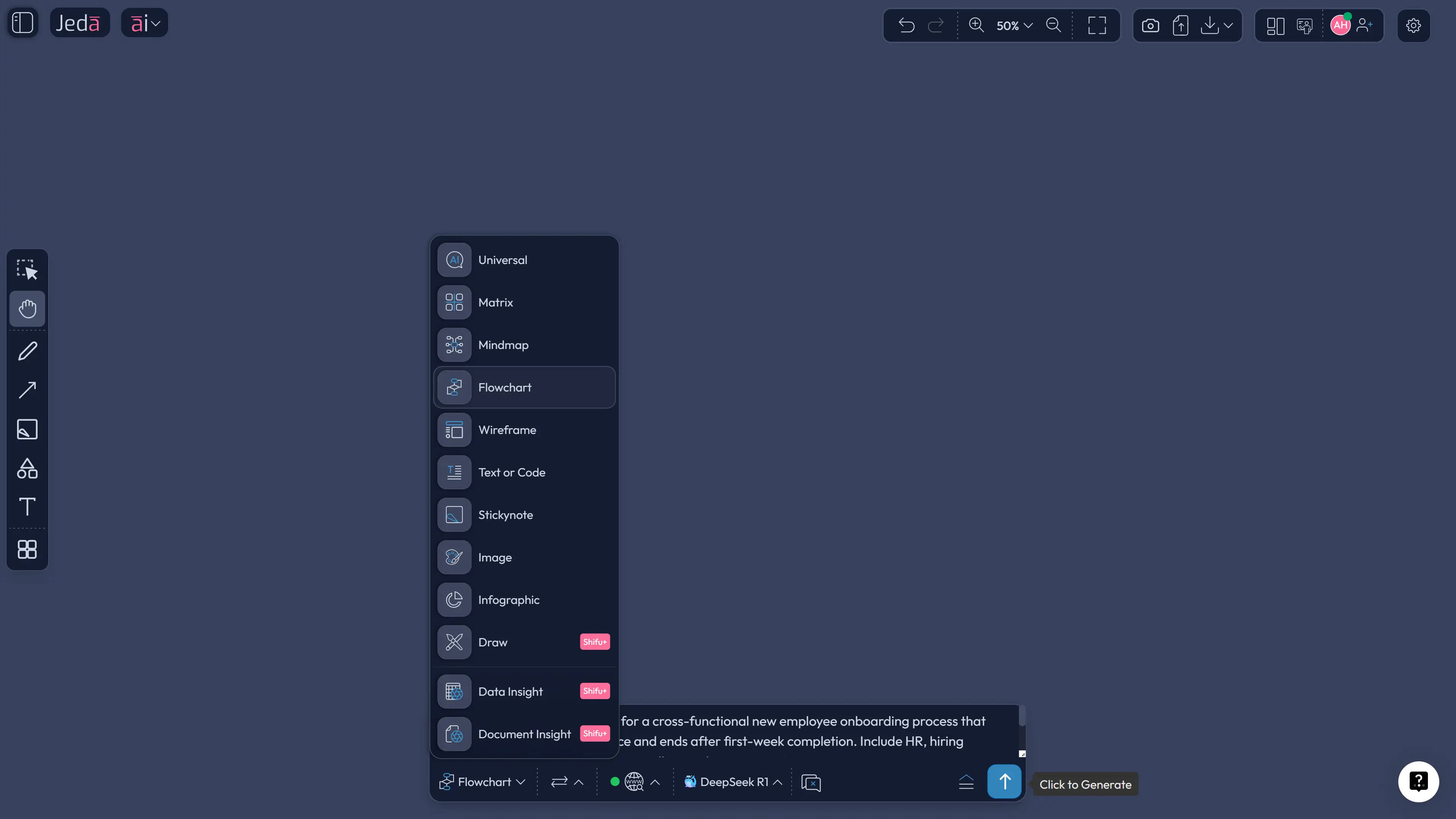
A useful rule is this: if the process is formal, repeatable, and policy-sensitive, start with the recipe. If it is exploratory, evolving, or unusually specific to your team, start in the Prompt Bar.
Prompt Design: What Good Inputs Look Like
Weak prompts ask for a diagram. Strong prompts specify the logic of the process. That is the whole game.
A robust process-flow prompt should usually include five elements:
- Scope — what process is being mapped and where it starts and stops.
- Actors or systems — who performs the action or what system triggers it.
- Decision points — where the flow branches and on what basis.
- Exceptions — what happens when something is rejected, delayed, missing, or escalated.
- Desired structure — whether you want a strict flowchart, a broader diagram, and whether horizontal or vertical layout is easier for the intended audience.
In practice, one or two missing details can break the usefulness of the output. If your prompt never mentions exception handling, the draft often looks cleaner than the real process actually is. That is nice for a slide. Terrible for execution.
Process Flow Diagram with AI Example
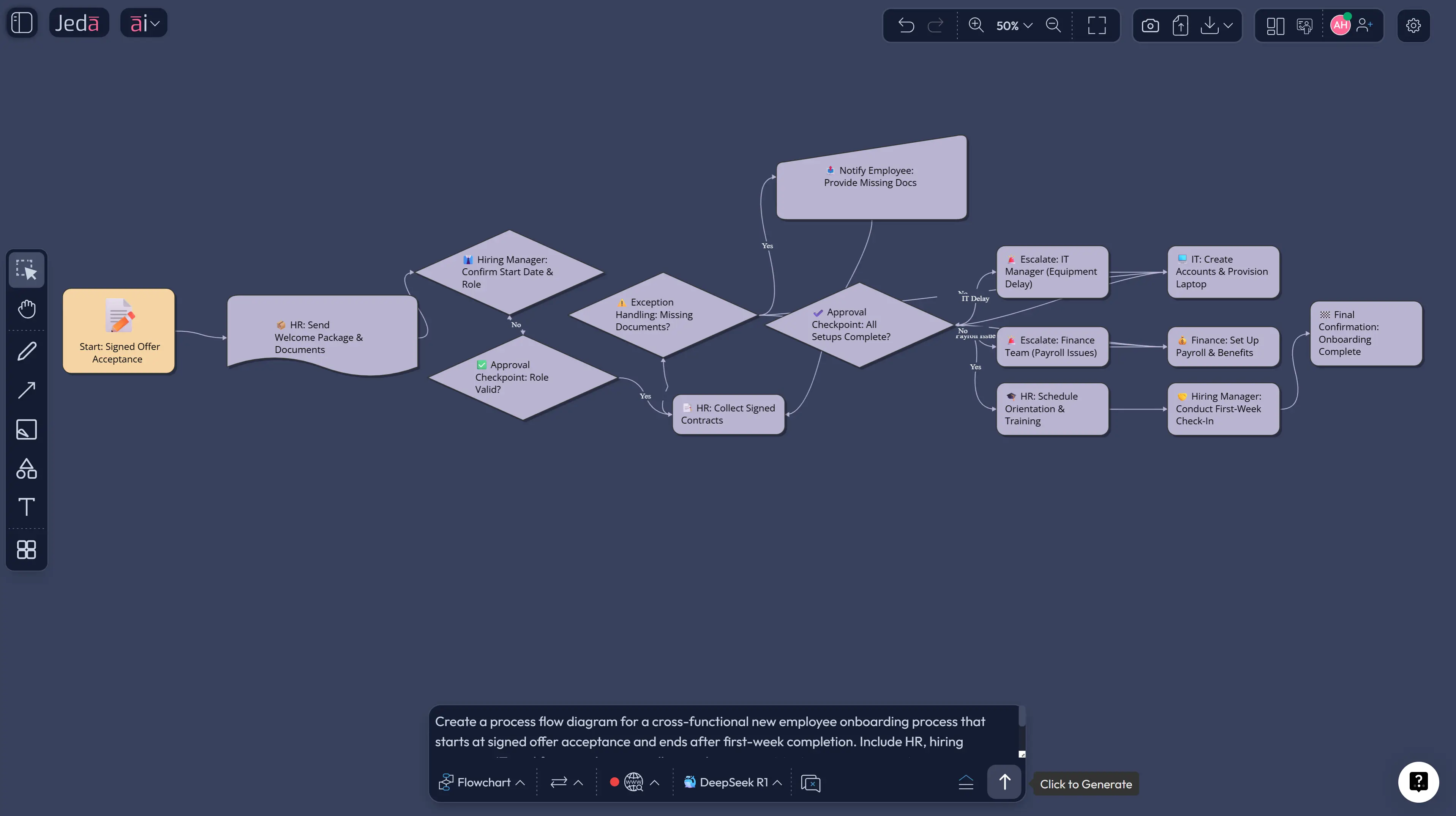
Here is a compact example you can adapt in Jeda.ai.
That prompt works because it does more than describe a topic. It describes a bounded system. It tells Jeda.ai where the process begins, where it ends, which actors matter, which branches matter, and which exceptions cannot be ignored. For a business analyst or project manager, that is the difference between a decorative diagram and a working process artifact.
You can then take the output further. Use the AI+ button to deepen one branch, such as delayed equipment handling or probation review logic. Or use Vision Transform to reinterpret the same operational workflow for another audience inside the same AI Workspace—perhaps a broader diagram for leadership discussion or a more step-focused version for implementation. That continuity is one reason an AI Whiteboard is often more useful than a one-shot generator.
Best Practices for Better Diagram Quality
The literature on process modelling has not changed its core lesson: visibility improves analysis only when the representation is selective, coherent, and usable. More detail is not always better.
A few practices consistently improve outcomes in Jeda.ai:
These are not merely stylistic tweaks. They affect whether the process map can support redesign, onboarding, audit, or implementation. In our experience, the fastest way to ruin a good draft is to overload it with mixed-level detail before the core logic is settled.
Common Mistakes to Avoid
The first mistake is treating the AI draft as finished. It is a draft. Always.
The second is asking for a “complete process flow” without specifying scope. A hiring workflow, incident response flow, or production-release process can each mean ten different things depending on the organization. Scope is not optional.
The third is collapsing every branch into the happy path. That makes the diagram look efficient, but not truthful. Real operational value usually appears in the exceptions: rejection paths, missing data, approval delays, rework loops, compliance checkpoints.
And the fourth is using the wrong visual form. Not every process belongs in the same structure. Some workflows need a strict flowchart. Others work better as a flexible diagram first, then a more formal process flow later. Jeda.ai gives you both inside the same AI Workspace, so use that flexibility instead of forcing one format to do all the work.
Why This Matters for Teams
A process flow diagram is often the first place a team discovers that it does not actually agree on how work happens. That sounds dramatic. It is usually just true.
Business analysts use process diagrams to clarify current state and future state. Product managers use them to make release logic visible. Product Design Engineers and Industrial Design Engineers use them to surface handoffs, dependencies, and procedural weak points. Project managers use them to expose approval bottlenecks before a timeline slips. In each case, the value is not the picture alone. The value is the argument the picture makes possible.
That is why Jeda.ai is a good fit for this kind of work. The diagram can be generated, questioned, extended, reformatted, and shared in one collaborative AI Whiteboard. It stays editable. It stays visible. It stays close to the reasoning that created it. For teams already working across documents, specs, and operational notes, that consolidation is not trivial. It is often the difference between insight and drift.
Frequently Asked Questions
- What is a process flow diagram with AI?
- A process flow diagram with AI is a workflow map whose first draft is generated or accelerated by AI, then edited by people. The goal is still classical process analysis: visualize steps, decisions, handoffs, and outputs clearly enough to review and improve them.
- Is a process flow diagram the same as a flowchart?
- Not always. The terms overlap, but a process flow diagram usually emphasizes the movement and relationship of process elements, while a generic flowchart may be used more broadly for any step-by-step logic. In practice, teams often use the terms loosely.
- Why use Jeda.ai instead of drawing the diagram manually?
- Jeda.ai reduces setup time, gives you a structured first draft, and keeps the output editable inside one AI Workspace. You can generate, revise, extend with AI+, and repurpose the same process logic without rebuilding it from scratch.
- Should I use the recipe or the Prompt Bar in Jeda.ai?
- Use the recipe when you want guided structure and consistent inputs. Use the Prompt Bar when you already understand the process boundaries and want a faster, more flexible generation workflow.
- Can I extend a generated process flow diagram in Jeda.ai?
- Yes. Use the AI+ button to extend or deepen the diagram after generation. It works best for expansion and enrichment, not for issuing highly specific instruction-level edits to a single node.
- Can Jeda.ai convert a process diagram into another visual format?
- Yes. Vision Transform lets you select an existing visual and regenerate it in another structure. That is useful when the same process needs a different presentation for leadership, operations, or implementation teams.
- Does web search belong to the AI model itself?
- No. In Jeda.ai, web search is a platform feature rather than a property of any one model. You can turn it on when the process depends on current external information.
- What can I export after building the diagram?
- Jeda.ai supports PNG, SVG, and PDF export. The important point is that the process flow remains editable before export, so the team can refine it before locking a deliverable.
Sources & Further Reading
The historical foundation for process charting is usually traced to the Gilbreths’ 1921 ASME work on process charts. More recent scholarship places that work at the start of a century-long tradition of graphical business process modelling. For modern operational use, NIST’s process-mapping guidance remains a practical reference. For current mainstream definitions of process flow diagrams, guides from Miro and Lucidchart are also useful baseline sources. Together, those references show a neat pattern: the core logic of process mapping has stayed stable, while the creation method is changing fast.
- [1]
Gilbreth, Frank B., and Gilbreth, Lillian M. (1921) . “Process Charts” American Society of Mechanical Engineers / Internet Archive.
View Source ↗ - [2]
Laue, Ralf (2022) . “100 Years of Graphical Business Process Modelling” EMISA Forum.
View Source ↗ - [3]
National Institute of Standards and Technology (2022) . “Process Mapping” NIST.
View Source ↗ - [4]
Miro (2025) . “What is a Process Flow Diagram? A Complete Guide” Miro.
View Source ↗ - [5]
Lucidchart (2026) . “What Is a Process Flow Diagram” Lucidchart.
View Source ↗
Build Your Next Process Flow Diagram with AI in Jeda.ai
Join 150,000+ users who use Jeda.ai as an AI Workspace and AI Whiteboard for structured, editable visual thinking.
Try Jeda.ai Free