
Sitemap with AI sounds simple until the real project starts and every stakeholder wants a different navigation logic. That is where Jeda.ai earns its keep. Inside a shared AI Workspace and AI Whiteboard, you can turn a vague website brief into a visual page hierarchy and stakeholder-ready structure in minutes instead of scattering the work across docs, spreadsheets, and slides. For teams planning new websites, app content trees, redesigns, or migrations, Sitemap with AI gives you a faster first draft that stays editable as the project gets smarter. That matters when 150,000+ users use Jeda.ai to move from idea to execution with less tool hopping and more clarity.
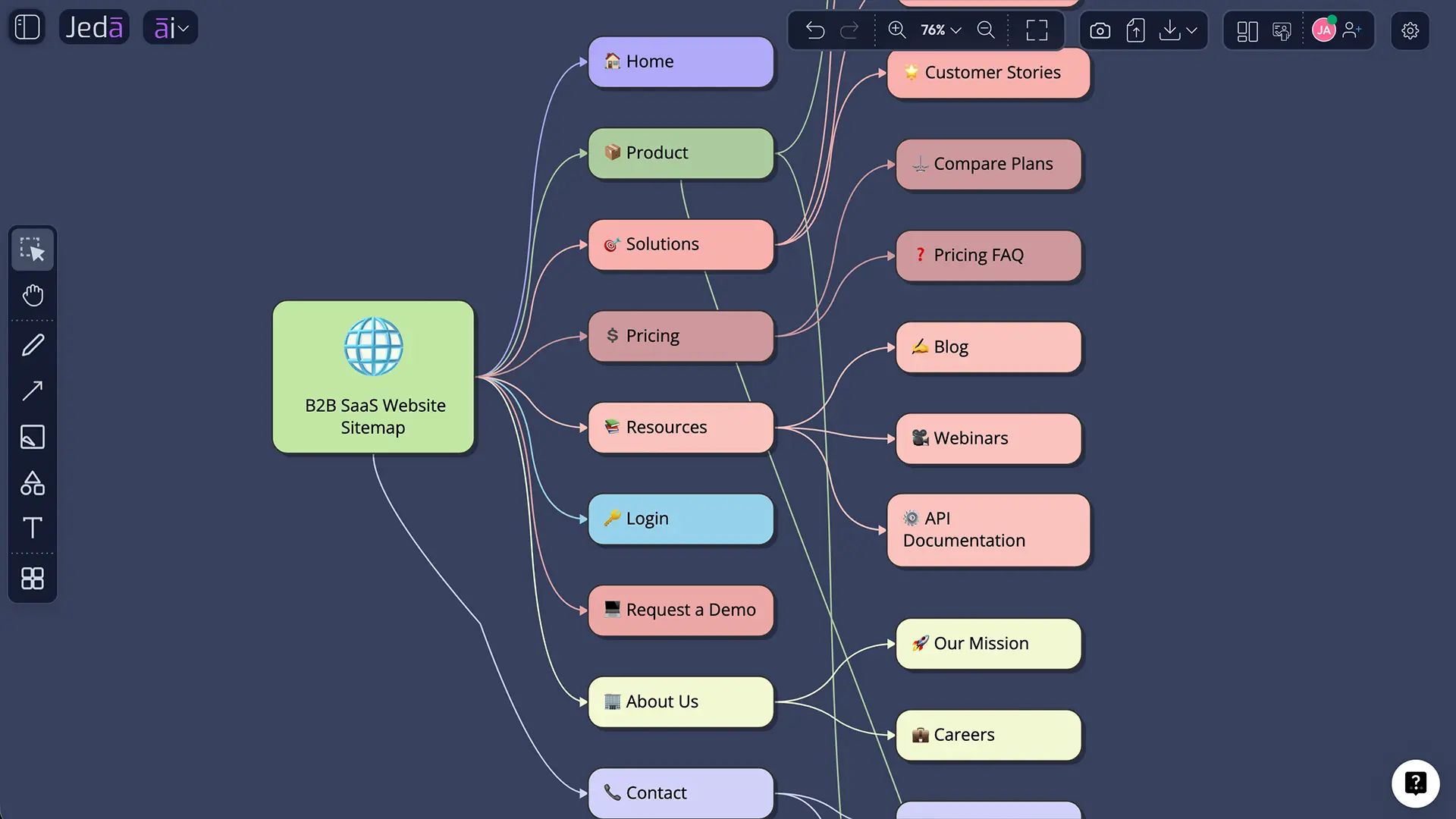
What is Sitemap with AI?
At the practical level, a sitemap is a visual representation of how pages, sections, and navigation paths relate to each other. Nielsen Norman Group draws a useful line here: information architecture is the broader practice of structuring and labeling content, while a sitemap is one visualization tool used to plan that structure. Google uses the word a bit differently on the search side, where a sitemap can also mean the XML file that helps search engines crawl pages more efficiently.
So here is the clean way to think about it. Sitemap with AI is about generating the visual planning layer faster: page hierarchy, parent-child relationships, missing sections, and naming logic. It is not about pretending a mind map is the same thing as an XML sitemap file. The visual sitemap comes first. Your CMS or SEO tooling can handle the machine-readable XML sitemap later.
That is why this use case fits Jeda.ai so well. You are not just listing pages. You are shaping website decision logic in a collaborative Visual AI environment, then refining it with direct editing, the AI+ button, and Vision Transform.
Why use Sitemap with AI instead of mapping manually?
Manual sitemap work is rarely hard because the boxes are hard to draw. It is hard because the thinking is fragmented. One sheet holds page names. A doc holds notes. Another tool holds the pretty version. Then the structure changes and everyone updates three places badly.
Jeda.ai collapses that mess into one editable surface. The first win is speed. The second is shared understanding. The third is that you can improve a shallow draft without rebuilding from scratch.
- Faster structure drafting
Generate an initial page hierarchy in minutes, then edit labels, branches, and depth without rebuilding the entire sitemap.
- Better stakeholder alignment
Bring product, UX, SEO, and content into one shared visual so disagreements show up early, not during development.
- Stronger IA thinking
Use the sitemap as an information architecture working model to spot missing pages, bloated navigation, and weak groupings.
- AI-assisted iteration
Use the AI+ button to deepen a branch, then use Vision Transform if you want to reframe the same structure in another visual format.
There is also a strategic upside. A good sitemap is where UX logic and SEO logic finally work together. Orbit Media recommends documenting page names, template types, keyword intent, and navigation distinctions while the sitemap is still being planned. It is cheaper to fix structure before the build than after launch.
Jeda.ai also comes with 300+ strategic frameworks, so your sitemap work does not have to live alone. You can move from sitemap to user journey, wireframe, flowchart, or content planning inside the same AI Whiteboard.
How to create Sitemap with AI in Jeda.ai
For this topic, the strongest route is the Diagram recipe in the AI Menu, with the diagram type set to Mind Map. It gives you more structure upfront and helps non-design stakeholders contribute without staring at a blank canvas like it owes them money.
Method 1: Use the Diagram recipe in the AI Menu
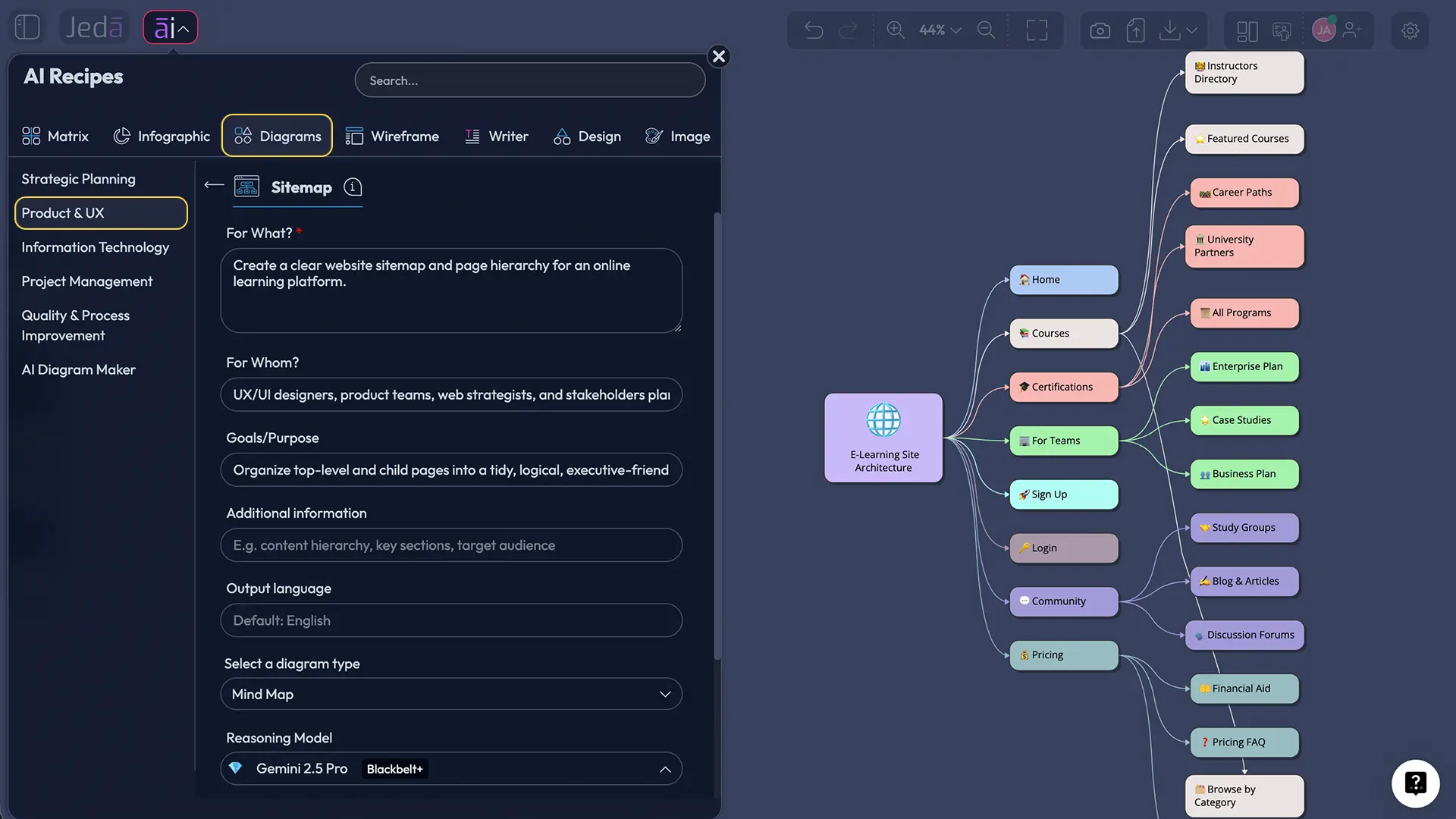
This is the recommended method because it gives you guided fields instead of making you front-load the entire prompt from memory. Open the AI Menu, go to the Product & UX category, choose the sitemap-related diagram recipe, and set the diagram type to Mind Map. Then fill in the usual fields such as For What, For Whom, Goals/Purpose, and More Context.
A strong input here usually includes the website type, audience, core pages, business goal, and any must-have navigation items. You can also choose Horizontal or Vertical layout, turn Web Search on if you need current competitive or category context, and select the AI model that fits your plan. Once the sitemap lands on the canvas, use the AI+ button to extend a branch when you want more depth. Keep expectations realistic, though: AI+ is excellent for deepening and extending. It is not the right tool for giving ultra-specific one-off instructions to a single node.
- Open the AI Menu
Click the AI Menu in Jeda.ai and go to the Diagram recipes under the Product & UX category.
- Choose the sitemap recipe
Select the sitemap-related recipe and set the diagram type to Mind Map so the output follows a clear hierarchy.
- Fill in the guided fields
Add For What, For Whom, Goals or Purpose, and More Context. Include website type, target users, business objective, and required pages.
- Set layout and options
Choose Horizontal or Vertical layout, decide whether to turn Web Search on, and pick the AI model you want to use.
- Generate the sitemap
Click Generate and review the first draft for missing branches, odd page labels, or too much depth in the wrong places.
- Extend and refine
Use the AI+ button to deepen a selected branch, then edit text, shapes, and connections directly on the canvas.
Method 2: Use the Prompt Bar with the Mindmap command
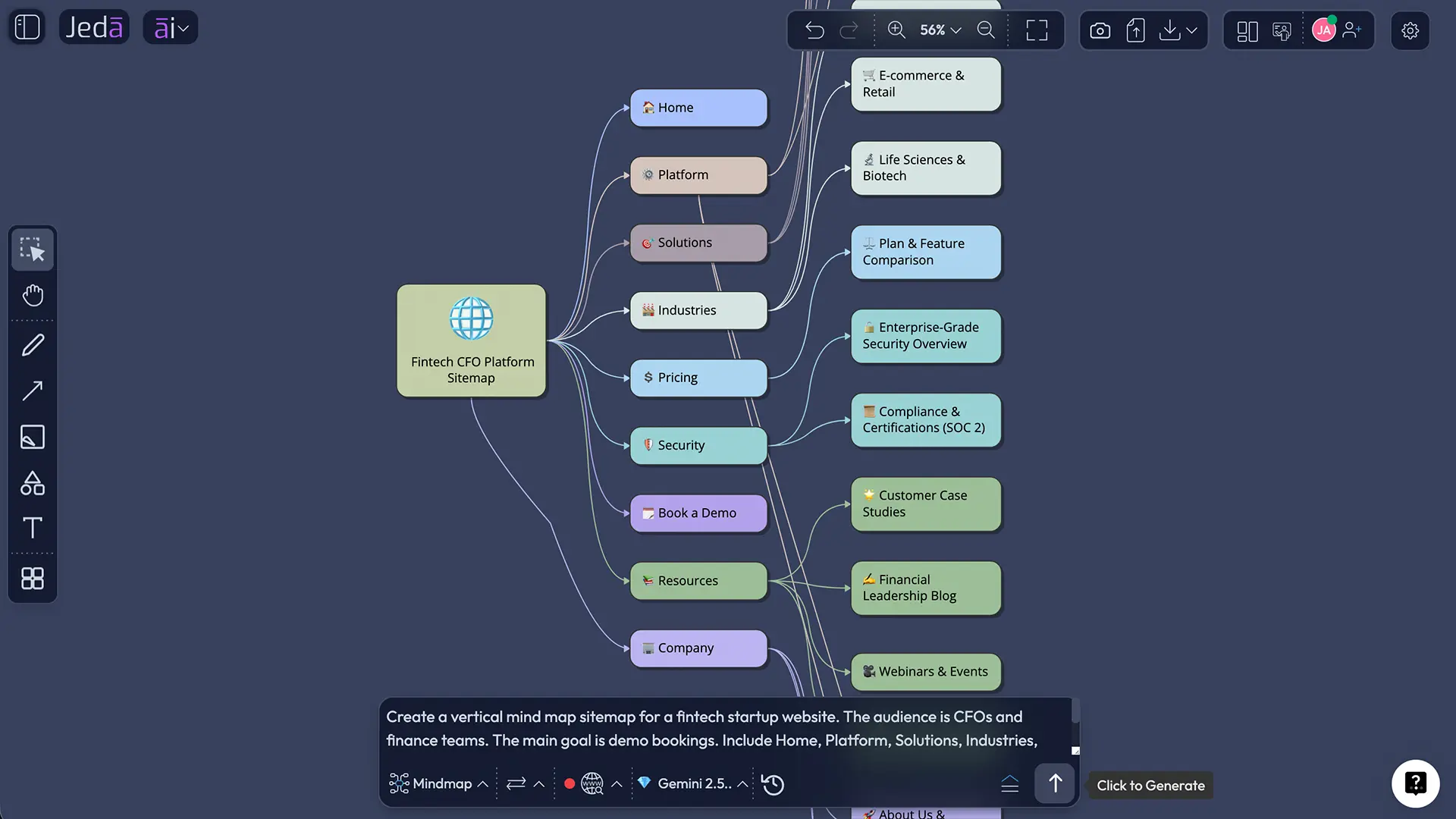
The Prompt Bar method is faster when you already know what you want. Open the Prompt Bar at the bottom of the canvas, select Mindmap, choose Horizontal or Vertical layout, toggle Web Search if needed, pick your model, and prompt the structure directly.
This method works best when your prompt names the site type, target user, main conversion goal, and must-have pages. Also define the depth. Say whether you want only main navigation, one layer of subpages, or a deeper tree.
If the result is close but not quite there, do not start over immediately. Edit the obvious labels, add missing nodes with the plus controls, and then use AI+ to extend the branches that deserve more detail. If you want to convert the sitemap into another planning artifact later, Vision Transform can help you shift the same thinking into a flowchart, diagram, or another visual pattern inside the same AI Workspace.
- Open the Prompt Bar
Click into the Prompt Bar, then select the Mindmap command for a hierarchy-first sitemap output.
- Choose your layout
Set the layout to Horizontal or Vertical depending on whether you want a wider presentation view or a deeper tree.
- Write a structured prompt
Describe the website, target audience, primary conversion goal, must-have pages, and the number of levels you want in the sitemap.
- Generate and inspect
Generate the visual and scan for missing sections, vague labels, duplicate branches, or an unbalanced hierarchy.
- Polish the map
Use direct editing, manual node additions, AI+ expansion, and Vision Transform if you want to reshape the output into another planning view.
Sitemap with AI example, use case, and prompt
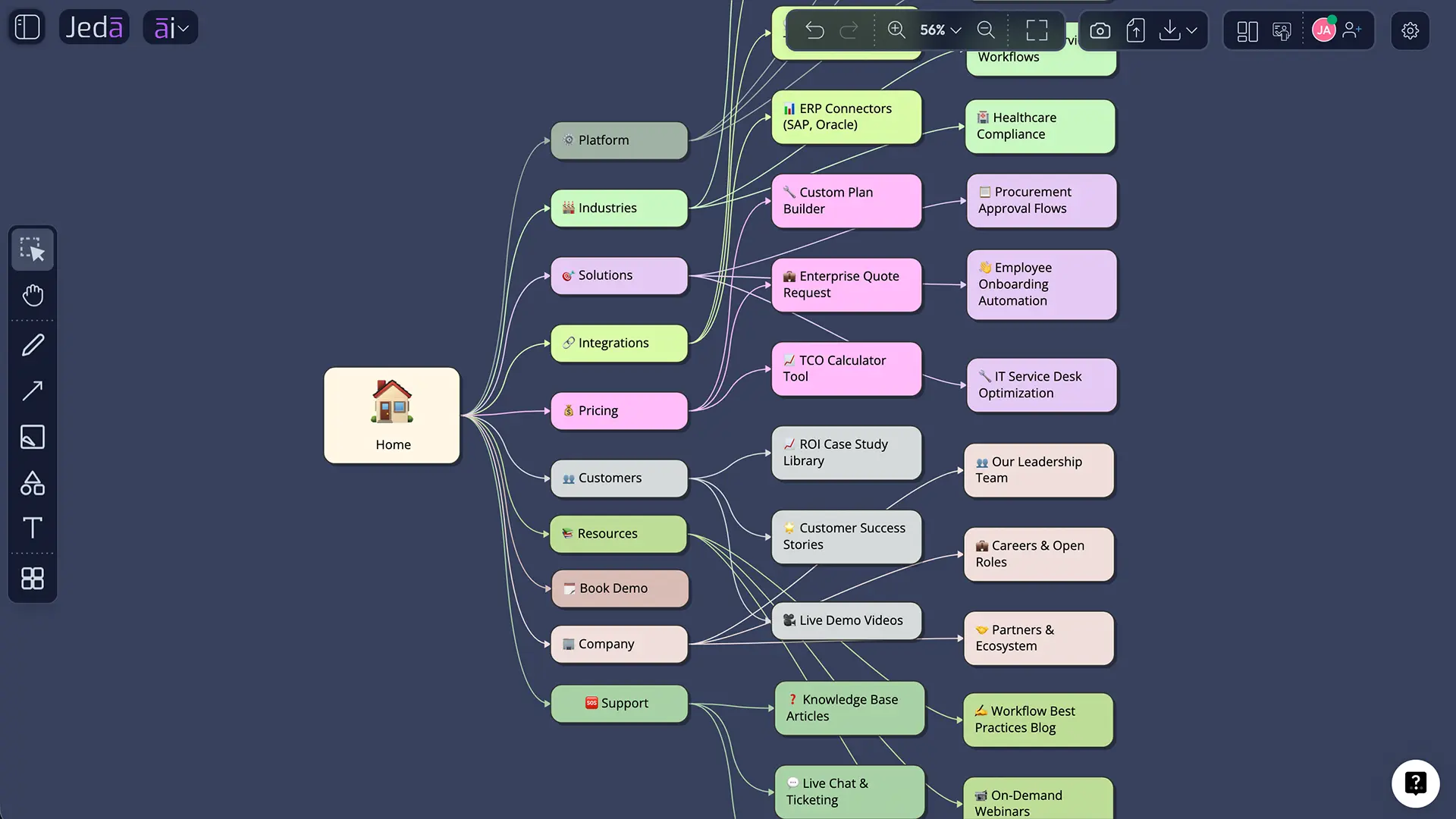
Let’s make this real. Imagine a B2B SaaS team redesigning its website after moving upmarket. The old navigation was built for self-serve signups. The new strategy needs clearer paths for enterprise buyers, technical evaluators, and existing customers. That is when a sitemap becomes a decision tool, not just a deliverable.
Enterprise buyers need proof, security, integration, and case-study content earlier in the journey. Existing customers need support and docs without cluttering the main conversion path. If you map that visually, patterns show up fast: overloaded menus, weak parent labels, duplicated content, and missing pages for high-intent visitors.
That prompt works because it gives the AI the four things that matter most: company type, audience, business goal, and structure depth. Not magic. Just better input.
Once the draft appears, review it like a strategist, not a stenographer. Ask which branches are too heavy, which pages belong in utility navigation, and whether support content deserves its own track. This is where Jeda.ai becomes more than a generator. It becomes the working room for the decision.
If you already use related pages like AI Workspace, AI Whiteboard, AI mind maps and diagrams,this workflow fits right in. Sitemap first. Wireframe next.
Best practices for better sitemap outputs
A good AI-generated sitemap should feel like a strong first draft, not a final truth. The teams that get the best results define the audience, cap the depth, separate navigation priorities, and review labels for clarity before they review aesthetics.
Use Web Search when the sitemap depends on current terminology, regulations, or category expectations. In Jeda.ai, Web Search is a platform feature, so it can ground the planning stage with fresher context when needed.
Common mistakes to avoid
The most common mistake is confusing a visual sitemap with an XML sitemap. They serve different jobs. Your Sitemap with AI workflow in Jeda.ai is the strategic planning layer. Google’s XML sitemap is the crawl and indexing layer. Smart teams use both, just not interchangeably.
The second mistake is overbuilding. You do not need every footer link, legal page, and microsite variation in the first draft unless those details are the point of the workshop. Start with the meaningful structure. Expand later.
Third, teams often write labels that make internal sense but weak user sense. “Solutions Architecture Layer” might thrill someone in a meeting. It may also be an awful navigation label. A sitemap is where you catch that before it becomes expensive.
Fourth, some people treat the AI draft as final. Bad move. The real value is faster iteration, not blind obedience. Review page priority, naming, branch balance, and navigation roles. Then edit.
And finally, do not use AI+ too early. If the base branch is wrong, extending it just creates more wrong. Get the skeleton right first. Then ask for more depth.
Frequently asked questions
- What is the difference between a visual sitemap and an XML sitemap?
- A visual sitemap is a planning diagram that shows page hierarchy, relationships, and navigation logic for people. An XML sitemap is a machine-readable file for search engines. In Jeda.ai, Sitemap with AI focuses on the visual planning side first, which helps teams make better structural decisions before technical SEO implementation.
- Which Jeda.ai method is best for Sitemap with AI?
- The Diagram recipe is the better starting point when you want guided structure and faster alignment. The Prompt Bar is better when you already know the site type, audience, goals, and required pages. Most teams should start with the recipe, then switch to prompt-led iteration once the structure is clear.
- Should I use Mindmap or Diagram for a sitemap?
- For most sitemap planning, Mindmap is the cleaner first choice because it keeps hierarchy obvious. Diagram becomes more useful when the structure is less tree-like, more cross-linked, or closer to system mapping. That is why the recipe-first workflow here emphasizes Mind Map as the main diagram type.
- Does Sitemap with AI help SEO?
- Yes, indirectly and sometimes dramatically. A clearer sitemap helps teams plan page hierarchy, priority, naming, and navigation before development. That improves internal linking and content discoverability. It does not replace an XML sitemap, but it helps you build a site structure that is easier for both users and search engines to understand.
- Can Jeda.ai turn a sitemap into another planning artifact later?
- Yes. After creating the sitemap, you can keep editing it on the canvas, extend branches with AI+, or use Vision Transform to convert the structure into another visual format. That is useful when you want to move from site structure into a flowchart, concept diagram, or another planning view without starting over.
- How detailed should an AI-generated sitemap be?
- Start lighter than you think. One to two levels is usually enough for the first review unless the website is already very large or highly specialized. Teams make better decisions when they validate primary structure first, then add secondary pages, utilities, and detailed branch logic after the core hierarchy is approved.
- Can AI+ fix a weak sitemap draft?
- AI+ is best used to deepen or extend a branch that is already directionally correct. It is not ideal for tightly controlled corrections to a flawed overall structure. Fix the key page labels and branch logic first, then use AI+ where you genuinely want more depth, examples, or child-page expansion.
- Who should review a sitemap before the team moves into wireframes?
- At minimum, product, UX, content, and SEO should review it together. For larger organizations, marketing, support, and engineering may need input too. The goal is not to create a giant committee. It is to validate hierarchy, naming, and navigation logic before visual design and development lock bad assumptions in place.
- Can Sitemap with AI work for apps, not just websites?
- Yes. The same logic works for mobile apps, web apps, help centers, knowledge bases, portals, and multi-role dashboards. You are still mapping structure, priorities, and pathways. The main difference is that app sitemaps often blend with user flows more quickly, so follow-up visuals may matter sooner.
Sources & Further Reading
The best sitemap work sits at the intersection of UX clarity, information architecture, and search discoverability. These sources are worth reading if you want the deeper theory behind the faster Jeda.ai workflow.
- [1]
Google Search Central (2025) . “Learn about sitemaps” Google for Developers.
View Source ↗ - [2]
Google Search Central (2025) . “Build and submit a sitemap” Google for Developers.
View Source ↗ - [3]
Samhita Tankala (2023) . “Information Architecture vs. Sitemaps: What’s the Difference?” Nielsen Norman Group.
View Source ↗ - [4]
Victory Brown (2024) . “How to create a UX sitemap: A step-by-step guide with examples” LogRocket Blog.
View Source ↗ - [5]
UXPin (2024) . “What is a Sitemap in UX?” UXPin Studio.
View Source ↗ - [6]
Slickplan (2024) . “AI sitemap generator & personal project assistant” Slickplan.
View Source ↗
Start Your Sitemap with AI in Jeda.ai
Join over 150,000+ users who use Jeda.ai to turn messy planning into editable visual decisions.
Try Free Template