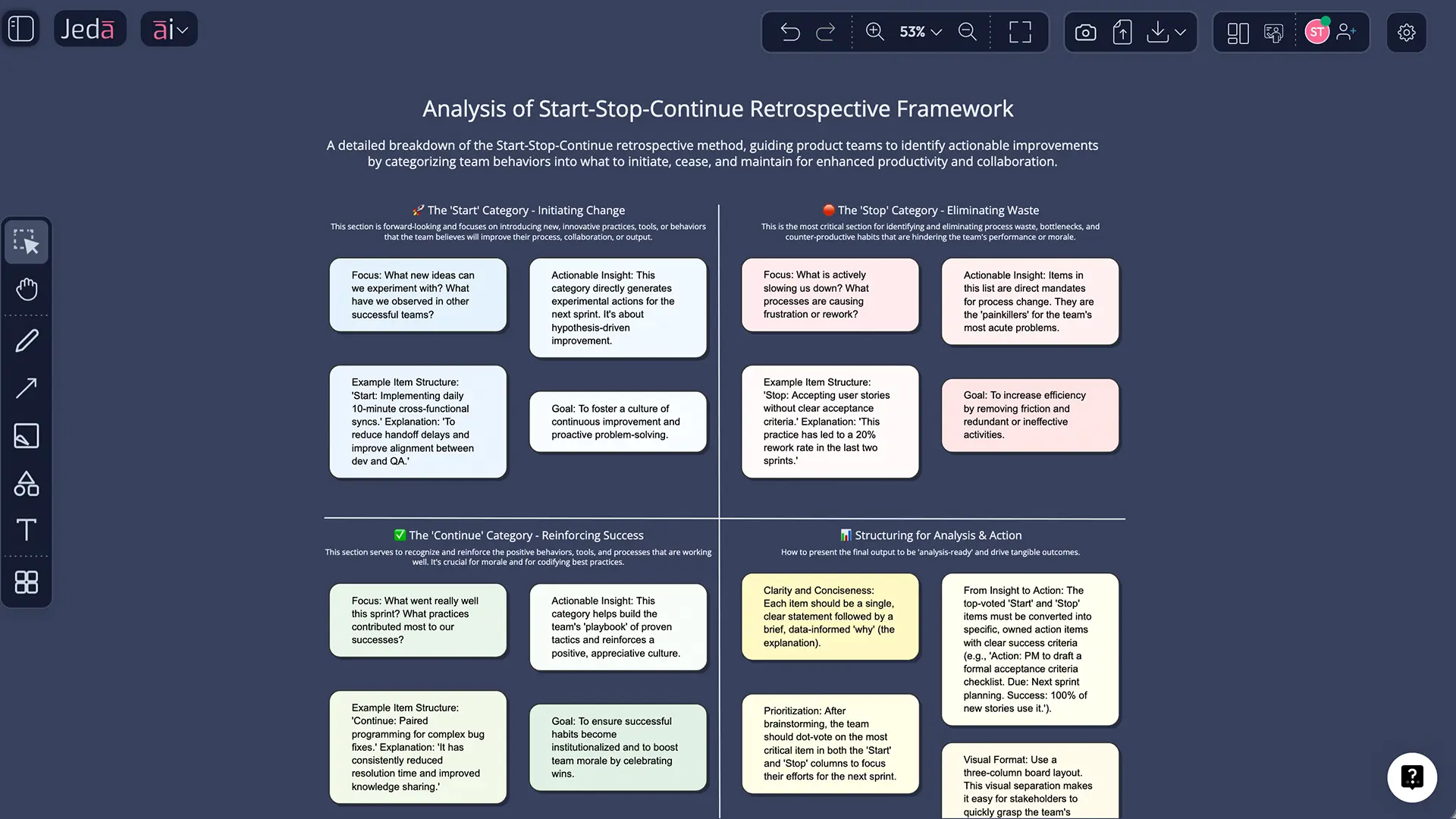
If your retro ends with “great chat, see you next sprint” and zero change… congrats, you’ve invented a meeting. A Start Stop Continue retrospective template fixes that by forcing decisions into three buckets. And when you run it inside an AI Workspace like Jeda.ai, you can go from raw team feedback to an editable AI Whiteboard your whole team can ship from—fast, visible, and actually reusable.
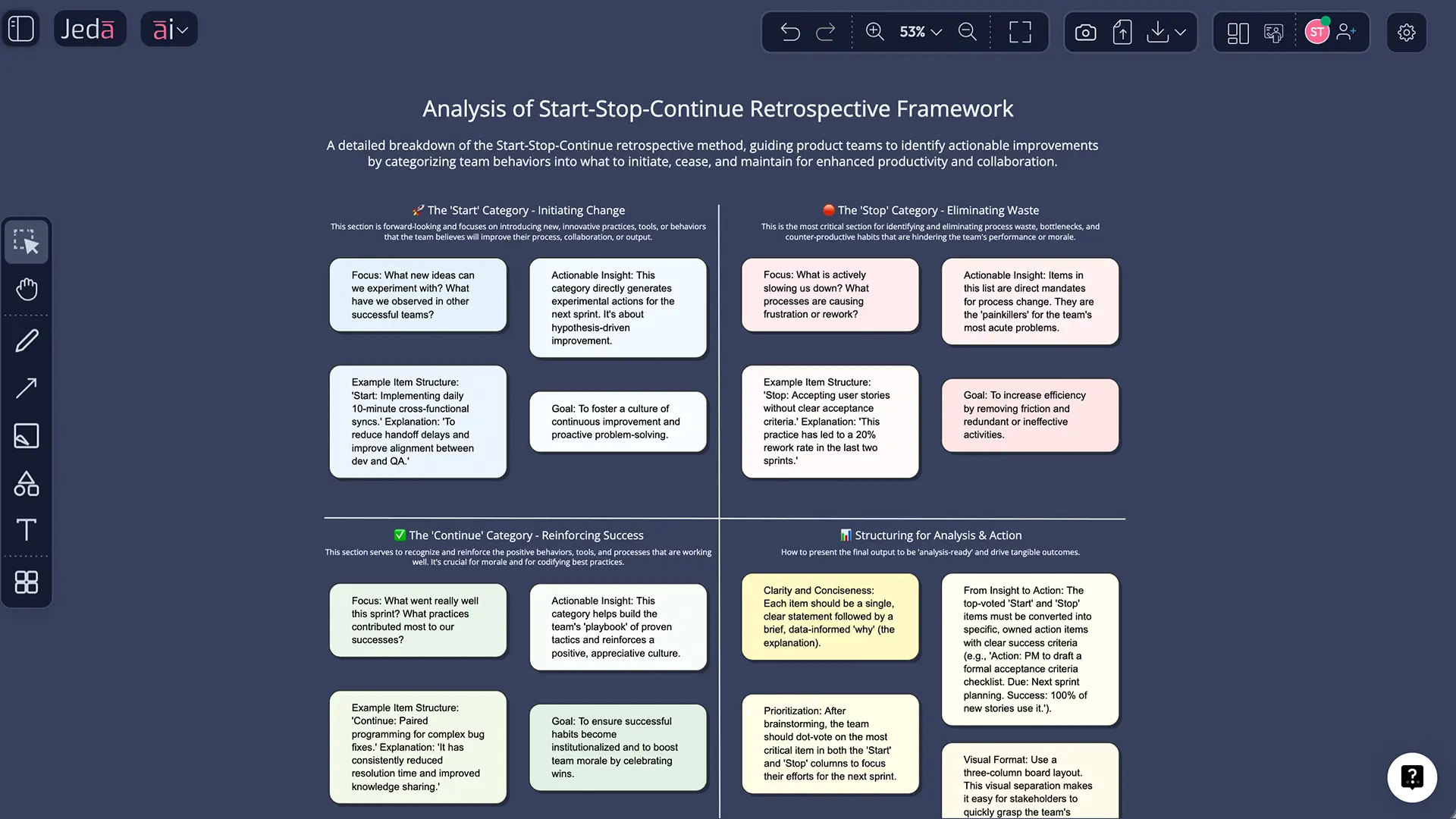
What is a Start Stop Continue Retrospective?
A Start Stop Continue retrospective is a simple reflection format that asks a team three direct questions: what should we start doing, stop doing, and keep doing. It’s popular in agile teams because it turns “feelings and vibes” into specific behavioral changes you can try next sprint, then revisit.
It also aligns neatly with Scrum’s idea of inspecting how the last Sprint went and planning improvements for quality and effectiveness.
And yes, it’s “simple.” Not “easy.” Teams can argue about one sticky note for 12 minutes. Humans are talented like that.
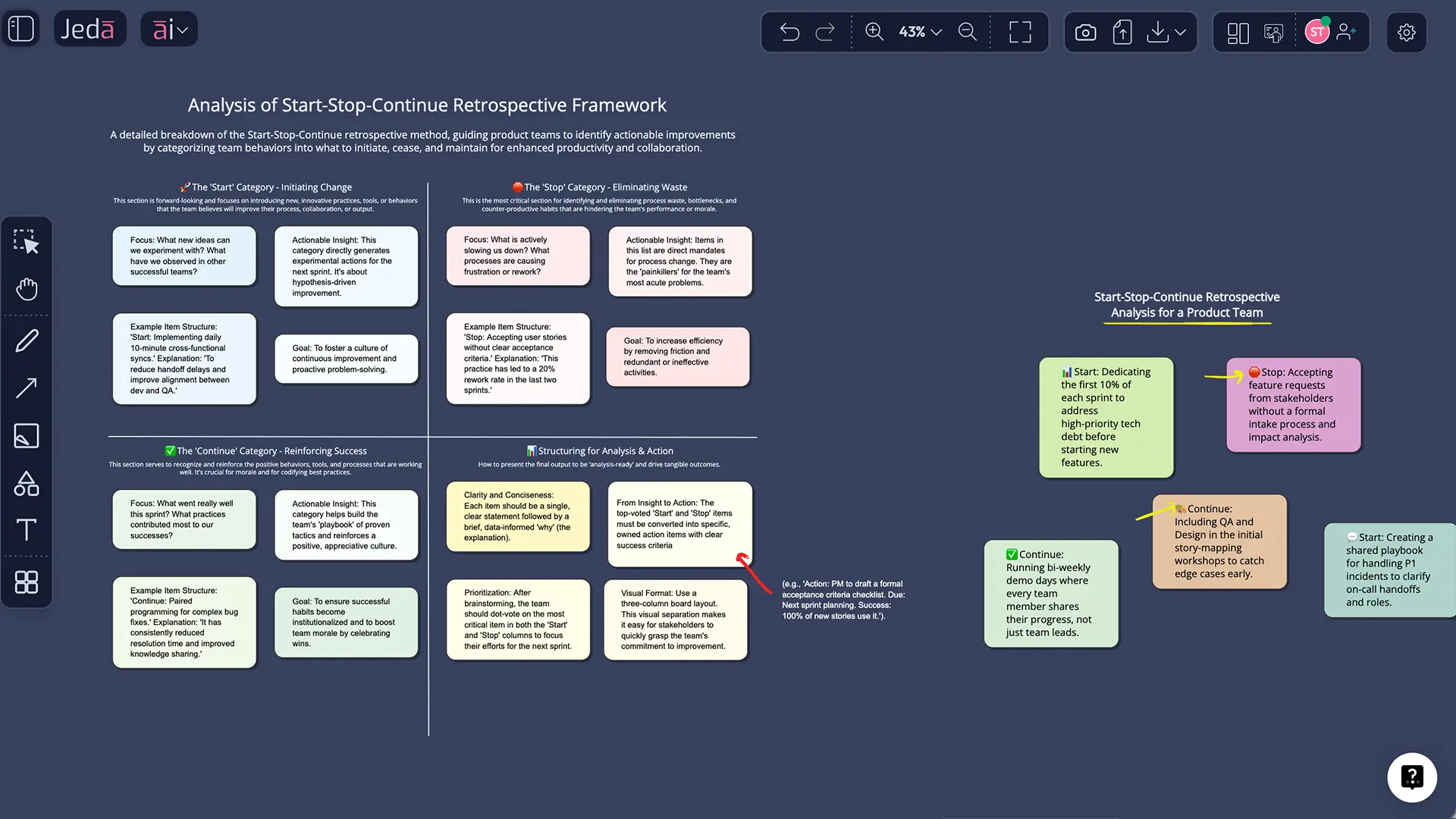
Why run Start Stop Continue with AI?
Running this retro with AI isn’t about replacing the team conversation. It’s about making the conversation output something usable—the kind of board you can open next week and instantly remember what you meant.
Here’s what changes when you do it in Jeda.ai:
- Faster alignment
You generate the matrix instantly, then spend time where it matters: choosing actions and owners.
- Editable visuals-out
Unlike chat-only tools, your retro becomes an editable board your team can refine together in real time.
- Evidence-in, not opinions-only
Bring sprint notes, incident summaries, or docs into the AI Workspace so the board reflects what actually happened.
Jeda.ai also supports running prompts with multiple models and selecting the best output via an aggregator—useful when you want different “angles” on the same retro prompt.
Think of the matrix as a three-lane decision filter:
Start
New behaviors the team wants to try.
- “Start writing acceptance criteria before implementation.”
- “Start a 10-minute bug triage at sprint start.”
Stop
Behaviors that waste time, create defects, or block progress.
- “Stop merging late on Friday.”
- “Stop changing requirements mid-sprint without a reset.”
Continue
Behaviors that are working and should be protected.
- “Continue pairing on risky tickets.”
- “Continue demoing early versions to stakeholders.”
Atlassian describes Start/Stop/Continue as a common retro prompt style, and it works because it pushes people toward “what next,” not just “what happened.”
How to create a Start Stop Continue Retrospective in Jeda.ai
You’ll do this as a Matrix inside the Jeda.ai AI Workspace (and yes, it feels like an AI Whiteboard, because it is).
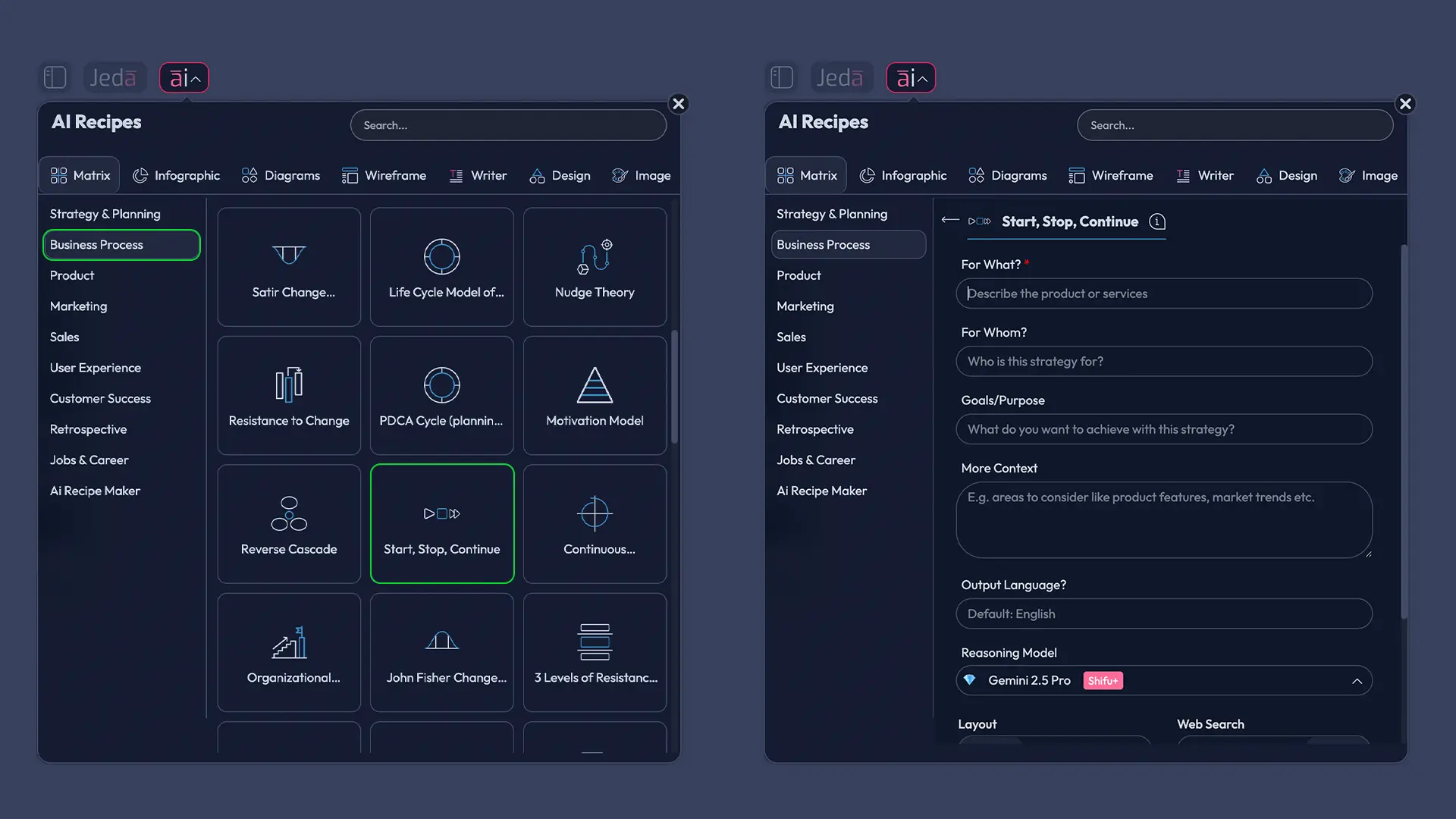
Method 1: Recipe Matrix (AI Menu)
This method uses the AI Menu’s Matrix Recipes approach. If your workspace includes a Start/Stop/Continue recipe, it’s the quickest path.
- Open the AI Menu
From the top-left, open the AI Menu in your Jeda.ai workspace.
- Go to Matrix Recipes
Choose the Matrix category so the output is a structured grid.
- Find a Start / Stop / Continue template
Search within Matrix Recipes for “Start Stop Continue” (or “Retrospective”). When you see it, select it.
- Add context (lightly)
Enter a short sprint/project context: goal, timeframe, and what kind of work the team did. Keep it simple.
- Generate and edit together
Click Generate. Then edit sticky notes, group duplicates, and assign owners directly on the canvas.
Pro move: After the first draft, duplicate the matrix and label it “Next Sprint Commitments.” Keep the original as raw input.
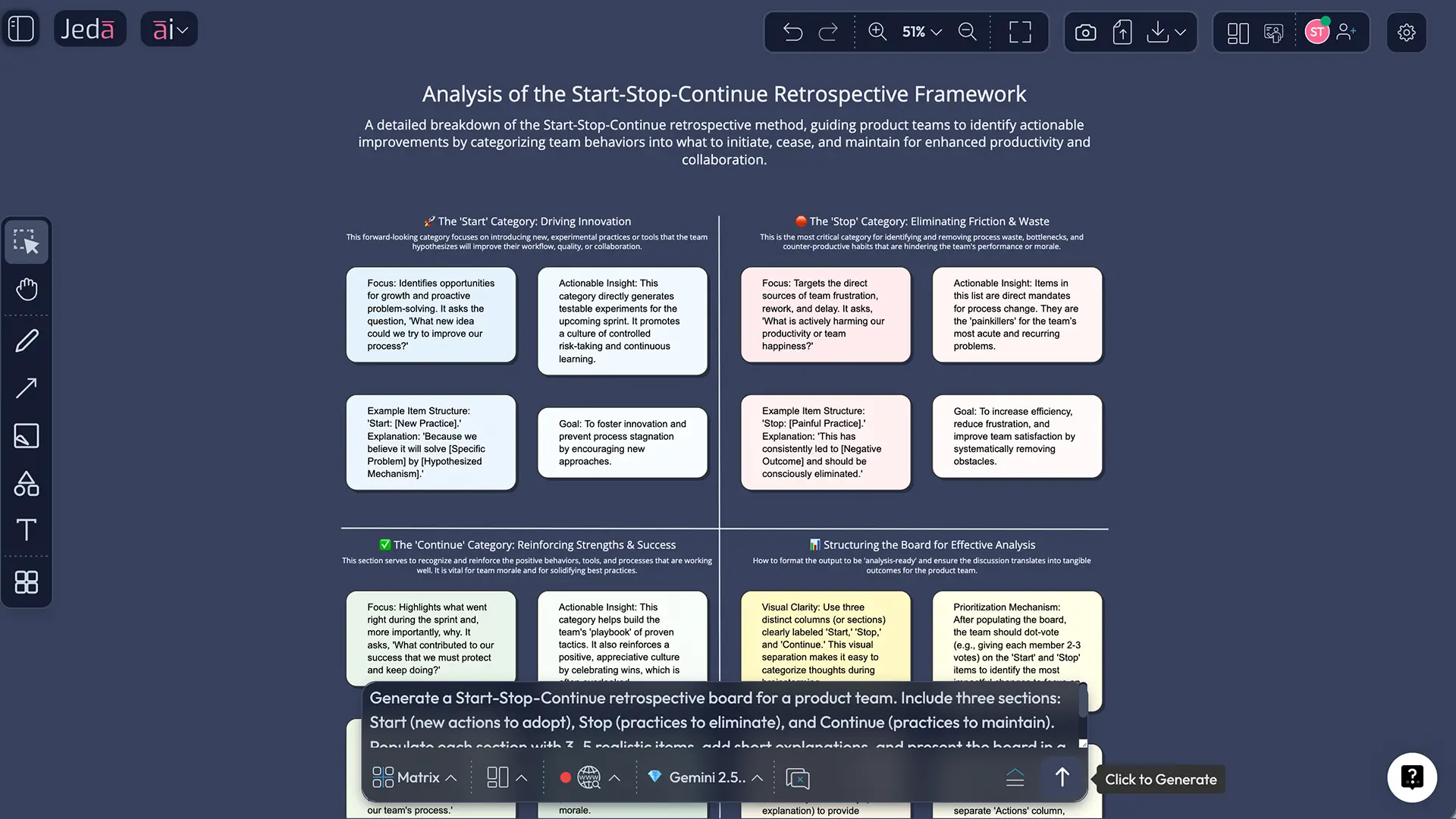
Method 2: Prompt Bar (Matrix command)
If you don’t see a recipe, the Prompt Bar works every time.
- Open the Prompt Bar at the bottom of the canvas.
- Select the Matrix command.
- Paste a prompt like this:
Prompt (copy/paste):
“Create a Start, Stop, Continue retrospective template for a team finishing a 2-week sprint. Keep each item short and actionable. Use 6–8 starter prompts per column to guide discussion.”
- Press Enter to generate.
- Edit the board live with your team.
AI+ Deep Dive (without turning it into “Ask the AI to run our company”)
After you generate the board, you’ll notice some notes are vague. “Communication.” “Planning.” “Scope.” Cool. Those are not actions.
This is where the AI+ button helps.
- Select any sticky note (or a group of related notes).
- Tap AI+ to extend it with AI.
- Use the output to make the note more specific, add examples, or break it into smaller actions.
Keep it general. Don’t treat AI+ like a fortune teller. It’s better as a clarity engine.
![AI+ button extending a retrospective screenshot: Select a sticky note → tap AI+ → expanded note suggestions appear]](https://pub-ddb08731cf9d4e9ea121de6b57ccef8e.r2.dev/uploads/c253495d-7aa7-487f-9907-32c78af43a32.webp)
A worked example: Product team retro after a sprint that shipped late
Here’s a realistic example of what a finished matrix looks like. (Not perfect. Real.)
Start (examples)
- Start timeboxing refinements to 30 minutes.
- Start defining a “ready” checklist before pulling tickets.
- Start writing a short release note draft during development.
Stop (examples)
- Stop accepting last-day scope changes without re-planning.
- Stop doing QA only at the end of the sprint.
- Stop letting one person be “the only one who knows the deployment.”
Continue (examples)
- Continue pairing on risky backend changes.
- Continue stakeholder demos mid-sprint.
- Continue keeping incident notes in the same board.
Now convert the matrix into action:
- Add a small “Owner” label to each chosen item.
- Add a “When will we check?” sticky note per action (next retro date works).
- If you want a clean action flow, use Vision Transform to convert the selected action items into a simple Flowchart.
![Vision Transform to convert the selected action items into a simple Flowchart]](https://pub-ddb08731cf9d4e9ea121de6b57ccef8e.r2.dev/uploads/c7889612-019c-4b76-be0f-a350f8e2830c.webp)
Best practices that make this retro actually work
Keep it tight
- 5 minutes: silent writing
- 10 minutes: cluster duplicates
- 10 minutes: vote
- 10 minutes: pick 1–3 actions
- 5 minutes: owners + next check-in
Atlassian suggests timeboxing Start/Stop/Continue sections (for good reason—people can spiral).
Prefer actions you can test
“Start communicating better” is fluff.
“Start posting a daily 3-line update in the board” is testable.
Common mistakes to avoid
- Turning “Stop” into a blame wall. Fix systems, not people.
- Keeping “Continue” shallow. Protect what works or you’ll break it by accident.
- Picking 8 action items. That’s not ambition, that’s denial.
- No owner, no date, no check-in. Then it’s just sticky note decoration.
- Making it too abstract. If a new teammate can’t understand it, it’s not clear enough.
Jeda.ai vs other ways teams run Start/Stop/Continue
| Speed to first draft | Editable visual output | Team collaboration | Re-usable artifact | |
|---|---|---|---|---|
| Jeda.ai (AI Workspace) | ✓ | ✓ | ✓ | ✓ |
| Blank whiteboard | Manual | ✓ | ✓ | Often messy |
| Chat-only AI | ✓ | ✗ | Limited | Text-only |
| Spreadsheet | Manual | Limited | Depends | ✓ |
Frequently Asked Questions
- What is a Start Stop Continue retrospective?
- A Start Stop Continue retrospective is a team reflection format that captures actions to begin, behaviors to end, and practices to keep. It’s designed to turn feedback into specific changes you can try next sprint or next project cycle.
- When should we use Start Stop Continue instead of other retro formats?
- Use Start Stop Continue when your team needs clear action items fast or when a retro keeps drifting into vague discussion. It’s especially useful after a sprint, release, incident, or any milestone where you want quick, testable improvements.
- How long should a Start Stop Continue retro take?
- A Start Stop Continue retro typically takes 30–60 minutes for a team of 5–10 people. Timebox writing, clustering, voting, and action selection so you end with owners and a review point, not just notes.
- How many actions should we commit to after the retro?
- Most teams should commit to 1–3 actions per cycle. Fewer actions increase follow-through and make it easier to verify whether a change improved outcomes. You can always add more later when you’ve proven capacity.
- Can we run Start Stop Continue with remote teams?
- Yes, Start Stop Continue works well remotely because it’s structured and visual. A shared AI Whiteboard lets people add notes silently, vote quickly, and leave with an artifact everyone can revisit without relying on meeting memory.
- How does Scrum relate to retrospectives?
- Scrum includes the Sprint Retrospective as a formal event where the team inspects how the last sprint went and plans improvements. The Scrum Guide frames it as a way to increase quality and effectiveness through inspection and adaptation.
- How does AI help in a Start Stop Continue retrospective?
- AI helps by generating a clean starting matrix, helping teams rewrite vague notes into clear actions, and turning the final output into an editable board that can be reused. The goal is faster clarity, not replacing team judgment.
- What should we do if the team gets defensive?
- Start by setting a safety baseline like the Retrospective Prime Directive, which frames the session around learning rather than blame. Then focus on behaviors and system constraints, and keep discussion tied to examples, not assumptions.
- Can we export the retrospective board from Jeda.ai?
- Yes. Jeda.ai exports boards as PNG, SVG, or PDF, which is useful for sharing outcomes with stakeholders or saving a snapshot for later review.
- How do we make sure improvements actually happen?
- Make each selected action specific, assign an owner, and set a check-in point. Then open the prior retro board at the start of the next retro so the team closes the loop and updates what worked, what didn’t, and what changed.
Sources & further reading
- [1]
Ken Schwaber and Jeff Sutherland (2020) . “The Scrum Guide” ScrumGuides.org.
View Source ↗ - [2]
Scrum.org (2020) . “What is a Sprint Retrospective?” Scrum.org Resources.
View Source ↗ - [3]
Esther Derby and Diana Larsen (2006) . “Agile Retrospectives: Making Good Teams Great” The Pragmatic Programmers.
View Source ↗ - [4]
The Agile Manifesto Authors (2001) . “Principles behind the Agile Manifesto” AgileManifesto.org.
View Source ↗ - [5]
Martin Fowler (2012) . “Priming Prime Directive” martinfowler.com.
View Source ↗ - [6]
Atlassian (2026) . “Free Start-Stop-Continue Template” Atlassian Confluence Templates.
View Source ↗ - [7]
Norman L. Kerth (2001) . “Project Retrospectives: A Handbook for Team Reviews (sample pages)” Pearson / ptgmedia.
View Source ↗
Start Your Start/Stop/Continue Retro in Minutes
Join over 150,000+ users who use Jeda.ai to turn team reflection into editable, decision-ready visuals in one AI Workspace.
Try Free Template