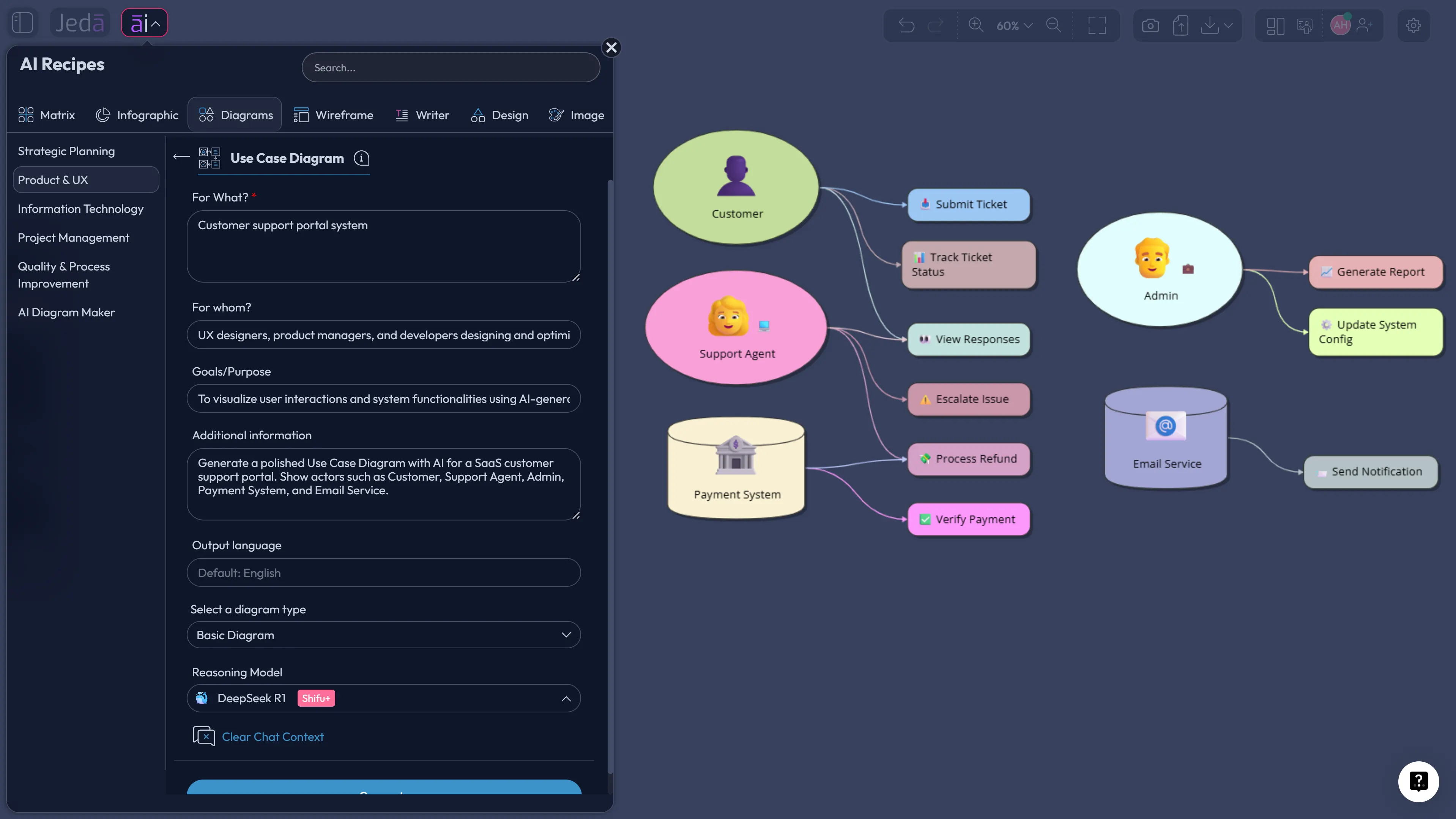
Use Case Diagram with AI sounds like a small productivity trick until you watch a product meeting go sideways over one simple question: who is this system actually for? A use case diagram forces that answer into the open. Actors, goals, system boundaries, external systems, and key interactions stop living in someone’s head and become a shared visual object. In Jeda.ai, that object lives inside an AI Workspace and AI Whiteboard where 150,000+ users can generate, edit, extend, and discuss the diagram without rebuilding it in three different tools.
What is a use case diagram?
A use case diagram is a UML-style visual map that shows how external actors interact with a system to achieve goals. The Object Management Group describes UML as a graphical language for visualizing, specifying, constructing, and documenting software-system artifacts, and use case diagrams sit inside that larger modeling family. The practical point is simpler: a use case diagram helps teams agree on what the system must do before they argue about screens, databases, tickets, and sprint points.
The classic use case tradition is usually linked to Ivar Jacobson’s use-case-driven approach to object-oriented software engineering. Later, Alistair Cockburn pushed teams to think beyond “stick figure plus oval” diagrams and write use cases as readable contracts between stakeholders and the system. That distinction matters. A diagram is not decoration. It is the front door into requirements thinking.
And yes, the diagram can get messy fast. Actors may overlap. Authentication may appear everywhere. Payment, notifications, analytics, and admin flows sneak into the same board. That is exactly where a Use Case Diagram with AI helps: it gives you a structured first pass, then lets humans correct the thinking while the context is still warm.
Why create a Use Case Diagram with AI?
Creating a Use Case Diagram with AI is not about outsourcing product judgment. Please don’t. The better framing is: AI gives the team a structured draft fast enough to critique before the meeting energy dies. That is a very different promise.
Jeda.ai is useful here because the output is not trapped in a chat transcript. The diagram becomes an editable visual inside an AI Whiteboard. You can move actors, rename use cases, reshape nodes, add connectors, fold or expand sections, collaborate with teammates, and export the final board as PNG, SVG, or PDF. For teams who live in requirements documents, product discovery notes, and stakeholder interviews, that is the difference between “AI gave us text” and “we have a working product scope map.”
- Actor clarity
Separate real users, admin roles, external services, and secondary systems before they blur into one vague product audience.
- Goal-first scope
Frame the system around what each actor needs to accomplish, not around whatever feature list shouted loudest last week.
- System boundary control
Make the product boundary visible so teams can spot what belongs inside the system and what sits outside it.
- Relationship mapping
Use connected visual structure to show associations, include relationships, extend relationships, and role inheritance with less manual diagram wrangling.
- AI-assisted first draft
Start from a useful generated diagram, then edit the visual directly instead of dragging every actor and use case from zero.
- Stakeholder-ready output
Turn discovery notes into a diagram your product, engineering, and business stakeholders can review together on the same canvas.
When should you use a Use Case Diagram with AI?
Use it when the product question is still bigger than the screen design. That is the honest answer.
A use case diagram is strongest when you need to clarify scope, actors, system responsibilities, and major user goals. It is not the best tool for database fields, pixel-level UI behavior, or detailed algorithm logic. Use an entity relationship diagram, wireframe, sequence diagram, or flowchart for those. Different diagrams have jobs. Tiny hill to die on: forcing every product question into one diagram type is how teams create beautiful nonsense.
Good moments for a Use Case Diagram with AI include early product discovery, SaaS feature scoping, admin-panel planning, mobile app requirements, internal workflow automation, and stakeholder workshops where everyone has a different idea of what “the system” means.
How to create a Use Case Diagram with AI in Jeda.ai using the Diagram Recipe
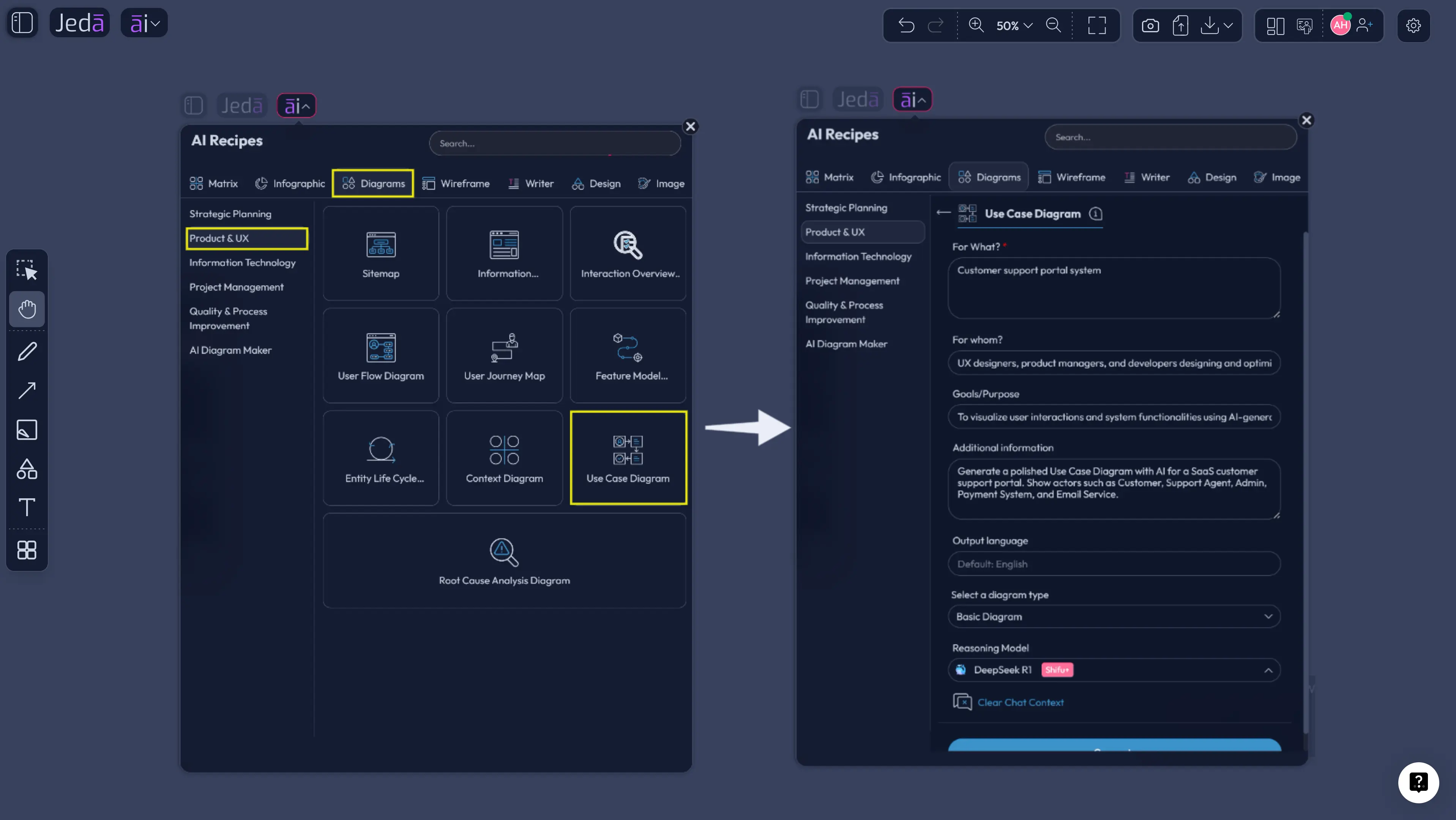
The recipe path is the recommended method because it gives the AI better input structure. Instead of throwing one vague prompt at the canvas, you guide the output through fields such as what the diagram is for, whom it is for, the product context, goals, actors, and extra constraints. Less guesswork. Better diagram.
In Jeda.ai, the Use Case Diagram recipe lives under the Product & UX category. Because this is a Diagram Recipe, you can choose layout direction, use Web Search when live context matters, select the output type, and choose the AI model. For most use case diagrams, pick Basic Diagram as the diagram type. Mind Map can help during early actor discovery, and Flowchart can help when the team wants to convert the use case view into a step-by-step process later.
- Open AI Recipes
Click the AI Menu in the top-left area of the Jeda.ai workspace and open the Diagram Recipes section.
- Choose Product & UX
Go to the Product & UX category and select the Use Case Diagram recipe. This keeps the workflow focused on actors, goals, product scope, and system relationships.
- Fill the recipe fields
Complete the usual recipe inputs such as what the diagram is for, whom it is for, the product or system context, goals, known actors, external systems, and any constraints.
- Select the layout
Choose Horizontal layout when you want actors and systems spread left to right. Choose Vertical layout when the diagram needs a top-down stakeholder or system-boundary view.
- Set Web Search
Use Web Search when the diagram needs current domain context, competitor workflow patterns, or fresh platform assumptions. Keep it off when you are modeling private internal requirements.
- Choose the diagram type
Pick Basic Diagram for a classic use case diagram. Use Mind Map for early actor discovery or Flowchart when you want to shift the output toward process sequencing.
- Select the AI model
Choose the reasoning model available on your plan. For higher-stakes scoping work, Multi-LLM Agent can compare several model perspectives before the output lands on the canvas.
- Generate and review
Click Generate, inspect actors, use cases, boundaries, and relationships, then edit the visual directly on the canvas. Use AI+ only to extend or deepen selected areas; do not treat it as a custom instruction box.
How to create a Use Case Diagram with AI from the Prompt Bar
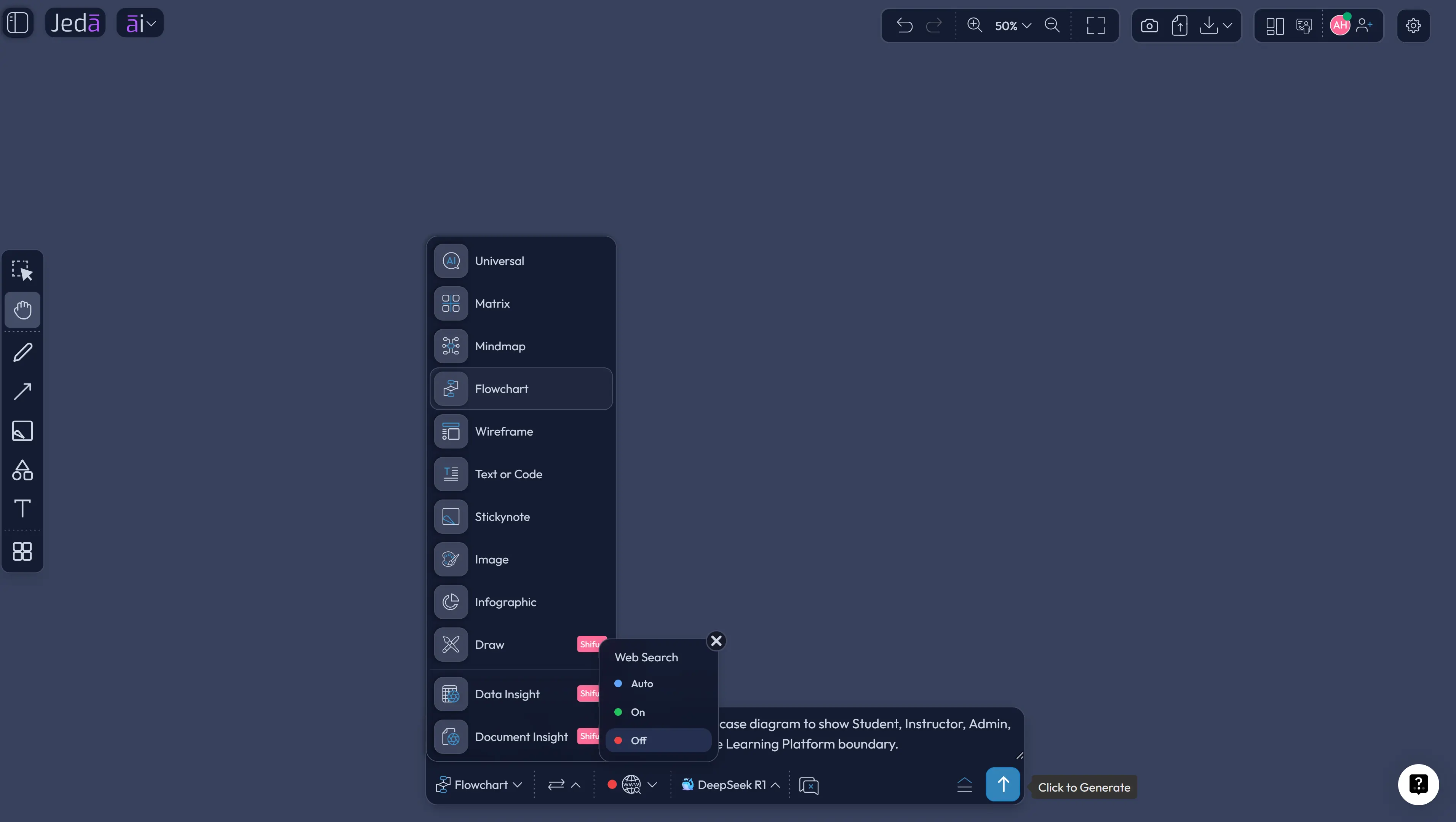
The Prompt Bar method is faster when you already know what you want. It is also useful when a product manager, business analyst, or engineer wants to sketch a diagram from a raw requirement in one move.
This path gives you less guided structure than the recipe, so your prompt needs to carry more weight. Name the system. Name the primary actors. Mention external systems. Say what to exclude. Ask for a clear system boundary. And, if you need a UML-style use case diagram rather than a process flow, say that plainly.
- Open the Prompt Bar
Use the bottom Prompt Bar in Jeda.ai as your main input area for the diagram request.
- Select the Diagram command
Choose the Diagram command for a connected actor-system visual. If your workflow needs process sequencing after that, you can generate or convert into a Flowchart view.
- Write a structured prompt
Describe the system, primary actors, secondary actors, external services, core goals, and anything that should stay outside the system boundary.
- Choose layout and model
Pick Horizontal or Vertical layout when available, set Web Search based on whether live context is needed, and select the AI model for the generation.
- Generate the diagram
Click Generate and let Jeda.ai place the use case diagram on the canvas as an editable visual.
- Clean up the model
Rename actors, remove duplicate use cases, adjust connector types, and verify that each use case produces a meaningful result for at least one actor.
- Extend or transform when needed
Use AI+ to extend or deepen a selected section. Use Vision Transform when you want to convert the diagram into a mind map, flowchart, matrix, or another visual format.
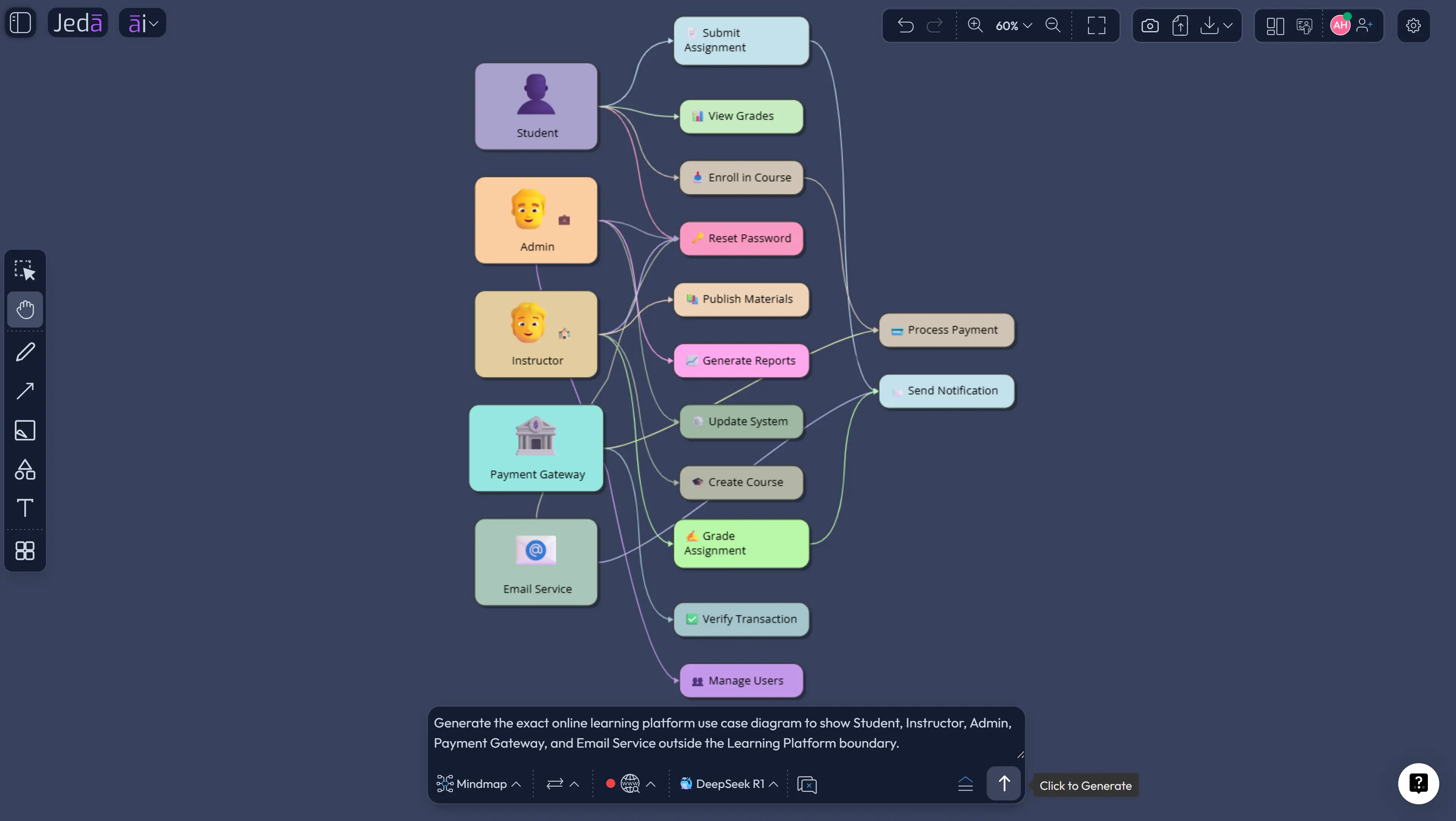
A strong prompt for a Use Case Diagram with AI
Here is the kind of prompt that works because it gives the AI enough boundaries. Not perfect. Useful.
Notice the pattern. It names the system, actors, boundary, use cases, relationship expectations, and tone. That is enough to get a useful first version in Jeda.ai without smuggling a full requirements document into the prompt.
What should a good AI-generated use case diagram include?
A good AI-generated use case diagram has fewer clever labels and more shared understanding. That is the bar.
At minimum, the diagram should show the system boundary, external actors, use cases, associations between actors and use cases, and the relationship logic between use cases. IBM’s UML guidance describes include relationships as reuse of functionality by a base use case, while extend relationships add behavior to a base use case under certain conditions. That distinction is small on paper and huge in real diagrams. Confuse it, and your requirements model starts telling lies with a straight face.
| Purpose | Use in a use case diagram | Common mistake | |
|---|---|---|---|
| Actor | External role or system | Shows who or what interacts with the system | Listing internal modules as actors |
| Use case | User-visible goal | Shows what the system provides to an actor | Naming tiny implementation tasks instead of outcomes |
| System boundary | Scope control | Separates the system from outside actors | Letting external services drift inside the product |
| Include relationship | Required reused behavior | Shows shared functionality used by another use case | Using it for optional behavior |
| Extend relationship | Conditional or optional behavior | Shows behavior added under a condition | Using it as a generic connector |
Best practices for AI use case diagrams
Start broad, then sharpen. That is the move.
Use Jeda.ai’s recipe when the team is still discovering the scope. Use the Prompt Bar when the scope is already written down and you need a fast visual. For complex systems, generate the first diagram for the core actor journey only. Then create separate diagrams for admin workflows, integrations, reporting, and exception handling. One giant use case diagram usually becomes a spaghetti crime scene. Nobody wants to inherit that board.
Common mistakes to avoid
The first mistake is treating a use case diagram like a full product spec. It is not. It is a scope and interaction map. You still need user stories, acceptance criteria, data rules, edge cases, UI flows, and technical design work.
The second mistake is letting AI decide the actors without review. AI may invent roles that sound reasonable but do not exist in your operating model. That is why the editable canvas matters. You generate, then you interrogate the output.
The third mistake is mixing user goals with internal implementation tasks. “Login” may be a valid use case in some systems, but “validate token,” “write session,” and “call middleware” usually belong somewhere else. Keep the diagram at stakeholder-readable altitude.
The fourth mistake is overusing include and extend. Use include for required reused behavior. Use extend for conditional additions. If the team cannot explain the relationship in plain language, the connector is probably doing cosplay.
Use Case Diagram with AI for product teams, analysts, and engineers
For product managers, a Use Case Diagram with AI helps turn discovery conversations into a map that stakeholders can challenge early. That is where product risk gets cheaper. The wrong actor, missed external system, or fuzzy boundary is much easier to fix on a Jeda.ai canvas than two sprints later.
For business analysts, the diagram becomes a first requirements artifact: not the final answer, but the shared starting point. For engineers, it becomes a sanity check before architecture gets too detailed. For project managers, it can reveal dependency-heavy areas such as payments, user roles, approvals, and integrations. And for founders, it gives a faster way to explain what the MVP does without waving hands over a feature list.
This is why Jeda.ai’s Visual AI approach matters. The AI Workspace does not stop at text. It helps turn the thinking into an editable diagram, then gives teams collaboration, AI+ extension, Vision Transform, and export options in one place. Add 300+ strategic frameworks and Diagram Recipes, and the use case diagram becomes one piece of a broader product-planning system instead of a lonely artifact.
Frequently Asked Questions
- What is a Use Case Diagram with AI?
- A Use Case Diagram with AI is an AI-assisted visual map of actors, system boundaries, and user goals. The AI drafts the structure, while the team reviews, edits, and validates the diagram so it reflects real product scope.
- Can Jeda.ai create a use case diagram from a prompt?
- Yes. You can create a use case diagram in Jeda.ai through the Use Case Diagram recipe or by using the Prompt Bar with the Diagram command. The recipe is better for guided structure; the Prompt Bar is faster for known requirements.
- Which Jeda.ai method is best for use case diagrams?
- The Diagram Recipe method is best for most teams because it asks for structured inputs such as purpose, audience, actors, context, layout, diagram type, Web Search preference, and AI model selection before generation.
- Should I choose Basic Diagram, Mind Map, or Flowchart?
- Choose Basic Diagram for a classic use case diagram. Choose Mind Map when you are still discovering actors and goals. Choose Flowchart when you want to convert the use case view into step-by-step behavior or process logic.
- What is the difference between include and extend in a use case diagram?
- An include relationship represents required reused behavior that another use case depends on. An extend relationship represents added behavior that occurs under a condition or optional scenario. Mixing them up can make the model misleading.
- Can AI+ modify my use case diagram with specific instructions?
- AI+ is best treated as a quick way to extend or deepen selected content. Do not use it as a custom instruction box. For specific instructions, use the recipe fields or the Prompt Bar instead.
- Can I edit the generated use case diagram in Jeda.ai?
- Yes. Jeda.ai generates editable visual outputs for Diagram, Flowchart, Matrix, Mindmap, and other structured commands. You can move nodes, rename labels, style shapes, adjust connectors, collaborate, and export the result.
- When should I not use a use case diagram?
- Do not use a use case diagram for detailed database structure, screen-by-screen UI design, or low-level algorithm logic. Use it for actor goals, system scope, external interactions, and early requirements alignment.
- Can I use Web Search while generating a use case diagram?
- Yes, Jeda.ai provides Web Search as a platform feature when current public context is useful. Keep it off for private internal requirements unless you intentionally want external context included in the generation.
- Can I export a Jeda.ai use case diagram?
- Yes. Jeda.ai supports export as PNG, SVG, and PDF. That makes the diagram useful for product requirement documents, stakeholder decks, engineering reviews, and team knowledge bases.
Sources and further reading
- [1]
Object Management Group (2017) . “Unified Modeling Language 2.5.1 Specification” OMG Specification.
View Source ↗ - [2]
Ivar Jacobson, Magnus Christerson, Patrik Jonsson, and Gunnar Overgaard (1992) . “Object-Oriented Software Engineering: A Use Case Driven Approach” ACM / Addison-Wesley.
View Source ↗ - [3]
Ivar Jacobson, Ian Spence, and Kurt Bittner (2016) . “Use-Case 2.0: The Hub of Software Development” ACM Queue.
View Source ↗ - [4]
Alistair Cockburn (2001) . “Writing Effective Use Cases” Addison-Wesley / Pearson sample pages.
View Source ↗ - [5]
IBM (n.d.) . “Include relationships in UML modeling” IBM Documentation.
View Source ↗ - [6]
IBM (n.d.) . “Extend relationships in use-case diagrams” IBM Documentation.
View Source ↗
Create Your Use Case Diagram with AI
Join 150,000+ users using Jeda.ai’s AI Workspace and AI Whiteboard to turn product scope into editable visual diagrams.
Try Jeda.ai Free