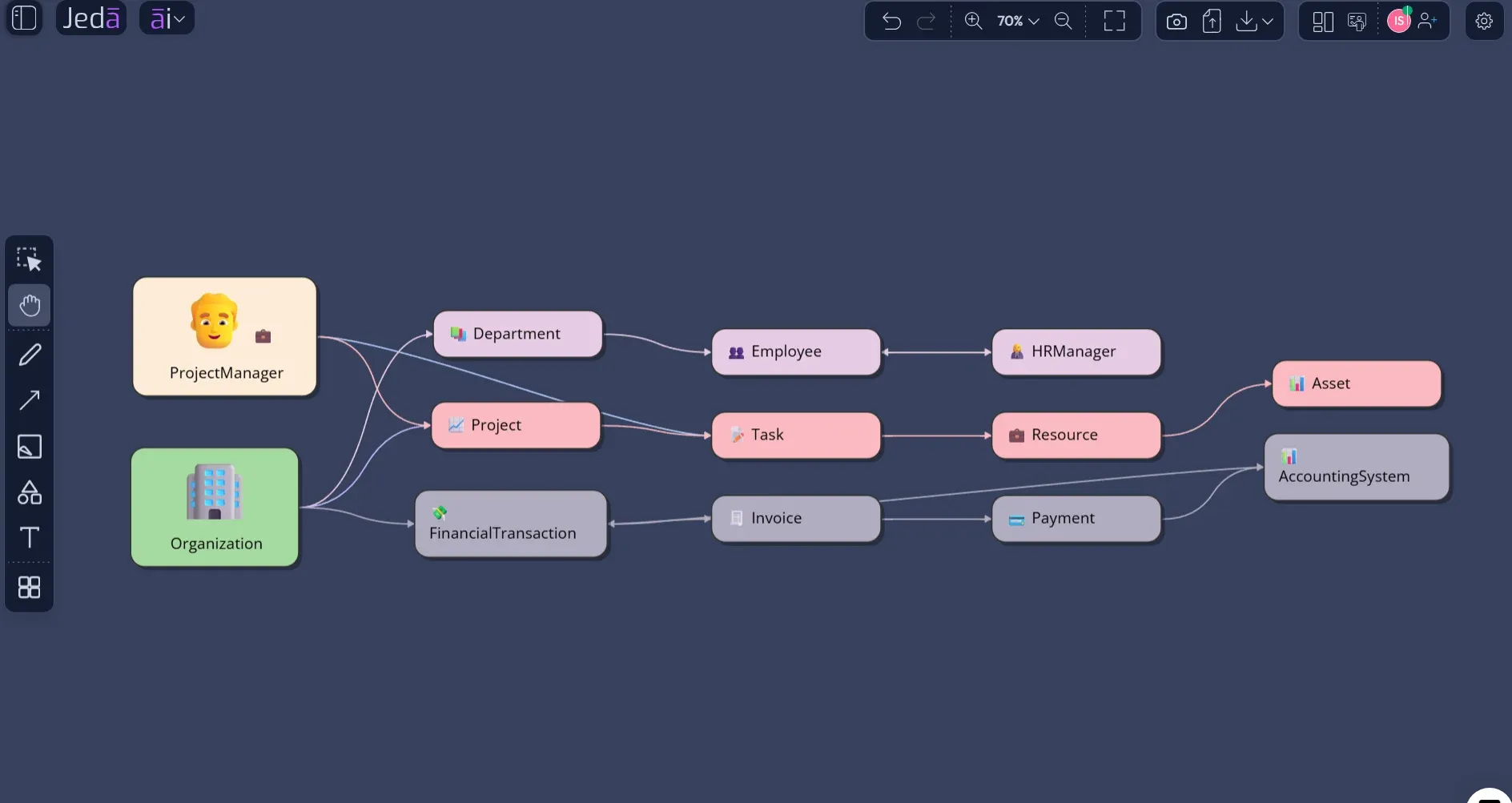
Class Diagram with AI is no longer a cute shortcut for drawing boxes faster. It is a shift in how teams turn requirements, product logic, and system architecture into something people can challenge before code hardens into regret. A class diagram still needs engineering judgment. But the first version does not need to start with a blank canvas, a tired architect, and twelve sticky notes pretending to be a domain model.
Jeda.ai changes the starting point. Inside one AI Workspace, software teams can use the guided Class Diagram recipe, choose the right diagram type, select horizontal or vertical layout, add web search when needed, pick an AI model, and turn rough system context into an editable Visual AI structure. It sits inside Jeda.ai's broader system of 300+ strategic frameworks and recipes, so the diagram can connect to planning, analysis, and decision workflows instead of floating alone. More than 150,000+ users already use Jeda.ai for visual thinking, planning, and collaboration. For class diagrams, that matters because the output is not a dead screenshot. It is a working model your team can edit, extend, question, and present on the same AI Whiteboard.
What is a Class Diagram?
A class diagram is a UML structural diagram that shows the static view of a system: classes, attributes, operations or methods, and relationships among objects. The Object Management Group describes UML as a graphical language for visualizing, specifying, constructing, and documenting distributed object systems, with UML 2.5.1 listed as a formal specification published in December 2017. Microsoft’s own class diagram guidance also frames it as a static view of classes, attributes, methods, and relationships.
That sounds tidy. Reality is messier.
Class diagrams become useful when they answer practical design questions: What are the core domain objects? Which class owns which responsibility? Which relationships are stable enough to document? Where does inheritance make sense, and where would composition be cleaner? Which methods belong in the model now, and which should stay out until behavior is clearer?
A good class diagram is not an art board. It is a pressure test for system structure.
Why Create a Class Diagram with AI?
The old diagramming workflow punishes teams for thinking carefully. You gather requirements, extract nouns and verbs, identify classes, debate relationships, draw the structure, revise it after reviews, and then repeat the whole circus when the product scope changes. No wonder diagrams rot. They are usually built too late and updated too rarely.
AI changes the economics of the first draft. Give Jeda.ai a product description, feature brief, requirements list, or architecture note, and it can propose a structured class model quickly. Then the team can do the hard part: remove false assumptions, tighten relationships, name responsibilities properly, and decide what belongs in version one.
This is where Jeda.ai is different from a basic AI class diagram generator. The goal is not just “generate UML.” The goal is to keep the class model inside an AI Whiteboard where architecture, product context, and team discussion stay visible. Jeda.ai’s AI Workspace supports diagrams, flowcharts, mind maps, matrices, document-driven analysis, and collaboration. That means your class diagram can sit next to a user journey, system flow, technical decision matrix, or feature roadmap instead of living in tool exile.
- Turn requirements into structure
Start from rough product context and generate a class model that exposes likely entities, attributes, methods, and relationships.
- Make relationships debatable
Show associations, dependencies, generalizations, realizations, aggregation, and composition so the team can challenge design choices before implementation.
- Choose the right visual form
Generate as a Basic Diagram for UML structure, Mind Map for conceptual exploration, or Flowchart when the class model needs process context.
- Ground with web search
Use Jeda.ai's platform-level web search when external patterns, domain concepts, or fresh technical context should inform the first version.
- Select the reasoning model
Pick the AI model that fits the task, or use Multi-LLM Agent on supported plans when you want multiple perspectives before finalizing.
- Review on the canvas
Keep the diagram editable, collaborative, and exportable as PNG, SVG, or PDF after the architecture review lands.
When Should Teams Use AI for Class Diagrams?
Use Class Diagram with AI when the team already has enough context to model structure, but not enough patience to manually drag every box into existence. That is the sweet spot.
It works well for early object-oriented design, API domain modeling, feature decomposition, data-rich systems, refactoring discussions, and product discovery sessions where the nouns are obvious but responsibilities are not. It is also useful for business analysts who need to turn requirements into a technical conversation without pretending to be the final architect.
But here is the caveat. AI can propose structure. It cannot know your production constraints, legacy debt, database migration pain, team conventions, or the political landmine hidden inside that innocent-looking “User” entity. Human review is not optional. It is the point.
How to Create a Class Diagram with AI in Jeda.ai
Jeda.ai gives you two clean routes. Use the Class Diagram recipe when you want a guided workflow. Use the Prompt Bar when you already know exactly what structure you want. For this page, the recipe path is the main event because it keeps the process structured, repeatable, and easier to teach across product, engineering, and analysis teams.
Method 1: Use the Class Diagram Recipe in Jeda.ai
The Class Diagram recipe sits under the Information & Technology area of Diagram recipes. It is the safer path when you want the tool to ask for the right context instead of hoping your prompt remembers everything.
- Open the AI Menu
Start from your Jeda.ai canvas and open the AI Menu in the top-left area. This route is best when you want a guided Class Diagram workflow instead of a blank prompt.
- Go to Diagram recipes
Choose the Diagrams tab, then open the Information & Technology category where the Class Diagram recipe is available.
- Select Class Diagram
Choose the Class Diagram recipe. This recipe is designed to depict the structure of a system by showing its classes and relationships.
- Fill in For What
Describe the system or process, such as an online ride-sharing platform, SaaS billing system, inventory app, marketplace, learning portal, or internal workflow tool.
- Fill in For Whom
Name the primary audience for the diagram: system architects, software engineers, product managers, business analysts, QA teams, or technical stakeholders.
- Define Goals or Purpose
Explain what the diagram should clarify. For example: define relationships between classes, prepare implementation planning, review domain logic, or align product and engineering.
- Add Additional Information
Provide key classes, attributes, methods, relationships, business rules, constraints, inheritance hints, lifecycle rules, or known domain objects.
- Choose output language
Keep English or select another output language if your team reviews architecture in a different language.
- Select the diagram type
Choose Basic Diagram for the most UML-like structure, Mind Map for early concept exploration, or Flowchart when the class structure needs process context.
- Choose layout direction
Use horizontal layout when you want relationships to spread left-to-right, or vertical layout when a layered system, hierarchy, or step-like structure reads better top-to-bottom.
- Set web search and model options
Turn web search on, off, or auto depending on whether current domain context matters. Then select the reasoning model, or use Multi-LLM Agent if your plan supports it.
- Generate, review, and edit
Generate the class diagram on the canvas. Review class names, attributes, methods, relationship types, multiplicities, and missing abstractions before treating it as a real architecture artifact.
- Use AI+ only to extend or deepen
After selecting an existing class, relationship, or branch, use AI+ to extend or deepen that selected part. Do not treat AI+ as a separate instruction field for unrelated requests.
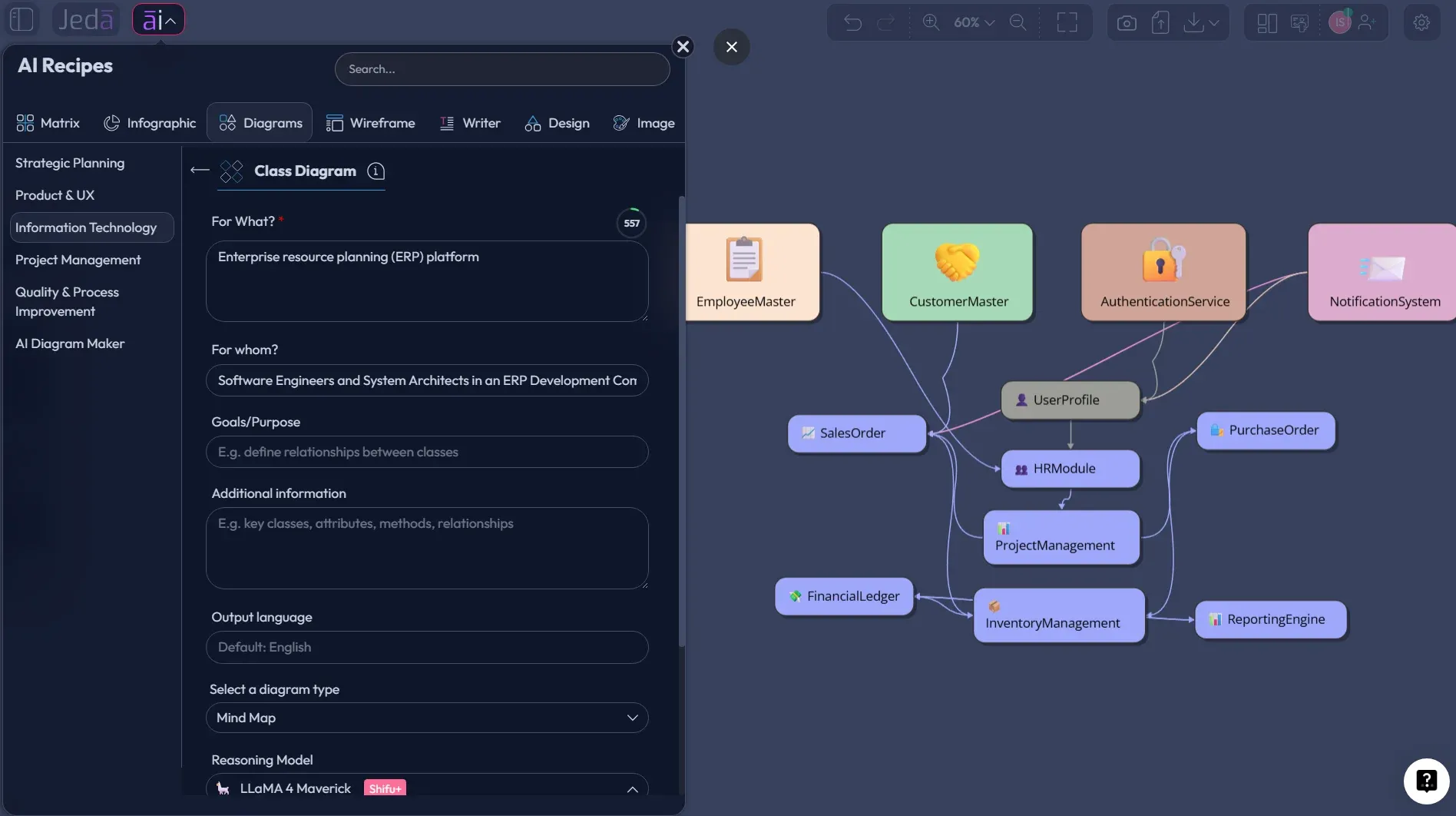
The recipe workflow is especially useful for teams that need consistency. A product manager can fill the form with feature context. A software engineer can add methods and lifecycle rules. A business analyst can add domain terminology. The resulting class diagram becomes a shared object everyone can argue with.
Good. Argue with it.
That is how diagrams get better.
Method 2: Use the Prompt Bar for Direct Class Diagram Generation
The Prompt Bar is faster when you already know the output. Use it for quick drafts, refactors, smaller modules, or architecture conversations where you do not need the guided recipe fields.
- Open the Prompt Bar
Go to the Prompt Bar at the bottom of the Jeda.ai canvas. This is the direct route for users who already know the diagram they want.
- Select the Diagram command
Choose Mind Map when you want a flexible connected-shape structure, or Flowchart if the class model should be explained through process flow.
- Choose horizontal or vertical layout
Pick the layout direction before generation. Horizontal works well for domain relationships; vertical works well for layered architecture or inheritance-heavy structures.
- Set web search
Use web search when the diagram should reflect current platform patterns, public APIs, common architecture references, or domain concepts outside your internal notes.
- Select the AI model
Choose the reasoning model from the model selector. For more demanding architecture work, use a stronger model or Multi-LLM Agent where available.
- Write the class diagram prompt
Describe the system, audience, classes, attributes, methods, relationships, constraints, and output style. Ask for a Basic Diagram-style UML class structure when you want class boxes and connectors.
- Generate the diagram
Run the prompt and let Jeda.ai place the generated class diagram on the canvas as an editable visual structure.
- Review and correct the model
Check whether the classes are real domain concepts, whether attributes belong in the right place, and whether relationship types make engineering sense.
- Extend with AI+ when needed
Select an existing class or relationship and use AI+ to extend or deepen that selected area only. Keep new, unrelated instructions in the Prompt Bar instead.
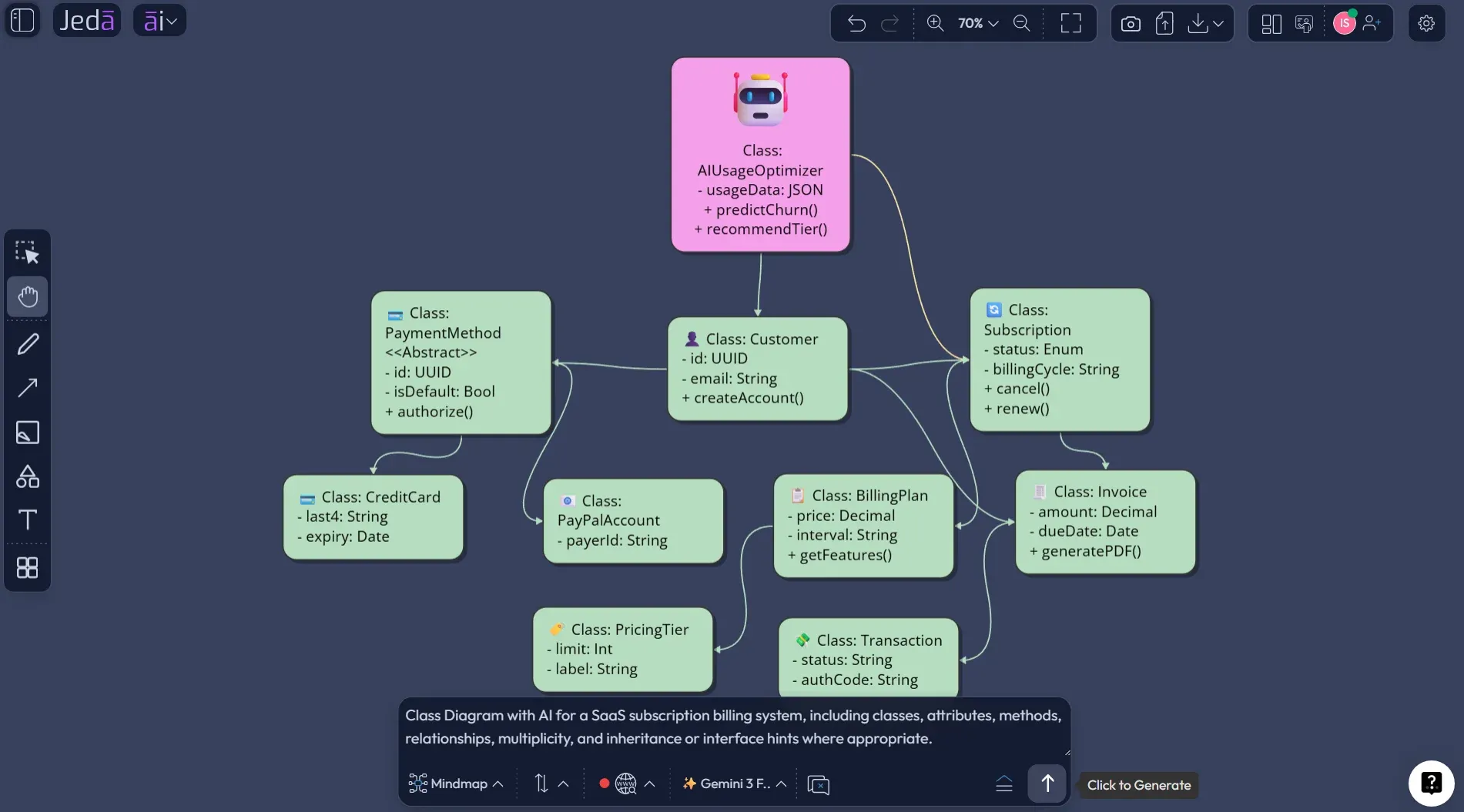
Here is a strong Prompt Bar example you can adapt:
Example: Class Diagram with AI for a SaaS Billing System
A billing system is a perfect class diagram use case because the nouns look deceptively simple. User. Plan. Subscription. Invoice. Payment. Easy, right? Then the real questions arrive.
Can one Account own multiple Workspaces? Does Subscription belong to Account or Workspace? Is Plan a live object or a historical snapshot? Are coupons attached to invoices, subscriptions, or payment transactions? Should UsageEvent feed billing calculations directly, or only through an aggregation service? These questions are design decisions, not decorative details.
With Jeda.ai, you can generate the first model quickly, then refine it in front of the team. The first pass might reveal classes such as Account, Workspace, User, Role, Plan, Subscription, Invoice, PaymentMethod, PaymentTransaction, UsageEvent, Coupon, and AuditLog. Then you can inspect the model and decide what deserves to stay.
For example, Subscription may compose BillingSchedule if the schedule cannot exist independently. PaymentTransaction may depend on PaymentGateway rather than contain it. User may associate with Workspace through Membership instead of a direct many-to-many relationship, because roles, permissions, and invitation status usually live on the membership itself. That small modeling choice prevents a lot of later confusion.
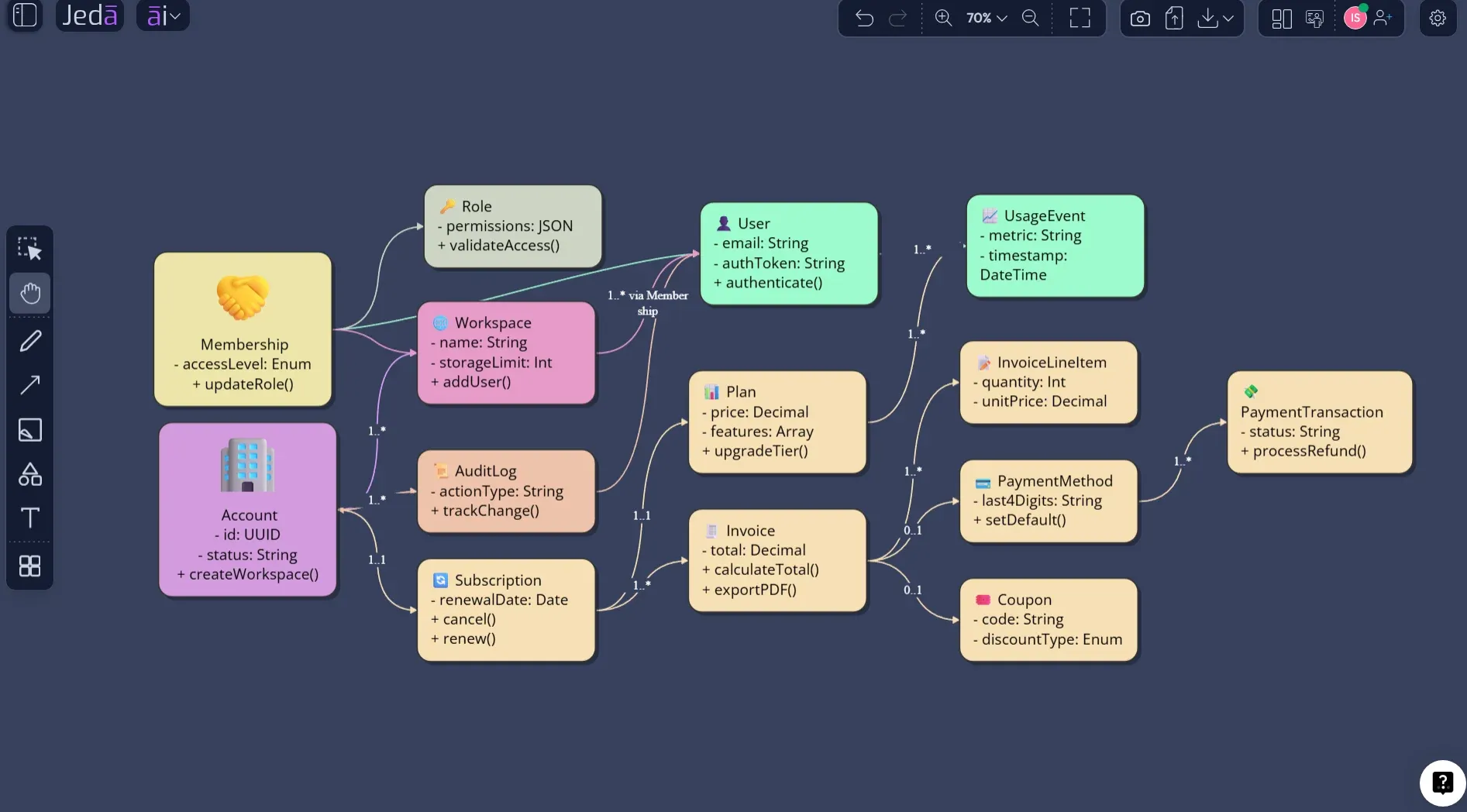
The best version of this diagram is not the one with the most boxes. It is the one that creates the fewest misunderstandings before engineering starts.
What Should a Good AI-Generated Class Diagram Include?
A useful AI-generated class diagram should show enough structure to guide implementation conversations without pretending to replace technical design. IBM’s UML relationship guidance describes relationships as connections between model elements that add semantics, including associations, dependencies, generalizations, realizations, aggregation, and composition. That is the part many AI diagrams get wrong if the input is lazy. They draw lines. They do not always explain what the lines mean.
So give the AI better input.
Jeda.ai gives teams a practical canvas for that review. You can edit the generated objects, adjust class names, change relationship labels, add new nodes manually, use AI+ to deepen one selected item, and use Vision Transform if the class model needs to become a flowchart, mind map, or broader system diagram later.
Best Practices for Class Diagram with AI Workflows
The team that gets the most value from AI class diagrams does not ask for “a diagram of my app” and walk away. That is prompt roulette. Sometimes it works. Usually it produces confident fog.
Start with the real domain. Add user roles, business rules, edge cases, known constraints, and the implementation stage. A discovery diagram should look different from an engineering handoff diagram. Early diagrams can stay conceptual. Implementation diagrams need more precision around attributes, methods, ownership, and integration points.
Also, decide what the diagram is not trying to do. A class diagram is not a sequence diagram, not an ER diagram, not a complete API spec, and not a database migration plan. It can inform all of those. It should not impersonate them.
Common Mistakes to Avoid
The first mistake is confusing a class with a screen. “Dashboard,” “Settings Page,” and “Admin Panel” are usually UI concepts, not domain classes. Sometimes they matter, but they rarely belong in the core class model.
The second mistake is overusing inheritance. AI may suggest base classes because inheritance looks tidy. Real systems often prefer composition, interfaces, or explicit services. Challenge every “is-a” relationship.
The third mistake is adding methods without behavior context. If the prompt only names entities, the AI may invent generic methods. Give it user stories, use cases, or workflow descriptions when methods matter.
The fourth mistake is skipping multiplicity. A relationship without cardinality can hide the most expensive ambiguity in the system.
The fifth mistake is treating AI output as final. Don’t. The generated class diagram is a conversation starter. Your architecture review is where it becomes useful.
Class Diagram with AI vs Manual Diagramming
Manual diagramming gives experts control, but it makes the first draft slow. AI generation gives teams speed, but it needs review. The grown-up answer is to combine both.
| Best Use | Strength | Risk | Human Review Needed | |
|---|---|---|---|---|
| Manual class diagramming | Final architecture modeling | Precise expert control | Slow first drafts and stale documentation | Yes |
| Generic AI diagram generator | Quick static draft | Fast output | Weak context and limited collaboration | Yes |
| Jeda.ai Class Diagram with AI | Collaborative model creation and review | Guided recipe, Prompt Bar, editable Visual AI canvas | Still needs engineering validation | Yes |
That is the useful mental model: AI drafts the structure, humans validate the meaning, and Jeda.ai keeps the work visible.
Frequently Asked Questions
- What is Class Diagram with AI?
- Class Diagram with AI means using AI to generate a UML-style structural diagram from system context, requirements, or prompts. In Jeda.ai, the output can become an editable visual on the canvas, so teams can review classes, attributes, methods, and relationships together.
- Does Jeda.ai have a Class Diagram recipe?
- Yes. Jeda.ai includes a Class Diagram recipe under the Information & Technology area of Diagram recipes. The recipe asks for context such as For What, For Whom, Goals/Purpose, Additional Information, Output Language, diagram type, layout, web search, and model selection.
- Which Jeda.ai method is best for creating a class diagram?
- Use the Class Diagram recipe when you want guided structure and repeatable fields. Use the Prompt Bar when you already know the exact diagram you want. For architecture reviews, the recipe path is usually safer because it reduces missing context.
- Can AI+ create a new class diagram from scratch?
- No. Describe AI+ as a way to extend or deepen an existing selected item after a visual is generated. For a new class diagram request, use the Class Diagram recipe or the Prompt Bar instead of treating AI+ as a fresh instruction box.
- What should I include in a class diagram prompt?
- Include the system name, audience, business goal, core classes, attributes, methods, relationships, multiplicity needs, lifecycle rules, and any known constraints. Better context creates a better first draft and reduces cleanup during human review.
- Can Jeda.ai generate UML class diagrams from documents?
- Jeda.ai supports Document Insight for analyzing documents and converting their content into visual formats. For class diagrams, teams can use document context to inform the model, then choose a diagram-style output and refine the result on the canvas.
- Should a class diagram include every method?
- No. A class diagram should include methods that clarify meaningful behavior. Adding every getter, setter, helper, or implementation detail makes the diagram noisy and less useful for architecture discussion.
- What is the difference between a class diagram and an ER diagram?
- A class diagram models object-oriented structure, including classes, attributes, methods, and relationships. An ER diagram focuses on data entities, attributes, and database relationships. They overlap, but they answer different design questions.
- Can I export the Jeda.ai class diagram?
- Yes. Jeda.ai supports export formats such as PNG, SVG, and PDF depending on plan and workspace options. The stronger workflow is to review and edit the diagram on the AI Whiteboard before exporting.
- Who should use Class Diagram with AI?
- Software engineers, product managers, system architects, business analysts, QA teams, and product design engineers can use it to turn requirements into a shared structural model before implementation decisions become expensive.
Sources & Further Reading
- [1]
Object Management Group (2017) . “Unified Modeling Language Specification Version 2.5.1” OMG Specification.
View Source ↗ - [2]
Microsoft Support (2026) . “Create a UML class diagram” Microsoft Support.
View Source ↗ - [3]
IBM Documentation (2026) . “Relationships in class diagrams” IBM Docs.
View Source ↗ - [4]
Martin Fowler (2003) . “UML Distilled: A Brief Guide to the Standard Object Modeling Language” Addison-Wesley / Google Books.
View Source ↗ - [5]
Grady Booch, James Rumbaugh, and Ivar Jacobson (1998) . “The Unified Modeling Language User Guide” Addison-Wesley / ACM Guide Books.
View Source ↗ - [6]
Ismail Hadjadj and Djaber Rouabhia (2024) . “Enhancing Class Diagram Dynamics: A Natural Language Approach with ChatGPT” arXiv.
View Source ↗
Create a Class Diagram with AI in Jeda.ai
Join 150,000+ users turning prompts, documents, and system context into editable Visual AI diagrams inside one AI Workspace.
Create Your Class Diagram