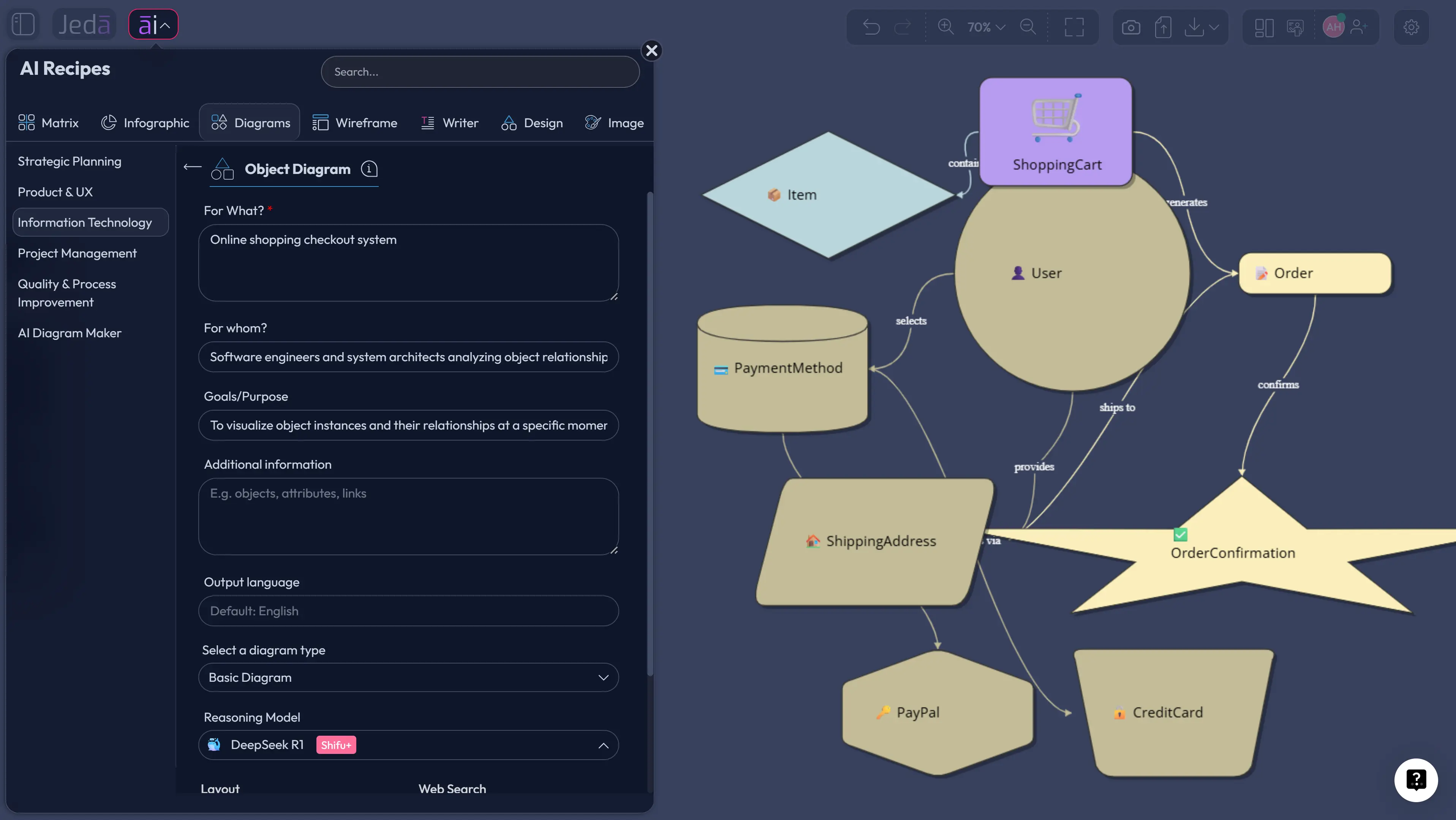
Object Diagram with AI is not just a faster way to draw UML boxes. It is a better way to freeze a system at one meaningful moment and ask, “Does this structure actually make sense?” In Jeda.ai, that snapshot becomes an editable visual on an AI Whiteboard, not a static image trapped inside a diagramming tab. For teams building software, operations systems, product workflows, or enterprise architecture, that shift matters because bad object relationships rarely announce themselves politely. They wait until code review. Or worse, production.
Jeda.ai gives you two practical creation paths: the guided Object Diagram recipe under Information & Technology, and direct generation from the Prompt Bar. The recipe path should be your default when accuracy, repeatability, and team alignment matter. The Prompt Bar is faster when you already know the runtime scenario, class instances, attributes, and links you want to model.
What is Object Diagram with AI?
Object Diagram with AI is the use of AI to generate, refine, and explain a UML object diagram from a plain-language scenario, class model, document, or system description. A UML object diagram shows object instances, attribute values, and links at a specific point in time. Think of it as a “runtime evidence board” for structure.
The official OMG UML 2.5.1 specification defines UML as a graphical language for visualizing, specifying, constructing, and documenting artifacts of distributed object systems. In practice, object diagrams sit close to class diagrams, but they answer a different question. A class diagram says what types exist. An object diagram says what actual instances exist right now, how their attributes are valued, and which objects are linked.
That is why object diagrams are surprisingly useful for AI workflows. AI is good at turning narrative into candidate structure. Humans are good at rejecting false structure. Put both on the same canvas, and you get a fast modeling loop: generate, inspect, correct, deepen, and share.
Why object diagrams deserve a comeback
Software teams love abstractions. Classes, services, interfaces, modules, bounded contexts. Necessary stuff. But abstractions can hide the thing that breaks the system: the specific object state at the exact moment something goes wrong.
An object diagram brings that moment back into view.
For example, a class model may say a Customer can own a Cart, a Cart can contain many CartItem objects, and an Order can connect to a PaymentAttempt. Fine. But what happens when the customer has two active carts, one abandoned payment, three reserved items, and a partially created shipment? That is where the class diagram starts whistling and looking away.
Object diagrams force specificity. Names. Values. Links. Actual structure.
- Runtime clarity
Model specific object instances, attribute values, and links so the team can discuss a concrete system snapshot instead of arguing over abstractions.
- Class model validation
Use object diagrams as test cases for class diagrams by checking whether real scenarios can be represented cleanly without awkward exceptions.
- AI-assisted structure
Let Jeda.ai draft the first instance-level diagram from a scenario, then refine it with human review on an editable Visual AI canvas.
- Shared architecture thinking
Collaborate with engineers, analysts, product managers, and stakeholders on the same AI Workspace instead of scattering diagrams across isolated tools.
- Web-grounded context
Use Web Search when the diagram needs current terminology, standards context, or external system references before the model is generated.
- Progressive depth
Use AI+ only to extend or deepen selected parts of the generated object diagram after the first version already exists.
There is a bigger idea here. AI diagramming should not merely make diagrams faster. That is table stakes. The better use of AI is to make visual modeling more inspectable. If the first draft is wrong, great. You found the ambiguity before it hit the sprint.
When should you use an object diagram?
Use an object diagram when the question is about a concrete instance-level state, not a general system structure. If you need to describe all possible classes and associations, use a class diagram. If you need to show object interactions over time, use a sequence diagram. If you need to show state transitions, use a state diagram. But when you need to show a snapshot, object diagrams are the sharper tool.
Good moments for object diagrams include checkout flows, booking systems, access-control scenarios, inventory reservations, onboarding workflows, insurance claims, CRM ownership models, and workflow engines. They are especially useful when a “simple” process is only simple on a slide. Once several objects, roles, and data values coexist, the diagram earns its keep.
Jeda.ai fits this work because its AI Workspace combines generation, editing, collaboration, AI Recipes, model selection, Web Search, and export paths in one place. The visual does not have to die as a screenshot. Teams can keep editing shapes, labels, object names, links, and structure directly on the canvas.
How to create Object Diagram with AI in Jeda.ai
You can create an Object Diagram with AI in two ways. Method 1 uses the guided Object Diagram recipe. This is the stronger path for most teams because the form keeps the output structured. Method 2 uses the Prompt Bar when you want direct control and already know the scenario.
Method 1: Use the Object Diagram recipe in Jeda.ai
Use this method when the diagram needs to be accurate, consistent, and easy for others to review. The recipe route is ideal for software architecture reviews, business process analysis, product workflow modeling, and technical documentation.
Open Jeda.ai, choose the AI Menu in the top-left area, go to the Diagrams area, and select the Information & Technology category. Choose the Object Diagram recipe. The recipe gives you guided fields such as For What, For Whom, Goals or Purpose, and More Context. Add a clear runtime scenario, not just a topic. “Object diagram for e-commerce” is too thin. “Object diagram for a checkout attempt where a returning customer uses saved payment, one item is out of stock, and the order remains pending” is much better.
Then choose the output language, layout direction, Web Search setting, diagram type, and AI model. For diagram type, use Basic Diagram when you want a direct UML-style object diagram. Use Mind Map only when you want to explore object groupings before finalizing structure. Use Flowchart only when the object snapshot must sit inside a step-by-step workflow. For layout, choose horizontal when you want object relationships to read left to right; choose vertical when you want hierarchy, ownership, or containment to be easier to scan.
- Open the AI Menu
Start inside the Jeda.ai workspace and open the AI Menu from the top-left area of the canvas.
- Choose the Object Diagram recipe
Go to the Diagrams area, open the Information & Technology category, and select Object Diagram.
- Fill in the guided fields
Add For What, For Whom, Goals or Purpose, More Context, and Output Language. Include the runtime scenario, object names, known attributes, and any constraints.
- Select layout and diagram type
Choose horizontal or vertical layout, then select Basic Diagram for the object diagram. Use Mind Map or Flowchart only when the intent calls for exploration or process context.
- Set Web Search and model options
Turn Web Search on when current context matters, then choose the AI model or Multi-LLM setup that fits the complexity of the diagram.
- Generate and review the diagram
Generate the first object diagram on the canvas, then inspect object names, class labels, attribute values, and links for correctness.
- Use AI+ only for selected extensions
Select a specific object, link, or section and use AI+ to extend or deepen that existing part. Do not use AI+ as a fresh prompt box for unrelated instructions.
- Convert when needed
Use Vision Transform if the same content needs to become a flowchart, mind map, or another visual format for a different audience.
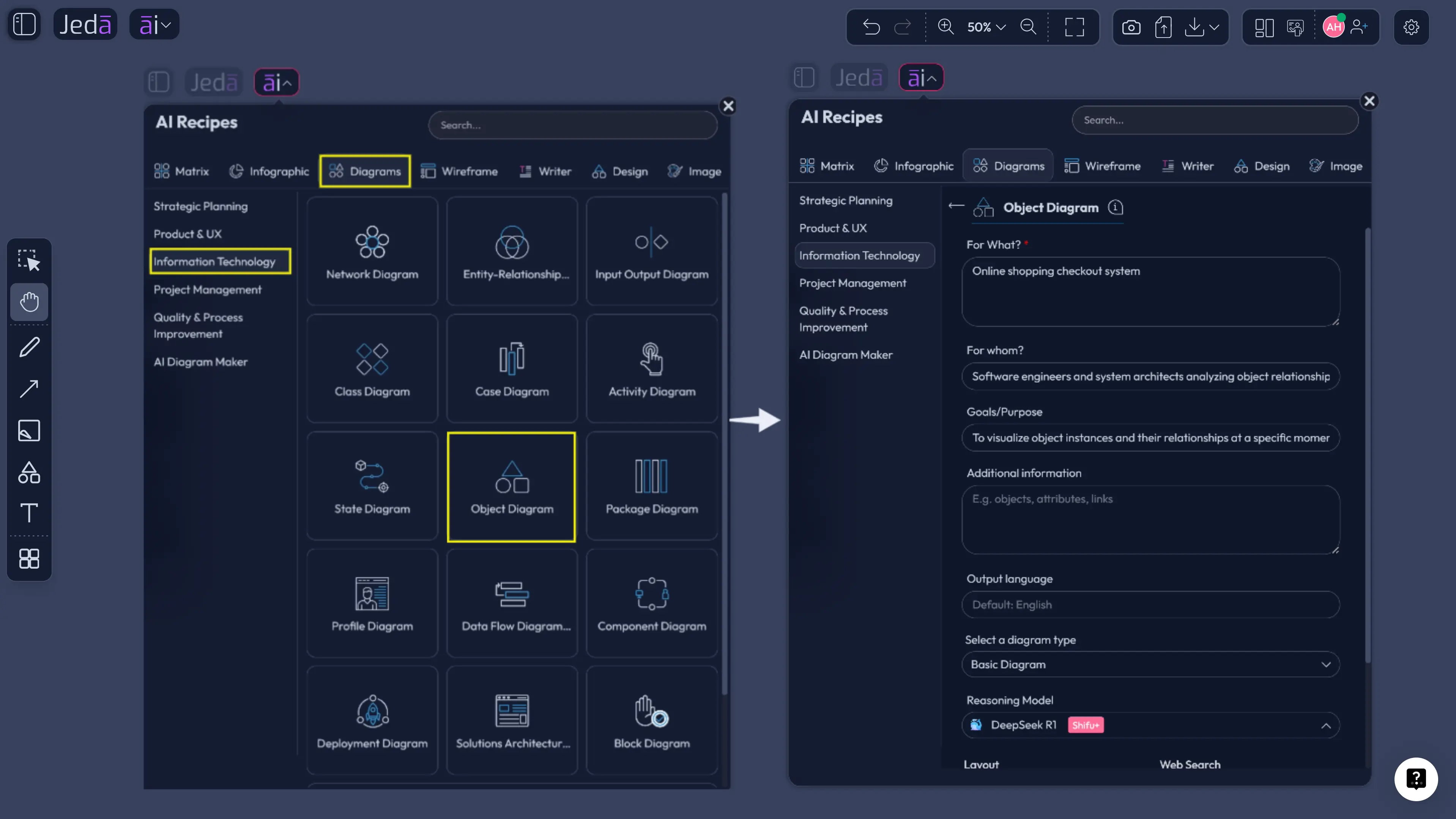
The discipline here is simple: give the recipe a real moment in the system. Object diagrams do not become useful because they are pretty. They become useful because they pin down a state that a team can inspect.
Method 2: Generate an object diagram from the Prompt Bar
Use the Prompt Bar when you already know the scenario and want speed. This is the better path for quick architecture reviews, bug triage, design discussions, or classroom explanations where you do not need to browse the recipe panel.
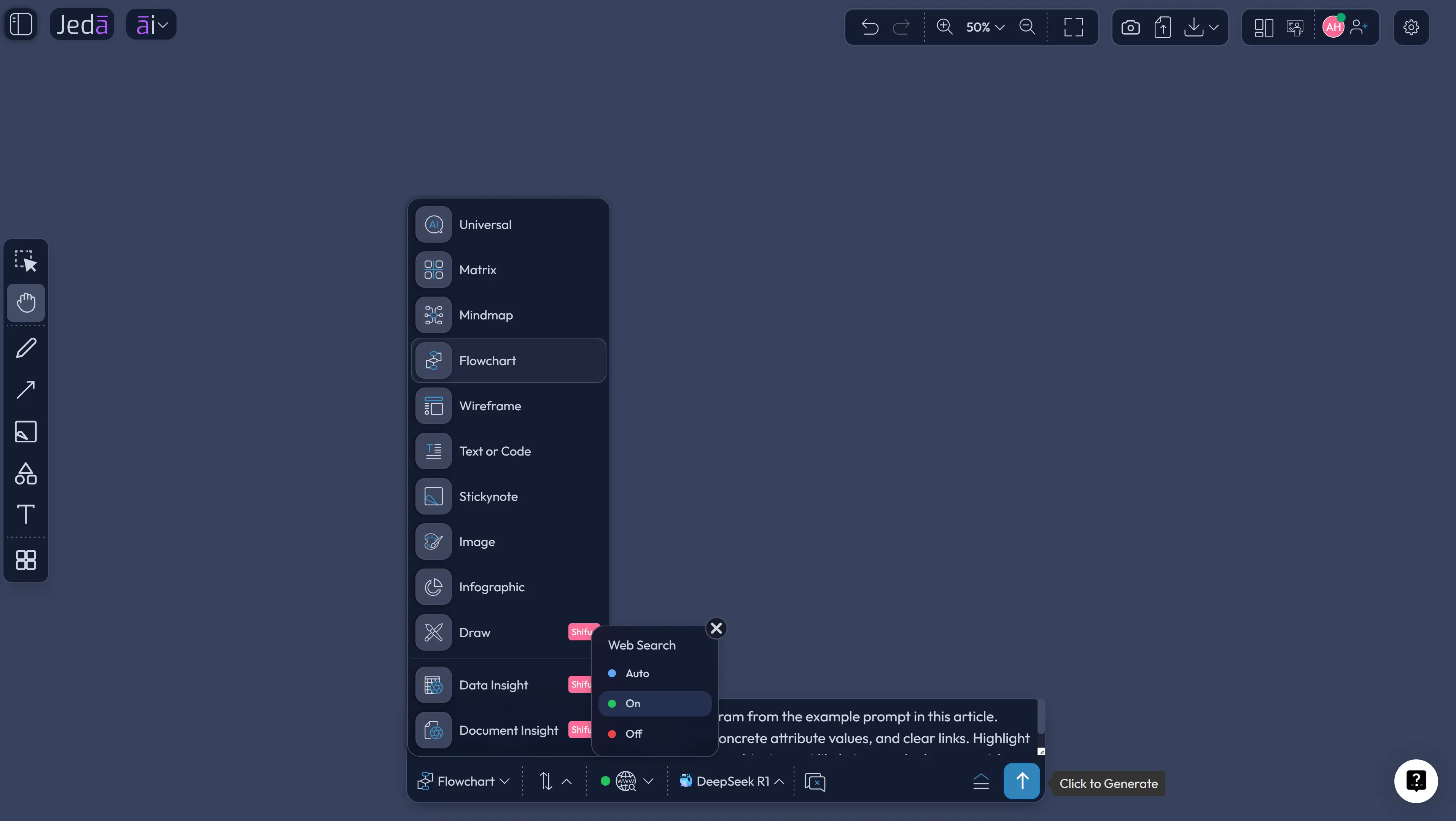
Open the Prompt Bar at the bottom of the canvas and select the Diagram command. Choose the rendering options available for the diagram output. Set the layout to horizontal or vertical. Use Basic Diagram for the direct object diagram output. Then choose the AI model and Web Search setting. If the diagram involves a common software pattern, external system terms, or a public platform concept, Web Search can help ground terminology. If the diagram is based only on your internal system, turn Web Search off and give the model your actual context.
A strong Prompt Bar prompt should include five things: the system scenario, the point in time, the object instances, important attributes, and the relationships to show. It should also say what not to include. That last part saves you from diagram soup. Nobody needs a “helpful” AI adding twelve mystery services because it got excited. Machines: always enthusiastic, occasionally feral.
- Open the Prompt Bar
Use the Prompt Bar at the bottom of the Jeda.ai canvas when you want direct generation without browsing recipes.
- Select Diagram
Choose the Flowchart command so Jeda.ai renders the output as connected Smart Shape objects rather than plain text.
- Choose layout and type
Select horizontal or vertical layout, then choose Basic Diagram for a UML-style object snapshot.
- Set Web Search and AI model
Use Web Search for current external context, or keep it off for internal-only modeling. Select the model or Multi-LLM setup that matches the task.
- Write a specific runtime prompt
Describe the point-in-time scenario, object instances, class labels, attribute values, and links. Ask for only the relevant objects.
- Generate the first draft
Review the object diagram on the canvas and correct names, values, labels, or links directly.
- Extend with AI+ only after selection
Select a thin object or relationship and use AI+ to deepen that selected area. Keep AI+ tied to the existing visual context.
Object Diagram with AI example prompt
Use this example when you need a practical object diagram for an e-commerce checkout system. It is intentionally specific. Specificity is the difference between a useful model and a decorative hallucination with arrows.
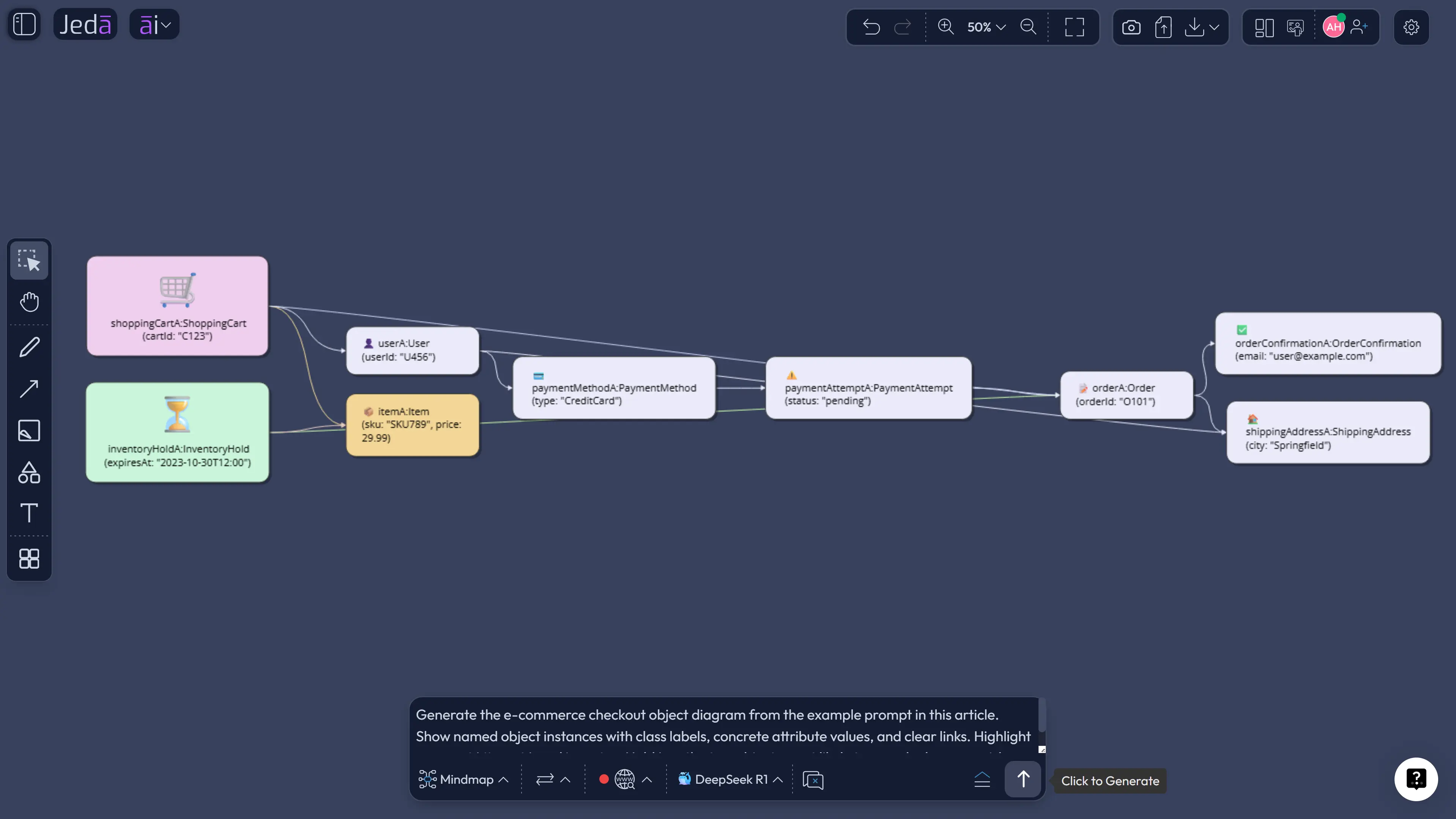
This example does more than draw a checkout structure. It exposes questions the team should answer. Can one cart link to a pending order before payment authorization? Should inventory hold belong to the product, cart item, order, or fulfillment subsystem? What happens if paymentAttemptA.status = failed while inventoryHoldA.expiresAt is still active? Good object diagrams create good discomfort. That is their job.
Best practices for AI-generated object diagrams
Start with a specific moment. “During checkout” is vague. “After order creation and before payment authorization” is useful. Object diagrams are snapshots, so the timestamp of the scenario matters.
Name instances clearly. Use objectName:ClassName style where possible. Add attribute values that change the interpretation of the model. A cart total, payment status, inventory count, user role, booking state, or approval status can change the entire conversation.
Keep links honest. A link should represent a real association or meaningful runtime relationship. Do not connect every object to every other object because the canvas has room. That is not architecture. That is spaghetti wearing a tie.
Common mistakes to avoid
The first mistake is creating a class diagram and calling it an object diagram. If the diagram shows only classes, it is not doing instance-level work. Object diagrams need actual instances and values.
The second mistake is modeling a timeline. If you need messages over time, use a sequence diagram. If you need state changes, use a state diagram. An object diagram can imply context, but it should not become a movie.
The third mistake is leaving attributes empty. Empty compartments make the diagram look tidy but weak. Values are where the insight lives.
The fourth mistake is asking AI for “a complete object diagram.” Complete is usually the wrong goal. Useful is the goal. Show the objects that matter for the decision, failure mode, or explanation.
And the fifth mistake is treating AI output as finished truth. Jeda.ai can generate the first draft quickly, but the team still owns correctness. That is not a limitation. That is how serious modeling works.
Object Diagram with AI vs class, sequence, and state diagrams
Object Diagram with AI should not replace other UML diagrams. It should make them easier to validate.
A class diagram defines the possible structure. An object diagram tests that structure against a specific scenario. A sequence diagram explains messages over time. A state diagram shows how one object or system changes state. In a mature design workflow, these diagrams talk to each other.
This is where Jeda.ai becomes more interesting than a single-purpose diagram tool. You can generate an object diagram, use Vision Transform to convert the same thinking into a flowchart or mind map, and keep the output editable on the AI Whiteboard. You can also collaborate with engineers, analysts, and product managers in the same AI Workspace, then export the final visual as PNG, SVG, or PDF when it is ready to move.
Frequently Asked Questions
- What is an Object Diagram with AI?
- Object Diagram with AI means using AI to create a UML object diagram from a scenario, class model, or system description. The output shows specific object instances, attribute values, and links at one point in time.
- How is an object diagram different from a class diagram?
- A class diagram shows general classes, attributes, operations, and associations. An object diagram shows specific instances of those classes with concrete values and links. In simple terms, the class diagram is the blueprint; the object diagram is a snapshot.
- When should I use an object diagram?
- Use an object diagram when you need to inspect a specific runtime or scenario state. It is useful for validating class diagrams, explaining edge cases, reviewing data relationships, and modeling systems with several linked objects.
- Can Jeda.ai generate object diagrams from the Prompt Bar?
- Yes. You can use the Prompt Bar to select the Flowchart command, describe the runtime scenario, choose layout and diagram type, select an AI model, and generate the object diagram directly on the canvas.
- Is the Object Diagram recipe better than the Prompt Bar?
- The Object Diagram recipe is better when you want a guided, repeatable workflow with fields for purpose, audience, context, layout, Web Search, diagram type, and model selection. The Prompt Bar is faster for direct generation.
- What should I include in an object diagram prompt?
- Include the point in time, object instances, class labels, important attributes with values, and links between instances. Also state what to exclude, such as services, APIs, or sequence steps, when they do not belong in the snapshot.
- Can AI+ create a new object diagram from scratch?
- AI+ should not be used as a fresh instruction box. In this workflow, use AI+ only after selecting an existing object, link, branch, or section so Jeda.ai can extend or deepen that selected content.
- Can I convert an object diagram into another visual format?
- Yes. Use Vision Transform in Jeda.ai to convert selected diagram content into another format, such as a flowchart, mind map, matrix, or explanation view, when a different audience needs a different structure.
- Do object diagrams show behavior over time?
- Not directly. Object diagrams show a system snapshot at one point in time. Use sequence diagrams for interactions over time and state diagrams for state transitions.
- Are Jeda.ai object diagram outputs editable?
- Yes. Diagram outputs use editable visual objects on the Jeda.ai canvas. You can revise labels, shapes, links, colors, layout, and text instead of being stuck with a static image.
Sources and further reading
- [1]
Object Management Group (2017) . “Unified Modeling Language 2.5.1 Specification” OMG.
View Source ↗ - [2]
Visual Paradigm (2026) . “What is Object Diagram?” Visual Paradigm UML Guide.
View Source ↗ - [3]
Kirill Fakhroutdinov (2026) . “UML 2.5 Diagrams Overview” UML-Diagrams.org.
View Source ↗ - [4]
Lucidchart (2026) . “Object Diagram Tutorial” Lucidchart.
View Source ↗ - [5]
IBM (2026) . “Instance specifications in UML” IBM Documentation.
View Source ↗
Create Your Object Diagram with AI in Jeda.ai
Join 150,000+ users using Jeda.ai to turn system scenarios, documents, and ideas into editable visuals inside one AI Workspace.
Create an Object Diagram