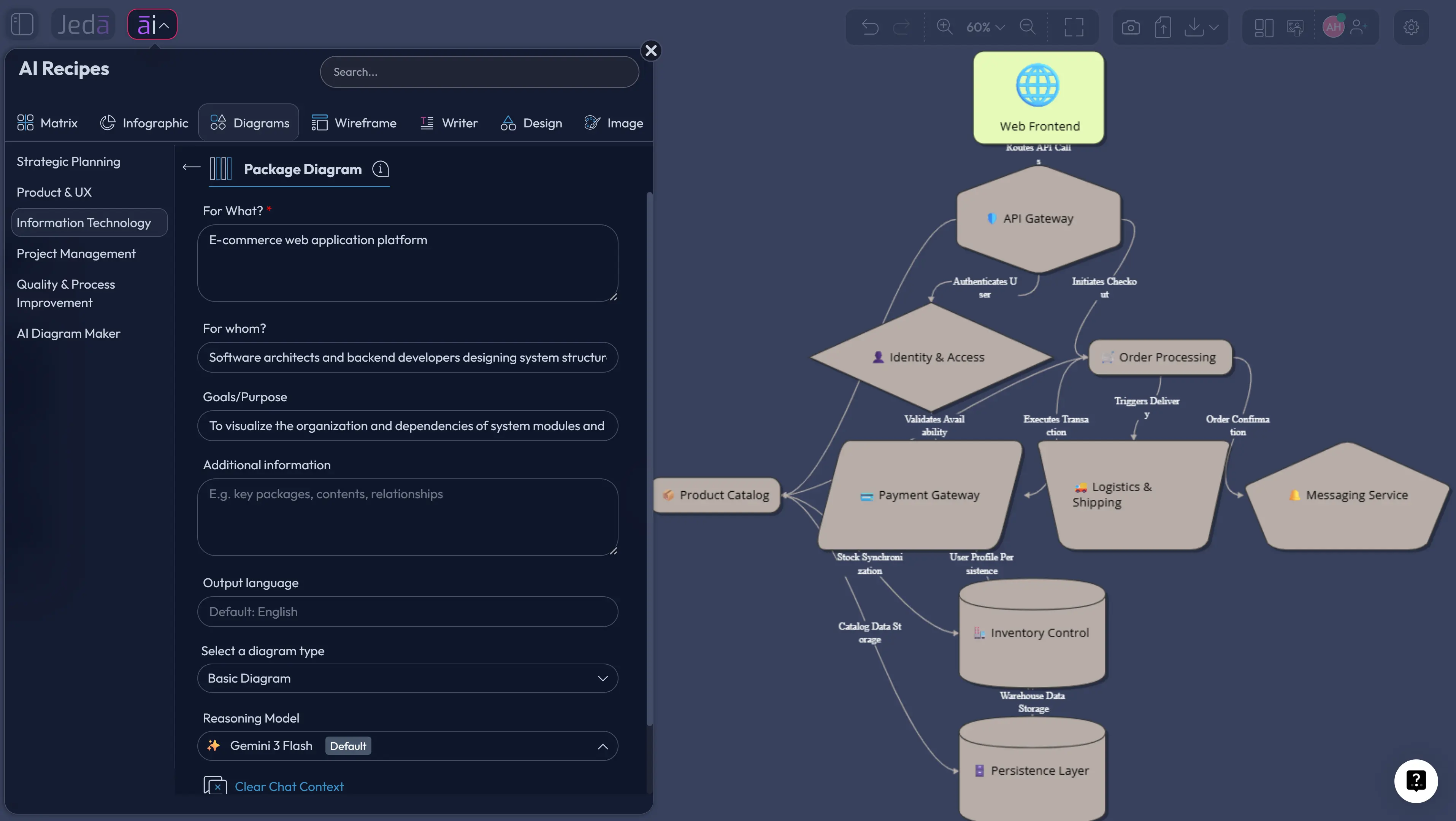
Package Diagram with AI is the sane way to map a software system before the codebase starts behaving like a haunted mansion. A package diagram shows how modules, layers, namespaces, or subsystems are grouped, and how they depend on one another. Jeda.ai turns that structure into an editable Visual AI diagram on an AI Whiteboard, so your team can discuss architecture instead of decoding a wall of sticky notes.
That matters more than it sounds. A package diagram is not supposed to document every class, method, and tiny implementation detail. It gives you the high-level “who depends on whom” view. In Jeda.ai, 150,000+ users can create that view from a guided Diagram Recipe or directly from the Prompt Bar inside an AI Workspace.
What is a Package Diagram with AI?
A Package Diagram with AI is an AI-assisted way to create a UML-style package diagram that groups related model elements and shows dependencies between them. Instead of manually drawing every package, connector, and dependency label from scratch, you describe the system, select the right diagram settings, and let Jeda.ai produce the first editable structure.
In UML, a package is a grouping mechanism. It can hold classes, components, use cases, diagrams, documents, or other packages. It also acts as a namespace, which is a fancy way of saying names should stay clear inside that package. That’s why package diagrams are useful for layered architecture, modular systems, domain boundaries, platform services, and large projects where class diagrams become too crowded.
The AI part does not replace architecture judgment. Good. It should not. What it does is remove the blank-canvas tax. You still decide whether Checkout should depend on Payment, whether Inventory belongs inside Catalog, and whether Notification is a shared service or a domain module. But you start with a structured map instead of a cold cup of coffee and a rectangle tool.
Why package diagrams are useful before the architecture meeting gets weird
Package diagrams are best when you need a system-level view without drowning everyone in implementation detail. They help teams talk about boundaries, ownership, coupling, dependencies, and the shape of the codebase.
Here’s the real value: they expose architectural friction early. If every package points to every other package, the diagram is politely telling you, “This thing is glued together with vibes.” That is not always a disaster, but it is worth seeing before release week.
- Clarify module boundaries
Group related classes, services, components, or domains into packages so teams can see the architecture at a useful level of abstraction.
- Spot risky dependencies
Dependency arrows reveal which packages rely on others, where coupling is growing, and where a change may ripple across the system.
- Show architecture layers
Model presentation, application, domain, infrastructure, integration, or data layers without drawing every class in the system.
- Align technical and nontechnical teams
Give engineers, product managers, business analysts, and project managers a shared visual language for system structure.
- Keep diagrams editable
Jeda.ai outputs stay on the AI Whiteboard, so teams can edit text, reposition packages, style connectors, and revise structure as the system changes.
- Use stronger AI reasoning
Choose your AI model, enable web search when needed, and use the guided recipe to avoid generic architecture output.
When should you use a package diagram?
Use a package diagram when the main question is structure. Not sequence. Not runtime behavior. Not screen layout. Structure.
A package diagram is a strong fit when you are designing a modular backend, documenting a legacy codebase, planning domain boundaries, preparing an architecture review, or onboarding developers into a large system. It is also useful when a class diagram would be too detailed for the meeting. Nobody wants to inspect 80 classes before lunch. Be kind to your team.
Package diagrams work well for:
- Layered applications with presentation, service, domain, and data access layers.
- Microservice ecosystems where teams need to see service ownership and dependencies.
- Monolith decomposition planning, especially before extracting domains.
- Platform architecture, where shared services support product-facing packages.
- Product documentation that needs a high-level software map.
- Academic or training material that explains how packages organize UML model elements.
Don’t use a package diagram as a substitute for every diagram. If you need request order, use a sequence diagram. If you need user goals, use a use case diagram. If you need object structure, use a class diagram. Package diagrams are the architectural table of contents.
How to create a Package Diagram with AI in Jeda.ai
Jeda.ai gives you two practical ways to create a package diagram. Use the Diagram Recipe when you want a guided, repeatable workflow. Use the Prompt Bar when you already know the architecture details and want a faster first draft.
The main focus should be the Package Diagram Recipe. It gives you a form, the right diagram context, layout controls, web search, diagram type selection, and AI model choice. Less guessing. Fewer “why did the AI invent a blockchain service?” moments.
Method 1: Use the Package Diagram Recipe in Jeda.ai
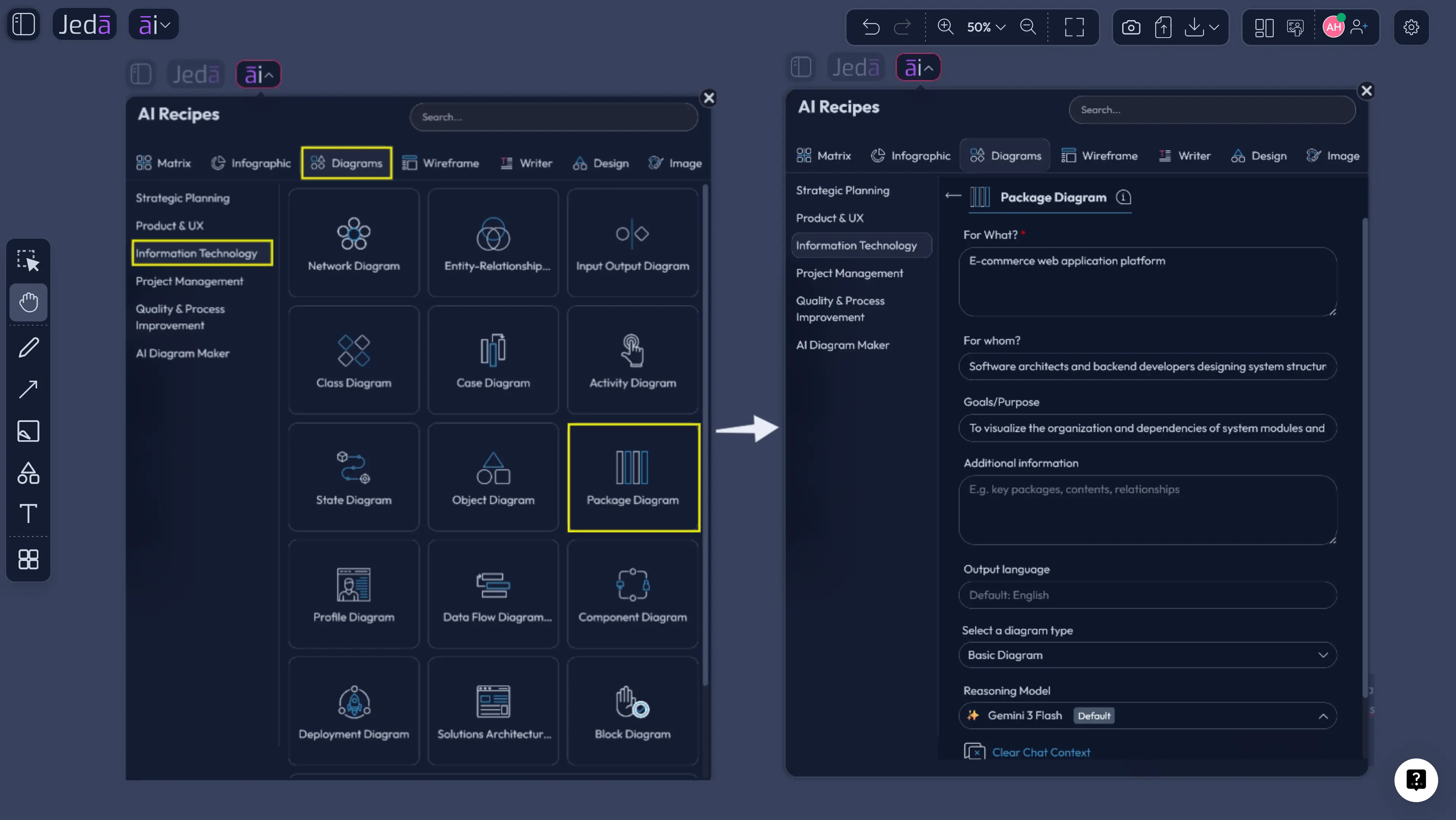
Use this route for architecture reviews, product documentation, client work, sprint planning, or any system design session where the output needs to look consistent. The recipe is under the Information & Technology category inside Diagram Recipes.
The Package Diagram Recipe should include the usual guided fields, such as what the diagram is for, who it is for, goals or purpose, and additional context. Give it the system name, architecture style, known modules, important packages, external services, and any dependency rules you care about. Then choose layout and rendering options before generation.
- Open the AI Menu
Start inside your Jeda.ai workspace and click the AI Menu in the top-left area of the canvas.
- Go to Diagram Recipes
Choose the Diagrams tab, then open the Information & Technology category.
- Select Package Diagram
Pick the Package Diagram recipe so Jeda.ai uses the guided package-diagram workflow instead of a generic blank diagram request.
- Fill in the recipe fields
Add what the system is, who the diagram is for, the purpose, known packages, architecture layers, external systems, and any extra context.
- Choose the layout
Select horizontal layout for left-to-right architecture flow or vertical layout for layered systems, dependency stacks, and top-down views.
- Choose the diagram type
Select Basic Diagram for a UML-style package map. Mind Map can help during early exploration, while Flowchart can help if the package structure needs process-like ordering.
- Set web search and AI model options
Turn web search on when you need current framework, platform, or technology context. Choose the reasoning model or Multi-LLM Agent option that fits the complexity of the task.
- Generate and review the diagram
Create the package diagram, then inspect package names, dependency direction, boundaries, and labels before treating the output as architecture documentation.
- Edit the diagram on the canvas
Adjust package names, move groups, update connectors, change styling, and remove any package that does not belong in the system.
- Use AI+ only to extend or deepen
After the diagram exists, select a relevant existing package or node and use AI+ to extend or deepen that part. Do not frame AI+ as a place for fresh, specific instructions.
What to put in the recipe fields
This is where most package diagrams either get useful or become beige soup. Give the AI concrete architecture context.
For “what,” name the system and scope. Example: “A modular e-commerce backend for checkout, catalog, inventory, payments, and notifications.”
For “whom,” name the audience. Example: “Software engineers and product managers reviewing service boundaries before implementation.”
For “goals or purpose,” say what decision the diagram should support. Example: “Clarify package ownership, reduce circular dependencies, and prepare a refactor plan.”
For “more context,” include rules. Example: “Domain packages should not depend directly on infrastructure packages. Payment should be external. Notification should be shared by Order and Account.”
That last part matters. AI can generate a beautiful wrong diagram if you give it vague inputs. Beauty is not architecture. Painful truth, but useful.
Method 2: Create a Package Diagram from the Prompt Bar
Use the Prompt Bar when you already know what you want. It is faster than the recipe, but it puts more responsibility on your prompt. You need to describe the system, packages, relationships, preferred layout, and output style clearly.
This method is great for quick drafts, exploratory modeling, and turning meeting notes into a first visual. It is also useful when you want to compare multiple architecture options quickly inside the same AI Whiteboard.
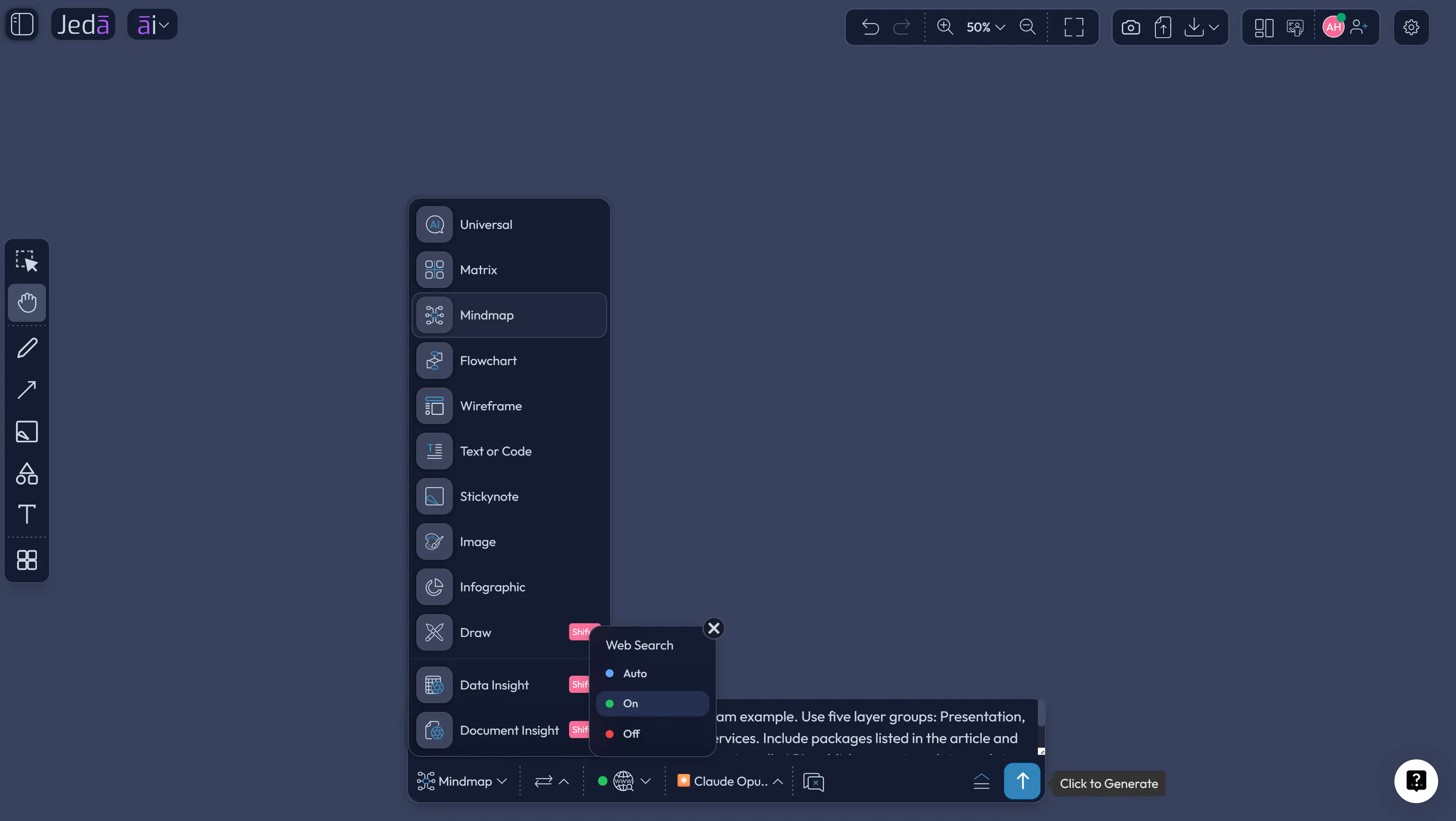
- Open the Prompt Bar
Go to the bottom-center Prompt Bar inside the Jeda.ai canvas.
- Select the Diagram command
Choose Flowchart as the output mode so the result becomes a connected package-style visual instead of plain text.
- Write a package-focused prompt
Describe the system, packages, package responsibilities, dependency rules, external systems, and the audience for the diagram.
- Choose layout direction
Pick horizontal for package flows across layers or vertical for architecture layers stacked from user-facing to infrastructure-facing packages.
- Select the AI model
Use the model selector for the reasoning model you want. For complex architecture, Multi-LLM Agent can compare several model outputs before aggregation.
- Enable web search only when useful
Turn on web search when the diagram depends on current technology context, public API architecture, or recently changed platform details.
- Generate the first version
Review the diagram for package names, dependency direction, misplaced responsibilities, missing external systems, and circular dependency risks.
- Refine manually on the canvas
Edit package titles, move modules, relabel connectors, and adjust connector directions until the visual matches your architecture intent.
- Use AI+ carefully after generation
Use AI+ only to extend or deepen an existing selected package or branch. Keep new architecture instructions in the Prompt Bar or recipe fields.
Prompt Bar example you can paste
Use this prompt when you want a clean first draft:
“Create a UML-style package diagram for a modular SaaS analytics platform. Audience: software engineers and product managers. Show packages for Web App, API Gateway, Authentication, User Management, Workspace Management, Data Import, Analytics Engine, Visualization, Billing, Notification, Audit Logging, and External Services. Group packages by presentation, application, domain, infrastructure, and external integration layers. Show dependency arrows from client packages to supplier packages. Label important dependencies such as uses, imports, publishes events to, and calls API. Keep the diagram readable and suitable for an architecture review.”
Notice the boring specificity. That is the secret sauce. Not drama. Not magic. Just enough structure so the AI has rails.
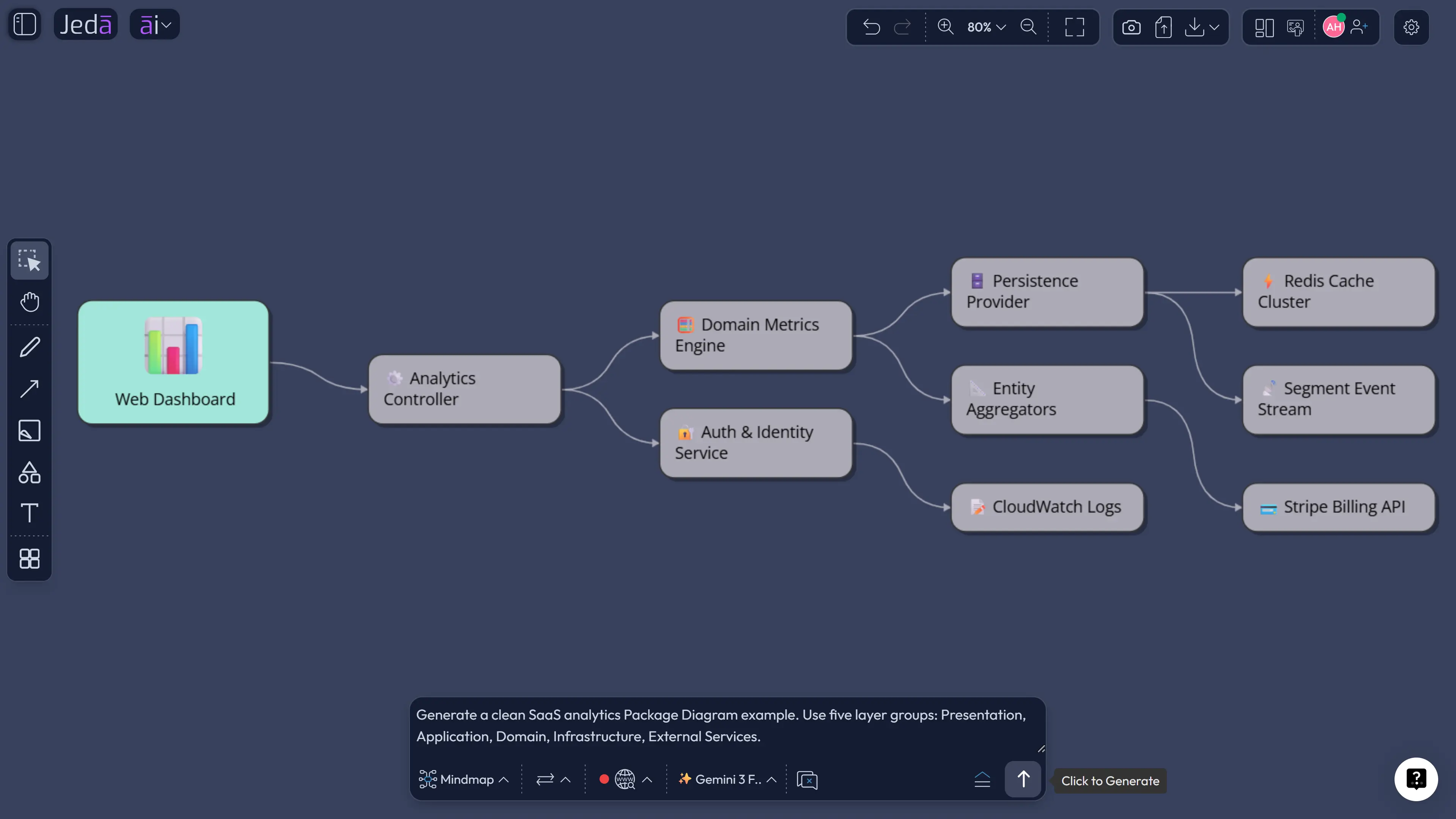
Example: Package Diagram with AI for a SaaS analytics platform
Let’s say your team is building a SaaS analytics platform. The product lets users import CSV files, create dashboards, share workspaces, manage billing, and invite teammates. Sounds simple until the architecture starts growing little tentacles.
A package diagram can show the major system groups:
- Presentation: Web App and Admin Console.
- Application: API Gateway, Workspace Management, User Management.
- Domain: Analytics Engine, Visualization, Dashboard, Data Import.
- Infrastructure: Storage, Queue, Audit Logging, Notification.
- External: Payment Provider, Email Service, Identity Provider.
The dependency story is the important part. Web App depends on API Gateway. Workspace Management depends on User Management. Analytics Engine depends on Data Import and Storage. Billing depends on the payment provider. Notification depends on the email service. If Analytics Engine starts depending on Web App, that should raise eyebrows. Tiny alarm bell. Maybe a foghorn.
Best practices for better AI package diagrams
Start with system boundaries. If the AI does not know what is inside the system and what is external, it may treat everything as one giant blob. That is how you get diagrams that look confident but explain very little.
Name packages by responsibility, not by vague team language. “User Management” is clearer than “Backend Team A.” “Payment Integration” is clearer than “Misc Services.” Yes, naming is hard. Still worth doing.
Keep package count reasonable. For a resource page or architecture review, 8 to 15 packages usually works better than 40. If you need more detail, create a second diagram for one package. Your future self will thank you.
Label dependencies when labels add meaning. Use terms like uses, imports, calls, publishes event, depends on, or reads from. Do not label everything for decoration. Connector confetti is still confetti.
Check dependency direction. In UML dependency notation, the arrow points from the client to the supplier. In normal human words: the thing doing the depending points to the thing it depends on. If that direction is wrong, the diagram lies politely.
Use AI+ only after the first diagram exists. Select an existing package or node and let AI+ extend or deepen that selected area. Do not describe AI+ as a second Prompt Bar. It is not where you park unrelated instructions.
Common mistakes to avoid
The first mistake is asking for “a package diagram for my app” and expecting a useful architecture map. That prompt gives the AI almost nothing. Describe modules, responsibilities, dependency rules, and audience.
The second mistake is mixing package diagrams with class diagrams. Packages can contain classes, but a package diagram is not trying to list every field and method. If you are documenting object structure, build a class diagram instead.
The third mistake is hiding every dependency because the diagram looks cleaner without arrows. Clean is nice. False clarity is not. A package diagram without meaningful dependencies is just a folder collage.
The fourth mistake is accepting the first AI output without review. AI can produce a strong draft, but your architecture decisions need human inspection. Look for circular dependencies, missing external services, vague package names, and arrows that point the wrong way.
Package Diagram with AI vs manual package diagramming
Manual diagramming gives you total control, but it can slow the first draft. AI diagramming gives you a structured starting point, but it needs review. The best workflow uses both.
| Best for | Speed | Architecture judgment | Editable output | Team collaboration | |
|---|---|---|---|---|---|
| Jeda.ai Package Diagram with AI | Fast architecture drafts and review-ready visuals | High | Human-reviewed AI draft | ✓ | ✓ |
| Manual diagramming | Final precision when every relationship is already known | Slower | Fully human-led | ✓ | Depends on tool |
| Text-only AI chat | Explaining modules in prose | High | Needs separate visual review | ✗ | ✗ |
Frequently Asked Questions
- What is a package diagram?
- A package diagram is a UML structural diagram that groups related model elements into packages and shows dependencies between them. It is useful for software architecture, large systems, layered applications, and codebase organization.
- What is Package Diagram with AI?
- Package Diagram with AI means using AI to generate a UML-style package diagram from system context, modules, layers, and dependency rules. In Jeda.ai, the output becomes an editable diagram on the AI Whiteboard.
- Can Jeda.ai generate package diagrams from a recipe?
- Yes. Use the Package Diagram recipe under the Diagrams section and Information & Technology category. The guided form helps you provide the system, audience, purpose, context, layout, web search preference, diagram type, and AI model.
- Can I create a package diagram from the Prompt Bar?
- Yes. Select the Flowchart command from the Prompt Bar, describe the system packages and dependencies, choose layout and model options, then generate the diagram. This is faster than the recipe when you already know the architecture details.
- Should I choose Basic Diagram, Mind Map, or Flowchart?
- Choose Basic Diagram for the clearest UML-style package diagram. Use Mind Map for early package exploration and Flowchart only when the package structure needs process-like sequencing or step-based explanation.
- What should I include in a package diagram prompt?
- Include the system name, audience, package names, responsibilities, layers, dependency rules, external services, and preferred layout. The more concrete your architecture context is, the cleaner the AI-generated diagram will be.
- What does AI+ do for package diagrams?
- AI+ can extend or deepen an existing selected package, branch, or node after the package diagram is generated. It should not be described as a place for unrelated new instructions or a replacement for the Prompt Bar.
- Are package diagrams the same as class diagrams?
- No. A package diagram shows high-level groups and dependencies between packages. A class diagram shows detailed object structure, including classes, attributes, operations, and relationships.
- When should I turn on web search?
- Turn on web search when your package diagram depends on current technology, public platform architecture, recent API changes, or external service details. Leave it off when you are modeling internal architecture from known context.
- Who should use Package Diagram with AI?
- Software engineers, product managers, business analysts, product design engineers, industrial design engineers, and project managers can use Package Diagram with AI to clarify system structure and discuss architecture visually.
Final takeaway
Package Diagram with AI helps you turn architecture thinking into something your team can actually see, question, and improve. Start with the guided Package Diagram Recipe when structure matters. Use the Prompt Bar when speed matters. Review every dependency like an architect with trust issues. That is usually the right amount of suspicion.
Jeda.ai brings that work into one AI Workspace with 300+ strategic frameworks, an editable AI Whiteboard, model selection, web search, and Visual AI outputs your team can keep refining. Join 150,000+ users building clearer diagrams, stronger architecture conversations, and fewer mystery dependencies with Package Diagram with AI.
Sources and Further Reading
- [1]
Object Management Group (2017) . “Unified Modeling Language Specification Version 2.5.1” OMG.
View Source ↗ - [2]
IBM (Current) . “Packages in UML modeling” IBM Documentation.
View Source ↗ - [3]
IBM (Current) . “Dependency relationships in UML modeling” IBM Documentation.
View Source ↗ - [4]
Lucidchart (Current) . “All about UML package diagrams” Lucidchart.
View Source ↗ - [5]
Visual Paradigm (Current) . “Package Diagram Tutorial” Visual Paradigm Online.
View Source ↗ - [6]
UML-Diagrams.org (Current) . “UML Package Diagrams Notation” UML-Diagrams.org.
View Source ↗
Create Your Package Diagram with AI
Use Jeda.ai to generate editable software architecture diagrams, review dependencies, and collaborate with your team on one AI Whiteboard.
Try Jeda.ai Free