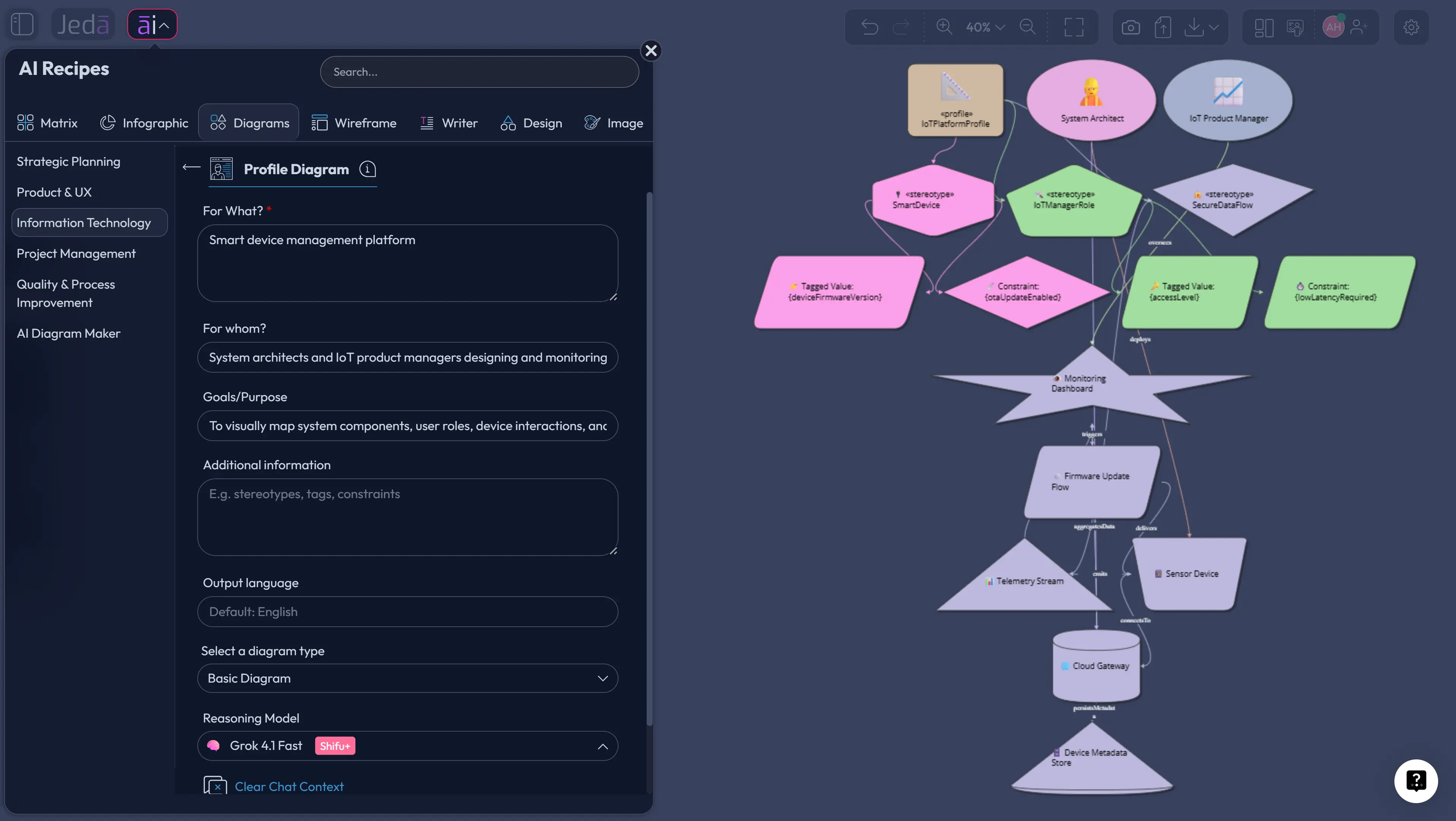
Profile Diagram with AI gives software teams a faster way to define domain-specific UML extensions without spending half a day arguing over notation. A profile diagram is not the diagram you make when you want “pretty boxes.” It is the diagram you make when regular UML is almost right, but your domain needs its own vocabulary. Jeda.ai brings that work into an AI Workspace and AI Whiteboard where 150,000+ users can generate, review, edit, and extend visual models without losing the architecture conversation in a chat thread.
What is a Profile Diagram with AI?
A profile diagram is a UML structure diagram used to customize UML for a specific domain, platform, or method. The Object Management Group defines UML as a graphical language for visualizing, specifying, constructing, and documenting system artifacts. Profile diagrams sit inside that world, but they solve a narrower problem: how do you extend UML without changing UML itself?
The usual building blocks are profiles, stereotypes, metaclasses, extensions, tagged values, and constraints. In plain English, you define the custom words your team needs, map those words to standard UML elements, add metadata, and set the rules that keep the model honest. A healthcare platform might need stereotypes like «MedicalRecord» or «ConsentPolicy». A cloud architecture team might need «Service», «Queue», «Gateway», and «DataStore».
Profile Diagram with AI means using AI to draft the first version of that structure from a natural-language description. The human still decides whether the profile is correct. The AI simply gets the blank-canvas work out of the way. Small mercy. Big difference.
Why Profile Diagrams Matter More Than Teams Usually Admit
Most modeling teams hit the same wall: standard UML is powerful, but real systems speak in domain language. Finance teams talk about ledgers, risk tiers, settlement windows, and compliance states. IoT teams talk about devices, sensors, gateways, firmware versions, and telemetry rates. Healthcare teams talk about records, consent, providers, claims, and privacy boundaries.
If those concepts stay in meeting notes, the model becomes vague. If they become stereotypes, tagged values, and constraints, the model becomes a shared technical language.
That is the quiet value of a profile diagram. It gives architecture teams a controlled way to say, “In our domain, this kind of class has these meanings, these properties, and these rules.” It also reduces drift. A profile can be reused across diagrams, projects, and teams, which matters when one product team calls something a “gateway,” another calls it a “router,” and a third somehow invents “edge mediation node.” Architecture goblin behavior.
Jeda.ai is useful here because the output lives on an editable Visual AI canvas. You can generate the profile, inspect the stereotypes, refine the tagged values, invite a domain expert, and turn the result into a follow-up diagram without rebuilding it elsewhere. For teams that work inside system architecture, product design, business analysis, industrial design, or software engineering, that continuity matters.
- Domain language becomes visible
Turn terms like Device, Policy, Gateway, Service, or Claim into structured stereotypes that your team can apply consistently across UML diagrams.
- Metadata stays attached
Use tagged values to capture operational details such as version, risk level, protocol, latency, ownership, or compliance state.
- Rules are easier to review
Define constraints that make the profile safer to reuse, especially when the model supports architecture, compliance, or code-generation discussions.
- Stakeholders share one model
Keep architects, analysts, engineers, and product teams aligned on one editable canvas instead of distributing screenshots and stale exports.
- Profiles support reuse
Create a modeling vocabulary once, then reuse it across system diagrams, platform diagrams, and team-specific design documentation.
- AI removes the cold start
Generate a first pass from context, then use human review to clean up the semantics, naming, constraints, and domain fit.
How to Create a Profile Diagram with AI in Jeda.ai
Jeda.ai gives you two routes. Use the Profile Diagram recipe when you want guided fields, layout control, and a cleaner first draft. Use the Prompt Bar when you already know the modeling brief and want to describe it directly.
Method 1: Use the Profile Diagram Recipe
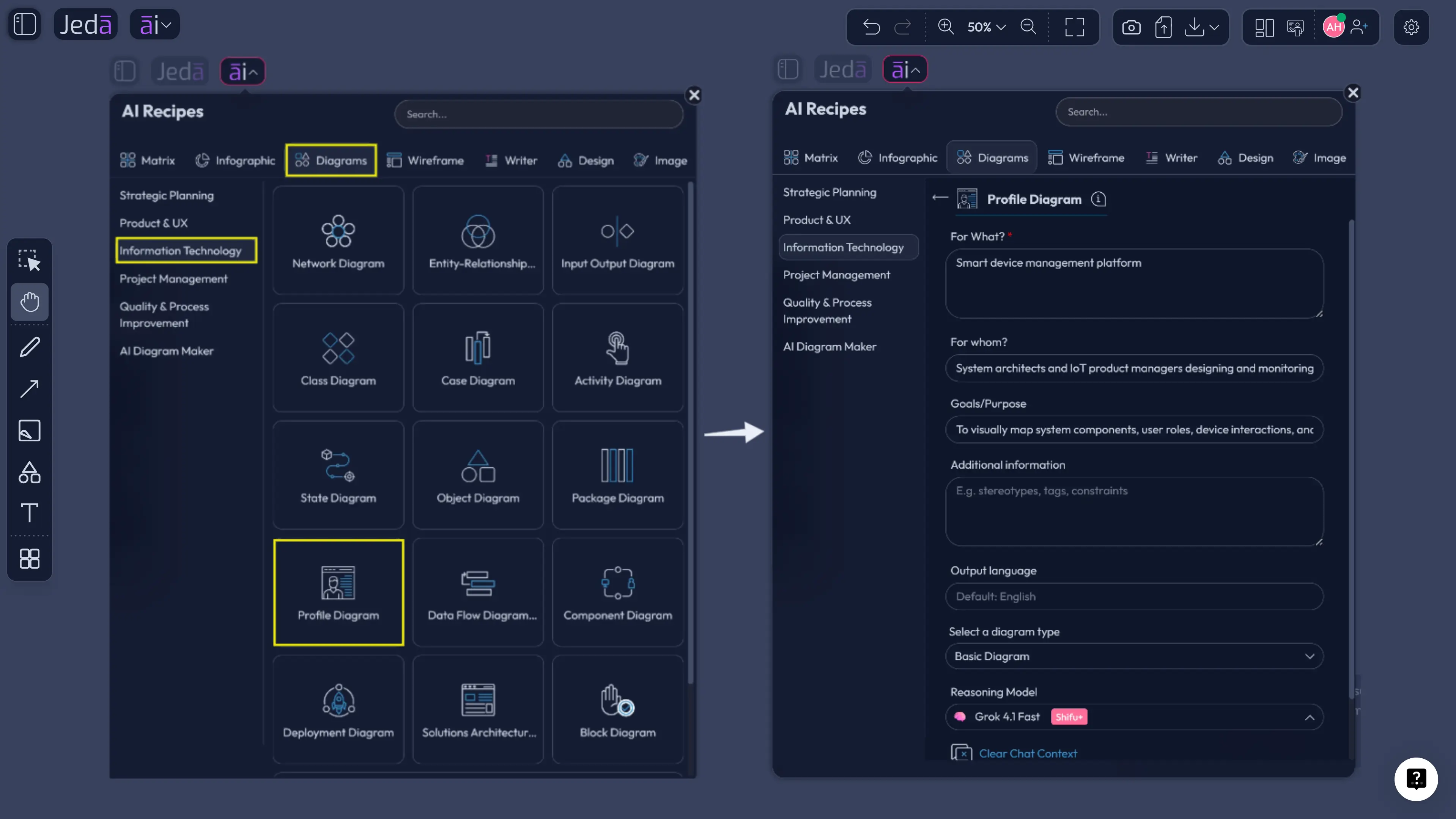
Open the AI Menu, go to the Diagrams category, and choose Profile Diagram under Information & Technology. Fill in the usual recipe fields: what the diagram is for, who it is for, goals or purpose, and any extra context. Then choose the layout. Horizontal layout works well for a few major stereotypes. Vertical layout works better when you want profile, metaclasses, stereotypes, tagged values, and constraints stacked for review.
The recipe also includes Web Search, diagram type, and model options. Use Web Search when the profile depends on current platform rules or domain terms. Choose Basic Diagram for formal UML structure, Mind Map for early concept exploration, or Flowchart for profile application logic. Then choose the AI model or Multi-LLM setup.
- Open the Diagram Recipe
Click the AI Menu, open Diagrams, choose Information & Technology, and select Profile Diagram.
- Define the profile scope
Describe the domain, platform, product, or modeling method the UML profile should support.
- Add audience and goals
Name the users and purpose, such as architecture documentation, compliance modeling, or reusable design standards.
- Choose layout and diagram type
Select horizontal or vertical layout, then choose Basic Diagram, Mind Map, or Flowchart based on the task.
- Set Web Search and model options
Turn Web Search on when freshness matters, then select the reasoning model or Multi-LLM Agent setup.
- Generate and review
Check stereotypes, metaclasses, tagged values, extensions, and constraints before sharing the diagram.
- Extend or transform
Use AI+ only to extend or deepen selected parts. Use Vision Transform to convert the result into another visual format.
Method 2: Generate from the Prompt Bar
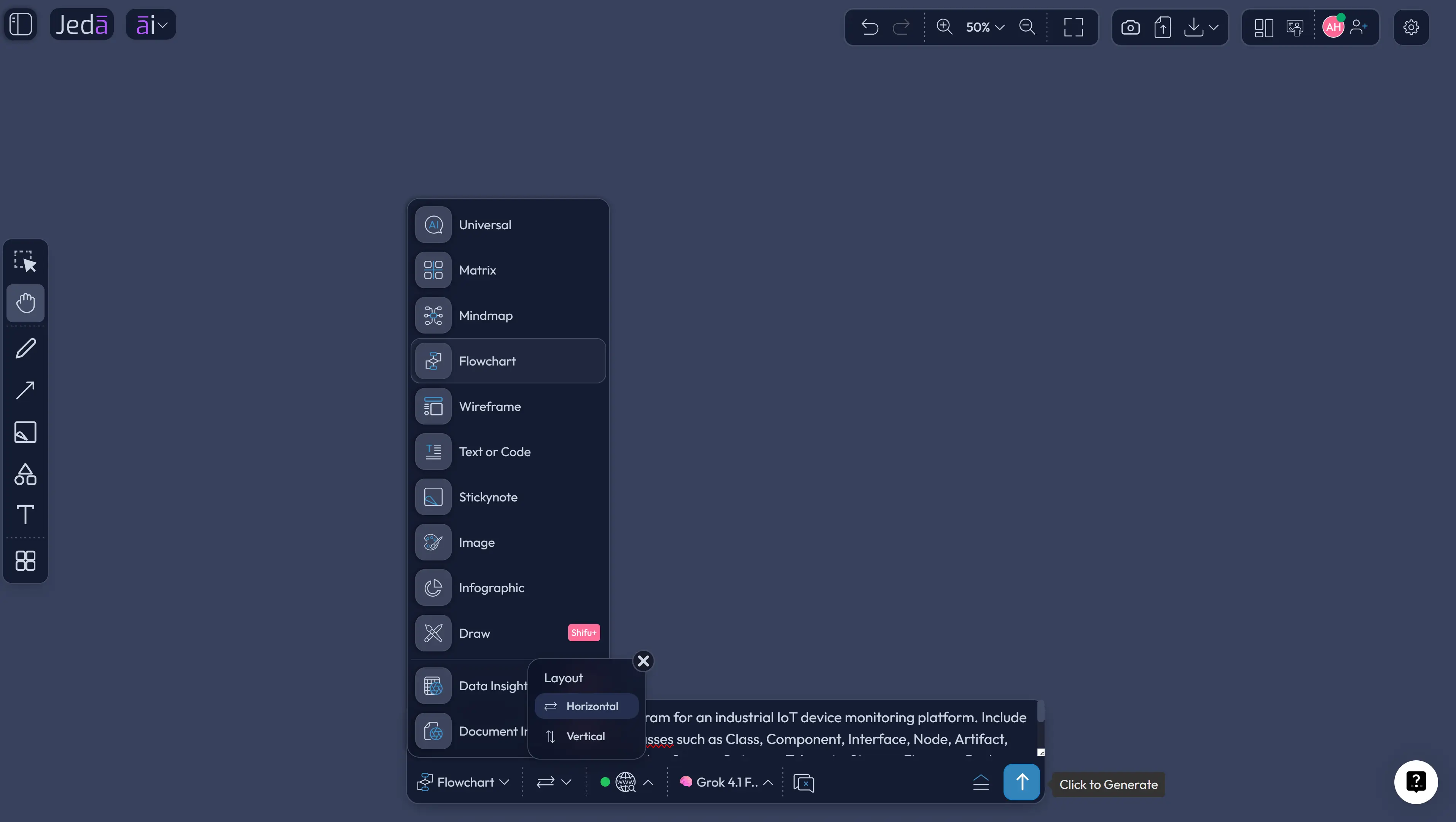
Use the Prompt Bar when speed matters. Select the Diagram command, choose layout direction, set Web Search if needed, and pick your AI model. Then write a prompt with four pieces: domain, UML elements to extend, expected stereotypes, and rules.
Weak prompt: “Create a profile diagram for banking.” Strong prompt: “Create a UML profile diagram for a digital banking platform. Extend Class, Component, Interface, and Association. Include Account, Transaction, RiskRule, PaymentGateway, AuditLog, and IdentityProvider stereotypes. Add tagged values for riskLevel, retentionPeriod, settlementWindow, and regulatoryOwner. Add constraints that every Transaction must connect to an Account and AuditLog.”
- Open the Prompt Bar
Click the Prompt Bar and select the Flowchart command.
- Choose layout and model settings
Pick horizontal or vertical layout, Web Search status, and AI model.
- Describe the domain
Name the industry, platform, system, or product area.
- Name the UML metaclasses
Mention elements such as Class, Component, Interface, Association, Package, Node, or Artifact.
- List stereotypes and tagged values
Provide domain terms and metadata so the output does not drift into generic placeholders.
- Add constraints
Describe rules for required relationships, allowed combinations, or compliance conditions.
- Generate and edit
Review the diagram, edit Smart Shapes and connectors, then export as PNG, SVG, or PDF.
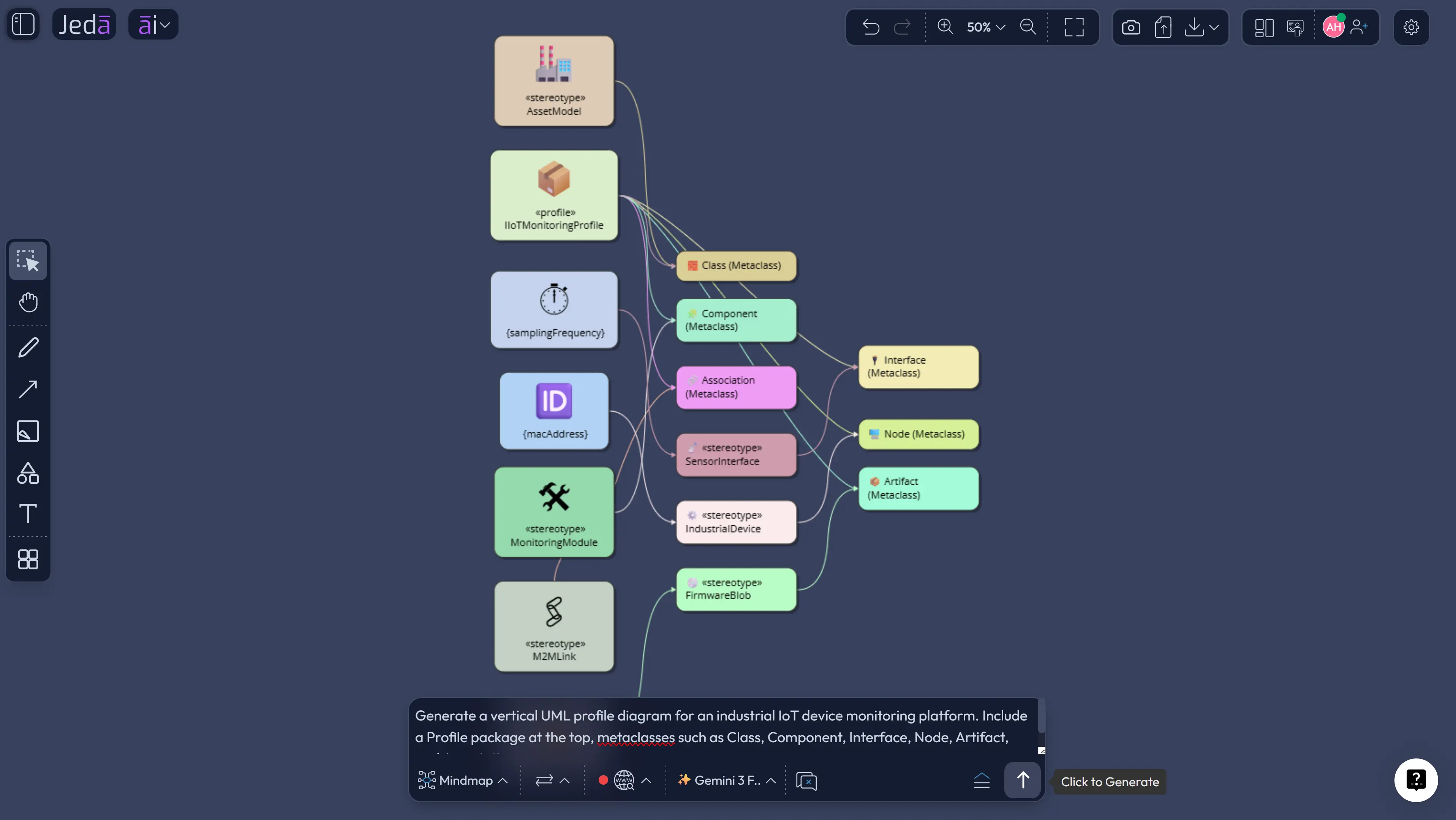
Profile Diagram with AI Example: IoT Device Platform
Let’s make this concrete. Suppose your team is designing an IoT platform for industrial equipment monitoring. Standard UML can show classes, components, and deployment nodes. But your domain needs richer labels: sensors, gateways, telemetry streams, firmware packages, alert policies, and device states.
Here is a usable prompt for Jeda.ai:
“Create a UML profile diagram for an industrial IoT device monitoring platform. The profile should extend Class, Component, Interface, Association, Node, and Artifact. Include stereotypes for Device, Sensor, Gateway, TelemetryStream, FirmwarePackage, AlertPolicy, and MaintenanceEvent. Add tagged values for deviceType, protocol, samplingRate, firmwareVersion, securityLevel, retentionPeriod, and alertThreshold. Add constraints that every Sensor must connect to one Device, every Gateway must support at least one protocol, and every FirmwarePackage must have a version and targetDeviceType. Use a clean vertical layout and include a small legend explaining stereotypes, tagged values, and constraints.”
That prompt gives Jeda.ai enough structure to produce a serious first draft. You can then review the diagram with your software architect, operations lead, or product manager. Use AI+ to deepen a selected part of the existing diagram if a stereotype is too thin. For example, select the AlertPolicy branch and extend it to show additional related metadata. Do not treat AI+ like a separate instruction box for a whole new request. It is for extending what already exists.
What to Include in a Strong UML Profile Diagram
A strong profile diagram is not just a pile of stereotypes. It has a modeling argument. It says why each extension exists, what standard UML element it extends, what metadata belongs to it, and what rule keeps it useful.
Start with the profile package. Give it a name that a future teammate will understand without a meeting. “Payments Profile” beats “Profile 1.” Then define the metaclasses. These are the standard UML elements you are extending. After that, define stereotypes. Each stereotype should have a one-line purpose. If the purpose sounds identical to another stereotype, merge them. Your future self will send flowers.
Tagged values come next. Keep them specific. Use riskLevel, ownerTeam, latencyBudget, or retentionPeriod, not fuzzy names like extraInfo. Constraints should be written so someone can test or challenge them. “Every PaymentGateway must connect to at least one BankInterface” is useful. “Gateways should be good” is not.
Best Practices for Profile Diagram with AI
First, keep the profile focused. A profile for “the entire company” will turn into a junk drawer with arrows. Choose one domain or platform boundary at a time: payments, IoT devices, cloud deployment, healthcare claims, data governance, or release management.
Second, review the metaclass mapping carefully. AI may produce a plausible stereotype, but the stereotype still needs the right UML base. A «Sensor» might extend Class in a logical model, Node in a deployment model, or Artifact in a firmware packaging context. Context decides. Not vibes.
Third, pair the profile with one example application. This is where many teams skip a step and regret it. A profile may look correct until you apply it to a tiny model and realize half the tagged values are unnecessary or a constraint blocks a legitimate case.
Fourth, make naming boring. Boring naming is underrated. Use consistent singular nouns for stereotypes, camelCase for tagged values if your team prefers engineering-style metadata, and short rule labels for constraints.
Common Mistakes to Avoid
Do not turn every noun into a stereotype. Start with the few domain concepts that improve communication, validation, or reuse.
Do not put instance-level data into the profile. A tagged value like deviceType defines metadata. A specific value like “TemperatureSensor-AX9” belongs in an applied model.
And do not treat a generated diagram as automatically correct. Profile Diagram with AI should give you a reviewable draft faster. Architectural judgment still has the final vote.
Frequently Asked Questions
- What is a Profile Diagram with AI?
- Profile Diagram with AI is the use of AI to generate a UML profile diagram from structured context or a natural-language prompt. It helps teams define stereotypes, tagged values, constraints, and metaclass extensions faster while keeping the final model editable and reviewable.
- What is a UML profile diagram used for?
- A UML profile diagram customizes UML for a specific domain, platform, or method. It defines stereotypes, tagged values, and constraints so teams can model domain-specific concepts while staying compatible with standard UML.
- Can Jeda.ai generate a Profile Diagram from a recipe?
- Yes. Jeda.ai supports a Profile Diagram recipe under the Information & Technology diagram category. The recipe lets you enter purpose, audience, goals, context, layout, Web Search setting, diagram type, and AI model before generation.
- Can I create a Profile Diagram from the Prompt Bar?
- Yes. Select the Mind Map command in the Prompt Bar, choose layout and model settings, then describe the domain, UML metaclasses, stereotypes, tagged values, and constraints you want represented.
- Should I choose Basic Diagram, Mind Map, or Flowchart?
- Choose Basic Diagram for formal UML structure. Choose Mind Map when exploring domain concepts. Choose Flowchart when you want to explain how the profile is applied, reviewed, or validated across a modeling workflow.
- What should I include in a Profile Diagram prompt?
- Include the domain, audience, UML metaclasses, expected stereotypes, tagged values, constraints, layout preference, and the purpose of the model. Clear context reduces generic output.
- How does AI+ work with profile diagrams?
- AI+ can extend or deepen a selected part of an existing profile diagram. Use it after generation when a branch, stereotype, or constraint needs more detail. It is not for unrelated new instructions.
- Can profile diagrams be reused across projects?
- Yes. A well-designed UML profile can be applied across multiple models or projects. Reuse works best when stereotypes, tagged values, constraints, and example applications are clearly documented.
Sources and Further Reading
- [1]
Object Management Group (2017) . “Unified Modeling Language 2.5.1 Specification” OMG Specification.
View Source ↗ - [2]
UML-Diagrams.org (2016) . “UML Profile Diagrams” UML-Diagrams.org.
View Source ↗ - [3]
Visual Paradigm (2026) . “What is Profile Diagram in UML?” Visual Paradigm UML Guide.
View Source ↗ - [4]
Creately (2026) . “What Is a Profile Diagram? Key Elements and Templates” Creately Guides.
View Source ↗ - [5]
Tewfik Ziadi, Loïc Hélouët, Jean-Marc Jézéquel (2003) . “Towards a UML Profile for Software Product Lines” Springer, Software Product-Family Engineering.
View Source ↗
Create a Profile Diagram with AI in Jeda.ai
Join 150,000+ users using Jeda.ai to turn technical context into editable diagrams, AI Whiteboard workflows, and clearer architecture decisions.
Start Free in Jeda.ai