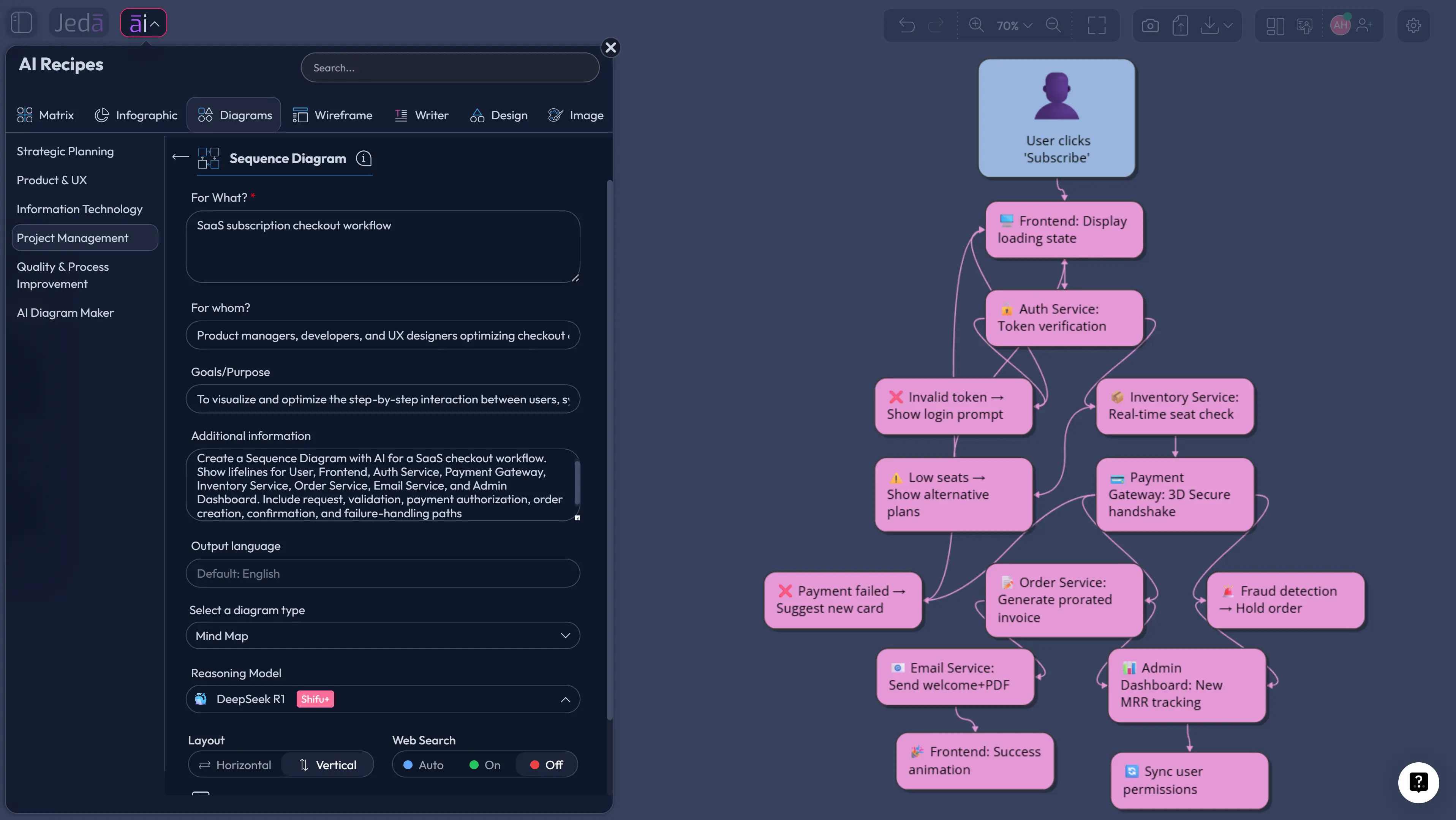
Sequence Diagram with AI is not just a faster way to draw arrows. It is a sharper way to catch the conversations your product depends on before they turn into bugs, blocked tickets, confused handoffs, and those “wait, who calls what?” meetings nobody puts on their vision board. In Jeda.ai, you can build a sequence diagram inside an AI Workspace, edit it on an AI Whiteboard, and keep the logic visible for the people who actually need to decide what happens next.
A normal sequence diagram shows the order of messages between participants over time. Fine. Useful. But a Sequence Diagram with AI can start from messy requirements, API notes, sprint stories, onboarding logic, or a stakeholder explanation and turn that into a visual flow your team can challenge. That last word matters: challenge. The diagram is not the deliverable. Better shared understanding is.
What is a Sequence Diagram?
A sequence diagram is a UML interaction diagram that shows how participants communicate in a specific scenario, arranged by time. The participants usually sit across the top as lifelines, and messages move between them from top to bottom. That top-to-bottom reading order is the whole point: it shows what happens first, what happens next, and which participant is responsible at each moment.
This makes sequence diagrams especially useful for software systems, business workflows, API handoffs, approval paths, support escalations, and project operations where timing matters. A flowchart shows the path. A sequence diagram shows the conversation. That difference is not academic hair-splitting; it changes what teams notice.
In a UML sequence diagram, the common building blocks are lifelines, messages, activation bars, return messages, and combined fragments such as alternatives or loops. You can use them lightly for stakeholder clarity or more formally for engineering documentation. The trick is knowing how much detail the audience needs. Too little and the diagram becomes decorative wallpaper. Too much and everyone suddenly remembers they have another call.
Why Use a Sequence Diagram with AI?
Most teams do not struggle because they cannot draw a sequence diagram. They struggle because the real interaction is scattered across Jira tickets, Slack threads, product specs, backend assumptions, customer-success exceptions, and “I thought the frontend handled that” folklore. A Sequence Diagram with AI helps compress that mess into a first visual draft that people can inspect together.
Jeda.ai adds a Visual AI layer to this process. Instead of starting with a blank canvas, you can describe the interaction, choose a diagram recipe or command, and generate an editable visual. The result lives inside an AI Workspace where teams can revise labels, move nodes, change shape styling, extend branches, and keep decisions visible.
- See timing, not just tasks
Map who talks to whom, in what order, so handoffs and message timing stop hiding inside prose.
- Translate requirements into system logic
Turn product stories, API descriptions, or operational steps into a clearer model before engineering starts building.
- Expose edge cases earlier
Use alternatives, retries, approvals, and failure paths to challenge sunny-day assumptions before they become product debt.
- Align non-technical stakeholders
Show business, product, and engineering teams the same interaction flow without making everyone read a dense technical spec.
- Move from draft to decision
Generate a first-pass diagram quickly, then edit it collaboratively on the AI Whiteboard instead of redrawing from scratch.
- Switch visual lenses
Use Vision Transform when the same content needs to become a flowchart, mind map, or basic diagram for a different audience.
And here is the uncomfortable part: sequence diagrams often reveal that the team never agreed on the sequence. The button click looked simple. The backend saw six services, two queues, a retry rule, and a compliance checkpoint hiding in the corner like a tiny disaster goblin. AI does not remove the need to think. It gives the team a visible object to think against.
When Should You Use a Sequence Diagram?
Use a sequence diagram when the order of communication matters more than the list of tasks. That includes login flows, checkout flows, API integrations, appointment scheduling, payment processing, onboarding, support triage, notification systems, data-sync logic, approval workflows, and service-to-service orchestration.
A sequence diagram is also useful when different teams own different parts of a workflow. Product owns the promise. Engineering owns the implementation. Support owns the consequences. Operations owns the exception handling. A good diagram makes those boundaries visible before the system ships with invisible cracks.
For project managers, sequence diagrams can clarify dependencies between systems and teams. For software engineers, they can pressure-test message order, return paths, and failure scenarios. For business analysts, they can turn process interviews into a more precise model. For product managers, they can expose whether the user experience and system behavior actually match.
How to Create a Sequence Diagram with AI in Jeda.ai
Jeda.ai gives you two practical ways to create a Sequence Diagram with AI: the guided Sequence Diagram recipe in the AI Menu, and the Prompt Bar method. Use the recipe when you want structure and field-by-field guidance. Use the Prompt Bar when you already know the scenario and want a direct draft fast.
After generation, use AI+ to extend and deepen selected parts of the visual. Do not treat AI+ like a separate instruction box for a new prompt. It is best used as an extension control on existing generated content. You can also use Vision Transform to convert the sequence diagram into another format when a stakeholder needs a different lens.
Method 1: Use the Sequence Diagram Recipe from the AI Menu
The guided recipe is the better starting point when the interaction has several actors, systems, approvals, or failure paths. It helps you slow down in the right places: what the interaction is for, who it is for, why the diagram exists, and what context the AI should consider.
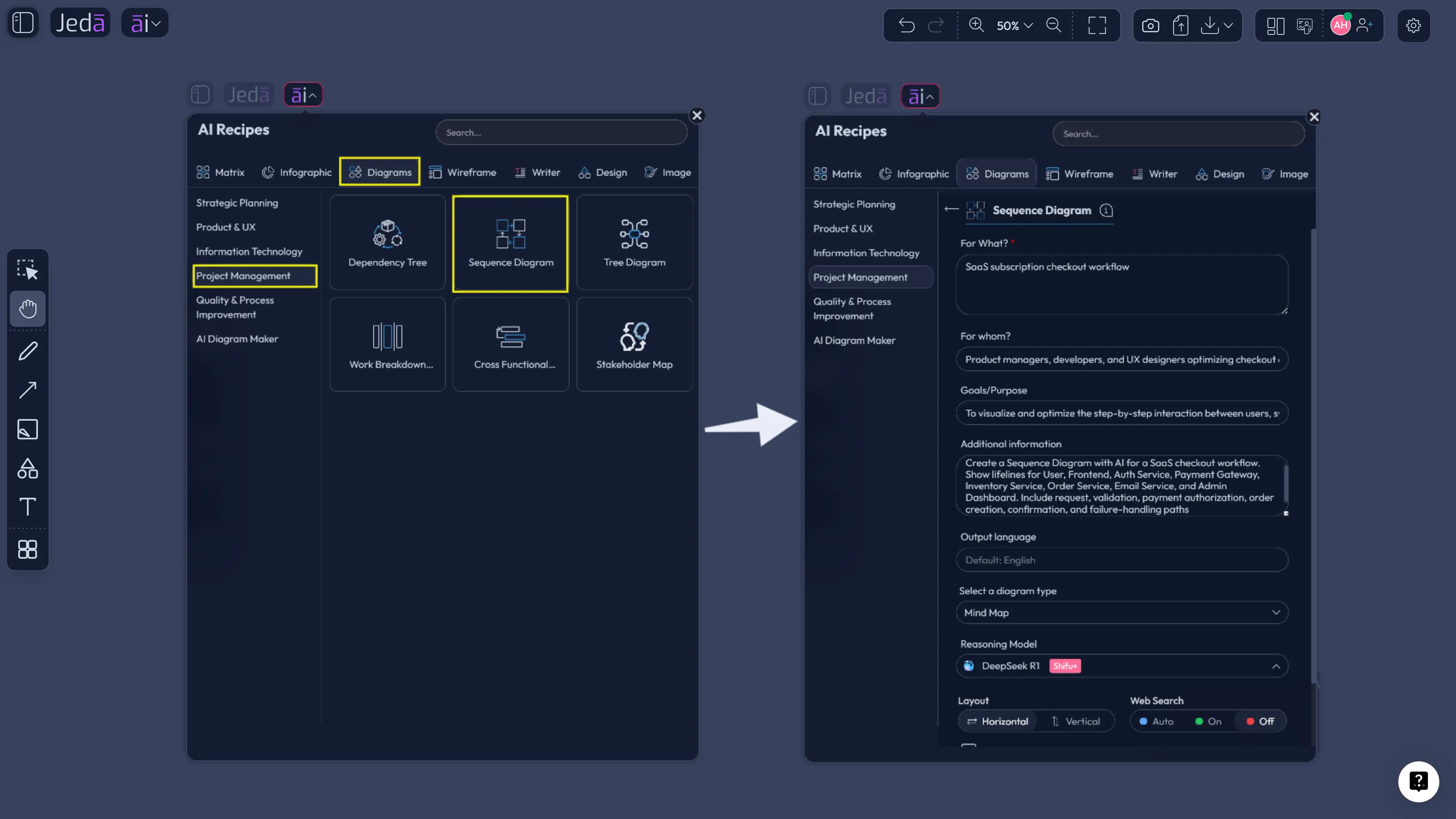
- Open the AI Menu
From the top-left area of the canvas, open the AI Menu and choose the Diagrams tab.
- Find the Sequence Diagram recipe
Go to the Project Management category and select the Sequence Diagram recipe. This recipe is designed to depict processes, objects, and the sequence of exchanged messages needed to carry out a functionality.
- Fill in the recipe fields
Complete the usual guided fields: For what, For whom, Goals/Purpose, Additional information, and Output language. Add APIs, response timing, approval rules, exception paths, or handoff notes when available.
- Choose layout and diagram settings
Select a horizontal or vertical layout based on how the interaction should be read. Use the diagram type selector to choose Basic Diagram, Mind Map, or Flowchart depending on the final structure you want.
- Set Web Search and AI model options
Turn Web Search on when the diagram needs current external context. Pick the reasoning model that fits the task, or use Multi-LLM Agent when a complex interaction needs several perspectives.
- Generate and review the diagram
Click Generate, then inspect the lifelines, message order, alternate paths, and missing return flows. Edit the diagram directly on the canvas.
- Extend or transform when needed
Use AI+ to extend and deepen selected areas, or use Vision Transform to convert the result into another visual format for a different audience.
Method 2: Generate from the Prompt Bar
The Prompt Bar method is faster when you have a clear scenario already. It is especially useful for software teams that can paste a compact user story, API description, or workflow note and get a first-pass visual before a planning call.
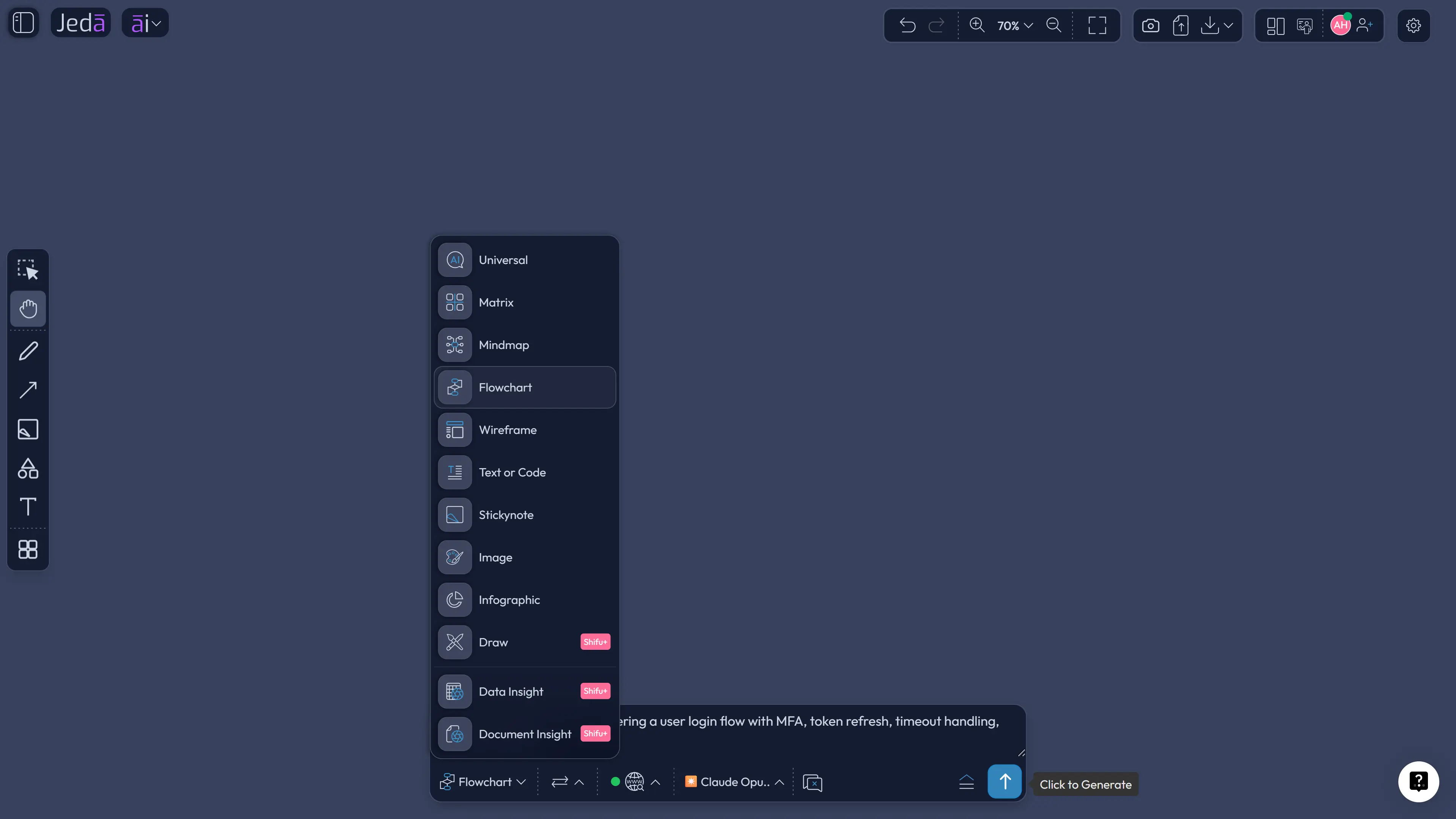
- Open a Jeda.ai workspace
Start from a clean area of the AI Whiteboard so the generated diagram has enough room to render clearly.
- Select the Flowchart or Diagram command
Use Flowchart when you want a stronger step-by-step interaction structure. Use Mind Map when you want flexible connected shapes for system relationships.
- Choose horizontal or vertical layout
Use horizontal layout for broad systems with several participants. Use vertical layout when the sequence is long and easier to scan from top to bottom.
- Add a precise prompt
Describe the workflow, participants, systems, messages, decisions, retries, and failure cases. Name the actors clearly so the generated lifelines are easier to inspect.
- Set Web Search and model preferences
Use Web Search when external standards, live product details, or current process references matter. Select the AI model that best fits the complexity of the interaction.
- Generate, edit, and collaborate
Generate the diagram, then revise labels, participants, connectors, message order, and visual styling directly on the canvas with your team.
Sequence Diagram with AI Prompt Template
A strong prompt does not need to be long. It needs the right nouns. Name the participants. Name the messages. Name the bad paths. Otherwise the AI will do what humans do under vague direction: produce something plausible enough to look correct and incomplete enough to betray you later.
Use this prompt structure:
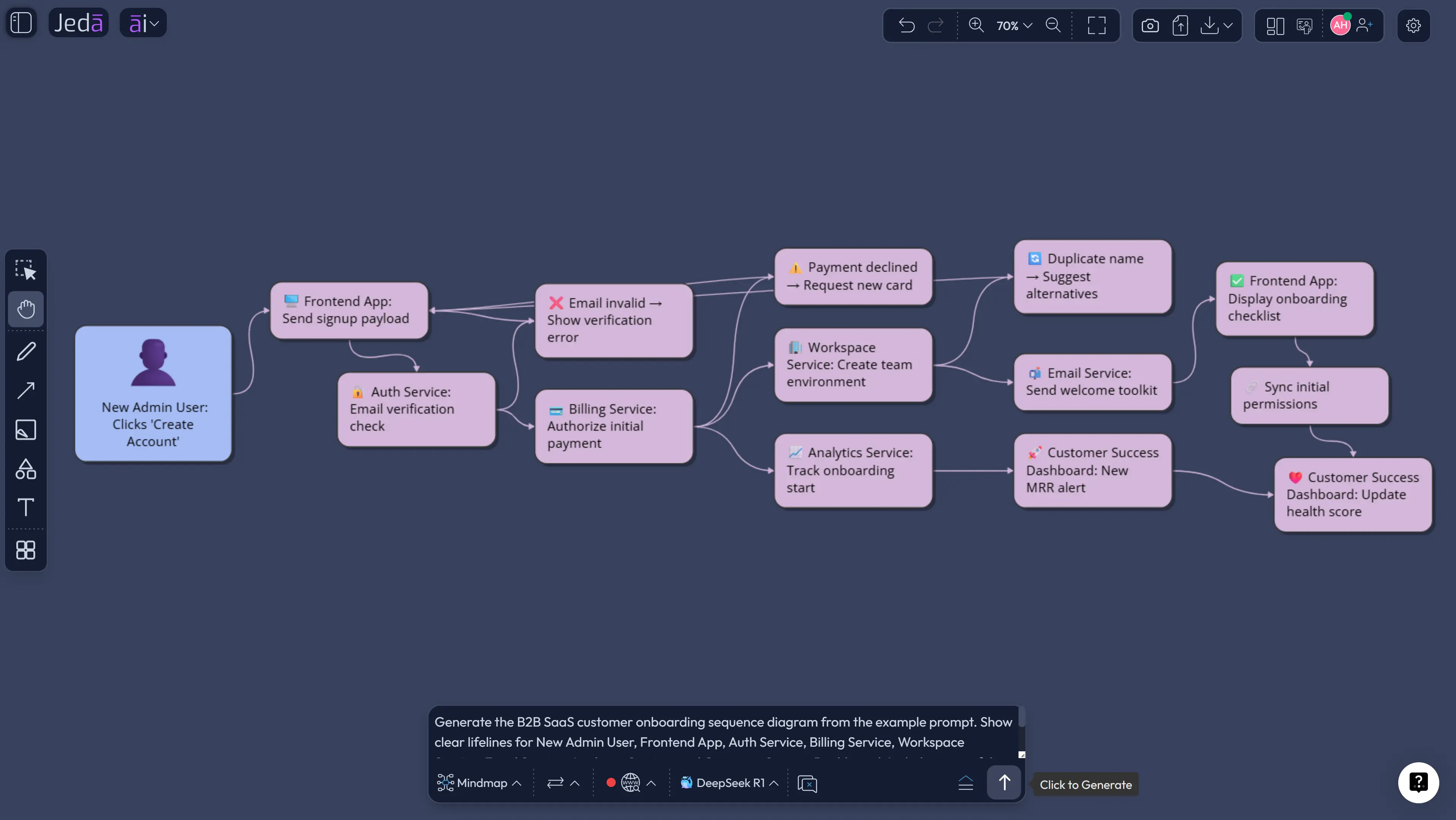
Here is a more concrete version:
What Makes a Good AI-Generated Sequence Diagram?
A good sequence diagram is not the one with the most arrows. It is the one that helps the team make the fewest wrong assumptions.
The best AI-generated sequence diagrams usually have seven qualities. First, each participant is named clearly. “System” is acceptable only when you are intentionally hiding internal complexity. Second, every message has a verb. “Payment” is a label. “Authorize payment” is a message. Third, the success path is readable without needing a narrator standing nearby.
Fourth, return messages are shown when they clarify decision-making. Fifth, alternative paths are not buried in tiny labels. Sixth, loops and retries are visible when they affect timing, cost, reliability, or user experience. Seventh, the diagram knows its audience. A developer-facing version can include services, tokens, and queues. A stakeholder-facing version might collapse those details and focus on handoffs, approvals, and risk moments.
Where Sequence Diagrams Break Down
Sequence diagrams are bad at pretending to be everything. That is a feature, not a flaw. If you try to model a whole product, a whole organization, and every exception in one diagram, you get a wall of arrows that looks impressive and helps nobody.
Use a sequence diagram for one scenario at a time. “User signs in with multi-factor authentication” works. “Our platform architecture” does not. That belongs in a system architecture diagram. “Order refund approval” works. “Customer lifecycle” probably needs a journey map or flowchart first.
There is also a second trap: AI-generated confidence. A diagram that looks clean can still be wrong. Treat the first output as a thinking draft, not gospel with connector lines. The human review step is where product truth enters the room.
Sequence Diagram vs Flowchart vs Basic Diagram
Use a sequence diagram when you need to understand message order between participants. Use a flowchart when you need to understand decision paths. Use a basic diagram when you need a flexible relationship map without strict sequencing.
| Best For | Main Strength | Risk If Misused | |
|---|---|---|---|
| Sequence Diagram | Actor, service, and system interactions over time | Shows message order and responsibility | Can become too dense if it covers too many scenarios |
| Flowchart | Process steps and decision branches | Shows what path happens after each decision | Can hide who owns each interaction |
| Basic Diagram | System relationships, architecture, and conceptual maps | Flexible layout for connected ideas | May not show time order clearly |
This is where Jeda.ai’s recipe design is handy. The Sequence Diagram recipe lets you choose a diagram type such as Basic Diagram, Mind Map, or Flowchart when the same material needs a different structure. That saves a painful redraw. It also makes the AI Workspace more useful after the first output because the team can keep adapting the visual to the conversation instead of switching tools.
Common Mistakes to Avoid
The first mistake is drawing the interface instead of the interaction. A button click is not enough. What happens after the button click? Which service receives the request? What validates it? What returns? What fails?
The second mistake is forgetting the failure paths. Happy paths are nice. Products do not live there. Payment fails, tokens expire, inventory changes, permissions break, APIs time out, and people click twice because they are human. Tiny detail, that.
The third mistake is using sequence diagrams as decoration in a document nobody revisits. Put the diagram where work happens. In Jeda.ai, that means keeping it editable on the AI Whiteboard, using comments or follow-up visuals, and exporting when needed for documentation.
The fourth mistake is making the diagram too technical for the room. A CTO and a customer-success lead do not need the same level of detail. Create the engineering version. Then create the stakeholder version. Same truth, different resolution.
Frequently Asked Questions
- What is a Sequence Diagram with AI?
- A Sequence Diagram with AI is an AI-generated visual that maps the order of messages between actors, services, systems, or objects. It helps teams turn written requirements, API notes, or workflow descriptions into an editable interaction diagram faster than manual drawing.
- How do I create a sequence diagram in Jeda.ai?
- Use the Sequence Diagram recipe from the AI Menu for guided creation, or use the Prompt Bar with the Flowchart or Diagram command. Add participants, messages, goals, exceptions, layout preference, Web Search settings, and AI model choice before generating.
- When should I use a sequence diagram instead of a flowchart?
- Use a sequence diagram when you need to show communication order between participants over time. Use a flowchart when the main question is which decision path happens next. Sequence diagrams explain interaction. Flowcharts explain process branching.
- Can Jeda.ai generate sequence diagrams from API workflows?
- Yes. You can describe API participants, requests, responses, validation steps, retries, and failure paths in the Prompt Bar or recipe form. Jeda.ai can then generate an editable diagram on the AI Whiteboard for team review.
- Can AI+ be used after generating the sequence diagram?
- Yes. After the diagram is generated, select a relevant smart shape or section and use AI+ to extend and deepen that selected area. AI+ is best treated as an extension control for existing content, not as a separate detailed prompt workflow.
- Does Web Search work with Jeda.ai diagram recipes?
- Yes. Web Search can be toggled inside AI Recipes when current context is useful. It is a platform feature, so the AI model does not search independently; Jeda.ai provides the web-grounding option in the workflow.
- Can I change a sequence diagram into another visual format?
- Yes. Use Vision Transform to convert selected content into a different visual type, such as a flowchart, mind map, or basic diagram. This is useful when engineers need interaction detail but stakeholders need a simpler process view.
- Who should use sequence diagrams?
- Software engineers, project managers, business analysts, product managers, product design engineers, and industrial design engineers can all use sequence diagrams when workflows depend on ordered communication between people, services, tools, approvals, or systems.
- What should I include in a sequence diagram prompt?
- Include the scenario, participants, starting trigger, successful outcome, main messages, responses, validations, alternate paths, retries, errors, and target audience. Clear participant names usually improve the quality of the generated lifelines and messages.
- Is Jeda.ai only for technical sequence diagrams?
- No. Jeda.ai can support technical and non-technical interaction flows. You can map API workflows, software behavior, business approvals, support escalations, onboarding processes, and cross-functional handoffs inside the same AI Workspace.
Start with the Conversation, Not the Arrow
A sequence diagram is a forcing function. It asks: who speaks, who listens, what happens next, and what breaks when reality refuses to follow the sunny path? That is why Sequence Diagram with AI is so useful. It gets the first structure on the board fast enough that the team still has energy left to argue about the important parts.
Jeda.ai gives that work a better home: an AI Workspace for visual thinking, an AI Whiteboard for collaboration, 300+ strategic frameworks and recipes for structured work, and editable visuals that do not die inside a screenshot. More than 150,000+ users already use Jeda.ai to move from vague input to sharper visual output.
So yes, generate the diagram. But do not stop there. Review it. Challenge it. Extend it with AI+. Transform it when the audience changes. That is how a diagram becomes a shared decision tool instead of another pretty artifact lost in the project folder.
- [1]
Object Management Group (2017) . “Unified Modeling Language 2.5.1” OMG Specification.
View Source ↗ - [2]
Donald Bell (2023) . “Explore the UML Sequence Diagram” IBM Developer.
View Source ↗ - [3]
Microsoft Support (2026) . “Create a UML Sequence Diagram” Microsoft.
View Source ↗ - [4]
Sparx Systems (2026) . “UML 2 Tutorial: Sequence Diagram” Sparx Systems.
View Source ↗ - [5]
Lucidchart (2026) . “UML Sequence Diagram Tutorial” Lucidchart.
View Source ↗ - [6]
David Faitelson and Shmuel Tyszberowicz (2025) . “A Simple Trace Semantics for Asynchronous Sequence Diagrams” arXiv.
View Source ↗
Create Your Sequence Diagram with AI
Join 150,000+ users using Jeda.ai to turn workflows, systems, and project logic into editable visuals on an AI Workspace.
Try Jeda.ai Free