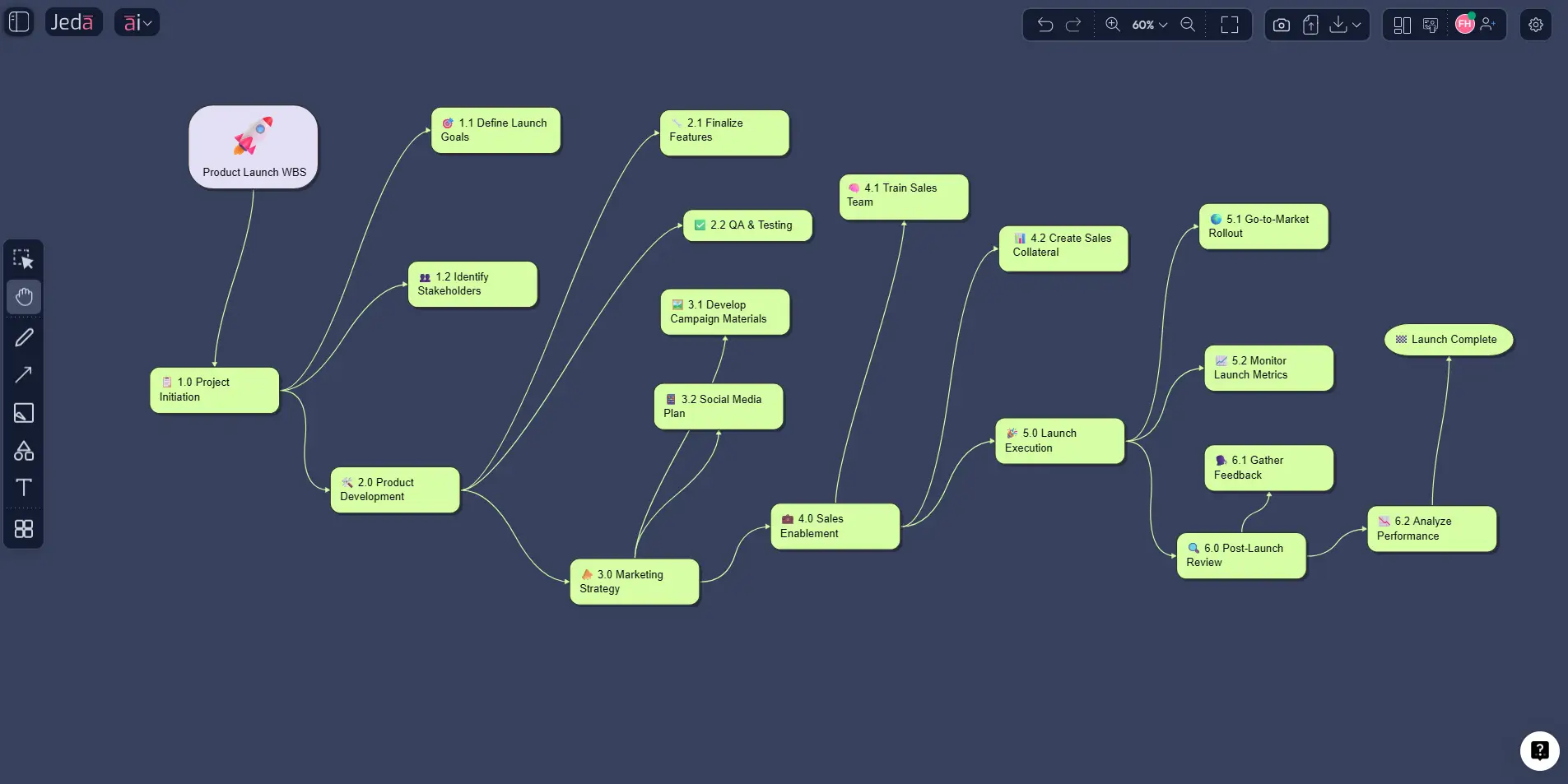
A WBS breaks the total project scope into smaller, manageable components. It is not just a prettier to-do list. It is a hierarchy that helps teams define what must be delivered, what belongs in scope, and where work packages sit. NASA guidance treats the WBS and WBS dictionary as a common planning reference because they support budgeting, communication, and control across the life of a project.
Most teams use one of two structures. A deliverable-based WBS organizes work around outputs. A phase-based WBS organizes work around stages. Deliverable-based structures are often stronger when the outcome is clear and scope control matters. Phase-based structures can work when the project is tightly shaped by lifecycle stages. In both cases, the 100% rule is the big guardrail: the structure should capture all the authorized work and nothing outside it.
- Clarify scope
A WBS turns a vague project goal into visible deliverables and sub-deliverables.
- Improve estimates
Smaller work packages make time, cost, and effort estimates more realistic.
- Assign ownership
Once the structure is visible, teams can attach clearer responsibility to each branch.
- Reduce hidden gaps
A structured hierarchy exposes missing work, overlap, and weak planning logic early.
Why create a Work Breakdown Structure with AI?
Manual WBS building slows down fast. The first few branches are easy. Then the project gets bigger, people disagree on decomposition logic, and the board fills with half-useful labels like “operations” or “launch support.” That is where AI actually helps.
A Work Breakdown Structure with AI gives your team a strong first draft, alternative breakdown paths, and a visible planning artifact to react to. Jeda.ai adds the part that matters most: the result stays editable inside a Visual AI workspace instead of becoming a frozen export. You can move branches, rename nodes, deepen a section, and collaborate without leaving the canvas.
That means Jeda.ai is not replacing project judgment. It is removing blank-canvas drag so your team can spend more time refining the structure and less time building one from scratch.
How to create a Work Breakdown Structure with AI in Jeda.ai
Jeda.ai gives you two practical methods. The main one is the diagram recipe under Project Planning. That should be your default. The second is the Prompt Bar, which is faster when you already know what structure you want.
Method 1: Use the diagram recipe in the AI Menu
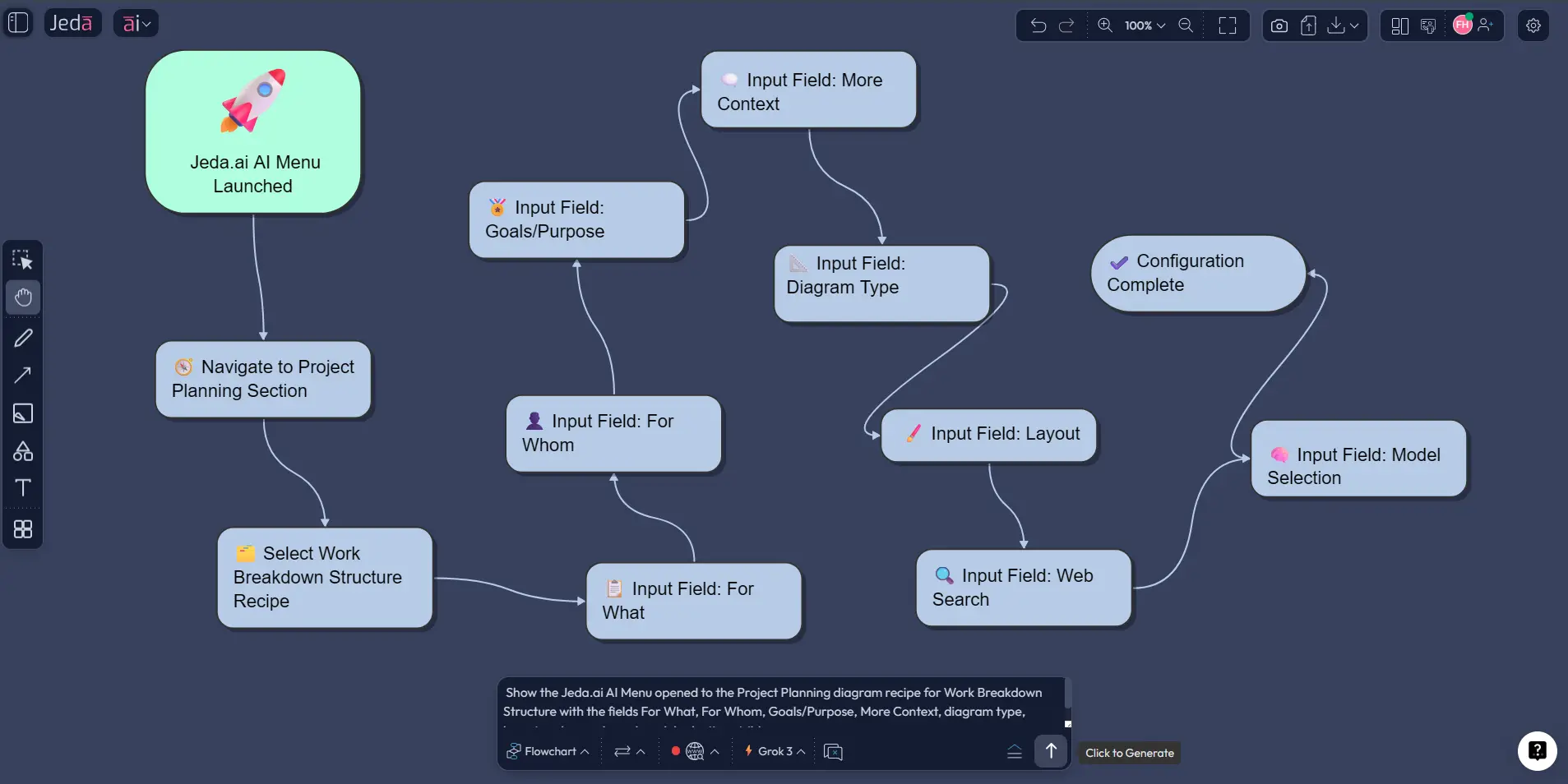
This is the better route for most teams because it adds useful structure before generation. You open the AI Menu, go to the Project Planning diagram recipe, fill the guided fields, select your visual options, and generate the first draft.
The recipe is especially good for WBS work because it lets you frame the project with the familiar fields: For What, For Whom, Goals/Purpose, and More Context. Then you tune the output with the options that matter for planning: horizontal or vertical layout, web search on or off, diagram type selection such as Basic Diagram, Mind Map, or Flowchart, plus the reasoning model.
A practical way to choose the output style:
- Basic Diagram for a classic hierarchical WBS
- Mind Map for early-stage exploration
- Flowchart for a more phase-led structure
- Open the AI Menu and choose the WBS diagram recipe
Go to the Project Planning area in Jeda.ai and open the Work Breakdown Structure recipe.
- Fill in the guided fields
Add For What, For Whom, Goals/Purpose, and More Context so the AI understands the project and intended outcome.
- Choose the visual settings
Pick Basic Diagram, Mind Map, or Flowchart, set the layout to horizontal or vertical, decide on Web Search, and select the reasoning model.
- Generate the first structure
Create the initial hierarchy of deliverables, sub-deliverables, and work packages on the canvas.
- Refine and extend
Rename weak branches, remove duplicates, and use the AI+ button on selected nodes to deepen one branch at a time.
Method 2: Generate it from the Prompt Bar
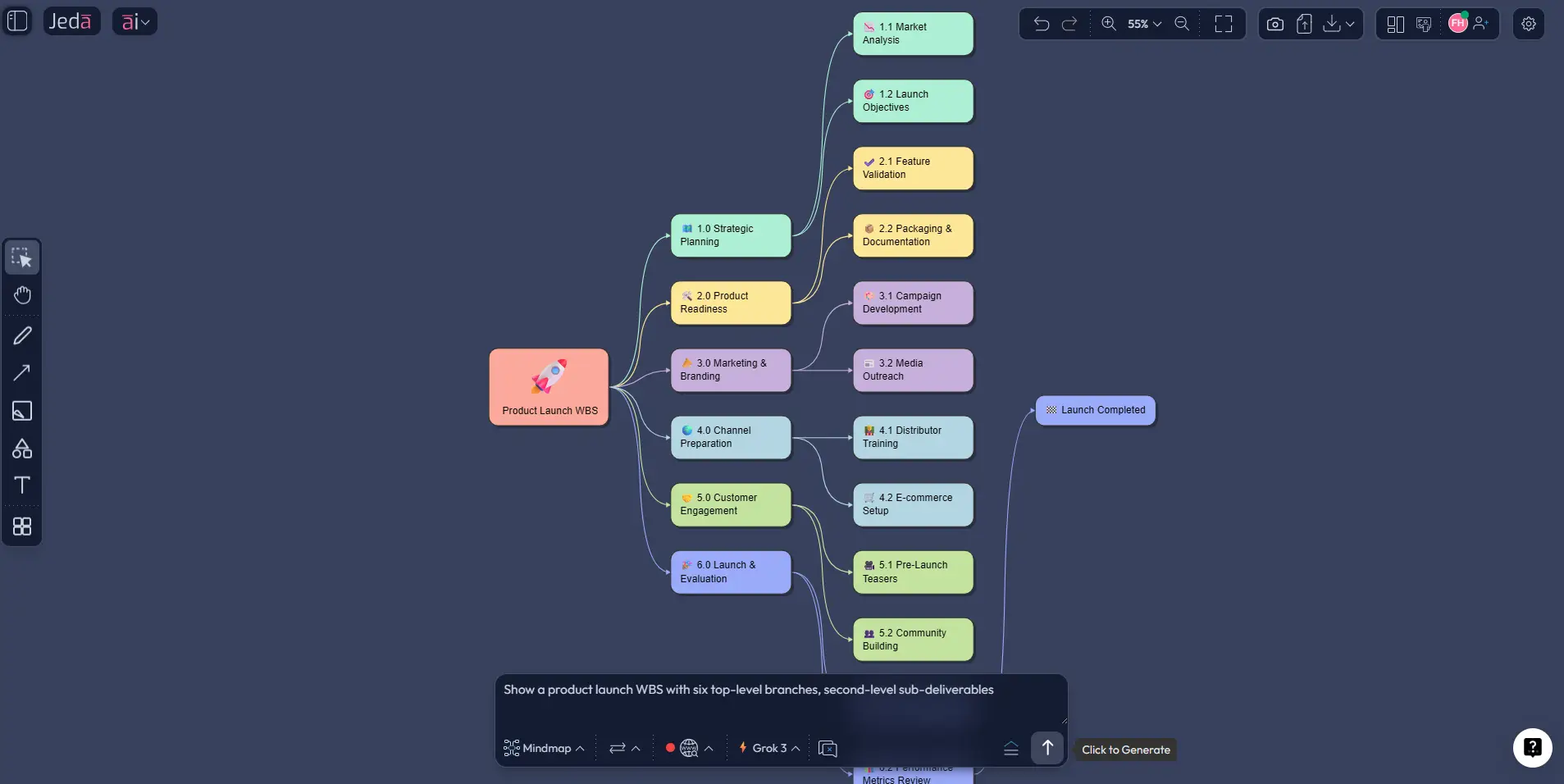
The Prompt Bar is the faster lane. Open it at the bottom of the canvas, choose the command that best matches the output you want, then prompt directly. For many WBS use cases, Flowchart is the most practical choice. If the project is still fuzzy, a looser structure can be generated first and cleaned up after.
The trick is to write a scoped prompt, not a lazy one. Include the project type, the preferred WBS logic, the top-level branches, and how deep the breakdown should go. That gives the model enough structure to produce something usable.
- Open the Prompt Bar
Click into the Prompt Bar at the bottom of the Jeda.ai canvas.
- Select the command and settings
Choose Flowchart, set the layout if needed, turn Web Search on when external context matters, and pick the reasoning model.
- Write a specific WBS prompt
Describe the project, the preferred WBS style, the main branches, and the desired depth of decomposition.
- Generate and clean the result
Review the hierarchy, merge duplicates, rename vague labels, and confirm the structure follows the full scope.
- Use AI+ or Vision Transform
Deepen selected branches with AI+ or convert the result into another visual format when the team needs a different planning view.
Example prompt and use case
Here is a strong starting prompt:
Why does this work? Because it gives the AI a project type, a decomposition logic, named top-level branches, and a quality bar. No fluff. No “do everything” nonsense.
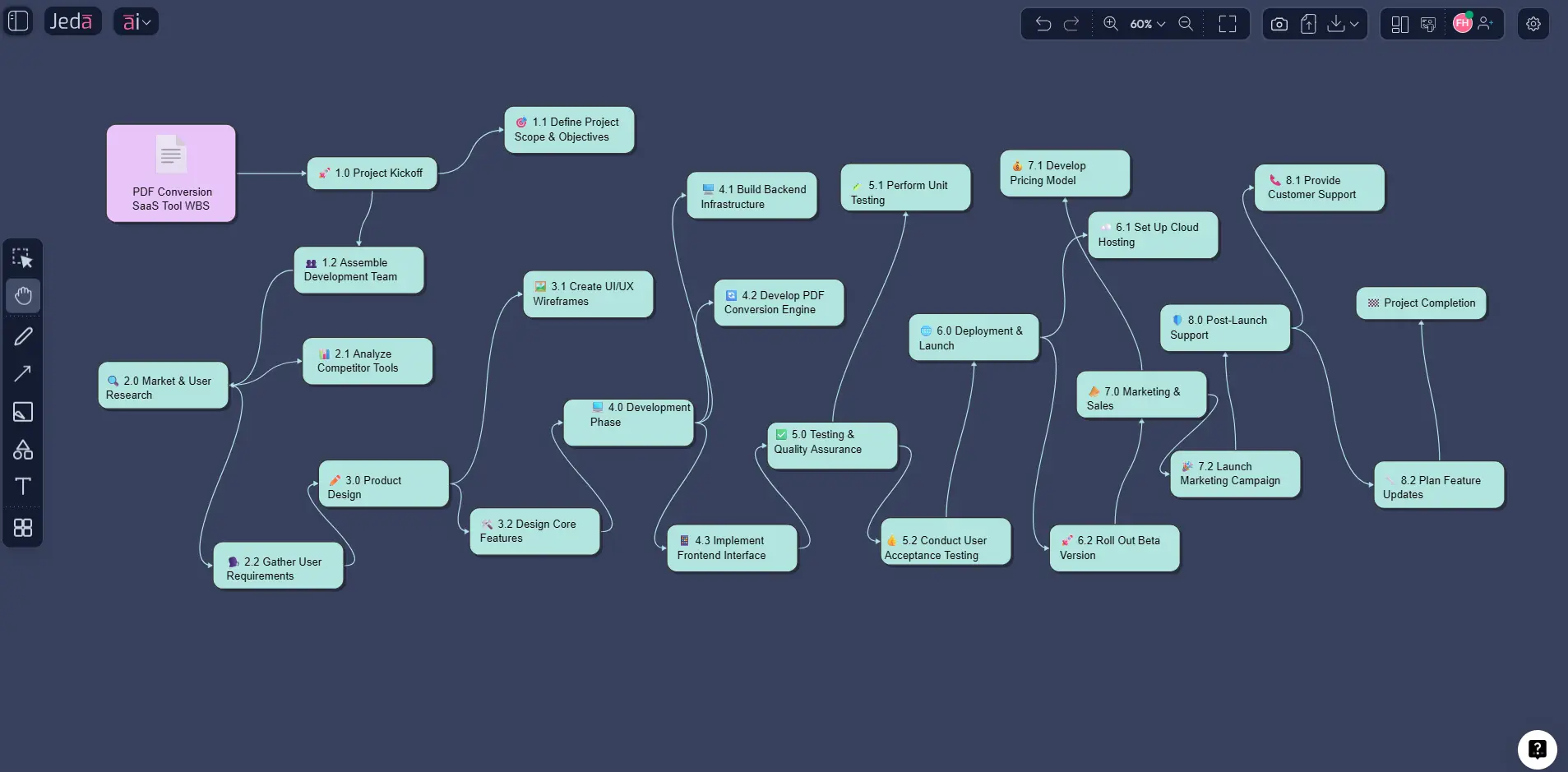
On an AI Whiteboard, that first draft becomes something the full team can improve. Engineering can tighten platform work. Marketing can add campaign assets. Customer success can build onboarding and support branches. The project manager can check whether every work package rolls up cleanly. That is the point of using an AI Workspace instead of a generic chat window.
Best practices and common mistakes
A WBS works best when each level follows one logic. Do not mix phases, deliverables, departments, and random action lists in the same layer. That is how you get a structure that looks official and explains nothing.
A few habits help:
- start with scope, not activity noise,
- use the 100% rule as a quality check,
- stop decomposing when work packages become manageable,
- and use a WBS dictionary for larger projects where definitions and boundaries matter.
The most common mistake is treating the WBS like a schedule. It is not. A WBS defines scope; the schedule sequences work over time. Another mistake is leaving AI-generated labels vague. Terms like “operations support” often hide real ownership problems. Clean them up.
One more thing. AI+ is powerful, but it is better as a branch-expansion tool than a blank-slate instruction channel. Generate the core structure first. Refine it. Then deepen the selected areas that need more detail.
Frequently asked questions
- What is a Work Breakdown Structure used for?
- A work breakdown structure is used to define the full project scope by breaking it into smaller, manageable components. It helps teams estimate work, assign ownership, control scope, and create a better foundation for scheduling and budgeting.
- Is a WBS the same as a project plan?
- No. A WBS defines the scope hierarchy of the project, while a project plan also covers schedule, budget, resources, risk, governance, and communications. The WBS supports the plan, but it is only one part of it.
- Should a WBS be deliverable-based or phase-based?
- Both are valid. Deliverable-based WBS structures are often better for scope clarity because they focus on outputs. Phase-based structures can work well when the project is strongly organized around lifecycle stages or formal gates.
- What is a work package in a WBS?
- A work package is the lowest practical level in the WBS where work can be estimated, assigned, tracked, and controlled. It should be small enough to manage but still meaningful in the context of the overall project.
- Can Jeda.ai create a Work Breakdown Structure with AI from a prompt?
- Yes. You can create a Work Breakdown Structure with AI in Jeda.ai through the diagram recipe in the AI Menu or by prompting directly in the Prompt Bar. Both methods generate editable visual structures on the canvas.
- What does AI+ do for a WBS in Jeda.ai?
- AI+ extends an existing part of the visual after you select a node or branch. It is best used to deepen a section that already exists, such as expanding procurement, testing, deployment, or training into more detailed work packages.
- When should I use Basic Diagram, Mind Map, or Flowchart for WBS work?
- Use Basic Diagram for a classic hierarchy, Mind Map when the project is still exploratory, and Flowchart when the team wants the structure to align more closely with phases or execution logic.
- What should happen after the WBS is finished?
- After the WBS is stable, teams usually assign owners, document definitions in the WBS dictionary, estimate effort and cost, map dependencies, and then move into schedule creation, resource planning, and execution tracking.
Sources & further reading
- [1]
Project Management Institute (n.d.) . “Work Breakdown Structure (WBS) - Basic Principles” PMI Learning Library.
View Source ↗ - [2]
Project Management Institute (2019) . “Practice Standard for Work Breakdown Structures – Third Edition” PMI Standards.
View Source ↗ - [3]
National Aeronautics and Space Administration (2021) . “NASA Work Breakdown Structure (WBS) Handbook” NASA.
View Source ↗ - [4]
Asana (2025) . “Work breakdown structure (WBS) guide: Steps & rules” Asana.
View Source ↗ - [5]
Atlassian (n.d.) . “What is a Work Breakdown Structure (WBS)?” Atlassian.
View Source ↗
Build your next Work Breakdown Structure with AI
Join 150,000+ users who use Jeda.ai to turn messy project scope into editable visual plans.
Try Jeda.ai Free