Design Thinking with AI gets interesting when you stop treating AI like a shortcut machine and start using it like a thinking partner. The goal is not to automate empathy out of the room. That would be ridiculous. The goal is to help your team move faster through research synthesis, framing, idea exploration, prototyping, and iteration without losing the human-centered discipline that makes design thinking worth doing in the first place.
That is exactly where Jeda.ai fits. It gives you an AI Workspace and AI Whiteboard where the messy middle of innovation can actually stay visible: interview notes, opportunity areas, problem frames, branching ideas, low-fi prototype concepts, workshop comments, and next-step decisions. Instead of bouncing between docs, chat windows, a whiteboard, and a design file, you can build the workflow in one Visual AI environment.
Design thinking is not one artifact. It is a chain of moves: observe, frame, generate, test, rethink, repeat. Jeda.ai gives those moves structure through editable visuals, Prompt Bar generation, Document Insight, Data Insight, diagrams, mind maps, flowcharts, wireframes, sticky notes, and AI-assisted expansion. It also brings 300+ strategic frameworks into the wider workspace context, so teams do not have to rebuild structure from zero every time. More than 150,000+ users already use Jeda.ai to turn scattered thinking into shareable outputs inside one AI Workspace.
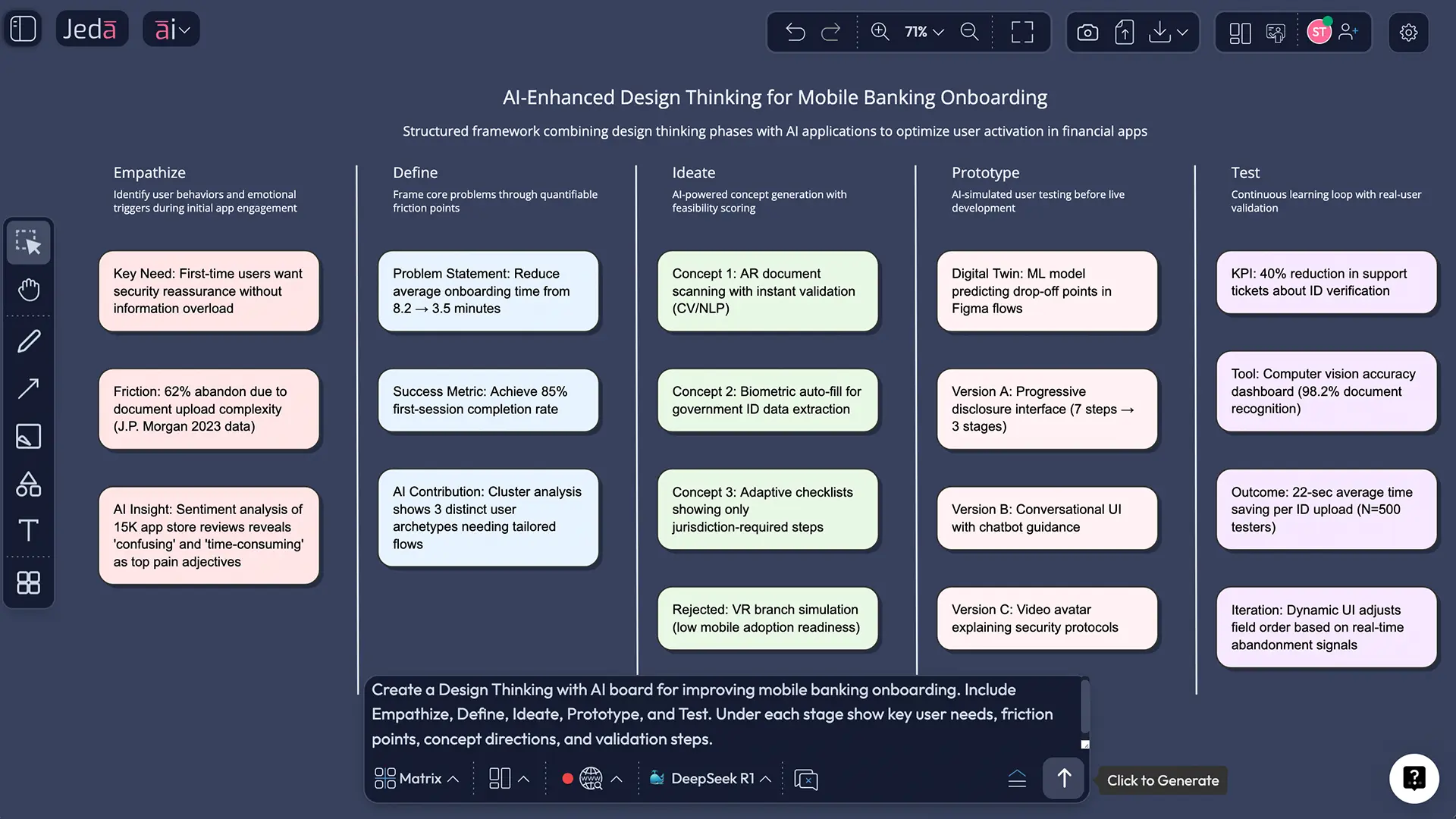
What is Design Thinking with AI?
At its core, design thinking is a human-centered approach to problem solving. IDEO frames it around human needs, technological possibilities, and business requirements. Stanford d.school popularized the five familiar modes many teams use today: Empathize, Define, Ideate, Prototype, and Test. Richard Buchanan’s work on wicked problems matters here too, because design thinking earns its keep when the problem is messy, emotional, or structurally unclear.
AI does not replace that logic. It compresses parts of it.
Used well, AI helps teams synthesize interviews faster, cluster pains without sticky-note overload, generate alternative angles, translate rough concepts into low-fi flows, and pressure-test ideas earlier. But the process still needs judgment. Tim Brown’s core tension still holds: desirability, feasibility, viability. AI can assist the work. It cannot own the decision.
If you want the broader platform angle beyond this guide, explore AI Workspace and AI Whiteboard. Both show how Jeda.ai connects structured thinking, collaboration, and editable outputs on one canvas.
Why use Design Thinking with AI in Jeda.ai?
A lot of teams try to do this with a blank whiteboard plus a text chatbot. It works until the process gets bigger than one facilitator. Then research lives in one place, synthesis in another, concepts in a design file, and decisions in somebody’s memory.
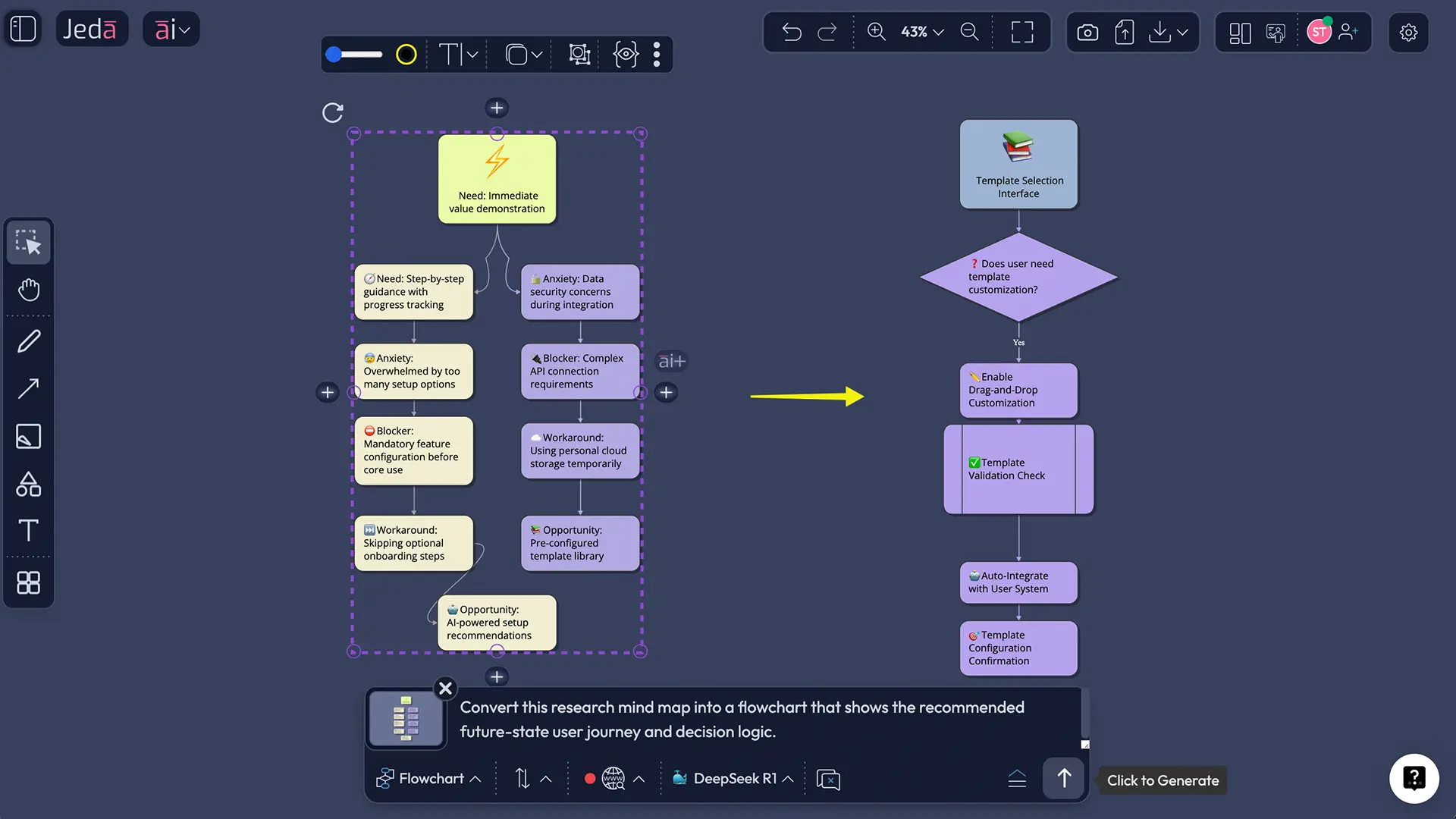
Jeda.ai is built for that in-between work. The board is visual, editable, collaborative, and fast enough to keep the full loop on one canvas. You can start with a Prompt Bar request, pull in research through Document Insight or Data Insight, switch between Mindmap, Matrix, Stickynotes, Flowchart, Diagram, Wireframe, and Infographic, then use the AI+ button to deepen the most promising branches instead of regenerating from scratch.
- Pull research into one working surface
Upload interviews, workshop notes, reports, screenshots, PDFs, or spreadsheets and turn them into usable visual structure instead of retyping everything by hand.
- Move from empathy to synthesis faster
Use Mindmap, Stickynotes, and Matrix outputs to cluster needs, tension points, jobs, barriers, and opportunity themes without losing traceability.
- Generate more than one path
Ideation gets stronger when you can explore multiple routes. Jeda.ai lets you branch, compare, and refine instead of settling for the first tidy answer.
- Translate ideas into visible concepts
Switch into Wireframe, Diagram, or Flowchart to make solution logic concrete enough for critique, alignment, and next-step decisions.
- Deepen the good parts with AI+
Select a promising node or section and extend it with the AI+ button so the board grows from validated thinking rather than random extra output.
- Keep facilitation and collaboration intact
Because the work stays on an AI Whiteboard, teams can review, edit, annotate, and co-decide in real time instead of chasing scattered files after the workshop.
How Jeda.ai supports every phase of design thinking
The cleanest way to understand the platform is by mapping capabilities to the five modes.
Empathize: bring in raw material with the Prompt Bar, Document Insight, or Data Insight.
Define: move the synthesis into a Matrix or Diagram so the team can see tensions, pains, needs, and opportunity areas.
Ideate: use Mindmap or Stickynotes for width, then switch to Matrix or Diagram when prioritization matters.
Prototype: use Wireframe, Flowchart, or Diagram to make the concept concrete enough for critique.
Test: use the AI Workspace as a living review layer. Add comments, compare alternatives, and use AI+ to deepen a branch after real feedback arrives. If the format needs to change, Vision Transform helps without a full rebuild.
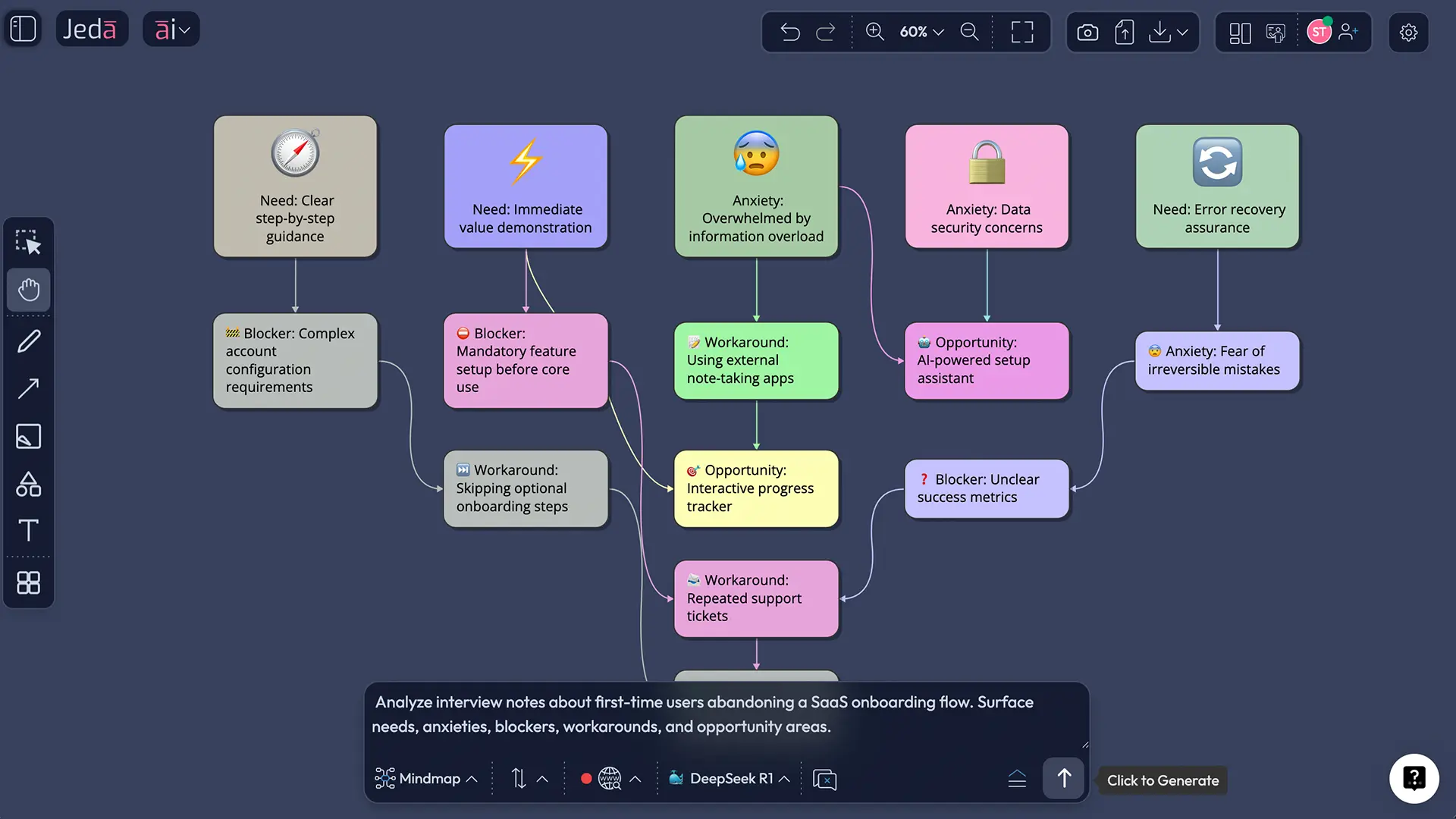
How to create Design Thinking with AI in Jeda.ai
This page uses the Prompt Bar path on purpose. Design thinking is rarely neat enough for a rigid recipe. Start with interviews, notes, screenshots, survey themes, analytics, or stakeholder goals, then move phase by phase inside Jeda.ai.
- Frame the challenge in the Prompt Bar
Open the Prompt Bar, choose a command such as Mindmap or Matrix, and describe the user problem, audience, context, and goal in one grounded prompt.
- Map empathy and evidence
Use Mindmap, Stickynotes, Document Insight, or Data Insight to surface user needs, frictions, motivations, patterns, and contradictions from your research inputs.
- Define the opportunity clearly
Switch to Matrix or Diagram to organize findings into problem statements, opportunity areas, jobs to be done, constraints, and decision criteria.
- Generate and shape solution directions
Use Stickynotes or Mindmap for divergent idea exploration, then move into Flowchart, Diagram, or Wireframe to make the strongest concepts concrete and reviewable.
- Iterate with AI+ and team feedback
Select the most promising section, tap the AI+ button to extend it with more detail, then refine the board collaboratively based on critique, test feedback, and next-step decisions.
Here are a few Prompt Bar examples that work well:
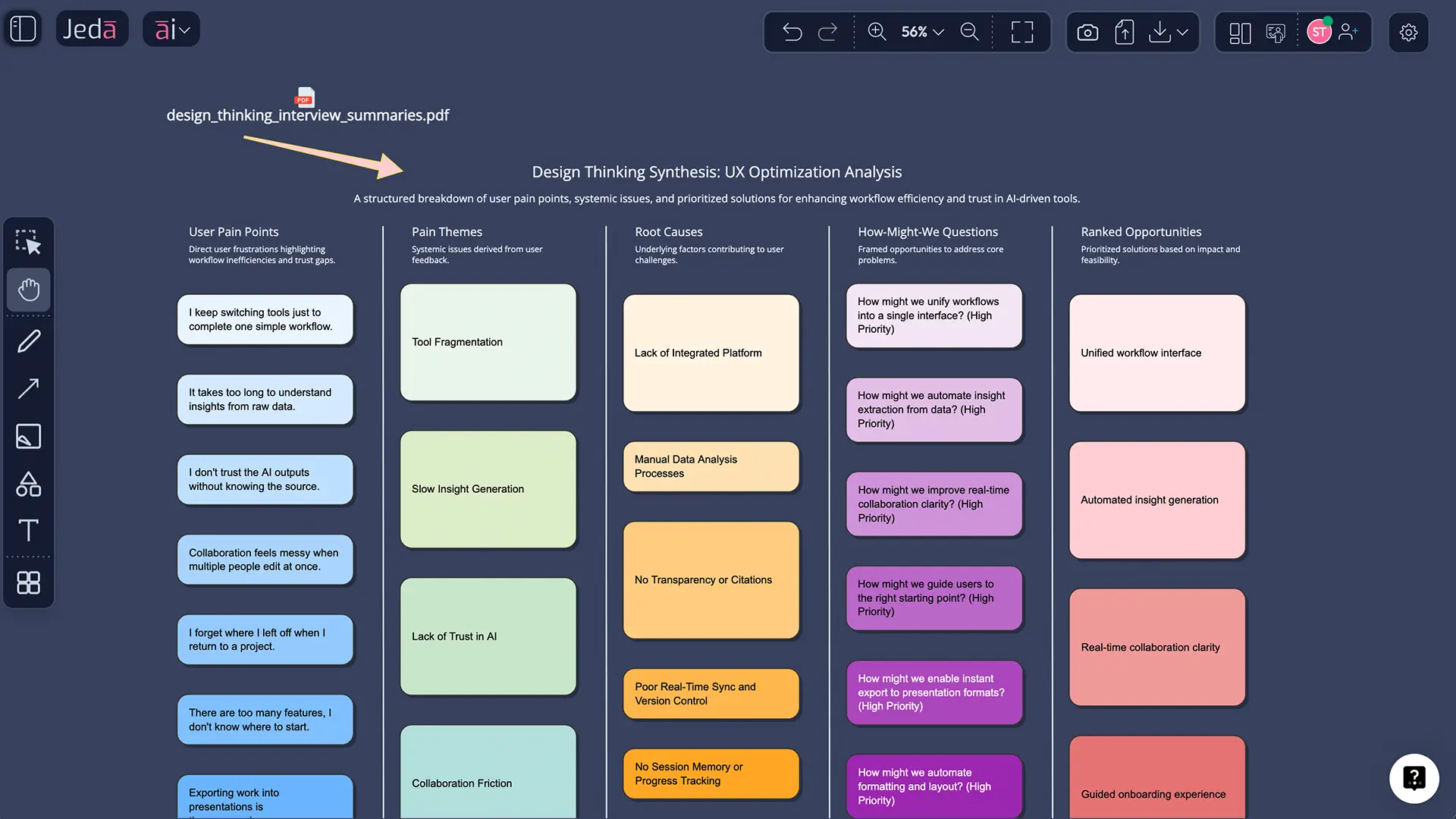
AI+ button generated deep dive: where the board gets sharper
This is the part most teams underrate.
Once you have a decent board, the next problem is not starting. It is knowing where to go deeper. That is where the AI+ button earns its spot. Instead of regenerating the whole canvas, you select one promising section and extend it with AI.
If your Define stage surfaces a high-friction moment, such as users abandoning onboarding because identity verification feels risky, you can use AI+ to expand only that branch into anxieties, edge cases, alternative flows, trust-building content ideas, and prototype hypotheses. That is smarter than broad regeneration because it keeps momentum tied to what the team already thinks is worth exploring.
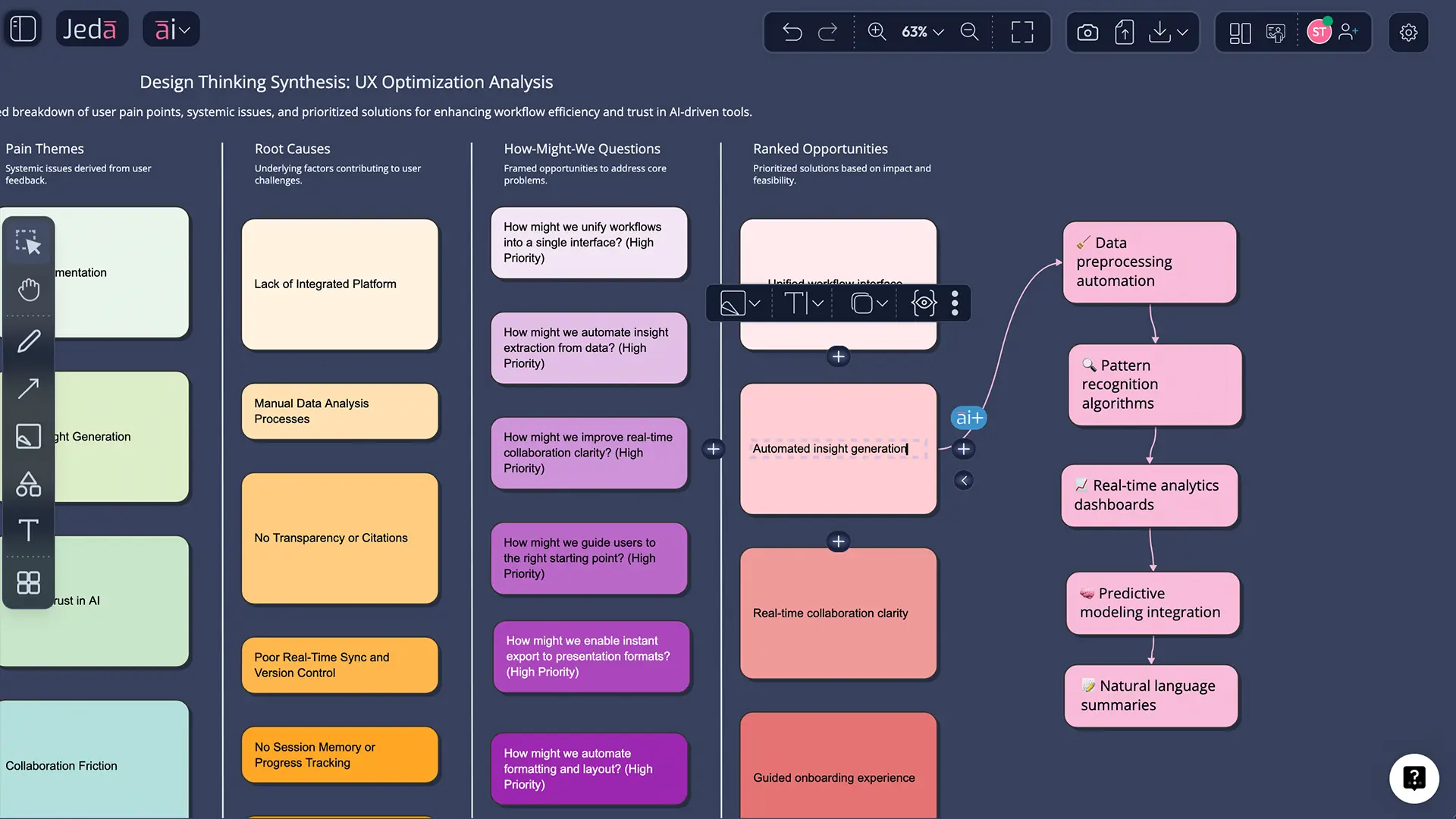
A practical Design Thinking with AI example
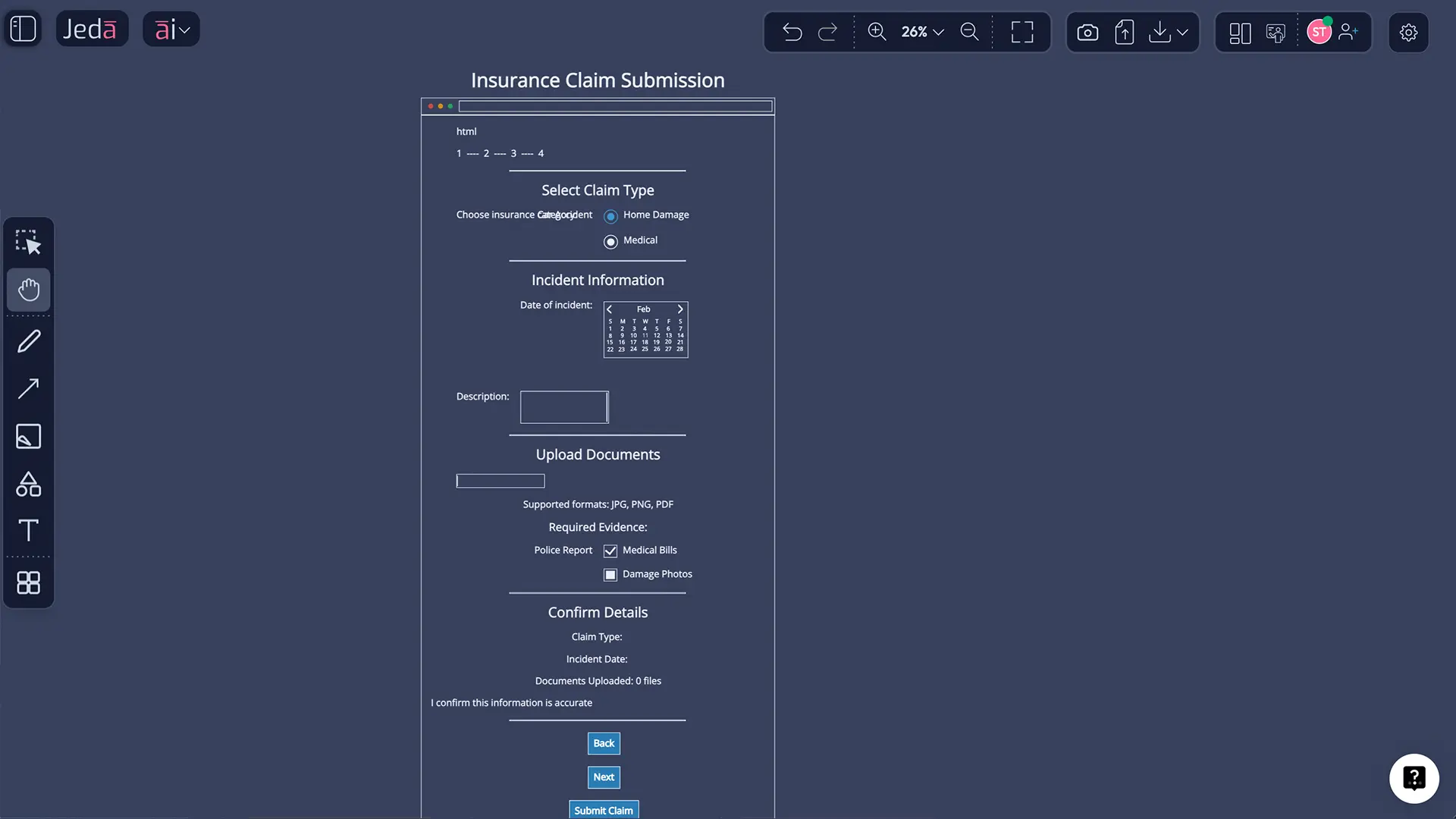
Imagine a product team trying to improve completion rates for a mobile insurance claim flow.
They begin with interviews, abandonment logs, and support transcripts. In a normal stack, that work gets split across slides, a spreadsheet, sticky notes, and a separate prototype file. Inside Jeda.ai, the team can keep the full arc together.
They use Document Insight to pull themes from the raw material, switch to Mindmap to branch frustrations and barriers, then move to Matrix to define the real problem: users are not just confused, they are uncertain about what evidence is required and afraid of making an irreversible mistake.
From there, the team uses Stickynotes for solution width, narrows ideas into a Flowchart, and turns the strongest route into a Wireframe for concept review. Test feedback comes back onto the same AI Whiteboard. One branch gets cut. Another gets expanded with AI+. A third is transformed through Vision Transform.
That is the key advantage of Design Thinking with AI in Jeda.ai: each stage stays connected to the last one.
Best practices for Design Thinking with AI
Good teams use AI to widen thinking and compress grunt work. Bad teams use it to decorate weak assumptions. Big difference.
Common mistakes to avoid
The first mistake is treating design thinking like a linear checklist. It is not. Teams often need to loop back because the problem statement was wrong, not because the workshop went badly.
The second is using AI to skip contact with real users. IBM’s guidance gets this right: AI can speed research organization, but human testing still has to happen with real people. Otherwise your process turns into assumption theater.
The third is over-polishing too early. A slick wireframe can make a weak concept feel stronger than it is. Stay rough until the underlying logic survives critique.
And the fourth is keeping your artifacts disconnected. A board full of empathy insights that never connects to the chosen prototype is basically a nice mural of forgotten intent. The point of Jeda.ai is to keep the chain visible inside one AI Workspace.
Frequently asked questions
- What is Design Thinking with AI?
- Design Thinking with AI is the use of AI tools to support human-centered problem solving across empathy, definition, ideation, prototyping, and testing. The strong version is not replacing people. It is accelerating synthesis, expanding options, and keeping decisions visible while humans still judge what should move forward.
- Does AI replace empathy in the design thinking process?
- No. AI can summarize research, cluster patterns, and suggest interpretations, but empathy still comes from contact with real people and real contexts. You can speed the admin-heavy parts of research. You should not outsource human understanding or validation.
- Why use Jeda.ai for Design Thinking with AI instead of a blank whiteboard?
- A blank board is flexible, but it makes the team do all the structuring work manually. Jeda.ai adds Prompt Bar generation, editable visual outputs, AI+ extension, document and data analysis, and format switching so the board can evolve with the process instead of stalling in one mode.
- Which Jeda.ai commands are most useful for design thinking?
- Mindmap, Stickynotes, Matrix, Flowchart, Diagram, and Wireframe do most of the heavy lifting. Document Insight and Data Insight become valuable when your input is messy research, support logs, survey results, or analytics that need to be turned into something the team can actually work with.
- When should I use the AI+ button during a design thinking session?
- Use AI+ after the team has identified a promising branch worth expanding. It works best when you want more depth on one defined section such as a problem statement, concept path, risk cluster, or prototype logic rather than a fresh canvas-wide generation.
- Can I turn design thinking outputs into other visual formats in Jeda.ai?
- Yes. You can begin with one format and then switch based on what the team needs next. A research summary can become a matrix, a matrix can become a flowchart, and a concept path can become a wireframe or diagram through normal command switching or Vision Transform.
- Is Design Thinking with AI useful only for product teams?
- Not at all. Product managers, innovation teams, business analysts, consultants, founders, service designers, and business leaders can all use the method. Any team facing a fuzzy problem, conflicting constraints, or weak alignment can benefit from a visible, iterative, human-centered process.
- Can Jeda.ai handle research files during design thinking work?
- Yes. Document Insight can analyze PDFs, docs, and related files, while Data Insight works on CSV or spreadsheet data. That makes Jeda.ai useful when your design thinking process starts with interviews, reports, support issues, usage trends, or survey exports instead of a blank canvas.
Sources & Further Reading
- [1]
Buchanan, Richard (1992) . “Wicked Problems in Design Thinking” Design Issues.
View Source ↗ - [2]
Brown, Tim (2008) . “Design Thinking” Harvard Business Review.
View Source ↗ - [3]
IDEO (n.d.) . “The Home of Design Thinking” IDEO Design Thinking.
View Source ↗ - [4]
Stanford d.school (n.d.) . “Design Thinking Bootleg” Stanford d.school.
View Source ↗ - [5]
Sreenivasan, Aswathy; Suresh, M. (2024) . “Design Thinking and Artificial Intelligence: A Systematic Literature Review Exploring Synergies” International Journal of Intelligent Systems.
View Source ↗ - [6]
IBM (n.d.) . “AI and Enterprise Design Thinking” IBM Think.
View Source ↗ - [7]
Kohler, Tanner (2025) . “AI as a Creative Teammate” Nielsen Norman Group.
View Source ↗ - [8]
Gibbons, Sarah; Wang, Huei-Hsin (2026) . “Design Process Isn't Dead, It's Compressed” Nielsen Norman Group.
View Source ↗ - [9]
Booth, Bryce; Donohew, Jack; Wlezien, Chris; Wu, Winnie (2024) . “Generative AI Fuels Creative Physical Product Design but Is No Magic Wand” McKinsey & Company.
View Source ↗
Start Design Thinking with AI in Jeda.ai
Join 150,000+ users building strategy, research synthesis, prototypes, and decision-ready visuals in one AI Workspace.
Try Free Template