Flowchart AI stopped being a novelty the moment teams realized a messy workflow can burn an entire afternoon. You already know the pain: one person explains the process, another opens a blank canvas, someone else argues about symbols, and the “quick diagram” turns into a full-blown side quest. Inside Jeda.ai’s AI Workspace and AI Whiteboard, that process gets much faster, much cleaner, and a lot more collaborative.
And speed is only half of it.
The better reason to use flowchart AI is that a good visual process map does more than look neat. It reduces ambiguity, exposes missing decisions, and gives teams something concrete to challenge. IBM defines a flowchart as a diagram that depicts the stages of a process, workflow, computer program, or system, while NIST’s flowchart standard makes the case for consistent symbols so people don’t misread the logic. That matters when your “simple process” touches onboarding, approvals, incident response, or product delivery.
Jeda.ai turns that into a practical workflow. Across one AI Whiteboard used by more than 150,000 professionals, you can generate a first draft from the AI Menu using Diagram Recipes, build one straight from the Prompt Bar, extend a branch with the AI+ button, transform notes or screenshots into a structured flow, and still manually edit every smart shape afterward. The platform’s broader system of 300+ strategic frameworks also helps teams move from blank-canvas uncertainty to a more guided start. That combination is the big deal. Not just generation. Editable generation.
What is flowchart AI, really?
Flowchart AI is the use of AI to turn a written process, sketch, note set, document, or rough idea into a structured workflow diagram. In plain English: you describe the flow, the AI drafts the steps, and you refine the result instead of dragging every box from scratch.
That sounds obvious. But there’s a deeper shift here.
Traditional flowcharts were designed to make process logic visible. Frank and Lillian Gilbreth’s early process charts helped formalize the idea in the 1920s, and later standards like NIST’s flowchart symbols pushed teams toward more consistent interpretation. BPMN took the same idea further for business process modeling with a notation that stays readable for stakeholders while still being precise enough for formal process work.
So flowchart AI is not “AI draws pretty boxes.” It is AI accelerating an old, proven thinking tool.
That is why Jeda.ai works well here. The platform is built as a Visual AI environment, not a text-only assistant. You can start from a recipe, prompt, document, CSV, screenshot, or sketch; generate an editable flow; then keep pushing it until the logic is ready for stakeholders.
Why use flowchart AI instead of building everything manually?
Manual flowcharting still has value. But starting from zero is a brutal use of expert time.
A good AI flowchart workflow gives you a first draft fast, catches obvious branching points, and lets your team spend energy on exceptions, approvals, edge cases, and failure states. That’s where real process quality lives.
- Faster first draft
Start with a generated flow instead of blank-canvas paralysis, then refine what matters.
- Recipe-guided structure
Use Diagram Recipes to steer the output toward BPMN, user flows, process flows, or cross-functional logic.
- Editable smart shapes
Every step stays editable, so you can rename nodes, adjust branches, and clean up the flow live.
- AI+ branch extension
Expand an existing node with AI when you need more detail, alternate paths, or deeper analysis.
- Transform existing material
Turn notes, screenshots, or uploaded documents into a flowchart through Vision Transform or Document Insight.
- Team-ready collaboration
Build, review, and present on one AI Whiteboard instead of bouncing between chat, diagrams, and slides.
Look at the current market and the pattern is pretty obvious. Lucidchart, Miro, Creately, and Eraser all push some version of text-to-flow or AI-assisted diagramming. Useful, sure. But most competitor pages stay focused on generation mechanics: enter prompt, get diagram, edit diagram. Jeda.ai’s stronger angle is the whole working loop around the flowchart: recipe-driven starts, editable outputs, collaborative review, Visual AI transformation from other content types, and downstream refinement on the same canvas.
That difference matters more than a flashy demo.
How to generate flowcharts with AI in Jeda.ai
Jeda.ai gives you two strong ways to create a flowchart with AI. The first is more structured. The second is faster when you already know what you want.
Method 1: Recipe Matrix
This is the best route when you want the AI to start from a known pattern instead of improvising from scratch. Open the AI Menu, go to Diagram Recipes, and choose a recipe that matches the job. Then steer the recipe into a flowchart by setting Diagram Type to Flowchart.
That last part is important. In this workflow, each Diagram Recipe can be used to produce a mind map, diagram, or flowchart depending on how you configure it. So you are not trapped inside one output style.
Good recipe starting points include:
- Strategic Planning: Decision Tree, BPMN Diagram, Arrow Diagram, Process Flow Diagram
- Product & UX: Sitemap, Interaction Overview Diagram, User Flow Diagram, Use Case Diagram
- Information Technology: Data Flow Diagram, Activity Diagram, Deployment Diagram, Solutions Architecture Diagram, Data Mapping Diagram
- Project Management: Cross Functional Flowchart, Dependency Tree, Work Breakdown Structure, Sequence Diagram
- AI Diagram Maker: Diagram Maker for open-ended workflows that don’t fit a tighter template
Use the recipe form with these inputs: Subject, Diagram Type, Layout Type, AI Model Selection (1–3 models), Aggregation Model, Prompt Input, and the optional advanced fields for Context / Description and Data Source (doc or csv).
- Open the AI Menu
From the top-left of the canvas, open the AI Menu and switch to Diagram Recipes.
- Choose a fitting recipe
Pick the recipe that matches your use case, such as Process Flow Diagram, BPMN Diagram, User Flow Diagram, or Cross Functional Flowchart.
- Set Diagram Type to Flowchart
Use the Diagram Type field to steer the recipe output into a flowchart instead of a mind map or general diagram.
- Add the core inputs
Fill in Subject, Layout Type, Prompt Input, and any context that clarifies the workflow, users, approvals, or exceptions.
- Choose AI models
Select one to three models and, when needed, add an Aggregation Model to combine the strongest answer.
- Use advanced context
Attach a document or CSV when the flow must reflect a real SOP, requirements file, process log, or operating data.
- Generate, edit, and extend
Generate the first draft, clean up labels and connectors, then use the AI+ button on a node to deepen one branch.
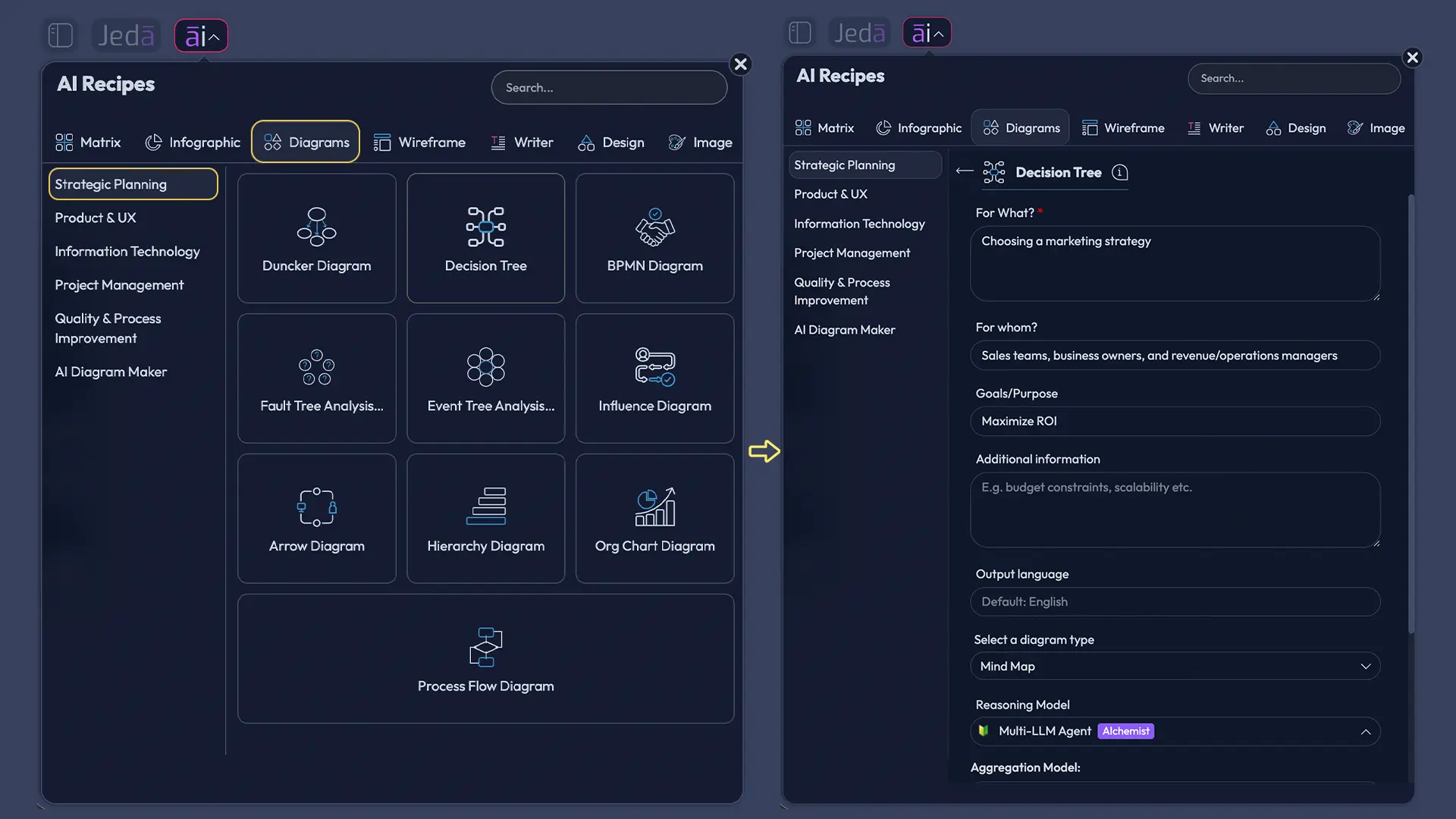
A few recipes tend to outperform the rest for flowcharts. BPMN is excellent when you need disciplined business process logic. User Flow is better when the diagram follows a customer or user path. Cross Functional Flowchart earns its keep when ownership changes across teams. And Diagram Maker is the flexible wildcard when the process is unusual or cross-disciplinary.
Method 2: Prompt Bar
This is the fast lane.
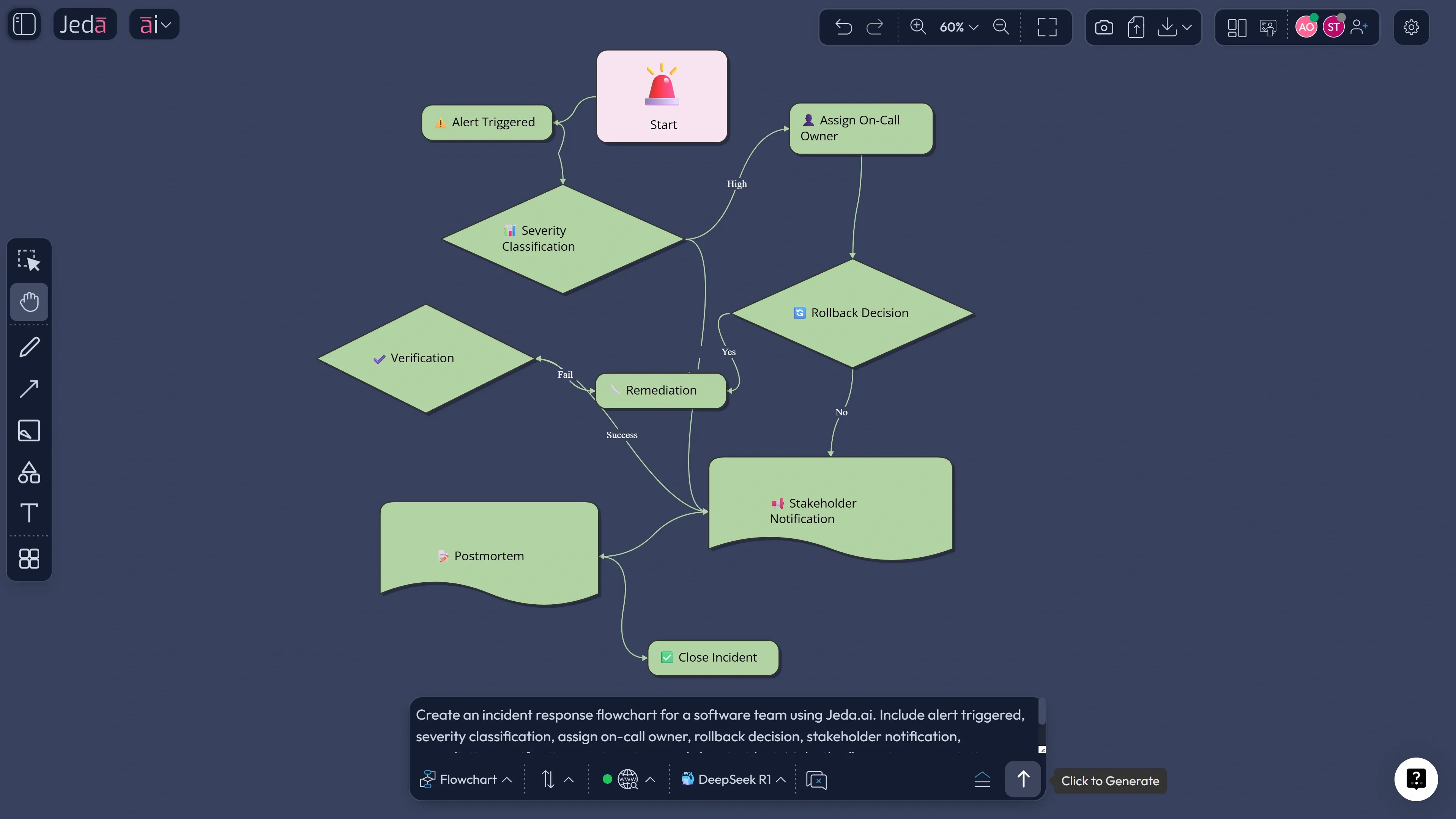
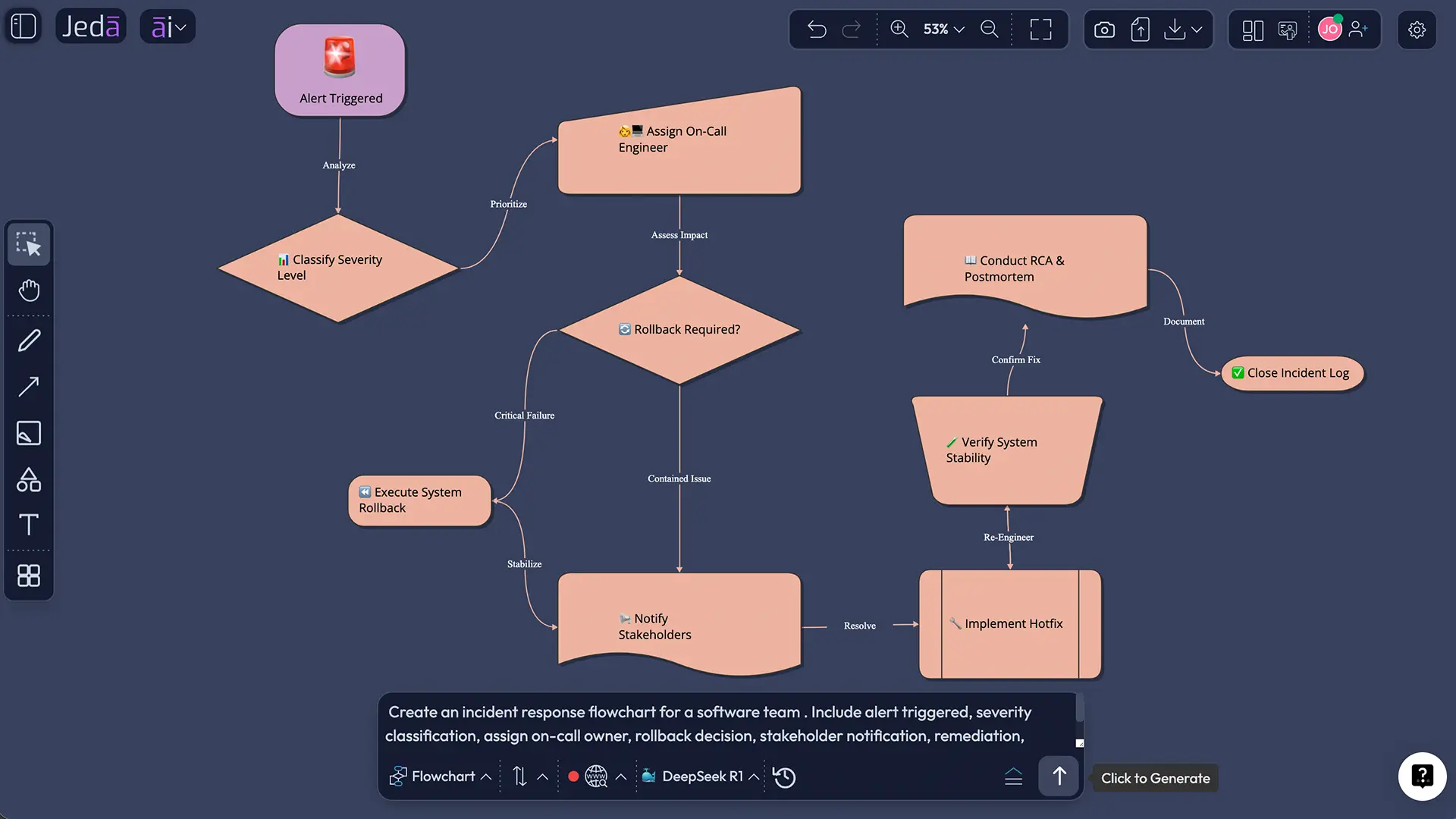
Write your query in the Prompt Bar at the bottom of the AI Workspace. Select the Flowchart command. Pick a layout. Choose your model or turn on Multi-LLM if the logic is high stakes. Then generate.
A strong prompt usually includes five things: the process name, the start point, the end point, the key decision nodes, and any special constraints.
For example:
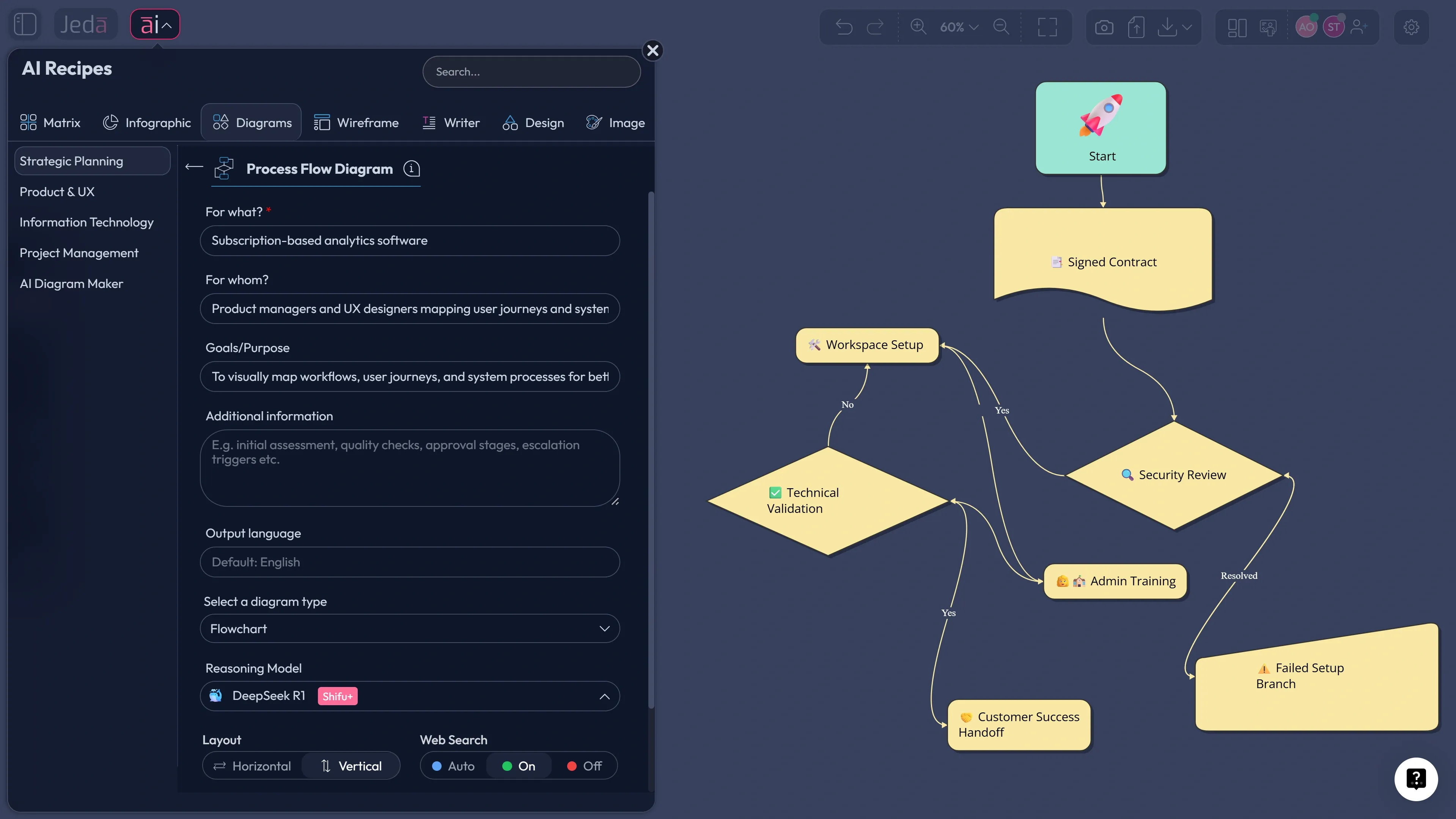
Create a flowchart for B2B SaaS customer onboarding. Start when a contract is signed. Include security review, workspace setup, admin training, technical validation, failed setup branch, and customer success handoff.
That prompt works because it tells the model where the flow begins, where it ends, what must appear, and which branches cannot be skipped.
Prompt Bar generation also plays nicely with Dynamic Prompt. So when the workflow is fuzzy, click Dynamic Prompt and let Jeda.ai ask for the missing context before it builds the flow. That tends to improve the first draft quite a bit.
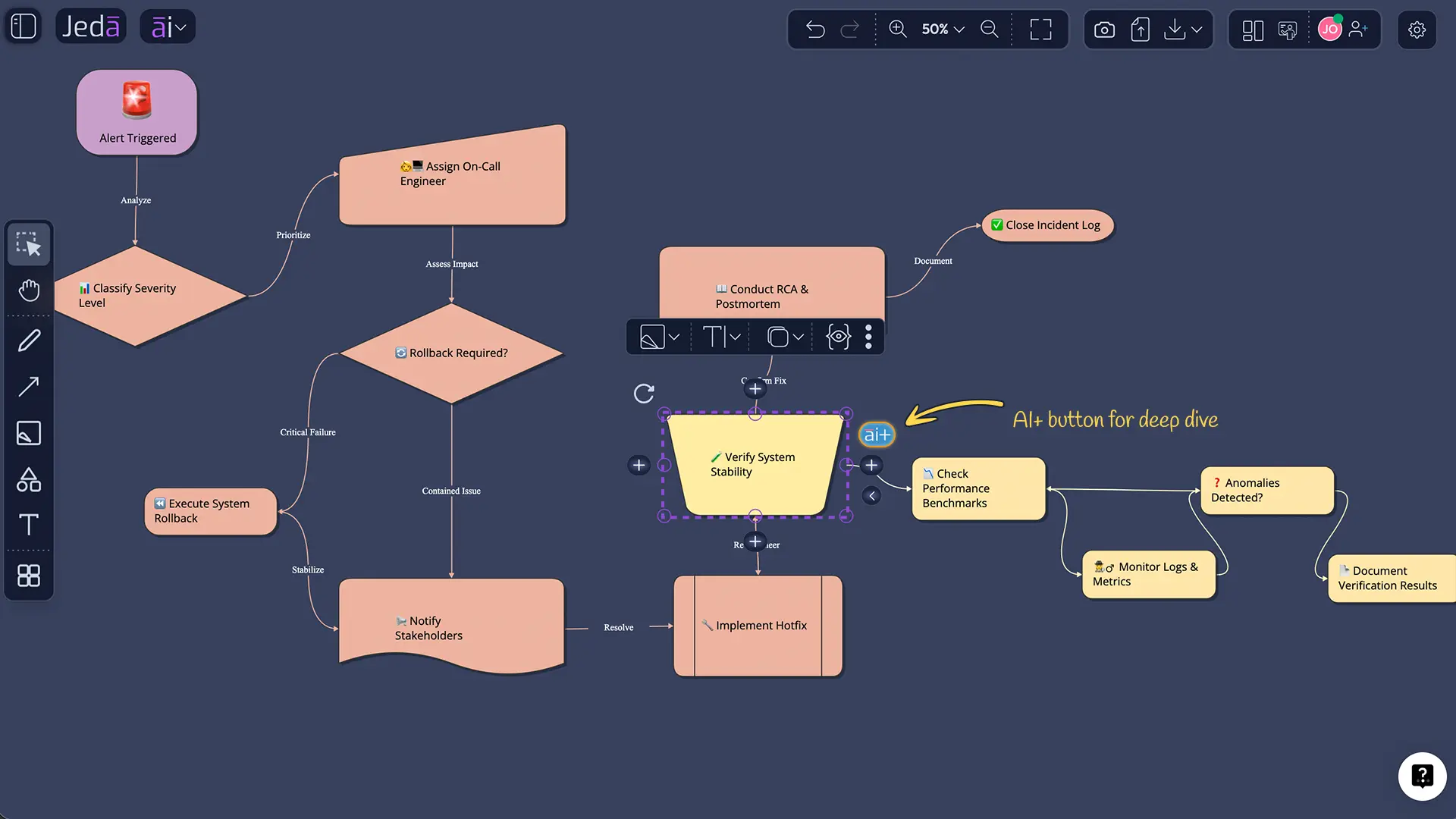
AI+ button generated deep dive
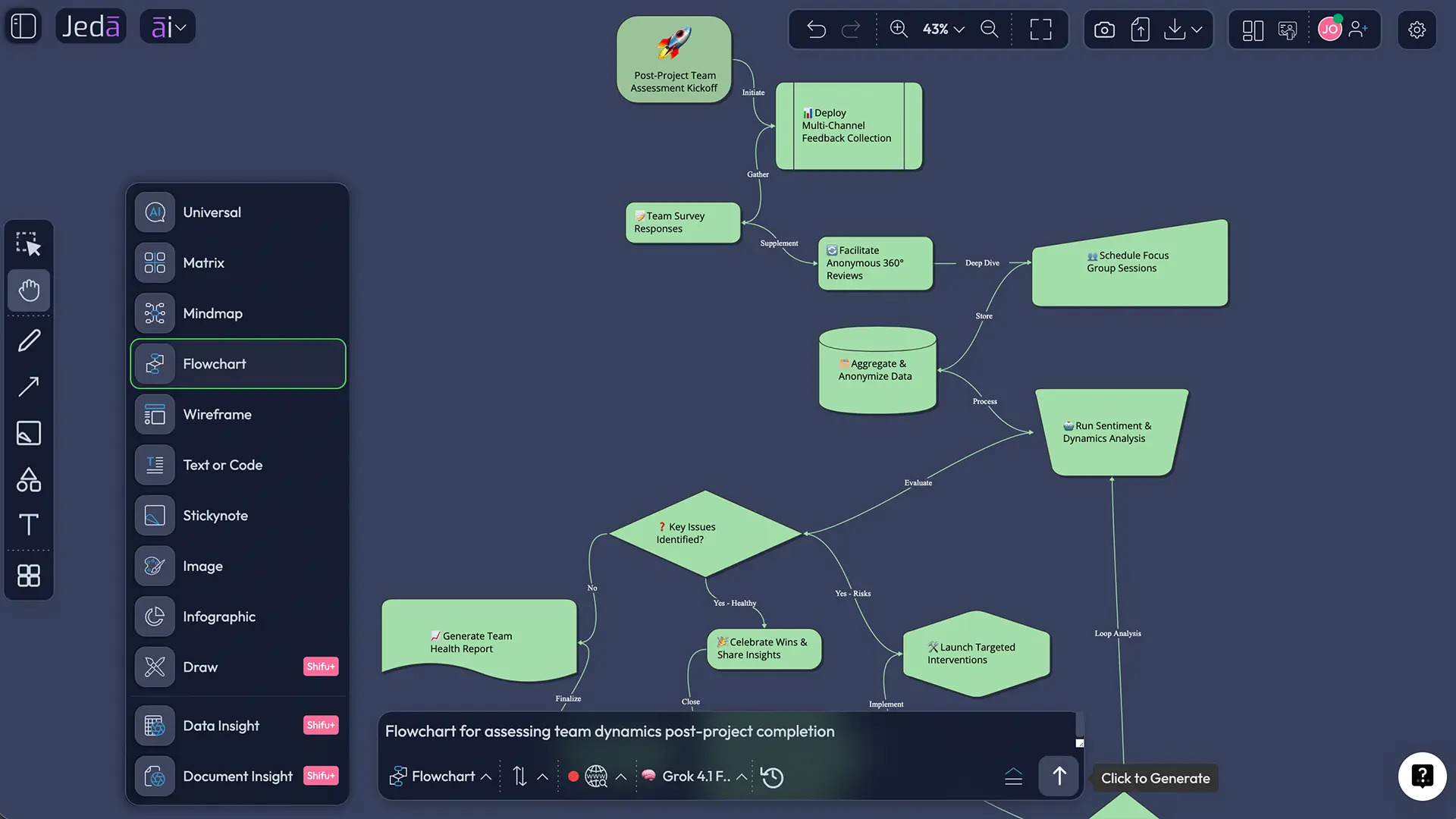
The AI+ button is for extension, not precise first-time generation.
That distinction matters.
After your flowchart is already on the canvas, select a smart shape and click the AI+ button beside it. Jeda.ai will expand that node with related logic, next steps, exceptions, or supporting branches. This is perfect for things like:
- adding approval loops to one branch
- expanding a failure path
- breaking a vague “review” step into sub-steps
- deepening a technical branch without rebuilding the whole chart
- exploring downstream impacts from one decision point
What AI+ is not for: issuing a brand-new, hyper-specific instruction out of nowhere. It works best when the flow exists and you want to continue, extend, or elaborate one part of it.
Can you make a flowchart manually in Jeda.ai too?
Absolutely. And honestly, that’s part of the charm.
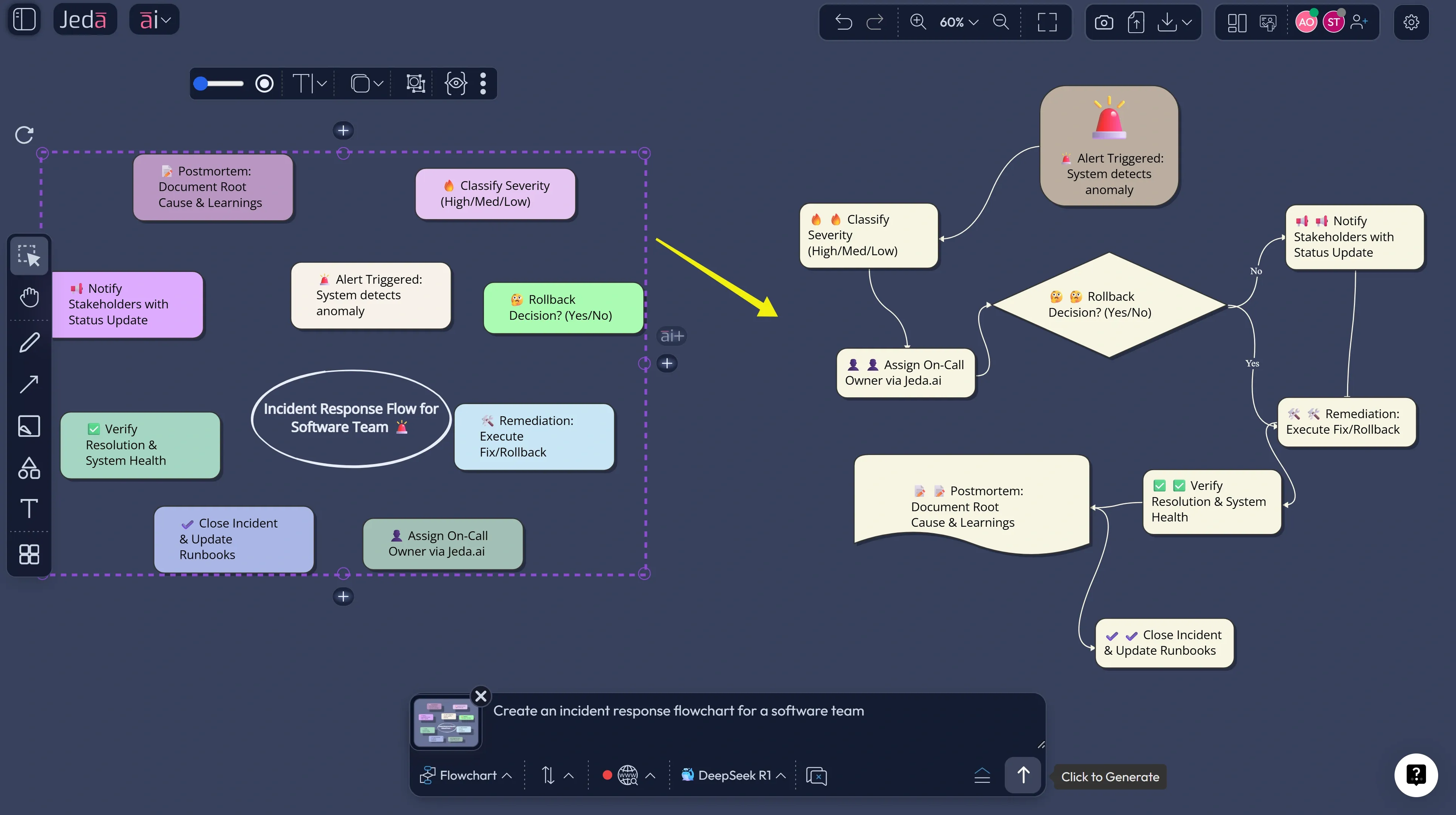
Jeda.ai is not forcing you into an AI-only workflow. You can generate the initial structure with AI, then manually adjust it with smart shapes, arrows, labels, resize handles, and plus-buttons on each node. You can also build a flow manually from scratch and only bring in AI when the logic gets messy.
That hybrid approach is often the smartest one.
Start with AI when the process is long, repetitive, or half-documented. Start manually when the flow is short, politically sensitive, or still being debated live in a workshop. Then use Vision Transform to convert selected notes, sketches, or screenshots into a new flowchart once the conversation settles down.
Manual flowcharting is available. AI just stops it from becoming a punishment.
Which diagram recipes are best when your end goal is a flowchart?
Here’s the clean way to think about it.
Use Process Flow Diagram or BPMN Diagram when the process has clear states, approvals, or operational rigor.
Use User Flow Diagram when the path is driven by user actions, screens, or product interactions.
Use Data Flow Diagram or Activity Diagram when the process is technical and data movement matters.
Use Cross Functional Flowchart when handoffs across departments are the real story.
Use Diagram Maker when the process is novel and you do not want the recipe to over-constrain the logic.
And yes, Jeda.ai’s AI Diagram Maker is useful here because it covers the oddball cases. Not every real-world process looks like a textbook BPMN diagram. Some flows are half SOP, half decision tree, half stakeholder drama. Three halves. Welcome to real work.
Prompt examples that produce better flowcharts
Most weak AI flowcharts come from weak prompts. The model is not psychic. It needs structure.
Try patterns like these:
Operations “Create a flowchart for employee expense approval from submission to reimbursement. Include policy check, manager approval, finance review, rejected claim branch, and final payout.”
Product “Generate a user flow for sign-up to activation in a B2B SaaS product. Include email verification, workspace creation, invite teammates, failed activation branch, and onboarding completion.”
Engineering “Build a software incident response flowchart from alert creation to postmortem. Include severity classification, on-call escalation, rollback decision, customer communication, and root-cause review.”
Customer Success “Create a customer renewal workflow flowchart. Start 90 days before renewal, include health scoring, account review, risk flag, discount approval, and signed renewal.”
Education “Generate a course assignment review process flowchart. Include submission intake, plagiarism check, instructor review, revision request branch, final grading, and student notification.”
Compliance “Create a vendor security review flowchart for procurement. Include intake form, document request, risk scoring, remediation loop, security approval, and procurement handoff.”
The best prompts are concrete, bounded, and slightly bossy. That’s not rude. That’s efficient.
Best practices for better AI flowcharts
Good flowcharts are not just correct. They are readable.
Common mistakes to avoid
The first mistake is asking for “a flowchart about onboarding” and expecting a sharp result. That’s a wish, not a prompt.
The second is overloading the chart with paragraphs. A flowchart is not a memo in costume.
The third is mixing three diagram types into one without realizing it. A user flow, a data flow, and a process approval workflow can overlap, but they are not automatically the same diagram.
And the fourth is trusting the first draft too much. AI gets you to version one faster. It does not remove your responsibility to check missing branches, vague labels, or bad sequencing.
Frequently asked questions
- What is flowchart AI?
- Flowchart AI is the use of AI to turn text, notes, sketches, or source material into a structured workflow diagram. The best tools do more than generate boxes; they let you edit, refine, and expand the flow after the first draft.
- Can Jeda.ai generate flowcharts from text prompts?
- Yes. In Jeda.ai, you can enter a prompt in the Prompt Bar, select the Flowchart command, choose a layout and model, and generate an editable flowchart directly on the AI Workspace.
- Can I use Diagram Recipes to make a flowchart?
- Yes. Jeda.ai’s Diagram Recipes are a strong starting point when you want a structured workflow. Pick a relevant recipe, then set Diagram Type to Flowchart so the output follows a flowchart format.
- What is the difference between Method 1 and Method 2?
- Method 1 uses the AI Menu and Diagram Recipes for more guided structure. Method 2 uses the Prompt Bar for speed and flexibility. Recipe-based generation works better for known patterns; prompt-based generation is faster for custom flows.
- Can I edit an AI-generated flowchart after it is created?
- Yes. Jeda.ai flowcharts use editable smart shapes, so you can rename steps, move branches, change colors, adjust connectors, and keep refining the logic after generation.
- What does the AI+ button do in a flowchart?
- The AI+ button extends an existing node or branch. It is best for deepening a part of the chart, such as adding exceptions, approval paths, or more detailed sub-steps after the first flowchart already exists.
- Can I create a flowchart manually in Jeda.ai too?
- Yes. Manual flowchart making is available through smart shapes, arrows, and direct editing on the canvas. Many teams use AI for the first draft, then switch to manual refinement for polish and precision.
- Can Jeda.ai convert notes or screenshots into a flowchart?
- Yes. With Vision Transform, you can select existing notes, sketches, or screenshots on the canvas and ask Jeda.ai to turn them into a flowchart or another visual structure.
- Which recipe types are best for process-heavy work?
- For process-heavy work, BPMN Diagram, Process Flow Diagram, Cross Functional Flowchart, Activity Diagram, and User Flow Diagram are usually the strongest choices because they create clearer sequences, branching logic, and handoff visibility.
- What makes a good prompt for an AI flowchart generator?
- A good prompt names the process, defines the start and end, lists the critical decisions, and adds important constraints or exceptions. The more specific the structure, the more useful the first draft tends to be.
Sources & further reading
- [1]
Ivan Belcic and Cole Stryker (n.d.) . “What Is a Flowchart?” IBM Think.
View Source ↗ - [2]
Frank B. Gilbreth and Lillian M. Gilbreth (1921) . “Process Charts: First Steps in Finding the One Best Way to Do Work” ASME / The Gilbreths Archive.
View Source ↗ - [3]
National Bureau of Standards (1973) . “FIPS PUB 24: Flowchart Symbols and Their Usage in Information Processing” U.S. National Bureau of Standards / NIST archive.
View Source ↗ - [4]
Object Management Group (n.d.) . “BPMN — Business Process Model and Notation” OMG.
View Source ↗ - [5]
Stephen A. White (2004) . “Introduction to BPMN” Object Management Group.
View Source ↗ - [6]
Microsoft Support (n.d.) . “Create a Basic Flowchart in Visio” Microsoft Support.
View Source ↗ - [7]
Lucid Software (n.d.) . “Flowchart Maker | Create a Flowchart Online with Lucidchart” Lucidchart.
View Source ↗ - [8]
Miro (n.d.) . “Flowchart Maker” Miro.
View Source ↗ - [9]
Eraser (n.d.) . “AI Flowchart Generator” Eraser.
View Source ↗ - [10]
Creately (n.d.) . “AI Flowchart Generator” Creately.
View Source ↗
Start Flowchart AI in Jeda.ai Today
Join over 150,000 professionals who use Jeda.ai to turn workflows, notes, and documents into editable visuals on one AI Whiteboard.
Try Free Template