Remote teaching gets clunky fast. One tab for slides. Another for chat. A PDF open somewhere else. Breakout rooms going feral. And the moment you want to explain an idea visually, everything slows down.
That is why an online whiteboard for remote teaching matters. Not because it looks modern. Because it gives you one place to explain, sketch, organize, question, and co-create with students in real time. The strongest boards do more than replace marker pens. They keep a living record of the lesson, support collaboration, and make abstract ideas easier to see. Research and university teaching guides consistently point to the same pattern: digital whiteboards can improve collaboration, persistence of lesson content, and student engagement when they are used intentionally.
Here’s the bigger point. Search this topic right now and you’ll mostly find product pages from whiteboard vendors, lightweight free tools, and a small number of university teaching guides. What’s missing is a serious playbook for actually teaching with one. That gap is where Jeda.ai earns its keep.
Jeda.ai is not just another blank canvas. It is a Visual AI AI Workspace and AI Whiteboard that lets you prepare, teach, and reuse remote lessons with structured visuals, AI-assisted lesson building, document and data analysis, and real-time collaboration. More than 150,000+ users already use Jeda.ai to think visually, organize complexity, and move faster inside one shared workspace. If you want the category view first, start with the broader AI Workspace and AI Whiteboard pages, then come back here for the teaching-specific workflow.
What is an online whiteboard for remote teaching?
An online whiteboard for remote teaching is a shared digital canvas where instructors and students can write, draw, annotate, move ideas around, and collaborate live. It is the digital version of a physical classroom board, but with persistence, media support, sharing, and multi-user interaction built in.
That persistence matters more than people think. In a classroom, the board disappears when you wipe it. In remote teaching, a digital board can stay available before class, during class, and after class. Students can revisit the explanation, review diagrams, and continue group work asynchronously.
And the best ones aren’t just drawing surfaces. They support structured teaching moves. Brainstorming. Concept mapping. Breakout collaboration. Document annotation. Process explanation. Lesson recaps. Formative checks. In one study on distance education, students reported that digital whiteboards made abstract concepts easier to understand and increased class engagement.
There is one caveat, and it is a real one: digital whiteboarding should not be the only way students access lesson content. North Carolina State University explicitly notes that whiteboard-only activities are not accessible for students using screen readers, so instructors should pair whiteboard use with text alternatives, summaries, or exported notes. Good teaching beats fancy tooling. Every time.
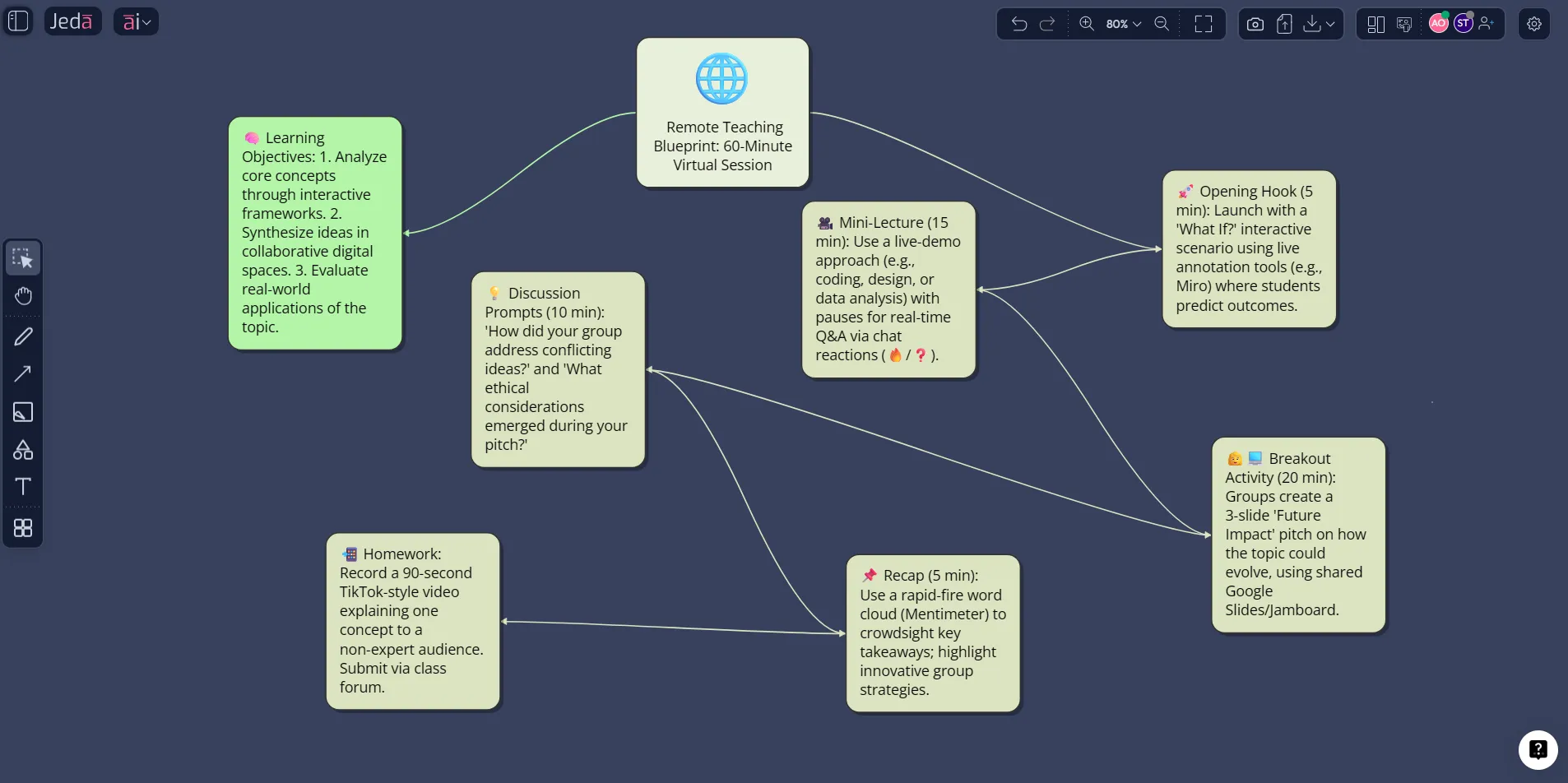
Why an AI Whiteboard works better for remote teaching
A standard digital board helps you draw. An AI Whiteboard helps you think, structure, and adapt while you teach.
With Jeda.ai, you can use the AI Workspace in two different rhythms. Before class, it speeds up prep. During class, it becomes your live teaching surface. After class, it turns into a reusable study asset. That’s a much better bargain than rebuilding the same lesson in slides, docs, and meeting notes every week.
The remote-teaching advantage comes down to five things:
- Visual clarity
Turn complex ideas into mind maps, flowcharts, diagrams, matrices, and structured notes that students can follow more easily than dense slides.
- Live collaboration
Use one shared board for discussion, breakout tasks, peer review, and whole-class synthesis without losing the thread of the lesson.
- Persistent class memory
Unlike a physical whiteboard, the board stays available after class for review, revision, and asynchronous catch-up.
- Evidence in
Bring in documents, images, PDFs, screenshots, and even current web context when the topic needs more than your own notes.
- AI-assisted prep
Use AI to draft lesson maps, case discussion boards, recap infographics, activity flows, and supporting materials faster.
- Editable outputs
Most Jeda.ai visuals remain editable on canvas, so you can refine them live with students instead of treating them like frozen slides.
That lines up with what teaching centers keep saying. Purdue’s Online Teaching Hub frames collaborative learning as intentional interaction that increases motivation, engagement, and student connection in online courses. Carleton highlights the same advantages in its digital whiteboard guidance: real-time collaboration, persistent content, multimedia integration, flexible learning spaces, and increased engagement. So this is not a gimmick. It is a better operating system for remote instruction when you use it with purpose.
What to look for in an online whiteboard for remote teaching
Not all whiteboards are built for teaching. Some are fine for quick sketches and almost nothing else. Others are built for classrooms but stay shallow once the lesson gets complex.
Here is the practical checklist.
Carleton’s 2026 whiteboard guidance is useful here because it names features that matter in actual courses: persistent canvases, file integration, templates, sharing, export, and breakout-style spaces. Caltech’s teaching guidance adds another important layer: remote teaching often needs both instructor control and student collaboration, plus device flexibility for handwriting or stylus-based explanation.
That is also why blank-canvas-only tools hit a ceiling. They may let students scribble together, but they don’t necessarily help you build a stronger lesson. An AI Workspace does. It gives you structure before the class starts and adaptability after it begins.
How to use an online whiteboard for remote teaching in Jeda.ai
This is where Jeda.ai separates itself from a plain online board. You can build a class visually from the AI Menu, generate live boards from the Prompt Bar, then deepen any section with the AI+ button without starting over.
Method 1: Recipe Matrix
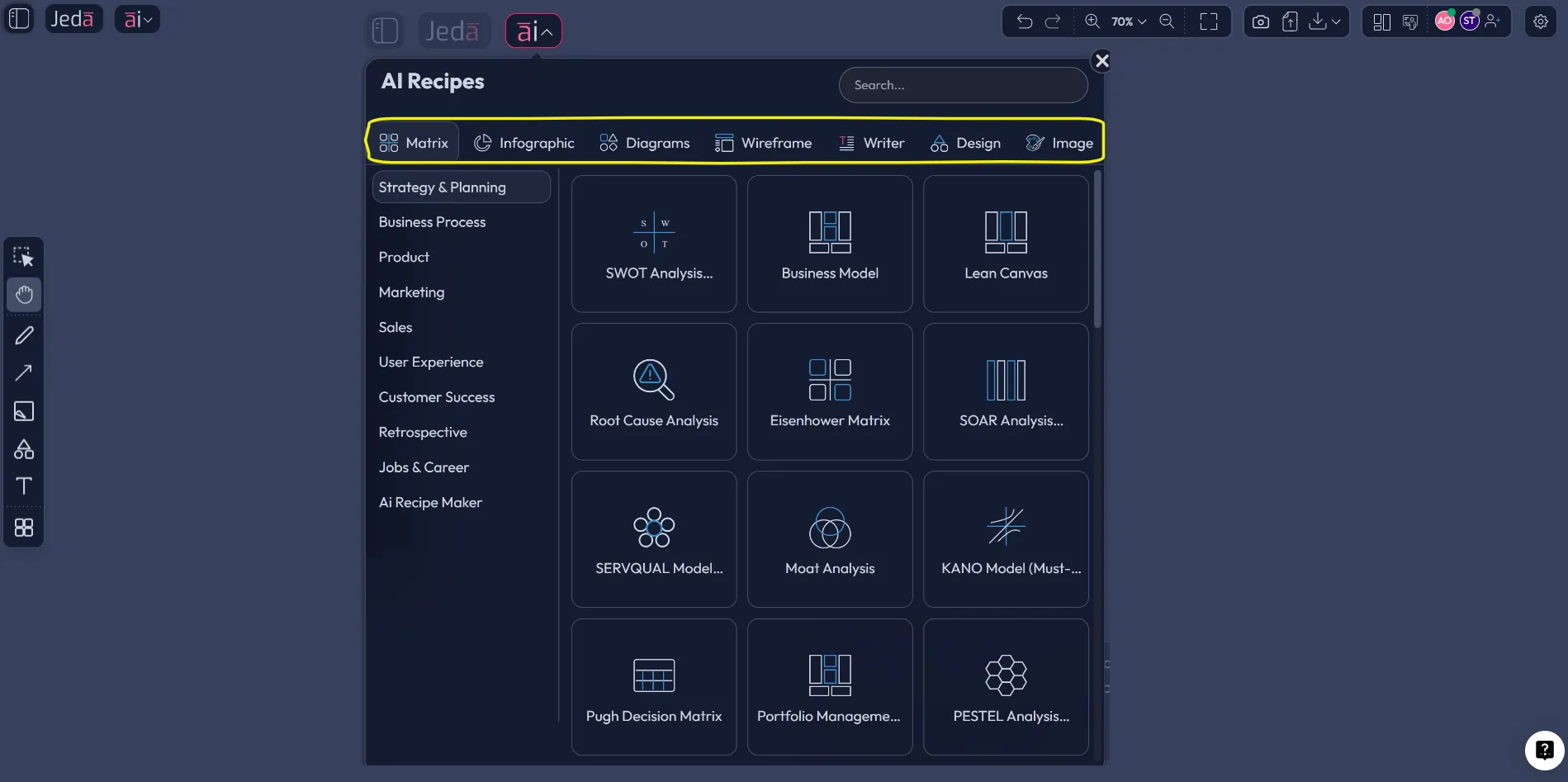
This is the cleanest way to prep a structured lesson. Open the AI Menu, choose a recipe category, and start from a guided format instead of a blank page. For remote teaching, that usually means a Matrix, Diagram, Infographic, Writer, or Wireframe recipe depending on what you are teaching and how visual you want the session to be.
- Open the AI Menu
Click the AI Menu in the top-left corner of Jeda.ai to access guided recipes.
- Choose a recipe category
Pick Matrix for structured thinking, Diagrams for systems or relationships, Infographic for visual summaries, Writer for lesson copy, or Wireframe for product and UX teaching.
- Add class context
Enter the topic, student level, learning goal, activity type, time limit, and desired output so the board is shaped around the lesson rather than generic ideas.
- Generate the first board
Create a lesson framework such as a discussion matrix, decision tree, concept map, process flow, or recap infographic.
- Edit for class delivery
Adjust labels, add breakout prompts, attach files, move sections, and simplify anything that feels too dense for live teaching.
- Extend with AI+
Select any smart shape and use the AI+ button to add examples, questions, counterarguments, recap prompts, or deeper explanation right where you need it.
The nice part is that you don’t need to force one teaching style. A business lecturer might start with a decision tree or SWOT-style matrix. A science instructor may want a process flow. A literature seminar may use sticky-note clustering, Writer output, and an infographic recap. Same AI Whiteboard. Different teaching moves.
Method 2: Prompt Bar
The Prompt Bar is better when you already know what you want and just need the board fast.
Choose the command, describe the output, and generate:
- Mindmap for a lecture outline or concept network
- Flowchart for process-based teaching
- Matrix for comparison, critique, or case analysis
- Stickynote for brainstorming or breakout activities
- Infographic for recap slides or student summaries
- Text for rubric drafts, agendas, or instructions
- Wireframe for product, design, or UX classes
- Document Insight after uploading a PDF or reading
- Data Insight after uploading CSV or Excel classroom data
- Image when you need a static visual aid rather than an editable board
If the lesson depends on current events, turn on Web Search in the Prompt Bar. If it is a high-stakes workshop or case discussion, Multi-LLM Agent on higher tiers can compare multiple models and use an aggregation model to select the strongest response.
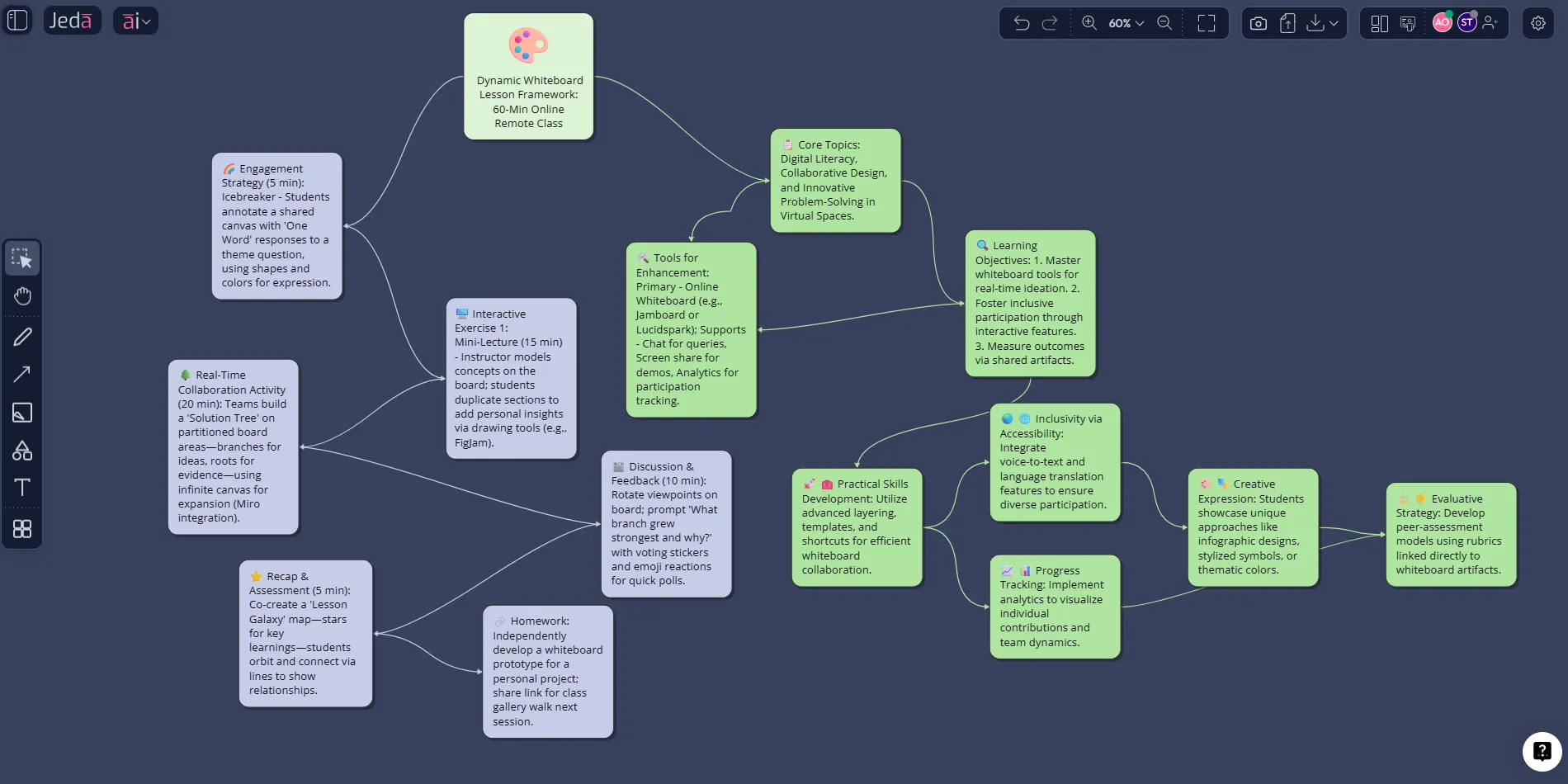
Method 3: AI+ button generated deep dive
This feature is easy to underestimate. Don’t.
Once a board exists, click a smart shape and tap the AI+ button to extend that exact section. You can ask it to add examples, student questions, a quiz round, debate angles, historical context, or a recap. That makes Jeda.ai useful during live teaching, not just before class.
Say you are teaching a case study. Generate the main board before class. Then when students push the conversation in an unexpected direction, use AI+ on that branch and expand only the part that needs more depth. It feels less like restarting the lesson and more like teaching with a very fast visual co-pilot.
You can also use Vision Transform to convert one visual into another. Turn a mind map into a flowchart. Turn a sticky-note brainstorm into a matrix. Turn a document summary into a diagram. That flexibility is gold in remote teaching because classes rarely stay linear for long.
Six practical ways to use an online whiteboard for remote teaching
1) Explain complex ideas live without drowning students in slides
Some concepts are easier to see than to hear. Process chains, causal loops, trade-offs, timelines, stakeholder maps, and framework comparisons all land better visually.
Use Jeda.ai to build a Mindmap, Flowchart, or Diagram live while you teach. Students can watch the logic unfold instead of trying to decode a finished slide. And because the board remains available, they can review the explanation later instead of relying on half-remembered notes.
2) Run breakout activities that come back to one shared source of truth
Breakout rooms often feel productive in the moment and messy afterward. Students talk, type, and vanish. The teacher gets fragments.
A shared AI Whiteboard fixes that. Give each group its own sticky-note cluster, matrix quadrant, or discussion branch. Then bring everyone back to the main board for synthesis. Purdue’s collaborative-learning guidance stresses intentional interaction and planning; the board gives you a visible structure for both.
3) Turn case discussions into visual reasoning, not just opinion sharing
Case teaching gets better when students can map assumptions, evidence, risks, and alternatives instead of talking past one another.
This is where Jeda.ai shines. Use Matrix, Diagram, and Text together. Start with the scenario. Add stakeholder viewpoints. Build a decision tree. Capture competing recommendations. Then use AI+ to extend one node with stronger counterarguments or missed implications. That is a remote-teaching format with teeth.
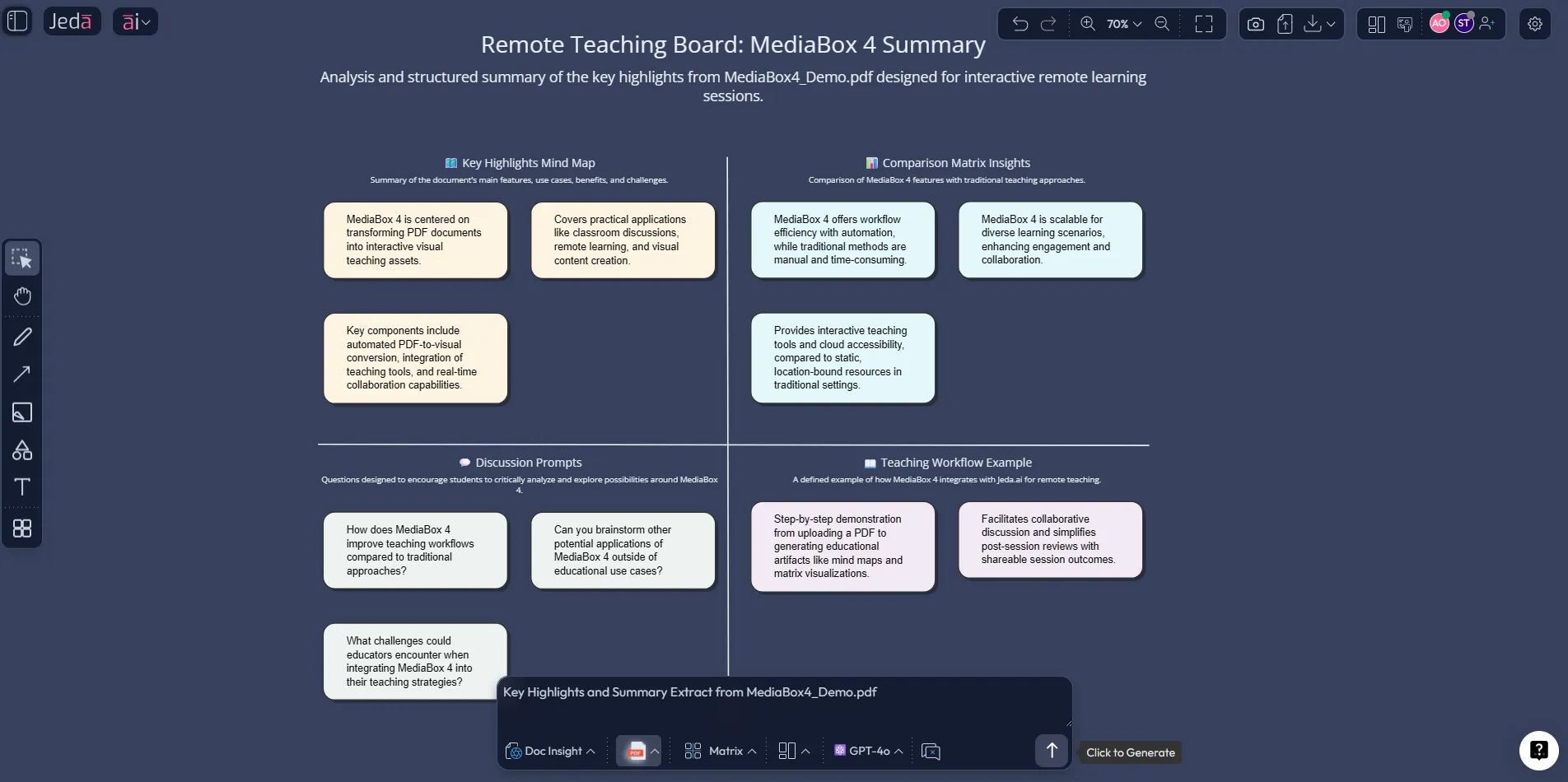
4) Convert readings and PDFs into teachable visuals
A lot of remote classes still depend on heavy reading loads. The problem is not the reading. It is the jump from dense text to live discussion.
Upload the document and use Document Insight to convert it into a mind map, matrix, diagram, flowchart, or sticky-note board. Instead of asking students to “discuss the reading,” you give them a visible structure for the discussion. That is a much lower-friction way to get people talking, especially when they join class tired or underprepared.
5) Build reusable lesson boards instead of rebuilding every week
This one saves real time.
Remote teaching gets expensive when each session starts from zero. With Jeda.ai, your lesson board becomes a reusable asset. Duplicate it, adapt it, and keep the structure while swapping the content. Teachers in the Dodecanese study linked interactive whiteboards with better organization of teaching material and better use of teaching time, but also highlighted the need for training so the pedagogical value actually shows up. That is exactly right. The tool helps when the workflow is repeatable.
6) Create recaps, revision boards, and lightweight formative checks
At the end of class, don’t just stop the meeting and hope students stitched everything together.
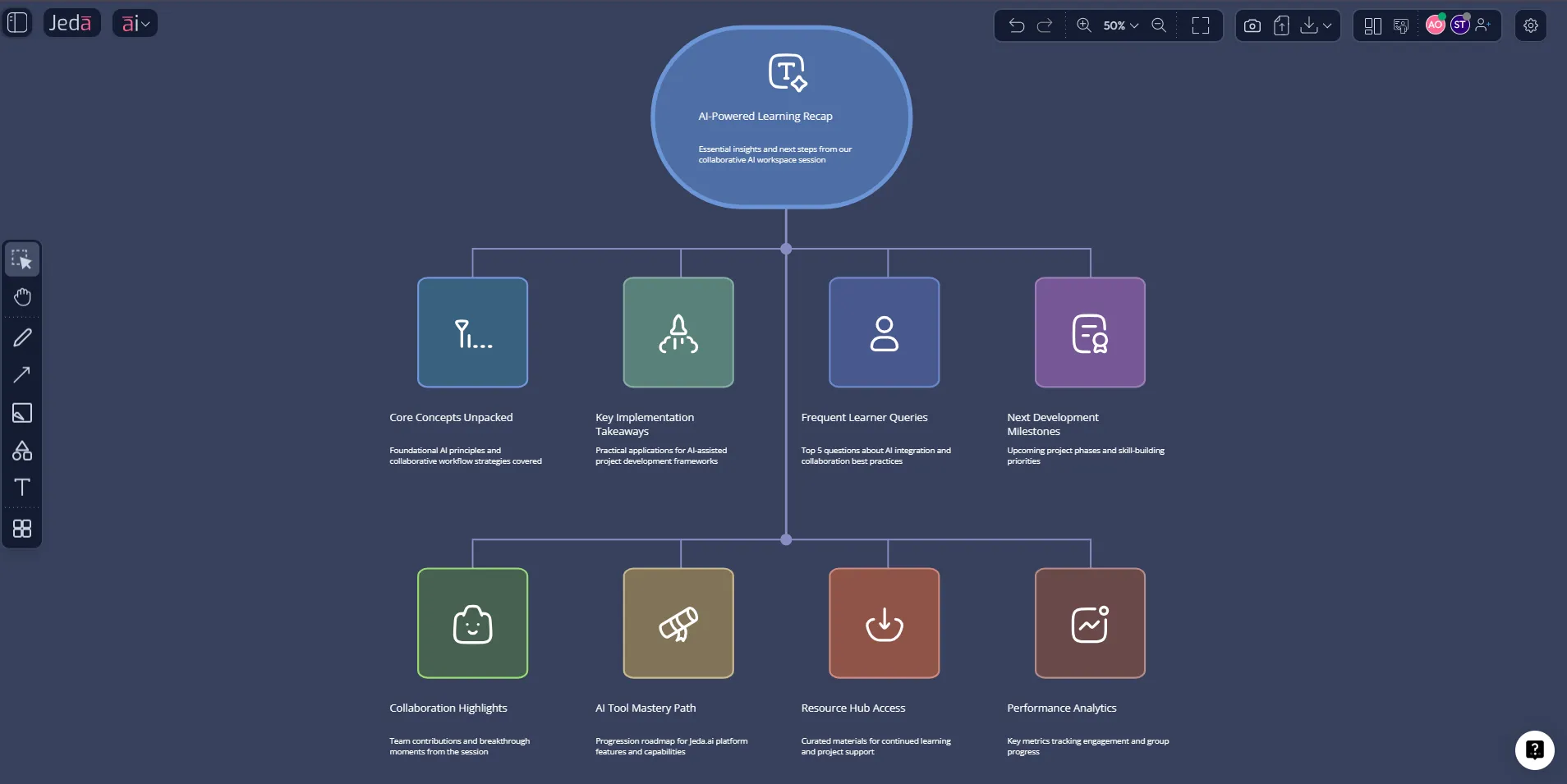
Use Infographic for a visual recap, Text for summary notes, Data Insight for quick visual interpretation of quiz or survey results, or Image if you need a static supporting visual. Whiteboard.fi’s positioning around formative assessment speaks to a real teacher need here: students need to show understanding, not just consume content. A good remote-teaching board helps you see that understanding develop in public.
Why Jeda.ai fits remote teaching better than a basic online whiteboard
Most online whiteboards help you start drawing quickly. That part is fine. But remote teaching is not just drawing.
You need lesson design, live facilitation, collaborative input, document handling, recap creation, and reusable teaching assets. That is why Jeda.ai works better as an AI Workspace than a plain online board. You get the board, yes. You also get AI-guided lesson preparation, editable Smart Shapes, 300+ strategic frameworks and recipes in the AI Menu, document-to-visual workflows, data-to-visual workflows, collaboration, Follow Me mode, and structured export options.
And because Jeda.ai is built as an AI Whiteboard, it can support very different teaching styles without forcing one format. Live chalk-talk. Structured seminar. Design critique. Case method. Workshop. Executive education. Tutor session. Same workspace. New board.
| Live collaboration | AI lesson prep | Document to visual | Reusable templates | Editable visuals | Export options | |
|---|---|---|---|---|---|---|
| Jeda.ai | ✓ | ✓ | ✓ | 300+ | ✓ | PNG / SVG / PDF |
| Basic online whiteboard | ✓ | ✗ | ✗ | Few | ✓ | Varies |
| Meeting-app annotation | Limited | ✗ | ✗ | ✗ | Basic | Limited |
There is also a practical product truth worth stating clearly. Jeda.ai exports PNG, SVG, and PDF. It does not offer native PowerPoint or Word export. If you want editable PowerPoint elements, export as SVG and convert to shapes in PowerPoint afterward. Better to say that plainly than pretend every board tool does everything.
Best practices for remote teaching with an online whiteboard
Teaching centers and research point in the same direction: the board works best when you design around participation, not decoration.
Here are the habits that make the difference:
British Council’s remote-teaching advice also lands here. Attention online is fragile. Camera presence, voice variety, gesture, and pacing still matter. The board helps, but it does not replace instruction. It gives your instruction shape.
Common mistakes to avoid
The first mistake is turning the board into a wall of text. If every idea becomes a paragraph, students will treat it like another bad slide deck.
The second is opening collaboration without structure. “Everyone add your ideas” sounds democratic. It also creates chaos. Give students clear zones, questions, and timeboxes.
Third, don’t assume a digital board is automatically accessible. It is not. If a learner cannot meaningfully access the visual, give them an alternate route with notes, exports, or a summary.
Last one. Don’t use the board only during the live session and then abandon it. Remote teaching gets stronger when the board becomes a shared memory of the class.
Frequently asked questions
- What is the main benefit of an online whiteboard for remote teaching?
- The biggest benefit is visible thinking. An online whiteboard lets you explain, organize, and discuss ideas in one shared space, which improves clarity during live teaching and gives students a persistent record they can revisit after class.
- Is an online whiteboard better than slides for remote classes?
- For explanation-heavy or discussion-heavy classes, often yes. Slides are linear. Whiteboards are interactive and spatial. They work especially well for mapping relationships, comparing ideas, collecting responses, and keeping collaboration visible in real time.
- Can students collaborate live on Jeda.ai during class?
- Yes. Jeda.ai supports real-time collaboration, participant sharing, and Follow Me mode for guided walkthroughs. That makes it suitable for teacher-led explanations, breakout synthesis, and collaborative board work inside one shared workspace.
- How can I use Jeda.ai for lesson preparation before class?
- You can prepare boards through the AI Menu recipes or the Prompt Bar. Generate a mind map, flowchart, matrix, sticky-note board, infographic, or lesson text, then refine it manually and extend specific parts with the AI+ button.
- Can Jeda.ai turn readings or PDFs into teachable visuals?
- Yes. Document Insight lets you upload PDFs or documents and convert them into structured visuals such as matrices, mind maps, diagrams, or flowcharts. That is useful when you want to turn dense reading into a clearer discussion board.
- Does Jeda.ai support assessment or recap workflows?
- Yes. You can use sticky-note boards for quick checks, infographics for end-of-class summaries, Text for recap notes, and Data Insight for visualizing uploaded CSV or Excel results when you want to discuss response patterns or simple learning data.
- What can I export from Jeda.ai after a remote lesson?
- Jeda.ai supports export to PNG, SVG, and PDF. It does not offer native PowerPoint or Word export. If you want editable PowerPoint elements, the practical route is to export SVG and convert it to shapes inside PowerPoint.
- Is there a free way to try Jeda.ai for teaching?
- Yes. Jeda.ai offers a Whitebelt free plan, and new accounts receive a limited 7-day Shifu trial before switching to the free tier. That gives teachers a low-friction way to test remote-teaching workflows before upgrading.
Sources & further reading
- [1]
North Carolina State University DELTA (2026) . “Digital Whiteboards for Teaching and Learning” Teaching Resources.
View Source ↗ - [2]
Carleton College Information Technology Services (2026) . “Digital Whiteboards” Carleton College.
View Source ↗ - [3]
Reguera, E.A.M., et al. (2021) . “Using a digital whiteboard for student engagement in distance education” BMC Medical Education / PMC.
View Source ↗ - [4]
Purdue University (2026) . “Collaborative Learning” Online Teaching Hub.
View Source ↗ - [5]
California Institute of Technology (2026) . “Digital Whiteboard Technologies” Online Teaching.
View Source ↗ - [6]
British Council (2019) . “Remote teaching – how to keep learners' attention” Voices Magazine.
View Source ↗ - [7]
Kostalias, K. and Remoundou, D. (2024) . “Teachers’ Views on the Educational Use of Interactive Whiteboards in the Dodecanese” European Journal of Engineering and Technology Research.
View Source ↗
Start Using an Online Whiteboard for Remote Teaching
Join over 150,000+ users using Jeda.ai as an AI Workspace and AI Whiteboard for clearer lessons, faster prep, and more collaborative classes.
Try Jeda.ai Free