Remote teaching with AI sounds abstract until you watch what actually breaks in a live online class: attention drifts, discussion fragments, materials live in six tabs, and the teacher ends up doing invisible logistics instead of teaching. That is the problem this page addresses. Jeda.ai turns remote instruction into a more visual, shared, and structured practice inside one AI Workspace and one AI Whiteboard. For lecturers, instructors, professors, program leads, and training teams, that matters because online engagement is still fragile, while teacher orchestration load is often too high in collaborative and hybrid settings. Research keeps pointing in the same direction: engagement improves when students feel supported, when collaboration is visible, and when digital tools reduce friction rather than add more of it.
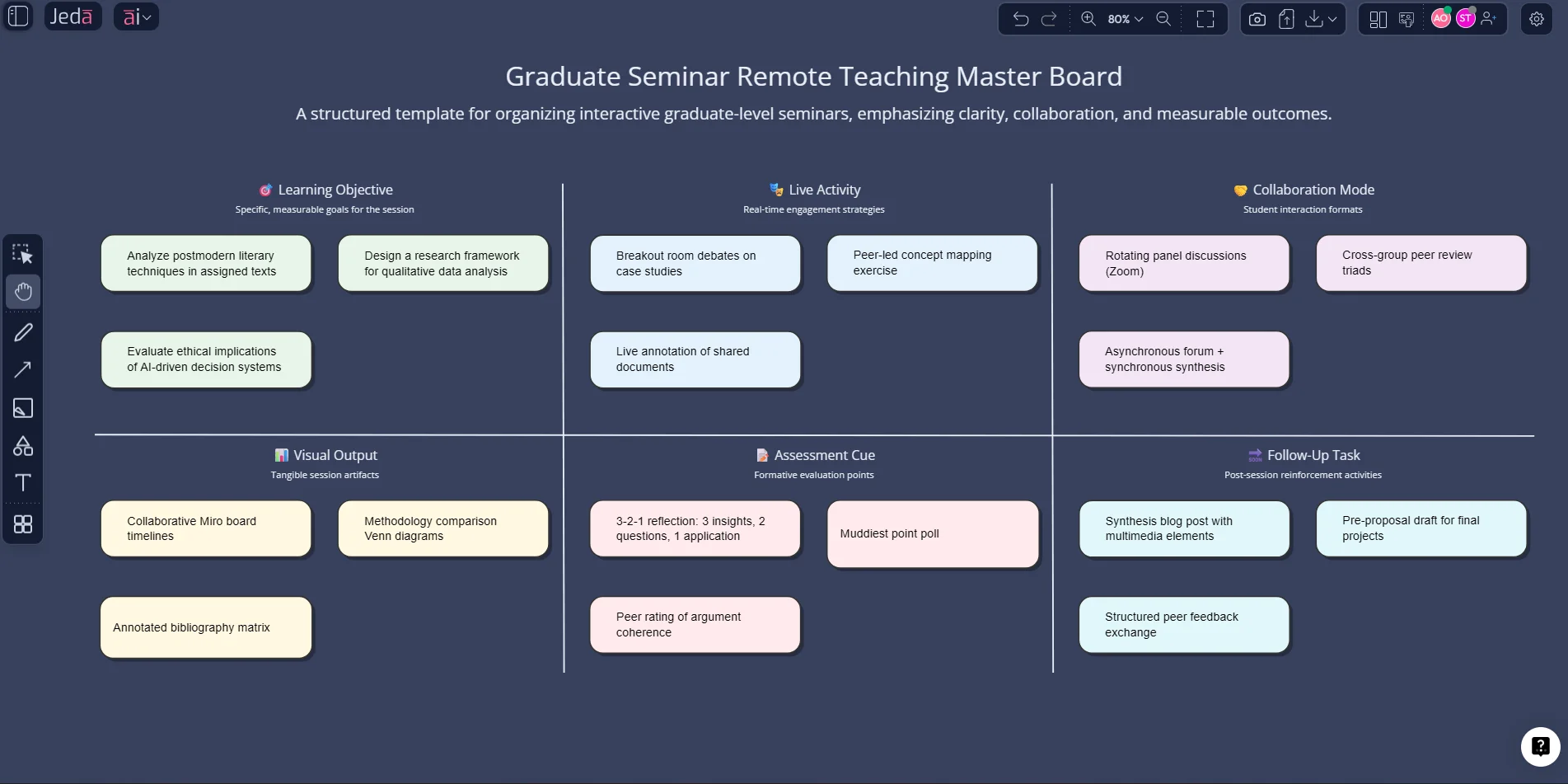
What is remote teaching with AI?
Remote teaching with AI is not just “using ChatGPT before class.” It is the deliberate use of AI to plan, structure, visualize, and adapt teaching activities across the full lesson cycle: prep, live facilitation, student collaboration, assessment, and follow-up.
In higher education, AI is increasingly discussed as a support layer for instructional design, personalization, and teacher preparedness rather than as a replacement for pedagogy. UNESCO reported in 2025 that two-thirds of higher education institutions either already had or were developing guidance for AI use, while also pointing to its 2024 competency frameworks for teachers and students. OECD’s 2025 reporting on TALIS data likewise shows AI use in teaching is no longer marginal in several systems. The shift is real. The question is whether the tool helps you teach better or simply gives you more digital clutter.
That distinction matters. A plain chat window can draft ideas. A visual system can hold the class together.
Why remote teaching still feels harder than it should
The pain is not mysterious. It is operational.
Remote and hybrid teaching create extra orchestration work. Research on collaborative hybrid learning shows that hybridity can increase teacher orchestration load and make productive interaction harder when the environment is poorly structured. Separate research on online learning engagement also shows that teacher emotional support strongly predicts engagement, while burnout pushes it the other way. In other words, students need visible support and teachers need a teaching environment that does not eat their attention alive.
A digital whiteboard helps because it gives the class a common visual surface. Studies on whiteboard-supported learning have found gains in engagement, understanding of abstract concepts, collaborative writing, and productive argumentation. But a whiteboard alone still leaves a lot of manual design work on the teacher’s shoulders.
That is where Jeda.ai changes the workflow. Instead of starting from a blank canvas and rebuilding every week, you can generate structured visuals, convert readings into mind maps or flowcharts, run collaborative exercises, and extend the board during class with the AI+ button. You stay inside one AI Workspace rather than bouncing between slides, docs, whiteboard tabs, and ad hoc chat outputs.
- A visible center for the class
Use one shared board for objectives, activities, discussion prompts, student outputs, and wrap-up. The class sees the whole learning arc, not just the current slide.
- Evidence-in lesson design
Upload PDFs, slides, notes, or worksheets with Document Insight and turn them into visual teaching assets instead of rewriting everything manually.
- Better collaboration
Students can co-create sticky notes, mind maps, matrices, and diagrams in real time on an AI Whiteboard instead of replying into a void.
- Lower prep drag
Use prompts and recipes to generate structures for lesson plans, discussion boards, concept maps, and case analysis boards in minutes.
- Flexible visual formats
Start with a matrix, then use Vision Transform to convert it into a flowchart, diagram, or mind map when the teaching moment changes.
- Live expansion with AI+
When discussion gets interesting, select a section and use AI+ to extend it instead of stopping class to rebuild the board by hand.
Why Jeda.ai fits remote teaching especially well
A lot of teaching tools solve one piece of the problem. Slides present. Docs collect notes. Basic whiteboards capture collaboration. Chatbots generate text. Remote teaching, sadly, needs all of those at once.
Jeda.ai is useful here because it combines visual generation, editing, collaboration, document-based analysis, data-based analysis, and live extension in a single Visual AI environment. The platform’s own education pages already position it around engagement, collaboration, and document-to-visual transformation, which lines up with what the research says matters most in online learning: interaction, support, and clarity.
Three things stand out in practice.
First, it gives the class a shared visual memory. Students can see the argument, the process, or the case logic as it develops.
Second, it cuts the rebuild cycle. A 2025 case study on AI in instructional design in higher education described AI as making course design more dynamic, data-driven, and responsive to learner needs. That is exactly the kind of support remote instructors need on a Wednesday night when next week’s seminar still looks like a pile of tabs.
Third, it supports collaboration without flattening the teacher’s role. You are still orchestrating the room. You just are not spending your whole cognitive budget on board maintenance.
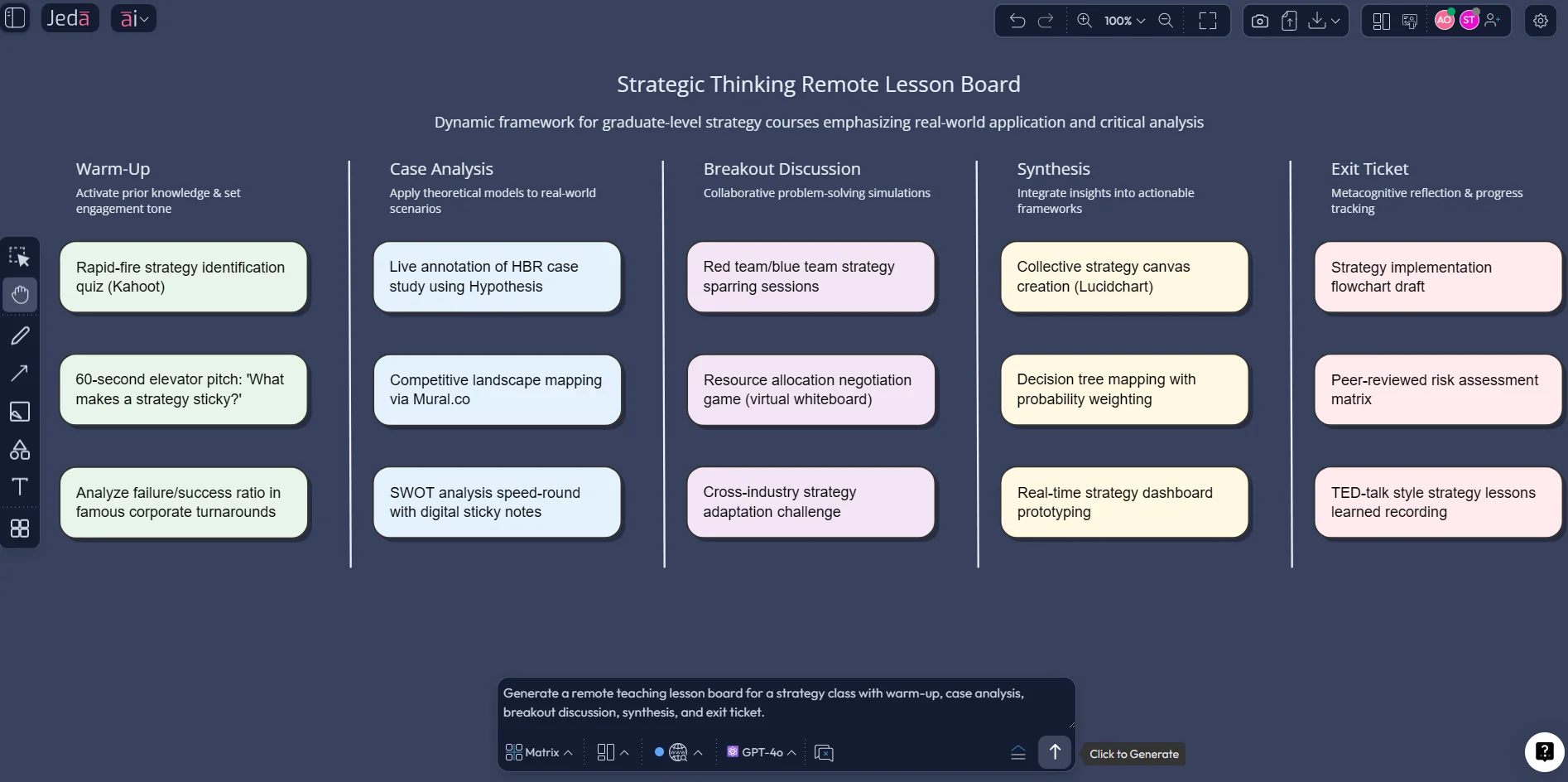
How to master remote teaching with AI in Jeda.ai
Below are the three working methods that make the biggest difference in actual remote teaching workflows.
Method 1: Recipe Matrix
This is the best starting point when you want structure fast. Use the AI Menu and generate a board that organizes the class before students even join the session.
A strong use of Matrix Recipes for remote teaching is to build a board with:
- the lesson objective
- live discussion blocks
- student collaboration tasks
- assessment moments
- follow-up actions
That gives you a teaching board, not just a brainstorm.
- Open the AI Menu
Click the AI Menu in the top-left corner of Jeda.ai and choose the Matrix Recipes area so you start from a structured visual workflow instead of a blank board.
- Choose a matrix-oriented teaching structure
Select a recipe pattern that fits planning, analysis, or structured comparison. Enter the course topic, learner level, session goal, and the kinds of interaction you want students to have.
- Generate the remote class board
Create a board that maps objectives, activities, outputs, and timing. Keep the language concise so students can scan it while the class is live.
- Refine for facilitation
Edit sections manually: simplify wording, add breakout tasks, highlight deadlines, and color-code what happens before, during, and after the session.
- Teach from the board
Use the board as your live class anchor. Add notes, drag ideas, invite student contributions, and keep the visual progression visible throughout the session.
- Extend weak sections with AI+
If discussion stalls or a concept needs more depth, select the relevant node or matrix block and use the AI+ button to expand examples, questions, or follow-up ideas.
Method 2: Prompt Bar
Use the Prompt Bar when you want more control over the exact output. This is the method for instructors who already know the class problem and want the fastest route from idea to board.
A few good prompts:
- “Create a remote teaching board for a graduate marketing seminar on positioning. Include warm-up, case analysis, student discussion, synthesis, and exit ticket.”
- “Turn this uploaded reading into a mind map for remote discussion, then highlight the three concepts students usually confuse.”
- “Generate a flowchart for a live online workshop on ethics review in research methods.”
The trick is simple: choose the right command, then be explicit about the outcome. Matrix works for lesson architecture, Mindmap for conceptual expansion, Flowchart for process teaching, Stickynotes for group ideation, Document Insight for turning readings into visuals, and Data Insight for classes built around datasets.
- Open the Prompt Bar
Use the prompt bar at the bottom of the Jeda.ai canvas. This is the fastest way to generate a custom remote teaching asset from scratch.
- Select the right command
Choose Matrix for lesson structure, Mindmap for concept mapping, Flowchart for processes, Stickynotes for brainstorming, or Document Insight if you want to work from uploaded readings.
- Write a teaching-specific prompt
State the subject, audience, learning goal, session format, and desired output. Better prompts produce boards that are easier to teach from and easier for students to follow.
- Generate and edit on the canvas
Press Enter to generate, then adjust wording, shape layout, colors, or group tasks directly on the board. The goal is clarity, not decorative chaos.
- Convert when needed
If the first format is not right for the moment, use Vision Transform to convert the output into another visual type without rebuilding the content from zero.
Method 3: AI+ button for live deep dives
This is where the class stops feeling static.
Say a student raises a strong objection in a policy seminar. Or your MBA cohort suddenly needs one more comparative lens in a strategy discussion. Or half the class is clearly still confused about the sequence in a workflow. Instead of opening another app or promising to “come back to it later,” select the relevant object and use AI+ to extend the board in place.
That move matters more than it sounds. It keeps the board coherent, preserves class momentum, and shows students how knowledge grows in visible layers.
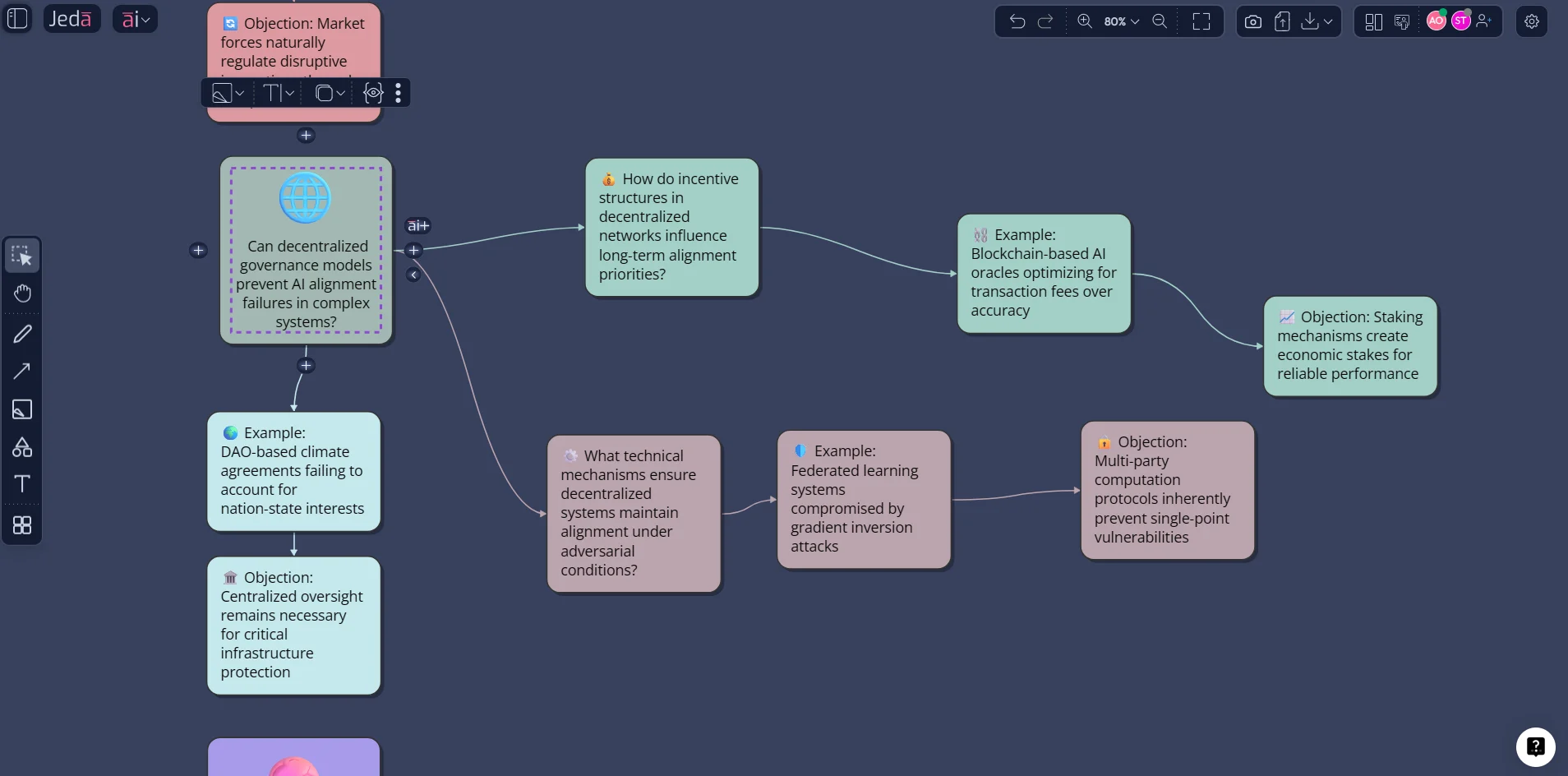
A better remote teaching workflow: from prep to follow-up
Here is the remote teaching loop that tends to work best inside Jeda.ai.
Before class
Upload the week’s reading, case, or notes. Use Document Insight to extract the core structure. Generate a lesson board with the Matrix or Mindmap command. Clean it up. Add two discussion checkpoints and one visible closing task.
During class
Teach from the board, not beside it. Use the canvas as the room. Let students add sticky notes, branch a mind map, or fill a comparison grid. Keep one section for live synthesis so the session ends with shared meaning rather than scattered chat.
After class
Export the board as PNG, SVG, or PDF. Reuse it as a revision asset, discussion record, or starting point for the next session. That alone can save ridiculous amounts of repetitive prep. The glamorous phrase is “workflow continuity.” The honest phrase is “you do not have to rebuild the same thing next Tuesday.”
What to teach visually in remote classes
Not every topic needs the same visual format. This is where many instructors either underuse whiteboards or overuse them.
The point is not to make every class “visual” for its own sake. The point is to choose a visual form that reduces confusion and increases participation.
Common mistakes to avoid
Mistake 1: treating AI like a content vending machine
If you only ask AI to write discussion questions, you get more text. That does not solve the remote teaching problem. The real win comes when the output is organized into a shared visual learning environment.
Mistake 2: starting every class from a blank board
Blank boards look flexible. They are also a slow leak on teaching energy. Use structure first, improvisation second.
Mistake 3: overfilling the canvas
An online board packed with dense paragraphs is just a bad PDF wearing different clothes.
Mistake 4: ignoring the emotional layer of online learning
Research on online engagement shows that perceived teacher emotional support is not fluff. It has a measurable relationship with engagement and burnout. Your teaching board should make support visible: clear tasks, logical flow, and room for student contribution.
Mistake 5: splitting the learning journey across too many tools
Students should not need a treasure hunt to understand what happened in class.
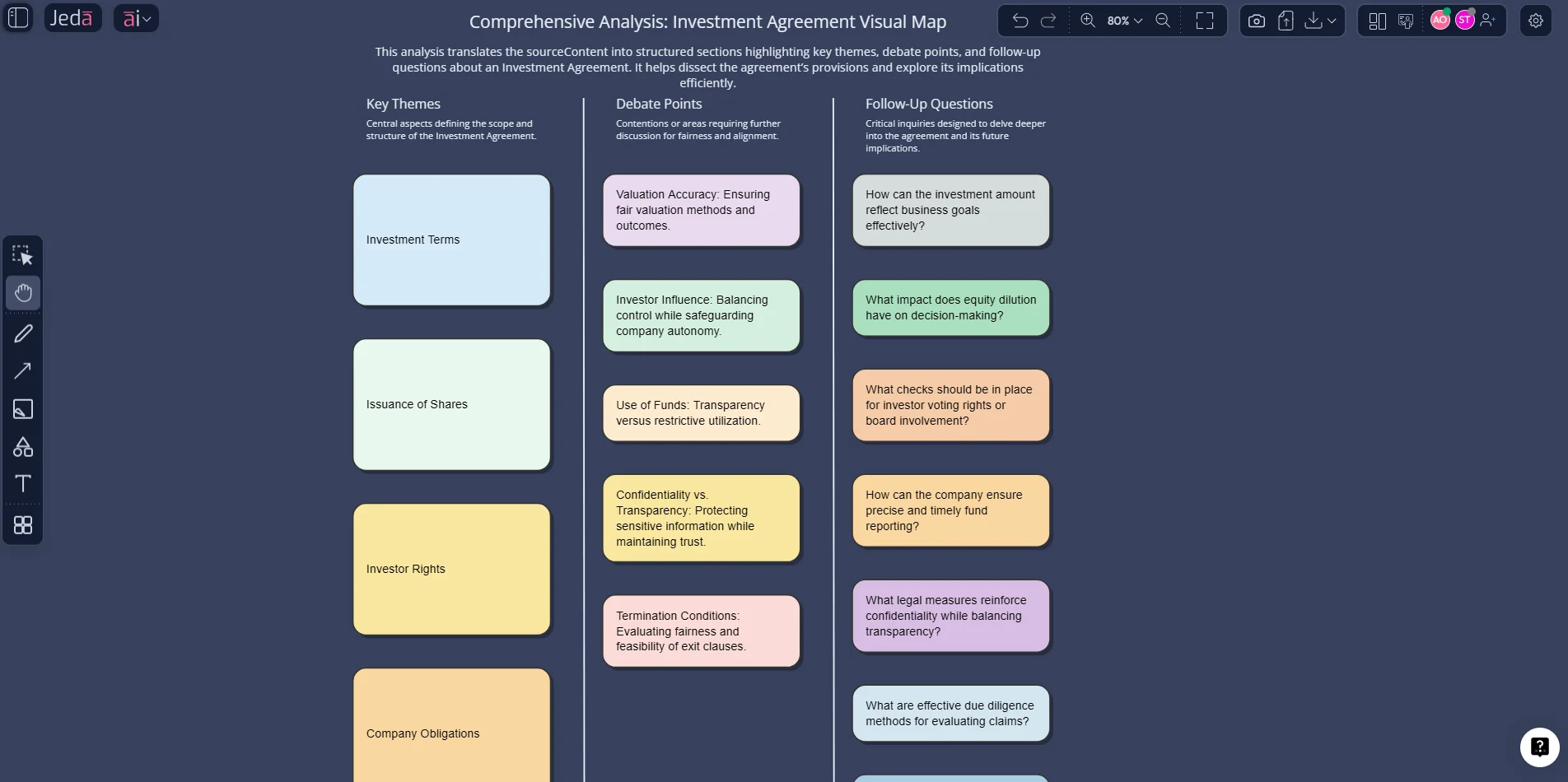
Why this matters for higher education now
This is not a temporary workaround anymore. Universities, business schools, executive programs, and online instructors are already redesigning teaching around AI guidance, student engagement, and digital teaching competence. UNESCO’s 2024 competency frameworks and 2025 reporting make that pretty plain. OECD data points in the same direction. The institutions moving first are not necessarily the ones with the fanciest tech stack. They are the ones building repeatable teaching practices around it.
That is why Jeda.ai is more than a novelty board for remote classes. It gives remote teaching a visual operating system.
And yes, that sounds slightly dramatic. But once you have taught from one coherent board instead of juggling slides, chat, notes, whiteboard, and extra AI windows, the difference is hard to unsee.
Frequently Asked Questions
- How does AI help with remote teaching without replacing the teacher?
- AI helps by structuring material, generating visual teaching assets, summarizing readings, and extending discussions in real time. The teacher still sets the goals, judges the quality, supports students, and guides the learning experience.
- What is the best Jeda.ai command for remote teaching?
- It depends on the teaching task. Matrix works well for lesson architecture and case comparison, Mindmap for concept teaching, Flowchart for processes, Stickynotes for brainstorming, and Document Insight for turning readings into visual class materials.
- Can Jeda.ai help me teach from uploaded course readings?
- Yes. Upload a PDF or document and use Document Insight to turn it into structured visuals such as matrices, flowcharts, diagrams, mind maps, or sticky-note summaries. That is especially useful for seminar discussion and flipped-class preparation.
- How does the AI+ button help during a live online class?
- Use AI+ when discussion needs one more layer. Select a node, section, or smart shape and extend it with examples, questions, branches, or deeper analysis without rebuilding the board manually during class.
- Is Jeda.ai suitable for higher education and executive education?
- Yes. Jeda.ai already positions itself for education use cases, including AI whiteboard teaching and cohort-scale business school workflows. It is particularly useful when instructors need visual reasoning, collaboration, and reusable class assets.
- Can students collaborate on the same board in real time?
- Yes. Jeda.ai supports collaborative workspaces with shared participation, real-time editing, and presentation controls such as Follow Me. That makes it workable for remote seminars, workshops, breakout debriefs, and hybrid teaching.
- What can I export after class?
- You can export your work as PNG, SVG, or PDF. Those formats are useful for revision materials, post-class summaries, departmental sharing, or conversion into presentation assets.
- Does Jeda.ai support current web information during teaching prep?
- Yes. Web search is a platform feature in Jeda.ai, not a model-specific trick. It can help when your lesson needs up-to-date context, examples, or external grounding while you generate a board.
- Why is a shared visual board better than a chat-only AI tool for remote teaching?
- Chat tools generate text, but remote classes need a common visual reference that the teacher and students can build together. A shared board makes logic, tasks, and contributions visible in ways a linear chat cannot.
- How do I start if I am new to AI teaching tools?
- Start with one class problem, not a grand redesign. Use Jeda.ai to generate a single lesson board for one remote session, teach from it, export the result, and reuse what worked. Small wins beat heroic overhauls.
Sources and further reading
- [1]
- [2]
OECD (2025) . “AI adoption in the education system” OECD.
View Source ↗ - [3]
Bora, B. Y. (2025) . “Integrating AI into instructional design: A case study on digital photography education in higher education” ERIC / Journal article PDF.
View Source ↗ - [4]
Zheng, X. L. et al. (2023) . “Effects of online whiteboard-based collaborative argumentation scaffolds on group-level cognitive regulations, written argument skills and regulation patterns” Computers & Education.
View Source ↗ - [5]
Reguera, E. A. M. et al. (2021) . “Using a digital whiteboard for student engagement in distance education” Computers & Graphics.
View Source ↗ - [6]
Teng, M. F. et al. (2021) . “Interactive-whiteboard-technology-supported collaborative writing” System.
View Source ↗ - [7]
Sun, L. et al. (2025) . “A study on the impact of perceived teacher emotional support on university students’ online learning engagement” Frontiers in Psychology.
View Source ↗
Start Remote Teaching with AI in One Visual Workspace
Join 150,000+ users using Jeda.ai’s AI Workspace and AI Whiteboard to turn classes, readings, and discussions into editable visual teaching assets.
Try Jeda.ai Free