Most teams still do this the hard way. They brainstorm in one tool, clean up the diagram in another, rebuild the story in slides, then export a PDF at the very end. That workflow eats time, breaks context, and usually turns good thinking into mediocre slides. How to create a presentation and PDF from Visual Content on Jeda.ai is really about avoiding that mess: generate the visual in one AI Workspace, refine it on an AI Whiteboard, turn it into presentation-ready sections, and export what you need without redrawing everything. Jeda.ai supports PNG, SVG, and PDF export, and its current PowerPoint path is SVG → PowerPoint → Convert to Shapes rather than native PPT export.
Look at the broader market and the gap gets obvious fast. Miro emphasizes exporting boards to images and PDFs. Lucidchart goes further with a presentation feature and export to Google Slides. Google Slides now adds Gemini-assisted slide generation and image creation. Canva pushes PDF-to-PowerPoint conversion and fully editable PPT output. In other words, the category is moving toward “visual in, presentation out.” Jeda.ai’s angle is different: you do the reasoning, structuring, and visual synthesis in one Visual AI environment first, then export the clean artifact your audience actually needs.
What this workflow actually solves
A presentation is not a prettier whiteboard. And a PDF is not just a screenshot with commitment issues.
When teams say they want “slides from visuals,” they usually mean four separate jobs:
- Turn raw ideas into structured visual content.
- Shape that content into a sequence people can follow.
- Share it live in a meeting or walkthrough.
- Export it in a format stakeholders can keep.
Jeda.ai handles the first three directly inside the product. The canvas lets you generate matrices, diagrams, flowcharts, mind maps, infographics, document-driven outputs, and data-driven outputs from the Prompt Bar or AI Menu. You can collaborate in real time, use Follow Me for walkthroughs, and export the finished board as PDF or SVG when it’s ready to leave the workspace. That matters because the board becomes your working model, not throwaway prep.
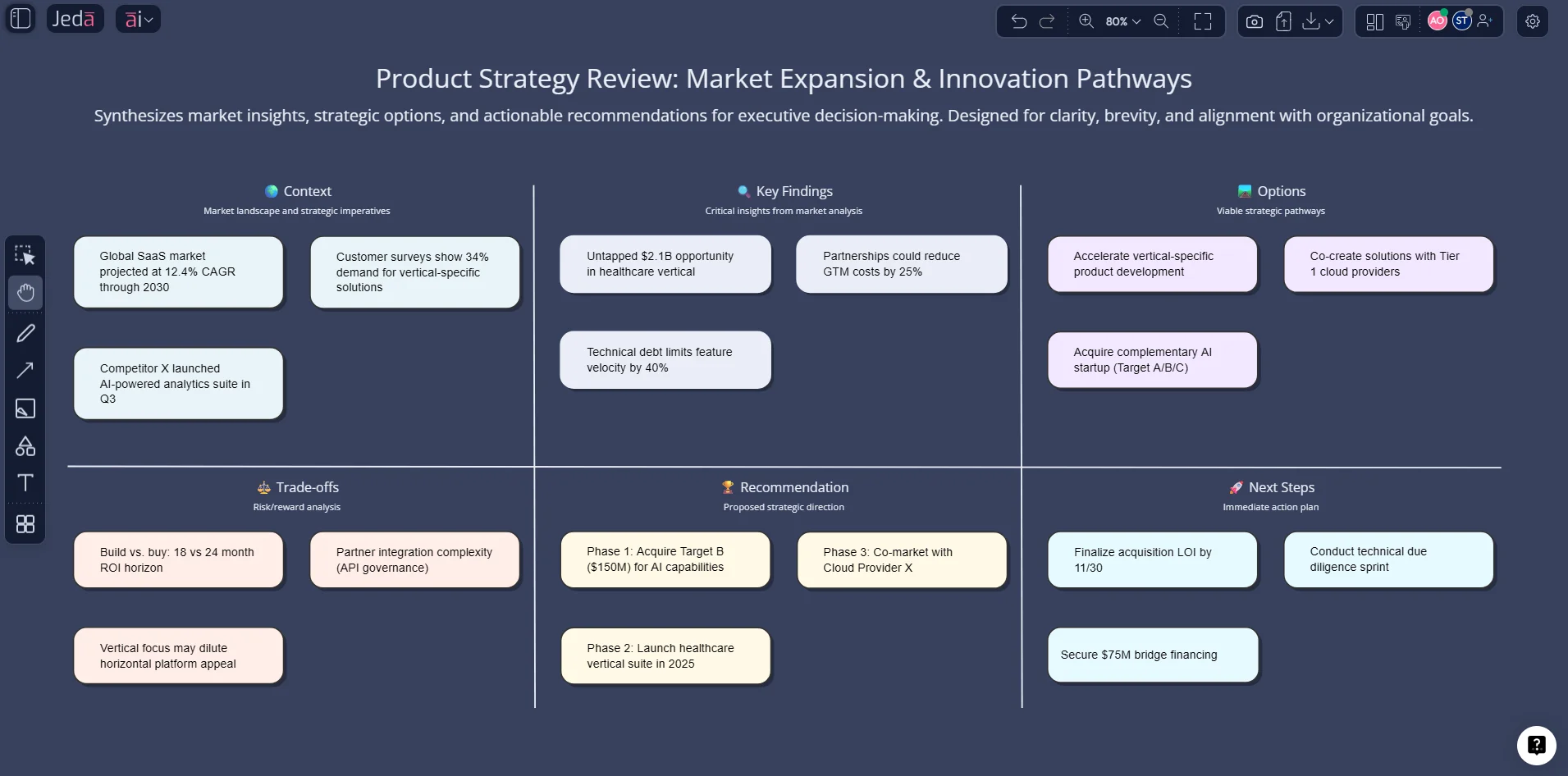
Why Jeda.ai is strong for presentation-first visual work
Most tools win one slice of the workflow. Jeda.ai wins the handoff between thinking and presenting.
- Generate structured visuals
Use Matrix, Flowchart, Mindmap, Diagram, Infographic, Data Insight, and Document Insight to turn rough inputs into presentation-ready visual blocks.
- Refine weak sections with AI+
Select a node or shape, tap the AI+ button, and deepen just the part that needs more evidence, examples, or explanation.
- Reframe the same idea visually
Use Vision Transform to convert one visual format into another when your audience needs a different lens.
- Present live with collaborators
Use Follow Me to guide viewers through the board during a workshop, review, class, or stakeholder meeting.
- Export the board for distribution
Export to PDF when people need a shareable artifact. Export to SVG when you need editable PowerPoint shapes.
- Work from actual source material
Pull in documents, screenshots, and datasets so the visuals come from evidence instead of vibes.
That last point is the quiet killer feature. Slide tools often start with design. Jeda.ai starts with logic. Upload the source deck, report, brief, spreadsheet, screenshot, or process notes. Then generate the visual from that. The result is usually sharper because the board is grounded before anyone starts worrying about title case and icon packs. Jeda.ai supports file upload for Data Insight, Document Insight, and Vision Transform, and the platform treats web search as a product capability rather than a single-model trick.
How to create a presentation and PDF from Visual Content on Jeda.ai
Here’s the cleanest working method. It keeps the board editable, presentation-friendly, and exportable.
Method 1: Recipe Matrix workflow from the AI Menu
Use this when you want structure fast.
The AI Menu sits at the top-left of the workspace and gives access to 300+ AI Recipes. For presentation-oriented visual work, start with the recipe category that matches the kind of story you need to tell: Matrix Recipes for strategy, Diagram Recipes for systems or relationships, Infographic Recipes for concise summary layouts, or Wireframe/Design flows if the visual content is product-facing. Build the first version there, then edit the board manually and use AI+ to deepen the sections that deserve more space. Jeda.ai’s workflow file explicitly recommends AI Menu first when a recipe exists, then Prompt Bar when you want more control.
Method 2: Prompt Bar workflow
Use this when the story is custom, messy, or cross-functional.
The Prompt Bar is at the bottom center of the workspace. Select the command, choose layout when relevant, decide whether to use web search, pick the model or Multi-LLM setup, and generate. For presentation and PDF output, the most useful commands are usually Matrix, Flowchart, Mindmap, Infographic, Document Insight, and Data Insight. You are not making “slides” yet. You are making presentation sections. That shift matters.
Method 3: AI+ deep dive on weak sections
This is where the board stops being generic.
Click the smart shape that feels thin, vague, or overloaded. Tap AI+. Extend only that section. Maybe it needs decision criteria. Maybe it needs examples, risks, next steps, or a simpler wording pass. AI+ lets you improve the board without regenerating the whole thing, which is exactly what you want when the story is already 80% right.
- Start with the source material
Open a workspace in Jeda.ai and gather the raw content: a brief, screenshot, dataset, document, or existing notes. Think in scenes, not slides.
- Method 1: Use the AI Menu recipe
Open the AI Menu in the top-left. Choose a Matrix, Diagram, Flowchart, or Infographic recipe that matches your narrative. Fill in the fields and click Generate.
- Method 2: Use the Prompt Bar for custom output
Open the Prompt Bar at the bottom, select the right command, add the prompt, choose layout and model settings, then generate the board.
- Turn the board into presentation sections
Group related content into clear visual regions with strong headings. Treat each section as one speaking beat or one future slide.
- Deepen weak parts with AI+
Select a node, shape, or section and use the AI+ button to extend detail, sharpen logic, or add supporting evidence without rebuilding the whole board.
- Export the final asset
Export to PDF when you need a shareable leave-behind. Export to SVG when you want to bring the visual into PowerPoint and convert it to editable shapes.
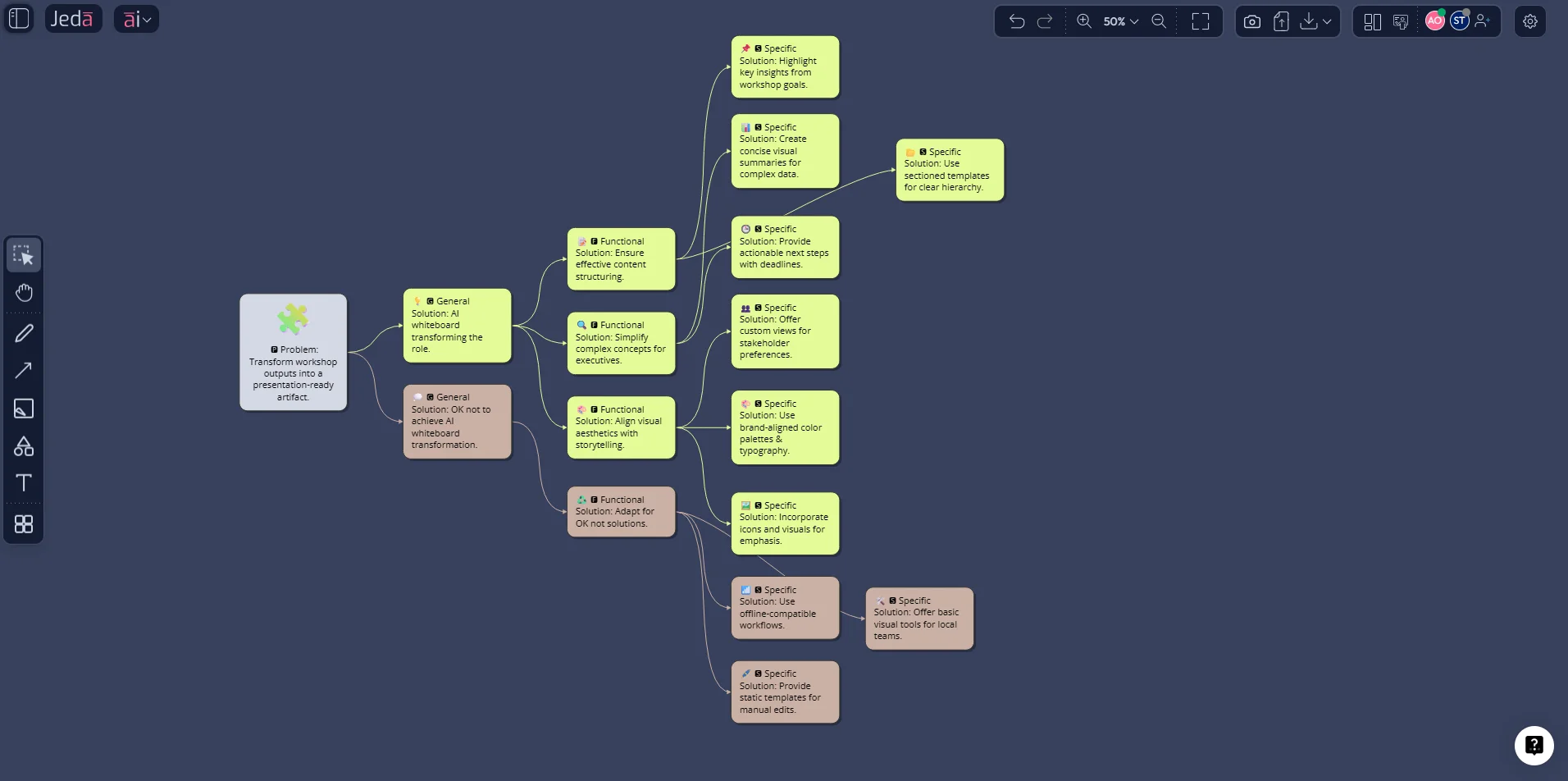
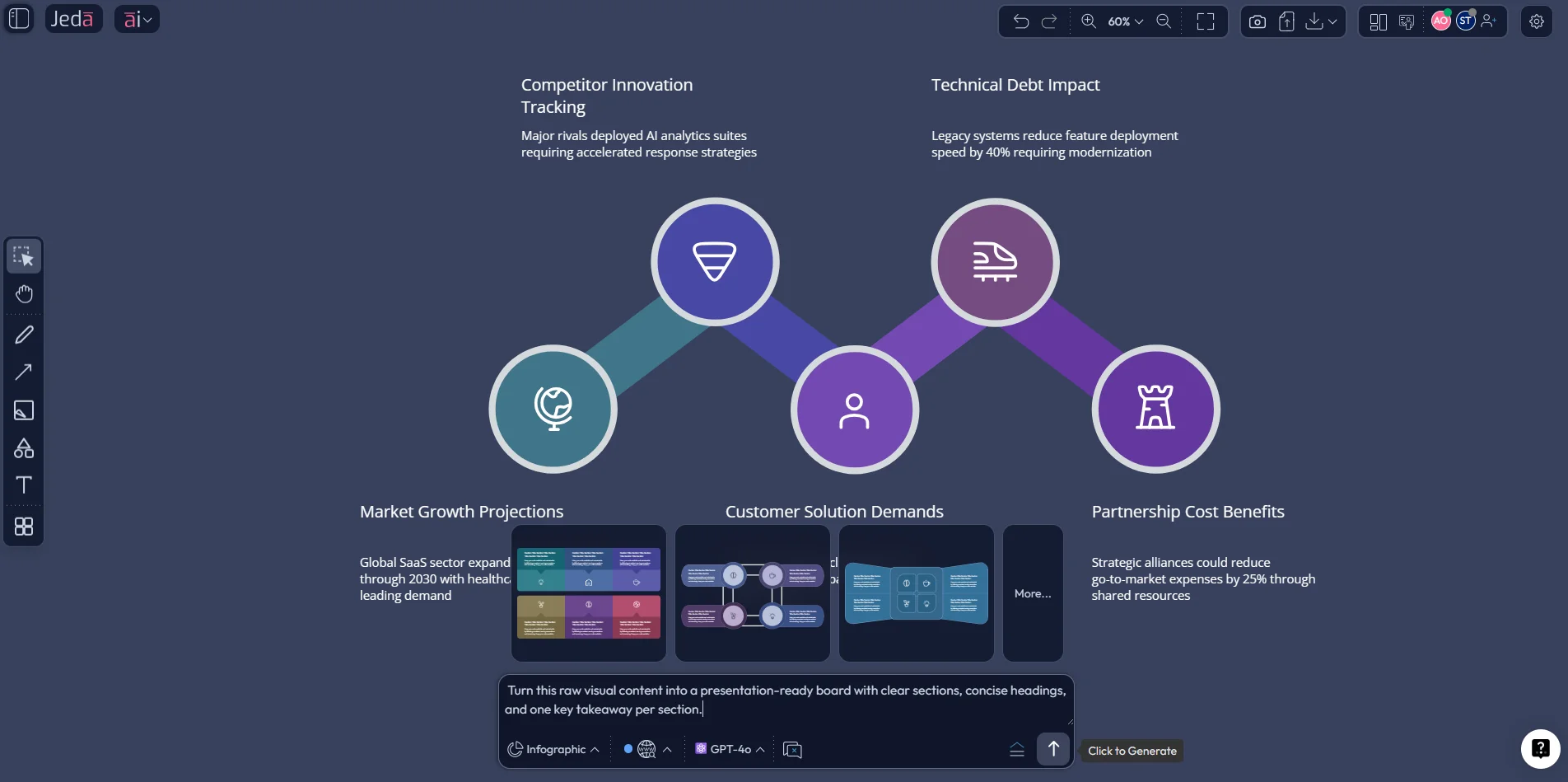
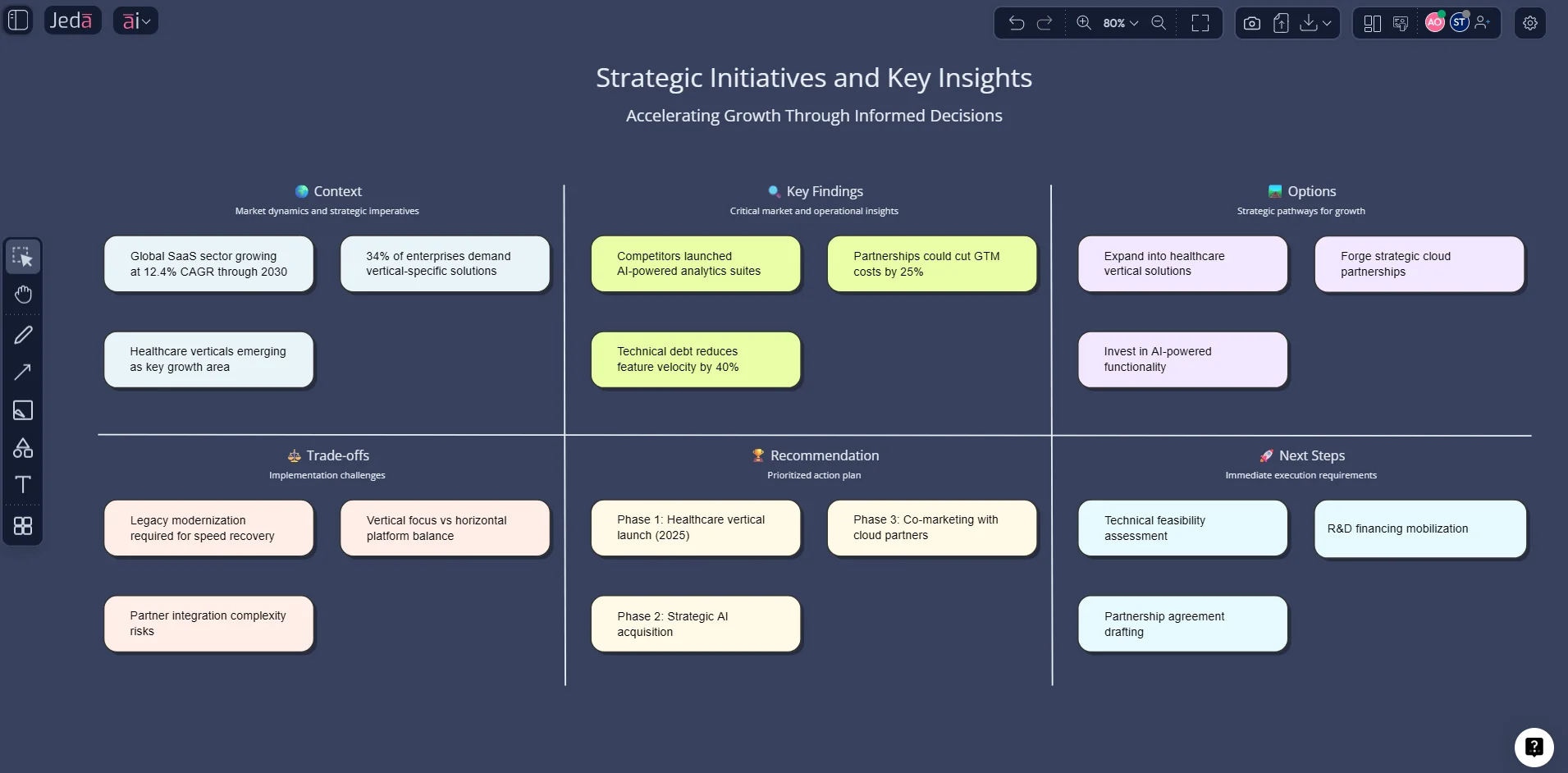
A practical build: from one board to presentation-ready flow
Let’s say you have a dense visual board from a product review, workshop, strategy session, or research synthesis. Here is the fastest way to turn it into something people can present.
1) Separate the board into “moments”
Each section should answer one question:
- What is the problem?
- What did we find?
- What options exist?
- What do we recommend?
- What happens next?
That structure works because it mirrors how people listen. Not how tools render.
2) Use the right visual type for each moment
A few reliable pairings:
- Mindmap for expanding messy source ideas.
- Matrix for comparison, prioritization, trade-offs, or executive framing.
- Flowchart for process, sequence, or decision logic.
- Diagram for relationships or architecture.
- Infographic for concise, audience-facing summary.
- Document Insight when the presentation must come from a PDF or Word file.
- Data Insight when the presentation must come from CSV or Excel evidence.
3) Use Vision Transform when the board is right but the format is wrong
This happens constantly. The content is solid, but the audience is not going to sit through a crowded matrix. Convert it. Jeda.ai supports Vision Transform specifically for changing one visual type into another using selected content as context. That means a matrix can become a flowchart, notes can become a diagram, and a source-heavy analysis can become a cleaner presentation visual.
4) Present live first, export second
This is a small but smart move. Run the board once in a live walkthrough using Follow Me. You’ll spot what feels too dense, what needs emphasis, and what should become its own slide or page in the final PDF. Then export. Not before. Jeda.ai includes Follow Me specifically so collaborators can follow your cursor and viewport during presentations and walkthroughs.
How to make the PowerPoint version editable
Here’s the honest version, not the wishful-demo version.
Jeda.ai does not natively export PPT or Word files. The workflow file is blunt about that. But the user guide includes a PowerPoint method: export the visual as SVG, import that SVG into PowerPoint, and convert the graphic to shapes. That makes the visual editable inside PowerPoint. So the right guidance is not “export a PPT.” The right guidance is “export SVG for editability, PDF for distribution.”
That SVG-to-PowerPoint route is not weird, either. It mirrors common diagram-to-slide workflows elsewhere. Lucidchart says users can export presentations to Google Slides, and draw.io documents the same SVG → PowerPoint → Convert to Shape logic in Microsoft Office. Canva approaches the problem from the opposite direction by converting PDFs into editable PowerPoint decks. The category already accepts that presentation editability often comes through conversion, not magic.
Best practices for cleaner presentations and stronger PDFs
And yes, readability still matters. Microsoft’s guidance on charts in presentations focuses on choosing the right visual format for the message, while presentation-design best-practice sources keep repeating the same lesson: visuals need high contrast, clear hierarchy, and fewer competing ideas per view. That is not glamorous advice. It is just the stuff that saves you from slide crimes.
Common mistakes to avoid
1) Treating the canvas like infinite slide storage
A giant board is useful. A giant board with no narrative is a hostage situation.
2) Exporting too early
If you haven’t walked through it live, you probably haven’t found the messy parts yet.
3) Using one visual type for everything
A process should not be trapped in a matrix. A comparison should not be forced into a mind map.
4) Promising native PPT export when the workflow is SVG-based
Don’t create support debt with heroic copy. Jeda.ai’s current PowerPoint method is SVG into PowerPoint, then Convert to Shapes.
5) Rebuilding the deck outside the board from scratch
That defeats the point. Use the Jeda.ai board as the source of truth, then export or convert the artifact you need.
That’s the real positioning. Jeda.ai is not pretending to be slide software. It is the upstream system that makes slide-worthy visuals faster, better grounded, and easier to reuse.
Frequently Asked Questions
- Can Jeda.ai export directly to PowerPoint?
- Not as a native PPT export. Jeda.ai exports PNG, SVG, and PDF. If you need editable PowerPoint content, export the visual as SVG, import it into PowerPoint, and convert it to shapes.
- What is the best way to create a presentation from visual content in Jeda.ai?
- Start by generating or refining the visual board in Jeda.ai, split it into clear narrative sections, test it in a live walkthrough, then export PDF for distribution or SVG for editable PowerPoint work.
- Should I use AI Menu or Prompt Bar for presentation work?
- Use the AI Menu when a recipe already matches the structure you need. Use the Prompt Bar when the story is custom, cross-functional, or needs a more flexible command and layout choice.
- How do I turn a board into an editable presentation?
- The current Jeda.ai path is to export the board or visual as SVG, place it into PowerPoint, and use PowerPoint’s conversion to shapes so the content becomes editable slide objects.
- When should I export PDF instead of SVG?
- Export PDF when the board is final and meant for sharing, review, or archival use. Export SVG when someone needs to keep editing the visual in presentation software such as PowerPoint.
- Can Jeda.ai help if my source material is a PDF or spreadsheet?
- Yes. Document Insight can turn PDFs or Word files into structured visuals, and Data Insight can turn CSV or Excel data into visual analysis that is easier to present to stakeholders.
- What does AI+ do in a presentation workflow?
- AI+ expands selected parts of a visual. It is useful when one section of the board needs more evidence, examples, risks, or explanation but the rest of the structure is already strong.
- Can I present live from Jeda.ai before exporting?
- Yes. Follow Me lets collaborators follow your cursor and viewport, which makes Jeda.ai useful for walkthroughs, internal reviews, and workshop presentations before you export the final artifact.
- Is Jeda.ai better used before slide design or instead of slide design?
- Usually before slide design. Jeda.ai is strongest as the visual thinking and structuring layer that produces cleaner artifacts for presentation or PDF output, rather than as a dedicated slide layout tool.
- What file formats should I promise stakeholders from Jeda.ai?
- Promise PDF when they need a clean shareable document, SVG when they need editable PowerPoint-ready graphics, and PNG when they just need fast visual sharing. Avoid promising native PowerPoint export.
Sources & further reading
- [1]
Miro (2025) . “How to export your board” Miro Help Center.
View Source ↗ - [2]
Lucidchart (2018) . “Lucidchart Live Training: Become a Diagramming Pro” Lucidchart Blog.
View Source ↗ - [3]
Google (2026) . “Collaborate with Gemini in Google Slides” Google Docs Editors Help.
View Source ↗ - [4]
Canva (2026) . “Free PDF to PPT converter: Convert PDF to PowerPoint” Canva.
View Source ↗ - [5]
Microsoft (2026) . “Use charts and graphs in your presentation” Microsoft Support.
View Source ↗ - [6]
Adobe (2026) . “Enhance PDF Presentations with full-screen mode and page transitions” Adobe Help Center.
View Source ↗
Turn your next board into a presentation-ready asset
Join over 150,000+ users building structured visual thinking in Jeda.ai’s AI Workspace and AI Whiteboard.
Try Free Template