Visual AI Agent is the phrase people are reaching for when plain chat feels too flat and ordinary whiteboards feel too manual. They want something that can see context, reason through it, and turn that reasoning into a board the team can actually edit together. AI agents are moving from text-only copilots toward systems that plan, use tools, and work across modalities like text and images.
Jeda.ai fits that shift unusually well. Its own positioning is not “just another canvas,” but an AI Workspace and AI Whiteboard built around framework-native, visual-first collaboration. The platform’s internal guidance is explicit on the point: Jeda.ai should be framed as framework-native, evidence-in, and editable-visuals-out rather than a blank canvas with AI sprinkled on top.
The market is getting crowded fast. Miro calls itself an AI Innovation Workspace, FigJam pushes AI-assisted brainstorming, Lucidchart pitches AI diagram generation, and Notion positions itself as an AI workspace. The real question is who can turn prompts, documents, screenshots, and data into structured visuals that a team can critique and extend without hopping across five tools.
What is a Visual AI Agent?
A Visual AI Agent is an AI system that does more than answer in paragraphs. It takes goals, context, and inputs like text, screenshots, documents, or datasets, then reasons toward a useful visual output: a matrix, diagram, flowchart, mind map, wireframe, infographic, or some hybrid that helps people make a decision. That “see, reason, act” pattern shows up across current agent literature and commercial agent platforms.
Here’s the practical version. A normal AI assistant gives you ideas. A Visual AI Agent gives you a working artifact.
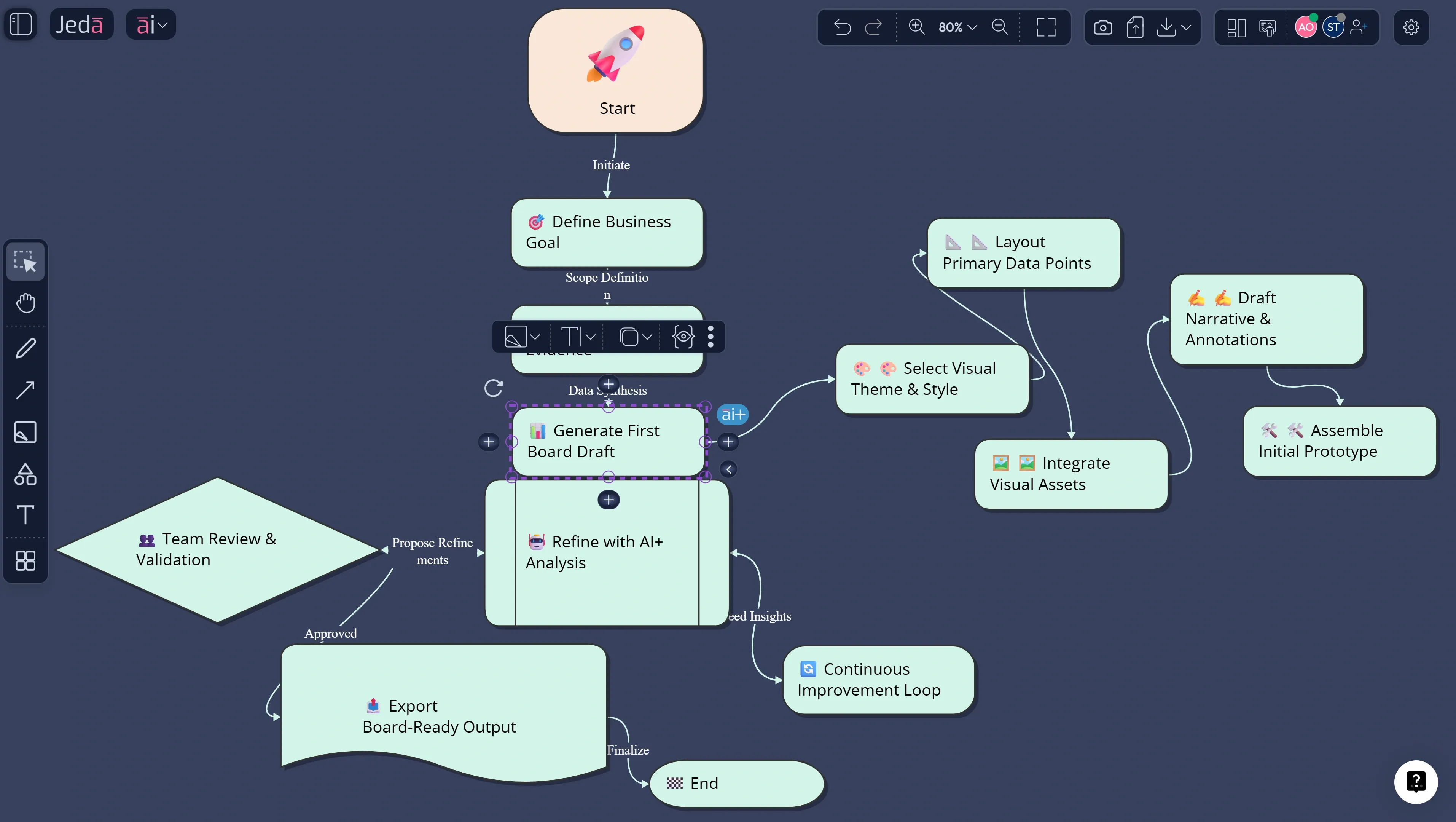
In Jeda.ai, that artifact is not a static chat answer. Most generated visuals are editable Smart Shapes, so you can restyle, extend, and reorganize the board instead of starting over. The platform supports Prompt Bar generation, AI Menu recipes, Vision Transform, Data Insight, Document Insight, and AI Extend through the AI+ button.
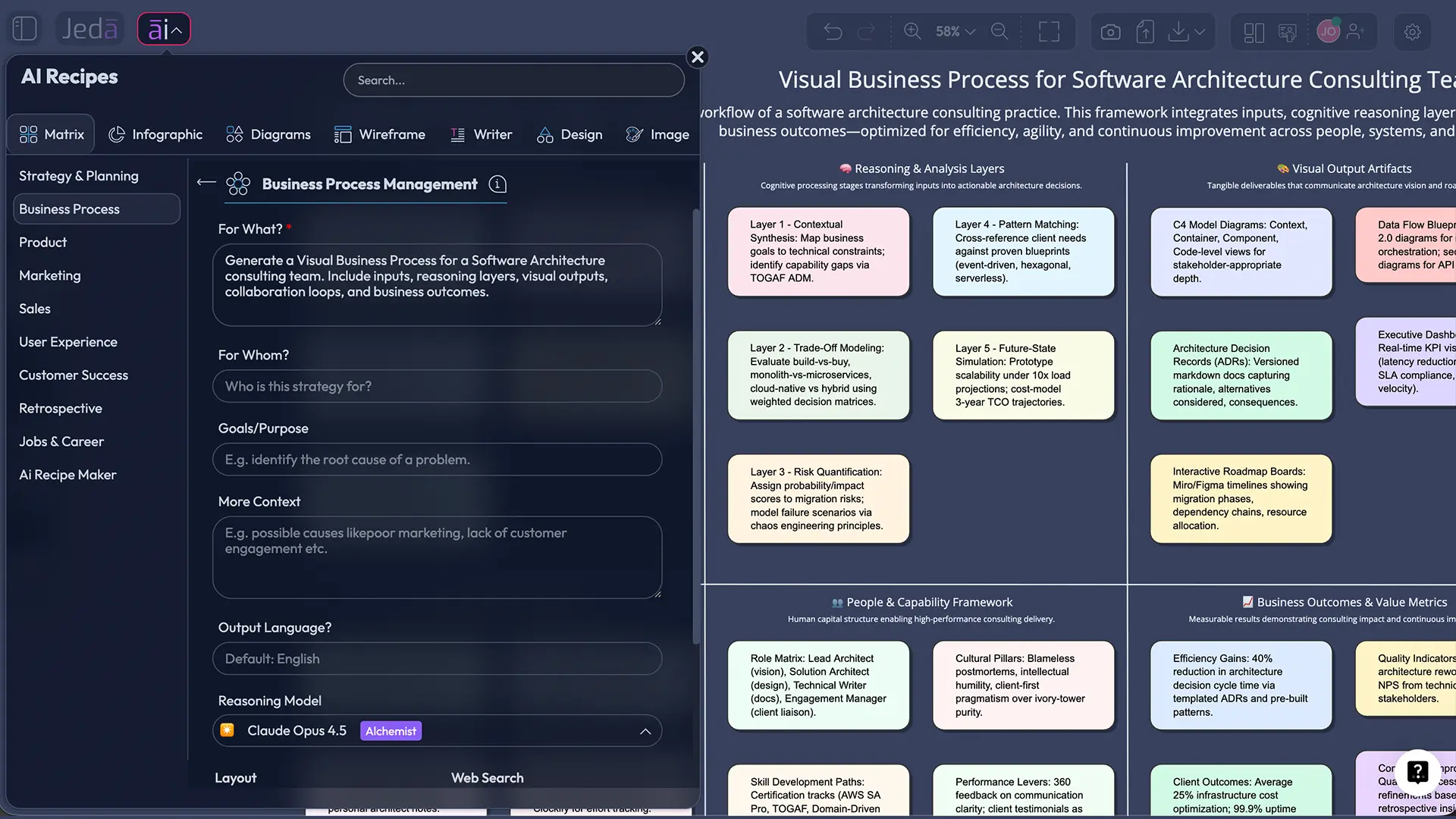
Why a Visual AI Agent beats chat-only work
Chat is fast. But real work rarely ends in a chat window.
Teams need to compare options, map dependencies, show trade-offs, and present something that survives the meeting. Research on collaborative visualization keeps returning to the same friction: shared awareness and common ground are hard when people work across views, tools, and formats. Visual methods help because they make reasoning inspectable.
| Primary strength | Where it slows down | Best fit | |
|---|---|---|---|
| Jeda.ai | Framework-native visual reasoning | Needs a clear prompt or starting structure | Strategy, planning, design thinking, decision boards |
| Miro | Visual collaboration | AI is an add-on to a broad canvas | Brainstorming and team ideation |
| FigJam | Fast team jamming | Skews toward brainstorming and product teams | Workshop facilitation and early product thinking |
| Lucidchart | Structured diagramming | Diagram-first, not framework-first | Systems, process, and technical diagrams |
| Notion | Knowledge and docs | Not visually native for shared reasoning | Documentation and team knowledge |
Miro emphasizes an AI-powered visual platform, FigJam focuses on collaborative whiteboarding, Lucidchart emphasizes AI diagramming, and Notion frames itself as an AI workspace. Jeda.ai’s internal strategy keeps pushing a different wedge: visual thinking plus AI reasoning plus frameworks plus collaboration. That is the product story.
What makes Jeda.ai a serious Visual AI Agent platform?
Jeda.ai is strongest when you treat it as an AI Workspace for turning messy inputs into decision-ready visuals. Its internal playbook recommends presenting the product as a collaborative visual platform that helps teams make faster, better decisions.
- Framework-native thinking
Jeda.ai is built around 300+ strategic frameworks and recipes, so you start from structure instead of wrestling a blank board.
- Evidence-in
You can work from prompts, screenshots, uploaded files, documents, and structured data to ground the visual output.
- Editable visuals-out
Most generated outputs are Smart Shapes, which means the board stays editable after generation.
- AI+ deepening
Use the AI+ button on a selected smart shape to extend branches, sections, and detail without re-prompting the whole board.
- Vision Transform
Select an existing visual or area, then convert it into another format such as a matrix, flowchart, or diagram.
- Real-time collaboration
Contributors can work in the same board, use Follow Me, and keep the output presentation-ready instead of trapped in chat.
Jeda.ai supports Prompt Bar generation, AI Menu recipes, Vision Transform, Multi-LLM Agent, and AI+ extension, while exports stay grounded in PNG, SVG, and PDF. Static image outputs remain non-editable.
How to create a Visual AI Agent in Jeda.ai
There is not a single one-click “Visual AI Agent” recipe in the AI Menu. This topic works better as a workflow: Recipe Matrix structure, Prompt Bar flexibility, and AI+ expansion inside one AI Whiteboard. That stays faithful to the current platform reference instead of inventing a feature that is not documented.
Method 1: Recipe Matrix
This is the cleaner starting point when you want the Visual AI Agent to reason inside an existing business structure.
- Open the AI Menu
Click the AI Menu in the top-left of the workspace and go to Matrix Recipes or another recipe category that matches the job.
- Choose a structured recipe
Pick a recipe such as SWOT, business model, root cause analysis, decision matrix, or another framework that fits the problem you want the agent to tackle.
- Add context, not fluff
Feed the recipe with the real business brief, constraints, goals, audience, risks, or uploaded material so the output has something to reason about.
- Generate the first visual
Let Jeda.ai turn that context into a matrix or structured board instead of a loose paragraph.
- Use AI+ for the deep dive
Select a node or section and tap the AI+ button to expand only the part that needs more detail, examples, branches, or scenarios.
- Transform and finalize
If the first view is right but the format is wrong, use Vision Transform to convert the board into a diagram, flowchart, or another visual form.
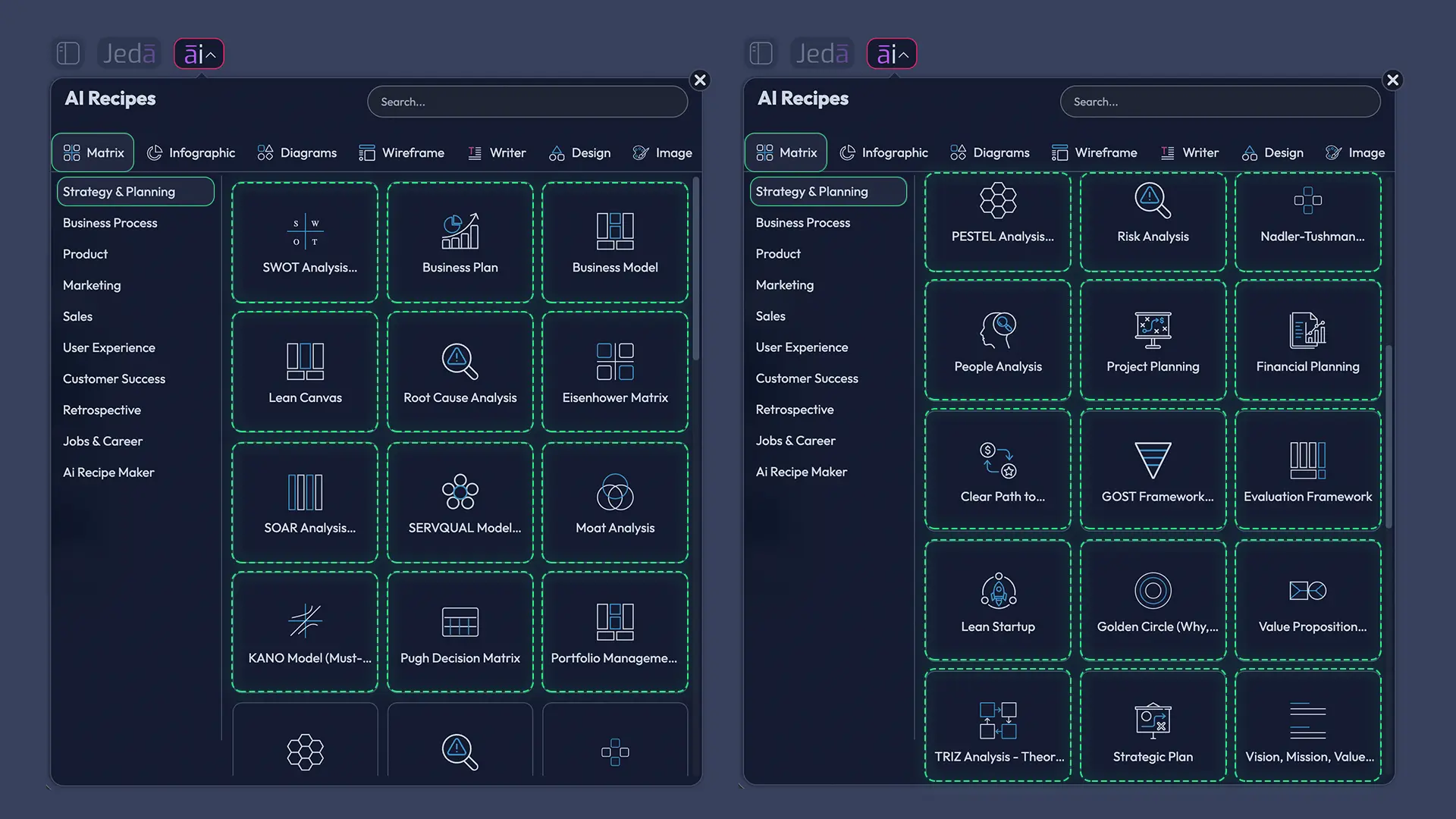
Why this works: the recipe gives the agent a mental scaffold instead of forcing it to invent structure from scratch.
Method 2: Prompt Bar
Use this when you already know the output shape and want speed.
Open the Prompt Bar, select the command that matches the output, then write the job in one line of plain language. Jeda.ai’s internal workflow treats the Prompt Bar as the primary input, with commands like Matrix, Mindmap, Flowchart, Wireframe, Infographic, Data Insight, and Document Insight handling the rendering. A good Prompt Bar prompt for this page would be: “Create a Visual AI Agent workspace for a product strategy team. Show inputs from documents, screenshots, and market data. Turn them into a decision matrix, a flowchart for execution, and a mind map of risks.”
Then refine from there. Generate the spine first. Push depth with AI+ second.
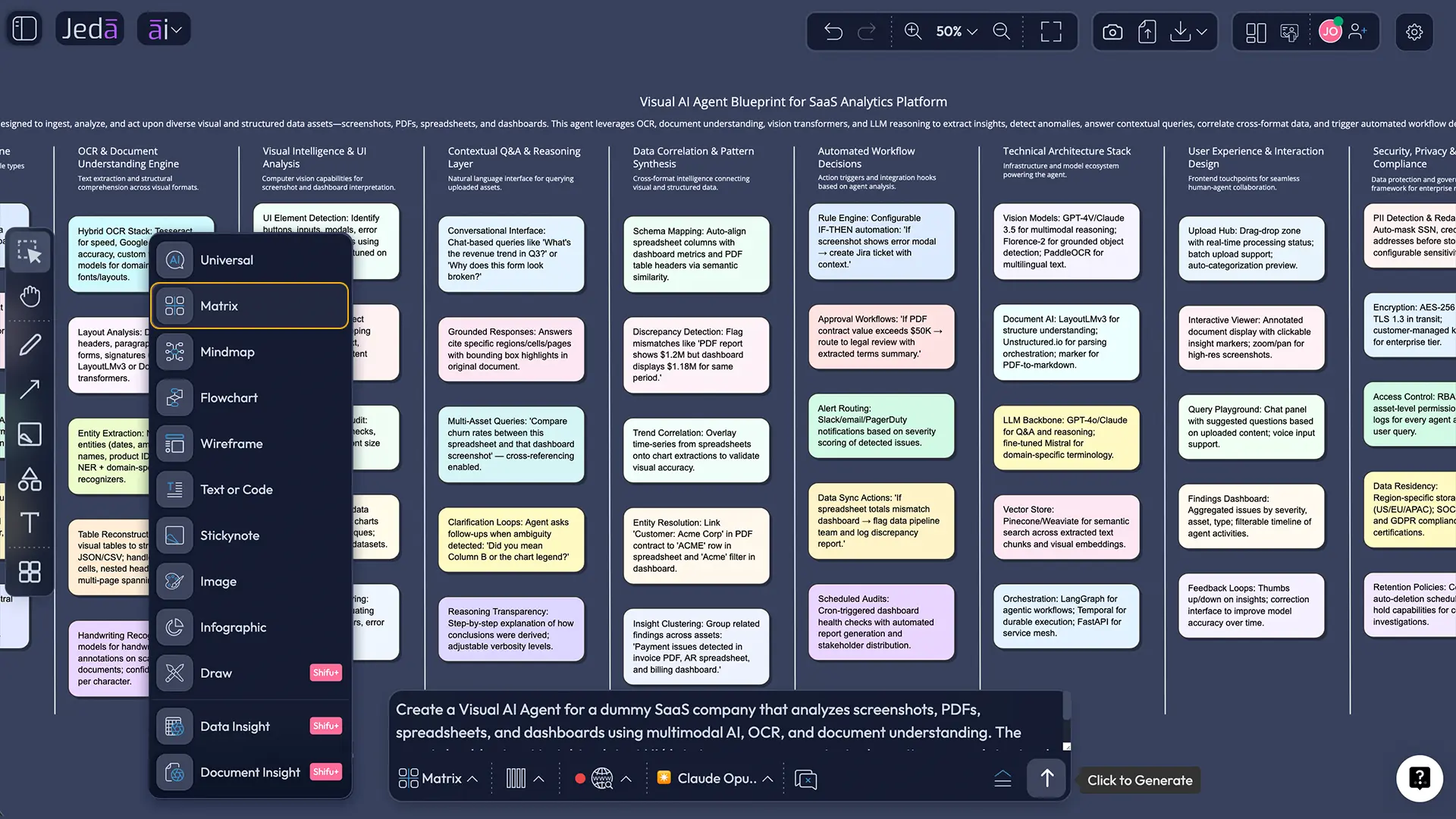
AI+ button deep dive
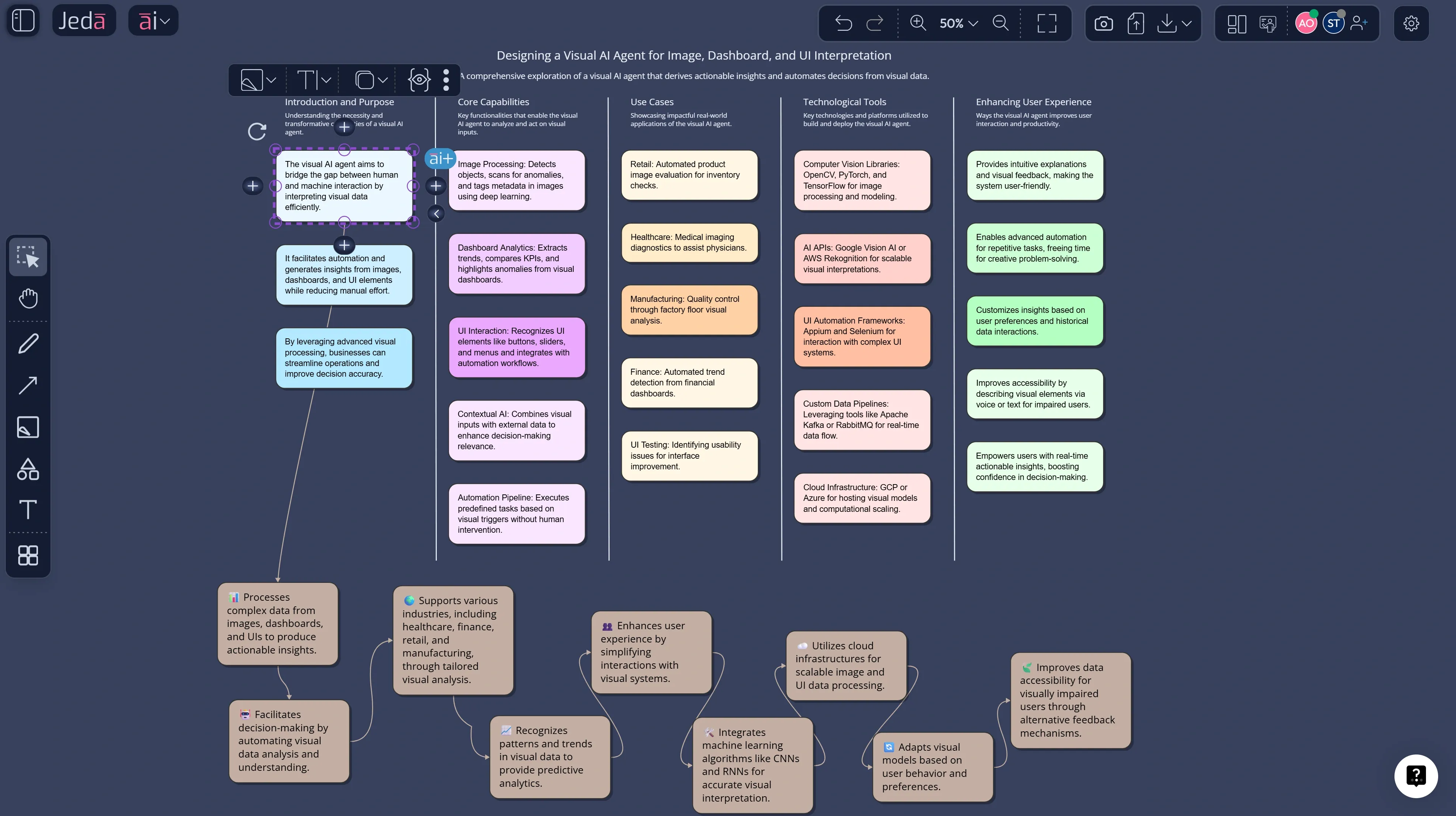
AI+ is not the best tool for hyper-specific blank-page generation. It shines after you already have a first board.
Click a smart shape, look for the ai+ button on the right side, and extend the selected branch. Use it to deepen risks, alternatives, evidence, counterarguments, or next steps. Because AI+ works on mind maps, flowcharts, diagrams, and matrices, it behaves like a scoped deepening layer instead of a total reset.
Visual AI Agent use cases that actually earn their keep
Strategy and consulting
Jeda.ai’s ICP guidance keeps putting consultants first. That tracks. Strategy work is full of frameworks, screenshots, spreadsheets, and high-pressure synthesis, and a Visual AI Agent can turn those fragments into board-ready outputs in one place.
Product and design review
Upload a screenshot or design image, analyze issues and trade-offs, then convert that reasoning into a board the team can discuss. The value is not “prettier wireframes.” It is faster design decisions.
Data, documents, and planning
Data Insight and Document Insight let structured data become visual dashboards and let PDFs or Word files become matrices, diagrams, and mind maps. The same visual logic also fits workshops, executive planning, and collaborative learning contexts.
Best practices and common mistakes
The common mistakes are predictable: asking for everything at once, using a chat-style prompt when the job needs a matrix, wiping out a decent board with a bloated second prompt, or expecting static image generation to behave like editable Smart Shapes.
Frequently asked questions
- What is the difference between a Visual AI Agent and a normal AI assistant?
- A normal AI assistant usually returns text. A Visual AI Agent turns goals and context into a shared visual artifact such as a matrix, diagram, flowchart, or mind map that your team can inspect, edit, and extend.
- Is Jeda.ai a chat tool or a visual workspace?
- It is better understood as an AI Workspace and AI Whiteboard. You can prompt it conversationally, but the value comes from turning that conversation into editable visual work products.
- Do I need a prebuilt recipe to create a Visual AI Agent workflow?
- No. For this topic, the strongest workflow is to start with a relevant recipe in the AI Menu when structure helps, or use the Prompt Bar when you need flexibility, then deepen the result with AI+.
- What inputs can a Visual AI Agent in Jeda.ai use?
- It can start from typed prompts and can also work from screenshots, uploaded files, datasets, and documents through features like Vision Transform, Data Insight, and Document Insight.
- Can the output be edited after generation?
- Usually yes. Most visual outputs in Jeda.ai are Smart Shapes, which remain editable. Static image outputs generated through image models are the main exception.
- When should I use Recipe Matrix instead of the Prompt Bar?
- Use Recipe Matrix when the work naturally maps to a known framework like SWOT, PESTEL, or a decision matrix. Use the Prompt Bar when you already know the output shape and want a faster, more open-ended first pass.
- What is AI+ actually good for?
- AI+ is best for scoped expansion. Use it to deepen a node, branch, or section after the first board exists. It is the easiest way to add detail without destabilizing the rest of the visual.
- Can Jeda.ai support team collaboration around the output?
- Yes. The workspace supports collaborators, role-based participation, and Follow Me presentation mode, so the board can move from solo generation to shared review without leaving the canvas.
- Which teams benefit most from this kind of workflow?
- Strategy consultants, product managers, business analysts, design teams, project leaders, and educators all benefit because their work depends on turning messy context into visible reasoning and aligned decisions.
- What can I export when the board is ready?
- The documented export outputs are PNG, SVG, and PDF-level visual asset workflows, with text export also available in platform guidance. If you need editable PowerPoint, the recommended route is SVG into PowerPoint and then convert to shapes.
Sources & further reading
- [1]
IBM (2025) . “What Are AI Agents?” IBM Think.
View Source ↗ - [2]
Google Cloud (2025) . “What are AI agents? Definition, examples, and types” Google Cloud.
View Source ↗ - [3]
Google Cloud (2026) . “Multimodal AI” Google Cloud.
View Source ↗ - [4]
Yao, Shunyu et al. (2023) . “ReAct: Synergizing Reasoning and Acting in Language Models” arXiv.
View Source ↗ - [5]
Shen, Yongliang et al. (2023) . “HuggingGPT: Solving AI Tasks with ChatGPT and its Friends in Hugging Face” arXiv.
View Source ↗ - [6]
Wu, Qingyun et al. (2023) . “AutoGen: Enabling Next-Gen LLM Applications via Multi-Agent Conversation” arXiv.
View Source ↗ - [7]
Xie, Junlin et al. (2024) . “Large Multimodal Agents: A Survey” arXiv.
View Source ↗ - [8]
Neogy, Rahul et al. (2020) . “Representing Real-Time Multi-User Collaboration in Visualizations” arXiv.
View Source ↗ - [9]
López, Beatriz María et al. (2023) . “Visual thinking and cooperative learning in higher education” The International Journal of Management Education.
View Source ↗
Start Your Visual AI Agent Workflow Today
Join over 150,000 users building strategy boards, diagrams, and decision-ready visuals in Jeda.ai.
Try Jeda.ai Free