A lot of website visuals are decorative filler with a pulse. They look polished, they take space, and they say almost nothing. Perplexed Web Illustration pushes in the opposite direction. It gives you a visual for friction, uncertainty, mental overload, hesitation, or discovery — the exact emotional states that sit behind onboarding confusion, product complexity, analysis paralysis, and “where do I click now?” moments.
That matters. Imagery does real work when it helps users understand a concept, reinforces brand personality, and supports comprehension rather than just dressing up empty space. Nielsen Norman Group notes that relevant, informative imagery can engage users and help them accomplish tasks, while Atlassian’s illustration guidance stresses that illustrations should simplify complex ideas and reflect a user’s context and emotional state. So here’s the bigger play: don’t use a perplexed illustration as a random sad-face mascot. Use it as a strategic visual signal. In Jeda.ai, your AI Workspace and AI Whiteboard, you can generate a perplexed web illustration from a guided recipe or from the Prompt Bar, tune the subject, mood, scene, palette, and line treatment, and move from vague idea to usable web asset without bouncing between five tools. The platform supports Image generation as a dedicated command, recipe-based Art workflows, web search in the Prompt Bar, and model selection for both image generation and reasoning.
What is a Perplexed Web Illustration?
A Perplexed Web Illustration is a web-focused image that visually communicates confusion, overload, uncertainty, curiosity, or problem-solving tension. Usually, that means a character, object, or scene that looks stuck between options, surrounded by signals, choices, or contradictions.
And that’s why it works so well online. Visual design is not just about aesthetics. It improves usability when images, color, layout, and hierarchy support comprehension and action. Good graphic design increases the communicative value of an interface, and visual design can improve usability as well as emotional impact.
For web teams, this illustration style is especially useful when you need to show:
- product confusion before your solution enters the story
- decision fatigue in dashboards, research, or analytics tools
- customer hesitation on pricing, onboarding, or workflow pages
- emotional contrast in explainers, landing pages, and help centers
- relatable “mess before clarity” moments in thought leadership content
Why this illustration style works so well on the web
Website illustrations do best when they clarify the story fast. Not eventually. Not after three paragraphs of explanation.
A perplexed visual gives you instant narrative tension. It tells the viewer: there is a problem here. That makes it a strong fit for hero sections, product pain-point blocks, onboarding screens, FAQ headers, empty states, explainers, and campaign pages. Interaction Design Foundation describes visual design as a driver of both aesthetics and usability, and NN/g emphasizes that imagery should be relevant, informative, and purposeful. In practice, strong perplexed illustrations usually share four traits:
- Immediate emotional signal
The viewer understands uncertainty or overload in a glance, which makes the visual useful for pain-point storytelling.
- Fits modern product pages
Editorial, abstract, surreal, whimsical, or futuristic variants can match SaaS, AI, fintech, and consulting brands.
- Easy brand alignment
Primary color and line color controls help keep the result visually consistent with the website rather than looking randomly generated.
- High variation without redrawing
You can keep the emotional premise while shifting theme, scene, and styling for different campaigns or audience segments.
Why create Perplexed Web Illustration in Jeda.ai instead of the usual messy tool chain?
Because most teams still do this the hard way: idea in a doc, mood in a Slack message, rough sketch somewhere else, prompt in another app, revision notes buried in comments, final export with zero shared context. Beautifully inefficient.
Jeda.ai cuts that sprawl down. The platform supports AI Recipes from the top-left AI Menu, an Image command in the Prompt Bar, a web-search toggle in the Prompt Bar, dedicated image model selection, and reasoning-model support alongside image generation. The Perplexed recipe sits inside the Image Recipes catalog, and users can specify subject, theme, scene instructions, colors, and art style before generating a static image output.
That turns the workflow into something much more useful for actual teams:
- faster concept exploration
- tighter visual consistency
- fewer translation errors between copy, design, and product teams
- easier experimentation with multiple emotional angles
- one AI Workspace for ideation, generation, and discussion
How to create Perplexed Web Illustration in Jeda.ai
The platform gives you two clean paths. Use the Recipe when you want guided control. Use the Prompt Bar when you want speed, broader experimentation, and optional web context.
Method 1: Use the Perplexed Recipe
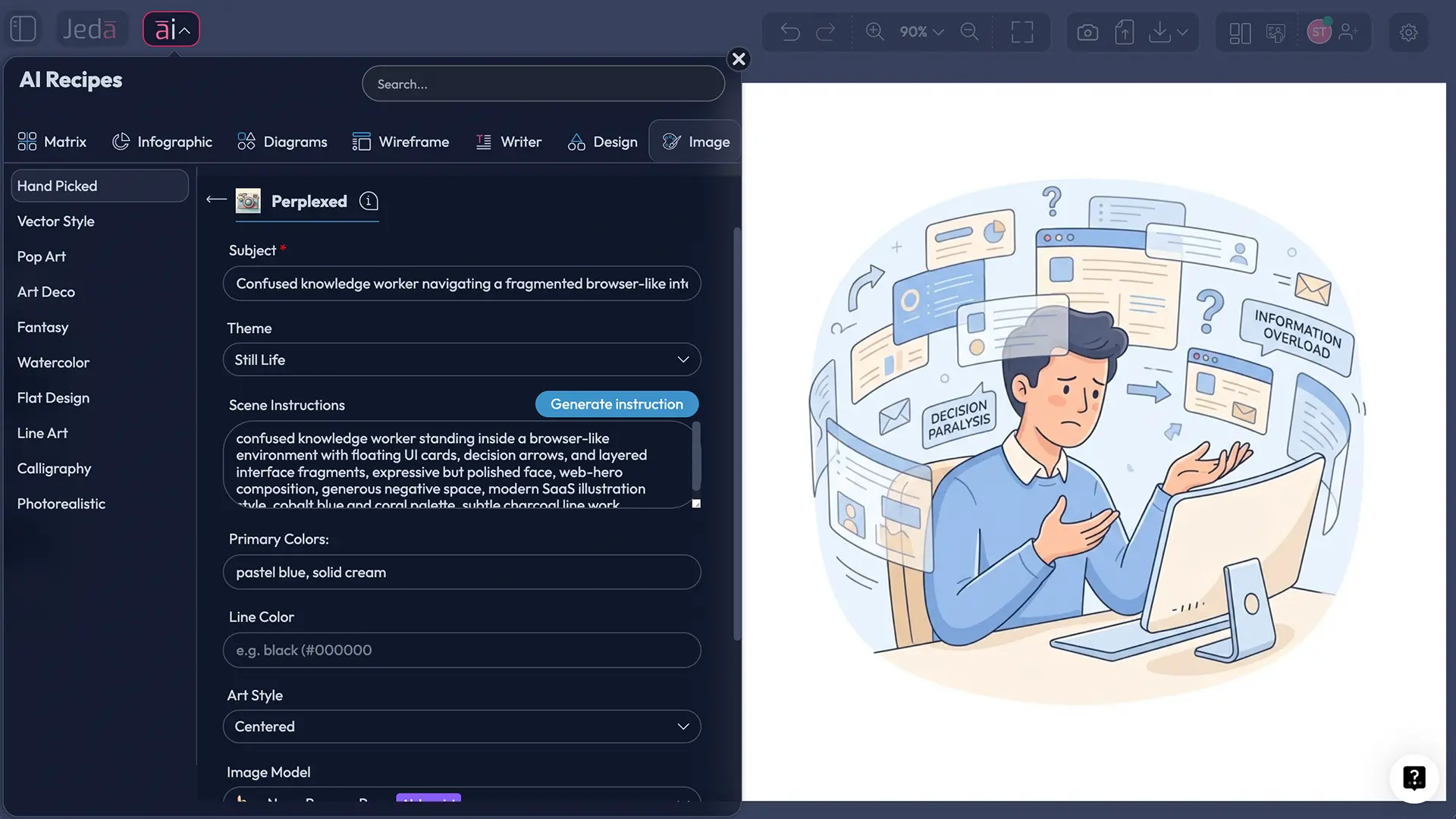
This is the better path when you want structure. Open the AI Menu, go to the Image or Art recipe area, choose Perplexed, and fill in the guided fields. The recipe supports a required Subject field, a Theme dropdown, Scene Instructions, Primary Colors, Line Color, and image model selection. The recipe list explicitly includes Perplexed among Jeda.ai image recipes.
The available theme directions in your brief are broad enough to cover polished product storytelling or something stranger and more editorial: Creative, Realistic, Surrealistic, Absurd, Abstract, Fantasy, Mythical, Magical, Space Travel, Science Fiction, Futuristic, Whimsical, Funny, Sentimental, Uplifting, Action, Dramatic, Nostalgic, Scenic, Portrait, StillLife, and Nature.
Method 2: Use the Prompt Bar
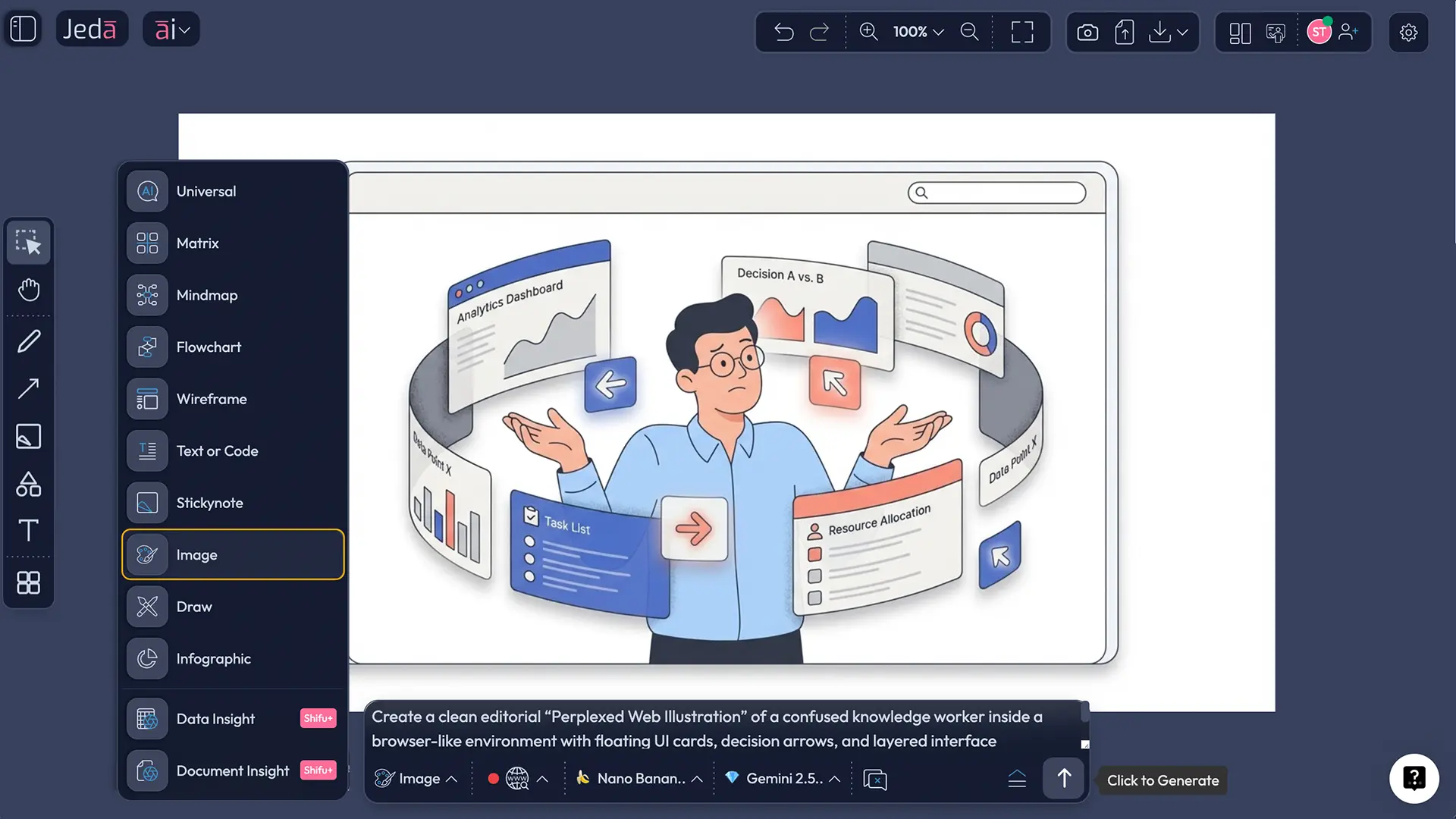
Choose Image from the Prompt Bar, write your prompt directly, pick the image model and reasoning model, and generate. This route is more flexible when you want to test several tones fast or when current web context matters, because the Prompt Bar includes the Web Search toggle. The Jeda.ai user guide places Web Search in the Prompt Bar workflow and describes the Image command as a dedicated prompt-bar command with image and reasoning model selectors.
- Open the Perplexed recipe or select Image from the Prompt Bar
Use the Recipe path for guided creation or the Prompt Bar when you want faster iteration and optional web-backed context.
- Define the subject clearly
Name the character or focal object first. Example: a startup founder, analyst, marketer, student, robot assistant, or abstract humanoid figure.
- Choose the emotional framing
Decide whether the perplexed mood should feel anxious, curious, overwhelmed, thoughtful, comedic, or dramatic. This changes the whole image.
- Set the theme and scene
Choose a theme such as Futuristic, Whimsical, Realistic, or Surrealistic, then describe the environment: browser tabs, dashboards, floating notifications, branching arrows, or abstract data clouds.
- Lock the palette
Use primary colors and line color intentionally so the image feels like part of your website system rather than a random standalone illustration.
- Pick the image model and reasoning model
Select one image model for rendering. If you are in the Prompt Bar path, pair it with the reasoning model that best fits your prompt complexity.
- Generate, compare, and tighten the prompt
Refine composition, pose, density of surrounding objects, and negative space until the image can actually work in a web layout.
- Export and place the asset with intent
Use the image where confusion or friction is part of the story: hero blocks, onboarding, FAQ, feature education, or campaign sections.
Recommended prompt formula for better results
Prompt quality changes everything. Adobe’s prompt guidance repeatedly stresses specificity around style, composition, color, and scene details, and Firefly’s documentation notes that detailed prompts plus controls for color, tone, and style improve image direction.
A reliable formula is:
Subject + emotional state + context + surrounding objects + style/theme + color palette + line treatment + composition goal + website usage
Example:
A perplexed product manager standing in front of overlapping browser windows, floating charts, sticky notes, and branching arrows, looking uncertain but curious, clean editorial web illustration, futuristic but human, cobalt blue and warm coral primary colors, thin charcoal line work, soft gradients, generous negative space on the right for website headline, polished SaaS landing page style.
That final clause matters more than people think. Say where the image should live. Hero section, feature block, onboarding screen, blog banner, support page. Otherwise the model may give you a pretty image that’s useless in layout.
Best use cases for Perplexed Web Illustration
You do not need this style everywhere. Please don’t turn your whole site into a cartoon crisis.
It shines in a few specific spots:
1. Hero sections with a before-and-after story
Show the user’s confusion first. Then let your product headline resolve it.
2. Feature education blocks
Perfect for explaining why workflow complexity, tab overload, or scattered data creates friction.
3. Onboarding and help content
A lighter perplexed visual can reduce intimidation in support content and product education.
4. Thought leadership graphics
When you’re writing about complexity, ambiguity, AI overload, or strategic uncertainty, this style gives the article a visual argument.
5. Campaign variants by audience
One emotional premise. Several tailored scenes. Consultant overload. Product-team indecision. Marketing chaos. Analyst fatigue.
Common mistakes that make this style fall flat
The first mistake is making the image vague. “Confused person” is not a concept. It is a shrug.
The second is overstuffing the scene. If you add every icon, every dashboard tile, every abstract swirl, every alert bubble, and every glowing line, you haven’t created depth. You’ve created visual traffic.
The third is ignoring brand alignment. NN/g’s guidance on imagery and visual design keeps coming back to relevance, hierarchy, and usability. If the illustration style clashes with the rest of the interface, it stops helping and starts heckling the page.
Avoid these traps:
Perplexed Web Illustration examples you can generate right now
Here are a few strong angles that usually translate well into website visuals:
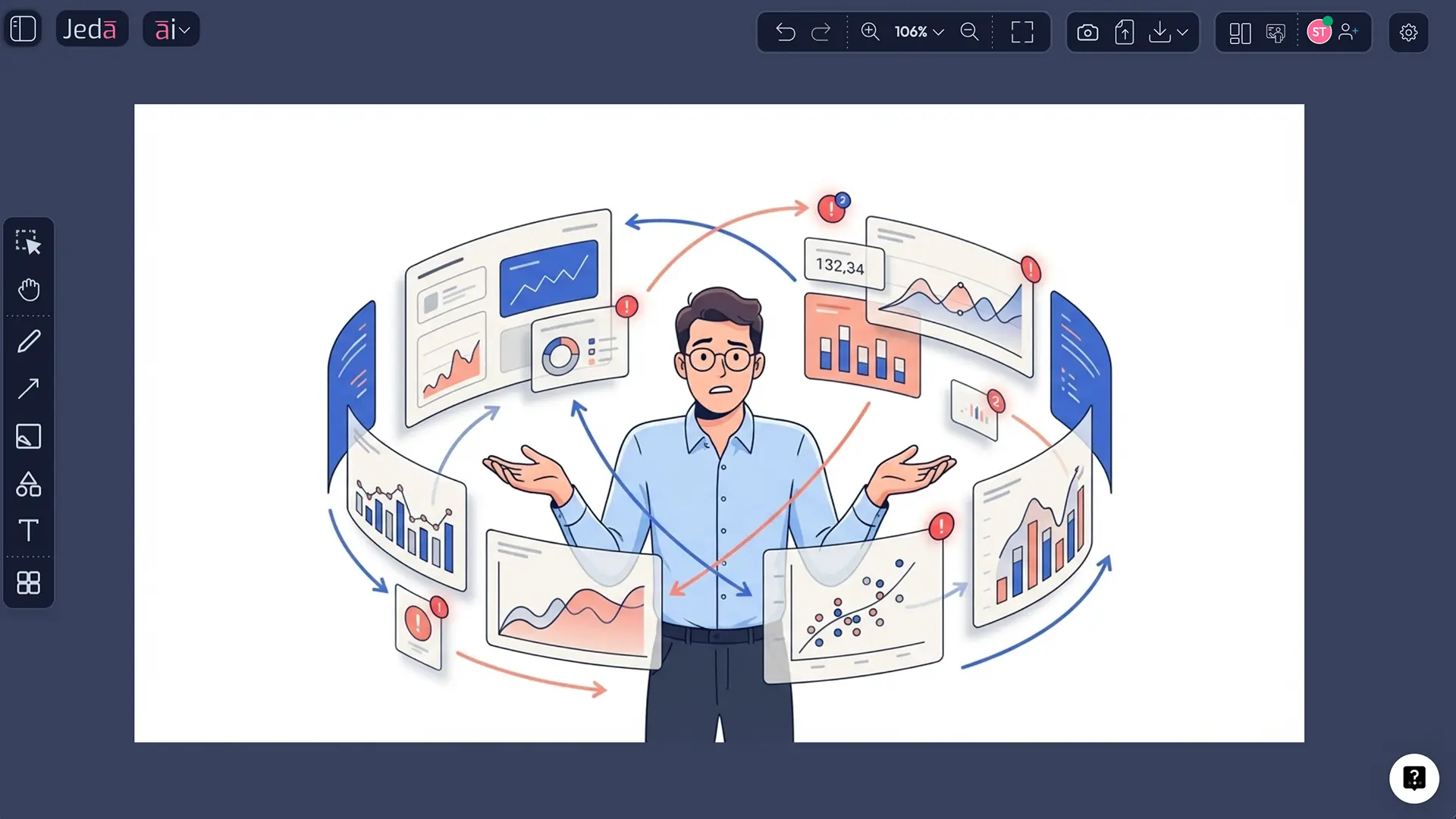
- The overloaded analyst — dashboards, charts, alerts, and decision branches
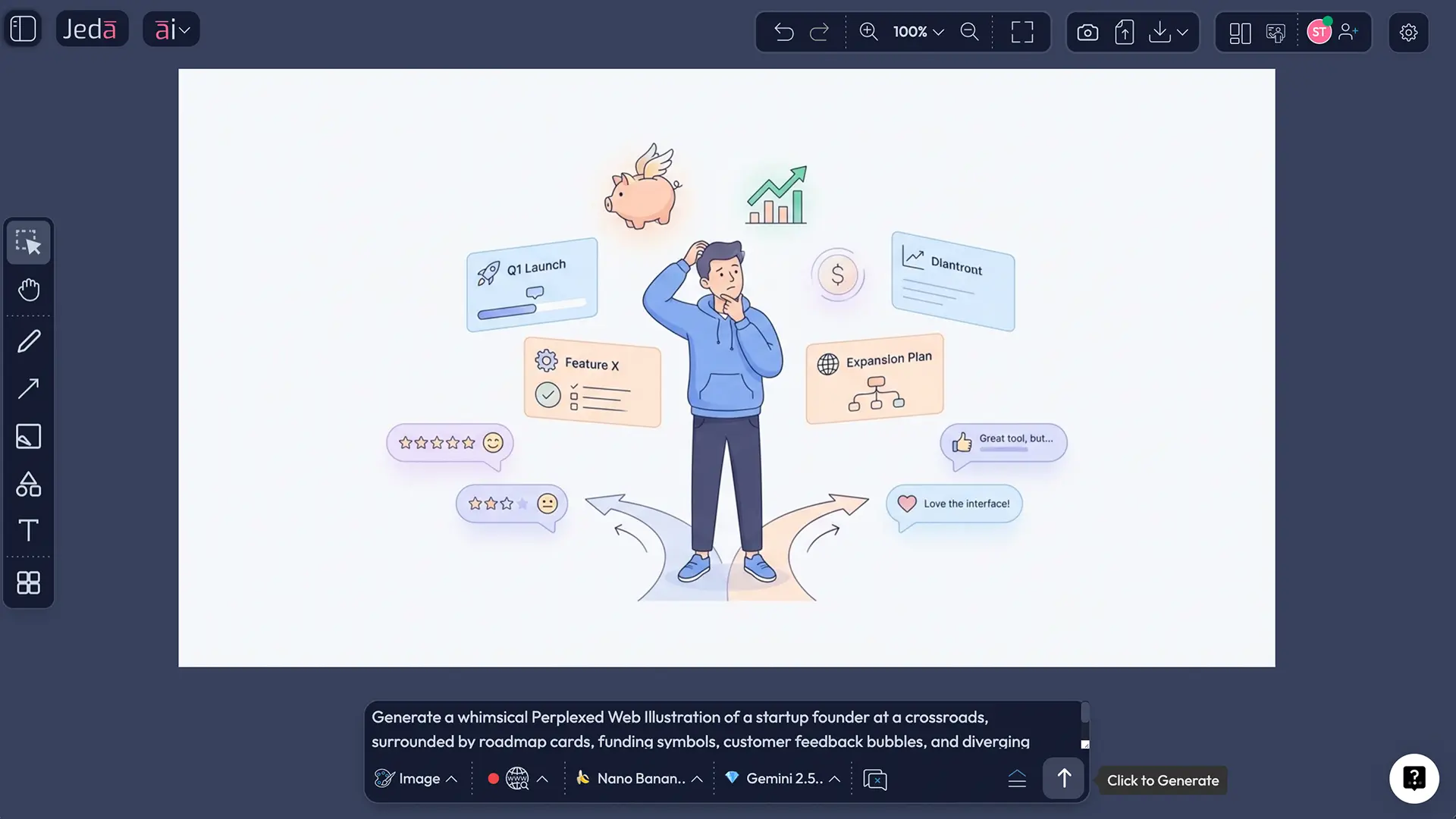
- The startup founder at crossroads — product, market, funding, and roadmap signals colliding
- The customer lost in onboarding — sign-up fields, checkmarks, arrows, and floating blockers
- The AI team sorting signal from noise — abstract data fragments, models, prompts, and uncertain pathways
- The futuristic researcher — speculative UI fragments, glowing nodes, and surreal decision architecture
A good rule: build the image around the problem the page is describing, not around the word “perplexed.” The emotion is the lens. The business problem is the story.
Frequently Asked Questions
- What is a Perplexed Web Illustration?
- A Perplexed Web Illustration is a website-ready image that visually communicates confusion, uncertainty, overload, or hesitation. It is useful for hero sections, onboarding, explainers, and thought leadership pages where the viewer needs to understand a friction point quickly.
- When should I use this illustration style on a website?
- Use it when your page is explaining friction, complexity, or decision overload. It works especially well before introducing a product benefit, solution, workflow, or strategic recommendation that resolves the confusion shown in the image.
- Can I create Perplexed Web Illustration in Jeda.ai with a recipe?
- Yes. Jeda.ai includes the Perplexed image recipe in its Image Recipes catalog. The recipe path is ideal when you want guided inputs such as subject, theme, scene instructions, and color direction before generating the final image.
- What inputs matter most for a strong result?
- Subject, emotional tone, scene context, palette, and composition matter most. A strong prompt names the focal character or object, describes why they are perplexed, and limits surrounding elements to signals that support that story.
- Is the image editable after generation in Jeda.ai?
- No. Jeda.ai treats Image outputs as static image assets rather than editable smart-shape visuals. That is why it is worth tightening the prompt, theme, and palette before final export.
- Should I use web search for this workflow?
- Use web search only in the Prompt Bar path when current context, references, or visual cues matter. The recipe path is better for structured generation, while the Prompt Bar adds flexibility and optional web-backed grounding.
- Which model should I choose?
- Choose based on the kind of output you need. Faster models are useful for exploration, while higher-end image models are better when you need sharper detail, cleaner composition, or more polished campaign-ready artwork.
- How do I make the illustration fit a real webpage?
- State the intended placement directly in the prompt. Mention hero section, feature block, blog header, or onboarding screen, and ask for negative space where headlines, UI labels, or calls to action will sit.
Sources & Further Reading
- [1]
Nielsen Norman Group (2023) . “Using Imagery in Visual Design” NN/g.
View Source ↗ - [2]
Atlassian Design System (2026) . “Illustrations” Atlassian.
View Source ↗ - [3]
Interaction Design Foundation (2026) . “What is Visual Design?” Interaction Design Foundation.
View Source ↗ - [4]
Nielsen Norman Group (2020) . “5 Principles of Visual Design in UX” NN/g.
View Source ↗ - [5]
Adobe Firefly (2025) . “Generate images from text prompts” Adobe Help Center.
View Source ↗ - [6]
Adobe Firefly (2025) . “Writing effective text prompts” Adobe Help Center.
View Source ↗ - [7]
Internal Jeda.ai workflow file (2026) . “AI Content Workflow for Resource & Framework Pages — v2” Uploaded source file.
- [8]
Internal Jeda.ai user guide (2026) . “Jeda.ai User Guide v3” Uploaded source file.
Start Your Perplexed Web Illustration in Jeda.ai
Join over 150,000+ users using Jeda.ai to turn ideas, confusion, and complex stories into Visual AI outputs inside one AI Workspace.
Try Free Template