The Draw Command: Creating Presentation-Ready Vector Visuals
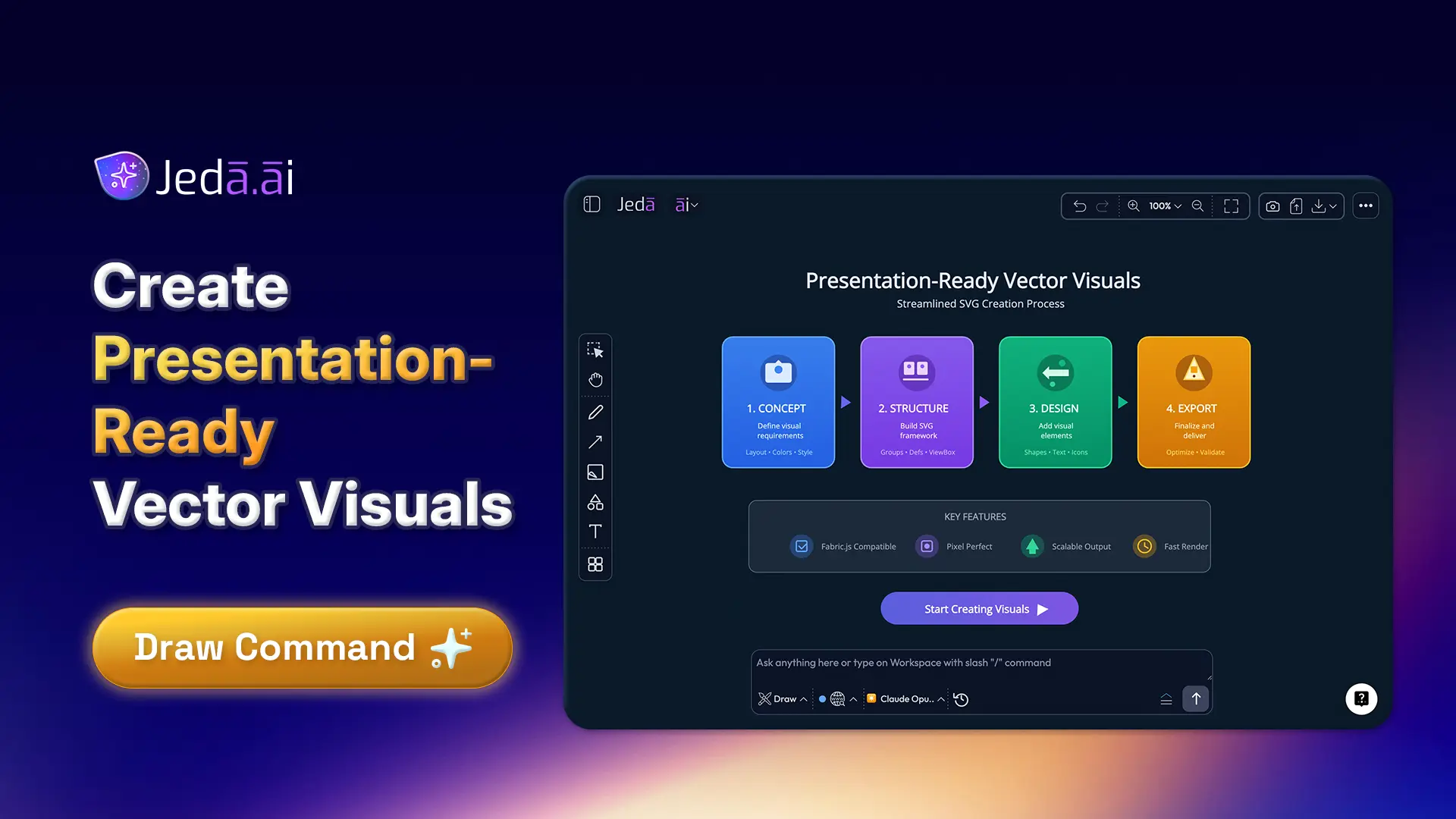
Need to transform strategy, customer journeys, or product concepts into presentation-ready visuals without design software expertise? The Draw command generates rich, editable vector illustrations in seconds—giving you the creative freedom to visualize ideas while maintaining full control over the final output.
Unlike static images, Draw creates editable vector graphics that you can customize after generation. Unlike analytical tools like Matrix or Flowchart, Draw excels at visual storytelling and creative composition. It sits in the sweet spot between structured thinking and finished artwork.
In this tutorial, you'll learn what Draw generates, how it differs from Image and other commands, when to use it, and how to customize outputs for presentations, marketing materials, or client deliverables.
What Is the Draw Command?
The Core Concept
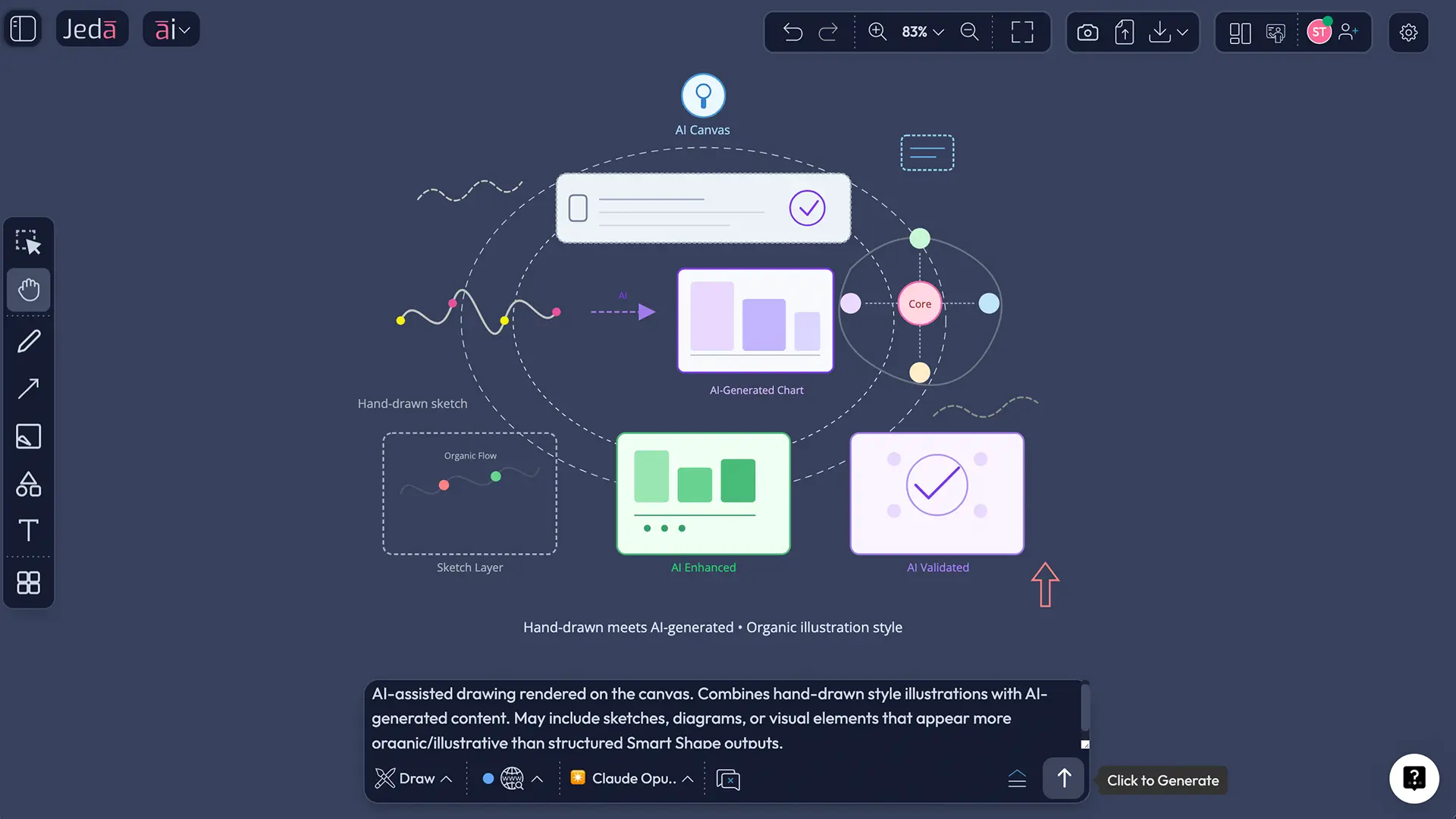
Draw creates rich, editable vector drawings using LLM reasoning. Instead of using image generation models (like Image), Draw uses AI language models to reason about visual composition, shape placement, color harmony, and layout—then renders the output as real vector objects (SVG format).
Key attributes:
- Generation method: LLM reasoning (Claude, GPT, etc.)—NOT image models
- Output format: Editable SVG vector graphics (infinitely scalable, fully customizable)
- Quality level: Presentation-ready illustrations with professional composition
- Customization: Ungroup the output to access and modify every individual element
- Use cases: Concept illustrations, visual overviews, customer journeys, storytelling graphics, competitive positioning visuals
The Draw command is the visual creation and communication layer of the AI Workspace—it's where analytical thinking meets visual expression.
How Draw Differs from Image
This is the critical distinction:
| Aspect | Draw | Image | |
|---|---|---|---|
| Technology | — | LLM reasoning + vector rendering | Image generation models (DALL-E, Stable Diffusion) |
| Output Format | — | Editable SVG vector graphics | Static PNG image (non-editable) |
| Customization | — | Fully editable after ungrouping—change text, colors, shapes, positions | Not editable—treated as a static asset |
| Use Case | — | Presentations, custom visuals, storytelling graphics | Reference images, design inspiration, finished artwork |
| Best Choice When | — | You need flexibility and control | You need photorealistic or artistic output |
Think of it this way: Draw is for visuals you'll refine and customize. Image is for finished artwork you'll use as-is. Choose Draw when you need control; choose Image when you need artistry.
Draw in the Command Ecosystem
Jeda.ai provides 12 core commands, each optimized for different thinking modes. Draw sits in the creative visual layer between analytical commands (Matrix, Mindmap, Flowchart, Diagram) and static generation (Image). Where does Draw fit in your workflow?
- Use Matrix/Flowchart/Diagram for analytical thinking: business logic, frameworks, processes
- Use Draw for visual communication: presenting strategy, telling stories, showing concepts
- Use Image for reference or finished artistic work
When to Use Draw
The Decision Framework
Choosing the right command starts with asking: "What am I trying to communicate, and how?"
Ask yourself these questions:
- Do I need a business framework or process flow? → Use Matrix, Flowchart, or Diagram (analytical output)
- Do I want a finished, static reference image? → Use Image (non-editable)
- Do I need to visualize a concept or tell a visual story? → Use Draw (editable vector composition)
- Will I customize this after generation? → Use Draw (fully editable)
Real-World Use Cases
Use Case 1: Concept Illustrations
Scenario: "Visualize how our new product fits into a customer's daily routine."
Why Draw: You need artistic composition and visual metaphor, not strict analytical structure.
Customization: Adjust colors to match brand guidelines, add company logo, emphasize key benefit areas.
Output: Presentation-ready illustration that you can tweak in minutes, not hours.
Use Case 2: Visual Overviews & Summaries
Scenario: "Create a one-page visual summary of our quarterly strategy."
Why Draw: Tells a comprehensive story better than a matrix or list.
Customization: Update quarterly metrics, adjust emphasis, modify color coding, add department icons.
Output: Strategic visual for board meetings, all-hands, or investor presentations.
Use Case 3: Customer Journey Visuals
Scenario: "Design a visual showing the customer journey from awareness to loyalty (advocacy)."
Why Draw: Artistic representation of the journey is more engaging than a flowchart diagram.
Customization: Add specific touchpoint details, adjust timeline, emphasize critical conversion moments.
Output: Marketing asset, sales enablement material, or presentation graphic.
Use Case 4: Competitive Positioning Visual
Scenario: "Create a visual showing where we stand vs. competitors in the market."
Why Draw: Visual metaphor (landscape, terrain, or positioning diagram) beats a data table.
Customization: Update market data, adjust positioning, add market share indicators, refine colors.
Output: Executive briefing, investor deck, or strategic planning document.
Use Case 5: Presentation Graphics
Scenario: "Create a visually engaging slide showing our market opportunity size."
Why Draw: Presentation-quality, fully customizable, matches slide deck branding.
Customization: Match color scheme, adjust market sizing, update regional breakdowns, add company logo.
Output: PowerPoint or Keynote presentation, fully on-brand and impactful.
When NOT to use Draw:
- Don't use Draw for strict business frameworks—use Matrix (SWOT, Lean Canvas, BMC)
- Don't use Draw for data visualization—use Data Insight or Infographic
- Don't use Draw for final photorealistic images—use Image
- Don't use Draw for hierarchical brainstorming—use Mindmap
How to Generate Vector Visuals with Draw
Input Method 1: Text Prompt
The simplest way: Describe your visual concept, and Draw generates it in seconds.
- Open your Jeda.ai workspace
Navigate to your AI Workspace and prepare to create a new visual.
- Click the Prompt Bar at the bottom center
The Prompt Bar is your command center for all AI generation.
- Click the Command Selector dropdown
Shows '🧠 Universal' by default. Click to see all available commands.
- Select ✍️ Draw from the list
Choose Draw to generate editable vector visuals.
- Type your visual concept in the Prompt Bar
Example: 'Create a timeline showing our company's growth milestones over 5 years'
- Press Enter or click Generate
Start the AI rendering process.
- Watch as AI renders your vector visual on the canvas
Your presentation-ready visual appears in seconds.
Prompt Best Practices:
- Be specific about style: "Minimalist icon-based," "Professional infographic style," "Corporate but playful," "Modern geometric"
- Describe the composition: "Left-to-right timeline," "Concentric circles showing reach," "Pyramid structure," "Side-by-side comparison"
- Mention key elements: "Include a central icon, surrounding benefits, growth arrows," "Show 3 phases with icons"
- Specify color palette: "Use brand colors: blue and orange on white," "Monochrome professional look," "Vibrant gradient colors"
- Include context: "This is for a board presentation, needs to be impressive," "For marketing materials, should be engaging and modern"
Example Prompts:
- "Create a visual showing the problem-solution-impact framework for our AI-powered analytics platform. Use a left-to-right flow with icons, professional color scheme (blue and white), and bold typography."
- "Design a system architecture illustration showing how customer data flows through our microservices. Include icons for each service, data flow arrows, and a legend. Modern, clean, minimalist style."
- "Generate a visual timeline of AI evolution with 5 key milestones (2017: Transformer models, 2020: GPT-3, 2022: ChatGPT, 2023: Multimodal AI, 2024: Agentic AI). Professional, academic style."
Input Method 2: Vision Transform
Already have rough sketches, brainstorms, or content in another command? Use Vision Transform to convert them into a polished Draw visual.
- Create or sketch content on the canvas
Could be a mindmap, text notes, or rough drawing.
- Select the area or object you want to transform
Click and drag to select, or click the object directly.
- Click the Command Selector and choose Draw
Switch from your current command to Draw.
- Type your transformation prompt
Example: 'Convert this brainstorm into a polished, professional visual illustration'
- Press Enter
Start the transformation.
- AI generates a new Draw visual based on your selected content
Your rough concept becomes a polished visual.
When to use Vision Transform with Draw:
- You have a rough sketch or brainstorm you want to formalize quickly
- You created content in another command (Mindmap, Stickynotes) and want a visual representation
- You want to explore different visual interpretations of the same concept
- You need to convert unstructured notes into a presentation-ready graphic
Input Method 3: File Uploads
Have a business report, market research document, or product roadmap? Upload it and Draw will visualize the key insights.
- Click the Upload button in the top toolbar
Look for the 📤 icon.
- Drag and drop your file or click to select from your computer
Choose PDF, Word, Excel, PowerPoint, Markdown, or plain text.
- Jeda.ai shows format suggestions—select Draw
Or leave on auto-detect to let the system choose.
- Type your visualization prompt
Example: 'Create a visual summary of the key insights and recommendations in this report'
- Click Generate
Start the analysis and visualization.
- AI reads the document and renders a visual based on its content
Your document becomes a presentation-ready graphic.
Supported file formats: PDF, Word (.docx), Excel (.xlsx), CSV, PowerPoint (.pptx), Markdown, RTF, plain text
Example workflows:
- Upload annual business report → "Visualize the key strategic recommendations"
- Upload market research document → "Create an infographic-style visual of competitive landscape"
- Upload product roadmap → "Design a timeline visualization showing product evolution"
- Upload sales data CSV → "Create a visual showing revenue trends and growth opportunities"
Customizing Your Draw Output
Understanding Your Generated Visual
When Draw generates your visual, you receive a grouped object containing:
- Shapes (circles, rectangles, polygons, custom forms)
- Lines and connectors
- Text and labels
- Colors and fills
- Professional composition and layout
The output is presentation-ready by default, but complete customization requires one simple step: ungrouping.
The Ungrouping Workflow
Why ungroup? Ungrouping breaks the grouped object into individual elements, each fully editable and customizable.
- Select your Draw output on the canvas
Click the visual to select it.
- Right-click the selection and choose Ungroup
Or use the menu option in the floating toolbar.
- Individual elements are now separate and independently selectable
Each element can be edited independently.
- Click any element to customize it
Begin editing to match your needs.
After ungrouping, you can edit:
- Text: Change labels, descriptions, values, or any text content. Double-click text to edit; font and styling are preserved.
- Colors: Select any shape and click to change fill or border color. Match brand colors or create new color schemes.
- Sizing: Resize individual elements (shapes, text boxes) to adjust emphasis or fix proportions.
- Position: Move elements to new locations on the canvas. Rearrange layout as needed.
- Styling: Adjust stroke thickness, line style, shadows, or other visual properties.
- Addition: Add new elements using canvas drawing tools (shapes, text, arrows).
- Deletion: Remove elements you don't need.
Real-time customization examples:
Example 1: Brand Color Update
Generated visual uses purple, but your brand is blue. Select each purple shape → Click color picker → Select brand blue. Result: Visual maintains composition and hierarchy while matching brand identity.
Example 2: Update Timeline Text
Timeline shows generic "Q1, Q2, Q3" but you need specific milestones. Double-click each text label → Edit to "Product Launch" / "Series A" / "Market Expansion". Result: Timeline is now company-specific while maintaining professional appearance.
Example 3: Emphasize Key Element
Want to draw attention to one part of the visual. Select the element → Increase size, change color to brighter shade, or add border. Result: Key element stands out while maintaining visual balance.
Export & Integration
Once you've customized your Draw visual, export it for presentations, marketing, or documentation.
- Select your customized Draw visual on the canvas
Click the visual to select it.
- Click the Download button in the top toolbar
Look for the download icon.
- Choose your desired format
PNG, SVG, or PDF.
- Use in presentations, documents, or marketing materials
Your visual is ready for sharing.
Export format options:
- PNG: Share in presentations, embed in marketing materials, use in web content. Choose transparent background for layering; opaque for standalone use.
- SVG: Import into PowerPoint or design software for further editing. PowerPoint tip: Import SVG → right-click → 'Convert to shapes' for full editability.
- PDF: Include in professional documents, reports, or client deliverables. Preserves quality and styling across platforms.
Common Questions About Draw
- What's the difference between Draw and a Matrix command?
- Draw creates rich, artistic compositions. Matrix creates structured analytical frameworks. Choose the right tool for your goal: **Draw for storytelling and visual communication** ('Visualize our strategy as a visual journey'), **Matrix for business frameworks** ('Create a SWOT Analysis with four quadrants'). Both are valuable; they serve different purposes.
- Can I edit Draw output after it's generated?
- Completely, yes. Select your Draw output, ungroup it, and customize every element—change text, colors, sizes, positions, or add/remove items. All elements behave like native canvas elements after ungrouping. You have full creative control.
- Is Draw the same as the Image command?
- No. **Image creates static, non-editable PNG images** (using image generation models). **Draw creates editable SVG vector illustrations** (using LLM reasoning). Choose Draw when you need flexibility and customization after generation; choose Image when you need finished, photorealistic artwork.
- Can I use Draw for technical diagrams like system architecture?
- Draw can create architectural visualizations and concept overviews. However, for strict technical diagrams with precise symbols and connections, use **Diagram** or **Flowchart**—they're built for technical accuracy. Draw is better for visual overviews and conceptual illustrations.
- What file formats can I upload to use with Draw?
- You can upload: PDF, Word documents (.docx), Excel spreadsheets (.xlsx), CSV files, PowerPoint presentations (.pptx), Markdown, RTF, and plain text files. AI reads the content and creates a visual based on the insights it extracts.
- How do I get the best results from Draw?
- Be specific in your prompts. Include: desired style (minimalist, professional, playful), key elements to visualize, composition direction (horizontal timeline, circular, pyramid), color palette (brand colors or aesthetic), and context (audience and use case). Example: 'Create a minimalist timeline showing 5 milestones, horizontal layout, use blue and gray, for a quarterly business review.'
- What happens when I ungroup a Draw visual?
- The grouped object splits into individual elements (shapes, text boxes, lines, etc.). Each element is now a separate, selectable, fully editable object. You can modify any element independently—change colors, text, sizes, positions, or delete elements.
- Can I export Draw visuals? In what formats?
- Yes. Export as PNG (for presentations and web), SVG (for further editing in PowerPoint or design software), or PDF (for documents). Go to Download → Select format. SVG is especially powerful—import into PowerPoint and convert to shapes for continued editing.
- Is Draw available on the Free plan?
- Yes. Draw is available on all plans: **White Belt (Free)**, Black Belt ($10/mo), Shifu ($39/mo), and Alchemist ($298/mo). Higher plans access advanced AI models for more sophisticated visuals.
- Can I use Vision Transform with Draw?
- Yes. Select canvas content (sketch, mindmap, notes), choose Draw command, enter a transformation prompt like 'Convert this into a polished illustration,' and AI generates a new Draw visual based on your selection. Great for converting rough brainstorms into finished visuals.
- When should I choose Draw instead of Infographic?
- Infographic has preset templates with fixed sections and layouts. Draw gives you complete creative freedom. Use **Infographic for quick templated summaries** ('Create a 5-section infographic'), **Draw for custom compositions and storytelling** ('Design a unique visual showing our market position').
- Can I combine Draw with other commands in a workflow?
- Absolutely. Try this workflow: Create a Mindmap to brainstorm → Use Vision Transform to convert to Draw → Ungroup and customize colors/text → Export for presentation. Multi-command workflows leverage the full power of the AI Workspace.
Next Steps
Ready to create your first vector visual? Draw is available on all plans, including the free White Belt tier. Start with a simple prompt—describe a concept you want to visualize, select Draw, and watch as AI generates a presentation-ready composition in seconds.
As you explore Draw, you might also want to learn about Vision Transform to convert existing visuals into Draw outputs, canvas tools for advanced customization, export strategies for different platforms, and how to build visuals collaboratively with your team.
Draw is your creative layer in Jeda.ai's AI Workspace. Use it when you need to tell a visual story, communicate strategy, or present concepts without relying on traditional design tools. Your ideas deserve presentation-ready visuals in seconds.
Try Draw Today — Create Your First Visual
Explore AI Recipes for pre-built templates and examples
Try Draw Today — Create Your First Visual