Ever built a 30-node mindmap and thought, "I need to go deeper on this one branch"? Regenerating your entire visual from scratch takes 30 seconds. Using Jeda.ai's AI Extend feature—the ai+ button—takes 10. It's the difference between starting over and building smarter. In this guide, you'll learn how to use AI Extend to iteratively deepen any visual framework: mindmaps, flowcharts, diagrams, and matrices. We'll explore real-world examples, advanced techniques, and why iterative expansion beats regeneration every time. Over 150,000 professionals use Jeda.ai's AI Workspace to accelerate their visual thinking. Now it's your turn to extend that power with AI.
What Is AI Extend (ai+)?
AI Extend—or "ai+," as you'll see it labeled in Jeda.ai—is a feature that lets you select a single node, branch, or cell in an existing visual and generate new AI-powered content connected to that element. Think of it as "zoom in on this one area and expand it deeper" instead of "throw everything away and start over."
Here's the distinction that matters: regeneration replaces your entire canvas. Extension preserves what you've built and adds depth to one focused section. It's the difference between editing a single paragraph in a document (extension) versus rewriting the whole manuscript (regeneration).
Why Extend Instead of Regenerate?
Three reasons stand out. First, speed. Expanding one branch takes 10–20 seconds. Regenerating your entire visual takes 30–60 seconds—or longer if you're iterating multiple times. Over a 90-minute strategy session, that's significant time back in your pocket.
Second, structure preservation. When you regenerate, you lose your existing framework. The AI starts from scratch. When you extend, it understands the context of what you selected. That "Strengths" quadrant in your SWOT Analysis? The AI knows it's strengths and generates aligned content. No context loss.
Third, collaborative coherence. In a shared workspace, regenerating disrupts everyone's view. The canvas shifts, content rearranges, and your team loses focus. Extending one section? Other team members see it as a focused addition, and they can keep working on other branches simultaneously.
Cognitive load research backs this too. Bloom et al. (2015) found that incremental, focused refinements reduce decision fatigue compared to wholesale redesigns. When you extend one section at a time, your brain stays in focused-thinking mode rather than context-switching into "redesign mode."
Which Visual Types Support AI Extend?
AI Extend works with most visual formats in Jeda.ai—but not all. Here's what you need to know.
Mindmaps
Mindmaps are perfect for extension. Click any branch, tap ai+, and the AI generates new sub-branches connected to that parent. Your central idea stays intact; branches expand outward. A mindmap on "AI in Healthcare" can have its "Diagnostics" branch expanded into eight sub-nodes (image analysis, predictive models, integration challenges, etc.) without touching the other branches. The hierarchy remains clean.
Flowcharts & Diagrams
Flowcharts respond beautifully to extension. Select a process step—say, "Background Check" in an employee onboarding flow—and use ai+ to insert related sub-steps below it. New connectors draw automatically. Diagrams, similarly, let you select a node and expand it with related connections, useful for system architecture or stakeholder maps.
Matrices & Frameworks
Matrices (like SWOT, Business Model Canvas, Lean Canvas) are grid-based. Click a cell and use ai+. The AI adds bullet points or sub-ideas inside that cell, deepening your analysis without touching the other quadrants. Perfect for strategic planning sessions where you want to focus on one element at a time.
What Doesn't Support Extension
Art outputs (static images generated by the Image command) are non-editable and cannot be extended. Data Insight and Document Insight outputs, however, are rendered as Smart Shapes and fully support ai+. That means you can deepen a data-driven SWOT Analysis or expand a mindmap generated from a document.
- Mindmaps
Expand branches outward. Perfect for hierarchical brainstorming and idea trees.
- Flowcharts
Extend steps and sub-steps. Ideal for process documentation and workflows.
- Matrices & Frameworks
Deepen cells and quadrants. Great for SWOT, Lean Canvas, and strategic grids.
How to Create Visuals You Can Extend in Jeda.ai
Before you can extend, you need to generate a visual. Jeda.ai gives you two methods, each suited to different workflows. Let's walk through both so you can choose what fits your thinking style.
Method 1 — AI Menu (Recommended)
The AI Menu is your shortcut to structured outputs. Here's how:
- Click the "ai∨" button at the top-left corner of your canvas.
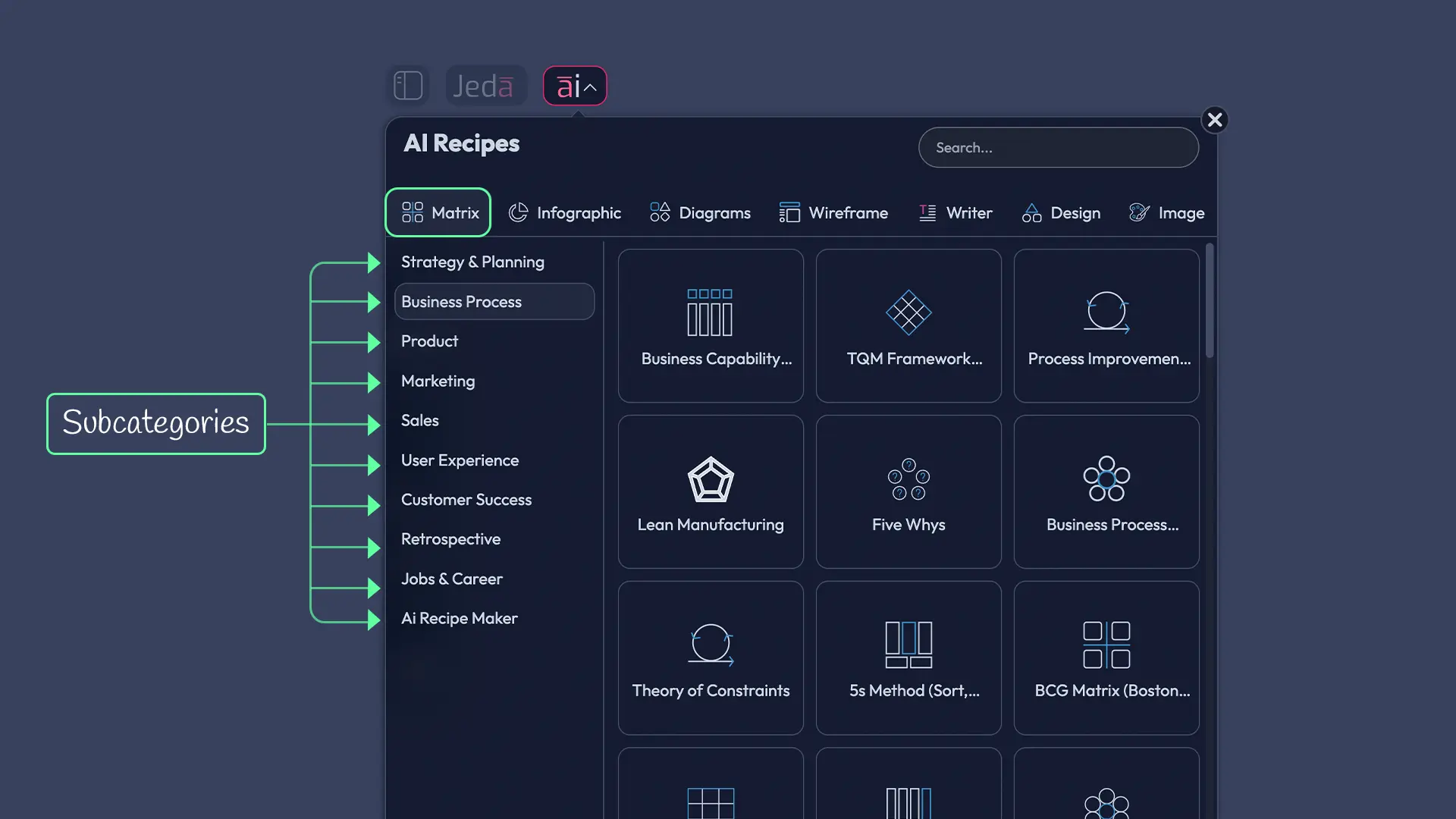
- The AI Recipes panel opens. You'll see category tabs: Matrix, Infographic, Diagrams, Wireframe, Writer, Design, Art.
- Pick the category matching your visual type (e.g., Matrix for SWOT, Mindmap for ideation).
- Browse the recipe subcategories. For Matrix, you'll see: Strategy & Planning, Business Process, Product, Marketing, Sales, User Experience, Customer Success, etc.
- Click the recipe you want (e.g., "SWOT Analysis" under Strategy & Planning).
- A guided form opens with fields like "For What?", "For Whom?", "Goals/Purpose", and "More Context." Fill these in with your specific details.
- Click Generate at the bottom.
- Your visual appears on the canvas in seconds, fully structured and ready to extend.
AI Menu recipes are pre-configured with the right framework structure, making them ideal if you want a solid starting point that's easy to extend deeply.
Method 2 — Prompt Bar
The Prompt Bar gives you freeform control. Use it when you want a custom visual without a templated recipe:
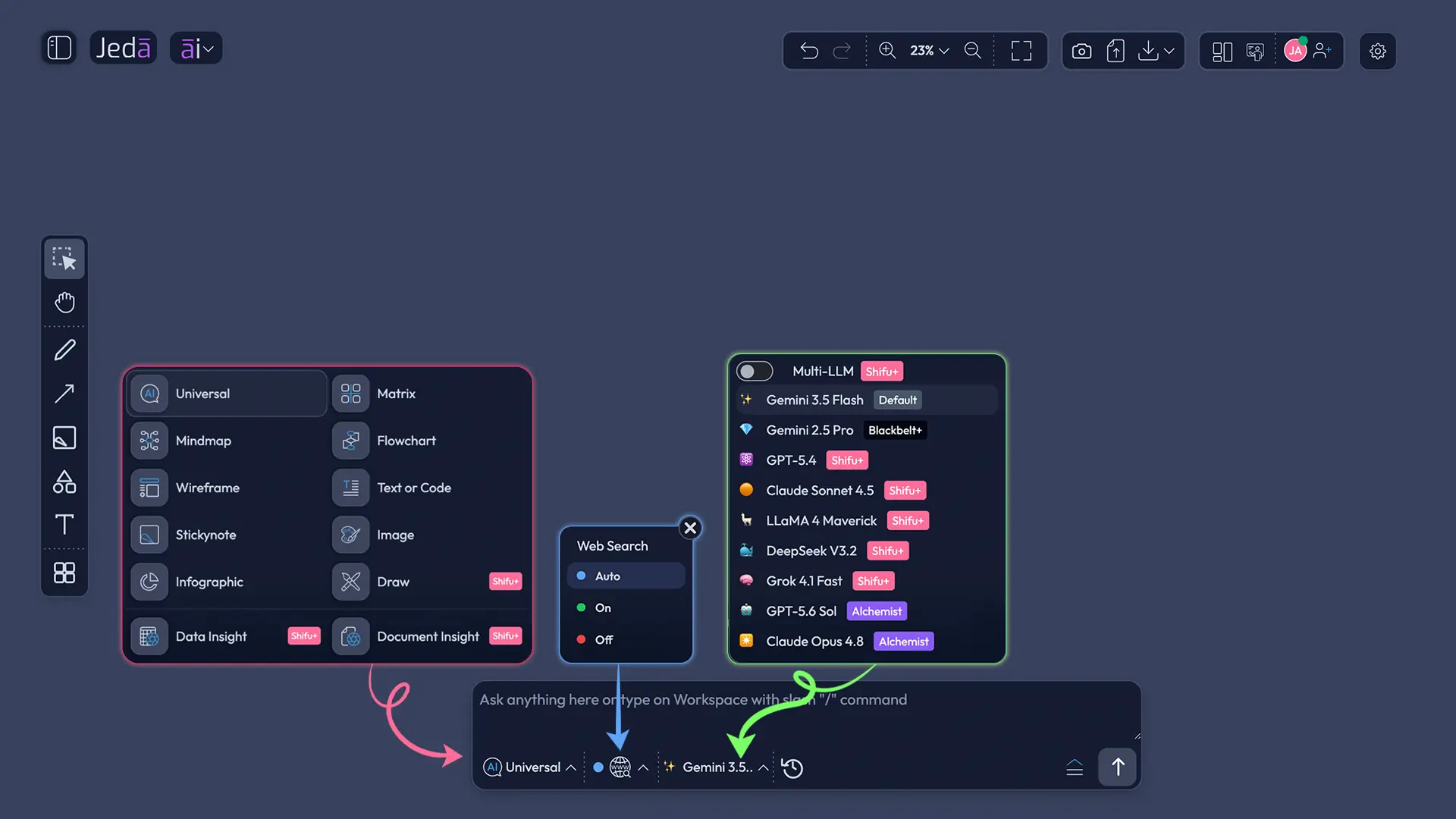
- Find the Prompt Bar at the bottom center of your canvas. It's a large input field.
- Click the Command Selector (left side of the bar) and choose your command: Matrix, Mindmap, Flowchart, Diagram, etc.
- Type your prompt. Be specific. "SWOT analysis for our cloud product launch in Q2" beats "SWOT analysis." The AI captures context better when you're detailed.
- Press Enter or click the Generate button (↑) on the right.
- Within seconds, your visual renders on the canvas.
Prompt Bar generation is faster for experienced users who know exactly what they want and don't need form guidance.
After Generation: Extending with ai+
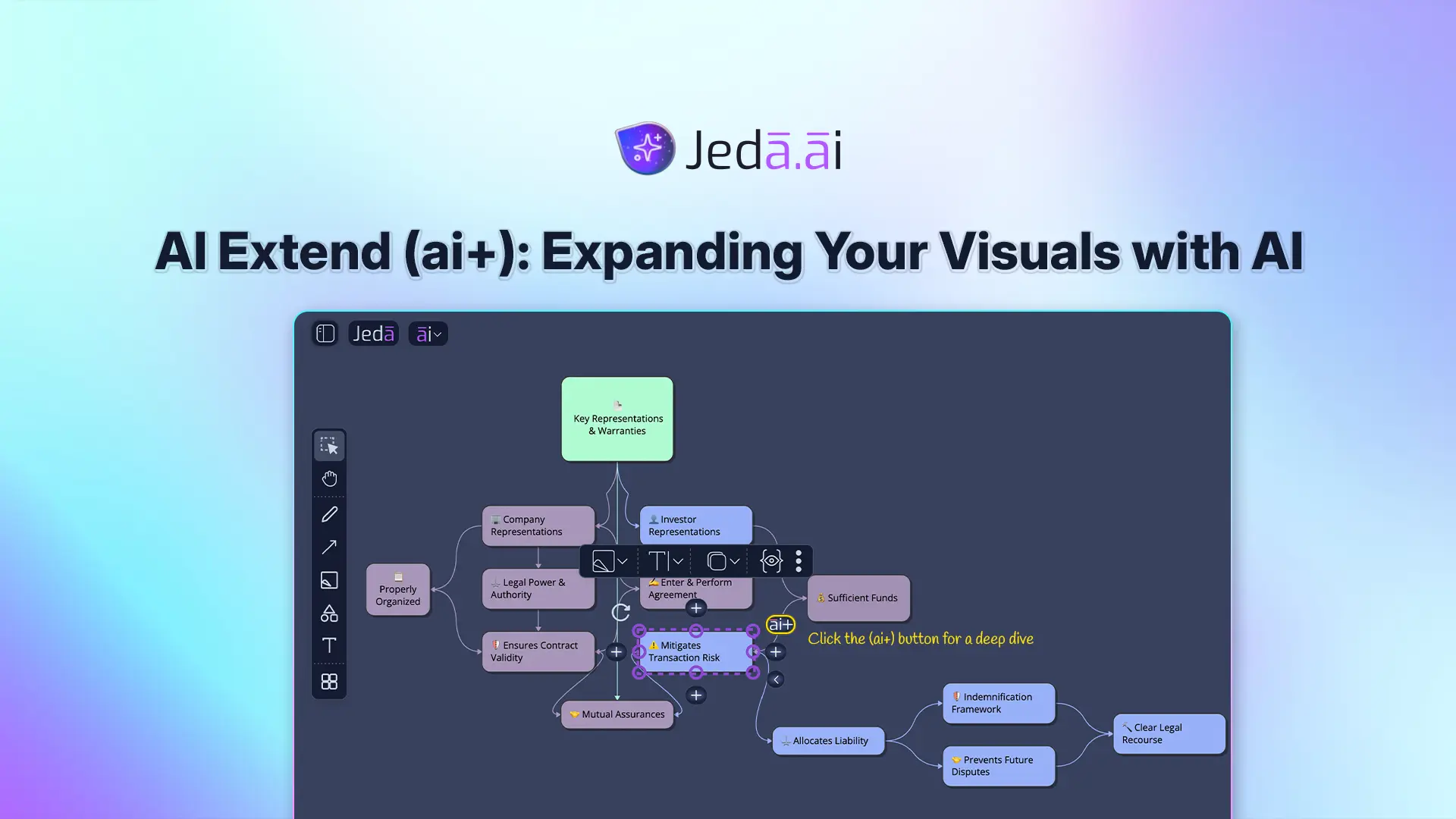
Here's where the magic happens. Once your visual is on the canvas, every node, branch, or cell becomes an interactive Smart Shape. Click on any shape. A purple dashed border appears around it, and a floating toolbar materializes above it.
Look to the right side of the selected shape. There's the ai+ button. Click it.
AI Extend analyzes what you selected—its content, its context, what it connects to—and generates related nodes, branches, or cell content. New elements appear connected to your selection, ready for review. Keep what's valuable. Edit what needs tweaking. Delete what misses the mark. Then repeat. Extend another branch. Deepen another section.
The real power? You're building iteratively, section by section. Your framework evolves layer by layer, with your thinking guiding the expansion.
Step-by-Step: Extending a Visual with AI
Let's formalize the workflow:
- Step 1: Generate or open a visual
Use AI Menu or Prompt Bar to generate a Mindmap, Flowchart, Matrix, or Diagram. Or open an existing visual you created earlier.
- Step 2: Click the element you want to expand
Select the specific branch, step, node, or cell. A purple dashed selection border appears around it with canvas controls visible.
- Step 3: Locate and click the ai+ button
On the right side of the selected element, you'll see the ai+ button. Click it to trigger AI-powered extension.
- Step 4: Review AI-generated content
The AI generates related branches, steps, or cell content and connects it to your selection. A panel on the right shows the AI's reasoning in real-time.
- Step 5: Keep, edit, or delete suggestions
You have full control. Keep valuable additions, edit text, delete misaligned suggestions. All newly generated content is editable immediately.
- Step 6: Repeat for other sections
Select another branch or element. Tap ai+ again. Continue expanding until your visual reflects your thinking.
The workflow is deliberately simple: select → click ai+ → review → decide → repeat. No export needed between steps. No switching tools. You're in flow.
Real-World Examples: AI Extend in Action
Theory is helpful. Examples are convincing. Here are three scenarios showing ai+ in practice.
Case Study 1: Expanding a SWOT Analysis
Picture a product manager at a SaaS company. She's launching a mobile app feature—let's call it "AI-Powered Analytics Dashboard." She opens Jeda.ai, clicks the AI Menu, selects the SWOT Analysis recipe, fills in the form ("For What: AI Analytics Dashboard for SMB accountants"), and generates.
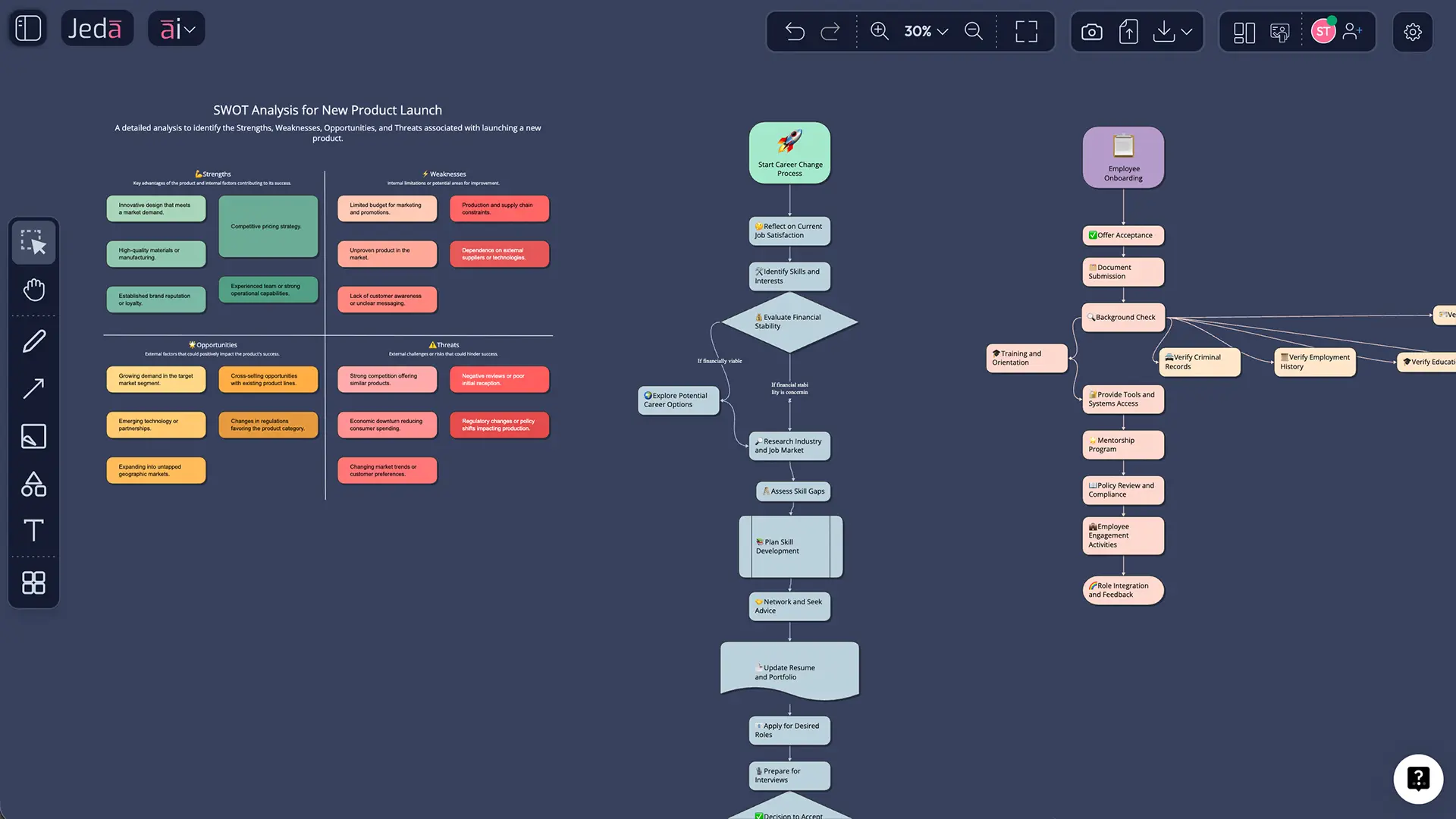
The SWOT appears in four quadrants: Strengths, Weaknesses, Opportunities, Threats. Each quadrant has 3–4 starter bullet points. Standard. Useful. But surface-level.
She clicks the "Opportunities" quadrant. ai+ activates. The AI generates five new opportunities specific to SMB accountants: "Competitive advantage against Quickbooks," "Integration with existing tax software," "Compliance automation reduces audit time," "Recurring revenue from feature upgrades," "Market expansion into mid-market firms."
She reads them. Three are gold. One needs edit (she changes the wording slightly). One she deletes (too speculative). She then clicks the "Threats" quadrant and extends it similarly, uncovering three new competitive and regulatory threats she hadn't considered.
Total time: 4 minutes. Depth achieved: equivalent to 30 minutes of brainstorming with a team. And the framework remained intact—no rework, no "let's regenerate."
Case Study 2: Deepening a Mindmap
An innovation team at a healthcare company is exploring AI applications in their industry. They start with a broad Mindmap: central node "AI in Healthcare," five main branches radiating outward: "Diagnostics," "Patient Care," "Administration," "Drug Discovery," "Compliance."
Standard research-phase mindmap. Good. But the team wants to focus first on "Diagnostics"—it's their competitive edge opportunity.
One team member clicks the "Diagnostics" branch. ai+ expands it instantly. Eight sub-branches appear: "Medical Imaging Analysis," "Predictive Disease Detection," "Lab Result Integration," "Rare Disease Recognition," "Algorithm Training Data Challenges," "Physician Acceptance & Trust," "Regulatory Approval Pathway," "Cost-Benefit Analysis."
Suddenly, one branch becomes a full conversation map. The team sees potential pitfalls (training data, regulatory approval) they'd have missed. Another team member is simultaneously extending the "Patient Care" branch on the same canvas, visible to all in real-time.
Twenty minutes in, the mindmap has evolved from five branches to 40 nodes, organized hierarchically, each area deepened by AI suggestion but controlled by human judgment.
Case Study 3: Extending a Process Flowchart
A business analyst is documenting the employee onboarding process. The initial flowchart has 10 main steps: "Offer Letter," "Background Check," "Orientation," "IT Provisioning," etc.—a clean, high-level flow.
During review, the team realizes the "Background Check" step is hiding complexity. It involves criminal records check, reference verification, and education confirmation—three parallel sub-processes. Regenerating the whole flowchart to add this detail would be painful.
Instead, the analyst selects the "Background Check" step, clicks ai+, and four sub-steps appear below it, connected by arrows: "Request Background Report," "Verify References," "Confirm Education," "Escalate Flags." The flow expands from 10 steps to 13, with one step now showing full detail.
Later, she extends the "IT Provisioning" step similarly (laptop order, software licenses, access rights, email setup). The flowchart grows intelligently, detail where needed, simplicity elsewhere.
Advanced Techniques for Iterative Building
You've mastered the basics. Now let's talk strategy—how to extend visuals like a pro.
Multi-Section Expansion Strategies
You can extend your entire visual, but approach matters. Depth-first or breadth-first?
Depth-first: Expand one branch completely before moving to others. Pick your "most important" section (e.g., "Opportunities" in SWOT, "Diagnostics" in a healthcare mindmap). Extend it, review, extend again if insights warrant. Then shift to the next section. This creates one fully-formed viewpoint at a time—useful if you're writing a detailed report on one aspect first.
Breadth-first: Extend all sections lightly first. Get ai+ suggestions for each quadrant, each branch, each step. Then zoom back and decide where to deepen further. This approach is better for collaborative brainstorming where you want diverse perspectives across all sections before diving deep.
Also, use the fold/unfold controls. When you expand a branch, child nodes appear. A fold button (< or >) appears on the right side. Click it to collapse that branch in your view, reducing visual clutter. Perfect for presentations—show high-level structure, unfold on demand to reveal detail.
Combining AI Extend with Vision Transform
Here's a power move: Extend first, transform second.
You build a detailed Mindmap using ai+ to expand multiple branches. Then, your team decides they need a Flowchart for the process portion and a Matrix for the decision points. Enter Vision Transform.
Vision Transform (a Shifu+ feature) lets you select a portion of your canvas and convert it to a different visual type. Select your expanded "Diagnostics" mindmap branches, click the Vision Transform button (⧉), and choose "Flowchart." AI converts the hierarchical mindmap into a sequential process flowchart. Same content, different format.
This is powerful for teams that think in multiple formats. A designer might extend a mindmap (hierarchical thinking), the project manager might transform portions into a flowchart (process thinking), and the executive might export a matrix view (comparative thinking). One source of truth, multiple formats.
Collaborative Expansion in Team Workspaces
Shared workspaces amplify ai+ power. When you're working with a team:
Real-time visibility: You extend a branch, and every team member sees the new content instantly. No "sync later." No email updates. Everyone's working from the latest version.
Parallel work: While you're extending "Opportunities," another team member is extending "Threats" on the same SWOT. No conflicts. No overwriting. Both changes merge automatically.
Editor permissions: Any team member can edit, extend, or refine what another teammate generated with ai+. If you generate five ideas and a colleague improves two of them, that's live collaboration in motion.
Follow Me presentations: After building collaboratively, flip on "Follow Me" mode and present the full, evolved visual to stakeholders. They see the journey—from initial framework to final, deeply-explored version.
Common Mistakes to Avoid
Experience teaches. Here are three pitfalls to sidestep.
Over-Expanding a Single Section
It's tempting. You extend a branch, ai+ gives you four ideas, you extend those four, and suddenly you have 50 nodes in one corner and three in another. The visual becomes unbalanced and hard to read.
Fix: Use the fold/unfold button. After extending, see if you can collapse some sub-branches. If you have 50 nodes, can you meaningfully present this visual, or is it noise? Aim for 5–7 first-level nodes per visual type. Extend 2–3 of those deeply (10–15 sub-nodes each), and leave others at the surface level. Balance matters.
Losing Your Original Framework Vision
"But wait, I started with 'AI in Healthcare' and somehow I'm now deep in 'Algorithm Training Data Challenges.' Did I drift?"
Yes, you might. Extension can meander if you're not intentional. Each ai+ suggestion is contextual and reasonable, but five rounds of extension later, you've zoomed into the weeds.
Fix: Periodically step back (zoom out, view the entire canvas). Ask: "Does this still serve my original goal?" If you started mapping "AI in Healthcare" to identify investment opportunities and you've spent 30 minutes on regulatory challenges, fine—that's valuable intel. But if you've lost sight of the original question, delete the less-relevant extensions and refocus.
Confusing ai+ with Vision Transform
Here's the mix-up: "I want to extend my mindmap into a flowchart."
No. That's Vision Transform. ai+ extends (adds related content to a selected node). Vision Transform converts (changes the visual format of an entire section or canvas). They're complementary but different tools.
ai+ = "Let me add more detail to this branch." Vision Transform = "Let me show this idea as a flowchart instead of a mindmap."
Both are powerful. Just know which tool solves which problem. (And note: both require Blackbelt+ or higher plans. Vision Transform also requires Shifu+.)
Frequently Asked Questions
- What does AI Extend mean in visual tools?
- AI Extend (ai+) is a feature that lets you select a specific node, branch, or cell in a visual and generate AI-related content connected to it. Unlike regenerating an entire visual, AI Extend preserves your existing structure and adds depth to one focused area at a time. Works with mindmaps, flowcharts, diagrams, and matrices in Jeda.ai.
- How do you extend a mindmap with AI?
- Click the branch you want to expand in your mindmap. The ai+ button appears on the right side. Click it. AI generates new sub-branches related to your selection. Review and keep the suggestions you like. Takes 10–20 seconds per branch. Repeat for other branches to build depth iteratively.
- Can you use AI to expand diagrams or flowcharts?
- Yes. AI Extend works with flowcharts, diagrams, mindmaps, matrices, and most Smart Shape visuals. Click the step or node you want to expand, tap ai+, and AI inserts related steps or connections. Art outputs (static images) cannot be extended. Data and Document Insight visuals render as Smart Shapes and support ai+.
- Why is iterative visual expansion better than regenerating?
- Three reasons: speed (extending takes 10–20 seconds vs. 30+ seconds for regeneration), structure preservation (your existing framework stays intact and informs the AI), and collaboration (expanding one section doesn't disrupt teammates working on other sections). Research shows incremental refinement reduces cognitive load.
- Which plan includes AI Extend (ai+)?
- AI Extend is available on Black Belt ($10/month), Shifu ($39/month), and Alchemist ($298/month) plans. White Belt (Free) does not include ai+. All plans support AI visual generation; ai+ is a premium extension feature for iterative deepening.
- How do you select a branch to extend in a mindmap?
- Click on the branch (node) in your mindmap. A purple dashed border appears around it, and canvas controls become visible. The ai+ button shows on the right side. Click it to trigger AI-powered expansion of that specific branch.
- Can you extend multiple sections of a visual at once?
- You extend one section at a time (select → click ai+ → review). However, you can repeat this rapidly for different sections in sequence. In shared team workspaces, multiple users can work on different branches simultaneously, seeing each other's extensions in real-time.
- What's the difference between ai+ and Vision Transform?
- ai+ (AI Extend) adds related content to a selected element, deepening that node or branch. Vision Transform converts an existing visual to a different format (mindmap to flowchart). Both are post-generation tools. ai+ is Blackbelt+; Vision Transform is Shifu+. Use ai+ to expand, Vision Transform to reformat.
- Does AI Extend work on Data Insight and Document Insight outputs?
- Yes. Data Insight (from CSV/Excel) and Document Insight (from PDF/Word) generate Smart Shape visuals (matrices, mindmaps, diagrams) that fully support ai+. Select any node and expand it further with AI. Great for deepening data-driven or document-sourced frameworks.
- How do you fold or unfold expanded branches?
- Click a node that has child branches. A fold/unfold button (< or >) appears on the right side of the canvas controls. Click to collapse or expand sub-nodes. Useful for managing visual complexity and presenting high-level structure first, details on demand.
- Can collaborators see ai+ expansions in real-time?
- Yes. In a shared Jeda.ai workspace, when one user extends a branch with ai+, all team members see the newly generated content instantly. Collaborators can then edit, extend further, or delete suggestions. Real-time collaboration is fully supported with no sync delays.
- How do you know when a visual is ready to stop expanding?
- No hard rule, but ask: (1) Have I answered my original question? (2) Is the visual still readable and focused? (3) Can I fold sections I won't need for this presentation? Use fold/unfold to manage complexity. Over-expanded visuals lose impact. Aim for balance—deep insights without overwhelming detail.
Sources & Further Reading
- [1]
Bloom, Benjamin S., et al. (2015) . “Cognitive Load Theory and Iterative Design” Educational Psychology Review.
View Source ↗ - [2]
Buzan, Tony (1974) . “The Mind Map Book: Radiant Thinking — Major Evolution in Human Thinking” Buzan Learning Center / BBC Publishing.
View Source ↗ - [3]
Porter, Michael E. (1979) . “How Competitive Forces Shape Strategy” Harvard Business Review.
View Source ↗ - [4]
Shneiderman, Ben & Plaisant, Catherine (2009) . “Designing the User Interface: Strategies for Effective Human-Computer Interaction” Pearson Education (5th Edition).
View Source ↗
Start Expanding Your Visuals Today
Join over 150,000+ professionals who use Jeda.ai's AI Workspace to build smarter visuals, faster. Extend frameworks with AI, collaborate in real-time, and transform your strategic planning.
Try Free in Jeda.ai