What Are AI Recipes?
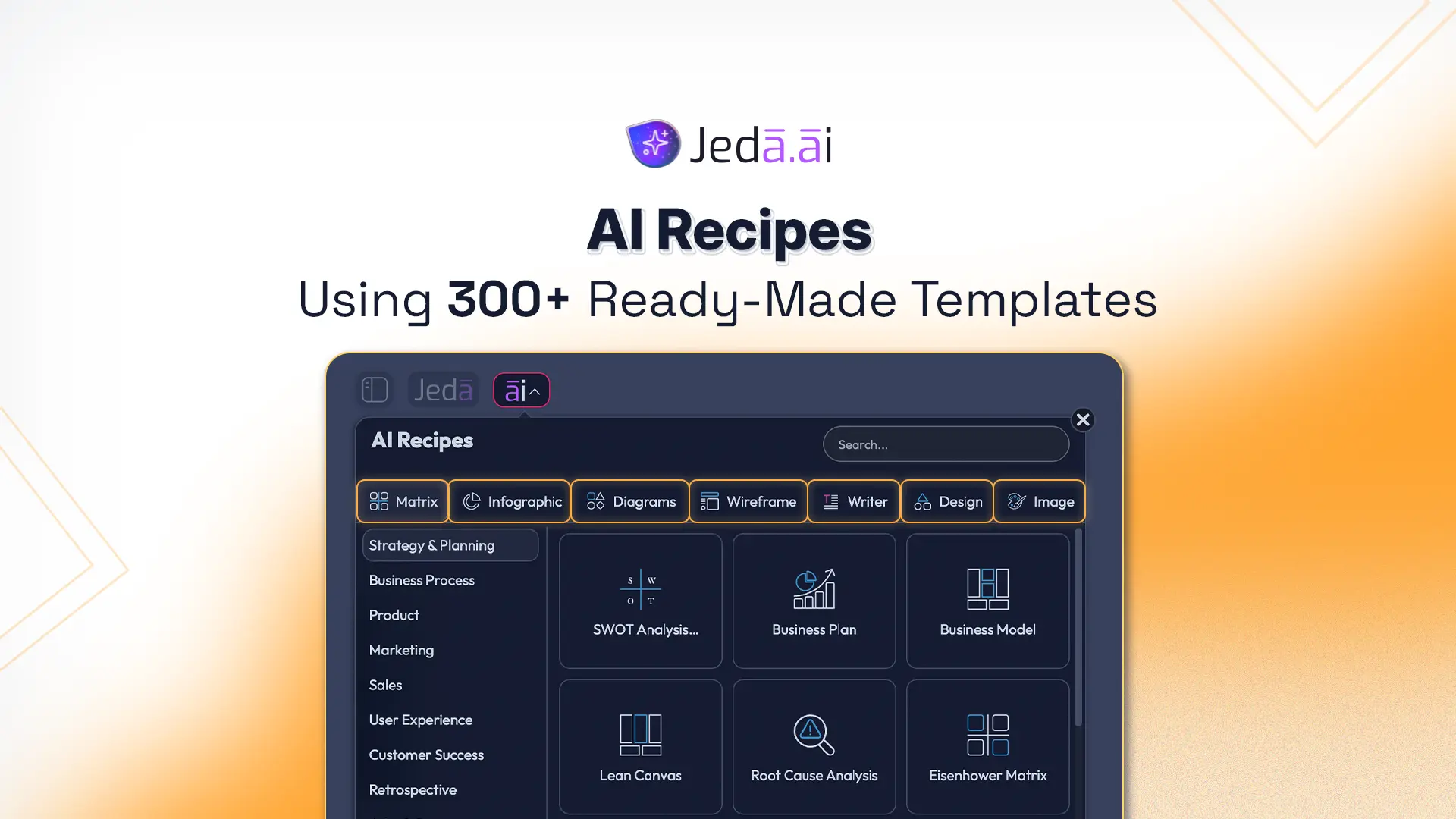
You know that feeling? A blank canvas, unlimited possibilities, zero direction. Strategic planning frameworks like SWOT, Lean Canvas, and PESTEL exist for a reason—they structure thinking. But building them manually? That's slow. AI Recipes solve this problem. They're guided, AI-powered workflows that generate complete, professional frameworks in seconds. No template hunting. No babysitting AI generation. You answer a few questions, AI does the rest.
Here's how they work: Each recipe is a pre-configured workflow that auto-sets your output format, reasoning model, and prompt structure. Click the ai∨ dropdown, select a category, fill a form with your specific context, and boom—a complete, professionally laid-out framework appears on your canvas. Ready to edit, export, or share.
What makes AI Recipes different from static templates? Templates are starting points. AI Recipes are intelligent workflows. You're not choosing from a library of pre-made designs; you're guiding AI to generate custom outputs tailored to your inputs. Competitors offer templates + basic AI. Jeda.ai offers form-based, guided workflows across 300+ recipes spanning 7 categories: Matrix, Infographic, Diagram, Wireframe, Writer, Design, and Image. That's why 150,000+ users trust Jeda.ai for strategic planning.
The real win? Speed. From blank canvas to polished framework in 2-3 minutes. For teams, startups, and consultants, that's competitive advantage. For enterprises, that's repeatability at scale.
How to Access AI Recipes
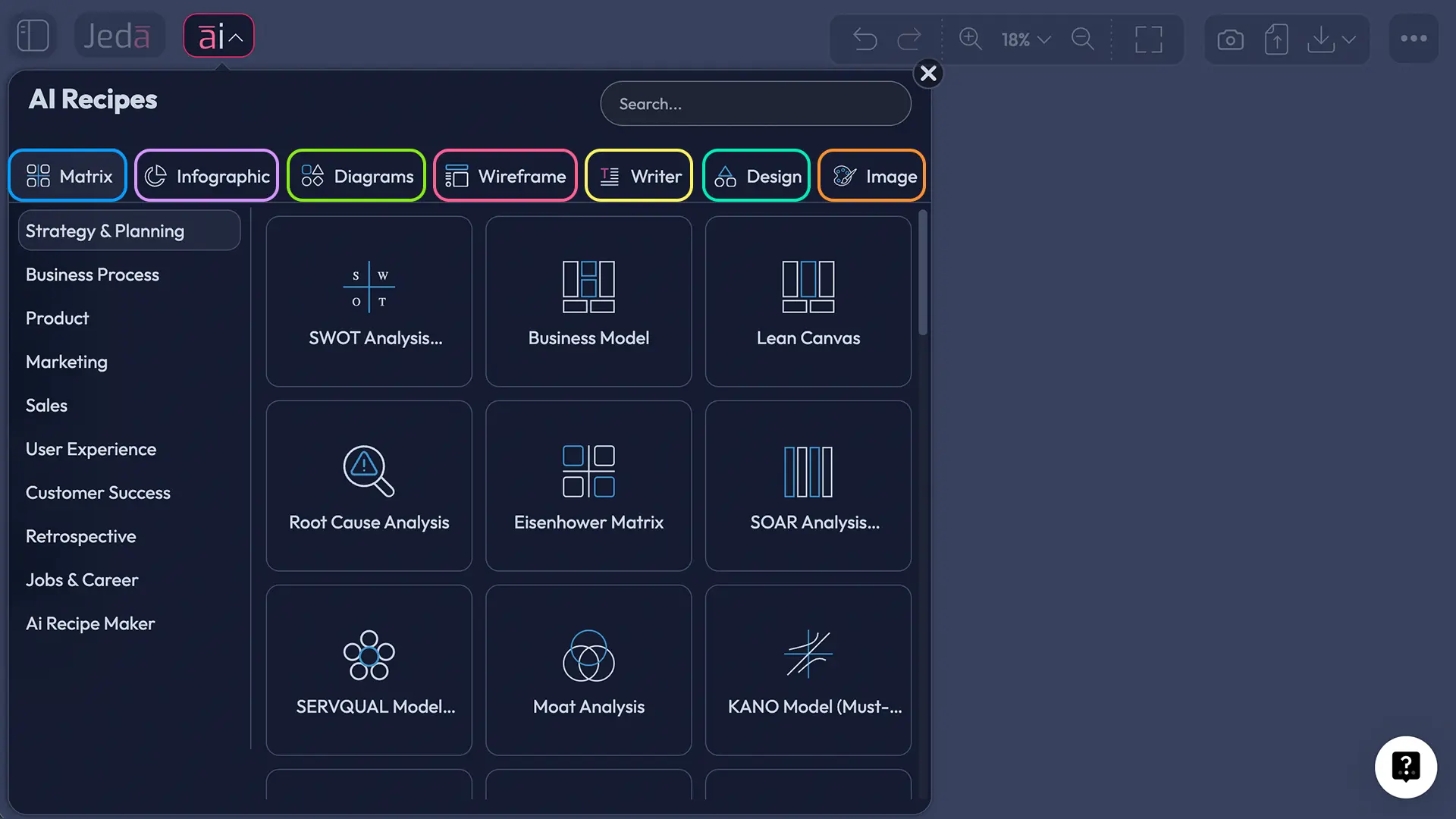
Getting to your recipes takes three clicks. Click the ai∨ dropdown (top-left corner of your Jeda.ai workspace). The AI Recipes panel opens on the right. You'll see a search bar and seven category icons.
From there, browse by category or search by name. Type "SWOT" and you'll see all SWOT variants. Type "wireframe" and filter to product design templates. Search is partial-match friendly—"brand" finds everything from brand guidelines to brand voice analysis.
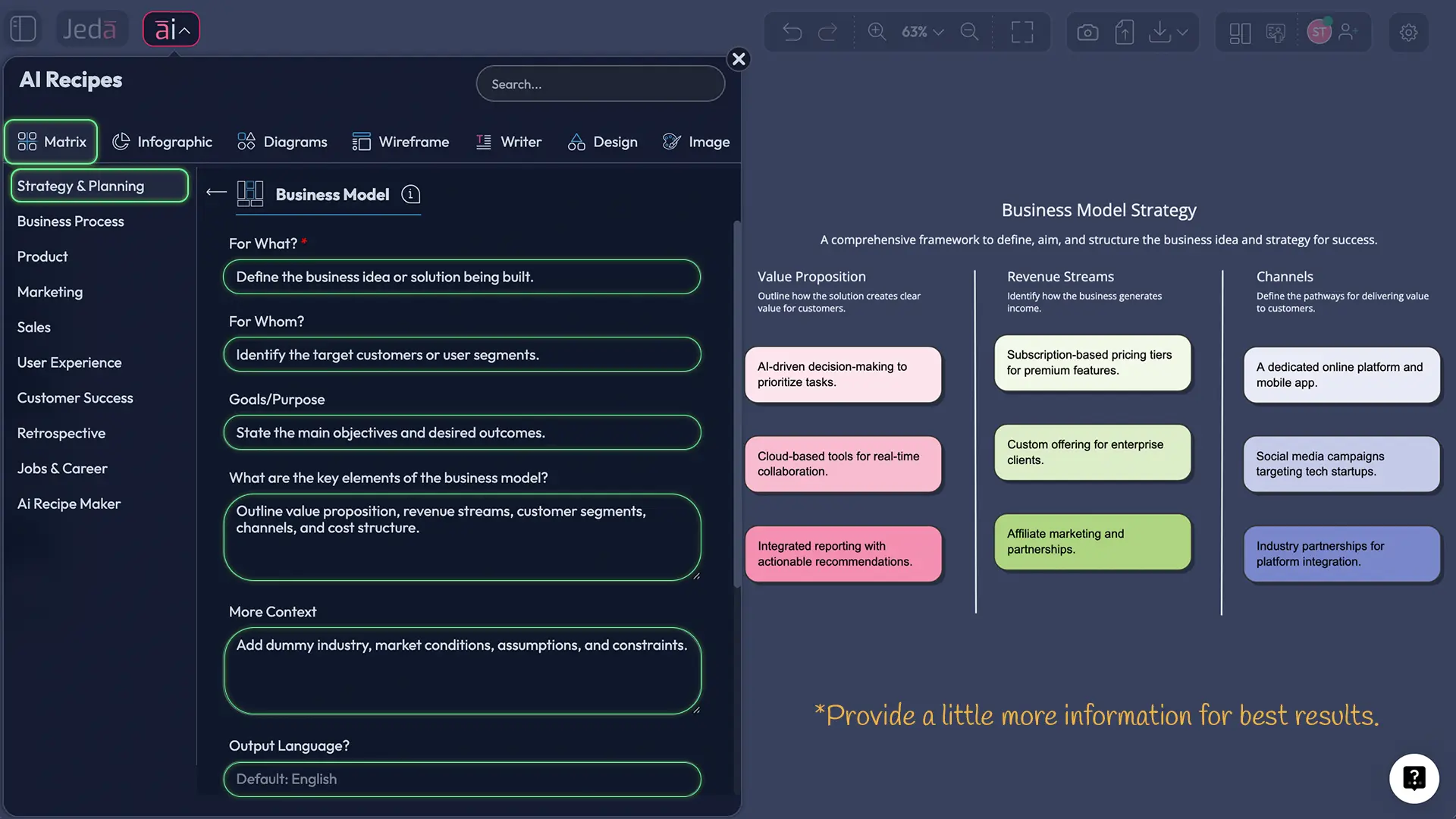
Once you've found your recipe, click it. The form opens immediately, pre-loaded with fields designed for that specific framework. No configuration, no setup wizards. Just questions to answer and a Generate button.
Recipe Categories Explained
All 300+ recipes live in seven categories. Each solves a different type of thinking challenge.
Matrix (Strategic Frameworks) — These generate structured grids and tables. Think SWOT analysis, Business Model Canvas, Lean Canvas, Eisenhower Matrix, PESTEL analysis, Risk Analysis, and Project Planning matrices. Use them when you need to organize information into rows and columns. AI automatically populates each quadrant with relevant insights. Reasoning models optimized for analytical depth work best here.
Infographic (Visual Summaries) — Generate multi-section visual layouts: product roadmaps, market analyses, step-by-step guides, comparison charts, timelines. Output includes text + charts + visual hierarchy. These recipes prioritize narrative flow and design aesthetics. Best for presentations, marketing materials, or storytelling. Creative reasoning models excel here.
Diagram (Flowcharts & Structures) — Flowcharts, org charts, decision trees, BPMN diagrams, Fault Trees, Influence Diagrams, Process Flows, Dunker Diagrams. AI generates connected shapes and hierarchies. Use when you need to show relationships, dependencies, or sequential logic. Logic-focused reasoning models optimize these.
Wireframe (Product Layouts) — Website homepages, mobile app screens, dashboard layouts, landing pages. AI generates low-fidelity layouts with sections, annotations, and placeholders. Perfect for UX planning, client presentations, and design handoffs. Design-aware reasoning gives best results.
Writer (Content Generation) — Blog posts, emails, meeting notes, job descriptions, value propositions, sales pitches, landing page copy, vision/mission/values statements. AI generates formatted text ready to paste into your CMS or email tool. Compositional reasoning optimized for narrative structure.
Design (Social Media & Marketing) — LinkedIn banners, Instagram posts, YouTube graphics, TikTok covers, Facebook covers. AI generates brand-aligned visual layouts and copy. Sized for each platform. Use when you need social assets fast, without design software.
Image (AI Art Generation) — Absurd doodle characters, organic expressionism, vintage etchings, vibrant pop art, prismatic low poly, mid-century modern. AI generates original images in dozens of styles. Useful for creative brainstorming, unique backgrounds, or illustrations. Each style has its own reasoning model.
- Matrix
SWOT, BMC, Lean Canvas, PESTEL, Risk Analysis
- Infographic
Roadmaps, timelines, analyses, comparisons
- Diagram
Flowcharts, org charts, decision trees
- Wireframe
Web layouts, mobile screens, dashboards
- Writer
Blog, email, docs, job descriptions
- Design
Social media graphics and marketing assets
- Image
AI art in multiple styles
Understanding the Recipe Form
Every recipe form shares a common structure: recipe-specific fields (custom to each framework), followed by universal options. Let's break them down.
Recipe-Specific Fields — These vary by recipe. A SWOT form asks for internal strengths/weaknesses and external opportunities/threats. A Business Model Canvas asks for customer segments, revenue streams, key partnerships. These aren't random; they're the framework's core questions. Be specific in your answers. "Improve sales" is vague. "Increase enterprise customer acquisition by 25% within 6 months, targeting Fortune 500 companies in financial services" is actionable. AI quality depends on input quality.
Output Language — Default is English, but every recipe supports multilingual generation. Global teams can generate frameworks in local languages via this dropdown.
Reasoning Model Selection — Each recipe form includes a Reasoning Model dropdown. You can select any available model, or enable "Multi-LLM Agent" to run your recipe through multiple reasoning engines and synthesize insights. Different models = different perspectives. Experiment to find what works for your use case.
Layout Choices — Some recipes offer layout options: Auto (Jeda.ai optimizes), Column (vertical stacking), Grid (multi-column). Layout affects readability and visual organization. Auto is safest; manual layouts give control.
Advanced Options (Shifu+) — Available on Shifu and higher plans. Clear Chat Context resets AI context before generating, ensuring fresh output. Analysis on File toggles Data Insight (CSV/Excel analysis) or Document Insight (PDF/Word/PPT analysis). Select or upload files to incorporate your own data into recipe output. Transforms generic templates into personalized frameworks.
Web Search Toggle — Available in all AI Recipes, including those with file analysis. Toggle on for real-time web data (competitive analysis, market trends). Toggle off to use training data only. Recipes requiring current information benefit most.
Vision Transform — If you select an area on canvas before opening AI Recipes, a preview thumbnail appears in the form. You can run the recipe on that selected content, transforming existing work with recipe guidance.
How to Generate a SWOT Analysis
Here's a real workflow, step by step.
- Open AI Recipes
Click the 🤖 ai∨ dropdown in the top-left corner. The AI Recipes panel opens on the right, displaying a search bar and seven category icons.
- Select SWOT Recipe
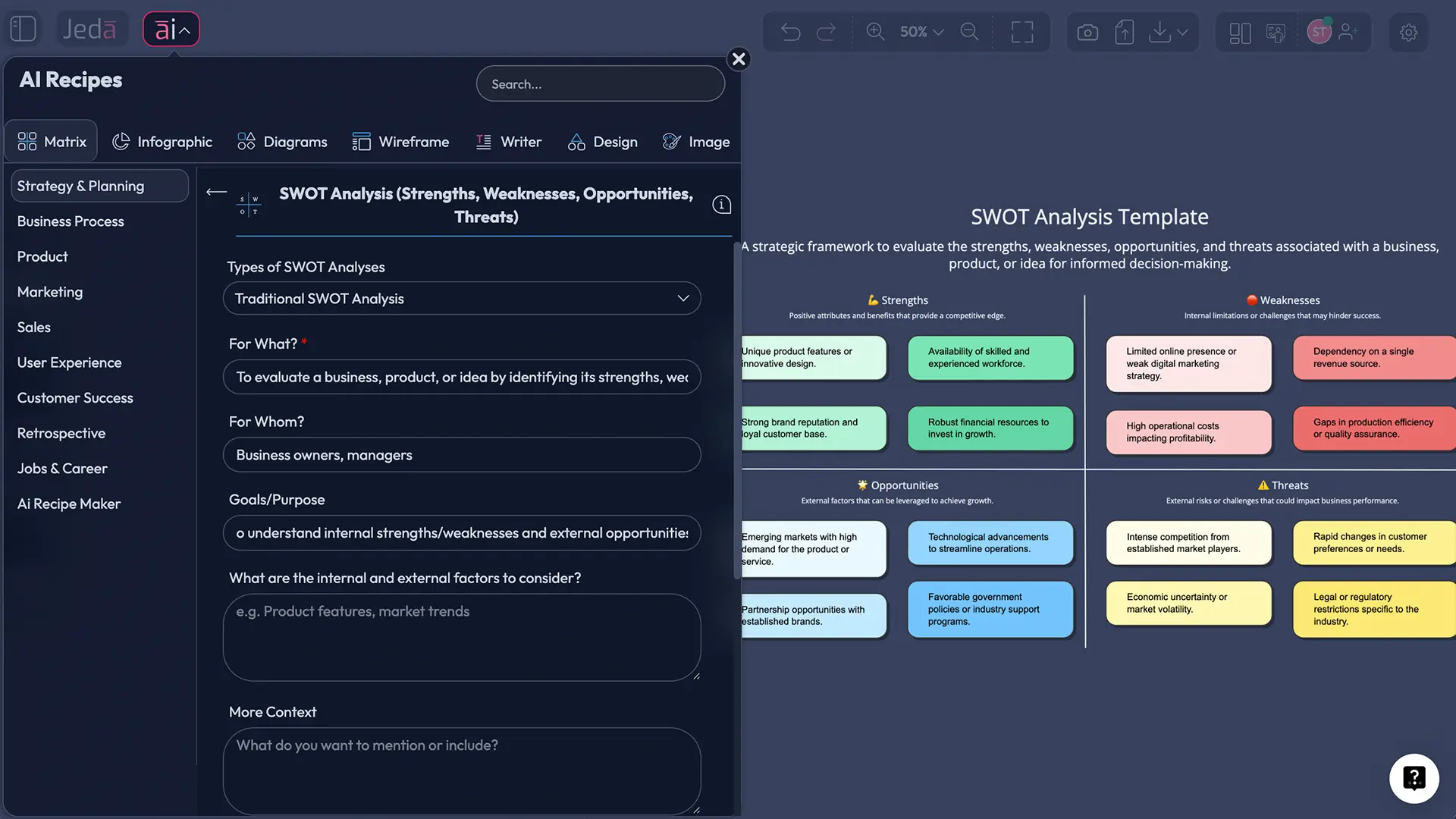
Search 'SWOT' in the search bar, or navigate to Matrix category and find SWOT Analysis. Click the recipe card. The form opens with guided fields ready to fill.
- Fill the Form
For What? (your product/service). Internal Factors (your strengths/weaknesses). External Factors (market opportunities/threats). Context (industry, timeline, competitive landscape). Be specific; vague inputs produce generic outputs.
- Configure Output Settings
Select Output Language (English or preferred), choose Reasoning Model (or enable Multi-LLM Agent), select Layout (Auto/Column/Grid), toggle Web Search on/off. Advanced users can toggle file analysis to incorporate company data.
- Generate & Review
Click Generate. AI processes your inputs in seconds. A complete SWOT matrix appears on your canvas: strengths, weaknesses, opportunities, threats, all auto-formatted and visually organized.
- Edit & Refine
Click any section to edit text. Reorder items by dragging. Change colors, fonts, styling. Add team notes. Delete or add rows. The output is fully editable—AI generates the starting point, not the final artifact.
- Export
Click Export or menu icon. Choose PNG (email-friendly), SVG (infinitely scalable), or PDF (professional documents). Download and share with your team, embed in presentations, or upload to project management tools.
That's it. Seven steps, from blank canvas to shared strategic framework.
Pro Tips & Best Practices
Tip 1 — Be Specific in Form Fields. Vague inputs generate generic outputs. Instead of "improve sales," say "increase enterprise customer acquisition from large financial institutions by 25% within Q2." Detailed context helps AI generate relevant, actionable frameworks. Quality in, quality out.
Tip 2 — Use File Analysis for Data-Driven Recipes. Upload your financial data, customer research, or market reports (CSV, Excel, PDF, Word). Advanced toggle incorporates real data into recipe output. Result: personalized, data-backed analysis instead of generic template.
Tip 3 — Leverage Web Search for Market Analysis. Toggle Web Search on for competitive analysis, PESTEL, or trend-based recipes. AI pulls current data from the internet. Your frameworks reflect latest market conditions, not just training data.
Tip 4 — Select Reasoning Models by Goal. Need complex analysis? Use reasoning-heavy models. Want creative output? Choose models known for originality. Prioritize speed? Use faster, lighter models. Experiment to find best fit.
Tip 5 — Batch-Generate Multiple Recipes. Generate SWOT → Lean Canvas → Business Model Canvas in sequence (2-3 min per recipe). Compare insights. Each framework reveals different strategic angles. Time-efficient planning session.
Tip 6 — Use Multi-LLM Agent for Diverse Perspectives. Instead of one reasoning model, enable Multi-LLM Agent. AI runs your recipe through multiple models and synthesizes insights. Richer, more nuanced frameworks with diverse viewpoints.
Exporting & Sharing
Three export formats. Choose based on how you'll use your output.
PNG Export. Raster image. Best for email, documents, presentations. File size: small to medium. Quality: high-resolution. Universal compatibility—every app, every device recognizes PNG.
SVG Export. Vector format (infinitely scalable). Best for print, design tool editing, web use. File size: smallest. Quality: crystal-clear at any magnification. If you'll edit in Figma or Illustrator, use SVG.
PDF Export. Document format. Best for stakeholders, archiving, printing. File size: medium. Quality: professional, standardized layout. PDFs preserve design intent across devices.
Sharing with Teams. Share your canvas link directly—all team members see real-time edits, can comment, contribute. Export + email or Slack. Embed exported files in Asana, Monday.com, or Jira. Use Jeda.ai teams feature (Black Belt plan and up) for centralized workspace.
Exporting is straightforward: PNG for speed, SVG for design, PDF for stakeholders. All three preserve your layout and styling. No file-format handwringing.
Frequently Asked Questions
- What's the difference between AI Recipes and regular templates?
- Templates are static starting points. AI Recipes are guided workflows: fill a form → AI generates complete, optimized content (structure, text, layout) in seconds. Recipes are interactive; templates are passive.
- Can I use AI Recipes on a free plan?
- Yes. White Belt (free) offers limited AI Recipes access. Black Belt ($10/mo) unlocks all 300+ recipes across all categories. Check your plan details in the ai∨ menu.
- How do I access AI Recipes?
- Click the ai∨ dropdown (top-left), browse categories or search by name, select a recipe, fill the form, and click Generate. Takes 2-3 minutes total.
- Can I edit AI Recipe outputs?
- Absolutely. After generation, all content is fully editable on your canvas. Change text, reorder items, adjust colors, add notes, or regenerate sections as needed.
- What languages does AI Recipes support?
- Each recipe form includes an Output Language dropdown (default: English). AI can generate in any language supported by your selected reasoning model—globally useful for distributed teams.
- Can I upload my own data to AI Recipes?
- Yes. In Advanced options (Shifu+ plans), toggle 'Analysis on File,' then upload CSV, Excel, PDF, Word, or PowerPoint. AI incorporates your data, making output personalized and data-driven.
- Should I use Web Search in AI Recipes?
- Toggle on for recipes requiring current market data (competitive analysis, PESTEL, trend analysis). Toggle off if you prefer AI to use training data only. Depends on your use case.
- What's the difference between Matrix and Diagram recipes?
- Matrix recipes generate structured tables/grids (SWOT, BMC). Diagram recipes generate flowcharts, org charts, decision trees. Jeda.ai auto-optimizes layout for each type.
- Can I select which reasoning model to use?
- Yes. Each recipe form includes a Reasoning Model dropdown. Select any available model, or enable 'Multi-LLM Agent' for multiple AI perspectives synthesized into one output.
- What file formats can I export?
- PNG, SVG, and PDF only. Each optimizes for different use cases: PNG for email/presentations, SVG for design tools, PDF for stakeholders.
- Can I generate multiple recipes at once?
- Not simultaneously, but you can generate them in sequence quickly (2-3 min per recipe). Batch generating (SWOT → Lean Canvas → BMC) reveals different strategic angles efficiently.
- Do AI Recipes work offline?
- No. Recipes require internet connection (cloud-based AI). Jeda.ai canvas has offline mode, but recipe generation requires active connectivity.
Pricing & Plans
Want to unlock all 300+ AI Recipes? Here's what each plan offers.
White Belt (Free). Limited AI Recipes (starter set), full canvas access, basic export. Best for experimenting with core features, casual users. ~25-50 recipes.
Black Belt ($10/mo). All 300+ AI Recipes unlocked, all recipe options (language, reasoning model, layout, file analysis, web search), up to 5 team members. Maximum value entry point. Where most teams start. Everything you need to generate any framework.
Shifu ($39/mo). Everything in Black Belt, plus unlimited team members, priority reasoning models, full advanced options, API access for integrations. Best for growing teams, agencies, enterprises. Full feature set + team collaboration.
Alchemist ($298/mo). Everything in Shifu, plus dedicated support, custom recipe creation, advanced analytics, highest priority AI resources. For enterprise customers and high-volume users. Premium support + customization.
Most teams start on Black Belt. The recipe access and reasoning model selection alone justify the cost. And if you're using recipes daily with 10+ team members, Shifu removes the 5-person limit and adds API integrations.
Ready to Generate Your First Framework?
AI Recipes aren't just templates. They're guided workflows that transform vague ideas into professional, structured output in minutes. Whether you're building a SWOT analysis, a product roadmap, or a competitive analysis, recipes eliminate guesswork and accelerate strategic thinking.
The blank canvas problem is solved. Access all 300+ AI Recipes with Black Belt and start generating today.
Unlock 300+ Strategic Frameworks
Generate professional SWOT analyses, business models, diagrams, and more in seconds.
Upgrade to Black Belt