Here's the thing: your business decisions shouldn't be built on data from 2023 or 2024. Markets shift constantly. Competitors launch new products. Industry trends evolve. Yet most AI tools rely on training data that's months or years old, leading to frameworks built on outdated assumptions.
That's where Web Search comes in. Jeda.ai's Web Search toggle—a platform-level feature available across your AI Workspace—automatically retrieves real-time information before generating your strategic frameworks. This isn't an LLM capability. It's workspace infrastructure that works the same way regardless of which AI model you choose (GPT-4o, Claude Sonnet, Grok 3, or any other). Research shows retrieval-augmented generation improves factual accuracy by 40-60% compared to knowledge-cutoff-only approaches.
Over 150,000+ users already rely on Jeda.ai to transform their thinking with visual AI. Adding Web Search capability means your analyses stay current, your recommendations stay competitive, and your confidence stays high.
What Is Web Search in an AI Workspace?
Web Search in Jeda.ai is a platform feature, not a model feature. Here's what that means: When you generate a Matrix, Mindmap, or any visual framework with Web Search enabled, Jeda.ai automatically fetches real-time information before the AI creates your output. This differs fundamentally from how LLM-level web search works (if available in ChatGPT or other tools).
The process is straightforward. You select your command in the Prompt Bar, look for the 🌐 globe icon, and toggle Web Search to your preferred mode. Type your prompt. Generate. The AI workspace retrieves current data—recent news, competitor announcements, market trends—and incorporates that context directly into your framework.
This works because Jeda.ai treats Web Search as core infrastructure, not an add-on. It's available across the entire platform: all standard commands (Matrix, Mindmap, Flowchart, Text, Stickynote, Wireframe, Image, Draw, Infographic, Diagram, Widgets) and all AI Recipes. The only exceptions are direct Data Insight and Document Insight commands, though AI Recipes that use file analysis via the Advance toggle fully support Web Search.
Why does this matter? Strategic planning without current data is strategic guessing. A competitive analysis matrix built on Q4 2025 data will miss competitor moves from Q1 2026. A trend analysis mindmap using outdated research won't capture emerging shifts. But with Web Search enabled, your frameworks always reflect the present moment. That's the power of real-time grounding in your AI Workspace.
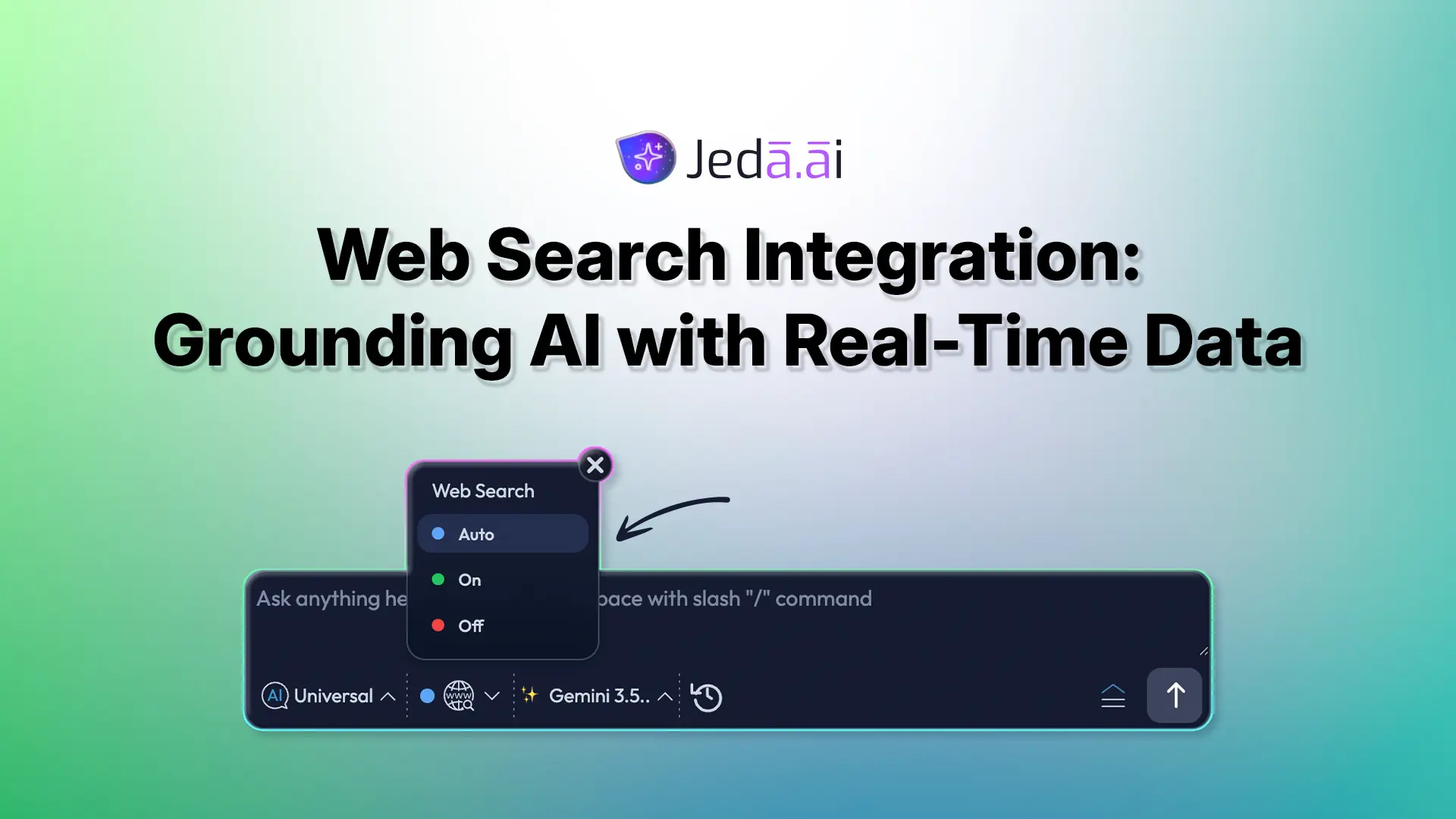
Web Search Toggle Modes: Auto, On, Off
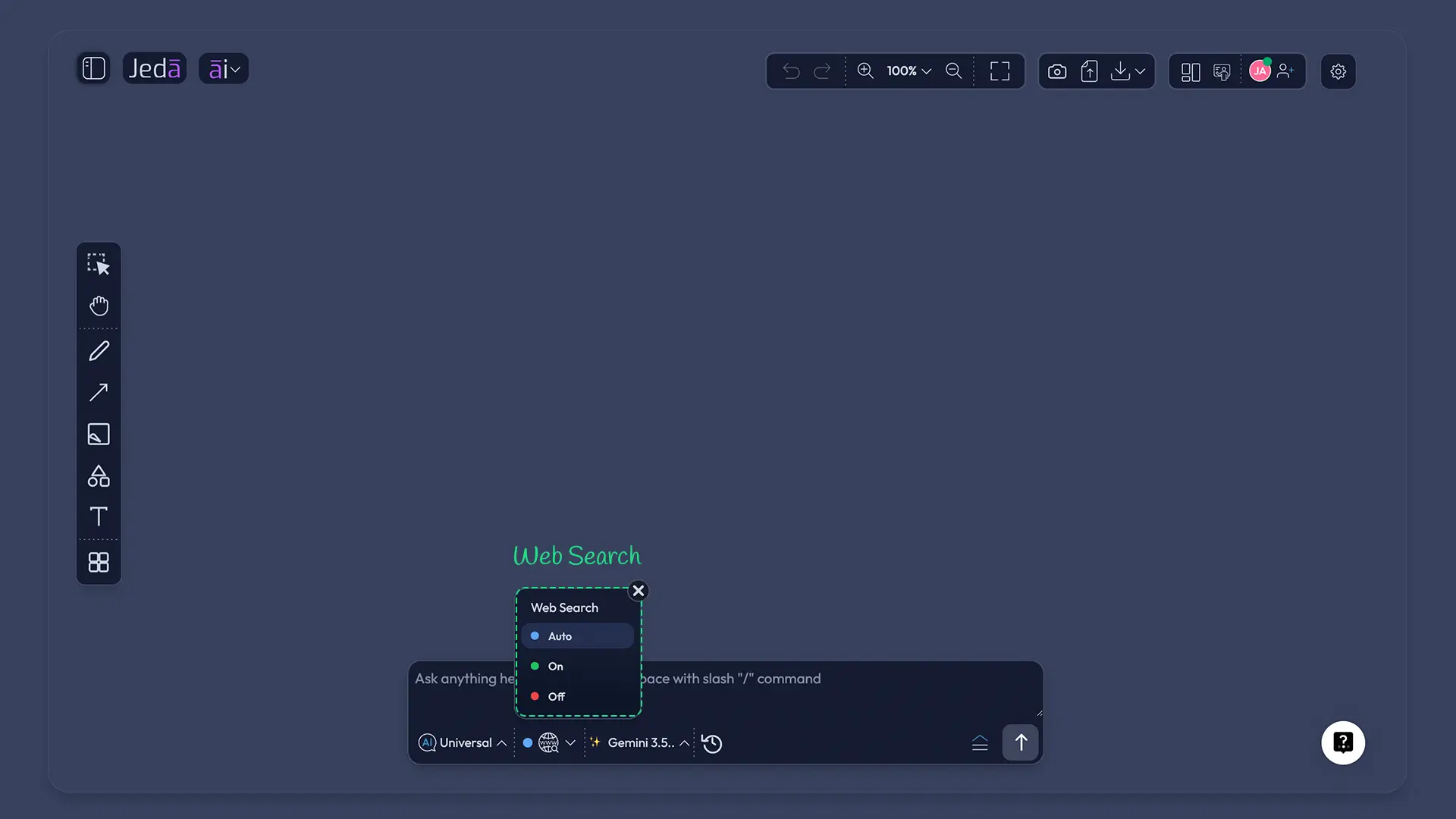
The 🌐 Web Search toggle in the Prompt Bar offers three distinct modes. Each serves a purpose. Your job is matching the mode to your task.
Auto Mode (🔵 Blue Dot) — This is the default. When Auto is selected, Jeda.ai's AI decides whether to search based on your prompt's context. Asking for "Q1 2026 competitive moves"? The AI recognizes the need for current data and searches. Brainstorming "creative product names"? The AI skips the search—you don't need real-time data for ideation. Auto is the safest default because it adapts to your actual need.
On Mode (🟢 Green Dot) — This forces Web Search to activate for every generation. Use On when you're absolutely certain you need current data, no exceptions. Your startup founder needs a Lean Canvas grounded in today's market conditions? Turn it On. Running a competitive intelligence analysis on your industry? Turn it On. Building an argument that depends on facts from this month? Turn it On. The tradeoff is straightforward: generations take 2-5 seconds longer while Jeda.ai retrieves data, but you get the accuracy you need.
Off Mode (🔴 Red Dot) — Web Search never activates. Turn Off when you're doing creative work, exploring ideas, or building deterministic outputs where real-time data adds noise rather than clarity. Brainstorming feature names? Off. Documenting internal processes? Off. Creating a philosophical framework for decision-making? Off. You'll get faster generations because the AI isn't fetching web data, and you'll avoid irrelevant information cluttering your output.
Here's a practical decision framework. Analyzing this quarter's market trends? On. Ideating a rebrand? Off. Unsure? Auto handles it for you. The beauty of Auto mode is that it removes the decision burden while maintaining accuracy where it matters most.
In our experience working with thousands of users across the AI Workspace, most professionals keep Auto as their default and switch to On only for time-sensitive strategic work. This approach balances accuracy with speed while letting the AI handle the decision-making for less critical use cases.
Which Commands Support Web Search?
Not every command in Jeda.ai works with Web Search, and it's important to understand the landscape so you use the feature where it matters.
- ✅ Full Support
All standard commands (Matrix, Mindmap, Flowchart, Text, Stickynote, Wireframe, Image, Draw, Infographic, Diagram, Widgets) work with Web Search. So do all AI Recipes (Matrix Recipes, Diagram Recipes, Writer Recipes, Design Recipes, Art Recipes).
- ✅ File Analysis + Web Search
AI Recipes that use the Advance toggle to incorporate Data Insight (CSV/Excel) or Document Insight (PDF/Word/PPT) file analysis also support Web Search. The recipe combines file insights with real-time web data.
- ❌ Direct Data Insight
The Data Insight command, when used standalone to analyze uploaded CSV or Excel files, does not currently support Web Search. This is a technical limitation—file analysis and web search aren't yet orchestrated together in direct mode.
- ❌ Direct Document Insight
The Document Insight command, when used standalone to analyze uploaded PDFs or Word documents, also doesn't support Web Search directly. Same reasoning as Data Insight—orchestration in direct mode isn't available yet.
Think of it this way: if you're uploading a data file directly and selecting Document Insight or Data Insight from the Prompt Bar, Web Search won't be available. But if you're using an AI Recipe and leveraging the Advance toggle to analyze a file within that recipe, Web Search works because the recipe orchestrates everything together.
This distinction matters when you're planning your analysis workflow. Generating a competitive matrix from scratch? Web Search is fully supported—turn it On. Uploading a 2025 competitor report and analyzing it directly with Document Insight? Web Search isn't supported in that direct flow. But here's the workaround: use an AI Recipe, upload the document via the Advance toggle, enable Web Search, and generate your analysis. Same outcome, full real-time grounding.
Real-World Use Cases: Web Search in Action
Let's move from theory to practice. Here's how professionals across different roles use Web Search to ground their strategic frameworks in current reality.
Market Research with Live Data (Strategic Consultant)
Sarah manages competitive analysis projects for C-suite clients. She needs market intelligence that reflects this quarter's competitive moves. Here's her workflow: She opens Jeda.ai, selects the Matrix command, enables Web Search to On, and prompts: "Create a competitive positioning matrix for AI workspace tools (Jeda.ai, Figma, Miro, Notion) comparing features, pricing, go-to-market strategies, and recent product announcements in Q1 2026."
Without Web Search, the matrix would be built on Sarah's training data knowledge, missing the product launches from January, pricing changes from February, or market positioning shifts from March. With Web Search enabled, Jeda.ai retrieves this month's announcements, competitor pricing updates, and recent industry coverage. The resulting matrix is a current, defensible deliverable that clients trust because it reflects the actual market today.
Trend Analysis for Product Strategy (Product Manager)
Marcus builds roadmaps. He needs to understand which technologies are genuinely emerging vs. which hype-cycle buzzwords aren't panning out. He opens Jeda.ai, selects Mindmap, enables Web Search to Auto, and enters: "Map emerging AI trends in product development, including adoption rates, enterprise readiness, and implementation challenges in Q1 2026."
The resulting mindmap shows him trends backed by current data—GitHub stars, LinkedIn job postings, enterprise adoption statistics from this quarter. When he uses the AI+ button to extend a branch ("Show me real-world case studies of AI in product development"), the extension pulls in recent implementations and case studies, not generalizations.
Real-Time Business Model Canvas (Startup Founder)
Jamie is validating a new SaaS business model. She needs a Lean Canvas grounded in actual market conditions, not assumptions. She clicks the AI Menu (top-left), selects the Lean Canvas recipe, fills in the form fields, scrolls to the Advance section, and enables Web Search. When she generates the canvas, the recipe pulls real-time market data on customer acquisition costs, pricing benchmarks, and competitive landscape from current news and research.
Competitive Intelligence Briefing (Marketing Team)
The marketing team at a software company needs to position their Q2 campaign against competitors' latest moves. They generate a competitive positioning matrix with Web Search set to On. The matrix includes competitors' recent pricing changes, new feature announcements from last week, and shifts in their marketing messaging captured from current press releases and website updates. The team's campaign strategy is built against today's competitive reality, not last month's.
These aren't abstract scenarios. They're how 150,000+ Jeda.ai users work every day. And across these workflows, one theme emerges: Web Search transforms frameworks from strategic hypotheses into grounded recommendations backed by today's facts.
Best Practices: When to Enable vs. Disable Web Search
The question isn't just "what is Web Search?" It's "when does Web Search matter for my work?" Here's a framework to guide that decision.
Turn On Web Search When:
- You're analyzing current market trends or competitive positioning
- Your analysis depends on recent announcements, news, or data updates
- You're building a strategic recommendation that leadership will review (higher confidence = higher accuracy)
- The output will inform business decisions made this quarter or next
- You're doing market research, competitive intelligence, or trend spotting
- You're building investment pitch materials or board presentations
- The accuracy of current facts directly impacts your output's quality
Turn Off Web Search When:
- You're brainstorming and need creative freedom without factual constraints
- You're documenting internal processes, workflows, or documentation that doesn't change with external market conditions
- You're exploring philosophical or conceptual frameworks where real-time data is irrelevant
- You're ideating product names, messaging, or creative assets
- You need faster generation and accuracy-vs-speed tradeoffs favor speed
- You're working offline or in environments where web connectivity is limited
Leave on Auto When:
- You're unsure whether the task needs current data
- You're doing mixed work—some analyses benefit from real-time grounding, others don't
- You want the AI to decide based on context
- You're exploring and don't want to toggle modes repeatedly
From a user perspective, we've observed a clear pattern: professionals doing strategic work (consultants, product managers, business analysts, marketers) tend to enable Web Search for their analyses. Teams brainstorming or doing creative ideation disable it. Most users leave Auto as their default and only toggle when they have a specific reason to.
One more practical note: Web Search adds 2-5 seconds per generation while Jeda.ai fetches real-time data. That's a negligible cost for the accuracy gain. Token usage varies based on how much data the search retrieves, but Shifu+ plans include Web Search with no per-search charges. You're not paying extra for each search—it's part of your subscription.
How to Use Web Search in Your Workflow
Three methods, depending on your workflow and preferences. Pick what feels natural.
Method 1: Prompt Bar with Standard Commands
- Open a workspace in Jeda.ai
- Find the Prompt Bar at the bottom of your screen
- Click the command selector dropdown (e.g., select Matrix or Mindmap)
- Look for the 🌐 Web Search Toggle — it's a globe icon with a colored dot
- Click the toggle to cycle through modes: Auto (🔵 blue) → On (🟢 green) → Off (🔴 red)
- Type your prompt (e.g., "Competitive matrix for AI workspace tools")
- Click the Generate button (⬆️ arrow)
- Watch Jeda.ai retrieve real-time data and generate your framework in seconds
This is the most common workflow and the fastest path to using Web Search.
Method 2: AI Recipes with File Analysis
- Click the "ai∨" dropdown in the top-left corner
- Choose a recipe category (Matrix, Diagram, Writer, etc.)
- Select your recipe (e.g., SWOT Analysis, Lean Canvas, Business Model Canvas)
- Fill in the guided form fields (the recipe walks you through the process)
- Scroll down to the Advance section
- Toggle "Analysis on file" to enable Data Insight or Document Insight
- Click "Select File" to choose an uploaded CSV, Excel, PDF, or Word document
- Enable the Web Search toggle (🌐)
- Click Generate
- The recipe combines insights from your uploaded file with real-time web data
This method is perfect when you're analyzing internal data alongside market context. Your sales data + competitive pricing = grounded business analysis.
Method 3: Vision Transform
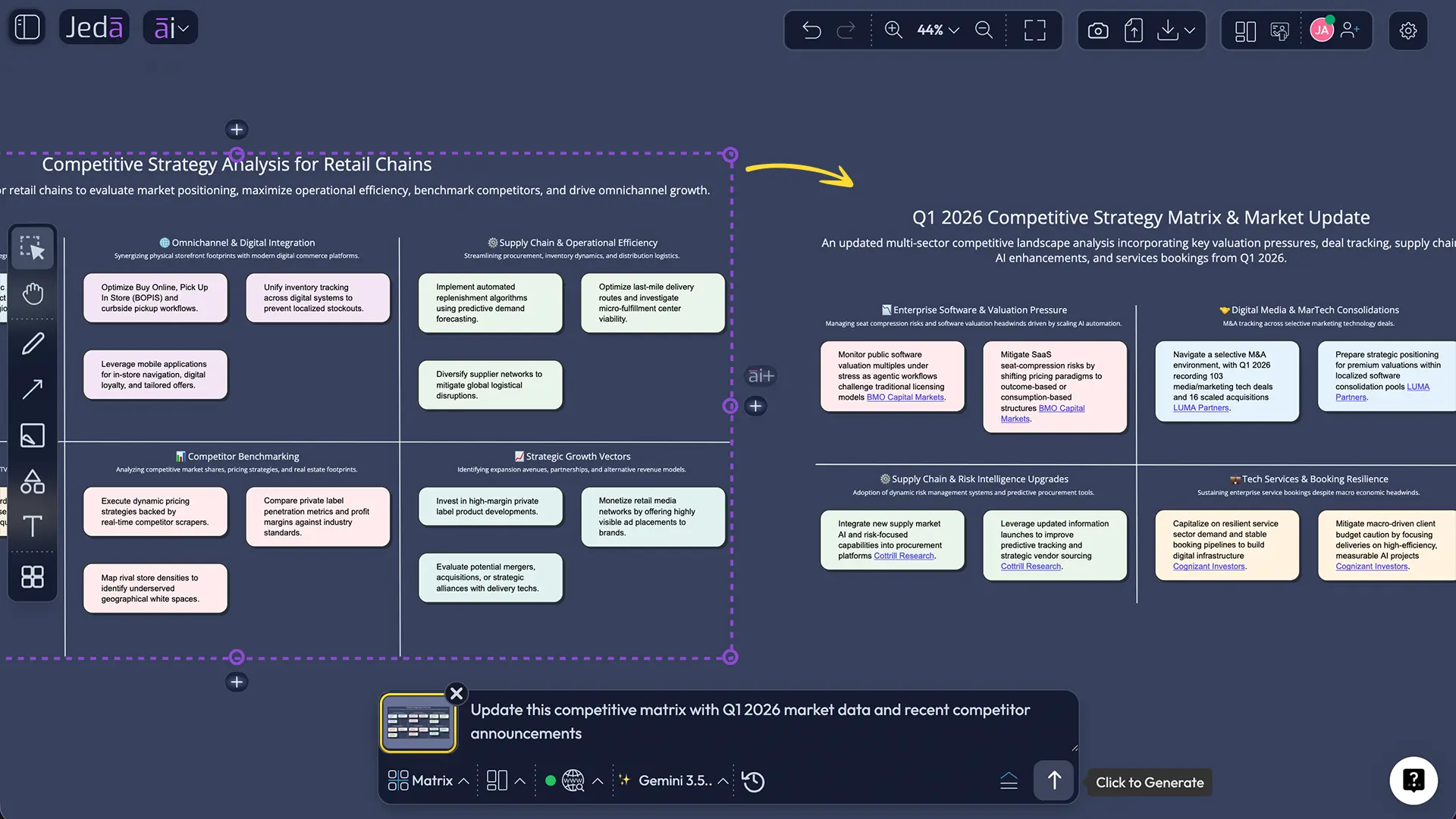
- Create or select an existing visual on your canvas (a Matrix, Mindmap, or any framework)
- Click the 🖼️ Vision Transform button in the Prompt Bar (appears when you have a visual selected)
- Type a transformation prompt (e.g., "Update this competitive matrix with Q1 2026 market data and recent competitor announcements")
- Enable the Web Search toggle
- Click Generate
- Jeda.ai transforms your existing visual using real-time context
Vision Transform is handy when you want to refresh an existing analysis with current data without starting from scratch.
Frequently Asked Questions
- What's the difference between Auto, On, and Off for web search?
- Auto: AI decides whether to search based on context. On: Always retrieves real-time data before generation. Off: Never searches; uses only training data. Auto is safest for mixed workflows.
- How does web search improve AI accuracy?
- Web search grounds AI responses with verified facts, reducing hallucinations. Retrieval-augmented generation improves factual accuracy by 40-60% compared to LLM-only outputs (Gao et al., 2024).
- Which Jeda.ai commands support web search?
- All standard commands (Matrix, Mindmap, Flowchart, Text, etc.) and all AI Recipes support web search. Exceptions: Direct Data Insight and Document Insight commands don't support it, but AI Recipes using file analysis (Advance toggle) do.
- When should I turn web search ON vs. OFF?
- Enable ON for time-sensitive analysis (market research, competitive intelligence, trend analysis). Disable OFF for creative ideation, brainstorming, philosophical discussions, and deterministic outputs where current data adds noise.
- Does web search affect generation speed?
- Minimal impact. Web search adds 2-5 seconds per generation while Jeda.ai fetches real-time data. Most users don't notice the delay; accuracy gains far outweigh the extra time.
- Can I use web search with AI Recipes for data analysis?
- Yes. Use the Advance toggle in AI Recipes to enable Data Insight (CSV/Excel) or Document Insight (PDF/Word). Then enable Web Search. The recipe combines file analysis with real-time web data.
- What's the difference between platform web search and LLM web search?
- Jeda.ai's web search is a platform feature (workspace infrastructure) working across all commands and models consistently. LLM-level search is built into individual AI models. Platform search is more flexible.
- How do I search the web while analyzing a Matrix or Mindmap?
- Simply enable the Web Search toggle in the Prompt Bar before generating your Matrix or Mindmap. The AI retrieves real-time data and incorporates it into your framework automatically.
- Does web search work with all AI models in Jeda.ai?
- Yes. Web Search is a platform-level feature independent of which AI model you select. Works with GPT-4o, Claude Sonnet, Grok 3, and all other available models.
- What are real-world use cases for web search + visual frameworks?
- Market research matrices with live competitor data, trend analysis mindmaps with current news, SWOT analyses for investment pitches, business model canvases reflecting today's market conditions, and competitive positioning for marketing campaigns.
- How current and accurate is the web data retrieved by web search?
- Jeda.ai retrieves data from live web sources; accuracy depends on source credibility (news sites, research reports, company websites prioritized). Data is typically hours to days current—sufficient for strategic frameworks.
How to Enable Web Search in Your Next Framework
Ready to ground your next analysis in reality? Here's your action plan.
- Open Jeda.ai Workspace
Navigate to go.jeda.ai and open an existing workspace or create a new one. Select or create the workspace where you'll build your framework.
- Choose Your Command
Click the command selector in the Prompt Bar. Choose Matrix, Mindmap, Flowchart, or another command based on your analysis type.
- Enable Web Search
Locate the 🌐 Web Search toggle (globe icon with colored dot). Click to select your mode: Auto (default), On (always search), or Off (never search). Start with Auto if unsure.
- Enter Your Prompt
Type your analysis prompt in the Prompt Bar. Example: 'Create a competitive matrix for AI workspace tools comparing features, pricing, and recent announcements.'
- Generate Your Framework
Click the Generate button (⬆️ arrow). Watch Jeda.ai retrieve real-time data and generate your visual framework in seconds.
- Extend and Refine
Review your framework. Use the AI+ button to extend branches with additional insights, or use Vision Transform to convert it to another format. All extensions inherit your web search settings.
That's it. Six steps to grounded, real-time strategic analysis. Most users complete this workflow in under two minutes, and the confidence in their output increases dramatically because it's backed by today's facts, not yesterday's knowledge cutoff.
Start Your Real-Time Framework Analysis Today
Strategic planning requires current information. Web Search in your AI Workspace ensures your matrices, mindmaps, and frameworks stay grounded in today's reality—not yesterday's assumptions.
With over 150,000+ users already transforming their thinking through visual AI, and access to 300+ strategic frameworks via the AI Menu, you're never building from scratch. Add Web Search, and you're never building on outdated data.
Ready to make your frameworks real-time?
Try Real-Time Grounded Analysis Today
Join over 150,000 professionals who trust Jeda.ai for strategy work grounded in current facts. Start your Shifu+ free trial now.
Start Free TrialCitations & Sources
- [1]
Gao, Y., Xiong, Y., Gao, X., et al. (2024) . “Retrieval Augmented Generation (RAG): A Survey” arXiv.
View Source ↗ - [2]
Zhang, Y., Li, B., Ren, S., et al. (2024) . “Addressing Hallucinations in Large Language Models” arXiv.
View Source ↗ - [3]
Lewis, P., Perez, E., Piktus, A., et al. (2020) . “Retrieval-Augmented Generation for Knowledge-Intensive NLP Tasks” Facebook AI & Hugging Face.
View Source ↗ - [4]
Arakelyan, A., Haggstrom, R., Salonen, E., et al. (2023) . “Temporal Reasoning in Large Language Models: A Comprehensive Study” arXiv.
View Source ↗ - [5]
McKinsey & Company (2024) . “The State of AI in 2024: Enterprise Priorities & Adoption Barriers” McKinsey Insights Report.
View Source ↗