What Is Jeda.ai?
Your AI Thinking Partner
The first time you open Jeda.ai, you'll notice something different. This isn't just a whiteboard. Jeda.ai is an AI Workspace where over 150,000 professionals think, plan, and solve problems visually. Unlike traditional digital whiteboards designed for collaboration, Jeda.ai combines visual thinking with AI reasoning. Your ideas flow from brain to canvas to intelligent analysis—all in one place.
Imagine having a thinking partner available 24/7. One who understands your sketches, analyzes your data, and helps you structure complex thoughts. That's what Jeda.ai does. You sketch on an infinite canvas. The AI helps you build frameworks, discover patterns, and refine your thinking. The result: faster decisions, clearer strategy, better outcomes.
How It Differs from Traditional Whiteboards
Most digital whiteboards focus on team collaboration. Jeda.ai prioritizes thinking—both solo and shared. Here's the difference:
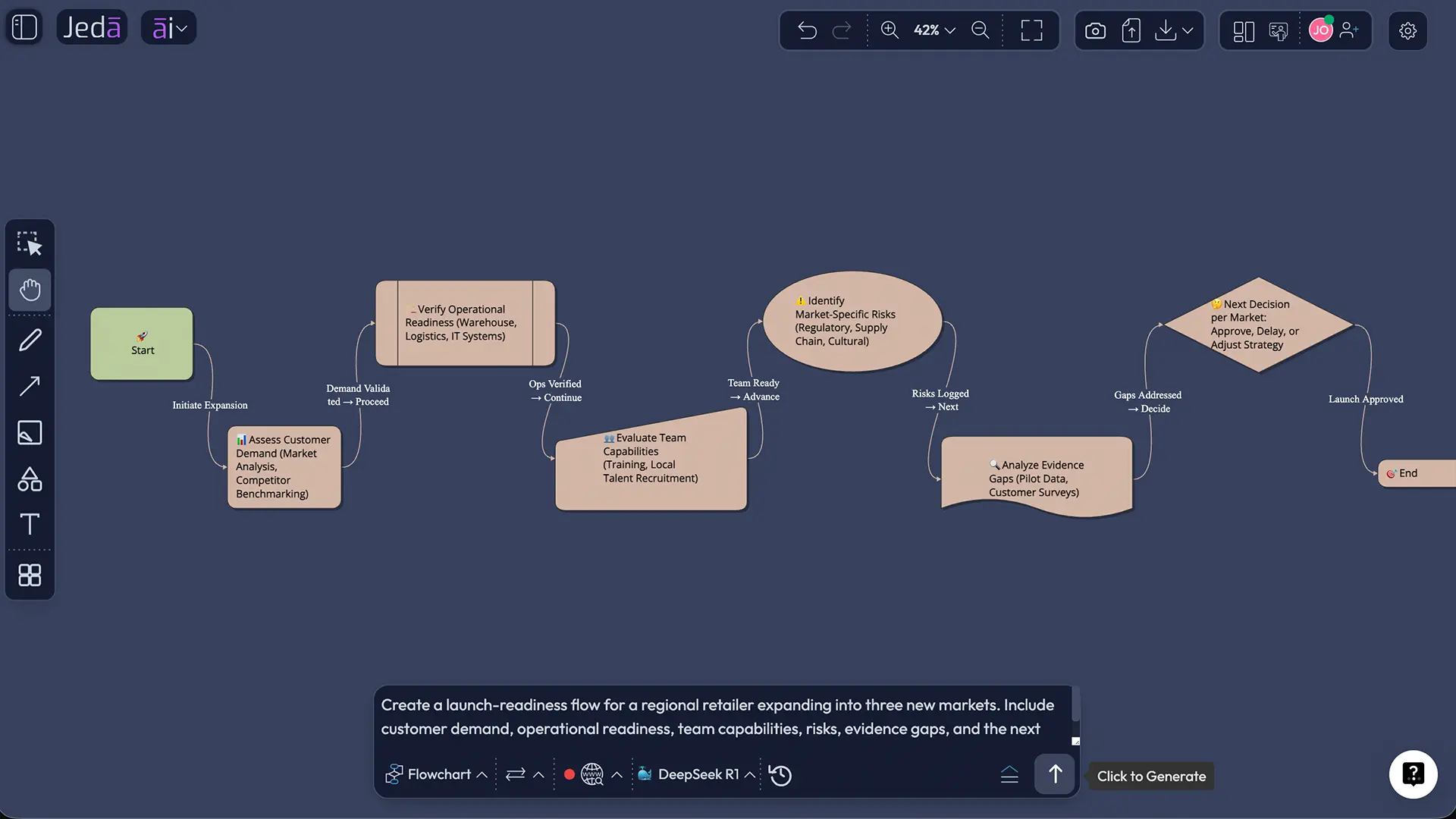
Traditional whiteboards let you draw. Jeda.ai helps you think visually. Your 7-day Shifu trial unlocks features built for reasoning: a Multi-LLM Agent that processes complex prompts, Data Insight to analyze spreadsheets, Document Insight to extract information from PDFs, and Web Search to ground your ideas in current information. You also get access to 300+ strategic frameworks—templates for matrices, decision trees, scenario planning, and more.
This is why Jeda.ai is positioned as an AI Whiteboard for strategic thinking, not just team drawing.
Getting Started: The 5-Minute Setup
Signing up for Jeda.ai is intentionally frictionless. No credit card. No lengthy forms. Just email, password, and go. Here's your path from signup to creating your first workspace.
- Create Your Free Account
Head to go.jeda.ai and click Sign Up. Enter your email and create a password. Click 'Create Account.' You're live in seconds.
- Verify Your Email
Check your inbox for a confirmation code from Jeda.ai. Enter it on the confirmation screen. Your account activates immediately.
- Activate Your Shifu Trial
No action needed. Your account automatically starts a 7-day free Shifu trial with all premium AI features. Start creating right away.
- Create Your First Workspace
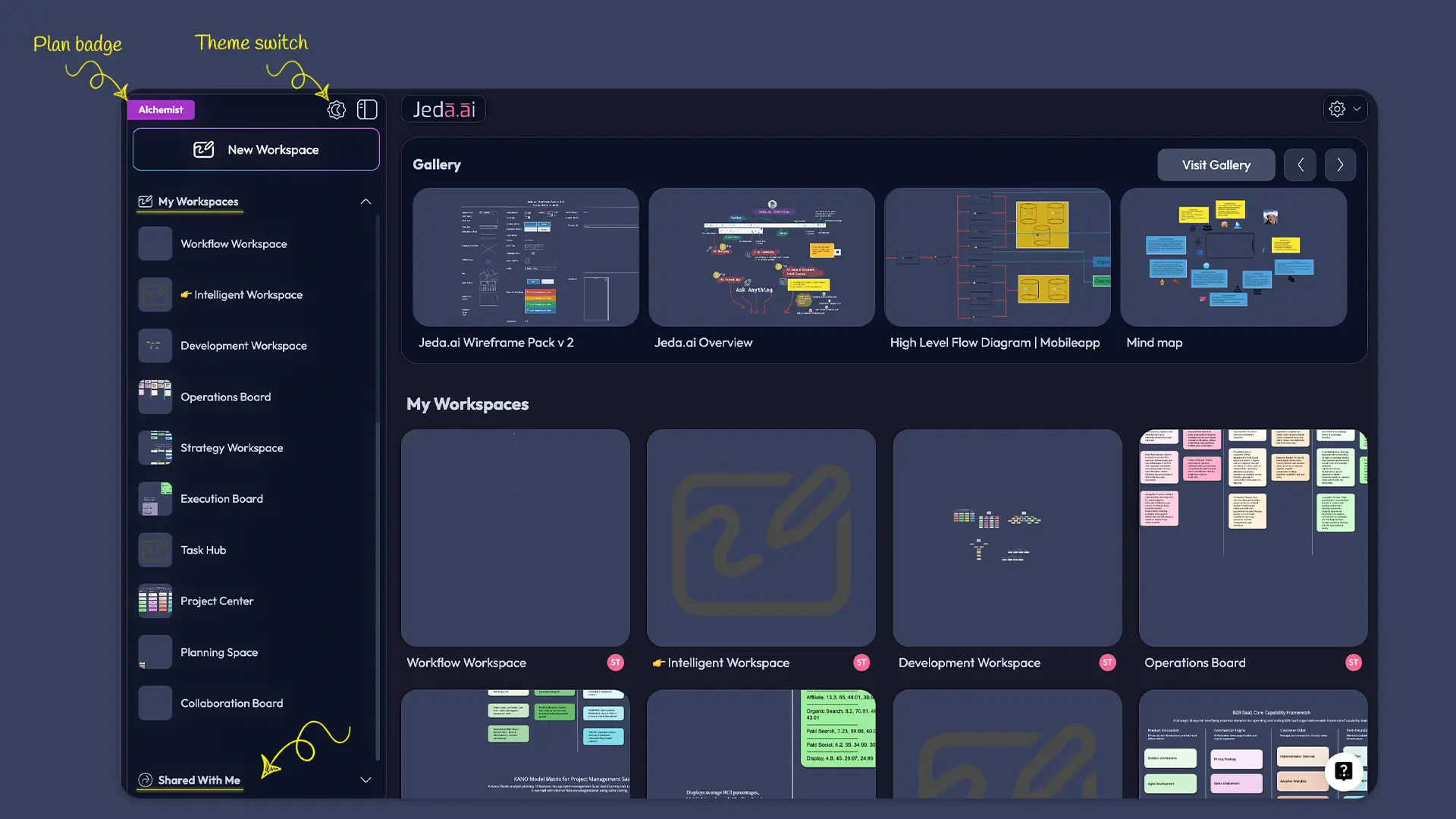
From the dashboard, click the '+' button or 'New Workspace.' Name your workspace. Click 'Create.' You're ready to explore.
- Open and Explore
Click your workspace to open it. See the five interface zones explained below. Find the Prompt Bar at the bottom. You're one command away from your first AI action.
That's it. Five steps. Five minutes. And you're ready to think visually.
Understanding Your Workspace
The Five Interface Zones Explained
The Jeda.ai AI Whiteboard canvas might look infinite at first glance. It is—but the interface is carefully organized into five logical zones. Learning these zones transforms confusion into confidence. You'll know exactly where to find what you need.
Top-Left: Logo, AI Menu, and Panel Toggle
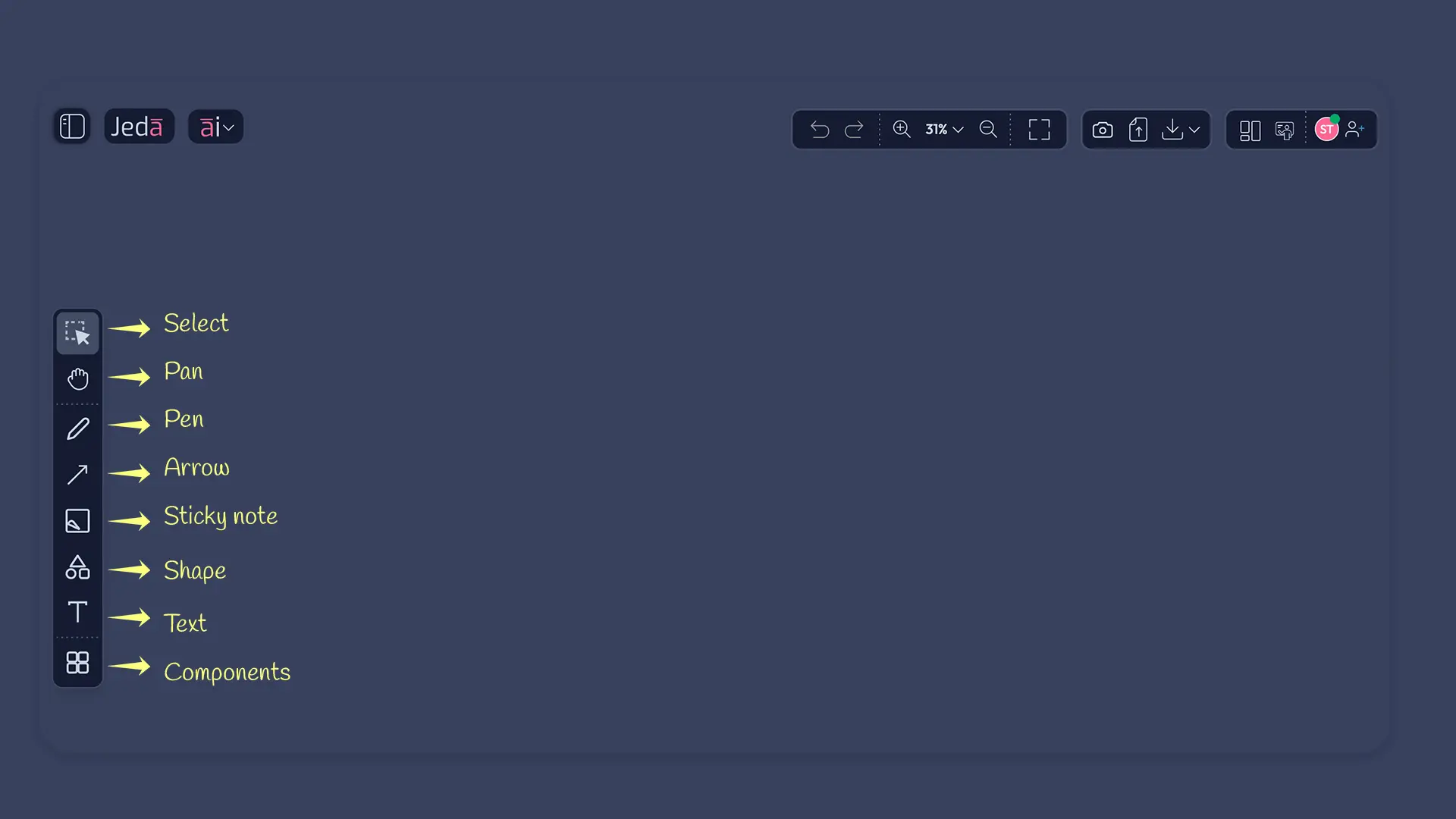
Your top-left corner is your navigation hub. The Jeda logo sits here, alongside the AI Menu button (your gateway to advanced AI features and settings). Next to that, you'll find the Left Panel toggle—a three-line icon that opens and closes your workspace management panel. Click it to access theme switching, your plan badge, and your workspace list.
Top-Right: Your Toolbar
The top-right toolbar is your command center for canvas actions. Here you'll find Undo/Redo, Zoom, Screenshot, Upload, Download, Follow Me, and Settings. Each button is intuitive. Hover over any button to see its label.
Left Panel: Workspace Management
Toggle the Left Panel from the top-left corner. Here you manage your Jeda experience. You'll see theme toggle, your plan badge, My Workspaces, Shared With Me, and New Workspace button.
Left Sidebar: Drawing Tools
When the Left Panel is open, a second toolbar appears on the far left with shape, connector, and text options. Click any tool to start drawing directly on the canvas. Most users discover these tools through exploration—they're simple and feel natural to use.
Bottom Center: Your Prompt Bar
At the bottom center of your workspace is your Prompt Bar. It's where the AI magic happens. Type any request, and Jeda processes it. Examples: "Create a flowchart for customer onboarding" or "Analyze this CSV data and show trends."
Canvas Fundamentals
An Infinite Canvas, Always Ready
When you first open a workspace, you see a blank infinite canvas. Infinite means you'll never run out of space. No more moving things around to make room. No more compressed views. You have unlimited creative freedom. Zoom in, zoom out, expand your thinking in every direction.
Auto-Positioning: Never Worry About Overlap
Here's where Jeda differs from a blank whiteboard. When you create elements—boxes, shapes, diagrams—the canvas automatically arranges them logically. You won't see overlapping text or tangled connections. The AI positioning engine keeps everything organized as you work. This means you spend less time fussing with layout and more time thinking.
The Power of 25-Step Undo
Unlimited undo history? Not quite—you get 25 steps back. But that's more than enough for real work. The deeper insight here is psychological. Knowing you can revert almost any action instantly means you can experiment fearlessly. Try wild ideas. Test frameworks. Delete things. Undo mistakes. There's no downside to creativity here.
Typing Directly on the Canvas
You don't need complex text tools to add ideas. Click anywhere on the canvas and start typing. Text appears instantly. Format it later if needed. The friction between thought and capture is minimal. That's by design.
Your Shifu Trial: What's Included
Multi-LLM Agent Reasoning
Your 7-day Shifu trial unlocks reasoning across multiple leading AI models. Instead of being locked into one model, you access the best reasoning engine for your task. The Multi-LLM Agent learns from your prompts and adapts. This is enterprise-grade thinking power.
Data Insight and Document Insight
Upload a CSV file or a PDF document. The AI analyzes it, extracts insights, and visualizes the findings on your canvas. No manual transcription. No copying data into separate tools. Drag, drop, analyze, visualize.
Web Search Integrated
Your AI has real-time access to current information. Ask about recent trends, market data, or recent news. The Prompt Bar connects to live web search, so your thinking is grounded in today's information, not yesterday's training data.
300+ AI Recipes (Strategic Frameworks)
Every workspace gives you access to 300+ pre-built frameworks. SWOT matrices, scenario planning canvases, decision trees, competitive analysis templates—all ready to activate with one click. These aren't just templates; they're thinking structures designed by strategists and consultants.
Available Commands and Tools
Visual Creation Commands
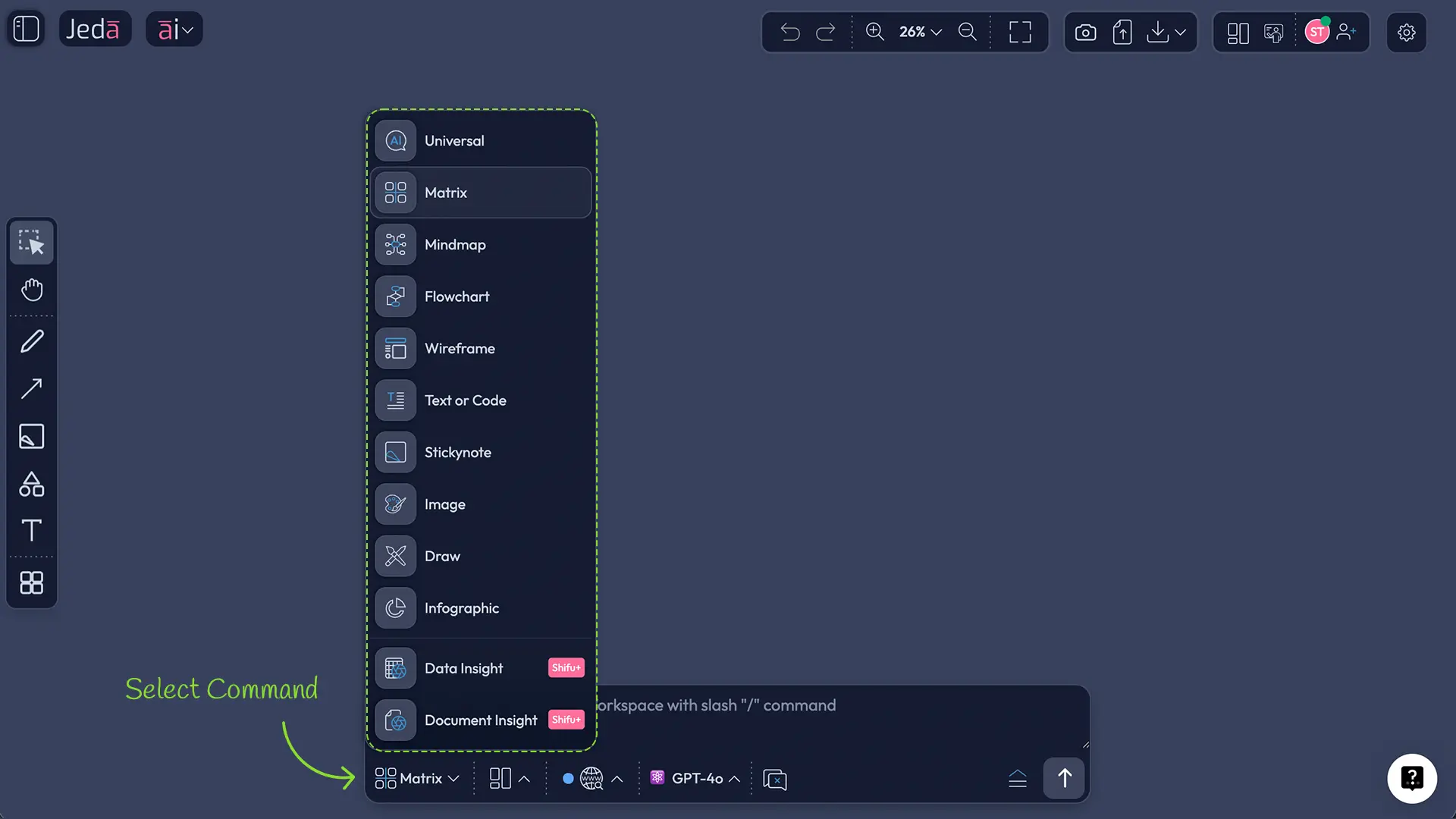
The Prompt Bar is your interface. Tell Jeda what you need, and it delivers. Here are the core creation commands:
Matrix — Build 2x2 or 3x3 matrices for comparison, positioning, or analysis. Perfect for strategy work.
Mindmap — Organize ideas hierarchically. Great for brainstorming and exploration.
Flowchart — Create step-by-step processes, workflows, or customer journeys.
Wireframe — Sketch UI layouts for apps or websites.
Text/Code — Add structured text, code blocks, or documentation directly to your canvas.
Stickynote — Drop quick ideas and thoughts anywhere. Organize them later.
Image — Insert images from your computer or web URLs. Great for mood boards or reference materials.
Draw — Free-form sketching. Use your cursor or stylus to draw shapes, connectors, and annotations.
Infographic — Create visual data representations from your thinking.
AI-Powered Analysis Tools
Data Insight — Upload CSV or spreadsheet data. AI analyzes and visualizes trends, correlations, and summaries.
Document Insight — Upload PDF or text documents. AI extracts key information and creates visual summaries.
Diagram — Transform text descriptions into visual diagrams automatically.
Export and Collaboration
Download — Export your finished work as PNG (for web), SVG (for editing), or PDF (for sharing). Top-right toolbar.
Collaboration — Click the Collaboration button in the top-right toolbar to share your workspace link or invite specific teammates. They can view, comment, and edit in real-time or asynchronously.
Upgrading After Your Trial
White Belt: The Free Plan
When your 7-day Shifu trial ends, your account automatically downgrades to White Belt—completely free, no credit card required, no surprise charges. White Belt includes 10 AI tasks per day and 3 workspaces. If you're thinking solo or with a small team casually, White Belt works.
Black Belt, Shifu, and Alchemist Plans
Beyond White Belt, three paid tiers unlock more capacity and features: Black Belt ($10/month, 50 AI tasks/day), Shifu ($39/month, 500 AI tasks/day, most popular), and Alchemist ($298/month, unlimited AI tasks, white-label options).
Each tier is designed for a different stage of growth. Start free. Upgrade when you're ready.
Frequently Asked Questions
- Do I need a credit card to start my free trial?
- No. Sign up with email and password only. Your 7-day Shifu trial activates automatically. You'll never be charged without explicitly upgrading to a paid plan.
- What's the difference between a workspace and a board?
- A workspace is your personal thinking environment. Inside it, you create boards (canvases) where you organize ideas. Think of workspace as your office, boards as your desks.
- Can I create multiple workspaces?
- Yes. White Belt (free) allows 3 workspaces. Paid plans allow unlimited workspaces. Use the Left Panel to create new ones. Switch between them anytime.
- How do I invite teammates to collaborate?
- Click the Collaboration button in the top-right toolbar. Share your workspace link or invite specific people by email. They join and contribute in real-time or asynchronously.
- What happens after my 7-day Shifu trial ends?
- Your account automatically switches to White Belt (free plan) with 10 AI tasks/day and 3 workspaces. Your work stays. Upgrade anytime from your account settings if you need more.
- Can I export my work?
- Yes. Use the Download button in the top-right toolbar. Export as PNG (for web), SVG (for editing), or PDF (for sharing or printing).
- How deep is the undo history?
- Jeda maintains 25 steps of undo history. That's enough for real work. Experiment freely knowing you can revert almost any action instantly.
- What AI models are available?
- Your Shifu trial includes Multi-LLM Agent access, meaning you can reason with multiple leading AI models in one workspace. Details appear in the AI Menu (top-left).
- Is Jeda.ai secure and private?
- Yes. Jeda.ai runs on enterprise-grade cloud infrastructure with encryption and regular security audits. Your data is your own. You control who sees what.
- Can I use Jeda.ai on mobile?
- Jeda.ai is optimized for desktop and tablet. Mobile viewing is possible, but full editing requires a desktop browser for the best experience.
- What's the Prompt Bar and how do I use it?
- It's the text input at the bottom center of your workspace. Type your request—'Create a flowchart' or 'Analyze this data'—and Jeda's AI processes it visually.
- How do I switch between Whiteboard (light) and Darkboard (dark) themes?
- Open the Left Panel (top-left toggle). Use the theme button near your plan badge. Changes apply to your entire workspace instantly.
- [1]
Petra Isenberg et al. (2011) . “Collaborative visualization: Definition, challenges, and research agenda” IEEE Transactions on Visualization and Computer Graphics.
View Source ↗ - [2]
ScienceDirect (2023) . “Visual thinking and cooperative learning in higher education: HOW does its implementation affect marketing and management disciplines after COVID-19?” Journal of Open Innovation.
View Source ↗ - [3]
ERIC Database (2019) . “The Role of Visual Learning in Improving Students' High-Order Thinking Skills” Educational Research and Development.
View Source ↗
Start Your AI Workspace Today
Join over 150,000 professionals using Jeda.ai for visual thinking and strategic planning. Your 7-day free Shifu trial includes all premium features. No credit card required.
Start Free Trial