Introduction: What the Prompt Bar Does
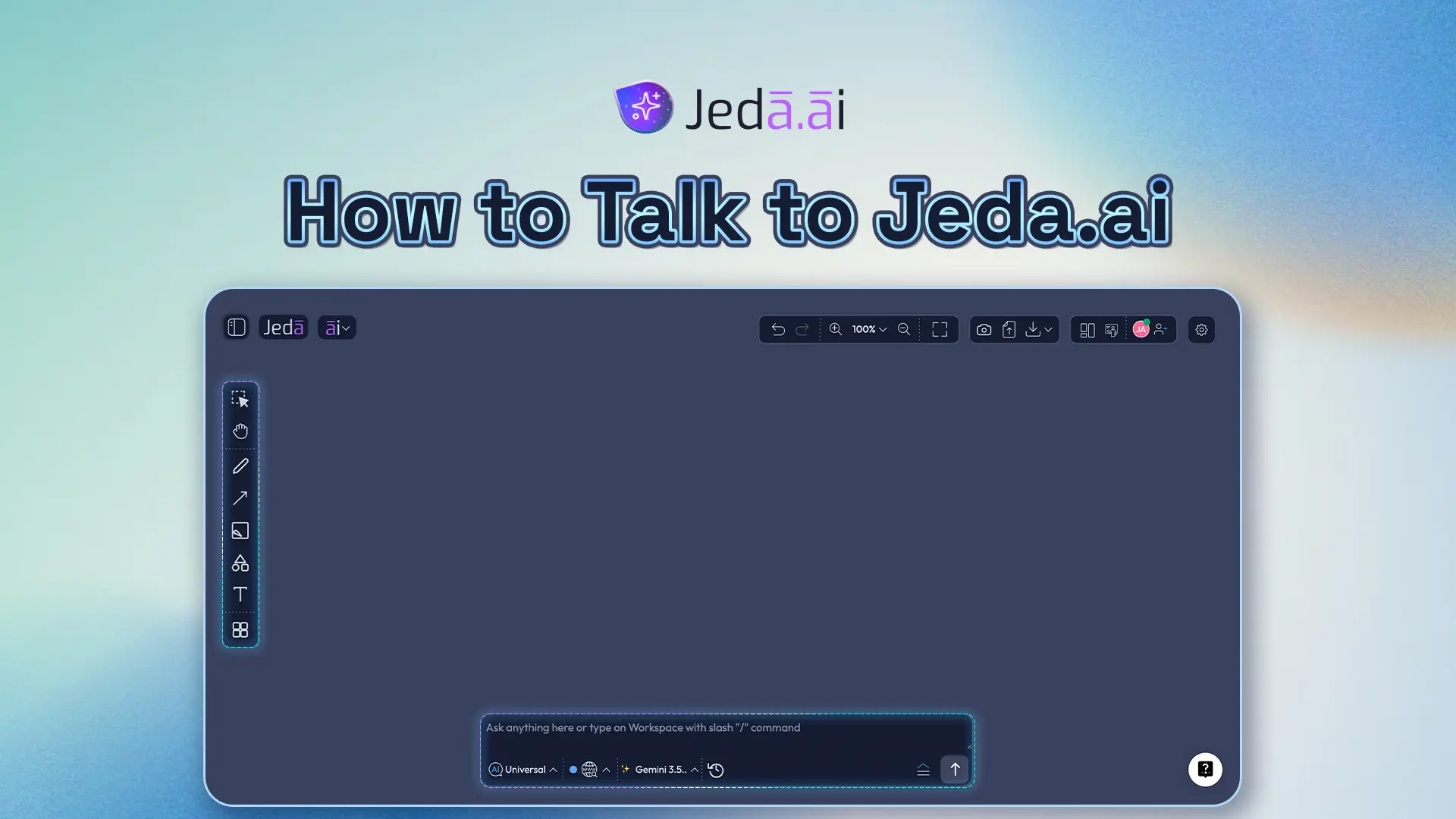
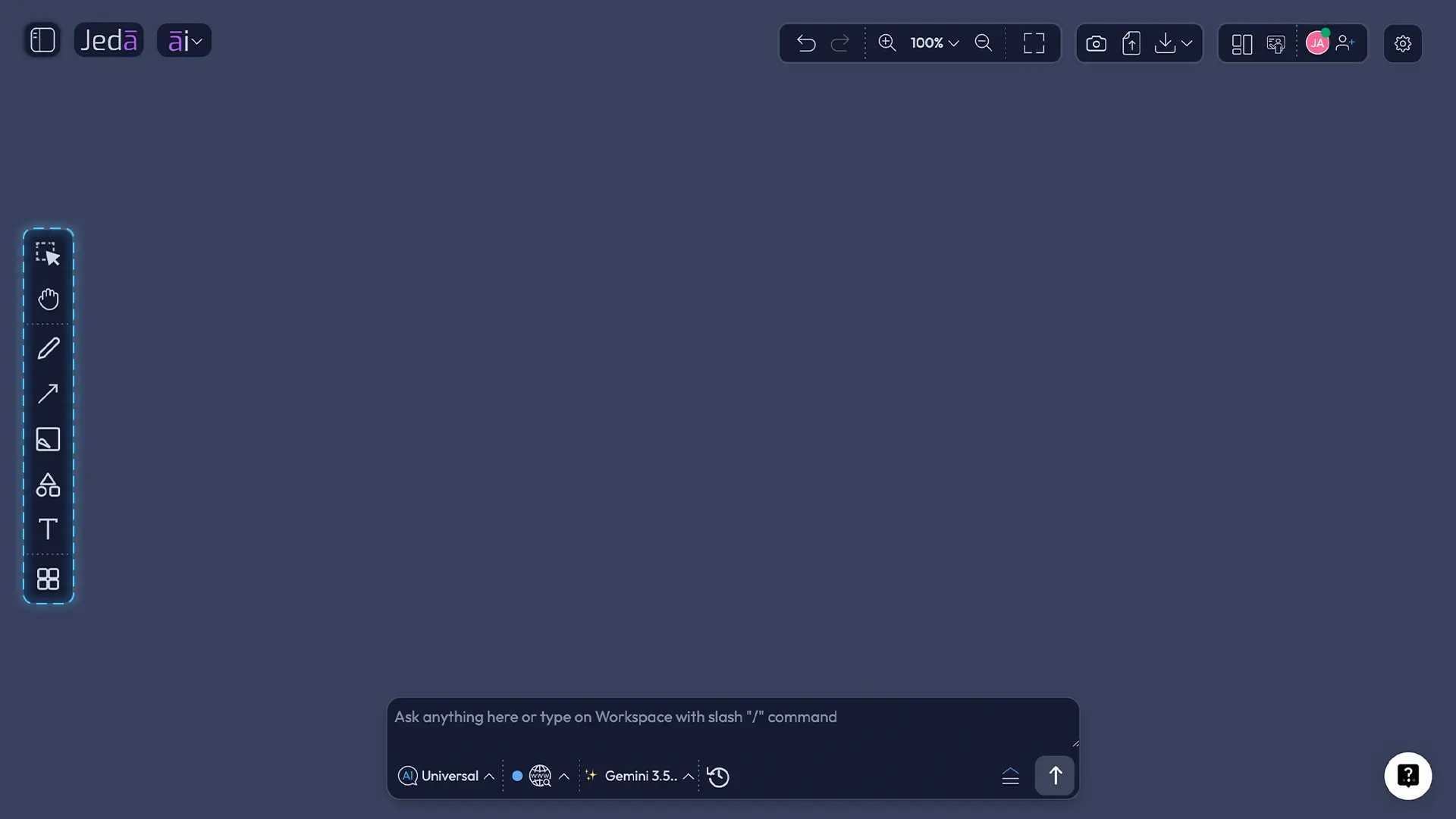
The Prompt Bar is your direct line to AI in Jeda.ai. It's that large input field at the bottom center of your workspace—the place where you write requests and send them to the AI engine. Every visual you create starts here. Every command you execute flows through it. Whether you're building a competitive matrix, mapping a customer journey, or planning quarterly roadmaps, the Prompt Bar is the interface that makes it happen.
Think of it as the control center for AI-powered thinking. You don't click through menus or navigate nested dialogs. You type. You adjust a few smart controls around the input field. You hit generate. And seconds later, your idea becomes a structured visual. No complex syntax. No magic words. Just clear, purposeful prompting.
Why the Prompt Bar Matters for Your Workflow
Learning to use the Prompt Bar well changes how fast you work. Most teams we talk to spend time wrestling with file formats, tool switching, and export cycles. With the Prompt Bar, you compress that. Strategy, ideation, and refinement happen in one space. Your chat history persists. Your teammates see your thinking in real time.
The Prompt Bar gives you eight different controls to shape AI output—from choosing what type of visual to create, to selecting which AI model powers your thinking, to enabling real-time web search. Master these controls, and you're not just using Jeda.ai. You're leveraging an entire AI workspace. You're the one in control.
Understanding All 8 Prompt Bar Controls
The Prompt Bar is built around eight interconnected controls. Each one serves a specific purpose. Together, they give you precise command over how the AI understands your request and what it delivers. Let's break them down.
- Command Selector
Choose your AI output type. Dropdown menu with options like Matrix, Mindmap, Flowchart, Text, Timeline, Decision Tree, and more. Select based on what structure best matches your thinking.
- Rendering Options
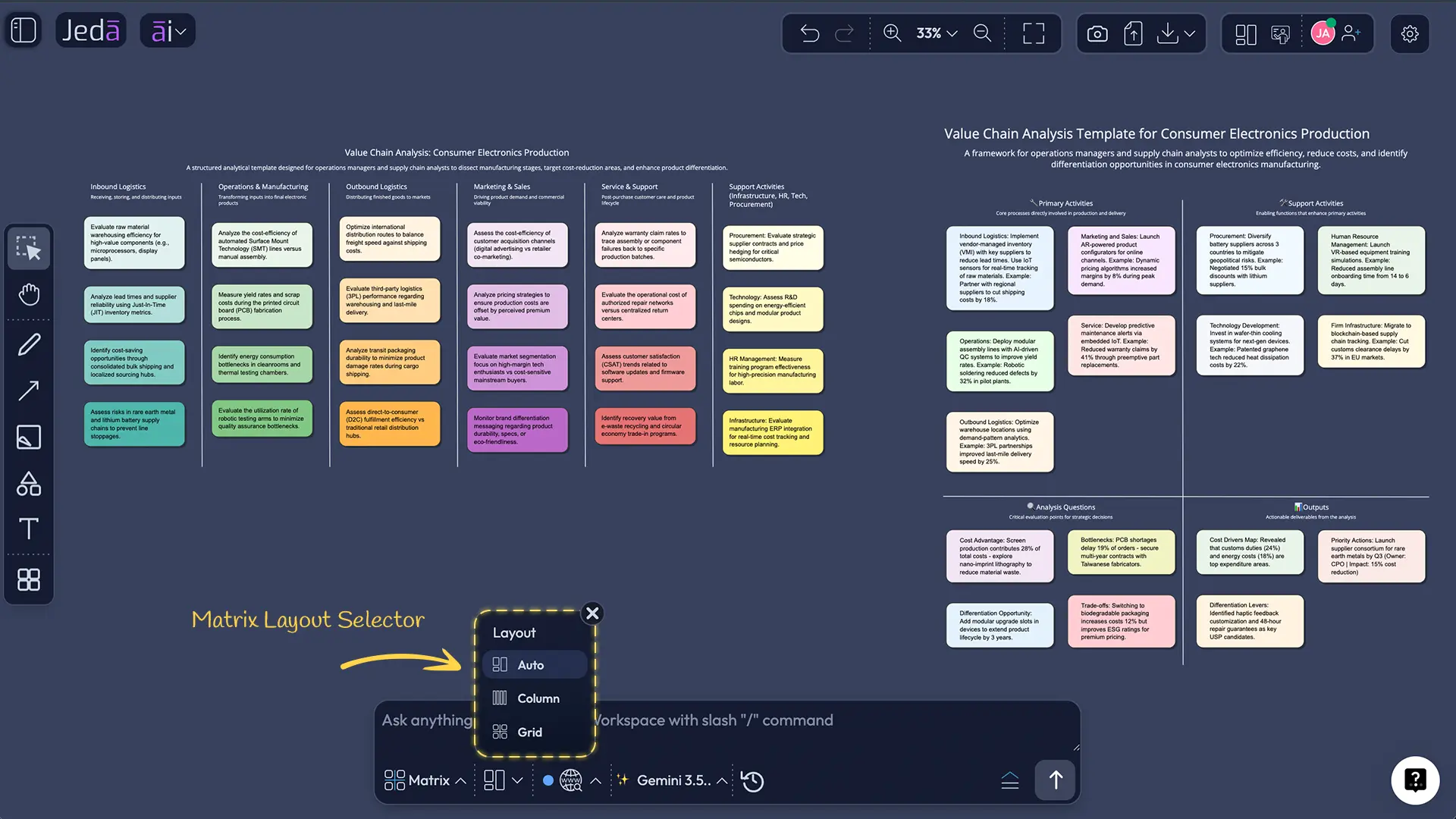
Control how your visual is laid out. For matrices: Auto, Column, or Grid. For mindmaps: Horizontal or Vertical. For other commands: variations based on output type. Same prompt, different visual structure.
- Web Search Toggle
Enable real-time web data in your prompts. Three modes: Auto (let Jeda.ai decide), On (always search), Off (brainstorm internally). Works with most commands except Data Insight and Document Insight directly—though recipes with data/document analysis via Advance toggle support web search.
- AI Model Selector
Pick the AI brain that powers your request. Multiple models available—each with different strengths. Balanced for general work; reasoning for complex analysis; creative for ideation. When Image is selected, two selectors appear (image generation + reasoning).
- Vision Transform (Shifu+)
Select an object on your canvas and feed it as context to your prompt. The AI 'sees' your sketch, diagram, or rough shape and understands your intent without needing long explanation. Shifu+ exclusive feature.
- Dynamic Prompt Builder (Shifu+)
Open a guided form that asks clarifying questions. The system builds a detailed prompt for you based on your answers. Faster than typing complex requests yourself. Shifu+ exclusive feature.
- Chat History
Your conversation persists across the session and collaborators. The AI remembers what you asked before, so follow-up requests have context. Clear Chat History when switching between unrelated projects to reset context.
- Generate Button
Send your prompt to the AI and create your visual. Large button (up arrow icon) at the right end of the Prompt Bar. Keyboard shortcut: Enter. Starts the generation process instantly.
Write Better Prompts for Visual AI Commands
A strong prompt is simple, specific, and structured. You don't need to overthink it. But you do need to think.
The Anatomy of a Good Prompt
The best prompts follow a framework called RTCF: Role, Task, Context, Format.
- Role: Who are you? What's your perspective? ("As a product manager…" or "From a customer's point of view…")
- Task: What do you want created? ("Build a feature roadmap…" or "Compare three pricing models…")
- Context: What matters for this work? ("Focus on Q1 and Q2 launches" or "Include user pain points and wins")
- Format: How should it be structured? ("Use a timeline with three columns" or "Create a 3-level hierarchy")
Combine these and you've got a strong prompt. Example: "As a product manager, create a feature roadmap for 2026 in a timeline format, organized by quarter, highlighting three major launches and their success metrics." That's 30 words and it covers all four bases.
Command-Specific Prompting Strategies
Different commands benefit from different prompt shapes. Learn these patterns and your outputs improve instantly.
Matrix Commands: Matrices live on comparison. So when you're prompting for a matrix, be explicit about rows and columns. Example: "Create a competitive matrix comparing Jeda.ai, Miro, and Figma across pricing, ease of use, collaboration features, AI capabilities, and export options. Use companies as rows, criteria as columns." That tells the AI exactly what data structure you want.
Mindmap Commands: Mindmaps are hierarchical by nature. Start with the central idea, then specify branches. Example: "Create a mindmap for customer onboarding. Central idea: 'First-Time User Success.' Main branches: pre-onboarding, in-app setup, first action, early wins, support. Each branch should have 2–3 sub-items specific to an AI workspace tool." The hierarchy is clear. The prompt is brief.
Flowchart Commands: Flowcharts are sequential. They show steps, decision points, outcomes. So include the start state, the sequence, and any conditions. Example: "Map the customer journey for a SaaS trial-to-paid conversion. Steps: sign up, tutorial, first project, invite teammates, upgrade decision. Include decision points: 'Tried with team?' and 'Found value?' with yes/no paths."
Text and Code Outputs: When you're not building a visual, be explicit about format and language. Example: "Write a JSON schema for a product launch checklist. Include sections for pre-launch, launch day, and post-launch. Each item should have a title, description, owner, and due date." Or: "Generate a Python function that takes a list of features and returns a priority-ranked matrix based on impact and effort."
Common Prompt Mistakes (And How to Avoid Them)
Mistake 1: Being too vague. "Create a mindmap" doesn't tell the AI what to map. Fix it: "Create a mindmap for a mobile app redesign, covering user research, wireframes, design system, testing, and launch."
Mistake 2: Assuming the AI knows your context. You've been thinking about your project for weeks. The AI hasn't. Give context. "Our target audience is enterprise product managers aged 30–50 who work in fast-growing tech teams." This shapes everything the AI does.
Mistake 3: Mixing multiple requests in one prompt. "Create a matrix comparing products AND give me a summary AND suggest which one is best." That's three things. Break it into three prompts or use Chat History to refine. One prompt, one clear output, works best.
Mistake 4: Forgetting to specify structure. "Create a matrix" is better than nothing. But "Create a matrix with four rows (tool, pricing, ease of use, collaboration) and five columns (Jeda.ai, Miro, Figma, Mural, Whimsical)" is dramatically better. The AI knows exactly what grid you want.
Generate Your First AI Visual in 3 Steps
Let's make something real right now. You're going to generate your first AI visual. It takes three minutes.
- Pick the Right Tool for Your Thinking
Look at the Command Selector dropdown at the bottom center of the workspace. Click it. You'll see options: Matrix, Mindmap, Flowchart, Timeline, Decision Tree, and more. What are you trying to build? A comparison? Use Matrix. Exploring ideas hierarchically? Use Mindmap. Showing steps in a process? Use Flowchart. For this first visual, let's choose Matrix. Click it. You've now told the AI what type of output to create.
- Ask for What You Want (Simply)
Click into the Prompt Bar (the text input field). Type a request. Here's an example: 'Create a feature comparison matrix for AI workspace tools. Compare Jeda.ai, Miro, and Mural across pricing, ease of use, AI capabilities, collaboration, and export formats. Put tools as rows, criteria as columns.' That's clear. That's specific. That has structure. Hit Enter or click the Generate button (up arrow). Don't overthink it. Just send it.
- Review, Tweak, Share
Your matrix appears in seconds. Is it perfect? Probably not on the first try. And that's fine. Look at your Chat History (the conversation on the left or in your panel). See what you asked? Now ask a follow-up: 'Add a row for Whimsical' or 'Swap the pricing column to the left' or 'Make the AI capabilities column more detailed.' The AI understands the context of your first request. Once you're satisfied, click the export icon (menu with three dots or export button). Choose PNG, SVG, or PDF. Download it. Share it. You've just created your first AI visual.
Advanced Features for Power Users
Once you've mastered the core controls, these advanced features unlock new possibilities.
Using Vision Transform for Context-Aware Prompts
Vision Transform is a Shifu+ feature that lets you show the AI something, not just tell it. Here's how it works: You sketch a rough diagram on your canvas. It's messy. It's unpolished. You select it (click to select, or use the Vision Transform button). Now that object is "in focus." You write a prompt: "Turn this sketch into a clean organizational chart with titles and reporting lines." The AI sees your sketch. It understands the structure you're pointing to. The output respects your intent, not just your words.
This is powerful for visual ideation. You can rough out an idea in minutes, then ask the AI to polish it. The Vision Transform button (cursor icon, Shifu+ only) makes it possible.
Dynamic Prompts for Multi-Step Thinking
The Dynamic Prompt Builder is another Shifu+ exclusive. Instead of typing a complex prompt yourself, you click the Dynamic Prompt icon (form icon, Shifu+ only). A guided form opens. It asks you questions: What's your goal? Who's your audience? What's the scope? What format do you prefer? You answer five simple questions. The system builds a detailed prompt for you. You review it. You refine it if needed. Then you generate.
This is faster than typing. And it ensures you don't miss important context. For teams that brainstorm together, the Dynamic Prompt Builder is a forcing function. It makes sure everyone thinks through the same dimensions before generating.
Web Search Modes: Auto vs. On vs. Off
Web Search is available on Shifu+ and higher plans. It gives the AI access to current information: market trends, recent events, product announcements, industry data. Three modes exist.
- Auto: Jeda.ai decides when to search. Use this for mixed work. The AI will search if your prompt seems to need current info.
- On: Always search. Best for market research, competitive analysis, current events, or anything time-sensitive.
- Off: Never search. Best for internal brainstorms, strategy that's not dependent on current data, or when you want the AI to work from general knowledge.
Web Search works with most commands and recipes. It doesn't work directly with Data Insight and Document Insight commands, but recipes that include those commands via the Advance toggle can use web search. The toggle is always visible; grayed out if your plan doesn't include it.
Managing Chat History for Cleaner Context
Chat History is on by default. Every prompt you send, every generation you create—it's logged. The AI reads this history on your next request. This is powerful for refinement. But it can also clutter context if you're jumping between unrelated projects.
Scenario 1: You're designing a product roadmap. You ask for a timeline. You refine it three times. Your Chat History now has four prompts. When you ask for a fifth refinement, the AI has full context. Good.
Scenario 2: You finish the roadmap. Now you switch to competitor analysis. You ask for a matrix. But your Chat History still remembers the roadmap prompts. The AI might confuse context. Solution: Click "Clear Chat History" before starting the competitor analysis. Your workspace resets. The AI starts fresh. This is especially important when collaborating; clearing history keeps the team aligned.
Best practice: Clear Chat History when switching between unrelated projects. Keep it when refining within a single project.
Frequently Asked Questions
- How detailed should my AI prompt be?
- Specific beats generic. Include the purpose (what are you solving), context (who, what domain), and format (how you want it structured). You don't need flowery language—'Create a feature comparison matrix for AI workspaces, comparing pricing, ease of use, and collaboration' works. Start simple. If the first output misses the mark, add details in a follow-up prompt.
- What's the difference between rendering options?
- Rendering options control layout. For matrices, choose Auto for balanced layouts, Column for tall comparisons, or Grid for square-heavy data. For mindmaps and flowcharts, choose Horizontal (left-to-right) for linear thinking or Vertical (top-to-bottom) for hierarchical depth. Same prompt, different visual structure.
- Should I turn Web Search on or off?
- Use Auto to let Jeda.ai decide. Turn On if you want current events or real-time data. Turn Off if you're brainstorming internally and don't need web facts. Note: Web Search works with most commands except Data Insight and Document Insight directly—though recipes with data/document analysis via Advance toggle do support web search.
- How do I choose between AI models?
- Each model has strengths. Use the default for balanced work. Switch to a reasoning model for complex analysis. Use a creative model for brainstorms and ideation. The Model Selector shows available options. When Image is selected, you'll see two selectors (one for image generation, one for reasoning).
- What does Clear Chat History actually do?
- It clears your conversation context, resetting what the AI 'remembers' from previous prompts in this session. Useful when switching between unrelated projects. Chat History persists across collaborators, so clearing helps keep context fresh for the whole team.
- Can I edit AI outputs after generation?
- Absolutely. Your AI-generated matrix, mindmap, or flowchart is fully editable. Click on elements to modify text, add nodes, rearrange structure, change colors. Use Chat History to ask the AI to regenerate if you want a different approach. You own the output completely.
- What does Vision Transform do?
- Vision Transform (Shifu+ feature) lets you select an object on your canvas, and it becomes context for your next prompt. For example, select a rough sketch and ask the AI to 'turn this into a structured flowchart.' It's like showing the AI a visual reference without explaining it in words.
- How do I use the Dynamic Prompt builder?
- Click the Dynamic Prompt icon (cursor icon, Shifu+ feature) to open a guided form with clarifying questions. The AI asks you about your goal, scope, and format preferences, then builds a detailed prompt for you. It's faster than typing a complex prompt yourself and ensures you don't miss important context.
- Can I undo a generation and try again?
- Yes. Each generation appears in your Chat History. You can modify your prompt and generate again (the old output stays), or adjust the existing visual on the canvas. If you want to trash it entirely, delete the visual and start fresh. Your Chat History remains, so you can always reference what you asked before.
- Why does my matrix layout look different?
- The Rendering Options control layout. If you selected Column and expected a Grid, that's why. You can change rendering options and regenerate. Also, model selection and Chat History context affect how the AI structures data.
- Do I need Shifu+ to use the Prompt Bar?
- No. The core Prompt Bar (Command Selector, Rendering Options, AI Model Selector, Generate Button, Chat History) works on White Belt (free) and Black Belt ($10/mo). Vision Transform, Dynamic Prompt, and Web Search Toggle are Shifu+ ($39/mo) features. Most users start with core features and upgrade later.
- How do I export my AI visual?
- Once your visual is created, click the menu (three dots or export icon) and choose PNG, SVG, or PDF. These are the supported export formats. SVG is best for editing later; PNG for sharing quickly; PDF for printing or documentation. You can also share a live link to your workspace for real-time collaboration.
Next Steps: Master Your AI Workspace
You now understand the Prompt Bar. You know all eight controls. You've generated your first visual. You understand how to prompt, how to refine, and how to export. The next level? Go deeper into specific commands.
Our Matrix tutorial walks you through advanced matrix techniques: multi-row sorting, color-coding criteria, building decision matrices, and more. Our Mindmap tutorial covers hierarchy design, visual emphasis, and using mindmaps for strategic planning. Both tutorials assume you know the Prompt Bar basics—which you now do.
Beyond commands, explore the AI Menu. Jeda.ai has over 300+ strategic frameworks and AI recipes—pre-built templates that jump-start your thinking. Search the AI Menu for your next project. Templates for SWOT analysis, product roadmaps, customer journey maps, competitive positioning, and more are all there.
And if you're part of a team? This is where Jeda.ai shines as an AI workspace. Your AI whiteboard is collaborative. Invite teammates. Watch them iterate on your prompts. Share exports. Build strategy together. The Prompt Bar works the same for everyone, so once your team learns it, you're all speaking the same language.
- [1]
MIT Sloan Teaching & Learning Technologies . “Effective Prompts: MIT Sloan Teaching & Learning Technologies”
View Source ↗ - [2]
Prompt Engineering Guide Contributors . “Prompt Engineering Guide: Industry Best Practices”
View Source ↗ - [3]
- [4]
- [5]
Interaction Design Foundation . “What is Human-AI Interaction (HAX)?”
View Source ↗
Ready to Create?
Start with the command that matches your next thinking task. Or explore the AI Menu to discover templates built for your workflow.
Get Started