Type directly on your AI Whiteboard. Add a slash command at the end of your prompt. Press Enter. Your visual appears instantly. That's the fastest path from thought to diagram in any AI Workspace on the market.
Most AI tools force you through menus. Click here, select something, type there, click generate. Jeda.ai works differently. With slash commands and canvas typing, experienced users create three mind maps, two matrices, and a flowchart before other tools load their command selectors. This guide walks you through the feature that 150,000+ Jeda.ai users rely on daily for rapid ideation, strategic planning, and real-time collaboration.
Ready to skip the menus? Let's go.
What Are Slash Commands?
Slash commands are text-based triggers that turn your canvas typing into instant AI visuals. Type your prompt directly on the canvas, add a space and a slash command at the end of the line, press Enter, and the AI generates your visual in seconds. No dropdowns. No modal dialogs. No clicking through menus.
They work exclusively on the canvas—you type them directly where you're thinking, not in some interface element at the bottom of the screen. The syntax is simple: [Your prompt] /[command]. For example: "SWOT analysis for electric vehicles /matrix" or "Customer journey for SaaS onboarding /mindmap." The command triggers generation instantly.
This approach isn't new—Slack and Discord made slash commands famous for text-based workflows. Jeda.ai adapted the concept for visual AI. Instead of triggering bot responses or notifications, your slash command tells Jeda.ai which visual structure you want: a hierarchical mind map, a structured analysis matrix, or a step-by-step flowchart.
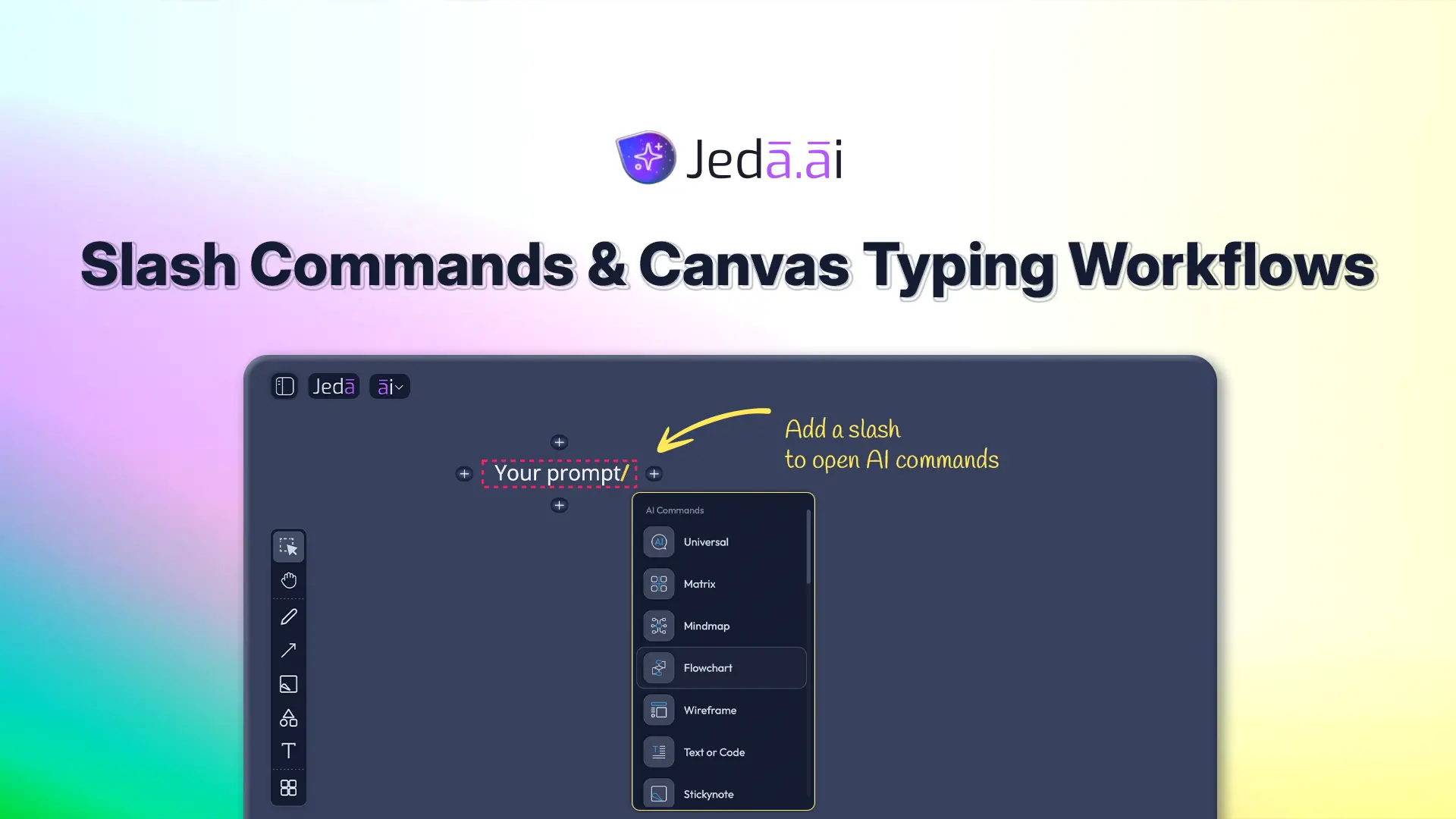
Why Canvas Typing + Slash Commands Matter
Here's the thing: most people don't work in separate "thinking" and "execution" modes. You brainstorm, you type, you capture ideas, and then you need structure. Slash commands eliminate the friction between those moments.
With canvas typing, you jot down rough notes. "Customer onboarding is confusing. Too many steps. New users drop off after email verification." Now, select that text or add a new prompt referencing it, type " /flowchart" at the end, and watch Jeda.ai turn your messy thoughts into a clean, step-by-step process diagram. The visual appears in 20 seconds. You've moved from observation to actionable structure faster than it takes to walk to the whiteboard.
Your AI Whiteboard becomes your thinking surface AND your execution engine. Annotation, generation, and collaboration happen in the same space. No tool-switching. No context loss. No "I'll mock that up in PowerPoint later."
The Unique Advantage Over Prompt Bar
Jeda.ai's Prompt Bar is powerful, discoverable, and feature-rich. Beginners love it. But power users—designers, product managers, engineers, facilitators running rapid strategy sessions—need speed.
Keyboard-first users generate visuals 20-30% faster with slash commands than the Prompt Bar. Why? No mouse movement. No searching a dropdown menu for the command name. No visual scanning. You know what you want (a matrix or a flowchart), so you type it directly where you're standing. The command auto-selects the visual type and launches generation.
Slash commands are built for the makers who think in keystrokes, who batch-create multiple visuals in sequence, who run ideation workshops where every second counts. If you prefer your mouse, the Prompt Bar is ideal. If you live in keyboard shortcuts, slash commands are your natural home.
Canvas Typing 101: Typing Directly on Your Whiteboard
Jeda.ai's AI Whiteboard is yours to write on. Click an empty area and start typing. That's it. No tool selection required. No modal. No "Text Tool" activation.
Click anywhere on the canvas, and your cursor appears. Type. The text object materializes at that location with a subtle selection border. A floating toolbar hovers above the text offering formatting: Font (Open Sans, system defaults), Size (12-72pt), Color (any hex), Bold, Italic, Underline, and Alignment (left/center/right).
Canvas typing works simultaneously with other tools. You're drawing shapes? Switch to typing by just starting to type. The shape tool stays selected in your left sidebar, but keyboard input triggers text creation. You're moving objects? Click an empty area and type—a new text element appears at the cursor. Jeda.ai detects your intent and gets out of your way.
How to Activate Canvas Typing
Step 1: Click an empty area of your canvas. You'll see a text cursor.
Step 2: Start typing. Your text appears where the cursor is positioned.
Step 3: Press Escape or click elsewhere to finish editing. Your text object is now on the canvas, ready to be formatted, moved, or turned into a slash command prompt.
That's the entire workflow. No menu to find. No button to press first. Just point and type.
Typing Text vs. Adding Annotations
Canvas typing serves two purposes. The first is text objects: permanent labels, notes, and content on your canvas. "Q4 OKRs", "Revenue Targets", "Team Capacity" — these become Smart Shapes that others can read, edit, and reference.
The second is annotations: collaborative comments on objects. If your workspace is shared, teammates can click any object and type directly on it to add feedback. "This branch is incomplete" or "Add data sources here." Annotations are visible to collaborators in real-time, making your canvas a genuine brainstorming surface.
Both are triggered the same way: click and type. The context determines whether you're creating a note or annotating an existing object.
Canvas Typing Without Slash Commands
Slash commands are powerful, but they're optional. Canvas typing alone is useful for brainstorming, documentation, and mixed-media layouts. You might type a headline, add a shape, drop an image, type a caption, add a mindmap from an earlier command. Your canvas becomes a synthesis of text and AI visuals—a true whiteboard.
Many teams use canvas typing first: capture all the raw ideas, let the thoughts settle, then add slash commands to structure what's emerged. Some users type continuously and never use slash commands at all. Both workflows are valid. The command syntax is available when you need it.
Slash Commands vs. Prompt Bar: Which Workflow Should You Use?
Both slash commands and the Prompt Bar generate identical AI visuals. Both work beautifully. The difference is interface and workflow context. Here's how to choose.
Slash commands live on the canvas. You type your prompt in place, add the command at the end of the line, and generation happens where you're standing. It's the keyboard-native workflow. Type, slash, Enter, visual.
The Prompt Bar sits at the bottom center of your screen. Click into it, select your command from a dropdown menu, type your prompt, click Generate. It's more discoverable—you can see all available commands visually. It's more flexible—you can explore rendering options (Layout: Auto/Column/Grid for matrices, Horizontal/Vertical for mind maps) before generation. It's ideal for learners who benefit from visual command selection.
Speed measurements show slash commands clock in at roughly 60 seconds start-to-finish for experienced users: click canvas (5 sec), type prompt (15-20 sec), add command (5 sec), press Enter (5 sec), AI renders (15-25 sec). Prompt Bar workflows average 80-90 seconds for the same task because of the extra click into the bar and the dropdown menu scan. For power users, that 20-30% speed difference adds up fast when you're generating 5+ visuals in an ideation session.
But speed isn't everything. The Prompt Bar is better if you're:
- New to Jeda.ai (visual command menu helps you learn what's available)
- Generating a single visual (no speed advantage to keyboard-only workflow)
- Using a trackpad or mouse-first computer (clicking is natural; typing is slower)
- Iterating heavily (Prompt Bar rendering options are immediately visible)
Slash commands win if you're:
- Keyboard-comfortable (muscle memory for slash-command entry)
- Running rapid batch generation (3+ visuals in one session)
- Facilitating a live ideation workshop (speed and flow matter)
- Combining canvas typing with visual generation (natural annotation + command rhythm)
- An experienced user who knows which command you need before you start
A Workflow Decision Framework
Ask yourself three questions:
Question 1: Do you prefer keyboard or mouse interaction? If keyboard, lean slash commands. If mouse, Prompt Bar is more natural.
Question 2: Are you generating one visual or multiple? Multiple = slash commands. Single = either works; choose your preference.
Question 3: Is this your first time with this command type? First time = Prompt Bar (visual menu). Repeat task = slash commands (you know what you want).
Neither choice is wrong. Many power users bounce between both: Prompt Bar when learning a new command type, slash commands once they're comfortable. In the same 30-minute session, you might generate three mind maps with slash commands, then switch to Prompt Bar to explore a new layout option for a matrix. Both are at your fingertips. Use whichever fits the moment.
The Three Primary Slash Commands
Jeda.ai supports three core slash commands that cover the vast majority of use cases. Learn these three, and you'll handle strategy, brainstorming, process documentation, and comparative analysis all in one day.
/Mindmap: Hierarchical Ideas in Seconds
Use the /mindmap command when you're exploring a topic, breaking down a complex idea, or structuring raw thoughts.
Mind maps work brilliantly for ideation. You have a central concept—say, "Improving customer retention"—and you need to branch out into sub-topics: Product Experience, Pricing, Support Quality, Community Engagement, each with their own branches. A mind map lets you see the whole tree at once. Nothing gets lost. Relationships between ideas become visible. And you've built it in less time than it would take to write an outline.
Try this: "AI trends in healthcare /mindmap". In 20 seconds, you'll see branches for Clinical Diagnostics, Drug Discovery, Administrative Automation, Personalized Medicine, Regulatory Challenges, each populated with sub-points. Edit any branch with the AI+ button to add more detail. Collapse branches to focus. The visual adapts to your thinking in real-time.
Mind maps layout horizontally (branches spreading left and right from center) or vertically (branches flowing up and down). Horizontal feels like traditional mind mapping. Vertical works well for slideware or tall screens. You set the layout when you generate, or switch it anytime afterward.
Use /mindmap when: exploring ideas, teaching concepts, documenting decision trees, brainstorming product features, structuring research topics, planning projects, or breaking down complex problems.
/Matrix: Structured Analysis on Demand
The /matrix command generates structured analytical frameworks in rows and columns.
A matrix is your tool for comparison, strategy, and decision-making. SWOT analysis (Strengths/Weaknesses/Opportunities/Threats) is the classic, but matrices work for competitive comparison, skill assessments, feature prioritization, risk analysis, financial planning, or any scenario where you need a structured 2x2, 3x3, or larger grid.
Type: "SWOT analysis for electric vehicles /matrix". Jeda.ai generates a four-quadrant matrix with color-coded cells. Strengths (blue) include lower operating costs, environmental benefits. Weaknesses (red) are high upfront cost, limited charging infrastructure. Opportunities (green) are battery innovations, government incentives. Threats (orange) are oil price drops, legacy automaker competition. Each cell populates with relevant bullet points. You edit cells directly or use AI+ to extend specific quadrants with more insight.
Matrices support three layouts: Auto (AI chooses based on your content), Column (vertical layout—good for 2-4 columns), and Grid (square layout—optimal for balanced 3x3 or 4x4 frameworks). Many frameworks have canonical layouts: SWOT is always 2x2. Eisenhower Matrix is always 2x2. Custom frameworks can flex.
Use /matrix when: running SWOT analysis, comparing competitors, assessing risks, planning projects, building business models, analyzing market position, conducting retrospectives, or making strategic decisions.
/Flowchart: Step-by-Step Processes
The /flowchart command generates step-by-step process diagrams with decision points, connectors, and flow direction.
Flowcharts are for processes. How does your customer onboarding work? What's the software deployment pipeline? What's the decision tree for customer support routing? A flowchart shows the sequence, the decision points (shown as diamonds), and the flow direction (arrows connect each step).
Example: "Onboarding process for new employees /flowchart". The AI generates a sequence: Employee accepted → Complete paperwork → IT setup → Orientation session → Team introduction → First-day assignments → Ramp-up period → Full productivity. Decision diamonds insert at branching points: "Equipment approved?" (yes/no), "All training complete?" (yes/no). Arrows flow left-to-right or top-to-bottom depending on your layout choice.
Flowcharts layout horizontally (steps flowing left to right) or vertically (steps flowing top to bottom). Horizontal is traditional and familiar. Vertical works well for printing or tall screens. Edit any step directly. Use AI+ to extend a branch or add detail to a decision point.
Use /flowchart when: documenting processes, explaining workflows, designing decision trees, creating standard operating procedures, teaching procedures, planning product features, or mapping customer journeys.
How to Generate Visuals with Slash Commands
The process is refreshingly simple. But here's the detail for anyone new to the workflow.
- Click an empty area of the canvas
Position your cursor on any blank space where you want the visual to appear. You'll see a text cursor.
- Type your prompt text
Write a clear, descriptive prompt for what you want to create. E.g., 'SWOT analysis for electric vehicles' or 'Customer journey for SaaS onboarding.'
- Add a space, then your slash command
At the end of your prompt line, type a space followed by /mindmap, /matrix, or /flowchart. The command MUST be at the end of the line.
- Press Enter
Submit your prompt. The AI Task Panel opens on the right and streams your response. The Prompt Bar shows you the command type that's been auto-selected.
- Watch the visual render
The AI generates your visual in real-time. Most outputs complete in 10-30 seconds depending on complexity and AI load. Relax and observe.
- Edit, extend, or refine
Once generated, click any node, cell, or step to edit directly. Use the AI+ button to extend a branch or section. Use Vision Transform (⧉) to convert to a different visual type (e.g., matrix to flowchart).
Syntax & Placement Rules
The syntax is forgiving, but a few rules matter:
Rule 1: The slash command MUST be at the end of the line. "SWOT analysis /matrix explanation" won't work. "SWOT analysis /matrix" will. The command auto-selects the visual type and ignores any text after it.
Rule 2: Include a space before the slash. "/matrix" is the command, not "matrix". "SWOT analysis/matrix" (no space) might not trigger properly. "SWOT analysis /matrix" (space before slash) is correct.
Rule 3: Spell the command correctly. /mindmap, /matrix, /flowchart. Typos like /mindmmap won't trigger. The AI treats them as regular text, not a command.
Rule 4: Canvas typing only. Slash commands work when you type directly on the canvas. If you use the Prompt Bar, you manually select the command from the dropdown menu instead. Prompt Bar doesn't recognize slash syntax.
If you forget these rules, don't worry. The worst outcome is your prompt stays as text on the canvas and nothing generates. Delete the line, try again with correct syntax, and you're good. No harm done.
Real-World Examples
Here's what actual prompts look like:
Example 1 — Mind Map for Ideation: "AI transformation roadmap for manufacturing /mindmap"
Expected output: Central node "AI Transformation" branching into Predictive Maintenance, Quality Control, Supply Chain Optimization, Workforce Augmentation, with sub-branches under each. 20-25 seconds to render.
Example 2 — Matrix for Strategic Planning: "PESTEL analysis for the healthcare industry /matrix"
Expected output: 6-row matrix with Political, Economic, Social, Technological, Environmental, Legal categories. Each row populated with relevant factors for healthcare. Color-coded by category. 15-20 seconds to render.
Example 3 — Flowchart for Process Documentation: "Customer support ticket resolution process /flowchart"
Expected output: Sequential steps from Ticket Received → Category Routing → Agent Assignment → Resolution → Customer Confirmation → Closure. Decision diamonds at routing and resolution approval. 20-30 seconds to render.
All three generate instantly. Edit as needed. Extend with AI+ if you want more detail in any section. The visual becomes as editable as any other object on your canvas.
Extending & Customizing Your Output
After generation, the visual is live and editable. Click any node in a mind map, any cell in a matrix, any step in a flowchart, and you can edit directly by typing.
But the real power comes from the AI+ button. Select a specific branch, cell, or step. Click the AI+ icon that appears. Type a follow-up prompt: "Add three sub-points to this branch" or "Expand the Opportunities quadrant." The AI extends that section with more depth while preserving the rest of your visual.
Want to convert a matrix into a mindmap? Select the matrix, click the Vision Transform button (⧉), type "Convert this to a mind map," and the AI creates a new mindmap from your matrix content, leaving both visuals on your canvas for comparison.
These extensions—AI+ and Vision Transform—are where your iterative thinking happens. Generate rough structure fast. Refine and deepen afterward. The visual stays malleable under your control.
Power-User Workflows: Rapid Ideation & Batch Generation
Now you know the mechanics. Here's how experienced users leverage slash commands for serious work.
Multi-Command Sessions
A strategy workshop doesn't produce one visual. It produces five. Brainstorm notes. A mindmap of themes. A SWOT matrix. A competitive comparison matrix. A flowchart for go-to-market. A skills matrix for team capability.
With slash commands, you generate all five in under 15 minutes. Without them, you'd spend 15 minutes in menus.
Here's the rhythm: Click canvas, type your brainstorm notes freely. Once you've captured thoughts, select a section and type a command prompt: "Structure these ideas /mindmap". Render. Click a new area. "Compare our company to competitors /matrix". Render. Click another area. "Timeline for rollout /flowchart". Render. You've created three visuals while your team watches, thinking collaboratively on a shared canvas. That pace is impossible with menu-driven tools.
The key is muscle memory. Once you've done it three times, your fingers know the rhythm. Command flows from your hands as naturally as thinking flows from your brain. For power users, slash commands become invisible—you're not thinking about syntax, you're thinking about structure.
Annotation + Visual Workflow
Your best work happens when thinking and building aren't separate. You're in a brainstorm. Someone says something insightful. You type it on the canvas: "Customers are most engaged during onboarding." Now you have that recorded. Immediately follow up: "Customer engagement roadmap /mindmap". The AI sees your note as context and builds the roadmap around that insight.
Your notes become prompts. Your prompts become visuals. Your visuals become decisions. One canvas, one flow, no context loss.
In shared workspaces, your teammates see your note, your command, the visual rendering—all in sequence. They understand your reasoning. They can immediately extend or challenge the visual while you're all looking at it. Async teams can revisit the annotations and visuals hours later and understand what you were thinking. The canvas becomes a living document of thought, not just a final artifact.
Iterating with AI+
First pass generates a rough mindmap. Good foundation, but incomplete. Click one branch. "Add three specific examples to this /mindmap branch" (note: in this context you're refining, not creating). The AI extends that branch with specificity while preserving the overall structure.
This edit-extend-refine cycle is where AI+ shines. You're not regenerating from scratch (which is slow and loses your earlier thinking). You're building progressively. Mind map → extended mindmap → deeper mindmap. The visual grows smarter with each pass. This is how you turn a 5-minute rough draft into a 20-minute polished visual.
The same applies to matrices: generate SWOT, extend Opportunities quadrant with specific initiatives, extend Threats quadrant with mitigation strategies, now you have a SWOT that goes three levels deep. Flowcharts: generate core process, add decision branches to a critical step, add detail to a bottleneck step. Refinement compounds.
For large projects or workshops, this iterative approach—generate, extend, refine, extend again—is how you build institutional knowledge. You're not just capturing a one-time visualization. You're documenting the evolution of thinking.
Common Mistakes & Troubleshooting
Most slash command syntax issues are simple to fix. Here's what usually goes wrong.
Slash Command Syntax Errors
Mistake 1: No space before the slash. You type "SWOT analysis/matrix" instead of "SWOT analysis /matrix". No space before the slash. Result: The text appears on canvas, but no visual generates. Fix: Delete the line, retype with a space before the slash: "SWOT analysis /matrix".
Mistake 2: Slash in the middle of the prompt. You type "SWOT /matrix analysis" instead of "SWOT analysis /matrix". Result: The command sits mid-sentence and doesn't trigger. The text appears as typed. Fix: Move the slash command to the very end of the line. Only the final "/matrix" (or /mindmap or /flowchart) triggers generation.
Mistake 3: Typo in the command name. You type "SWOT analysis /matrixs" or "SWOT analysis /midmap" instead of exact command names. Result: Text appears, but no generation because the command doesn't match exactly. Fix: Double-check spelling. The three commands are /mindmap, /matrix, /flowchart (singular, no suffixes).
Command Placement Issues
Mistake 4: Extra text after the command. You type "SWOT analysis /matrix of competitors". The command is at the end, but you added text after it. Result: Sometimes triggers, sometimes doesn't. Behavior can be inconsistent. Fix: Keep the command as the final thing on the line. If you need to add context, put it in the prompt before the command: "SWOT analysis comparing our company to competitors /matrix".
Mistake 5: Slash on a separate line. You type "SWOT analysis" on one line, then "/matrix" on the next line. Result: No generation. The command doesn't connect to the prompt. Fix: Keep prompt and command on the same line, space-separated at the end: "SWOT analysis /matrix".
When Generation Doesn't Trigger
Debugging checklist:
- Is canvas typing active? (You should see a text cursor blinking on the canvas.)
- Did you press Enter after typing the command? (Enter submits the prompt.)
- Is the command spelled exactly right? (/mindmap, /matrix, /flowchart—check for typos.)
- Is the command at the very end of the line? (Not in the middle, not after other text.)
- Did you include a space before the slash? ("SWOT /matrix" not "SWOT/matrix")
- Is your prompt clear and detailed? (Vague prompts like "Thing /matrix" might struggle; "SWOT analysis for our industry /matrix" is better.)
If all six checks pass and it still doesn't generate, try this: Delete the line entirely. Type the same prompt again from scratch. Occasionally a line gets stuck. A fresh start resets everything.
These failures are rare. Most slash command syntax works on the first try. But when it doesn't, these troubleshooting steps resolve it in under 60 seconds.
Frequently Asked Questions
- What are slash commands in Jeda.ai?
- Slash commands are text-based triggers typed directly on the canvas that instantly generate AI visuals. Type your prompt + a slash command at the end of the line (e.g., 'SWOT analysis /matrix') and press Enter. The visual renders in 10-30 seconds. It's the fastest path from idea to diagram.
- How do I use slash commands on the canvas?
- Click an empty area of the canvas to activate canvas typing. Type your prompt. At the end of the line, add a space and your command: /mindmap, /matrix, or /flowchart. Press Enter. The AI generates your visual instantly. Three steps, under 60 seconds end-to-end.
- What's the difference between slash commands and the Prompt Bar?
- Both generate the same visuals. Slash commands are keyboard-first and canvas-based—fastest for power users (60 seconds). The Prompt Bar is menu-driven and discoverable—better for learners (80-90 seconds). Choose based on preference: keyboard efficiency or visual command selection.
- Can I use slash commands in the Prompt Bar?
- No. Slash commands only work via canvas typing (typing directly on the canvas). In the Prompt Bar, you manually select the command from the dropdown menu instead. Both workflows are valid—pick whichever fits your style.
- How do I type directly on the canvas?
- Click an empty area of the canvas and start typing. Jeda.ai automatically detects keyboard input and creates a text element at that location. No tool selection required. The floating toolbar lets you format (font, color, size) after typing.
- What slash commands are available in Jeda.ai?
- The three primary commands are /mindmap (hierarchical ideas), /matrix (structured analysis), and /flowchart (step-by-step processes). These cover most use cases. As Jeda.ai expands, additional commands may be added.
- Can I combine multiple slash commands on one canvas?
- Absolutely. Click one area and generate a mindmap. Click another area and generate a matrix. Click a third area and generate a flowchart. You can create 3+ visuals in minutes this way—perfect for rapid ideation or comprehensive analysis sessions.
- How fast is slash command generation?
- The entire workflow takes under 60 seconds: click canvas (5 sec), type prompt (15-20 sec), add command (5 sec), press Enter (5 sec), AI generates (15-25 sec). That's 20-30% faster than Prompt Bar workflows for experienced users.
- What if I put the slash command in the middle of my prompt?
- It won't trigger generation. Slash commands only work at the end of the line. If placed mid-prompt, it's treated as regular text. Always place your command after a space at the very end: 'SWOT analysis /matrix' (correct), not 'SWOT /matrix analysis' (wrong).
- Can I edit the generated visual after creation?
- Yes. Click any node in a mindmap, cell in a matrix, or step in a flowchart to edit directly. For deeper changes, select the visual and use the AI+ button to extend, refine, or regenerate specific sections with additional context.
- How do I combine typing notes and slash commands?
- Type your brainstorm notes freely on the canvas. Then select a section or create a new prompt that references your notes, add the slash command at the end, and press Enter. The AI uses your notes as context, generating a visual that reflects your thinking.
- Can I use slash commands in a team workspace?
- Yes. Your teammates see your canvas typing and slash command generation in real-time. They can annotate your generated visuals, extend them with AI+, or create their own visuals in parallel. Perfect for collaborative ideation and strategy sessions.
Sources & Further Reading
- [1]
Don Norman (2013) . “The Design of Everyday Things” Basic Books.
View Source ↗
Start Your Rapid Ideation Session Today
Join 150,000+ professionals who trust Jeda.ai for slash-command speed and collaborative AI visuals.
Try Free Now