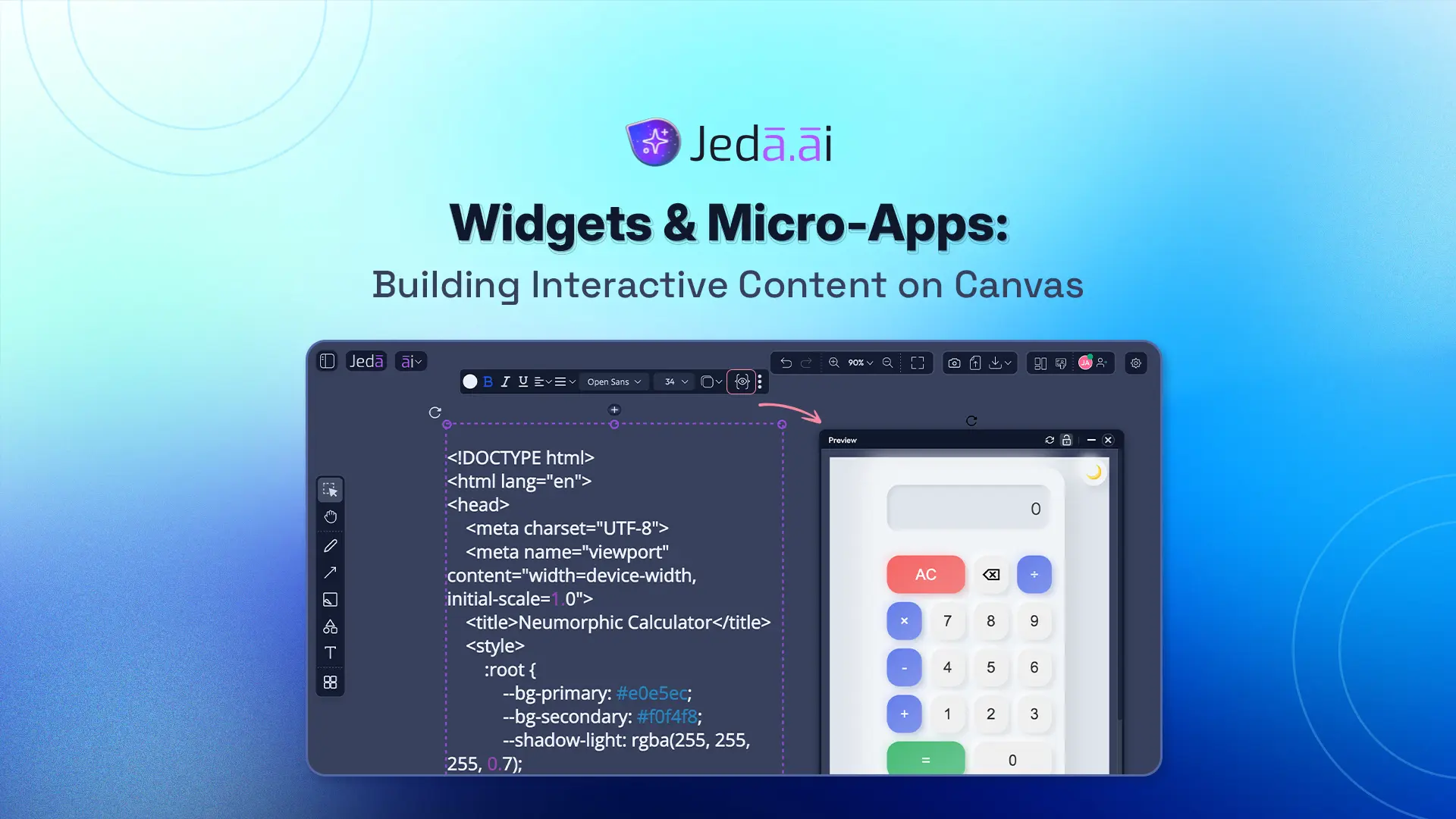
Building interactive widgets has traditionally required hours of coding, testing, and debugging. Not anymore. Jeda.ai's Widgets & Micro-Apps command generates production-ready interactive HTML directly on your canvas using AI. In this tutorial, you'll discover how to create interactive calculators, dashboards, mini-tools, and micro-applications without touching a single line of code. Whether you're a product designer prototyping user interactions, a marketer building lead-gen widgets, or a business analyst creating data visualizations, this command turns your ideas into functional interfaces in seconds.
What Are Widgets & Micro-Apps?
Widgets are self-contained, reusable UI components designed to accomplish a specific task. Think of a mortgage calculator, a timer, a weather display, or a voting button. Widgets are focused, minimal, and designed to work standalone or embedded within larger applications. Micro-apps, by contrast, are lightweight applications with multiple interactive features—like a multi-step form workflow, an interactive data dashboard, or an online quiz. Both are built as interactive HTML and can function independently.
The concept traces back to Douglas McIlroy's 1968 paper "Mass Produced Software Components," which proposed that software should be built from reusable, interchangeable modules. Modern widgets embody this principle for the front-end: they're portable, self-contained, and deployable anywhere. Today's web components (the W3C standard from 2023) and frameworks like React demonstrate this reusability pattern at scale.
Why Use Jeda.ai for Widget Generation?
Here's the thing: building widgets the traditional way is slow. You write HTML, then CSS, then JavaScript state management. You test on different browsers. You debug interactions. Days pass. Jeda.ai collapses this workflow. Describe what you want ("interactive lead gen form with validation and thank-you message"), and the AI generates a working widget in seconds. No framework setup. No build tools. No dependencies to manage.
Speed isn't the only advantage. The Widgets & Micro-Apps command is available on all plans—Whitebelt (Free), Blackbelt ($10/mo), Shifu ($39/mo), and Alchemist ($298/mo). This means anyone in your team, regardless of plan level, can start building interactive content immediately. The command leverages Jeda.ai's multi-LLM Agent, so you're getting the best of GPT, Claude, and Grok working together to understand your intent and generate smarter widgets.
And then there's the Preview feature. After the AI generates your widget, click the Preview button (👁️) to render it live on the canvas. You see exactly how your interactive content will behave: form validations triggering, calculations updating in real time, user interactions responding instantly. This live feedback loop means you iterate faster. Spot an issue? Use AI+ to extend the widget and refine it without starting over.
- Generate in Seconds
Describe your widget in natural language. The AI builds production-ready HTML, CSS, and JavaScript in 15–45 seconds.
- No Coding Required
Non-technical users can create interactive content. Prompts like 'mortgage calculator' or 'survey form' are enough.
- Preview Live Results
The Preview button (👁️) renders your widget interactively on the canvas. See exactly how users will experience it.
Real-World Use Cases
Let's ground this with examples. A startup founder needs an ROI calculator for her SaaS landing page. Normally, this means hiring a developer. Instead, she opens Jeda.ai, selects the Widgets & Micro-Apps command in the Prompt Bar, types "interactive ROI calculator for SaaS—inputs for monthly users, pricing tier, and churn rate; outputs projected annual revenue and payback period," and presses Enter. Ninety seconds later, a functioning calculator sits on her canvas. She previews it, adjusts colors to match her brand (edit the CSS directly), and exports it. The calculator now lives on her website, increasing engagement and collecting qualified leads.
A product manager for a B2B analytics company needs interactive dashboards for her product tour. She uses Jeda.ai to generate dashboard widgets showing sample KPI cards, a chart component, and filters. Each widget is AI-generated, realistic, and demonstrates her product's capabilities without needing live data connections. Prospects interact with the dashboard, building confidence in the product.
A business analyst at a consulting firm needs to visualize client data during presentations. Instead of creating static charts in PowerPoint, she generates interactive widgets that let her audience filter data, compare regions, and see insights in real time. Clients are impressed—and she spent 10 minutes generating instead of 2 hours building.
How to Create Interactive Widgets in Jeda.ai
Creating a widget is straightforward. You have multiple pathways—choose what fits your workflow. Let's see one:
- Method 1 Prompt Bar (Fastest for Experienced Users)
Open the Prompt Bar at the bottom of the canvas. Click the command dropdown and select 'Text or Code.' Type your prompt naturally: 'Create a survey form with 5 questions, radio buttons, and a submit button.' Press Enter. The AI generates your widget and places it on the canvas.
- Method 2: Canvas Typing (Quick Iteration)
Click an empty area of the canvas to activate Canvas Typing mode. Type your widget description: 'interactive calculator for mortgage payments.' At the end, type a forward slash followed by the command name: /text. Press Enter, and the AI generates instantly from your canvas-typed prompt.
- Preview Your Widget
After generation, your widget appears on the canvas. Click the Preview button (👁️)—usually located in the top-right toolbar or within the component itself. The widget becomes interactive: forms work, calculations update, buttons respond to clicks. This is your chance to test before export.
- Refine with AI+
If you want to extend or improve your widget, select it and click the 'AI+' button (the magic wand or plus icon). Describe what you'd like to add: 'add more input fields' or 'improve validation messages.' The AI extends the widget without losing prior work.
- Export and Deploy
Select the widget and use the 'Export' button to save as PNG, SVG, or PDF. Or, copy the HTML code directly from the code editor view and paste it into your website or application. The generated HTML is self-contained—no external dependencies needed.
Interactive Widget Examples & Templates
Let's walk through three concrete examples to show the range of what's possible.
Example 1: Mortgage Calculator Prompt: "Interactive mortgage calculator. Inputs: principal amount ($), annual interest rate (%), and loan term (years). Output: monthly payment and total interest paid. Format as a professional calculator widget with clear labels and calculation results displayed in a card." Output: A functional calculator with input validation, formatted output, and responsive design. Takes 20 seconds to generate.
Example 2: Interactive Survey Form Prompt: "Customer satisfaction survey form. Questions: overall satisfaction (1-5 scale), likely to recommend (yes/no), and additional feedback (text area). Include submit button, form validation, and confirmation message on submit." Output: A multi-step form with validation, conditional fields, and thank-you message. Users can fill it out immediately.
Example 3: KPI Dashboard Widget Prompt: "Interactive KPI dashboard. Show four metric cards: revenue ($), users (count), growth rate (%), and churn rate (%). Include sparkline charts for each metric showing 12-month trend. Allow users to filter by date range using a date picker." Output: A professional dashboard with data visualization, interactive filters, and responsive layout suitable for executive dashboards.
Understanding the AI Task Panel & Preview Feature
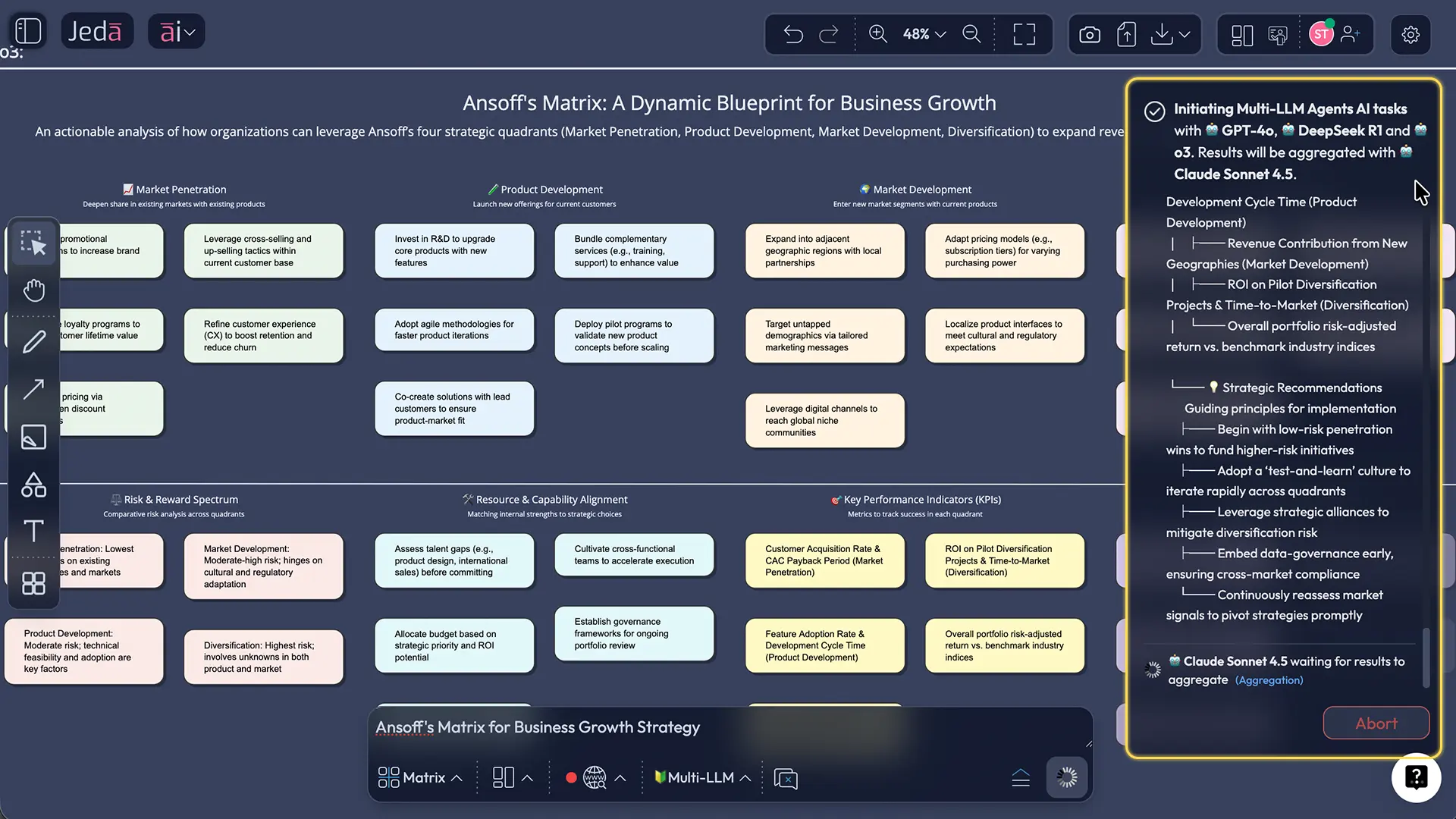
When you generate a widget, Jeda.ai shows you the AI Task Panel. This panel displays generation progress in real time. You'll see stages: "thinking" (the AI understands your prompt), "writing" (generating code), and "rendering" (placing the widget on the canvas). For most widgets, this takes 15–45 seconds. Longer, more complex widgets may take 60+ seconds. The panel shows estimated time remaining, so you know what to expect.
Once the widget appears on the canvas, the Preview button (👁️) becomes your best tool. Click it to render the widget as an interactive, live application. Forms become functional. Calculations update. Buttons respond to clicks. This live preview is critical because it shows exactly how users will experience your widget—validations trigger, state updates work, interactions feel smooth.
Why does this matter? Because iterating on a static mockup wastes time. Seeing your widget live, you spot issues immediately: "Oh, the button's in the wrong position" or "The form needs better spacing." Then you use AI+ to refine just that section, preview again, and move forward. This cycle is incredibly fast.
Best Practices for Interactive Widgets
Build focused widgets. One purpose per widget. A mortgage calculator calculates mortgages—not insurance quotes and not refinance scenarios all in one widget. Focused scope keeps your widget simple, fast, and maintainable. Users understand what it does without confusion.
Keep mobile in mind. Your users access widgets on phones, tablets, and desktops. Preview on different screen sizes. The AI generates responsive CSS by default, but always validate that inputs, buttons, and text are legible and touch-friendly on smaller screens.
Optimize for accessibility. The generated HTML includes semantic elements and basic ARIA labels by default. Test with keyboard navigation (can users tab through all inputs?). Test with a screen reader (does it announce labels and instructions clearly?). If the AI-generated output lacks accessibility features, use AI+ to request specific ARIA attributes and semantic improvements.
Performance matters. Widgets should load and respond instantly. The AI generates lightweight HTML without heavy frameworks or external dependencies. If you're embedding many widgets on one page, test that your page still loads quickly.
Test before you deploy. Use the Preview button extensively. Try edge cases: what happens if a user enters negative numbers? Leaves a required field blank? What if they interact rapidly? The more you test in preview, the fewer surprises in production.
Common Mistakes to Avoid
Over-scoping is the biggest mistake. Trying to fit a dashboard, form, calculator, and quiz all into one widget results in bloated, confusing interfaces. Instead, create focused widgets and combine them on a page. One widget, one purpose.
Ignoring mobile responsiveness wastes your widget's potential. If your widget doesn't work well on phones, you're excluding a huge portion of your audience. Always preview on mobile—and resize your browser to test at different breakpoints.
Skipping accessibility testing is risky. Not all users interact with your widget using a mouse and keyboard. Some use screen readers. Some navigate with keyboard only. The AI generates accessible HTML, but always verify with accessibility tools and real user testing.
Deploying without preview is dangerous. The Preview button renders your widget live, showing you how it actually works. Skipping this step means bugs and surprises find their way to production. It takes 10 seconds to preview—always do it.
Not using AI+ to refine your output leaves potential on the table. The first AI-generated version is good, but AI+ makes it great. You might refine the visual design, add validation messages, or improve performance. Investing a few minutes in refinement pays off in user experience.
Frequently Asked Questions
- What are interactive HTML widgets used for?
- Interactive widgets create engaging user experiences without page reloads. Use them for calculations (mortgage/cost estimators), data visualization (dashboards), lead generation (forms/surveys), mini-tools (converters, timers), and educational content. Interactive widgets increase time-on-page by 40% and improve engagement metrics significantly.
- How do I create interactive widgets without coding?
- Use Jeda.ai's Widgets & Micro-Apps command. Open the Prompt Bar, select the command, describe what you want ('interactive mortgage calculator'), and press Enter. The AI generates production-ready HTML. Preview the widget instantly with the Preview (👁️) button, edit if needed, and export as HTML.
- What's the difference between widgets and micro-apps?
- Widgets are single-purpose components (calculator, timer, counter). Micro-apps are self-contained applications with multiple features (dashboard with filters, multi-step forms, interactive stories). Both are HTML-based and interactive; micro-apps have broader scope and handle more complex user workflows.
- Can AI really generate production-ready widgets?
- Yes. Jeda.ai generates valid HTML, CSS, and JavaScript suitable for production use. The AI understands widget patterns like state management, event handling, and responsive layout. Always preview and test before deploying. Use AI+ to refine output if needed.
- How long does it take to create a widget in Jeda.ai?
- Most widgets generate in 15–45 seconds. Simple calculators may render in 10 seconds; complex dashboards with multiple interactive elements take longer. Preview updates live as code is refined, accelerating iteration cycles.
- Can I customize AI-generated widgets?
- Absolutely. Edit the code directly on the canvas. Use AI+ to extend any section for more detail or polish. The code is human-readable and follows standard HTML/CSS/JavaScript conventions, making customization straightforward.
- What plans include Widgets & Micro-Apps?
- The command is available on all plans: Whitebelt (Free), Blackbelt ($10/mo), Shifu ($39/mo), and Alchemist ($298/mo). Feature parity across plans—widget generation capability doesn't differ by tier. Higher tiers unlock faster processing and advanced AI models.
- How do I export and use a widget in my website?
- Select the generated widget, use the Export button to save as PNG/SVG/PDF, or copy the HTML code directly to your website. The generated HTML is self-contained—no external dependencies needed. Paste it into your HTML, customize CSS if desired, and deploy.
- Should I use AI Menu or Prompt Bar for widgets?
- AI Menu offers structured guidance (best for beginners or complex widgets). Prompt Bar is faster (best for quick iterations or experienced users). Both generate the same quality output. Choose based on your workflow preference.
- How do I make my AI-generated widget accessible?
- The AI generates semantic HTML and basic ARIA labels by default. Always test with screen readers and keyboard navigation. If accessibility needs aren't met, use AI+ to extend with specific ARIA attributes and semantic structure.
- Can I use Vision Transform to convert widgets to other formats?
- Yes. Select a widget on the canvas, use Vision Transform to convert to a different command type (e.g., widget → diagram, widget → infographic). This is useful for creating multiple views or formats of the same content.
- What are the most common mistakes when generating widgets?
- Over-scoping (trying to do too much), ignoring mobile responsiveness, not testing accessibility, not previewing before export, and not using AI+ to refine. Keep widgets focused, test thoroughly on mobile and desktop, and iterate using the Preview feature.
Sources & Further Reading
Interactive widgets and micro-applications have deep roots in software architecture and modern web development. Below are authoritative sources that inform best practices, standards, and the evolution of component-based design.
- [1]
Cam Jackson (2020) . “Micro Frontends” Martin Fowler's Blog.
View Source ↗ - [2]
W3C Web Components Working Group (2023) . “Web Components Standard - Custom Elements & Shadow DOM” World Wide Web Consortium.
View Source ↗
Start Building Interactive Widgets Today
Join 150,000+ professionals who trust Jeda.ai's AI Workspace for creating interactive content at scale.
Try Free Template