Generate Wireframes with AI when you need to move from a rough product idea to a layout your team can actually inspect, discuss, and edit. In Jeda.ai, wireframing is not limited to a one-shot image or a static mockup: you can generate a structure from natural-language instructions, choose Low or High Fidelity, control web research and reasoning settings, then keep working directly on the AI Whiteboard. The useful part is what happens after generation. You can move elements, change text styling, add interface components manually, and use the existing wireframe as visual context for another round of analysis. For 150,000+ users working across Jeda.ai, that turns wireframing into an editable AI Workspace workflow rather than a one-shot image request.
What does it mean to generate wireframes with AI?
To generate wireframes with AI is to describe a page, screen, or interface in natural language and let an AI system translate that intent into a visual layout. The output focuses on hierarchy, content grouping, navigation, controls, sections, and interface structure rather than requiring you to place every block by hand.
Wireframes are useful because they make structure visible early. Rapid prototyping research has long emphasized the value of seeing and testing interface ideas before committing heavily to implementation details. Studies comparing prototype fidelity also show that low-fidelity prototypes can still reveal meaningful usability issues, which is why a quick structural wireframe can be valuable long before the interface looks polished.
Jeda.ai brings that idea into a Visual AI workflow. You can start from a prompt, choose a fidelity level, generate on the shared canvas, and then refine the result as native workspace content. The AI gives you the first structure. You decide whether that structure survives contact with the actual product problem.
Why use AI for wireframing instead of starting with a blank canvas?
The blank canvas is not inherently bad. It is just expensive when the team has not yet agreed on what the page should contain.
An AI-generated wireframe gives you a concrete starting point quickly: a proposed hierarchy, a possible grouping of sections, and a visible interpretation of the prompt. That is enough to trigger better questions. Is the primary action obvious? Is the navigation too dense? Does the page need another section? Should an important task appear earlier? Those conversations are far easier when everyone can point at the same layout.
- Start with structure
Turn a natural-language brief into an editable wireframe instead of placing every interface block manually.
- Choose the right fidelity
Use Low Fidelity for fast structural exploration or High Fidelity when you want a more polished interface direction.
- Keep editing after AI
Move, resize, format, ungroup, add components, and continue shaping the result directly on the canvas.
Jeda.ai also keeps the wireframe inside the same AI Workspace as your other visual thinking. The broader platform includes 300+ strategic frameworks and AI Recipes for adjacent analysis, so a wireframe can sit beside flows, matrices, notes, and other decision artifacts on the AI Whiteboard.
How to generate wireframes with AI in Jeda.ai
Jeda.ai gives you two primary ways to create a wireframe: the AI Recipes path and the Prompt Bar path. Both can produce editable wireframes, but they suit slightly different working styles.
The AI Recipes route is useful when you want a guided form. The Prompt Bar is faster when you already know what you want and prefer to describe it directly.
Method 1: Generate a wireframe from AI Recipes
Open the AI Recipes menu beside the Jeda logo and choose Wireframe. The wireframe area does not require you to work through a separate category hierarchy, so you can move directly into the recipe and describe the interface in natural language.
The recipe lets you control several generation choices before you run it. Choose a reasoning model, or enable Multi-LLM when you want to compare or aggregate multiple model outputs. Set Web Search to Auto, On, or Off depending on whether live external context should inform the result. Then choose the fidelity level: Low for a faster structural view or High for a more developed visual representation.
A strong wireframe prompt includes the page type, target user, primary task, major sections, and important constraints. Describe the product logic without prescribing pixel positions; give the AI enough context to propose a useful structure.
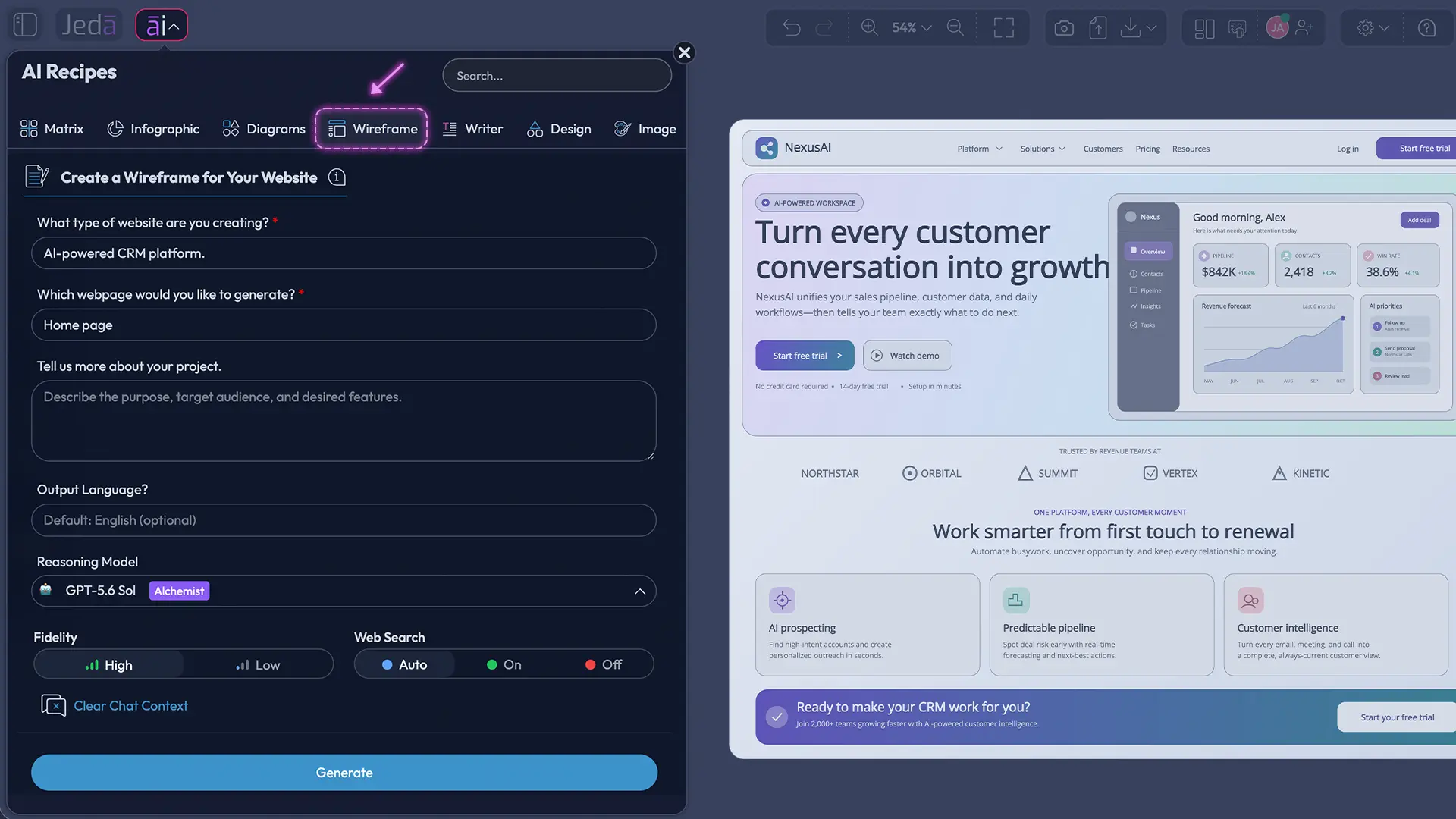
- Open AI Recipes
Click the AI Recipes menu beside the Jeda logo and select Wireframe.
- Describe the interface
Enter the page or screen you want, who it is for, its main job, and the sections or controls that matter.
- Choose reasoning settings
Select a reasoning model, or enable Multi-LLM and aggregation when you want multiple reasoning paths evaluated together.
- Set Web Search
Choose Auto, On, or Off depending on whether the wireframe should use live web context during generation.
- Choose Fidelity
Select Low Fidelity for rapid structure exploration or High Fidelity for a more polished wireframe direction.
- Generate and review
Run the recipe, inspect the generated layout on the canvas, and decide what should be kept, changed, removed, or expanded.
Method 2: Generate a wireframe from the Prompt Bar
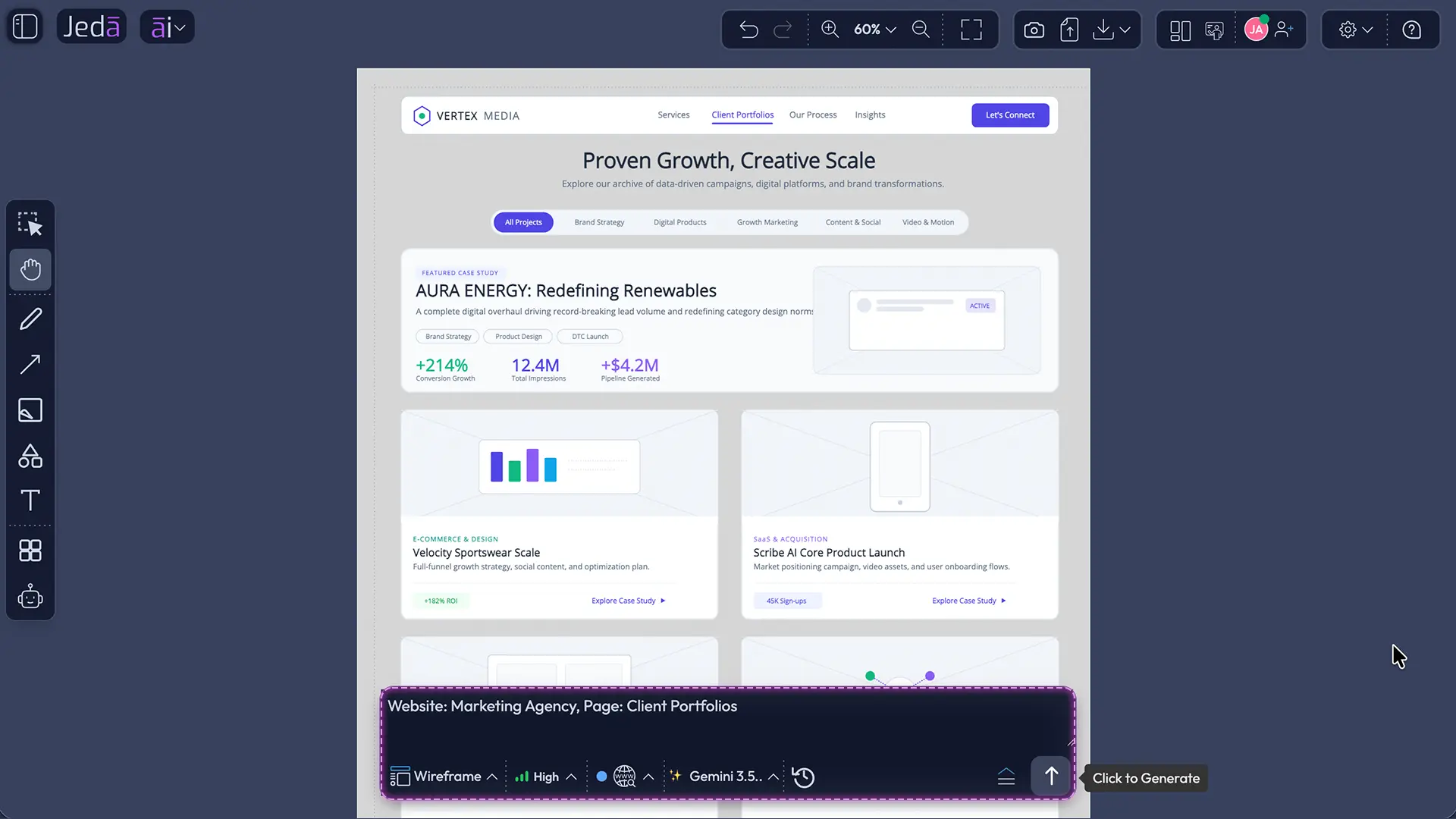
The Prompt Bar gives you a direct path. Open the command selector at the bottom of the workspace and choose Wireframe. Type the interface you want, configure your reasoning settings, choose Web Search behavior, select the fidelity, and generate.
This method is especially useful when your request is already clear. Mention the screen purpose, critical information, expected interaction, and any hierarchy you already know. Instead of “create a dashboard,” describe the user, the information they must scan, and the action they should take.
Low Fidelity or High Fidelity: which should you choose?
Fidelity should match the question you are trying to answer.
Use Low Fidelity when the team is still debating structure. It keeps attention on information hierarchy, placement, navigation, grouping, and task flow. Research comparing low- and high-fidelity prototypes has repeatedly found that lower-fidelity representations can still uncover many of the same usability problems as more finished prototypes. That makes low fidelity a practical choice when you want speed and are not ready to argue about visual polish.
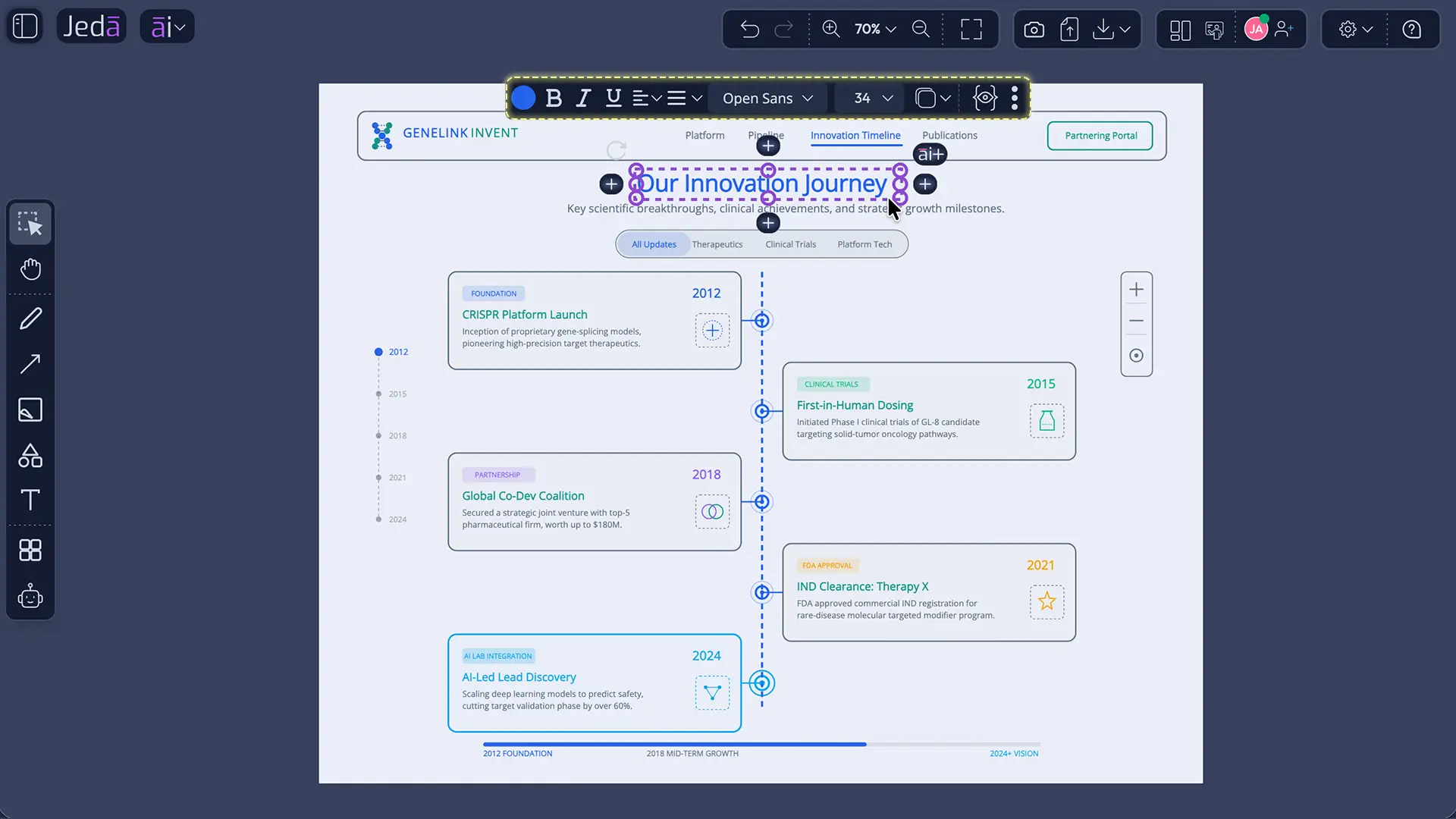
Use High Fidelity when the structure is more settled and you want a richer representation for review. It can help stakeholders understand the intended experience more concretely, especially when spacing, emphasis, visual grouping, or interface density are part of the discussion.
Neither option is automatically “better.” A polished wireframe used too early can make weak structure look more convincing than it deserves. A rough wireframe used too late can hide interaction details that deserve closer inspection. Pick the fidelity that fits the decision in front of you.
| Decision | Low Fidelity | High Fidelity | |
|---|---|---|---|
| Primary purpose | What are we testing? | Structure, hierarchy, flow | Refined layout and visual direction |
| Speed | How quickly do we need alternatives? | Faster for early exploration | Better when more detail is useful |
| Review focus | What should reviewers discuss? | Content and task logic | Presentation, density, emphasis, and structure |
What can you edit after the wireframe is generated?
Quite a lot. And this is where the workflow stops feeling like “prompt in, picture out.”
Once the wireframe is on the Jeda.ai canvas, you can select elements, reposition them, resize blocks, reorganize sections, and change the layout manually. You can ungroup generated content when needed so individual elements can be adjusted more precisely. Text can be edited directly, with formatting controls for font, size, color, bold, italic, underline, and alignment.
Manual additions are encouraged as well. Use AddOns from the selected-object toolbar or open Components from the left sidebar to add interface pieces, icons, wireframe elements, shapes, and other building blocks. If the structure is mostly right, placing one missing element is often faster than regenerating the entire wireframe.
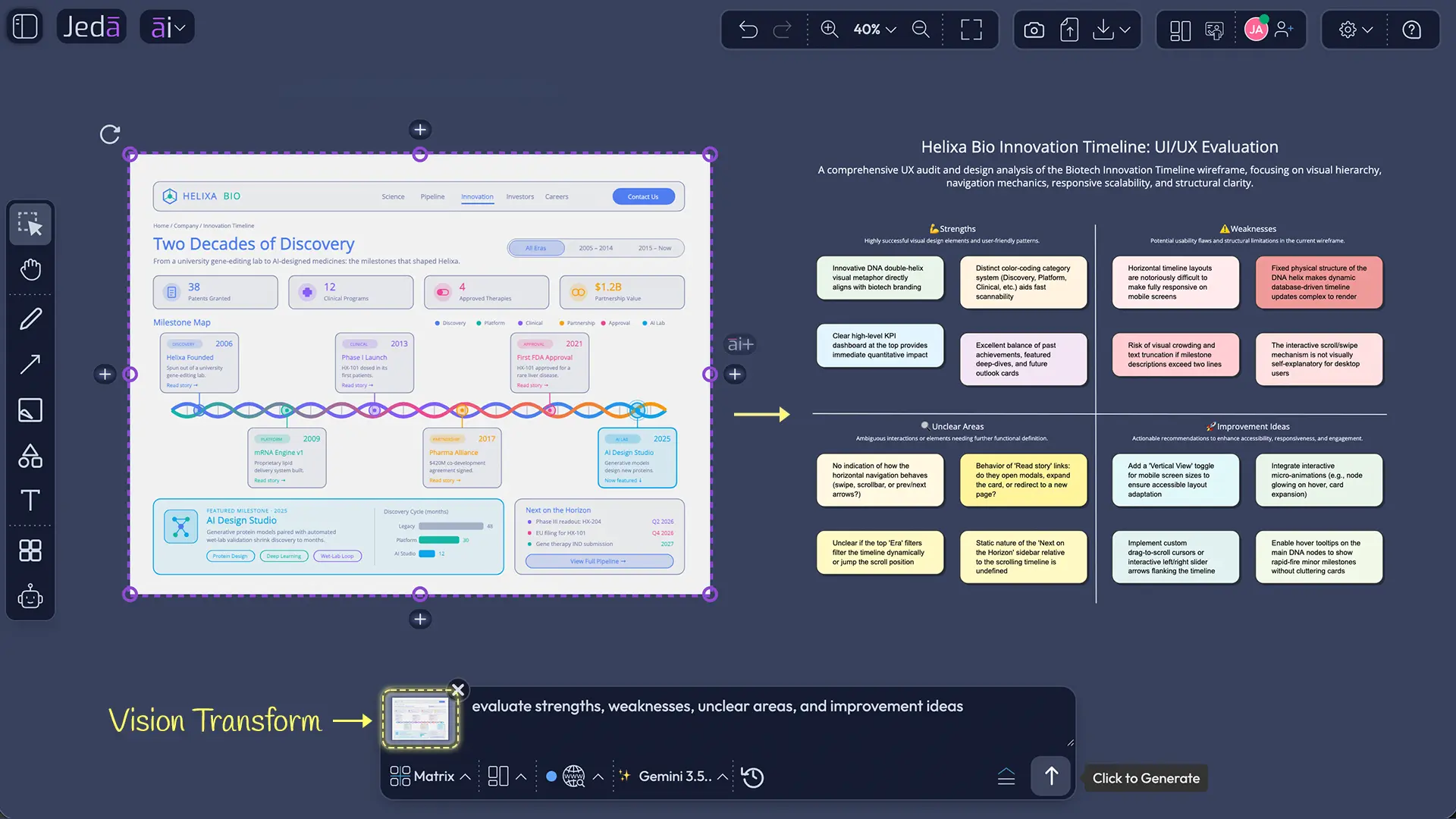
That editable middle ground is important. AI can propose a layout quickly, but product work still benefits from deliberate human judgment. You should be able to reject a section, move a control, rewrite a label, or add a missing component without treating the original generation as sacred.
How can AI Vision help analyze an existing wireframe?
The generated wireframe can become input for the next AI task.
Select one object, several objects, or the entire wireframe. The selection appears as visual context in the Prompt Bar. From there, you can ask Jeda.ai to analyze what is already on the canvas rather than describing it again from scratch.
One useful pattern is to switch to Matrix and ask for an analysis of the wireframe's strengths, weaknesses, unclear areas, and potential improvements. The goal is not to let AI make the final product decision. It is to create another perspective you can inspect next to the layout.
You can also use Vision Transform when you want selected visual content to inform a different output type. The important idea is continuity: the wireframe does not have to be a dead-end artifact. It can become context for analysis, iteration, and adjacent visual work in the same AI Workspace.
Watch the full Jeda.ai AI Wireframe Generator walkthrough
The tutorial below demonstrates both generation paths: AI Recipes and the Prompt Bar. It also shows Low and High Fidelity examples, model settings, manual editing, AddOns, and using selected wireframe content as visual context for AI analysis.
A practical prompt structure for better AI wireframes
The best prompt is not the longest prompt. It gives the system the right constraints: what you are designing + who uses it + what they need to accomplish + required sections + important constraints + fidelity intent. That is enough direction to shape hierarchy without micromanaging the layout.
Best practices for generating useful AI wireframes
Start with the decision, not the decoration. Use Low Fidelity when the question is structural; use High Fidelity when presentation detail matters. Give the prompt a real task and a clear primary action. Generate, then edit rather than repeatedly regenerating a nearly correct layout. Use Multi-LLM when the problem genuinely benefits from alternative reasoning paths, and keep the surrounding notes, flows, and analysis visible on the AI Whiteboard so the layout stays connected to its rationale.
Common mistakes to avoid when generating wireframes with AI
Avoid five traps: asking for a screen without explaining its job; using High Fidelity before the structure is settled; regenerating the whole layout for a small change; treating AI analysis as final approval; and separating the wireframe from the brief, assumptions, and review notes that explain why it exists.
Frequently Asked Questions
- How do I generate wireframes with AI in Jeda.ai?
- Use either AI Recipes or the Prompt Bar. In AI Recipes, select Wireframe, describe the interface, configure reasoning, Web Search, and Fidelity, then generate. In the Prompt Bar, choose the Wireframe command, enter your brief, configure the same options, and run the generation.
- Does Jeda.ai have an AI Recipe for wireframes?
- Yes. Open AI Recipes from the top-left area and choose Wireframe. The wireframe path lets you open a recipe and describe what you want in natural language without requiring a separate subcategory selection.
- Can I generate a wireframe directly from the Prompt Bar?
- Yes. Open the Prompt Bar command selector, choose Wireframe, type the page or screen you want, select your reasoning settings, Web Search mode, and Fidelity level, then generate the wireframe directly on the canvas.
- What is the difference between Low and High Fidelity?
- Low Fidelity emphasizes structure, hierarchy, content grouping, and flow, making it useful for early exploration. High Fidelity produces a more developed representation for reviews where visual hierarchy and presentation detail matter more. Choose fidelity based on the decision you need to make.
- Can I edit an AI-generated wireframe manually?
- Yes. Generated wireframes can be adjusted on the canvas. You can move and resize elements, edit text, change formatting, reorganize sections, ungroup content when needed, and add interface pieces manually from the Components library instead of regenerating the full layout.
- What text formatting is available after generation?
- Text-containing objects can be edited directly. Formatting controls include font, size, color, bold, italic, underline, and alignment, so labels and interface copy can be refined without rebuilding the wireframe.
- Can I add new wireframe elements myself?
- Yes. Open Components from the left sidebar to add wireframe elements, icons, shapes, and other visual pieces manually. This is useful when the generated structure is mostly correct but needs a specific control or section added by hand.
- What does Web Search Auto, On, or Off mean for wireframe generation?
- Web Search controls whether live web context is used during generation. Auto lets Jeda.ai decide when web context is useful, On requests it, and Off keeps the generation from using web search. Choose the mode based on how current or externally grounded the layout needs to be.
- Can I use multiple reasoning models for one wireframe?
- Yes. Multi-LLM can run multiple reasoning models in parallel, and an aggregation option can be used to evaluate or combine outputs. This is helpful when you want alternative layout reasoning rather than relying on a single proposed structure.
- Can Jeda.ai analyze a wireframe after it is created?
- Yes. Select one object, several objects, or the whole wireframe so the selection appears as visual context in the Prompt Bar. You can then ask Jeda.ai to analyze strengths, weaknesses, and possible improvements or use the selection as context for another visual output.
- [1]
Jeda.ai (2026) . “AI Wireframe Generator — Text to UX Mockups” Jeda.ai.
View Source ↗ - [2]
Hartson, H. Rex; Smith, Eric C. (1991) . “Rapid prototyping in human-computer interface development” Interacting with Computers.
View Source ↗ - [3]
Virzi, Robert A.; Sokolov, Jeffrey L.; Karis, Demetrios (1996) . “Usability Problem Identification Using Both Low- and High-Fidelity Prototypes” Proceedings of the SIGCHI Conference on Human Factors in Computing Systems.
View Source ↗ - [4]
Walker, Miriam; Takayama, Leila; Landay, James A. (2002) . “High-Fidelity or Low-Fidelity, Paper or Computer? Choosing Attributes when Testing Web Prototypes” Proceedings of the Human Factors and Ergonomics Society Annual Meeting.
View Source ↗ - [5]
Lee, Jungho; Lee, Woon-Hyung (2008) . “A Study on the Practical Use of Paper Prototyping for Improvement of User Interface Design” Journal of Korea Design Forum.
View Source ↗ - [6]
Sauer, Jürgen; Seibel, Katrin; Rüttinger, Bruno (2010) . “The influence of user expertise and prototype fidelity in usability tests” Applied Ergonomics.
View Source ↗
Generate Your Next Wireframe with AI
Join 150,000+ users turning product briefs into editable wireframes, refining them on the AI Whiteboard, and keeping design decisions moving in Jeda.ai.
Start Creating Free