AI Workspace Update brings a sharper, calmer, more capable Jeda AI experience for people doing real work on the canvas: consultants building client logic, decision makers reading messy evidence, and MBA cohorts turning cases into defendable visual arguments.
Jeda AI is positioned as a framework-native, visual-first AI Workspace for strategy, design, innovation, and real-time collaboration, not a blank canvas with AI sprinkled on top.
Why does this AI Workspace Update matter?
This release is not one giant fireworks feature. It is something better: a set of serious workflow upgrades that reduce small frictions before they become big interruptions.
For business consultants, that means fewer breaks during live workshops. For executives, it means cleaner analysis from data, documents, and visuals. For MBA cohorts, it means a more teachable AI Whiteboard where evidence, prompts, summaries, and visuals stay connected.
Jeda AI already combines AI reasoning with matrices, diagrams, mind maps, structured notes, Data Insight, Document Insight, Web Search, AI Recipes, and collaborative canvas work. This update makes that system easier to control and more useful under pressure.
What changed in the workspace?
Theme settings are now real workspace settings
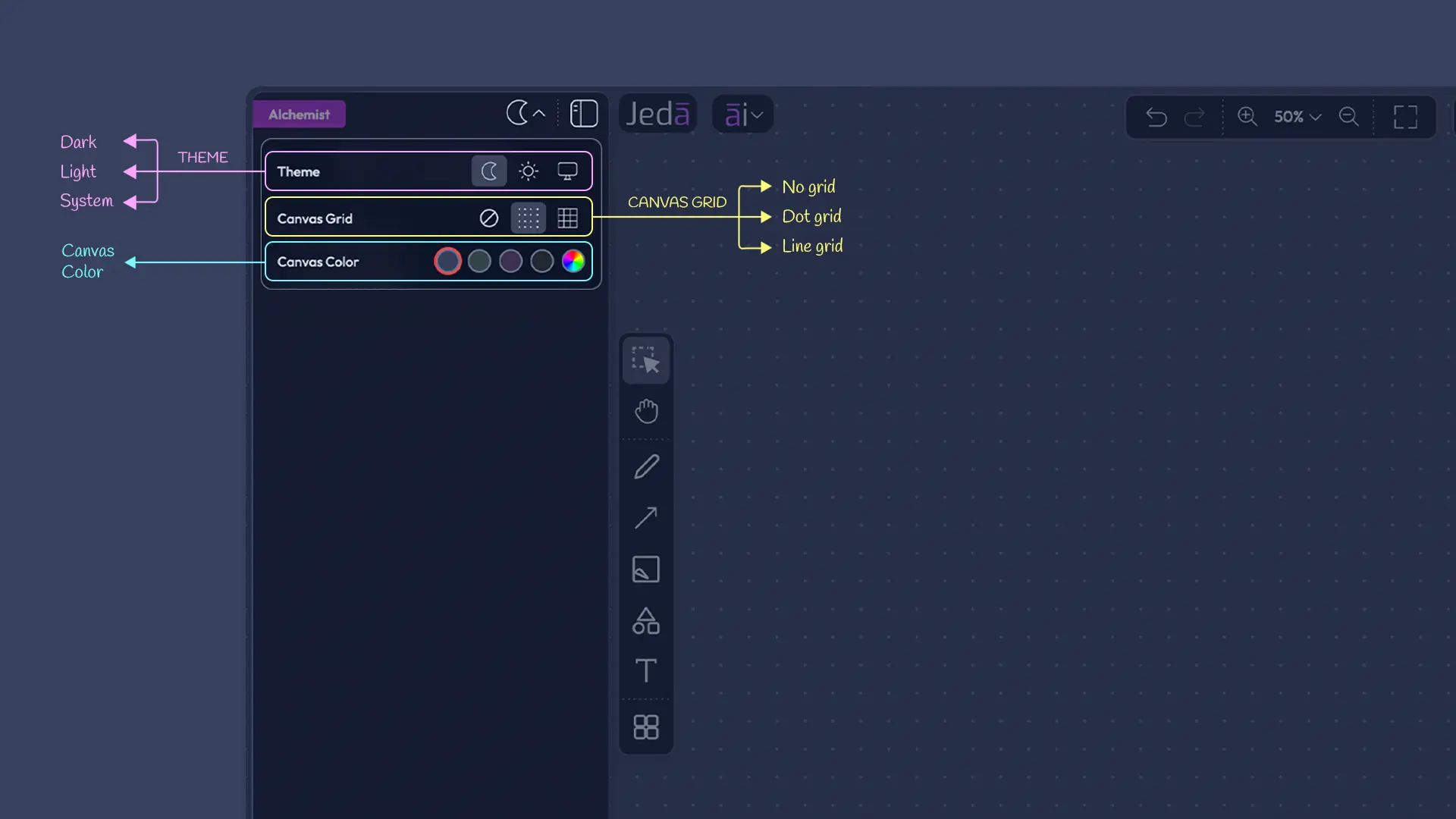
The light and dark mode toggle on the collapsible left sidebar now works as a full Theme Settings control.
Users can choose:
- Dark
- Light
- System
This matters because canvas work changes by context. A consultant may want a clean light board for client playback. A founder may prefer dark mode for deep work. An MBA cohort may want System mode so the workspace follows device settings without extra fiddling.
Canvas grid and canvas color are now customizable
Jeda AI now supports:
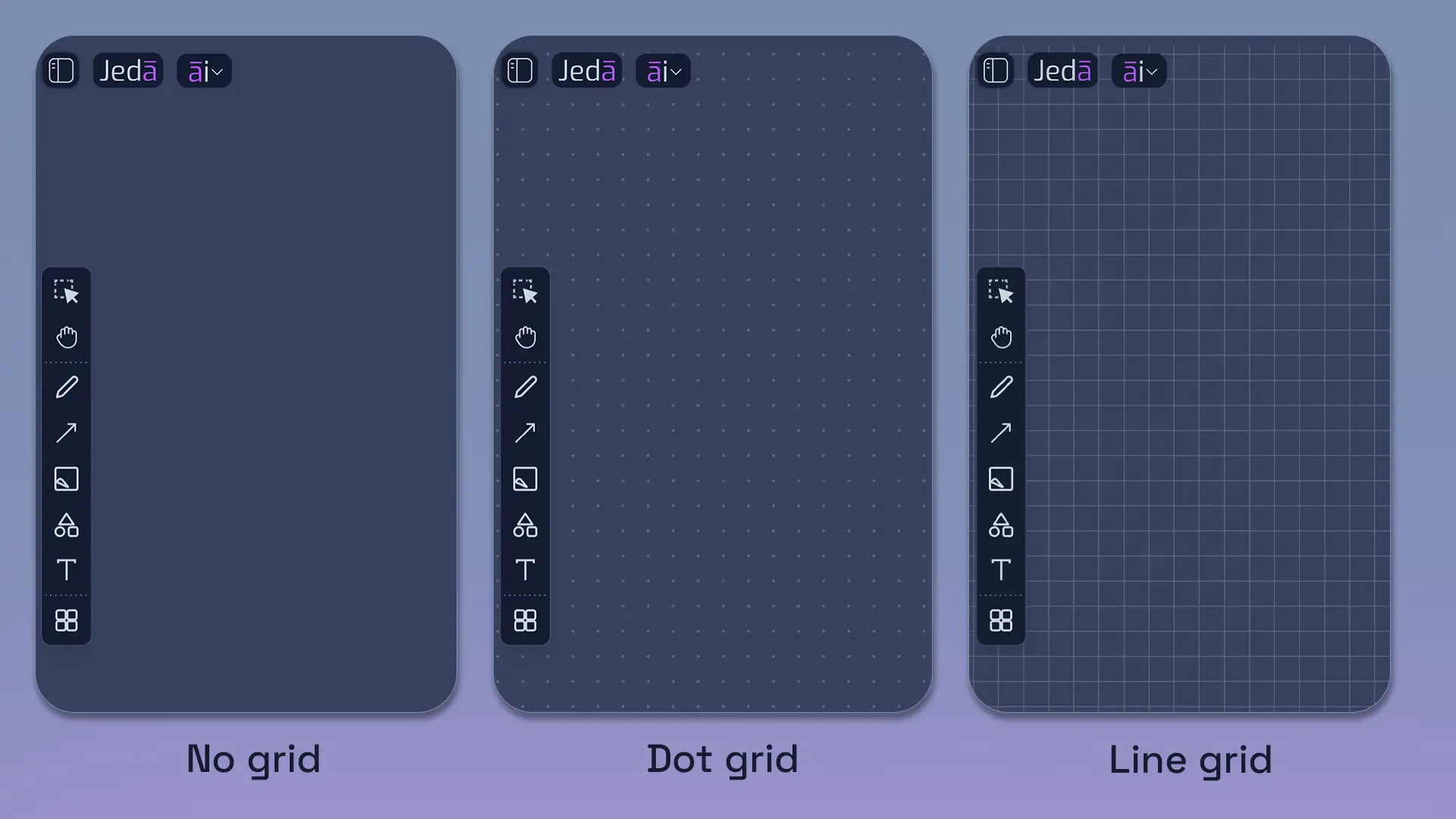
- No grid
- Dot grid
- Line grid
- Four automatic canvas colors based on selected mode
- A color picker for custom canvas color
This sounds cosmetic until you use it in a strategy session. A line grid helps map processes. A dot grid supports structured ideation. A no-grid canvas gives executive visuals a cleaner look. The canvas becomes a thinking surface, not just a background.
How did Data Insight and Document Insight become more grounded?
Web Search now works with Data Insight and Document Insight
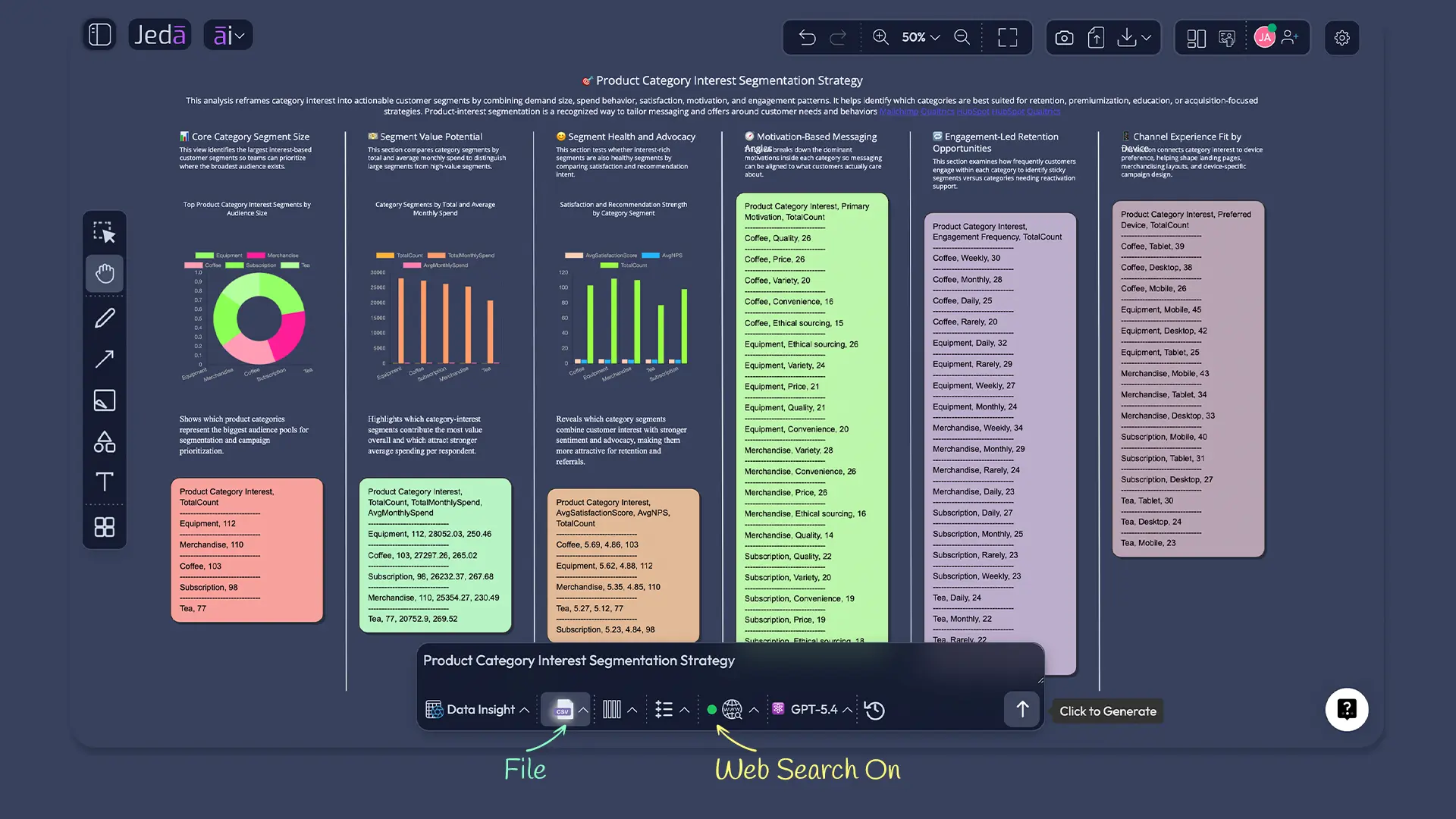
Jeda AI has implemented Web Search for Data Insight and Document Insight. This is a major leap for decision-grade analysis.
Previously, Web Search was already part of the broader AI Workspace experience and supported AI Recipes that used Data Insight or Document Insight through advanced recipe flows. Now, file analysis can become more market-aware directly inside those workflows.
A consultant can upload sales data and ask Jeda AI to interpret patterns with current market context. A decision maker can analyze a PDF and compare it with live external conditions. MBA teams can connect case documents to current industry signals instead of treating the case as frozen in time.
Vision support now works with Data Insight
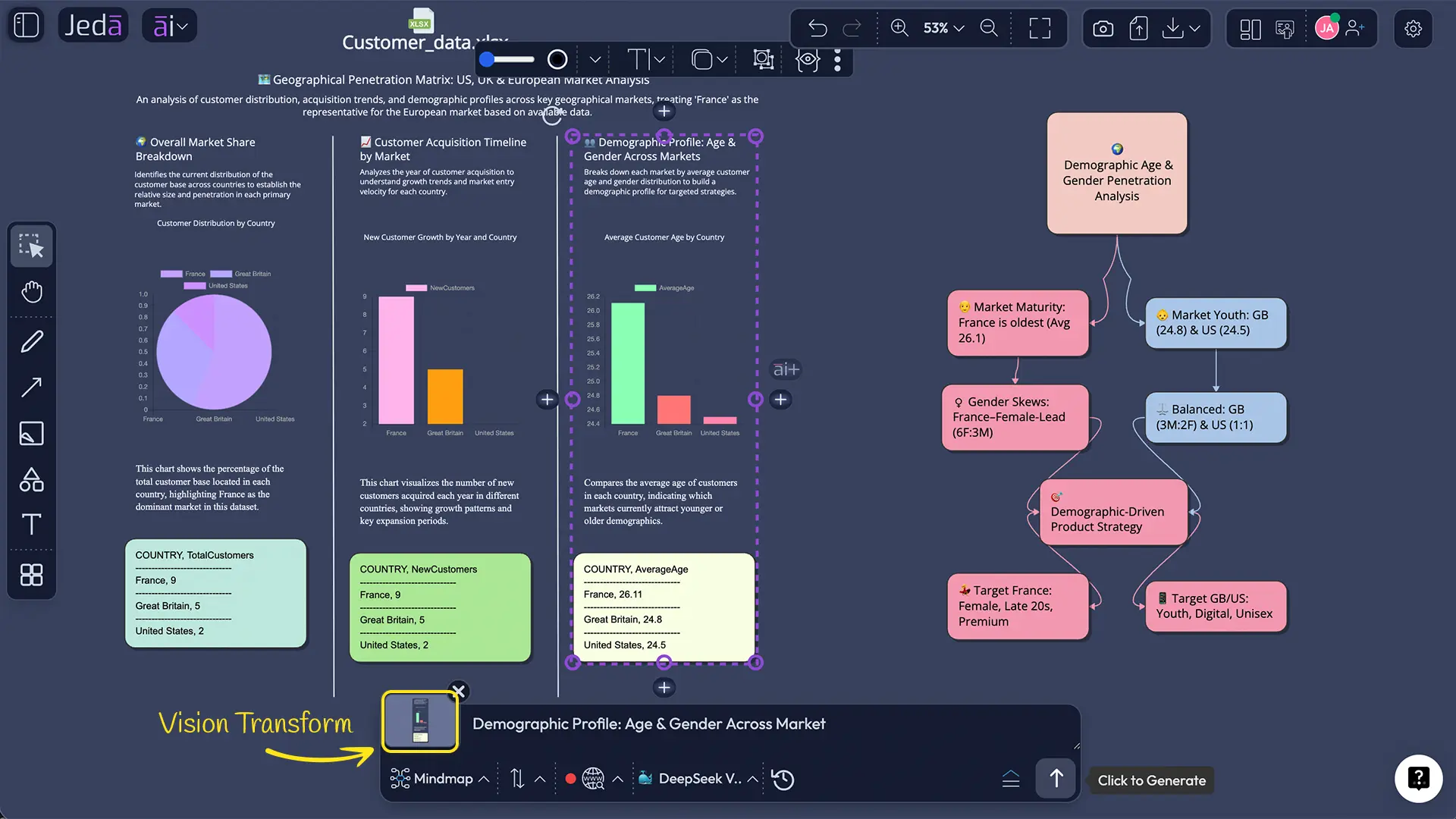
Data Insight now supports vision.
That matters because business data is rarely clean. Evidence arrives as screenshots, dashboard captures, chart exports, scanned tables, presentation snippets, and visual reports. Vision support helps Jeda AI interpret more of the real-world evidence teams actually use.
Vision support now works with Dynamic Prompting
Dynamic Prompting also now supports vision.
Dynamic Prompting helps users refine prompts before generating output. With vision support, the prompt can now be shaped by what is visually selected or provided.
For consultants, that means better prompts before client-ready outputs. For MBA cohorts, it means better questions before the analysis begins.
How much summarization control do AI Recipes now provide?
Data Insight summarization: Auto, On, Off
Jeda AI added summarization control inside:
AI Recipes → Advanced → Data Insight
Users can now choose:
- Auto
- On
- Off
Previously, summarization was always set to Auto for AI Recipes.
This matters because summarization is a power tool, not a default truth machine. Sometimes you need a tight executive brief. Sometimes you need the full evidence trail. Sometimes summarization hides the interesting edge cases too early.
For decision makers, this control can protect strategic nuance. For MBA cohorts, it supports different learning modes: quick synthesis, full analysis, or side-by-side comparison.
How is Excel selection now safer for real analysis?
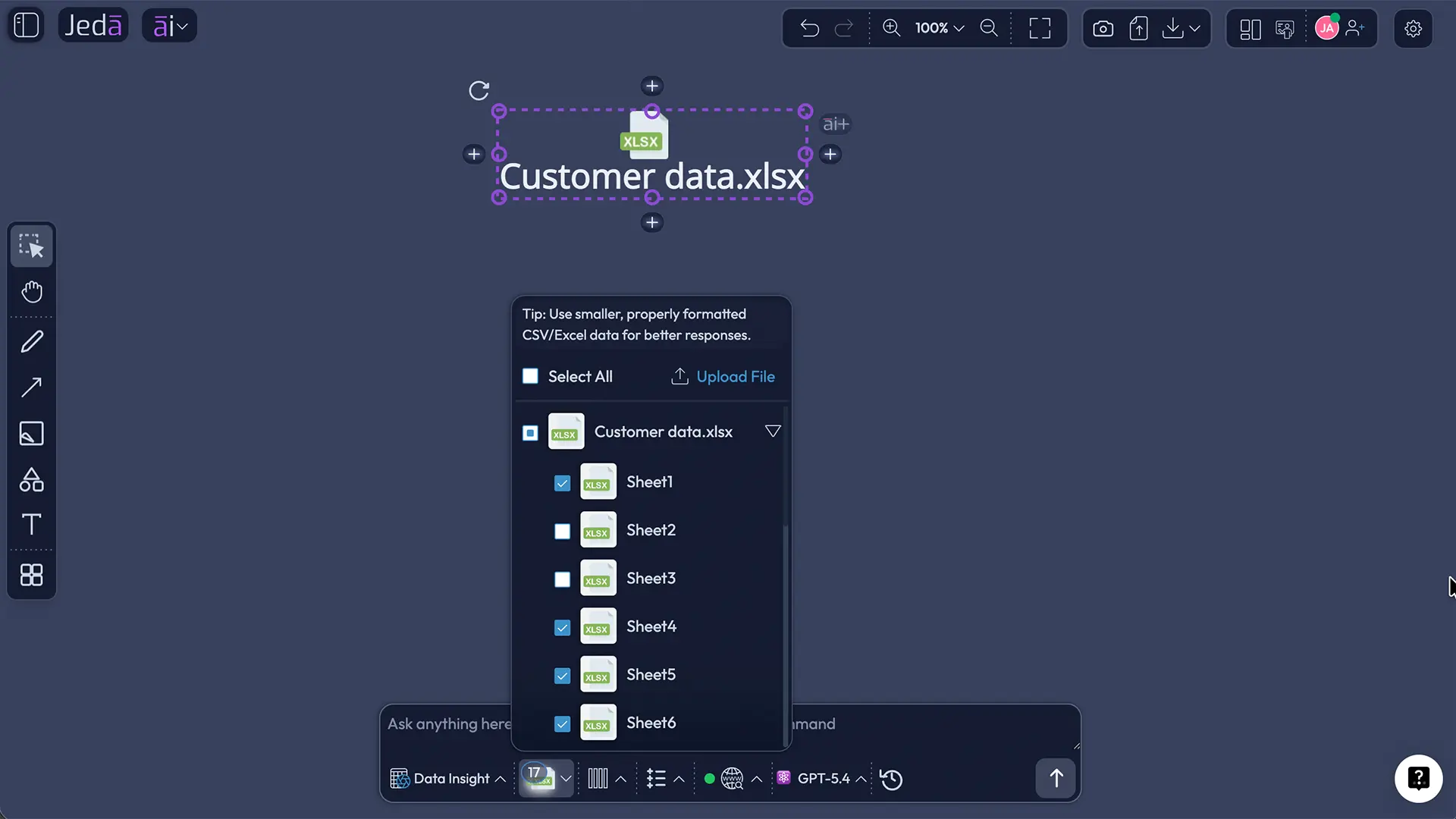
All sheets are checked when manually selecting an Excel file
When users manually select an Excel file on the infinite Jeda AI canvas for the Data Insight command, all sheets are now checked by default.
This fixes a very real business problem.
Spreadsheets often include:
- Input assumptions
- Monthly tabs
- Scenario sheets
- Raw data
- Charts
- Regional breakdowns
- Summary tabs
If only one sheet is selected by accident, the analysis can miss the actual story. Checking all sheets by default helps Jeda AI start from fuller context.
How did prompting and command use get smoother?
Previously run prompts can now be reused
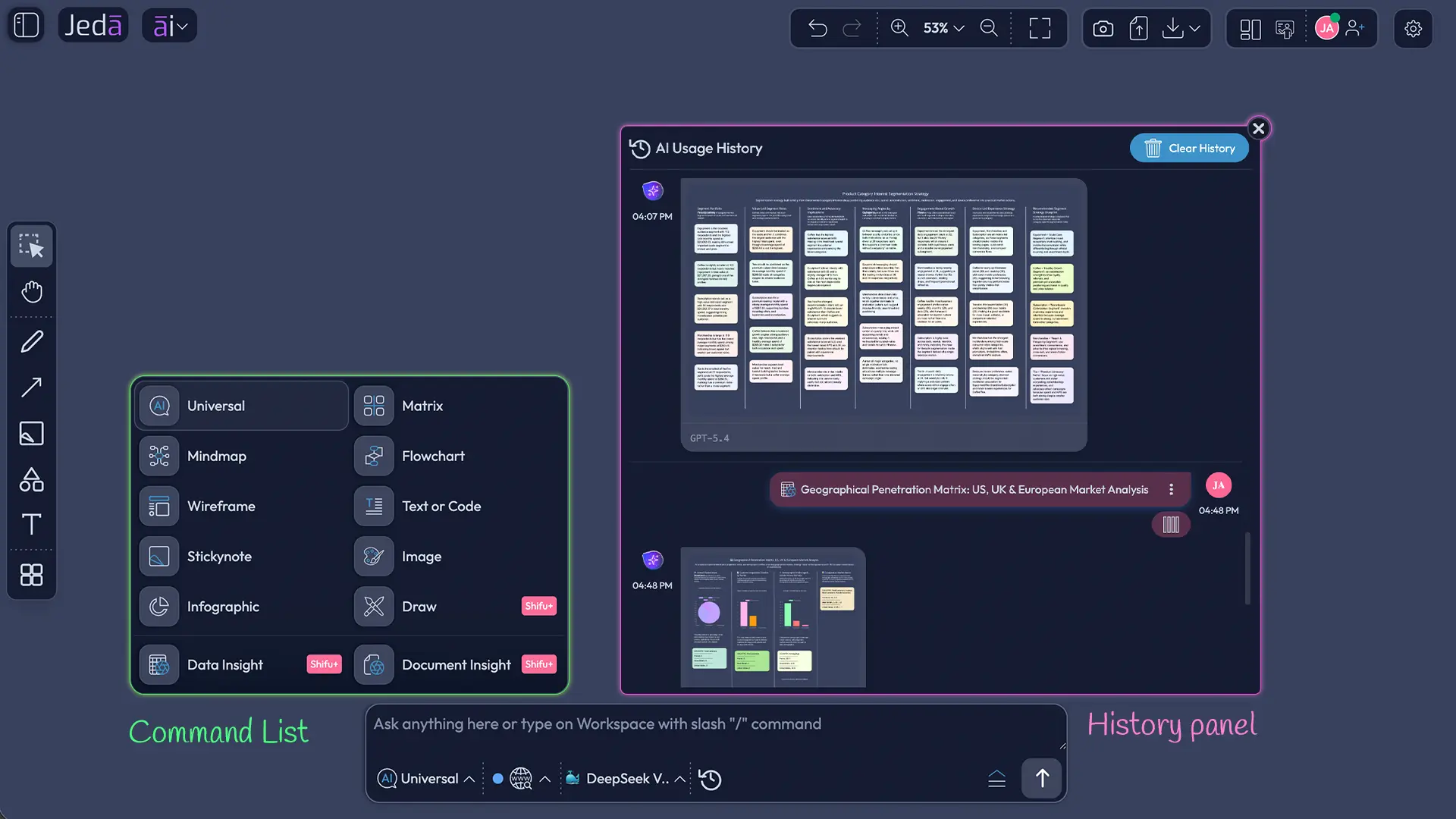
Jeda AI now allows users to reuse previously run prompts through Prompt History.
This is a quiet productivity weapon.
Consultants can rerun a workshop prompt after updating client data. Executives can reuse a quarterly planning prompt with new assumptions. MBA cohorts can compare how the same prompt performs across different cases.
Prompt reuse turns AI from a one-off response machine into a repeatable thinking workflow.
Idle cursor tooltips now show “/command”
Jeda AI now shows cursor tooltips on idle or inactive cursor states with:
/command
This helps users discover slash-command behavior without needing a manual open.
The command list is now two columns
The command list in the bottom input, prompt, and command bar now appears in two columns for better responsiveness.
That makes command selection faster, especially as Jeda AI’s command system keeps expanding across Matrix, Mindmap, Flowchart, Wireframe, Text or Code, Image, Draw, Infographic, Data Insight, Document Insight, and more.
What changed in text formatting?
Bullet and numbered lists are now supported
Jeda AI now supports formatting text as lists, including bullet points and numbered lists.
This helps with:
- Executive recommendations
- Workshop notes
- Meeting outputs
- Research takeaways
- MBA case arguments
- Client action plans
Structured thinking deserves structured writing. Lists make canvas text easier to scan, discuss, and move into final deliverables.
What improved in onboarding, loading, bugs, and performance?
New user onboarding now includes video tutorial support
Jeda AI improved new user onboarding with a video tutorial. That matters because powerful products need faster first-win moments.
New consultants can learn the workspace faster. New MBA cohorts can start with less instructor handholding. New decision teams can see what to do before they wander into tool fatigue.
Loading animation has been updated
The loading animation has been refreshed, giving the product a more polished feel during generation and processing.
Bugs and performance improvements
Several bugs were solved, and performance upgrades were shipped.
This is the least glamorous part of the release, and maybe the most important. In live consulting, classroom, or executive sessions, reliability is not a bonus feature. It is the foundation.
What is the bottom line?
This AI Workspace Update makes Jeda AI more controlled, more grounded, and more usable for serious work.
Consultants get better client-session flow. Decision makers get stronger file analysis with web and visual context. MBA cohorts get a more teachable, repeatable AI Whiteboard for applied reasoning.
This is not a decorative update. It is infrastructure for better thinking.
- What are the new Theme Settings in Jeda AI?
- Jeda AI now provides Dark, Light, and System theme options. Users can also choose No grid, Dot grid, or Line grid and select automatic or custom canvas colors, making the workspace easier to adapt for workshops, analysis, classroom work, and executive presentation.
- Can Web Search now work with Data Insight and Document Insight?
- Yes. This AI Workspace Update adds Web Search support to Data Insight and Document Insight, helping users connect uploaded files with current external context for more grounded business analysis, market interpretation, document review, and decision-making.
- What does vision support add to Data Insight?
- Vision support expands the evidence Data Insight can work with by helping Jeda AI interpret visual business material such as screenshots, dashboard captures, chart exports, scanned tables, presentation snippets, and other image-based inputs alongside structured data.
- Does Dynamic Prompting support visual context?
- Yes. Dynamic Prompting can now use visual context when refining a prompt. Users can work from selected screenshots, charts, diagrams, or other canvas content so the guided prompt reflects the evidence already visible in the workspace.
- What changed in AI Recipe summarization?
- AI Recipes now provide Auto, On, and Off summarization controls for Advanced Data Insight. Users can decide whether Jeda AI should choose summarization automatically, always summarize, or preserve fuller source detail depending on the task.
- What changed when selecting Excel files for Data Insight?
- When an Excel file is manually selected for Data Insight, Jeda AI now checks all sheets by default. This helps reduce the risk of missing assumptions, regional tabs, scenario sheets, raw data, charts, or summary tabs during analysis.
- What is Prompt History used for in Jeda AI?
- Prompt History lets users reuse prompts they have already run. It is useful for recurring consulting workshops, repeated planning cycles, updated datasets, classroom comparisons, and any workflow where the same reasoning structure needs to be applied again.
- Does Jeda AI support bullet and numbered lists?
- Yes. Canvas text now supports bullet lists and numbered lists, making executive recommendations, meeting notes, research takeaways, MBA case arguments, workshop outputs, and client action plans easier to structure and scan.
Try the Latest Jeda AI Workspace Update
Build, analyze, and refine strategy, data, documents, and visual decisions in one collaborative AI Workspace.
Open Jeda.ai