This update is not “UI polish.”
It’s a workflow weapon upgrade for people who live in strategy: business consultants, PMs, and decision makers who need to move from whiteboard chaos to crisp, defensible narratives fast.
We’ve redesigned how you interact with the AI canvas, how you invoke AI, and how diagrams communicate logic, without bloating your mental load.
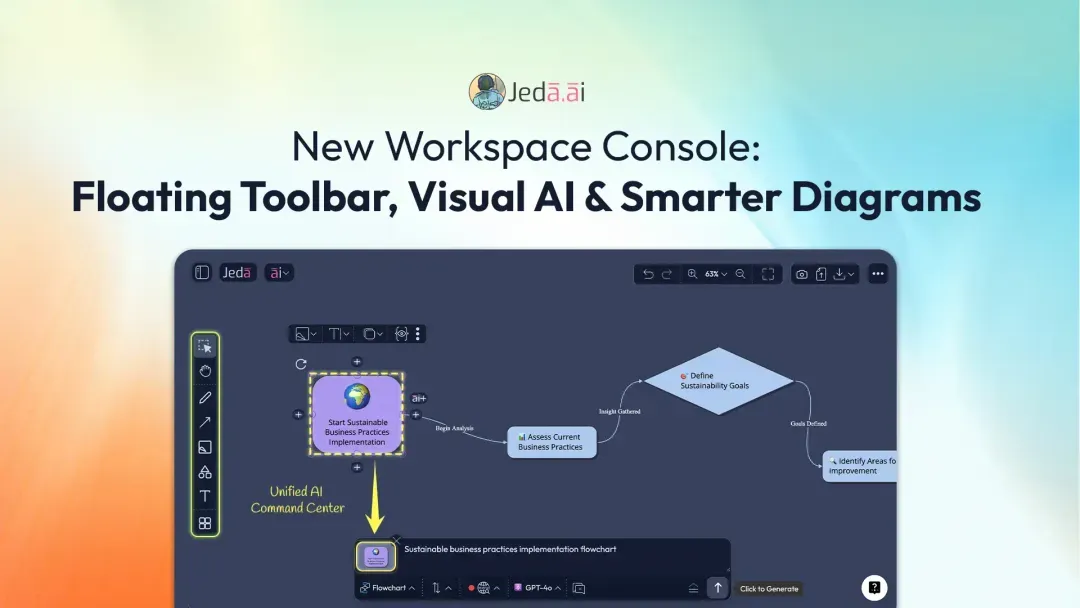
1. The New Floating Toolbar: Your Control Panel on the Left
The AI whiteboard toolbar has been redesigned and relocated for more space, more power, and less friction.
A. From top bar to left-side floating toolbar
Previously: tools were crammed into a top toolbar, fighting for horizontal space.
Now: you get a floating, left-side toolbar with clean icons for:
Click any of these, except Select and Pan, and a detail panel unfolds with deeper capabilities.
This matters for consultants and decision makers because it turns the toolbar into a tactile cockpit instead of a cluttered shelf.
Contextual controls: less noise, more depth
Click the Sticky Note tool and you get controls for:
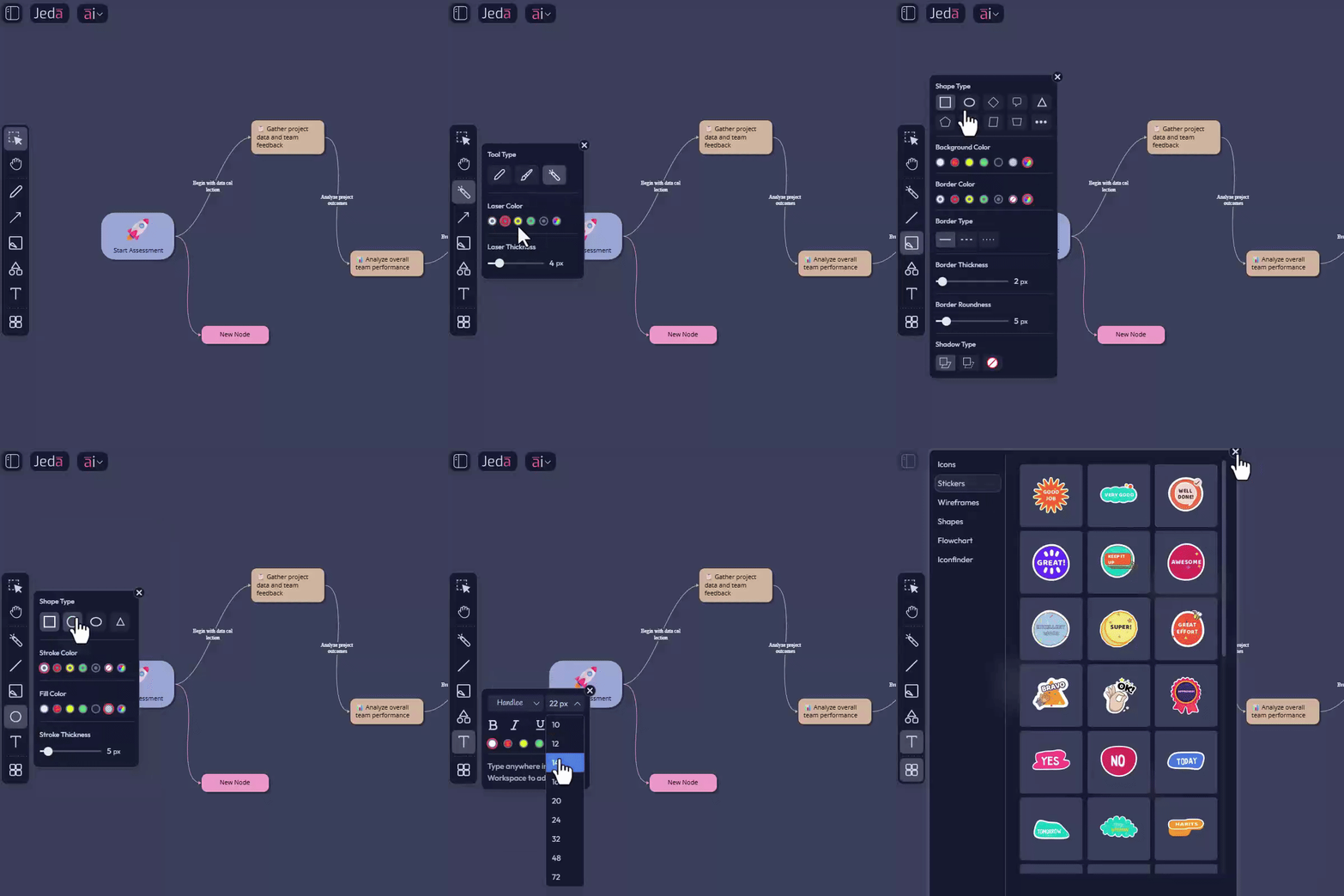
Ideal for visually encoding priority, status, or ownership in your frameworks.
The Pen tool now holds:
Each with its own thickness, color, and behavior.
Great for live teaching, sketching flows, or emphasizing transitions.
Our Arrow tool holds:
Both configurable with the right visual weight and style for hierarchies, flows, and influence diagrams.
Jeda.ai’s Shape tool now bundles:
Each with shape-level styling, so you can build clean, consistent frameworks without hunting through menus.
You’re no longer clicking through a maze. You’re choosing a tool and getting all its intelligence in one place.
B. File upload joins the workspace control cluster
Previously: File Upload sat inside a combined top toolbar.
Now: File Upload lives on the top right, next to the Screenshot and Download menu.
This brings content in and out controls into a single I/O zone, easier to explain to teams and easier to remember in the middle of a live session.
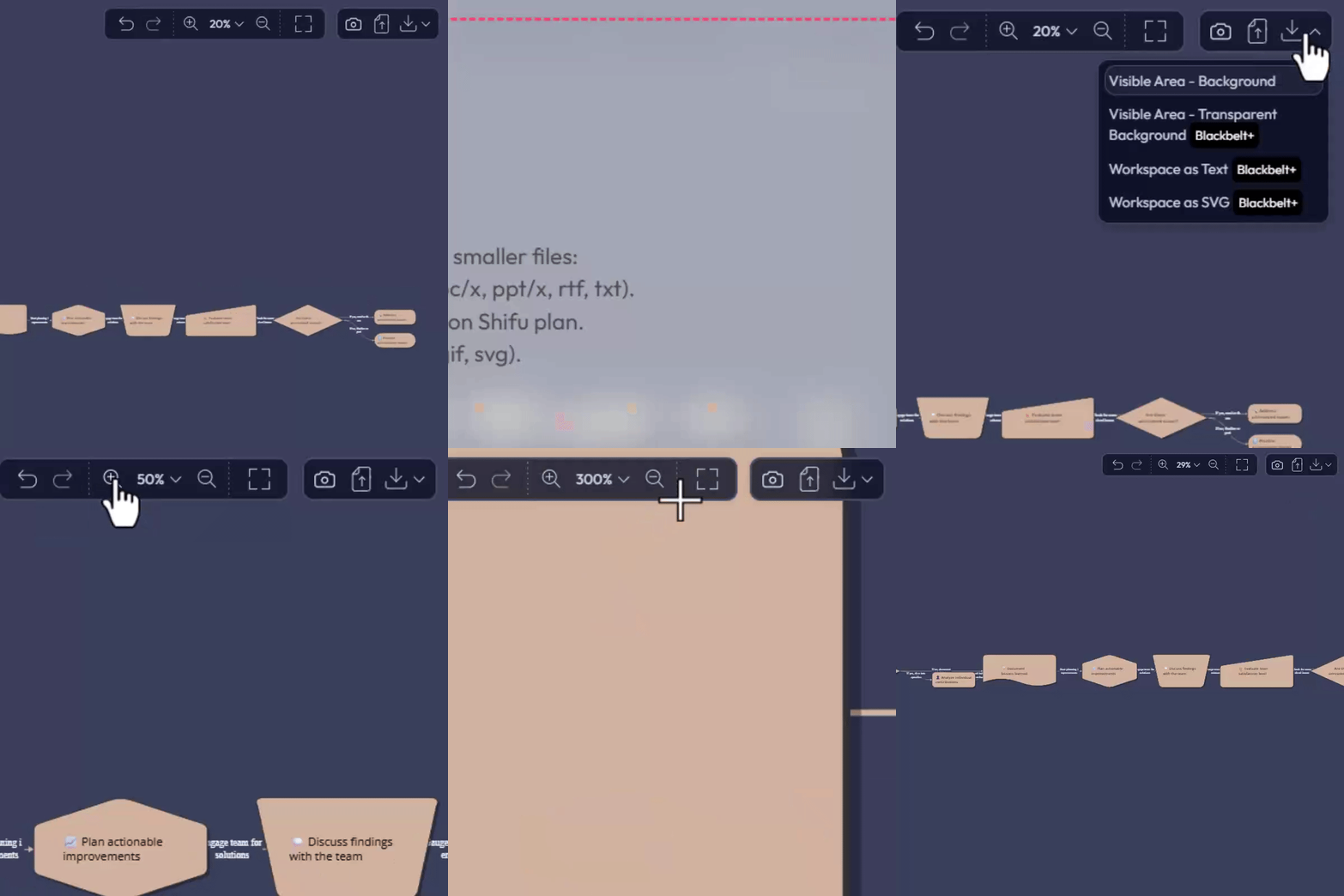
C. Undo, Redo, Zoom: grouped where your hand already is
Undo, redo, and zoom were previously separated and too close to the old top toolbar.
Now, Undo, Redo, and Zoom live together as a single tool set at the top right.
When you’re presenting live, you’re often fixing small mistakes while talking. Grouping these controls means less fumbling, fewer awkward pauses, and smoother facilitation.
2. AI Vision & AI Command Bar: One Unified Think Here Zone
This is a big UX simplification with a massive payoff for cognitive load.
Previously:
- AI Vision, formerly AI Alchemy, appeared below selected objects on the canvas.
- It was powerful but visually noisy, with extra UI popping under objects every time you selected stuff.
Now:
- The canvas is clutter-free.
- AI Vision is merged into the AI Command Bar, also referred to as the AI Input or Prompt Bar.
How it works now
- Select content on the canvas
Select one or more objects or select an area on the AI canvas.
- Check the thumbnail in the AI Command Bar
The AI Command Bar shows a thumbnail of the selected object or area.
- Prompt in natural language
Type prompts such as ‘Summarize this customer journey and highlight 3 friction points,’ ‘Convert this flow into a RACI view,’ or ‘Turn this sketch into a go-to-market funnel with stages and KPIs.’
- Run AI with your usual options
Use the AI Command Bar like you always do and choose AI models, layouts, web search, and other options. The selected thumbnail tells the system to run as AI Vision on that content.
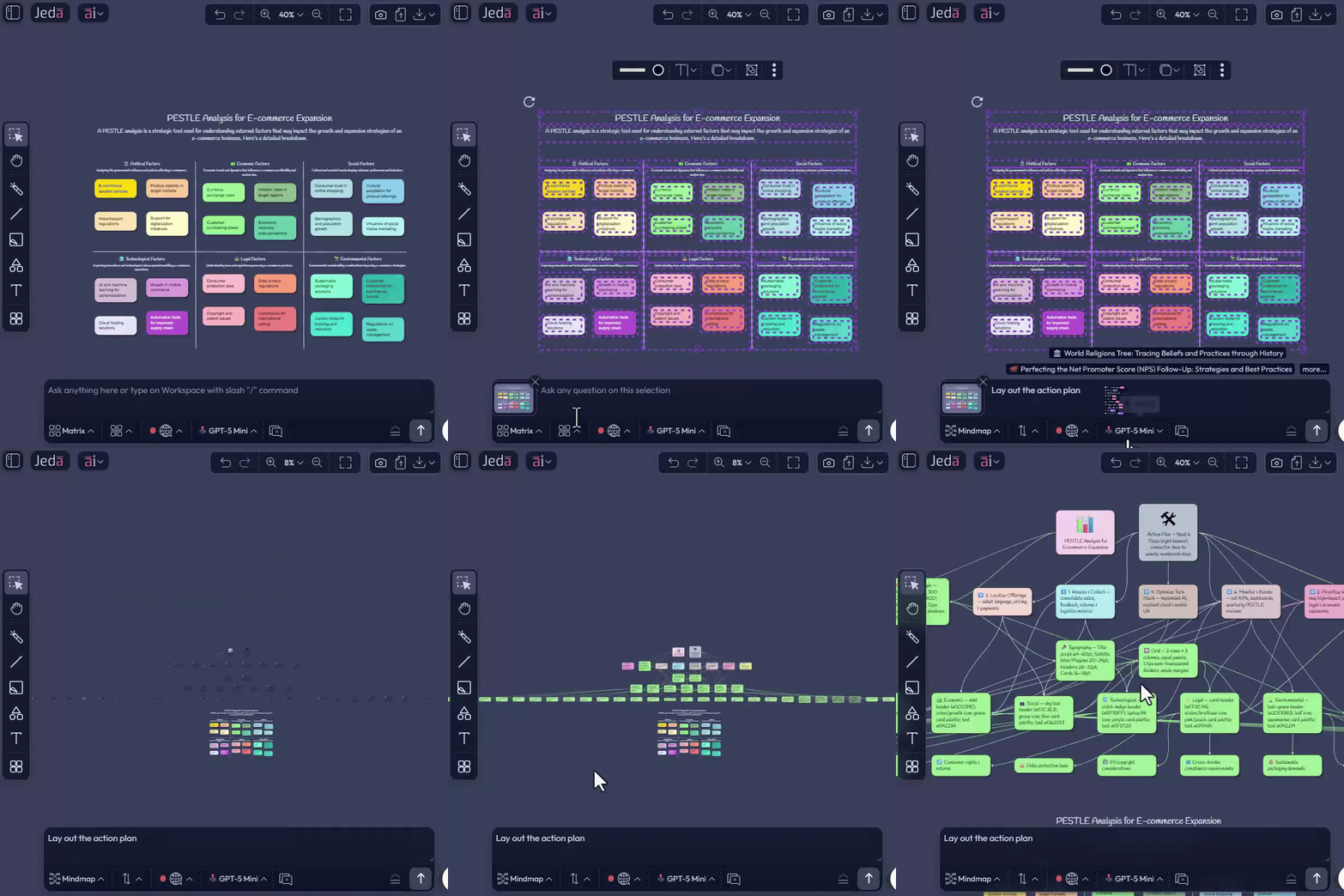
To exit AI Vision:
Why this is a big deal
- For business consultants and decision makers, there is no more mental branching between AI for canvas and AI for text.
- It is one prompt surface. The context, shown by the thumbnail, decides how AI behaves.
- It is easier to train teams and students. When in doubt, use the AI bar. If something is selected, it acts on it.
- The canvas stays cleaner in workshops, lectures, and live decision sessions.
3. AI Flowcharts with Connector Labels: Logic You Can Actually Read
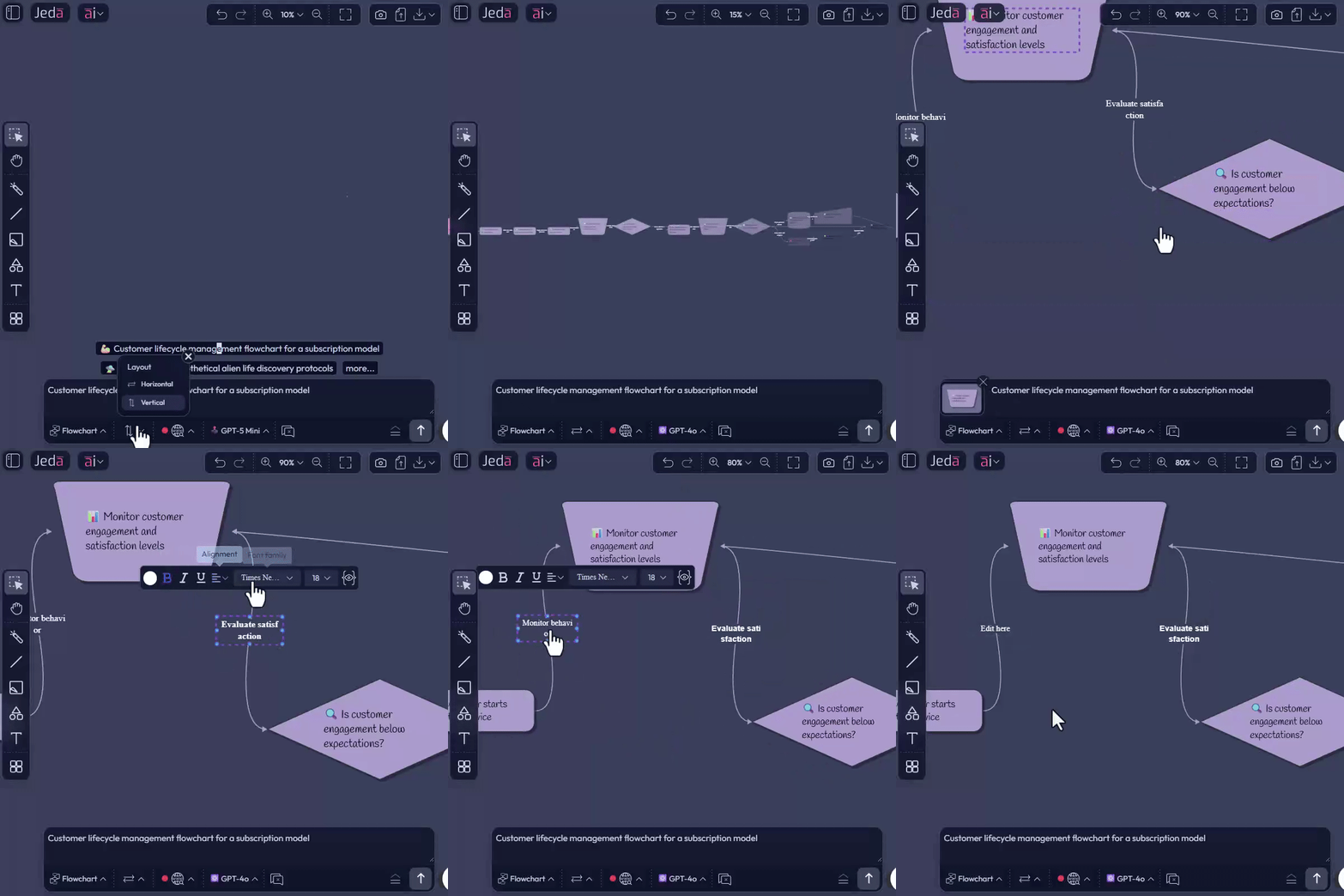
We’ve upgraded AI Flowcharts to include connector labeling.
When generated with AI, connectors:
When you build diagrams manually:
Why this matters in strategic work
A flowchart without labeled connectors is basically vibes.
Now you can explicitly show:
In practice:
- Show which condition sends a customer to retain versus churn win-back.
- Explain which signal graduates a lead from MQL to SQL.
- Make scenario branches explicitly labeled, not implied.
For online MBA-style teaching and client workshops, labeled connectors are huge for:
4. Bulk Styling for Animated Connectors
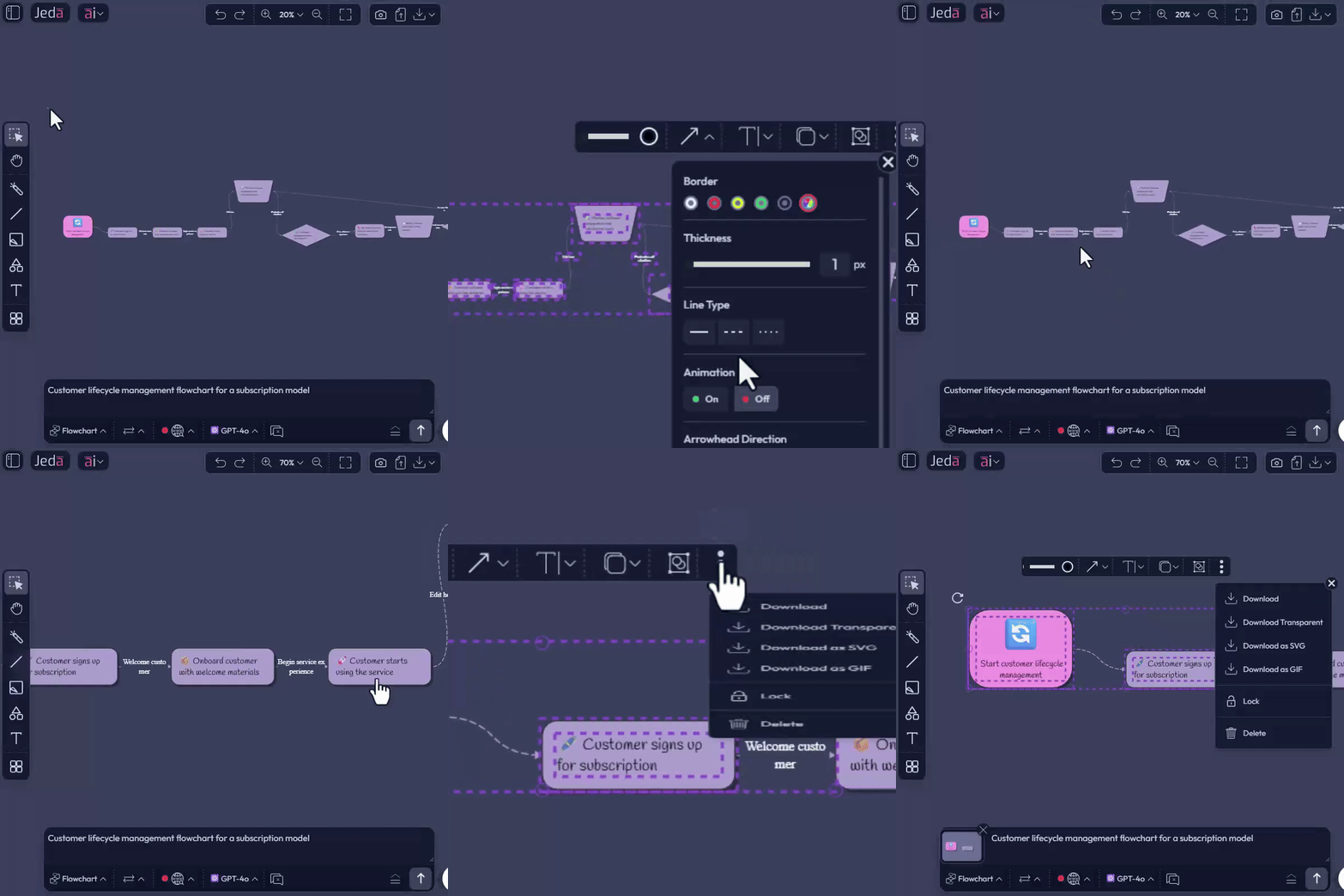
We recently introduced connector animations when using dotted or dashed lines, turning static diagrams into living flows.
Now, we’ve added bulk styling:
This is perfect for:
- Highlighting one active path through a complex system.
- Showing multiple feedback loops or risk propagation paths.
- Preparing diagrams for video walkthroughs or GIF exports without editing each connector one by one.
5. Download Animated Connectors as GIFs
Strategy doesn’t always live in tools like Jeda.ai. It also has to show up in:
Now you can download animated connectors with objects as GIFs.
Use cases:
- Drop a looping GIF of a system or funnel into a slide instead of a static box diagram.
- Give students a visual memory hook for complex flows.
- Help executives get it in 3 seconds on a slide rather than reading 3 paragraphs.
6. Snap to Guide Off by Default: Freedom First, Grid Later
We’ve turned Snap to Guide off by default.
Why:
- Early-stage thinking is messy.
- For strategy, experimentation, and live facilitation, rigid snapping often slows the mind.
You can still turn Snap & Guide back on in Workspace Settings when you’re in production layout mode.
Net effect:
- Brainstorming is fluid.
- Polishing is precise.
You choose when to be pixel-perfect.
7. Analysis to Matrix: Same Power, Better Name
We’ve renamed the Analysis command to Matrix.
This is a clarity move for new users and cohort students.
When they see Matrix, they know it’s where structured comparison and framing happens.
8. Bug Fixes & Performance Improvements
Under the hood, we’ve shipped:
The result:
- More stable client sessions
- A platform you can rely on for serious work, not just play
What This Release Really Means for Consultants & Decision Makers
If you strip away the UI talk, this release gives you:
Jeda.ai is a place where:
- You think
- You show
- You convince
All in one place.
Frequently Asked Questions
- What is the biggest workflow change in this Jeda.ai release?
- The biggest workflow change is the combination of a floating left-side toolbar and a unified AI Vision experience inside the AI Command Bar. That means fewer scattered controls, less UI noise on the canvas, and a simpler way to prompt AI against selected content.
- How do I use AI Vision after this update?
- Select one or more objects, or select an area on the canvas, then use the thumbnail shown in the AI Command Bar as your context signal. Type your prompt as usual, and Jeda.ai treats it as AI Vision on the selected content.
- Can I label connectors in AI Flowcharts now?
- Yes. AI-generated flowcharts can include connector labels where appropriate, and those labels remain editable. If you are building manually, double-click a connector to add or edit a label, then style it like other text objects.
- What is bulk styling for animated connectors useful for?
- Bulk styling helps when you need multiple connectors to share the same visual logic fast. You can select several connectors at once and apply line style, color, thickness, and animation settings together instead of editing them one by one.
- Can I still use Snap to Guide if it is off by default?
- Yes. Snap to Guide is only off by default so early-stage thinking feels less rigid. You can turn Snap & Guide back on in Workspace Settings whenever you move from brainstorming into production layout and precise alignment.
- Why was Analysis renamed to Matrix?
- Analysis was renamed to Matrix because the new label better matches how people actually use the command for structured comparison work such as 2x2s, trade-off grids, comparison matrices, and prioritization frameworks. The functionality itself did not change.
Wrapping Up
If you’re running an online MBA program, EMBA course, or advisory practice, this update is built to make your boards, sessions, and explanations punch way above their weight.
Go play with the left toolbar, try a Matrix command, label your connectors, and export a GIF of a system in motion.
Your stakeholders shouldn’t just read strategy.
They should see it move.
Try the New Workspace Console in Jeda.ai
Join 150,000+ users using Jeda.ai as a Visual AI Workspace to draw, think, explain, and present strategy with less friction.
Open Jeda.ai