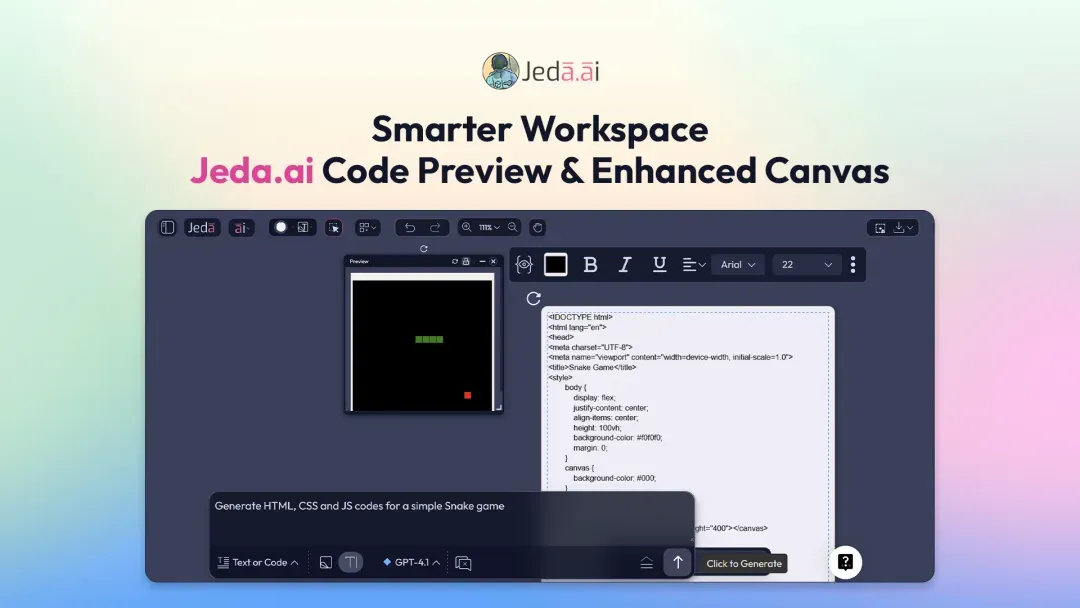
Jeda.ai keeps evolving to help you create, test, and collaborate faster. This release brings performance upgrades, smarter UI/UX behavior, and the all-new Jeda.ai Code Preview for mockups and working code, along with canvas and export improvements.
What's New
1. Jeda.ai Code Preview: Test Mockups and Working Code Instantly
Building on AI Alchemy’s power to generate mockups from low-fi wireframes and working code, Jeda.ai now introduces Code Preview.
How It Works
- Select a generated code object
Choose the generated code object on your AI Workspace.
- Open the preview
Click the eye icon and a small preview window appears.
- Test and manage the experience
Interact with the preview, open multiple windows, and resize, move, lock, minimize, close, or reload each one as needed.
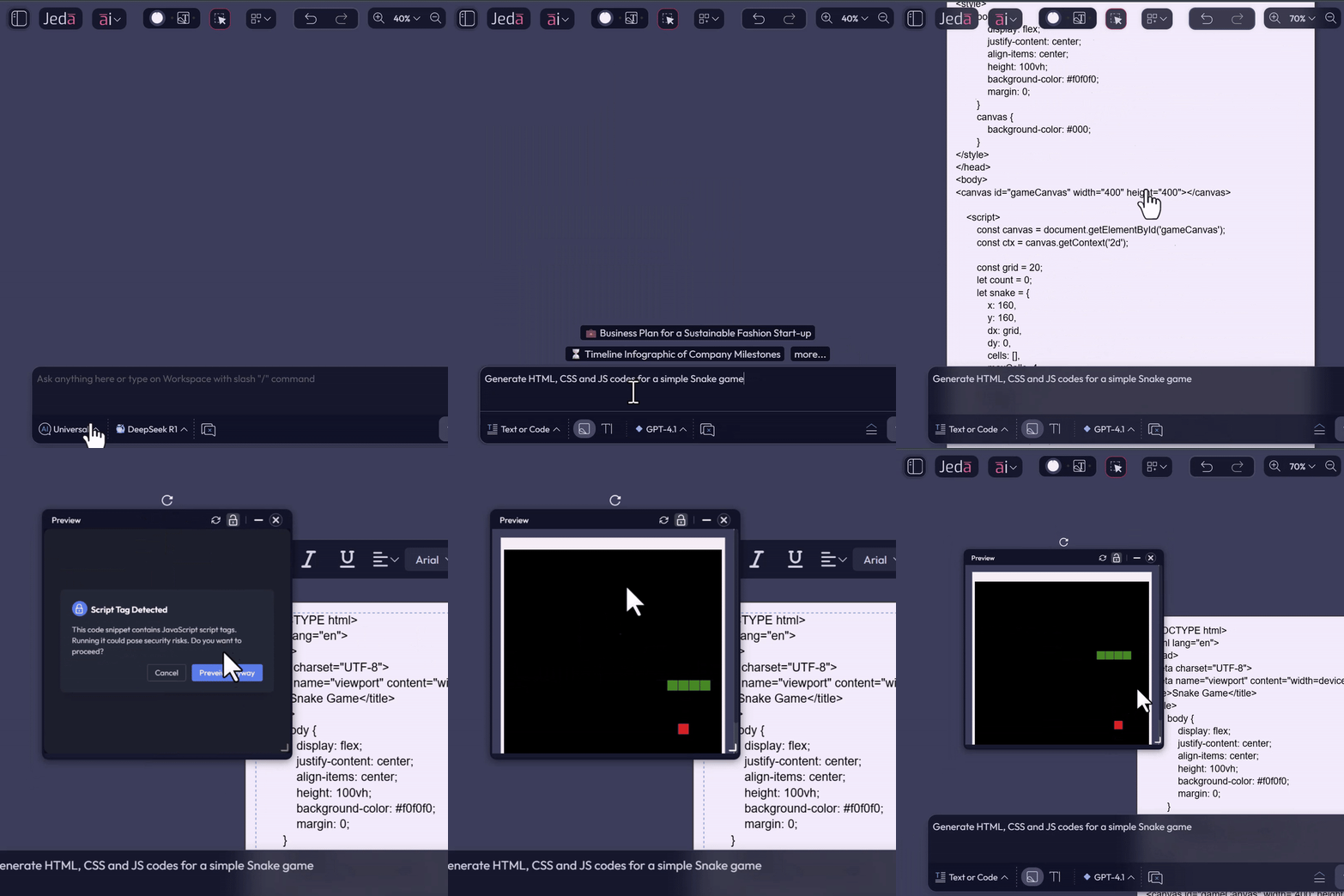
This capability lets you see and test your code instantly, giving immediate feedback on layout, interaction, and design without leaving your workspace. It is useful for designers, developers, and educators.
2. Performance, UI, and UX Enhancements
Jeda.ai now includes several under-the-hood upgrades that improve the overall workspace experience.
These improvements create a stronger foundation for the new capabilities introduced in this release.
3. Smarter Canvas and Export Improvements
Several workspace capabilities have been refined to improve usability and output consistency.
Why This Matters
Frequently Asked Questions
- What is Jeda.ai Code Preview?
- Jeda.ai Code Preview lets you open a small preview window for a generated code object directly inside the workspace so you can test layout, interaction, and design without leaving the canvas.
- Can I interact with the previewed code?
- Yes. You can test the UI and UX of your code, interact with light elements, and even validate simple interactive experiences such as mini-games when they are part of the generated output.
- Can I open more than one preview window at the same time?
- Yes. Jeda.ai Code Preview supports multiple preview windows at once, and each window can be resized, moved, locked, minimized, closed, or reloaded independently.
- When will the Download as SVG option appear?
- The Download as SVG option appears only for objects that support SVG conversion. It automatically hides for unsupported objects such as files, images, or data charts.
- What happens to canvas controls during pan and zoom?
- During pan and zoom actions, the object control bar and AI Alchemy options automatically hide so the canvas stays cleaner and easier to navigate, especially on larger boards.
Try These New Capabilities Today
Log in to Jeda.ai to explore the new Code Preview, smarter canvas behavior, and export improvements. Create, test, and iterate faster than ever before.
Try Jeda.ai Code Preview Today
Explore Code Preview, smarter canvas behavior, and export improvements to create, test, and iterate faster in one workspace.
Open Jeda.ai