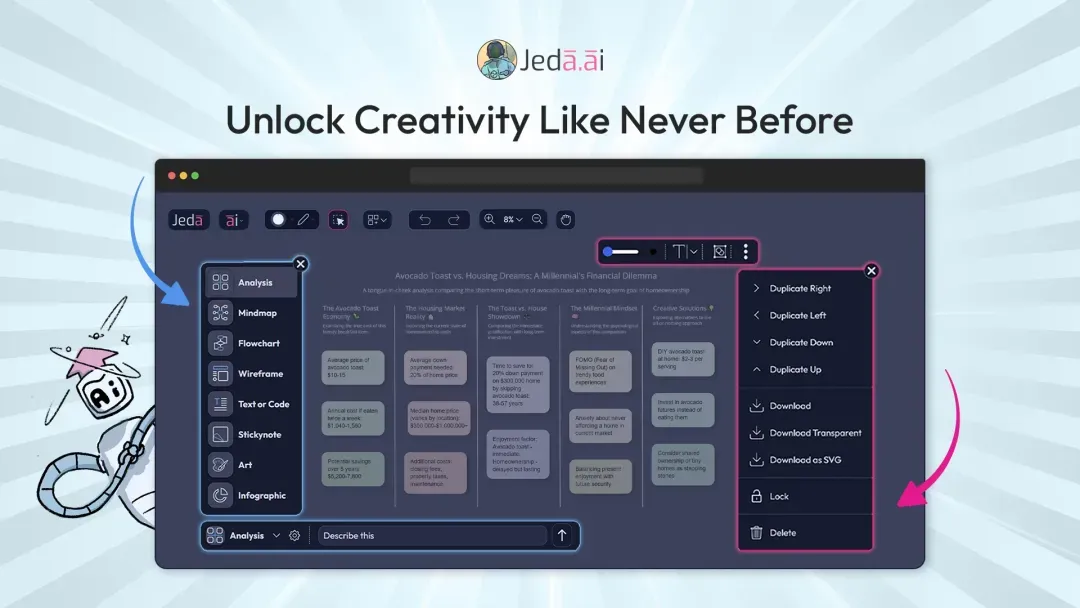
Jeda.ai’s latest feature release brings updates to the Core and Alchemy interface, along with a new Object Control Toolbar. Built for both simplicity and power, these changes make creative work smoother, faster, and easier to manage inside your AI Workspace.
What’s New in This Release
Full-Height AI Recipes and AddOns Menu
Navigating AI Recipes and AddOns is now easier. The menu spans the full height, giving you more room to browse templates and resources with less friction. Everything stays more visible, which makes the workflow feel cleaner and faster.
AI Alchemy UI Update: Enhanced Flexibility
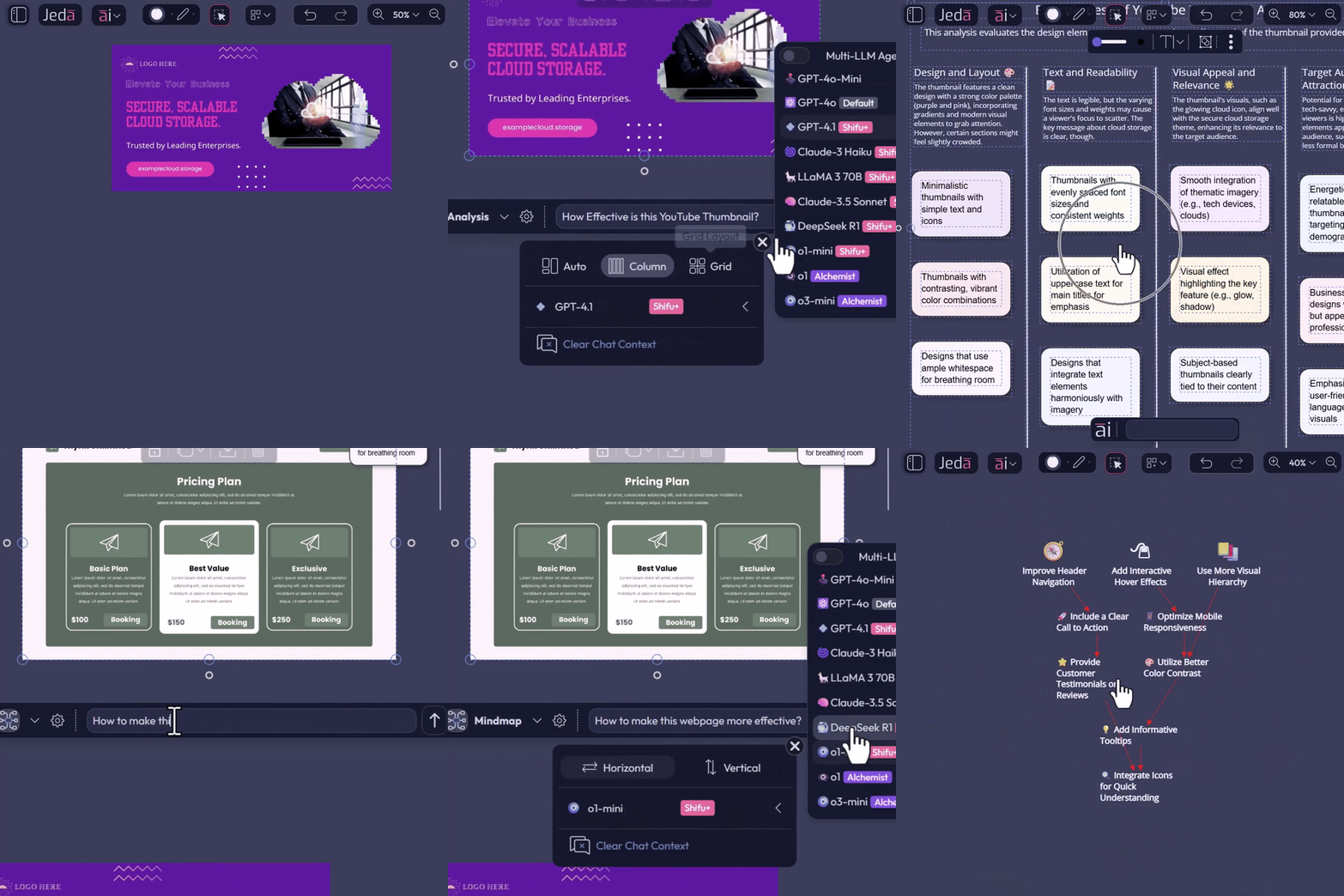
Jeda.ai has refreshed the AI Alchemy UI to make it more intuitive and flexible. The basic usage stays the same, but the updated interface gives you a clearer way to move through the experience and work with Visual AI outputs more comfortably.
How to Get Design Feedback from AI
- Upload your design files
Upload your designs, screenshots, or image files to the Jeda.ai canvas.
- Open AI Alchemy
Select the item you want feedback on and click the "ai" bottom menu to enter Visual Alchemy.
- Write your prompt
Use a direct prompt such as "Analyse this design" or "How to improve this design".
- Choose your AI command
Select a command such as Analysis or Mind Map, then choose your preferred layout.
- Run the generation
Select one or more AI models and click Generate.
How to Generate Mockups from a Wireframe
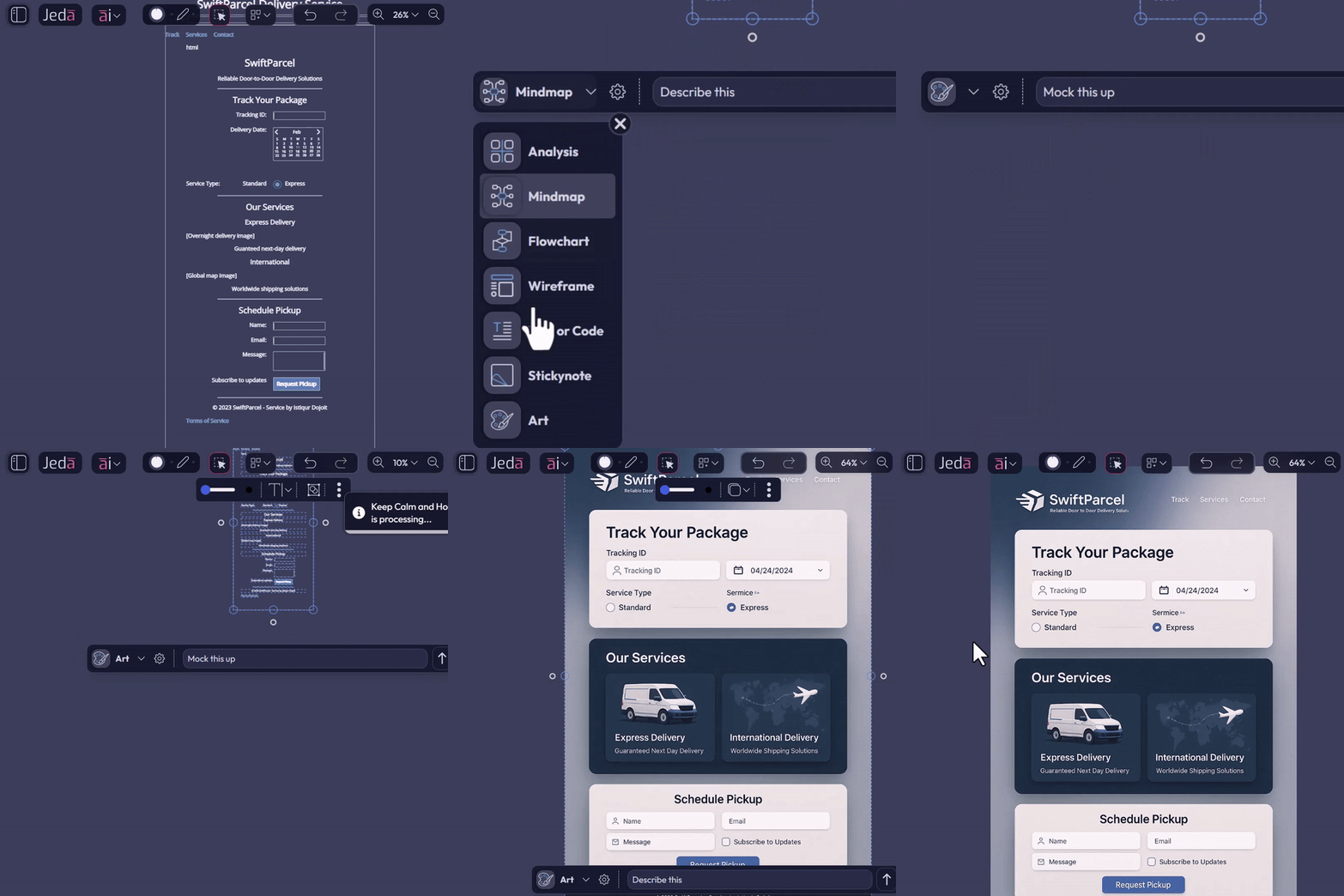
- Bring in the wireframe
Upload your wireframe or create it directly in Jeda.ai.
- Enter Alchemy
Select the wireframe and click the "ai" bottom menu to open the transformative Alchemy flow.
- Write a simple prompt
Use a prompt such as "Mock this up." Keep it direct.
- Choose the Art command
Select the Art AI command for the transformation.
- Generate the mockup
Choose one or more AI models and click Generate.
Icon Upgrades for a Cleaner Look
Several icons have been updated to align better with the overall design of Jeda.ai. The result is a more cohesive and polished interface across the AI Whiteboard.
Fixed Plan Upgrade Behavior for Multi-LLM Selections
Issues with plan upgrades during multi-LLM selection for Whitebelt and Blackbelt accounts have been addressed. That means a cleaner upgrade path and less interruption while working across multiple models.
New Object Control Toolbar: All-in-One Toolbox
The Object Control Toolbar has been redesigned to give you a more modern and complete toolbox for object editing and text styling on the canvas.
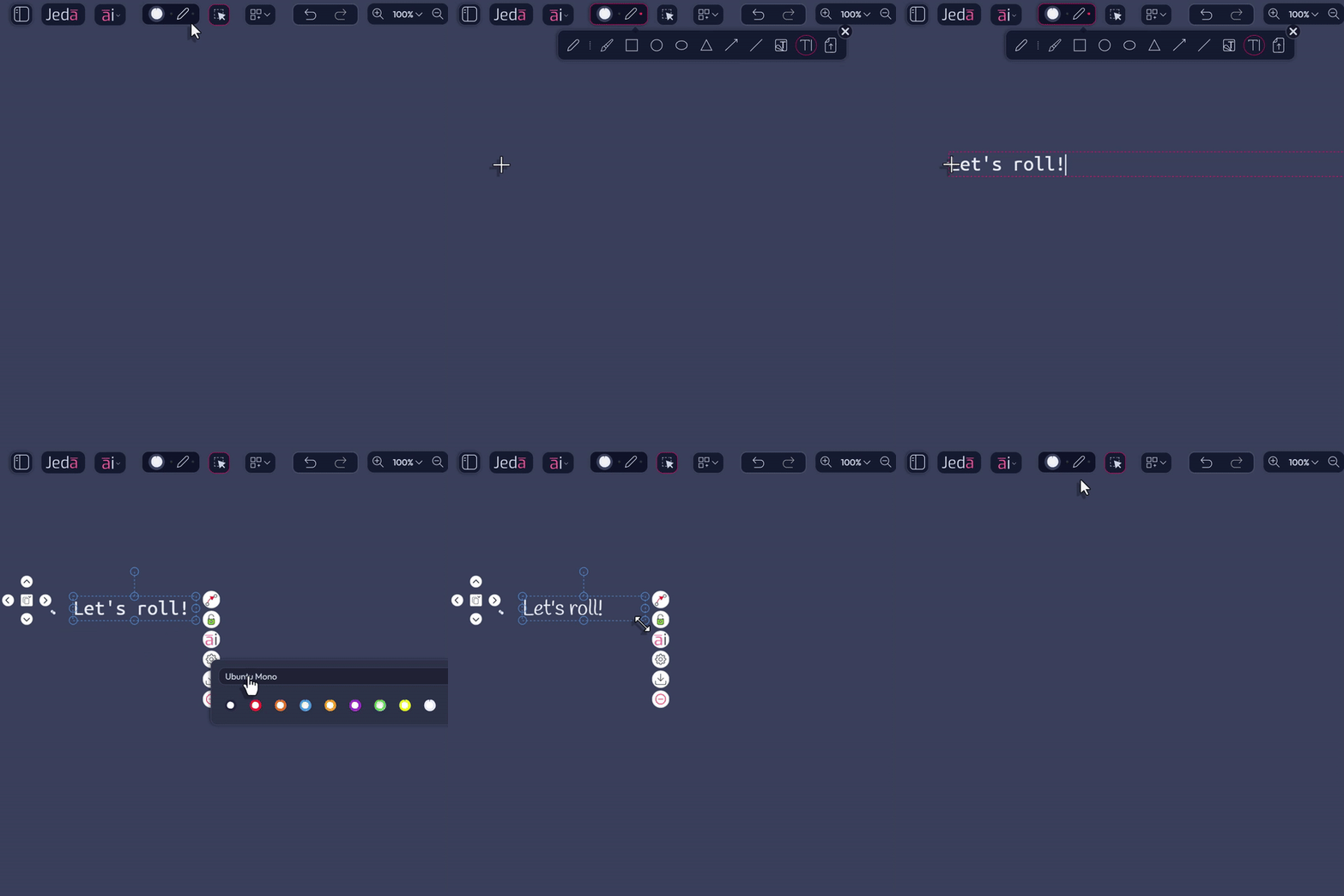
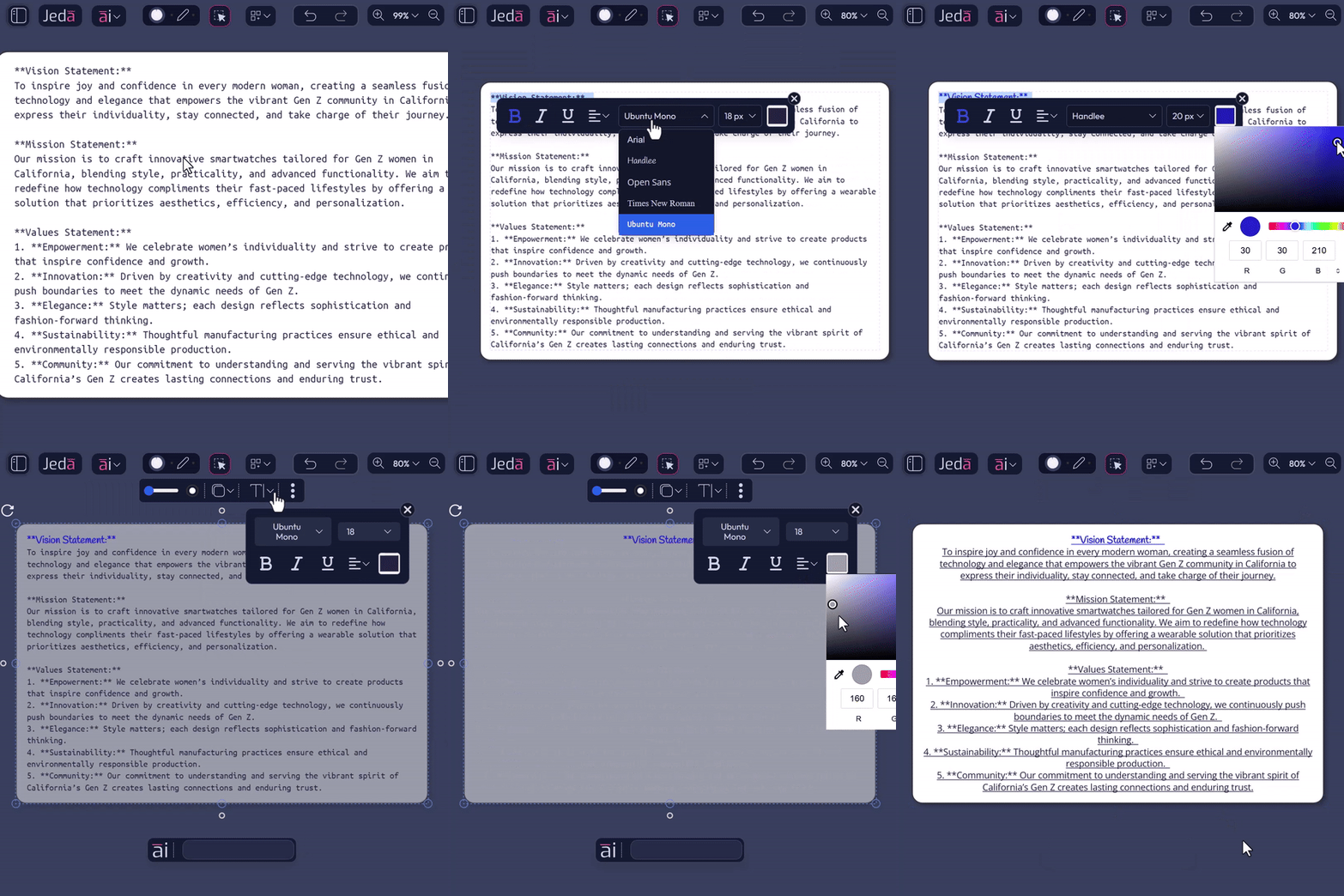
How to Change the Font Family of Text
Select the font family before generating or writing content. The most complete way to do it is to select your text and use the toolbar to modify the font family directly.
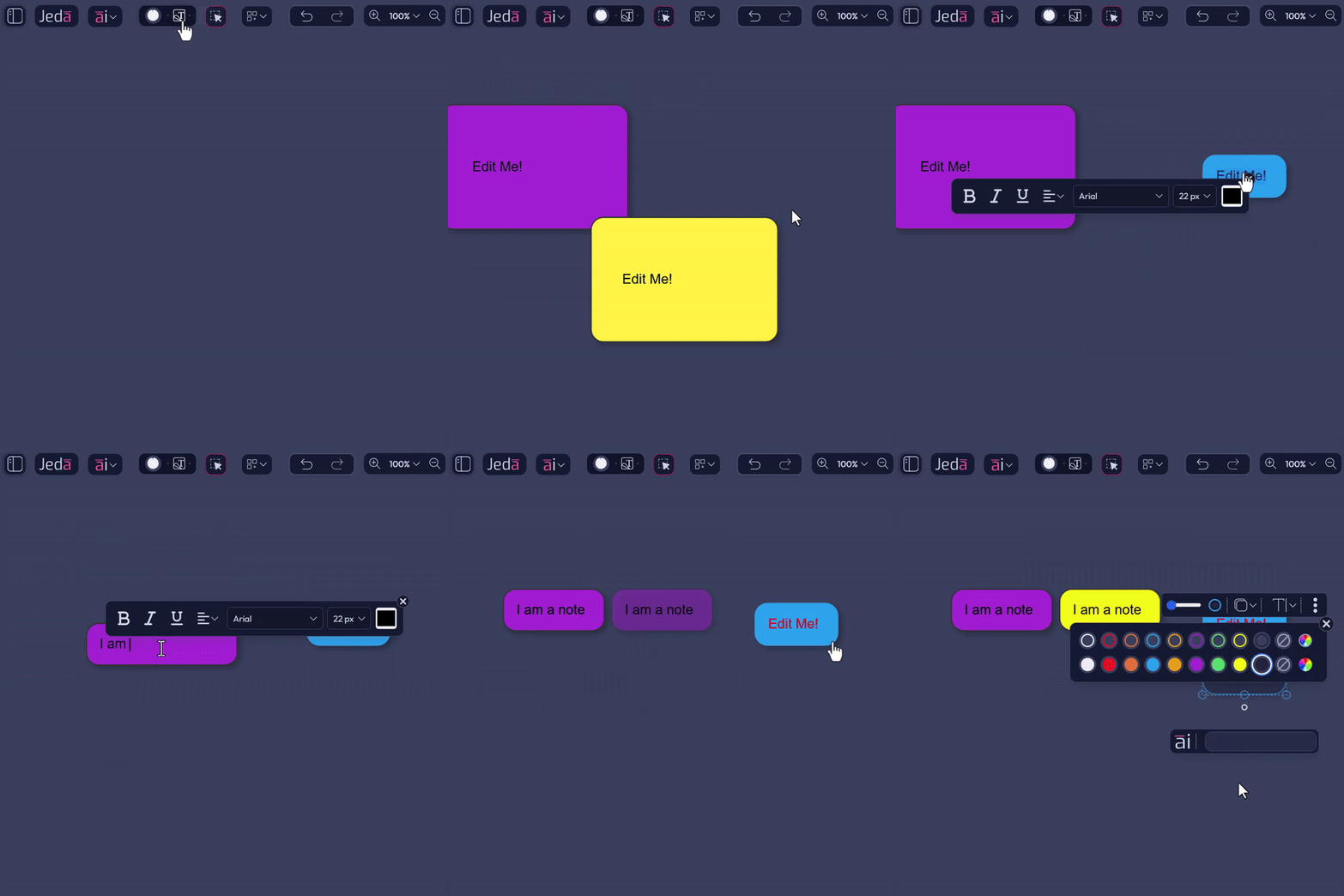
How to Insert a Sticky Note on the AI Workspace
Use the Sticky Note tool. Click to place notes, double-click to edit them, and create as many notes as you need.
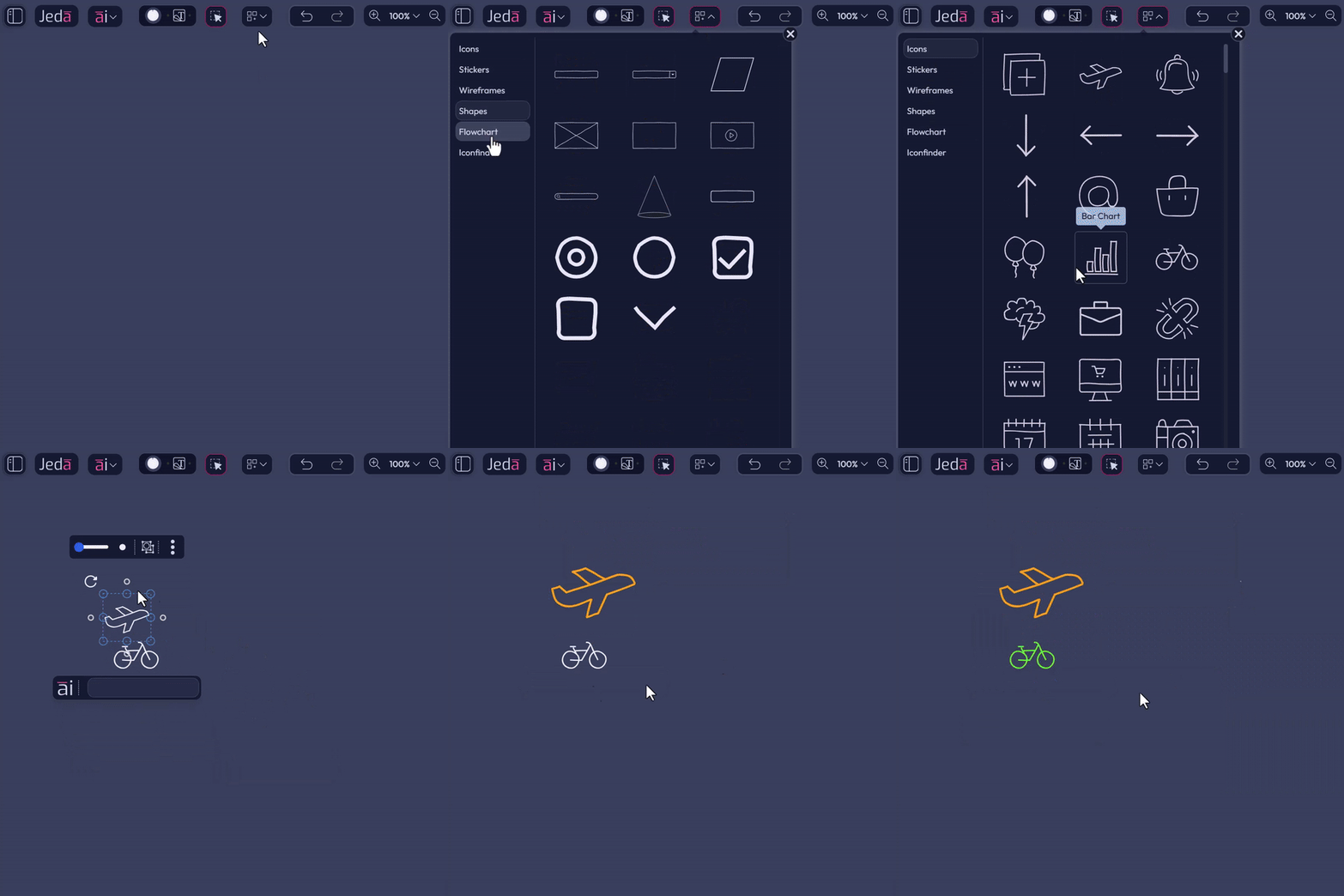
How to Use Jeda.ai AddOns
Open the AddOns menu, browse the categories, and click the item you want to place on the canvas. Once inserted, select it to reveal its options. You can resize it by dragging any corner.
How to Download an Element or the Whole Workspace
Use the Download menu to access the available options for saving content from the AI Workspace. You can download the full workspace, or select one or more objects and download only those elements.
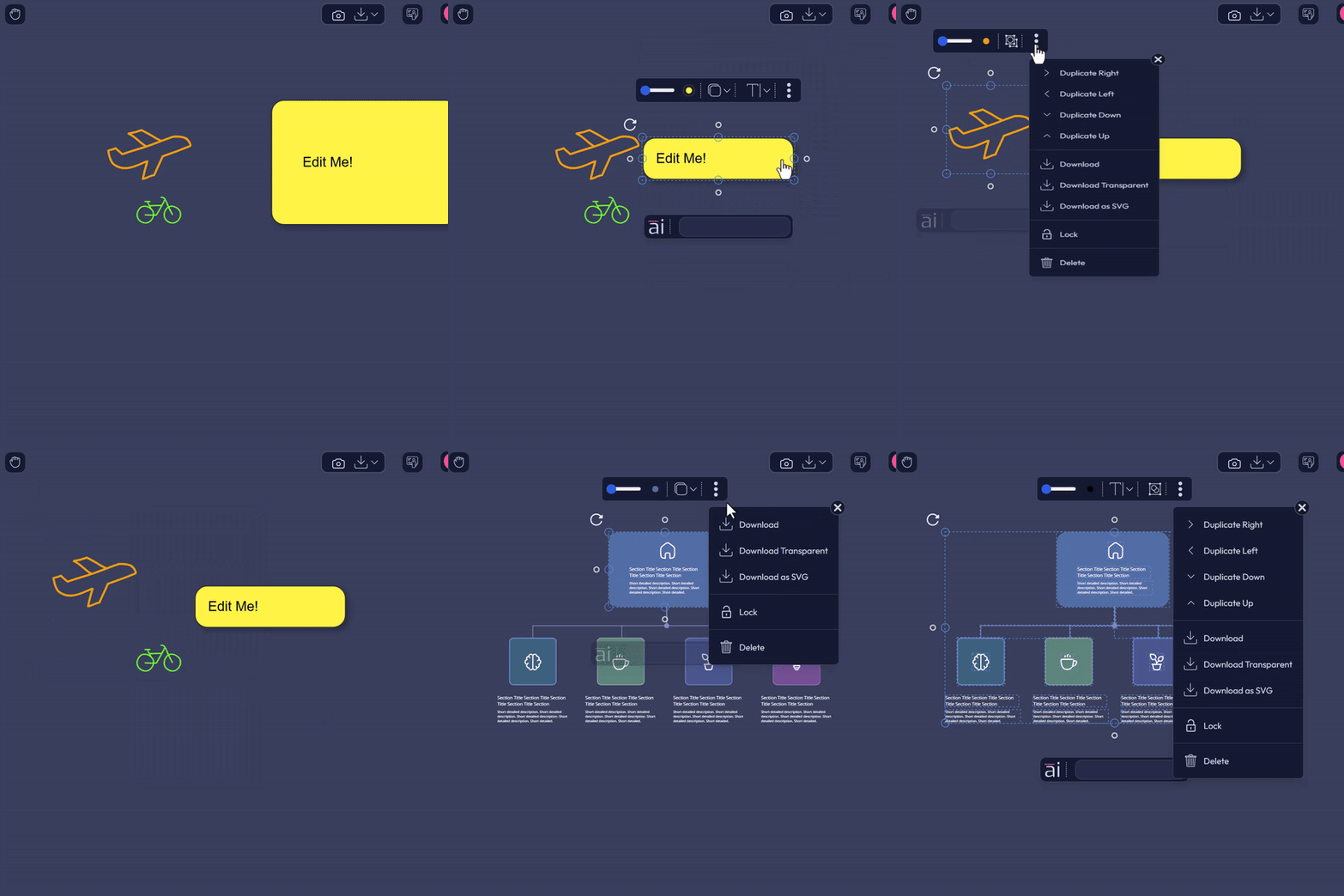
How to Modify Objects on the AI Workspace
Selecting one or more objects gives you a wider set of controls:
How to Access the Rich Text Toolbar
- Create or select text content
Write or generate visual content that contains text.
- Highlight what you want to format
Select the word, phrase, or section you want to edit.
- Use the Rich Text Toolbar
The toolbar appears automatically and lets you adjust formatting in place.
How to Move Jeda.ai Elements into PowerPoint Slides Using SVG
- Select the objects
Choose one or more objects on the Jeda.ai canvas.
- Download as SVG
Use the download option for the selected elements and save them as SVG.
- Drag the SVG into PowerPoint
Place the SVG file onto a PowerPoint slide.
- Convert and edit
Convert it to shapes if needed, continue editing, then save as PPT or PDF.
Bug Fixes and UX Improvements
Alongside the interface changes, Jeda.ai also includes bug fixes and broader UX improvements to make the overall experience smoother and more reliable.
FAQ
- What is the biggest change in this Jeda.ai release?
- The biggest visible change is the redesigned Object Control Toolbar, paired with the updated AI Alchemy interface. Together, they make object editing, text styling, and visual generation feel cleaner and easier to manage inside the workspace.
- Did AI Alchemy change how it works?
- The core usage flow stays the same. The update focuses on interface flexibility and clarity, so existing users can keep working the same way while getting a more intuitive experience.
- What improvements were made to text editing?
- Text editing now includes more direct access to font size, font family, bold, italic, underline, and color options. The Rich Text Toolbar also supports color inputs like HEX, RGB, and HSL, plus an Eyedropper Tool.
- What changed in the color picker?
- The toolbar now offers a full color picker instead of relying on only a small preset selection. That gives users more precise control when styling text and objects on the canvas.
- Can I still use AI Alchemy for design feedback and wireframe mockups?
- Yes. Those workflows remain in place. You can upload a design or wireframe, enter AI Alchemy, write a direct prompt, choose the appropriate command, and generate the result using one or more AI models.
- What is the benefit of the full-height AI Recipes and AddOns menu?
- It makes browsing easier. More of the menu stays visible at once, which reduces visual clutter and helps you move through templates and AddOns with less stopping and scrolling.
- What object actions are now easier to access?
- Actions like duplicate, lock or unlock, delete, and download are now grouped inside a simplified three-dots menu. That keeps the toolbar tighter without removing the controls you use most.
- Were there non-visual fixes in this release too?
- Yes. The release also includes bug fixes and UX improvements, including a fix for plan upgrade behavior when Whitebelt and Blackbelt users selected multi-LLM options.
Wrapping Up
These updates make the creative workflow inside Jeda.ai more capable and easier to handle. From the updated AI Alchemy UI to the stronger Object Control Toolbar, the focus here is simple: give you more control, more flexibility, and less friction while you work.
Log in today to explore the new toolbar and AI Alchemy interface inside Jeda.ai.
Explore the New Toolbar in Jeda.ai
Try the updated Object Control Toolbar and AI Alchemy interface inside the Jeda.ai AI Workspace.
Open Jeda.ai